Not Renewing Microsoft 365? Move OneDrive Files to Pixeldrain's €4/TB Meter
Transfer OneDrive files to Pixeldrain's metered filesystem before a lapsed Microsoft 365 plan turns your storage read-only. Two methods compared.
Introduction
Pixeldrain bills storage like a utility: €4 per terabyte per month on Prepaid, metered to what you actually hold. That model matters most at one specific moment — when a Microsoft 365 subscription is about to lapse and the 1 TB of OneDrive attached to it will shrink back to the free 5 GB, with everything above the line going read-only and eventually flagged for deletion. Paying $6.99 every month just to keep files parked makes sense only if you also need Word and Excel; for pure storage, a metered bill that scales to your real usage is the cheaper exit. Below are two routes out: a manual download-and-reupload, and a server-side copy with CloudsLinker that works even while OneDrive is in read-only mode.
OneDrive is Microsoft's consumer cloud storage, bundled with Microsoft 365: 5 GB free, 1 TB with M365 Personal ($6.99/mo), up to 6 TB shared on Family. When a subscription lapses, storage above 5 GB turns read-only and is eventually subject to deletion.
- 5 GB free; 1 TB via Microsoft 365 Personal
- 250 GB maximum single file
- Storage tied to an active subscription
- OAuth access for transfer tools
Pixeldrain is a Netherlands-based storage service whose Pro-tier filesystem is a hierarchical cloud drive with utility-style pricing: €4 per TB per month for storage on Prepaid, and per-TB metering on downloads.
- €4/TB/month storage, billed to actual use
- Filesystem is a Pro feature; free tier is link sharing only
- All filesystem egress metered (~€1–2/TB)
- API-key access, EU hosting
| Feature | OneDrive | Pixeldrain |
|---|---|---|
| Pricing model | Subscription tiers (1 TB with M365 at $6.99/mo) | Metered: €4/TB/mo Prepaid; Pro covers up to 2 TB |
| Free allowance | 5 GB | Link sharing only — no free filesystem |
| Max single file | 250 GB | No published cap |
| What happens when you stop paying | Storage above 5 GB goes read-only, then deletion risk | Prepaid balance drains; top up to keep storage |
| Egress / download fees | None | Metered: ~€1/TB Prepaid, €2/TB shared dirs |
| Connection in CloudsLinker | Microsoft OAuth | API key (Pro plan) |
Sources: Microsoft: OneDrive restrictions and limitations, Pixeldrain: Filesystem guide, Pixeldrain: pricing.
Check your subscription status first at account.microsoft.com/services — if M365 has already lapsed, note that OneDrive is readable but not writable, which affects nothing in this guide. Sort what leaves from what stays: Office documents you still edit belong wherever Office runs; finished projects, video, and archives are the metered-storage candidates. On the Pixeldrain side, activate Pro or load a Prepaid balance, then create an API key at pixeldrain.com/user/api_keys. Budget for the meter: 1 TB parked costs about €4/month, and pulling it all back out later costs roughly €1–2 per TB.
Method 1: Download from OneDrive and Re-upload
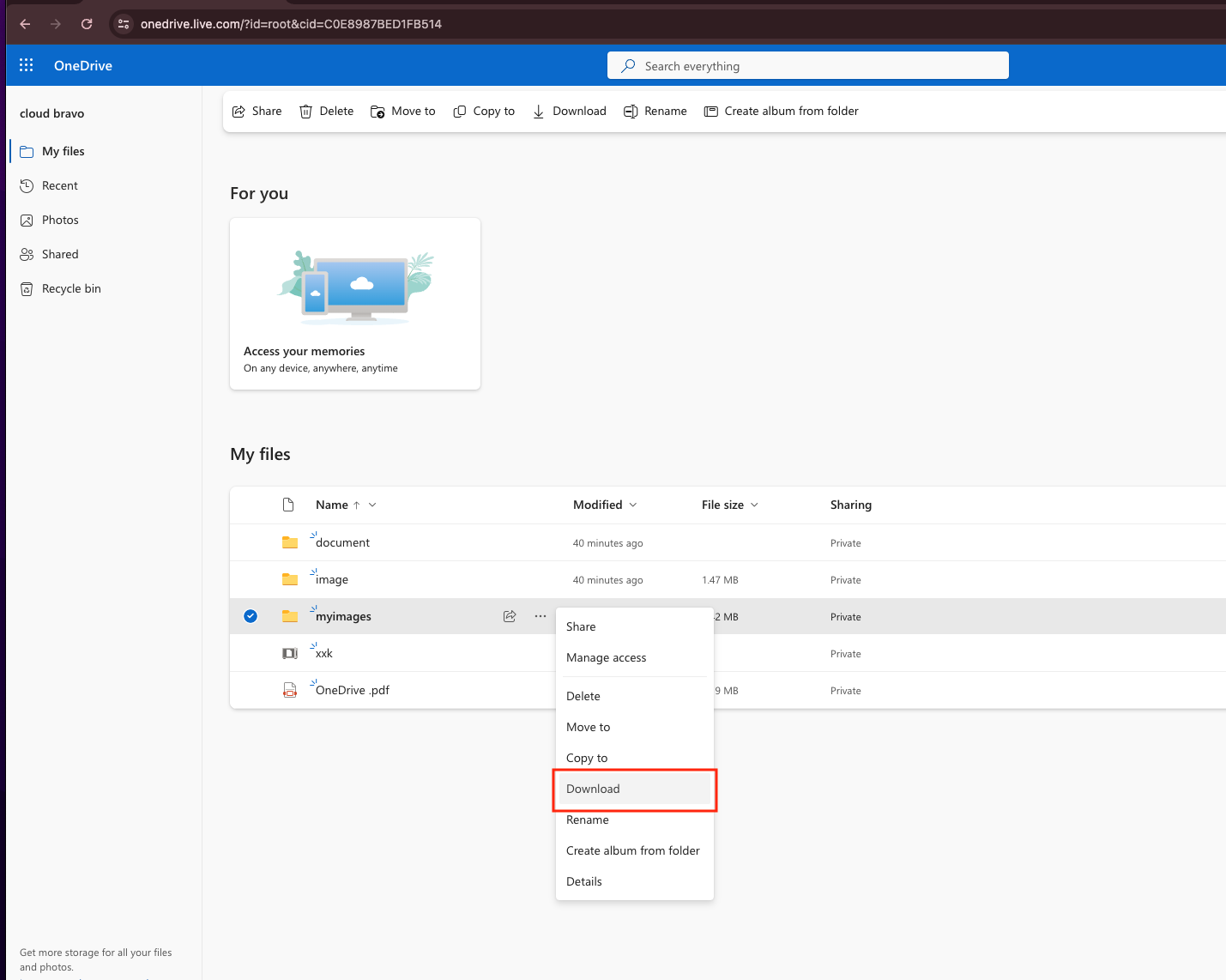
Step 1: Download from onedrive.live.com
Select folders at onedrive.live.com and click Download. OneDrive zips folder selections; web downloads of large selections arrive as multiple archives, and ZIPs over roughly 20 GB can fail — split big selections into batches.
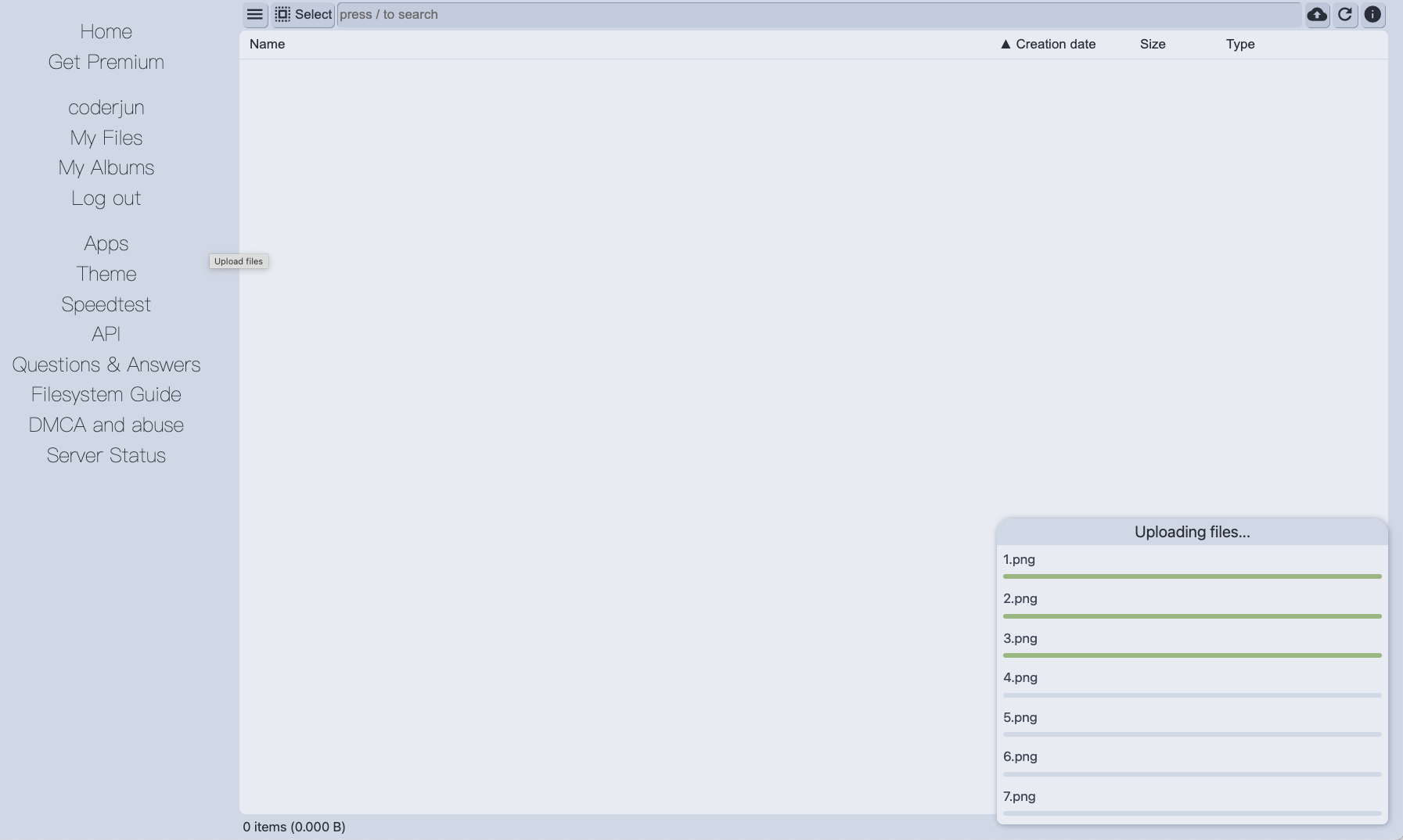
Step 2: Upload into the Pixeldrain filesystem
Sign in to Pixeldrain, open the filesystem, create a destination directory and upload the extracted folders through the browser.
Workable under the free 5 GB or for a handful of folders. For a full 1 TB evacuation, the double pass over your connection — plus ZIP re-assembly — makes this the slow road.
Method 2: Copy OneDrive to Pixeldrain in the Cloud
Evacuation that works even in read-only mode
CloudsLinker reads OneDrive through Microsoft's OAuth API — which keeps working after a lapsed subscription freezes uploads — and writes directly into the Pixeldrain filesystem by API key. The whole copy runs server-side, so a 1 TB evacuation doesn't monopolize your home connection for a week.
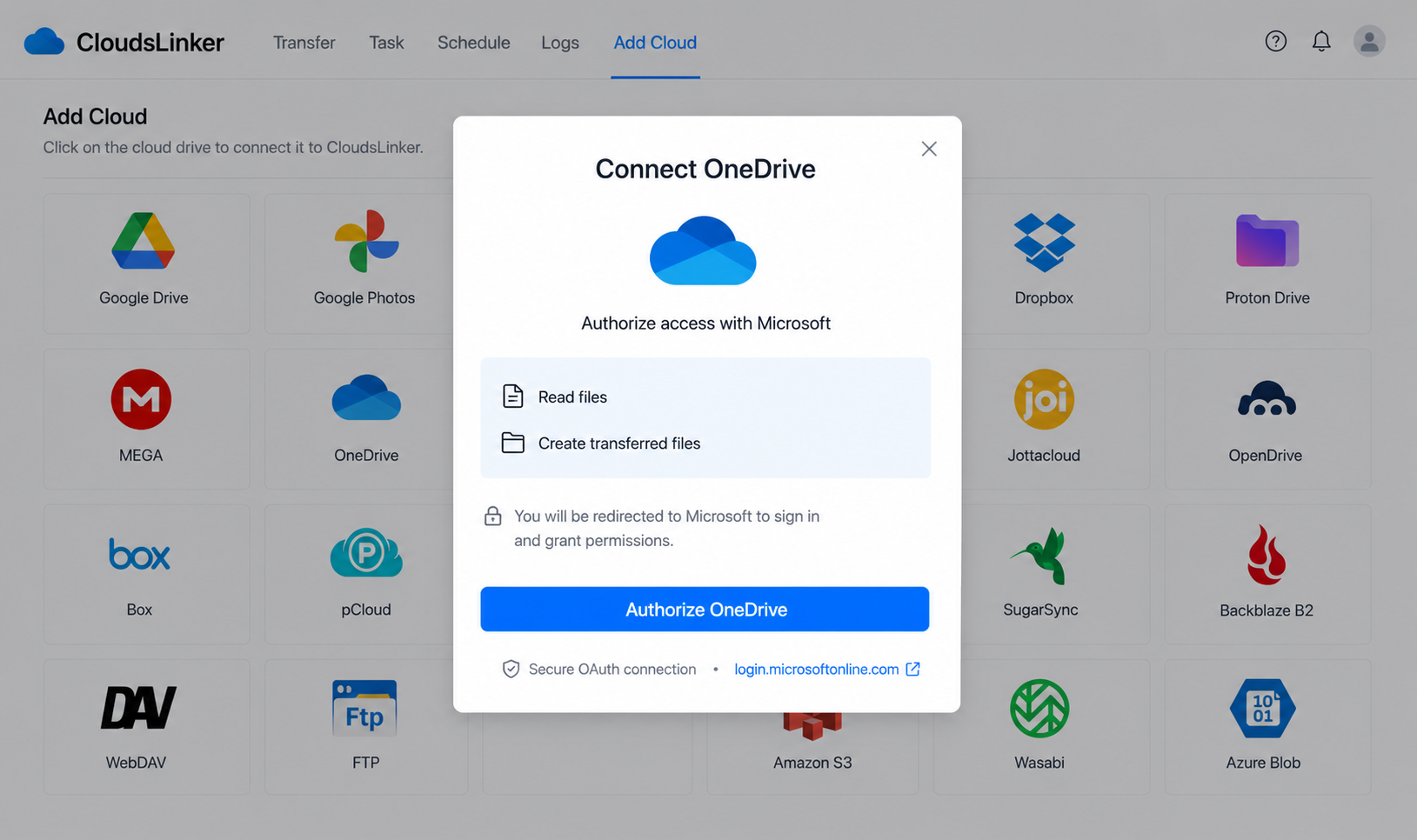
Step 1: Connect OneDrive
Click Add Cloud → OneDrive. Sign in on Microsoft's authorization page and approve access; if your account exposes several drive resources, pick the personal drive when prompted. The grant is revocable later from your Microsoft account's app permissions.
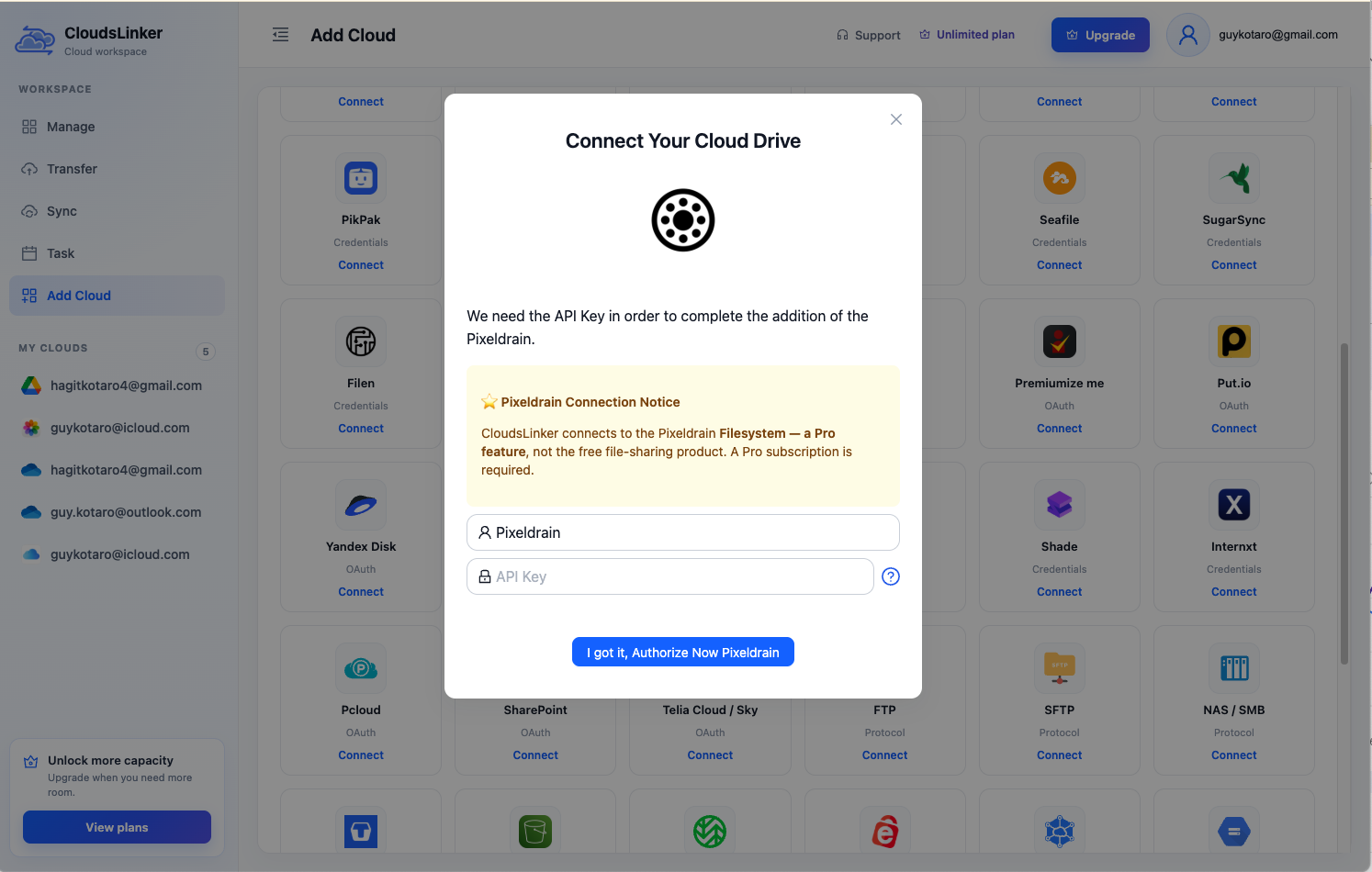
Step 2: Connect Pixeldrain
Click Add Cloud → Pixeldrain. Enter a display name and paste an API key from pixeldrain.com/user/api_keys. The connection targets the Pro filesystem — a free account has nothing to receive the files.
Step 3: Configure the Transfer
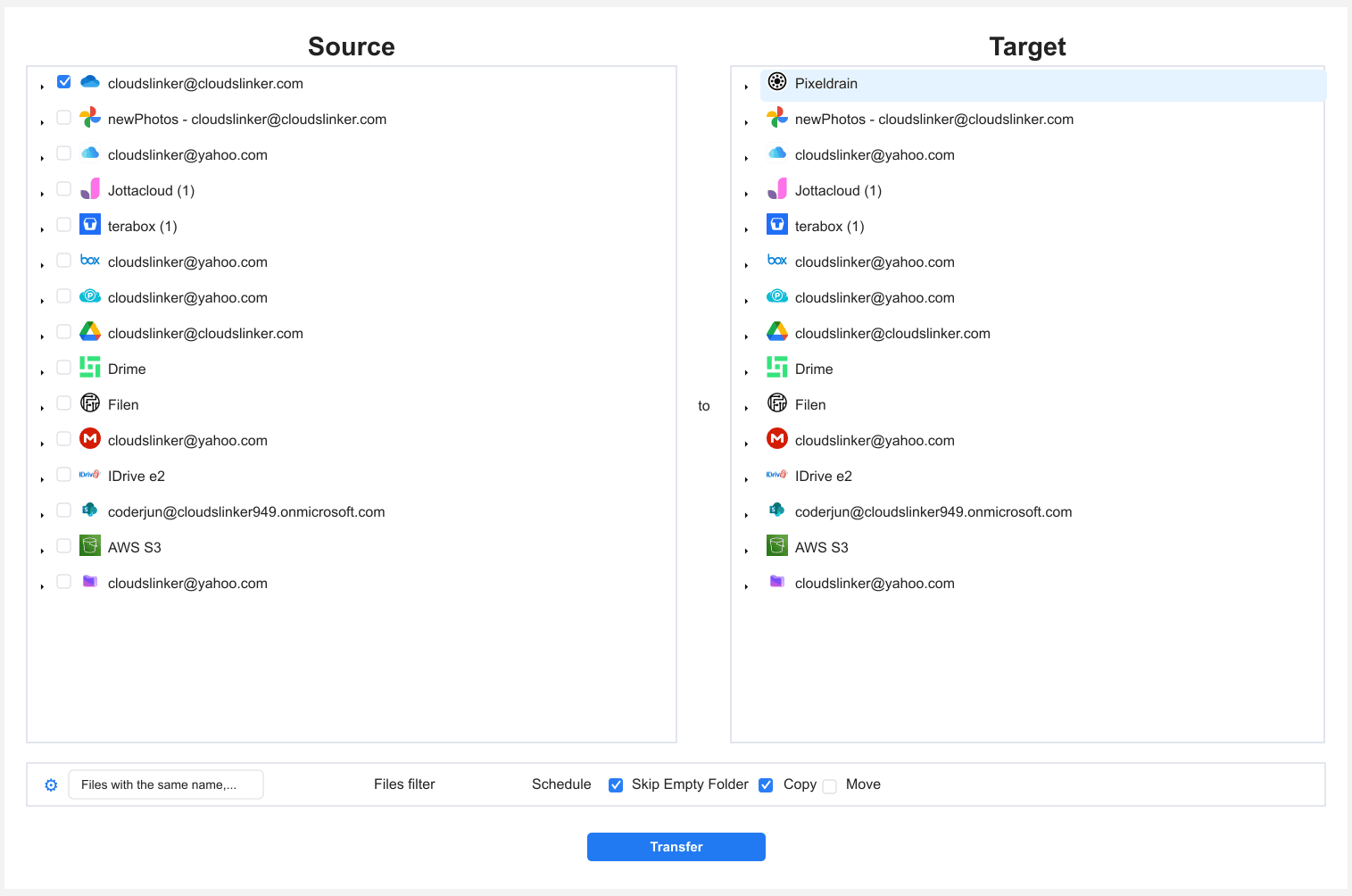
In the Transfer section, set OneDrive as the source and tick the folders to evacuate. Set Pixeldrain as the destination and choose or create a filesystem directory. Filters by type, size or date narrow the job — say, everything except the Documents folder you still edit. Use Copy mode; a read-only OneDrive cannot accept deletions anyway.
Step 4: Start and Monitor the Transfer
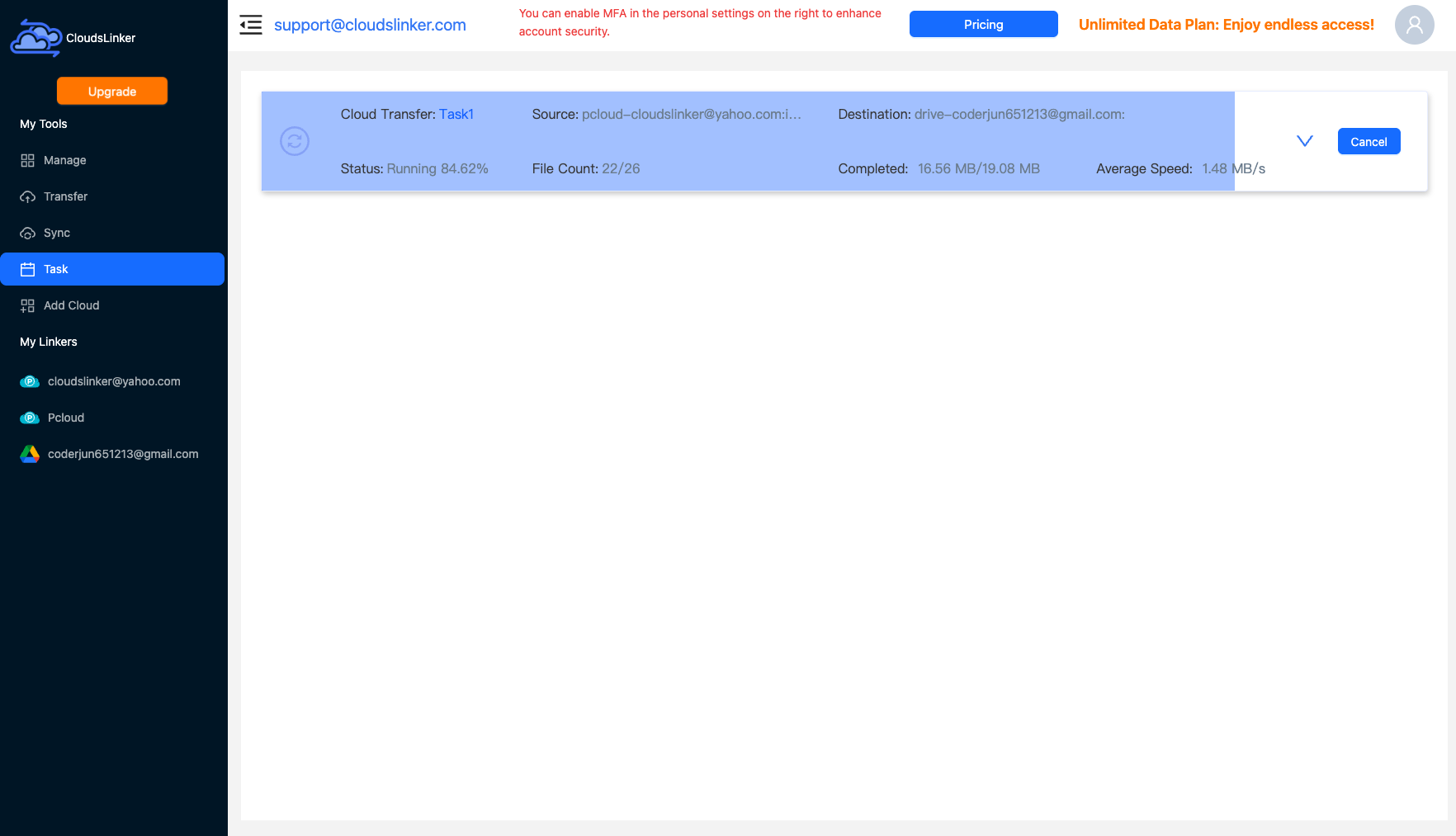
Start the job and track it in the Task List — transferred size, speed, files remaining. The copy continues on CloudsLinker's servers after you close the tab, which matters when a retention deadline is doing the scheduling.
Comparing the Ways to Transfer From OneDrive to Pixeldrain
| Method | Ease of Use | Speed | Best For | Uses Local Bandwidth | Skill Level |
|---|---|---|---|---|---|
| Manual download / upload | Medium | Slow | A few folders before a deadline | Yes — twice | Basic |
| CloudsLinker | Easy | Fast (server-side) | Full 1 TB evacuations, read-only accounts | No | Basic |
- Move before the grace period ends: after a subscription lapses, Microsoft keeps over-quota data read-only for a limited window before flagging it for deletion. Start the evacuation when the renewal notice arrives, not after the account locks.
- Park cold data only: every Pixeldrain filesystem download is metered (~€1–2/TB). Files you open weekly don't belong on a metered drive.
- Personal Vault needs manual handling: OneDrive's Personal Vault is excluded from API access — move anything inside it out to a normal folder first, or download it separately.
- Watch shared content: 'Shared with me' items live in other people's quotas and don't transfer with your drive. Copy anything critical into your own folders before starting.
- Use a dedicated API key: create a Pixeldrain key just for this migration so you can revoke it independently afterward.
- Check OneNote and Office autosave: notebooks and documents with live autosave sessions can hold locks. Close Office apps before the transfer so every file copies cleanly.
- Mind the Pro/Prepaid boundary: Pro's included filesystem storage tops out at 2 TB; a 1 TB OneDrive evacuation fits, but anything larger shifts to €4/TB Prepaid metering — budget accordingly.
Frequently Asked Questions
Conclusion
If the deadline is close and the data is small, the manual route through onedrive.live.com works — budget time for ZIP handling. For hundreds of gigabytes, CloudsLinker reads OneDrive over Microsoft OAuth (read-only lapsed accounts included) and writes into the Pixeldrain filesystem by API key in one server-side pass. Remember the destination's economics before moving working files: Pixeldrain meters downloads too, so it suits data you park, not data you open weekly. Keep active Office documents wherever Office lives.
Online Storage Services Supported by CloudsLinker
Transfer data between over 58 cloud services with CloudsLinker

OneDrive

Google Drive

Google Photos

Shared Drive

OneDrive for Business

Dropbox

Box

Mega

pCloud

Yandex

ProtonDrive

AWS

GCS

iDrive

Storj

DigitalOcean

Wasabi

1fichier

PikPak

TeleBox

OpenDrive

Backblaze B2

Fastmail file

SharePoint

Nextcloud

ownCloud

Premiumize me

HiDrive

Put.io

Sugar Sync

Jottacloud

Seafile

Ftp

SFtp

NAS

WebDav

4shared

Icedrive

Cloudflare R2

Scaleway

Hetzner Object Storage

Synology C2 Object Storage

S3 Compatible

Doi

iCloud Drive

iCloud Photos

FileLU

Zoho WorkDrive

Telia Cloud / Sky

Drime

Filen

TeraBox

Internxt

Degoo

Gofile

Pixeldrain

Shade

Koofr
Didn' t find your cloud service? Be free to contact: [email protected]
Further Reading
Effortless FTP connect to google drive: Transfer Files in 3 Easy Ways
Learn More >
Google Photos to OneDrive: 3 Innovative Transfer Strategies
Learn More >
Google Photos to Proton Drive: 3 Effective Transfer Techniques
Learn More >