How to Transfer Files from OneDrive to Telia Sky / Cloud in 2026
A practical 2026 guide to moving files from Microsoft OneDrive to Telia Sky / Cloud while keeping your folder structure intact and avoiding manual download–upload work.
Introduction
For many people and organizations, Microsoft OneDrive has quietly become the default place where work and personal files live. It sits underneath Microsoft 365, powers file storage for apps like Word, Excel and Teams, and syncs documents and photos across laptops and phones with very little effort from the user. At the same time, there are good reasons to keep a second, more ‘storage-first’ cloud in the mix — especially a service like Telia Sky / Cloud, which offers effectively unlimited space and keeps data on Nordic infrastructure governed by local privacy rules. In this guide, we’ll walk through how to move files from OneDrive to Telia Sky / Cloud in a controlled way, without wasting hours downloading and re-uploading folders by hand.
Telia Sky (often marketed as Telia Cloud in some Nordic regions) is Telia’s own cloud storage service for customers who want their files to be backed up in the background and reachable from all their devices. If you already have broadband or mobile service with Telia, you can keep essentially all of your photos, videos and documents in one place and reach them from web, phone or computer.
The service is built around the idea of unlimited storage for Telia customers rather than fixed storage tiers. Your content is stored on Nordic infrastructure under local privacy regulations, which is attractive if you care about both capacity and where your data actually lives. With apps for smartphones, tablets and desktop platforms, Telia Sky / Cloud can act as both an automatic backup destination and a central library for everyday use.
- Unlimited Capacity for Telia Users: Store as many photos, clips and documents as you like without constantly checking how many gigabytes you have left.
- Automatic Backup & Sync: Mobile and desktop apps can upload camera rolls and selected folders in the background so new content is protected without extra clicks.
- Available on All Your Devices: Use the web interface, mobile apps or desktop clients to browse and open files whether you’re at home or on the move.
- Nordic Hosting & Privacy: Data is handled according to strict regional privacy rules, which is reassuring if you prefer clear local regulation.
- Flexible File Support: Photos, videos, office documents, archives and most other common file types can live together in the same account.
After you move your files from OneDrive with a cloud-to-cloud tool such as CloudsLinker, Telia Sky / Cloud can act as a stable, long-term home for your digital library — from family archives to active project folders.
Microsoft OneDrive is the cloud storage layer behind Microsoft 365. It syncs files between your devices, acts as the default save location for Office apps, and lets you share and collaborate on documents from anywhere with an internet connection.
On Windows and macOS you can sign in to OneDrive, pick a local folder, and let the sync client handle the rest. Features like Files On-Demand show all of your cloud content in File Explorer or Finder while only downloading files when you open them, helping you save local disk space. Version history and the optional Personal Vault add extra safety nets for important content.
- Tight Microsoft 365 Integration: Documents opened in Word, Excel, PowerPoint or Teams save back to OneDrive automatically, keeping everyone on the same page.
- Files On-Demand: View your full cloud library on your computer without keeping every file downloaded locally.
- Real-Time Co-Authoring: Work together on the same document with live cursors, comments and change tracking.
- Version History & Recovery: Restore previous versions of files if something is edited or overwritten by mistake.
- Works Across Platforms: OneDrive apps are available on Windows, macOS, iOS, Android and via the web, so your files follow you across devices.
For everyday productivity, this setup works very well. But as your library grows, you may want a second home for long-term backups or a place with simpler, effectively unlimited storage — which is where Telia Sky / Cloud comes in.
OneDrive is designed first and foremost as a workhorse for Microsoft 365: it’s excellent for live documents, day-to-day sharing and syncing a reasonable amount of data across devices. But not all files need that kind of close integration. Many households and small companies simply want a very large, simple space where everything can be backed up and left alone — from old photo archives to finished projects. Telia Sky / Cloud leans more in that direction.
- Quota-Based vs. ‘Fill It Up’ Storage: OneDrive capacity is tied to your Microsoft 365 or standalone storage plan, so eventually you might have to clean up or buy extra space. Telia Sky / Cloud focuses on giving Telia customers effectively unlimited room, making it easier to keep adding photos, videos and backups without constantly checking how many gigabytes you have left.
- Data Residency & Regulation: With OneDrive, data can be stored in Microsoft data centres in different regions depending on the account type. Telia Sky / Cloud stores your content on Nordic infrastructure under local privacy frameworks, which is appealing if you prefer your data to stay closer to home with clear regional rules.
- Workspace vs. Archive: OneDrive is ideal as an active workspace linked to Office apps and Teams. Telia Sky / Cloud behaves more like a long-term archive and backup vault: you point your devices at it, enable automatic upload, and let it quietly accumulate everything important in the background.
If you’ve started to bump into OneDrive’s storage ceiling, or you simply want a Nordic-hosted, unlimited backup location to sit alongside your Microsoft 365 environment, moving part or all of your library from OneDrive to Telia Sky / Cloud is a sensible next step.
A little bit of housekeeping before you migrate goes a long way. Spending ten or fifteen minutes checking your OneDrive structure and permissions can save you from moving clutter and makes the end result in Telia much cleaner.
- Look Over Your OneDrive Folders: Open OneDrive in the web or desktop app and skim through the main folders. Decide which areas really need to be copied to Telia and which can stay behind (old exports, temporary “dump” folders, outdated client projects, and so on).
- Confirm Access & Sharing: Make sure the Microsoft account you’ll connect in CloudsLinker can see all the content you plan to move, including shared folders that live under “Shared with you”. If you’re using a work or school account, double-check that using a third-party transfer tool is allowed by your organization’s policies.
- Protect Critical Data with an Extra Copy: For especially sensitive or irreplaceable folders, consider taking an additional backup (for example to a local drive or another cloud) before you start a large migration. You’re unlikely to need it, but it’s a small price for extra peace of mind.
How to Transfer Files from OneDrive to Telia Sky / Cloud
Why Use CloudsLinker for OneDrive → Telia Migration?
Doing this move manually means downloading big folders from OneDrive to your computer and then uploading them again to Telia Sky / Cloud. That ties up your connection, risks interruptions, and makes it harder to see what has already finished. CloudsLinker skips the detour through your PC by running everything as a cloud-to-cloud transfer. Your own bandwidth is left alone, and you can monitor the whole process from a single task view.
Step 1: Sign in to CloudsLinker
Open app.cloudslinker.com in your browser and log in (or create a free account if you haven’t used it before). Once you’re on the dashboard, click Add Cloud to begin connecting OneDrive and Telia Sky / Cloud.
Step 2: Add OneDrive as the Source
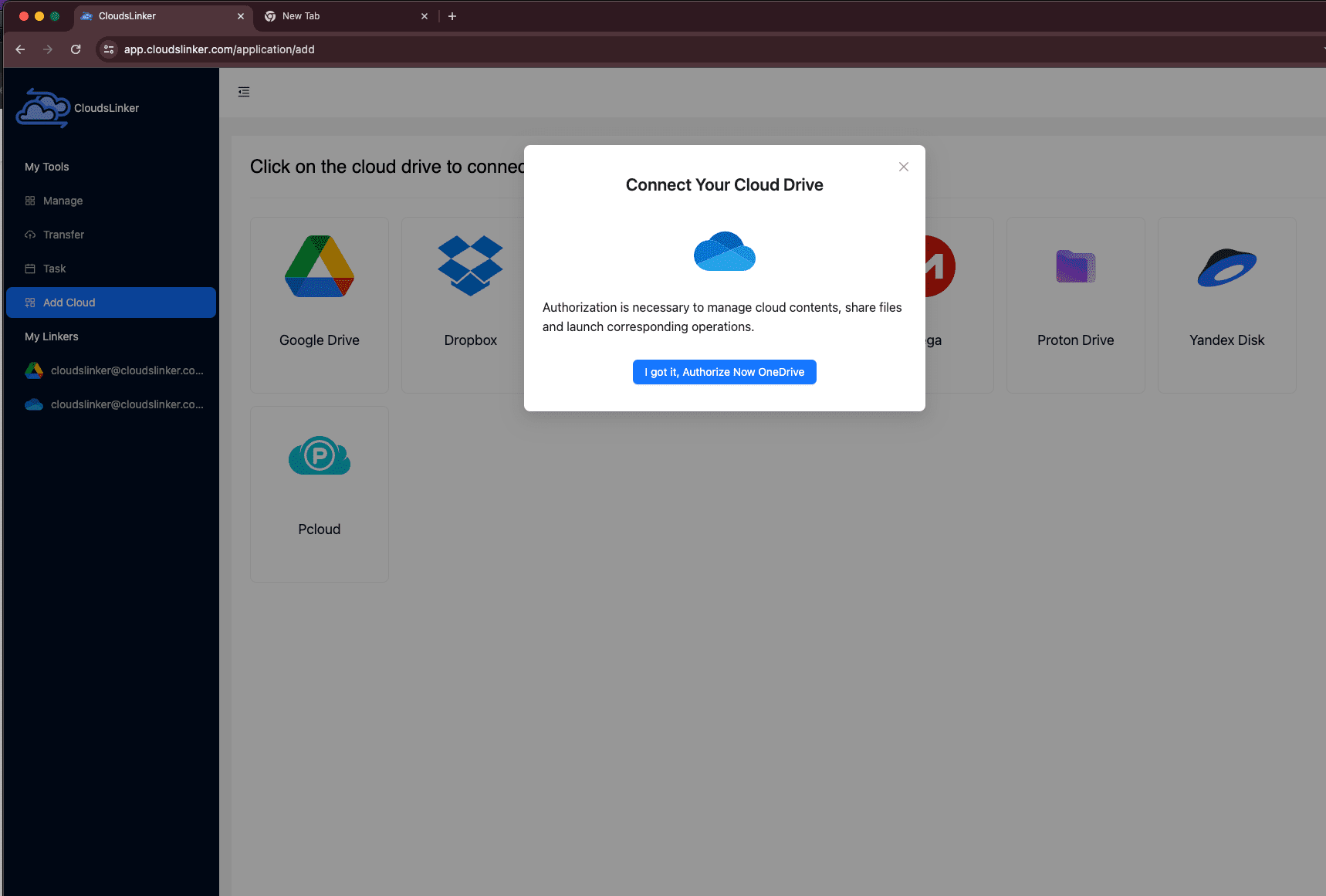
In the Add Cloud panel, choose OneDrive. You’ll be redirected to Microsoft’s sign-in page. Log in with the account that holds the data you want to move and approve the requested permissions so CloudsLinker can read your files for transfer only.
After the OAuth process finishes, OneDrive will appear in your list of connected clouds and can be chosen as the source for your migration task.
Step 3: Add Telia Sky / Cloud as the Destination
Next, return to Add Cloud and select Telia Sky / Cloud. Because Telia uses local authorization, CloudsLinker will prompt you to download its small local authorization client.

Install and open the client, then look for Telia in the list. Choose your region:
no for Norway or se for Sweden. Click Add, and your browser
will open Telia’s official login page so you can complete the authorization flow.
Once you’ve successfully signed in and granted access, switch back to CloudsLinker. Telia Sky / Cloud will now appear among your connected clouds and can be used as the destination for transfers.

Step 4: Create a Transfer Task
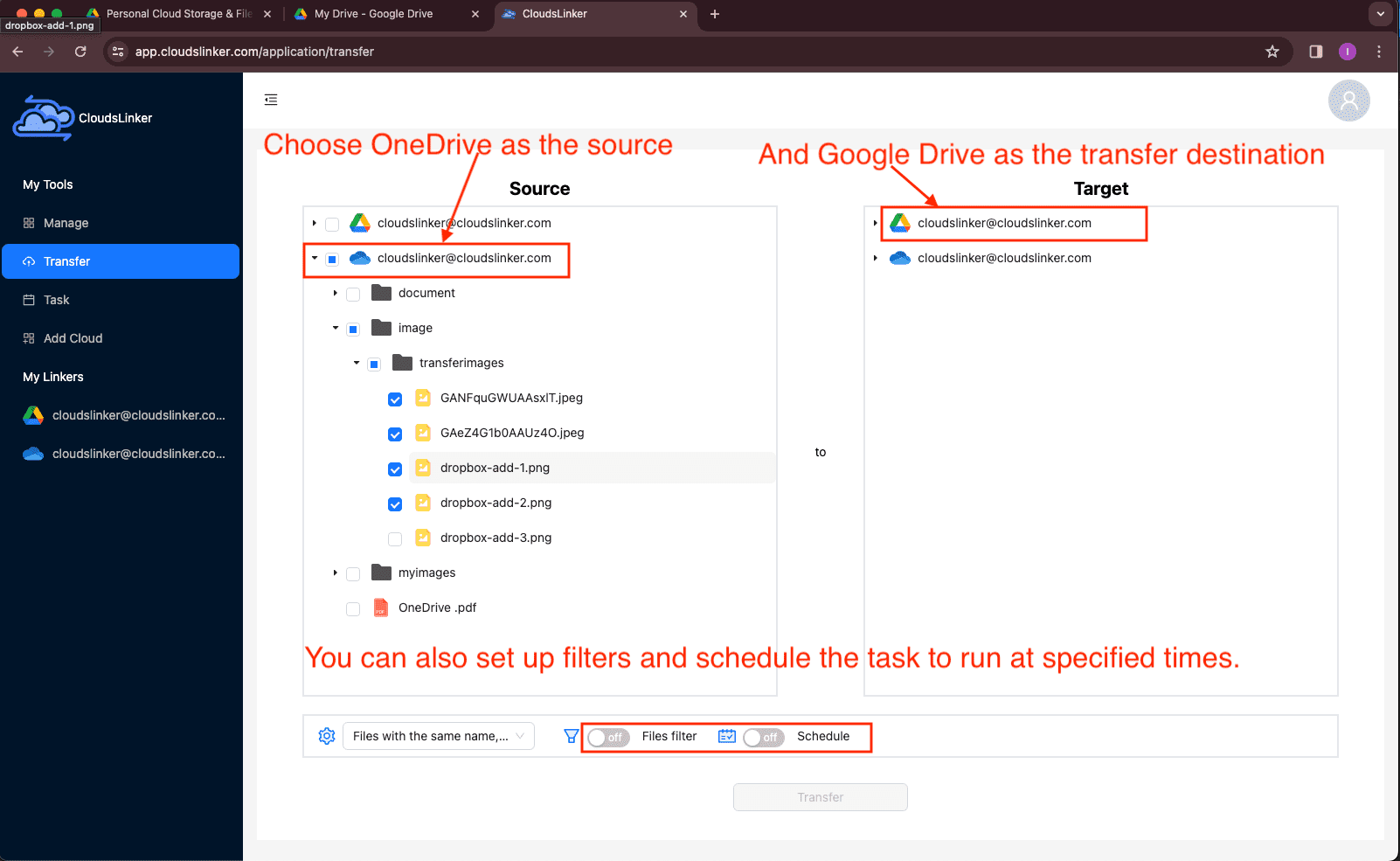
Open the Transfer section. Set OneDrive as the source and Telia Sky / Cloud as the target, then browse your OneDrive tree and tick the folders or files you want to move.
For large accounts, it’s usually smarter to start with one or two top-level folders. After you’ve checked that everything arrives correctly in Telia, you can create additional tasks to bring over the rest.
Step 5: Configure Transfer Options
Before starting the job, review your transfer settings so the migration behaves the way you expect:
- Copy vs. Move: For a first run, using copy is safer so your OneDrive content stays untouched until you’ve verified the results in Telia.
- Duplicate Handling: Decide whether existing files in Telia should be skipped or overwritten.
- File-Type Filters: Optionally limit the transfer to certain file types (for example, documents and photos first, big archives later).
- Scheduling: If you plan to keep OneDrive and Telia in sync for a while, set the task to run on a schedule instead of only once.
When you’re happy with the configuration, click Start Transfer to launch the task.
Step 6: Monitor Task Progress
Go to the Tasks view to watch progress in real time. You’ll see overall completion, current throughput and recent activity, and you can pause or resume the job if needed.
If any items fail, open the task details to see the error messages. Common causes include expired OneDrive authorization, permission changes on specific folders, or issues encountered during the Telia login. Fix the underlying problem and then rerun the affected part of the transfer instead of starting over from scratch.
Step 7: Verify Files in Telia Sky / Cloud
Once the task is finished, sign in to Telia Sky / Cloud and confirm that:
- The folder hierarchy matches what you selected from OneDrive.
- Important folders contain the number of files you expect.
- Sample files open and play correctly (documents, photos, videos, etc.).
If a specific directory needs to be redone, you can create a new, targeted transfer just for that folder rather than repeating the whole migration.
With direct cloud-to-cloud transfer, CloudsLinker makes moving from OneDrive to Telia Sky / Cloud much easier to manage — especially when you’re dealing with large archives or want to keep both services working together for a while.
Frequently Asked Questions
no for Norway or se for Sweden. Picking the wrong one can cause the
authorization page to fail or transfers not to run as expected.
Conclusion
Moving your library from OneDrive to Telia Sky / Cloud doesn’t need to turn into a complex migration project. With a bit of preparation and the help of a cloud-to-cloud tool, you can copy data across while preserving your folder layout and keeping transfers traceable. Once your files live in Telia Sky / Cloud, you gain virtually unlimited room for photos, videos, archives and shared folders, along with the reassurance that everything is stored on Nordic servers under strong regional privacy protections. From there, OneDrive can continue to serve as your day-to-day workspace, while Telia becomes the long-term, always-on backup vault behind it.
Online Storage Services Supported by CloudsLinker
Transfer data between over 48 cloud services with CloudsLinker

OneDrive

Google Drive

Google Photos

Shared Drive

OneDrive for Business

Dropbox

Box

Mega

pCloud

Yandex

ProtonDrive

AWS

GCS

iDrive

Storj

DigitalOcean

Wasabi

1fichier

PikPak

TeleBox

OpenDrive

Backblaze B2

Fastmail file

SharePoint

Nextcloud

ownCloud

Premiumize me

HiDrive

Put.io

Sugar Sync

Jottacloud

Seafile

Ftp

SFtp

NAS

WebDav

4shared

Icedrive

Cloudflare R2

Scaleway

Doi

iCloud Drive

iCloud Photos

FileLU

Zoho WorkDrive

Telia Cloud / Sky

Drime

Filen
Didn' t find your cloud service? Be free to contact: [email protected]
Further Reading
Effortless FTP connect to google drive: Transfer Files in 3 Easy Ways
Learn More >
Google Photos to OneDrive: 3 Innovative Transfer Strategies
Learn More >
Google Photos to Proton Drive: 3 Effective Transfer Techniques
Learn More >