OneDrive to TeraBox: Moving Microsoft Files Into a 1 TB Consumer Archive
Move files from OneDrive to TeraBox with browser upload, desktop sync, or CloudsLinker. Covers 4 GB free file caps, folders, and OAuth.
Introduction
TeraBox's main draw is its advertised 1 TB free storage tier, which makes it attractive for archiving files that no longer need to live inside Microsoft's 5 GB free OneDrive allowance or a paid Microsoft 365 plan. That storage gap is useful for old ZIPs, videos, device backups, and shared folders that are no longer part of daily Office work. The trade-off is that TeraBox behaves more like consumer archive storage than a Microsoft Workspace replacement: free accounts have a 4 GB single-file limit, the practical free archive can be constrained by large-file limits, and third-party access relies on a browser cookie rather than a standard OAuth grant. This guide compares three workable OneDrive to TeraBox migration paths and explains where each one fits.
OneDrive is Microsoft's cloud file storage for personal Microsoft accounts and Microsoft 365 users. It is closely tied to Windows, Office files, Outlook attachments, and Microsoft sharing controls.
- Free tier: 5 GB for personal Microsoft accounts.
- Microsoft 365 storage: Personal plans commonly include 1 TB of OneDrive storage.
- File size: OneDrive supports very large uploads, but the exact limit depends on client and account type.
- Connection: third-party tools use Microsoft OAuth through
login.microsoftonline.com. - Native workflow: Office files keep version history, sharing links, and collaboration metadata inside Microsoft 365.
TeraBox is a consumer cloud-storage service that advertises 1 TB of free storage. It is often used as a low-cost archive destination for media files, old downloads, and folders that do not need live Office collaboration.
- Free tier: 1024 GB advertised, with a 4 GB single-file cap on free accounts.
- Premium: raises the single-file limit to 20 GB and provides 2 TB storage.
- File model: regular folders and files, without OneDrive-style Office collaboration metadata.
- Connection: no public OAuth connector; third-party access uses the logged-in browser cookie.
- Account split:
terabox.comand Baidu Netdisk are separate services.
OneDrive is stronger for Microsoft 365 work. TeraBox is mainly a large-capacity archive target. The migration details depend on that difference.
| Feature | OneDrive | TeraBox |
|---|---|---|
| Free storage | 5 GB for personal accounts | 1 TB advertised on the free tier |
| Best use case | Windows files, Office documents, active sharing, Microsoft 365 workflows | Cold archive, media folders, backup copies, low-cost storage |
| Single-file limit | Large-file support depends on OneDrive client and account type | 4 GB free / 20 GB Premium |
| Connection method | Microsoft OAuth via login.microsoftonline.com |
Browser cookie exported from a logged-in TeraBox session |
| Office file behavior | Native editing, version history, sharing links, comments | Stores exported files only; Microsoft collaboration metadata does not transfer |
| Folder structure | Nested folders under My files | Nested folders under the account root |
| Sharing model | Granular Microsoft permissions and organization policies | Consumer sharing links and account-level access |
A little preparation matters because the two services solve different problems. OneDrive carries Microsoft-specific behavior, while TeraBox stores regular files and folders.
- Find files larger than 4 GB first. Free TeraBox accounts reject files above 4 GB. Split large archives, leave them in OneDrive, or upgrade TeraBox before starting.
- Decide what to do with Office collaboration metadata. Word, Excel, and PowerPoint files copy as files, but comments, sharing permissions, and Microsoft version history do not become TeraBox metadata.
- Check OneDrive Files On-Demand. A cloud icon in Windows Explorer or Finder means the file is not fully downloaded. For manual upload methods, right-click and choose Always keep on this device before uploading.
- Use the international TeraBox site. Sign in at
www.terabox.com. Cookies from Baidu Netdisk are not interchangeable with TeraBox international accounts.
Method 1: Download from OneDrive, Upload to TeraBox
Step 1: Select Files in OneDrive Web
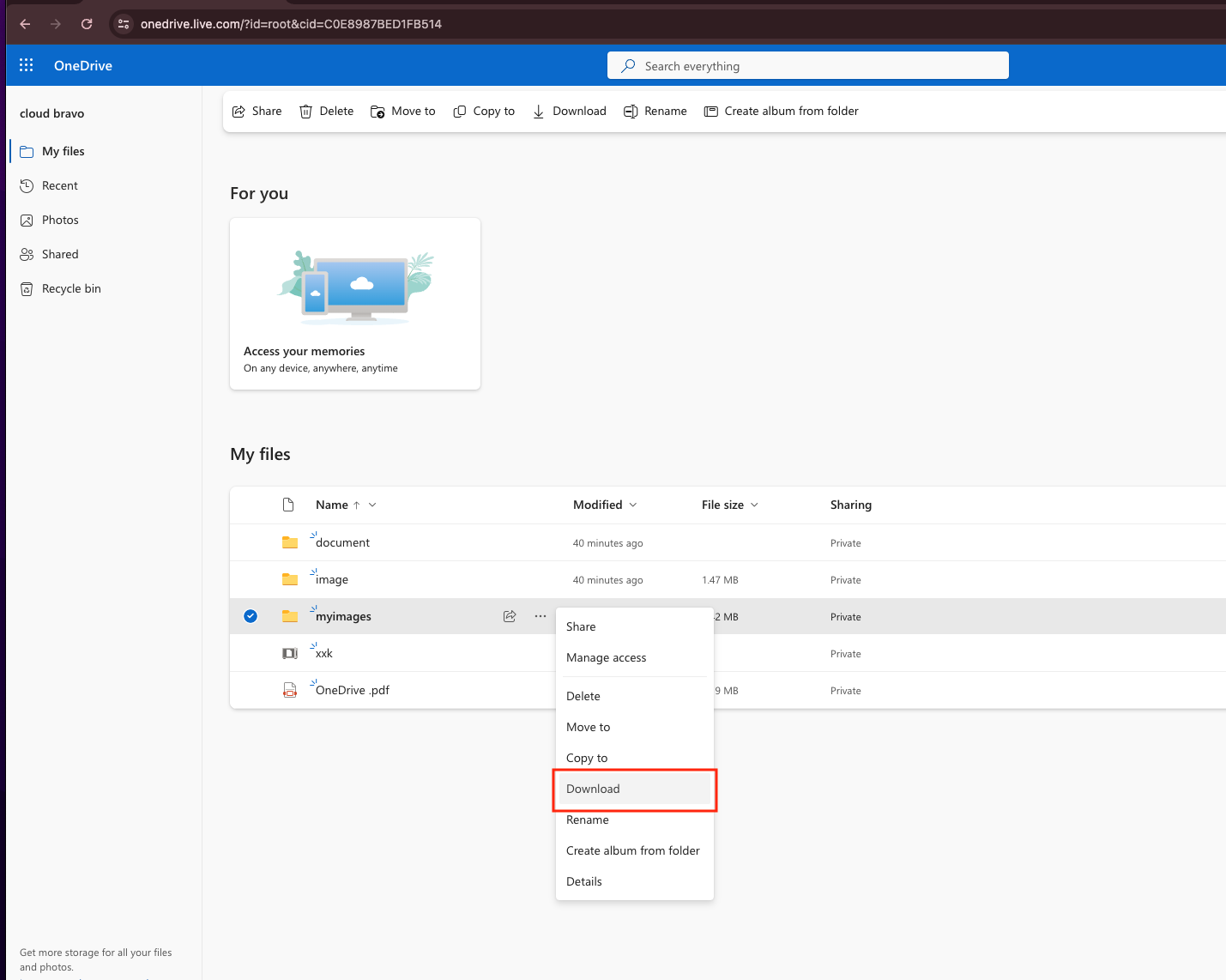
Open onedrive.live.com and sign in with the Microsoft account that owns the files. Select the folders or files you want to migrate, then choose Download. OneDrive packages folder downloads into ZIP files, so keep an eye on the browser download list and make sure every part completes.
This path works best for a modest folder set. Very large folder downloads can time out, and Files On-Demand placeholders from the desktop client are not relevant here because the browser is pulling directly from Microsoft's cloud.
Step 2: Extract and Check the Files Locally
Extract the ZIP files into a temporary folder and compare the folder count against OneDrive before uploading. Open a few Office files locally to confirm they are real .docx, .xlsx, or .pptx files rather than shortcuts or placeholders.
Step 3: Upload the Folder to TeraBox
Open terabox.com, create a destination folder, and use Upload -> Upload Folder. If a file above 4 GB disappears from the queue or fails without a clear message, the free account file cap is the likely cause.
Use this method when the folder is small enough that a local round trip is acceptable. It is simple, but it spends both your local download bandwidth from OneDrive and your upload bandwidth to TeraBox.
Method 2: Use the OneDrive Desktop Sync Folder
Step 1: Sync the Source Folder to Your Computer
On Windows or macOS, open the OneDrive desktop client and sign in. In Explorer or Finder, locate the folder you want to move, right-click it, and choose Always keep on this device. Wait until the sync icon shows the files are fully local.
This step avoids the most common manual-upload mistake: dragging OneDrive placeholder files into another web app. Placeholders are only references until the desktop client downloads the actual content.

Step 2: Remove Files That TeraBox Cannot Accept
Sort the synced folder by size and move anything over 4 GB into a separate holding folder if you are using free TeraBox. For Premium accounts, use 20 GB as the working limit. This is easier in the desktop file manager than after TeraBox has already started a long browser upload.
Step 3: Upload the Local Folder to TeraBox
In TeraBox web, create a folder such as /Archive/onedrive-2026/ and upload the prepared local folder. Keep the browser tab open until the queue finishes. A folder with thousands of small Office files may take longer than a few large videos because each file creates separate upload overhead.
This method is useful when you want to review, rename, compress, or split files locally before sending them to TeraBox. It is still a local transfer, so your computer and browser must remain online.
Method 3: Transfer OneDrive to TeraBox Directly in the Cloud
Cloud-to-Cloud Transfer Without Local Downloads
CloudsLinker moves files from OneDrive to TeraBox on remote transfer workers. The browser is used for setup and monitoring, not for carrying the file data.
Step 1: Connect OneDrive with Microsoft OAuth
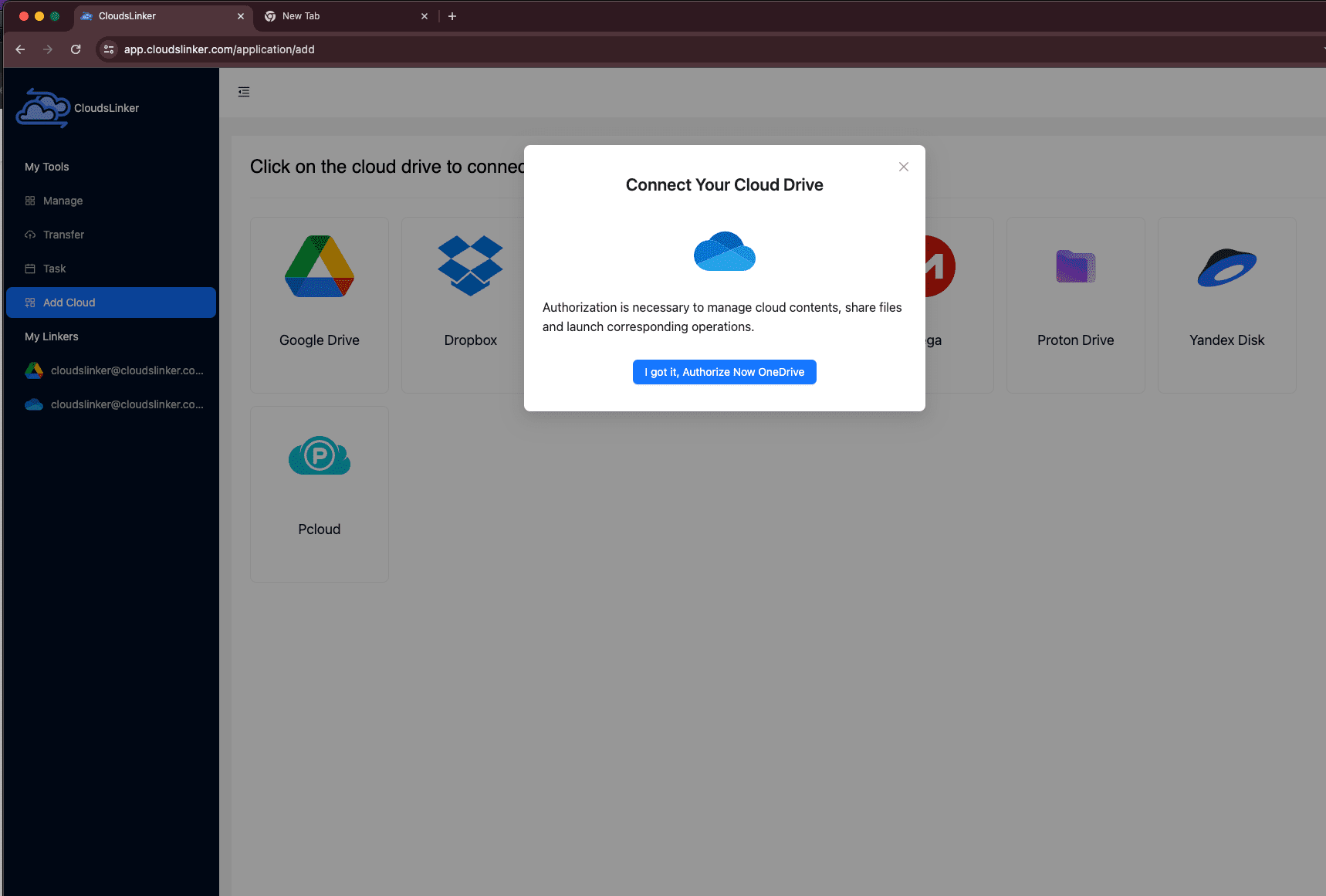
In CloudsLinker, click Add Cloud and select OneDrive. The browser redirects to Microsoft's authorization page at login.microsoftonline.com. Sign in, review the requested access, and approve the connection. If prompted, select the OneDrive resource you want to connect.
For a work or school account, use the OneDrive for Business connector instead of personal OneDrive. Some organizations require an administrator to approve third-party OAuth access before the connection is allowed.
Step 2: Connect TeraBox with a Browser Cookie
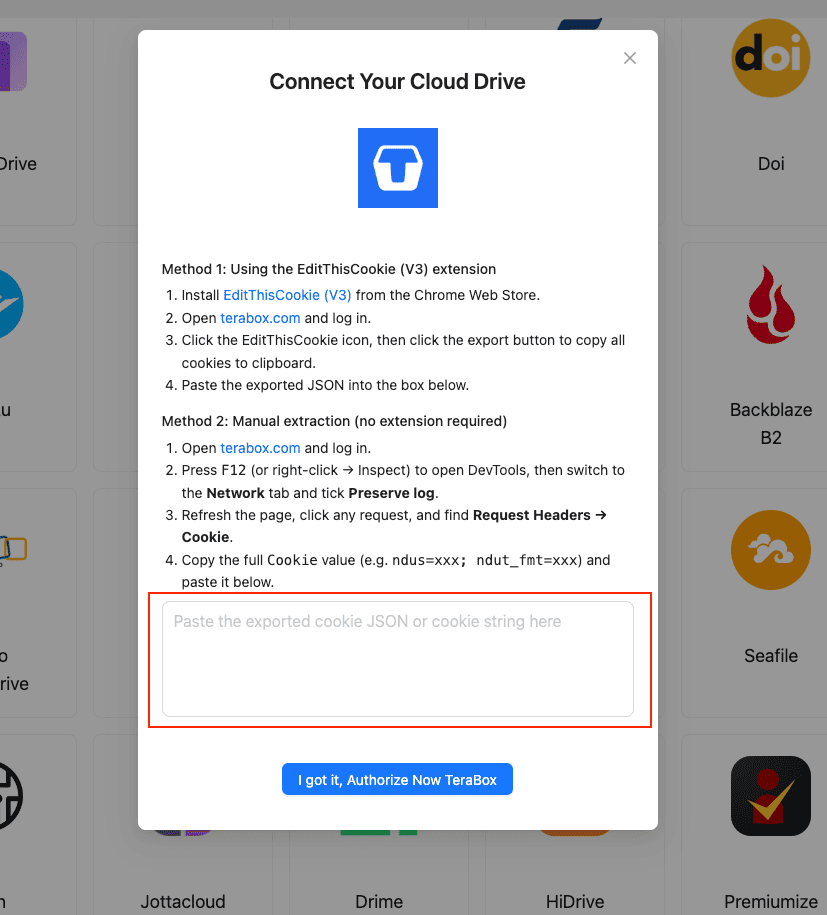
TeraBox does not provide a standard OAuth connector. CloudsLinker connects by using the browser session cookie from a logged-in TeraBox tab. The recommended path is the EditThisCookie (V3) Chrome extension:
- Install EditThisCookie (V3) from the Chrome Web Store.
- Open
www.terabox.comand confirm you are logged in. - Click the extension icon and choose Export to copy the cookie set as JSON.
- In CloudsLinker, click Add Cloud -> TeraBox, enter a display name, paste the cookie JSON, and confirm.
If extensions are not allowed, use DevTools: open www.terabox.com, press F12, switch to Network, enable Preserve log, refresh the page, select a request, and copy the full Cookie header value. Treat that cookie like a password.
Step 3: Configure the Transfer
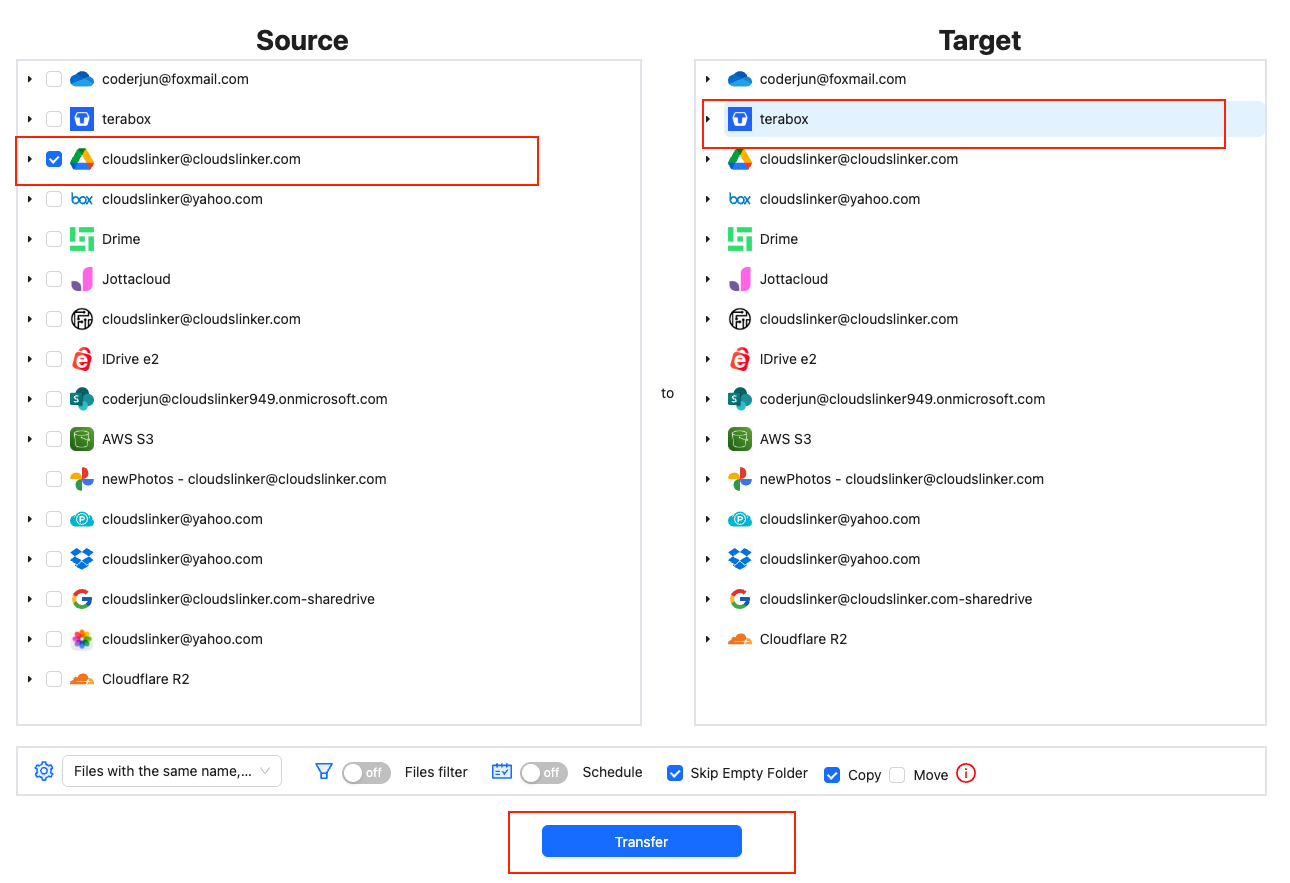
Open the Transfer section. Select your connected OneDrive as the source, browse to the folders you want to move, then choose TeraBox as the destination and pick or create a target folder.
Apply a file-size filter before starting: use 4 GB for free TeraBox or 20 GB for Premium. Date filters are useful when the goal is archive cleanup, such as moving files older than one year while leaving active folders in OneDrive. Choose Copy to keep the OneDrive originals, or Move only after you have tested the transfer on a small folder.
Step 4: Start and Monitor the Transfer
Click Start. The Task List shows transferred size, current speed, remaining files, and failures. The job continues in the cloud after the browser closes. If the TeraBox cookie expires because you logged out, changed the password, or left the session inactive for too long, reconnect TeraBox with a fresh cookie and resume the task.
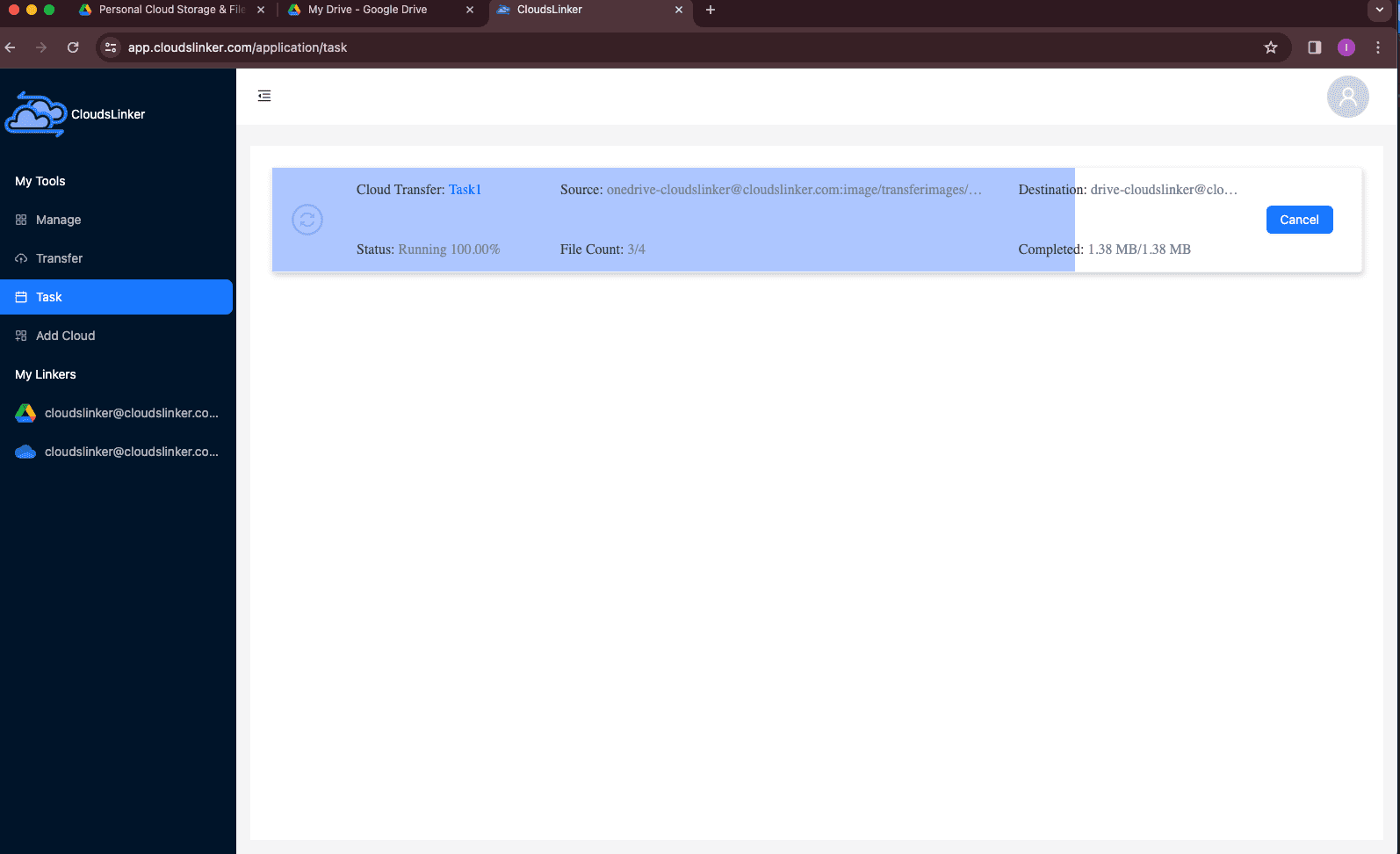
This path is most useful once the dataset is too large to supervise in a browser tab. It also avoids downloading OneDrive files to your local disk before uploading them again to TeraBox.
Comparing the Three Ways to Transfer OneDrive to TeraBox
Each method works, but the right choice depends on dataset size, local bandwidth, and how much checking you want to do before upload.
| Method | Ease of Use | Speed | Best For | Uses Local Bandwidth | Skill Level |
|---|---|---|---|---|---|
| OneDrive Web Download + TeraBox Upload | Very low | Bound by home download and upload | Small folders and one-time copies | Yes | Beginner |
| OneDrive Desktop Sync + TeraBox Upload | Low | Depends on local sync and browser upload | Folders that need local review or cleanup | Yes | Beginner |
| CloudsLinker (Cloud-to-Cloud) | Low | Server-side transfer | Large folders, unattended jobs, archive cleanup | No | Beginner |
For a small document folder, Method 1 is usually enough. Method 2 is better when you need to inspect local files, remove oversized items, or compress folders before upload. Method 3 fits larger moves because the transfer does not depend on your browser staying awake.
- Test with one mixed folder first. Include a few Office documents, images, PDFs, and one larger file. The test shows whether your TeraBox account accepts the file sizes you plan to move.
- Export shared-only files before migration. Files visible through "Shared" in OneDrive may belong to another account. Copy them into your own OneDrive first if you need a durable archive copy.
- Keep OneDrive originals until verification is done. Open several files on TeraBox after the transfer and compare folder counts before deleting anything from OneDrive.
- Separate active Office work from archive storage. Keep documents that still need live co-authoring in OneDrive. Move finished exports, old media, and backup copies to TeraBox.
- Do not screenshot or store the TeraBox cookie in plain text. The cookie can authorize account access. Change the TeraBox password if you suspect it leaked.
- Revoke access after one-time jobs. Remove CloudsLinker from Microsoft account app permissions, and log out of TeraBox or change the password to invalidate the exported cookie.
Frequently Asked Questions
.docx, .xlsx, .pptx, PDFs, photos, videos, ZIP files, HEIC images, and RAW files can be stored on TeraBox. The main practical limit is file size: free TeraBox accounts accept files up to 4 GB, while Premium raises that limit to 20 GB.
login.microsoftonline.com, and CloudsLinker receives a revocable access token rather than your Microsoft password. For work or school accounts, the organization may require admin approval before third-party access is allowed.
Watch: Transfer Files from OneDrive to TeraBox with CloudsLinker
A walkthrough of the cloud-to-cloud method, including connecting OneDrive with Microsoft OAuth, adding TeraBox with a browser cookie, setting file-size filters, and monitoring the transfer.
Conclusion
For a small set of documents, the OneDrive web download and TeraBox web upload path is enough. If your OneDrive files are already synced to a PC or Mac, the desktop-client method gives you more control over folder checks before uploading. For larger folders, unattended transfers, or situations where local bandwidth is the bottleneck, CloudsLinker connects OneDrive through Microsoft OAuth, connects TeraBox through an exported browser cookie, and runs the transfer server-side. Check files over 4 GB before starting, because those files require TeraBox Premium or a split archive.
Online Storage Services Supported by CloudsLinker
Transfer data between over 55 cloud services with CloudsLinker

OneDrive

Google Drive

Google Photos

Shared Drive

OneDrive for Business

Dropbox

Box

Mega

pCloud

Yandex

ProtonDrive

AWS

GCS

iDrive

Storj

DigitalOcean

Wasabi

1fichier

PikPak

TeleBox

OpenDrive

Backblaze B2

Fastmail file

SharePoint

Nextcloud

ownCloud

Premiumize me

HiDrive

Put.io

Sugar Sync

Jottacloud

Seafile

Ftp

SFtp

NAS

WebDav

4shared

Icedrive

Cloudflare R2

Scaleway

Doi

iCloud Drive

iCloud Photos

FileLU

Zoho WorkDrive

Telia Cloud / Sky

Drime

Filen

TeraBox

Internxt

Degoo

Gofile

Pixeldrain

Shade

Koofr
Didn' t find your cloud service? Be free to contact: [email protected]
Further Reading
Effortless FTP connect to google drive: Transfer Files in 3 Easy Ways
Learn More >
Google Photos to OneDrive: 3 Innovative Transfer Strategies
Learn More >
Google Photos to Proton Drive: 3 Effective Transfer Techniques
Learn More >