pCloud to Koofr: When 'Swiss Cloud' Files Actually Sit in Texas
Move pCloud files to Koofr's German data centres — for US-region pCloud accounts that want data physically in Europe, or lifetime users consolidating.
Introduction
pCloud is a Swiss company, but your files follow the region chosen at signup: the US region stores data in Texas, the EU region in Luxembourg — and accounts created from a US IP often landed in the US region without the owner ever deciding. For anyone who bought pCloud partly for the European framing, that detail matters, and pCloud's region transfer is a support-mediated process rather than a toggle. Koofr removes the ambiguity: every file sits in ISO 27001-certified data centres in Germany, under EU jurisdiction, full stop. The move also suits plain consolidation — a spare pCloud free account (10 GB) or an old lifetime plan being folded into a single Koofr tree. Two routes below: the manual download-and-reupload, and a server-side copy that handles lifetime-sized libraries in one job.
pCloud is a Swiss cloud known for one-time lifetime plans — 500 GB at $199, 2 TB at $399 (often discounted) — with up to 10 GB free. Data lives in the region chosen at signup: US (Texas) or EU (Luxembourg). Client-side encryption is a paid add-on (pCloud Crypto).
- Free up to 10 GB (task-unlocked)
- Lifetime 500 GB $199 / 2 TB $399 / 10 TB $1,190
- Data region fixed at signup: US or EU
- OAuth access for transfer tools
Koofr is a Slovenian cloud (since 2013) with every file in ISO 27001-certified German data centres: 10 GB free for life, plans from 25 GB (€0.5/mo) to 20 TB plus one-time lifetime deals, no per-file size limit, and free client-side encryption via Koofr Vault.
- 10 GB free for life; lifetime deals via StackSocial
- All data in Germany — no region ambiguity
- No per-file size limit
- Koofr Vault: free client-side encryption
| Feature | pCloud | Koofr |
|---|---|---|
| Data location | US (Texas) or EU (Luxembourg), fixed at signup | Germany, always (ISO 27001) |
| Free allowance | Up to 10 GB (task-unlocked) | 10 GB, for life |
| Lifetime plans | 500 GB $199 / 2 TB $399 / 10 TB $1,190 | Periodic lifetime deals (e.g. 1 TB via StackSocial) |
| Client-side encryption | pCloud Crypto — paid add-on | Koofr Vault — free, open source |
| Max single file | No hard published cap | No published limit |
| Connection in CloudsLinker | OAuth (+ region selection) | Email + app password (Koofr API) |
Sources: pCloud: pricing, Koofr: features and pricing.
Confirm two facts in pCloud's settings before anything else: which data region the account lives in (that decides whether this is a geography fix or just consolidation), and whether anything sits in pCloud Crypto — Crypto contents are client-side encrypted and must be handled manually, since no API can read them. Size the Koofr side against the payload (10 GB free vs a 500 GB or 2 TB lifetime library), and generate the app password at app.koofr.net → Preferences → Password. Camera-upload and device-backup folders deserve a look too: consolidations usually filter those out rather than paying to store duplicates twice.
Method 1: Download from pCloud and Re-upload
Step 1: Download from my.pcloud.com
Select folders at my.pcloud.com and choose Download — folder selections arrive as ZIP archives. Alternatively, pCloud Drive on the desktop exposes files for plain copying, at the cost of pulling everything through your machine.
Step 2: Upload into Koofr
Sign in at app.koofr.net, create a destination folder and drag the extracted content in. Anything sensitive can land in a Koofr Vault folder, where encryption happens client-side before upload.
Workable for the free-tier 10 GB. Against a lifetime plan's 500 GB or 2 TB, the double pass over a home connection — plus ZIP re-assembly — is the slow road.
Method 2: Transfer pCloud to Koofr in the Cloud
Texas or Luxembourg to Germany, in one job
CloudsLinker reads pCloud over OAuth against the correct regional endpoint and writes into Koofr through its API with an app password. The copy runs server-to-server on data-center bandwidth — a 2 TB lifetime library moves without a single byte crossing your connection, folder tree intact.
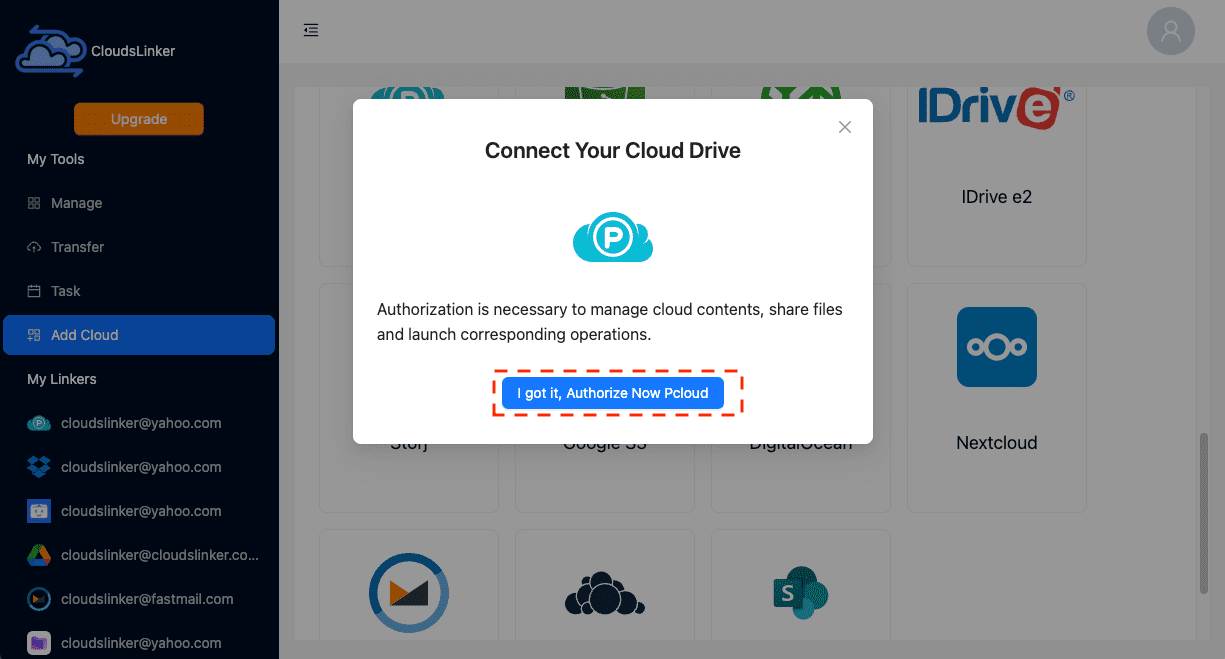
Step 1: Connect pCloud
Click Add Cloud → pCloud. If prompted, choose the data region that matches your account (US or EU), then approve access on pCloud's OAuth page. No password is shared; the grant is revocable in pCloud's security settings.
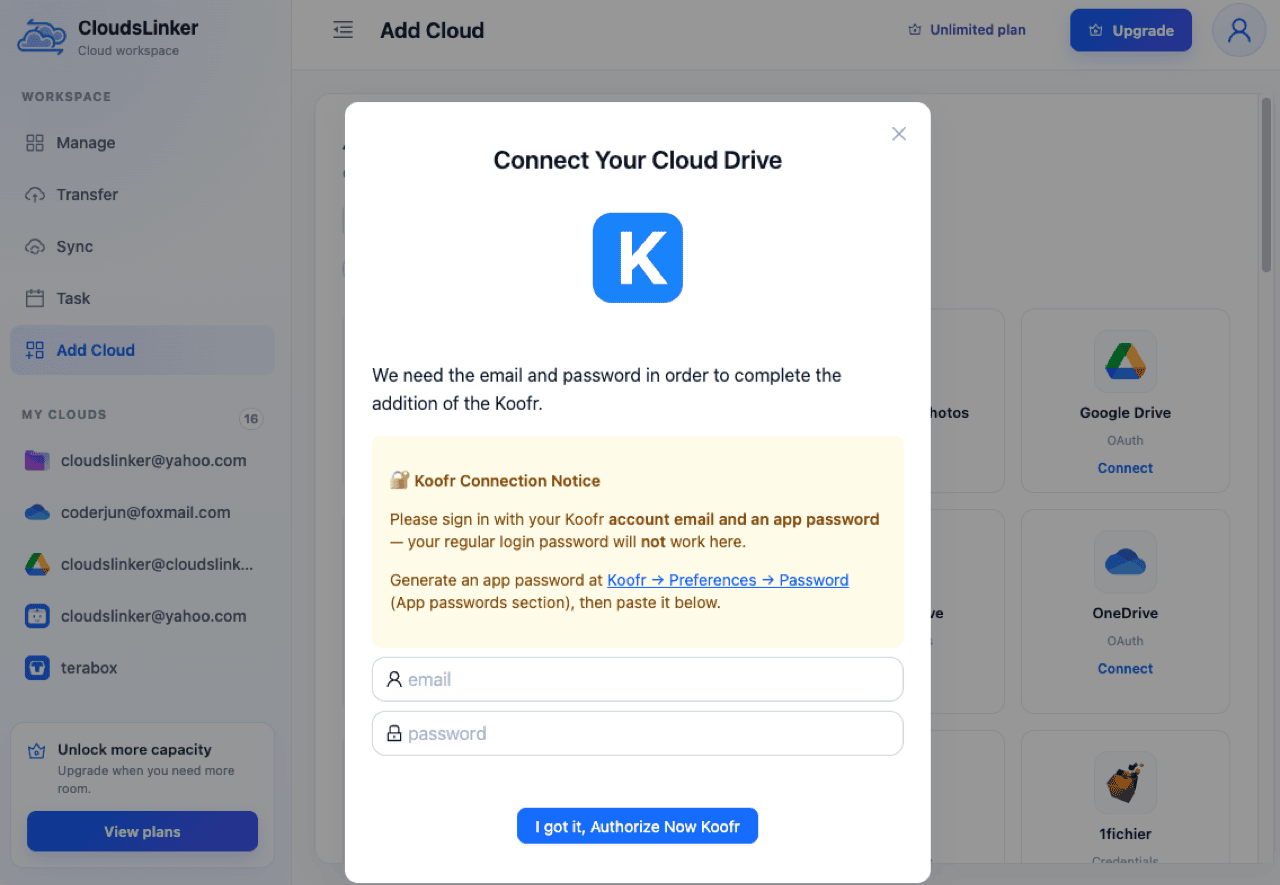
Step 2: Connect Koofr
Click Add Cloud → Koofr. Enter your Koofr account email and the app password from Preferences → Password — the regular login password is rejected by design, and each app password revokes independently.
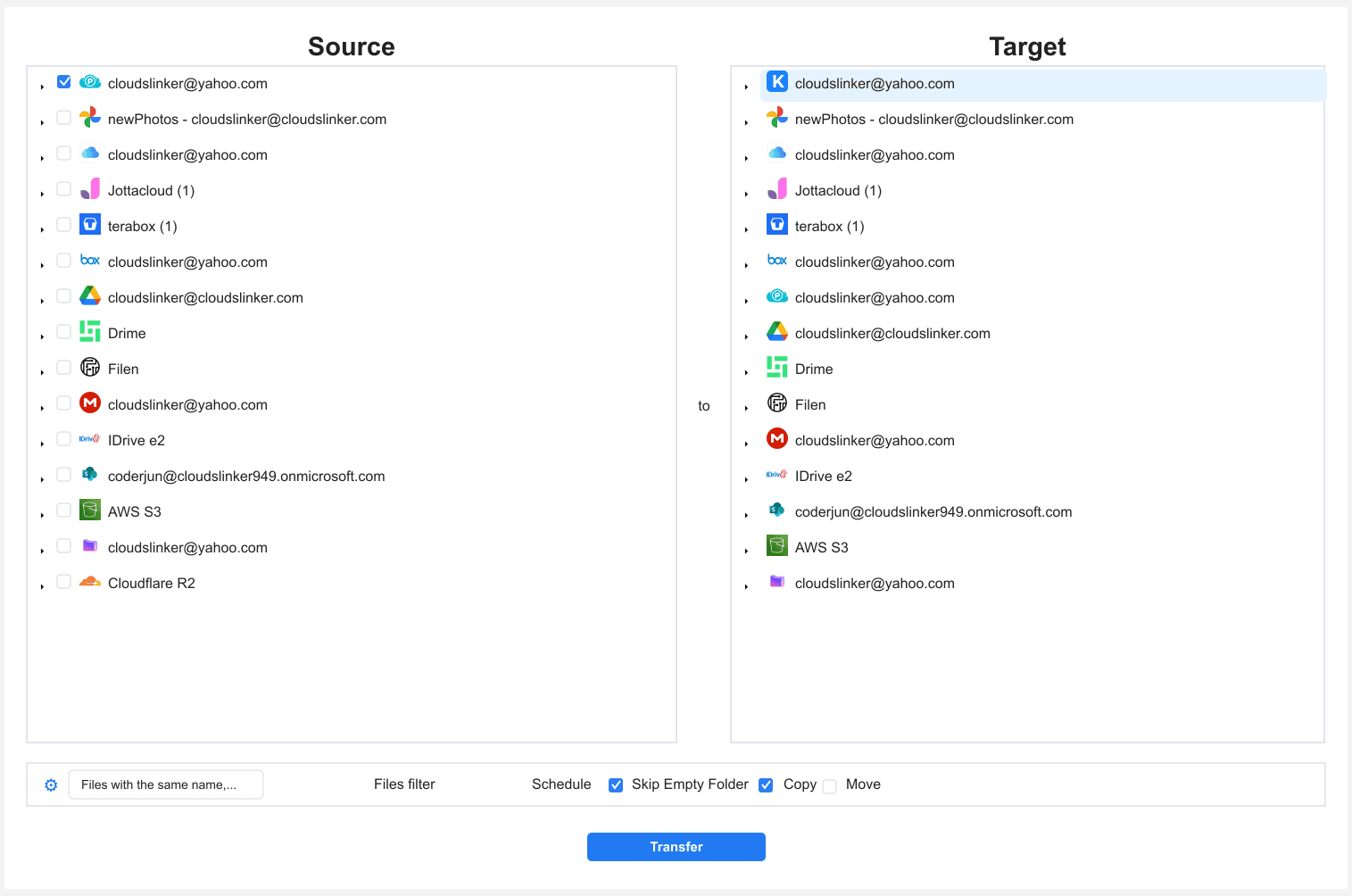
Step 3: Configure the Transfer
Set pCloud as the source and tick the folders to move; set Koofr as the destination folder. Filters by type, size or date keep camera-roll duplicates and old device backups out of the new tree. Copy mode leaves pCloud untouched for verification.
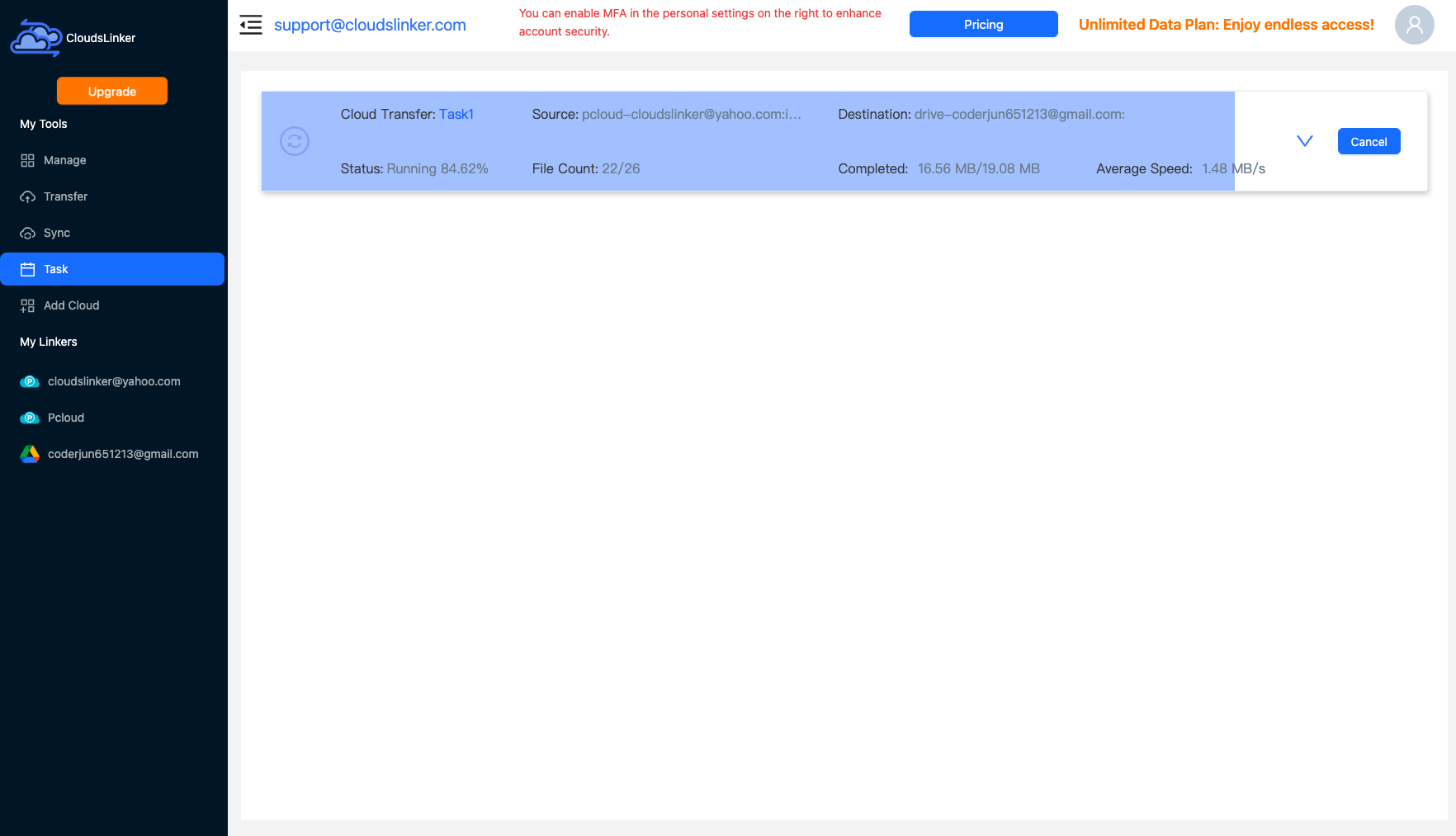
Step 4: Start and Monitor the Transfer
Start the job and track it in the Task List — bytes moved, speed, files remaining. The transfer continues server-side after you disconnect.
Comparing the Ways to Transfer From pCloud to Koofr
| Method | Ease of Use | Speed | Best For | Uses Local Bandwidth | Skill Level |
|---|---|---|---|---|---|
| Manual download / upload | Medium | Slow (double pass + ZIP handling) | Free-tier libraries; Crypto folder contents | Yes — twice | Basic |
| CloudsLinker | Easy | Fast (server-side) | Lifetime-plan libraries, region fixes | No | Basic |
- Check the region before assuming the problem: pCloud settings show whether the account is US or EU. EU-region users are migrating for consolidation, not geography — the right expectations change the plan.
- Handle pCloud Crypto manually: client-side encrypted folders are invisible to any transfer API. Decrypt and move their contents yourself, and give them a Koofr Vault folder on arrival.
- Filter the backup folders: pCloud's camera uploads and device backups are usually duplicated elsewhere — excluding them can shrink a migration by half.
- Keep the lifetime plan as a mirror if it's paid for: a $399 lifetime 2 TB makes a fine free-forever second copy. A scheduled monthly sync from Koofr back to pCloud turns the old plan into your 3-2-1 offsite.
- Verify before emptying pCloud: Koofr's free-tier trash keeps deletions only 7 days. Spot-check file counts and open a few large files first.
- Use a dedicated app password: create one Koofr app password for the migration and delete it afterward — your login stays untouched.
- Recreate sharing deliberately: pCloud share links die with the move. Koofr links carry their own settings — rebuild the handful that matter rather than mass-porting.
Frequently Asked Questions
Conclusion
Check your pCloud region first (Settings shows it) — if you are already EU-region and happy, this migration is about consolidation economics rather than geography. Small moves go fine through the browsers; anything approaching a 500 GB or 2 TB lifetime quota belongs to the server-side route: pCloud connected by OAuth with the correct region selected, Koofr by app password, folder tree intact into the German data centre. Keep the pCloud originals until the Koofr copy is verified — free-tier Koofr trash gives you only a 7-day undo window.
Online Storage Services Supported by CloudsLinker
Transfer data between over 58 cloud services with CloudsLinker

OneDrive

Google Drive

Google Photos

Shared Drive

OneDrive for Business

Dropbox

Box

Mega

pCloud

Yandex

ProtonDrive

AWS

GCS

iDrive

Storj

DigitalOcean

Wasabi

1fichier

PikPak

TeleBox

OpenDrive

Backblaze B2

Fastmail file

SharePoint

Nextcloud

ownCloud

Premiumize me

HiDrive

Put.io

Sugar Sync

Jottacloud

Seafile

Ftp

SFtp

NAS

WebDav

4shared

Icedrive

Cloudflare R2

Scaleway

Hetzner Object Storage

Synology C2 Object Storage

S3 Compatible

Doi

iCloud Drive

iCloud Photos

FileLU

Zoho WorkDrive

Telia Cloud / Sky

Drime

Filen

TeraBox

Internxt

Degoo

Gofile

Pixeldrain

Shade

Koofr
Didn' t find your cloud service? Be free to contact: [email protected]
Further Reading
Effortless FTP connect to google drive: Transfer Files in 3 Easy Ways
Learn More >
Google Photos to OneDrive: 3 Innovative Transfer Strategies
Learn More >
Google Photos to Proton Drive: 3 Effective Transfer Techniques
Learn More >