pCloud to TeraBox: Moving a Lifetime Archive Into 1 TB Headline Storage
Move files from pCloud to TeraBox with browser upload, pCloud Drive, or CloudsLinker. Covers 4 GB caps, cookies, folders, and filters.
Introduction
TeraBox's distinct value is raw headline capacity: 1 TB free storage and a 2 TB Premium plan that costs far less per month than most consumer clouds. That makes it attractive when a pCloud Lifetime account is full of cold media, installers, or personal archives that no longer need pCloud's EU/US region choice or Crypto folder. The trade is practical rather than abstract: pCloud has no hard published per-file limit and fast owner downloads, while TeraBox caps free uploads at 4 GB, has a practical free ceiling near 80 GB, and exposes no public OAuth API. This guide covers three working paths for moving pCloud files to TeraBox and shows where each one fits.
pCloud is a Swiss-headquartered cloud storage service known for Lifetime plans, optional US or EU data regions, a virtual drive, and an optional Crypto folder for client-side encrypted files.
- Storage plans: free 10 GB, paid 500 GB / 2 TB / 10 TB, plus Lifetime options.
- Per-file size: no hard published limit; constrained mainly by account storage.
- Connection: OAuth, with region selection for US or EU accounts.
- Crypto folder: zero-knowledge add-on; third-party tools cannot read plaintext inside it.
- Traffic note: shared-link traffic has quotas, but owner transfers use authenticated access.
TeraBox is a consumer cloud-storage service operated by Flextech Inc., the international spin-off of Baidu Netdisk. It markets a 1 TB free tier and a low-cost 2 TB Premium plan.
- Free tier: 1024 GB advertised, but roughly 20 large files of 4 GB each make the practical ceiling closer to 80 GB.
- Premium: $2.99/month for 2 TB and a 20 GB single-file limit.
- Free download throttle: roughly 200-800 KB/s with one concurrent file at a time.
- Connection: no public OAuth; third-party tools use the browser login cookie.
- Service split:
terabox.comand Baidu Netdisk are separate account systems.
pCloud is stronger on per-file limits, region choice, and owner-side bandwidth. TeraBox is cheaper on headline storage, but its upload caps and cookie-based connection shape the migration.
| Feature | pCloud | TeraBox |
|---|---|---|
| Free tier | Up to 10 GB | 1 TB advertised; about 80 GB practical on free accounts |
| Paid storage model | Monthly, annual, and Lifetime plans | Premium 2 TB at $2.99/month |
| Max single file | No hard published cap | 4 GB Free / 20 GB Premium |
| Connection method | OAuth with US/EU region selection | Browser cookie exported from a logged-in session |
| Encryption model | Optional zero-knowledge Crypto folder | Server-side storage; no zero-knowledge folder equivalent |
| Local app option | pCloud Drive virtual mount | Browser upload or desktop client |
| Migration risk point | Crypto-folder files must be decrypted first | Oversized files and expired cookies |
The main preparation work is deciding what can fit on the TeraBox tier you plan to use. pCloud will often contain files that are larger than TeraBox Free accepts.
- Find pCloud files larger than 4 GB. Free TeraBox accounts reject them. Split those files, leave them in pCloud, or upgrade to TeraBox Premium before starting.
- Move Crypto-folder content out before transfer. pCloud Crypto is zero-knowledge. CloudsLinker and pCloud Drive can only transfer readable file content after you decrypt it into a normal folder.
- Confirm your pCloud region. CloudsLinker asks for US or EU before OAuth. Picking the wrong region causes authentication to fail.
- Sign in to
www.terabox.com. Cookies from Baidu Netdisk ordubox.comdo not authenticate the international TeraBox service. - Estimate the real destination capacity. If the pCloud folder is above about 80 GB, assume TeraBox Premium is required even if the dashboard says 1 TB free.
Method 1: Browser Download from pCloud, Web Upload to TeraBox
Step 1: Download Files from pCloud Web
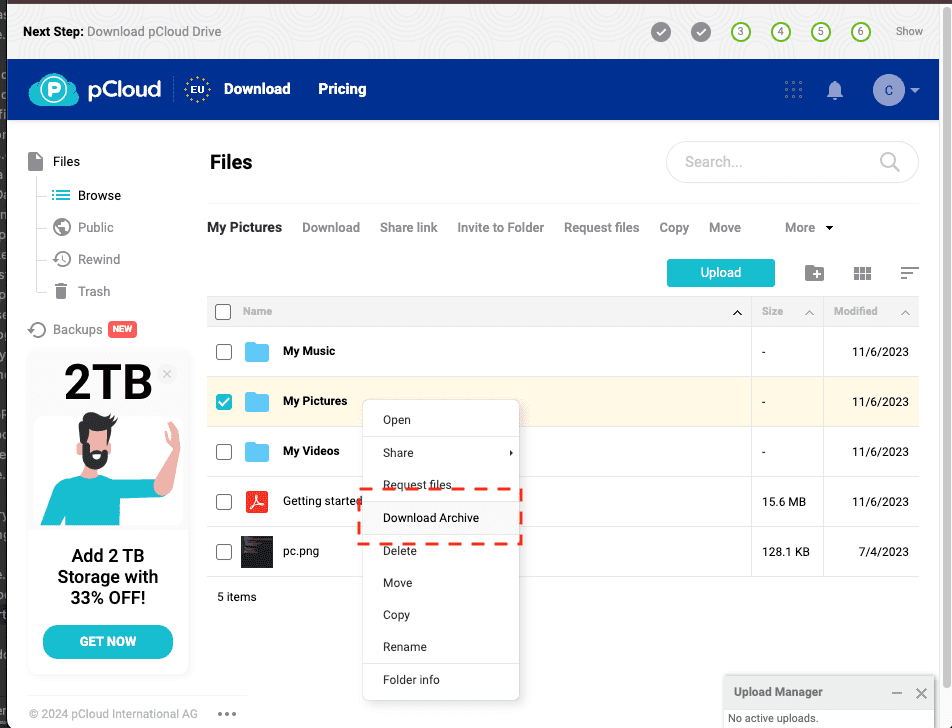
Open my.pcloud.com, select the files or folders you want to move, and use Download. For folders, pCloud builds a ZIP archive in the browser workflow. Keep each export below the amount of local disk space available, and avoid bundling files that exceed the destination's TeraBox limit.
Step 2: Extract and Check the Local Copy
Extract the ZIP and spot-check a few files before uploading. On macOS or Linux, find ./pcloud-export -type f -size +4G lists files that a free TeraBox account will reject. On Windows, sort the extracted folder by size and separate anything above 4 GB.
Step 3: Upload to TeraBox
Open terabox.com, sign in, then use Upload or Upload Folder. The browser tab must stay awake until the queue finishes. Free-tier TeraBox rejects files above 4 GB; Premium raises the limit to 20 GB.
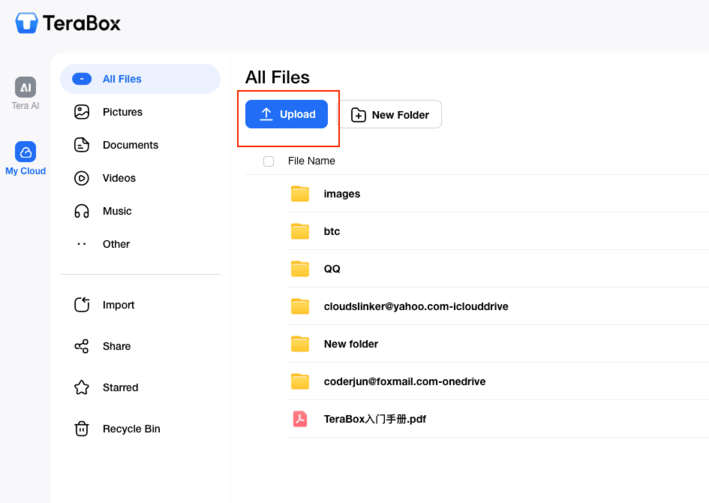
This method is fine for small archives and one-off moves. It uses local disk and local bandwidth for both legs, so it becomes awkward when the pCloud folder is large or contains many files.
Method 2: pCloud Drive Local Mount, Then Upload to TeraBox
Step 1: Mount pCloud Drive
Install pCloud Drive and sign in. The app mounts your cloud storage as a local drive without downloading every file first. For a migration, mark the folders you need as available offline if your connection is unstable or if TeraBox upload pauses when reading on-demand files.
Step 2: Prepare a Transfer Folder
Copy the target pCloud folders into a local staging folder, or upload directly from the mounted drive if the folder is small. A staging folder gives you a clean place to remove Crypto-folder leftovers, split files above 4 GB, and count files before the upload.
Step 3: Upload the Folder to TeraBox
In TeraBox, create a destination folder such as /pcloud-archive/, then upload the staged folder or the mounted pCloud folder. If a browser upload stalls, reduce the batch size; TeraBox handles a few large folders less predictably than smaller folder groups.
The pCloud Drive method avoids repeated web ZIP exports and works well when pCloud is already part of your desktop workflow. It still requires the computer to remain online and does not bypass TeraBox's browser-upload behavior.
Method 3: Transfer pCloud to TeraBox Directly in the Cloud
Cloud-to-Cloud Transfer Without Local Downloads
CloudsLinker moves files from pCloud to TeraBox on its own servers. The transfer does not use your local bandwidth, and it continues after the browser is closed.
Step 1: Connect pCloud (OAuth)
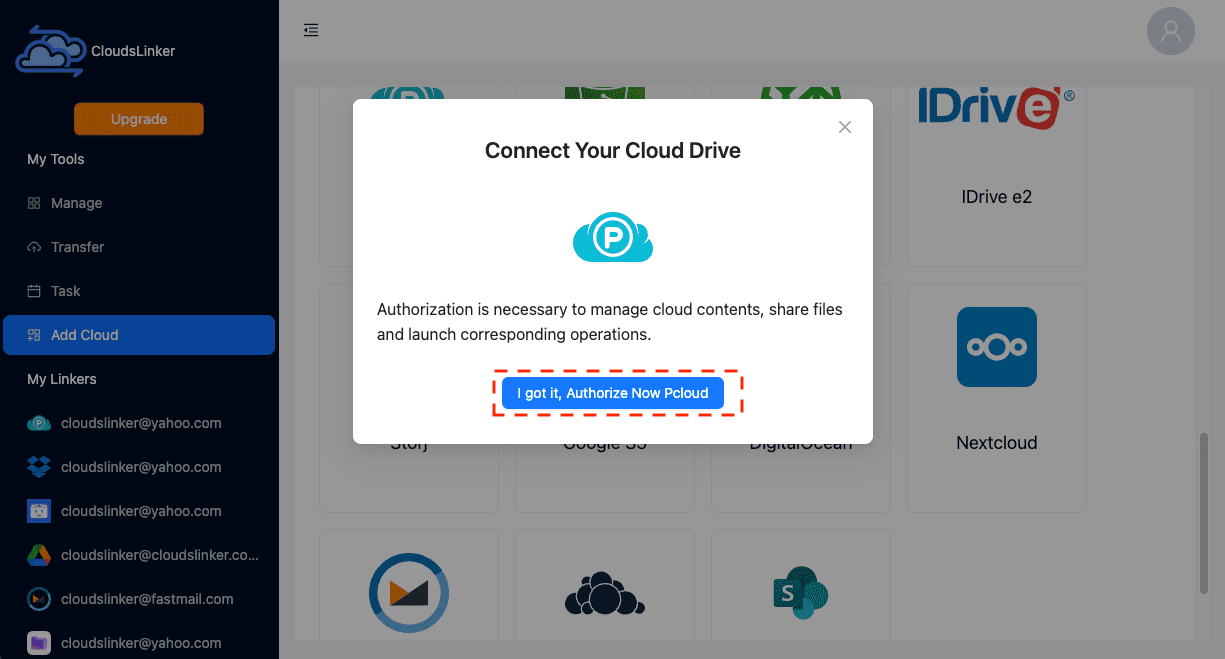
In CloudsLinker, click Add Cloud and choose pCloud. Select the correct data region, either US or EU, then complete the OAuth login on pCloud's authorization page. If 2FA is enabled, enter the verification code there. CloudsLinker receives an access token; it does not store your pCloud password.
Step 2: Connect TeraBox (Browser Cookie)
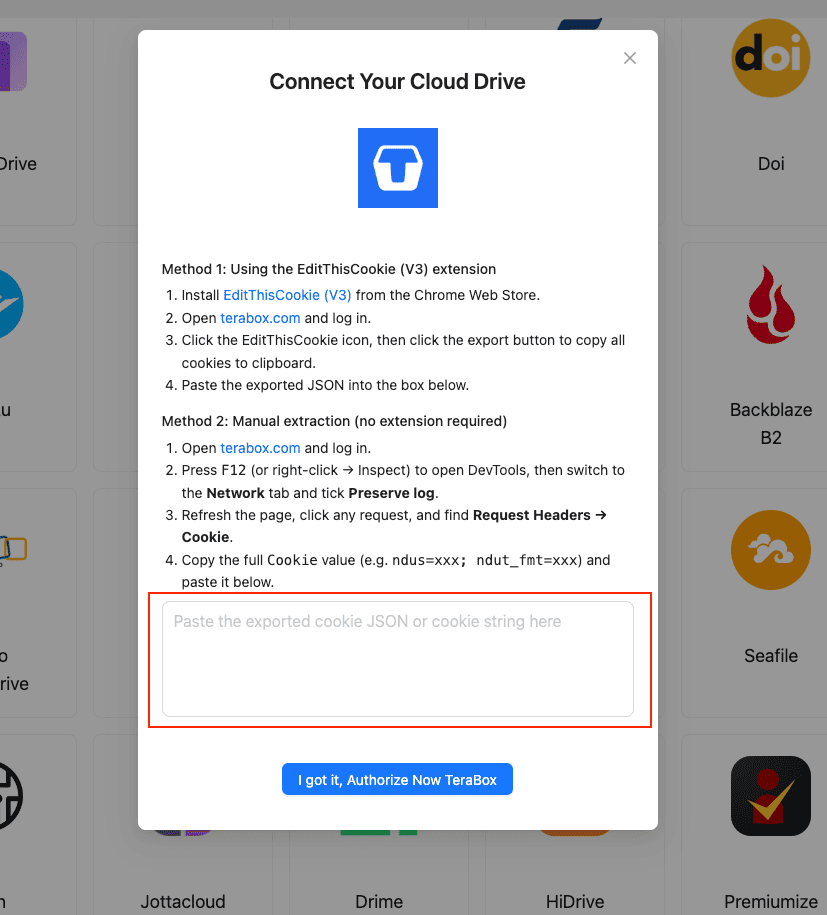
TeraBox uses a browser login cookie instead of OAuth. Install EditThisCookie (V3), sign in at www.terabox.com, export the cookie set as JSON, then paste it into CloudsLinker under Add Cloud -> TeraBox. The DevTools fallback is to copy the full Request Headers -> Cookie value from a logged-in TeraBox request.
Step 3: Configure the Transfer
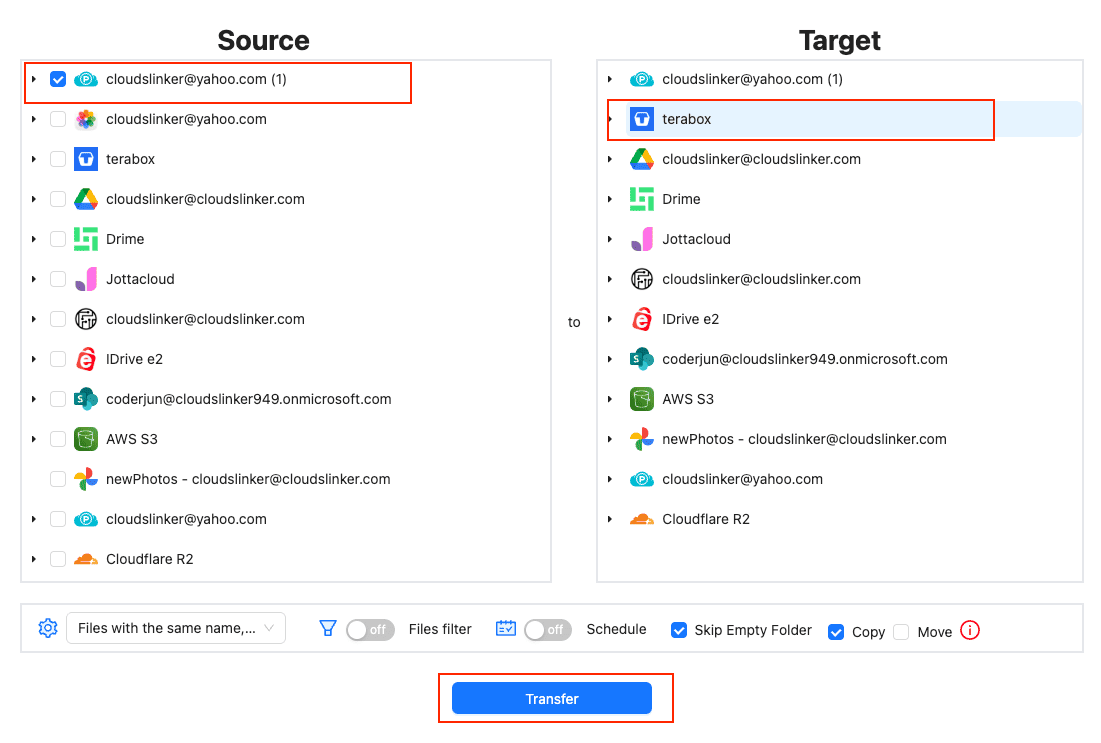
Open Transfer. Select pCloud as the source, browse to the folders you want to move, then select TeraBox as the destination and choose or create a target directory. Add a file-size filter at 4 GB for TeraBox Free or 20 GB for Premium so oversized files are skipped cleanly and listed in the task log.
Choose Copy to leave pCloud originals in place. Use Move only after a test run, since move mode removes source files after successful transfer.
Step 4: Start and Monitor the Transfer
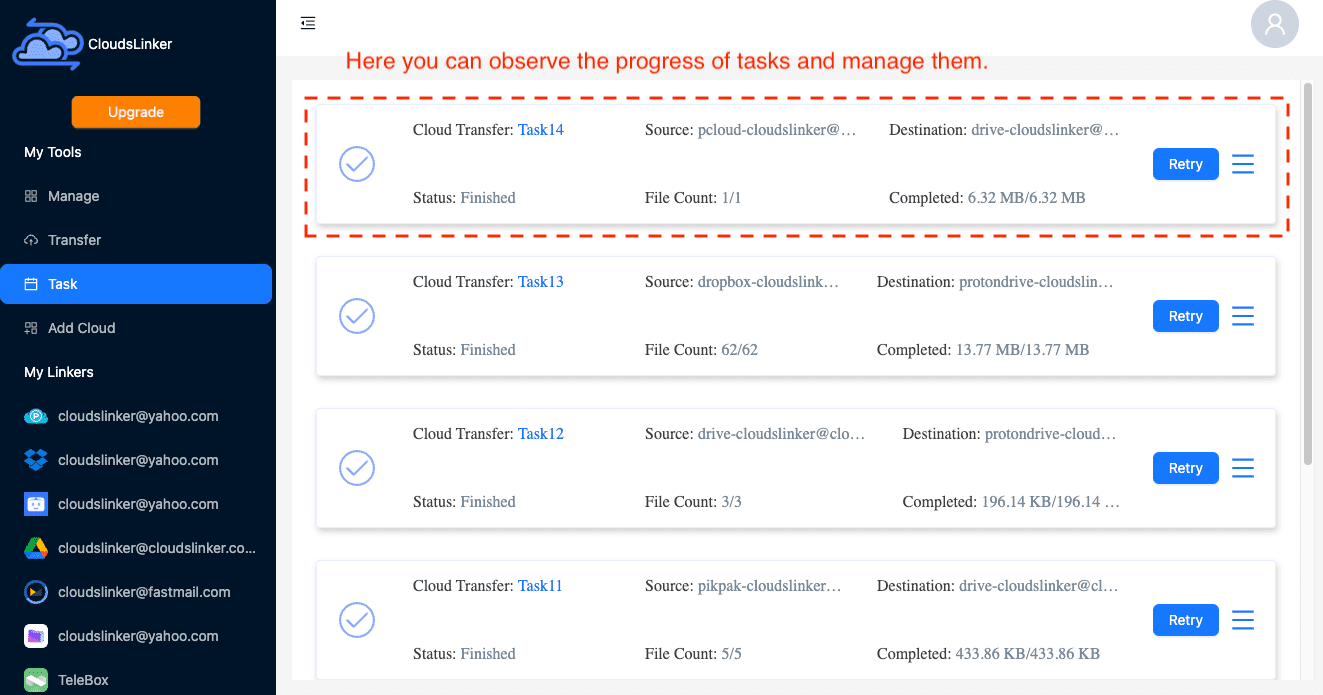
Click Start. The Task List shows file count, transferred size, speed, and failures. If the TeraBox cookie expires during a long job, the task pauses until a fresh cookie is supplied instead of failing the entire queue.
Comparing the Three Ways to Transfer pCloud to TeraBox
| Method | Ease of Use | Speed | Best For | Uses Local Bandwidth | Skill Level |
|---|---|---|---|---|---|
| Browser Download + TeraBox Upload | Low | Bound by local download and upload | Small folders and one-off archives | Yes | Beginner |
| pCloud Drive + Local Upload | Low | Bound by local upload and on-demand file reads | Accounts already mounted with pCloud Drive | Yes | Beginner |
| CloudsLinker | Low | Server-side, no local round trip | Large jobs, filters, and unattended transfer | No | Beginner |
- Run a 1 GB test folder first. Include one large file, several small files, and at least one nested folder so you can verify TeraBox organization before the full move.
- Decrypt pCloud Crypto content before migrating. TeraBox cannot open encrypted Crypto-folder payloads unless you intentionally upload encrypted archives as cold storage.
- Use a 4 GB filter for free TeraBox. pCloud accepts files that TeraBox Free will reject, so filter before transfer rather than discovering failures at the end.
- Keep pCloud originals until spot checks pass. Open several files from TeraBox after transfer and compare counts before deleting anything from pCloud.
- Treat the TeraBox cookie like a password. Do not screenshot it, commit it, or paste it into shared notes. Logging out of TeraBox or changing the password invalidates it.
- Choose the correct pCloud region in CloudsLinker. EU accounts and US accounts use different API hosts; the wrong region fails authorization.
Frequently Asked Questions
Watch: Transfer Files from pCloud to TeraBox with CloudsLinker
A walkthrough of the cloud-to-cloud method, including connecting pCloud with OAuth, adding TeraBox with a browser cookie, configuring file-size filters, and monitoring the transfer task.
Conclusion
Use the browser path for a small pCloud folder where you can supervise both the download and TeraBox upload. Use pCloud Drive when your account is already mounted locally and you need to avoid repeated ZIP exports. Use CloudsLinker for larger jobs or unattended moves: it connects to pCloud by OAuth, connects to TeraBox by browser cookie, applies size filters before the destination rejects files, and keeps running after the browser closes. Before any method, check for files above 4 GB if the destination is a free TeraBox account.
Online Storage Services Supported by CloudsLinker
Transfer data between over 58 cloud services with CloudsLinker

OneDrive

Google Drive

Google Photos

Shared Drive

OneDrive for Business

Dropbox

Box

Mega

pCloud

Yandex

ProtonDrive

AWS

GCS

iDrive

Storj

DigitalOcean

Wasabi

1fichier

PikPak

TeleBox

OpenDrive

Backblaze B2

Fastmail file

SharePoint

Nextcloud

ownCloud

Premiumize me

HiDrive

Put.io

Sugar Sync

Jottacloud

Seafile

Ftp

SFtp

NAS

WebDav

4shared

Icedrive

Cloudflare R2

Scaleway

Hetzner Object Storage

Synology C2 Object Storage

S3 Compatible

Doi

iCloud Drive

iCloud Photos

FileLU

Zoho WorkDrive

Telia Cloud / Sky

Drime

Filen

TeraBox

Internxt

Degoo

Gofile

Pixeldrain

Shade

Koofr
Didn' t find your cloud service? Be free to contact: [email protected]
Further Reading
Effortless FTP connect to google drive: Transfer Files in 3 Easy Ways
Learn More >
Google Photos to OneDrive: 3 Innovative Transfer Strategies
Learn More >
Google Photos to Proton Drive: 3 Effective Transfer Techniques
Learn More >