Leaving Pixeldrain? Export to Google Drive in One Metered Pass
Every Pixeldrain filesystem download is billed — so exit to Google Drive in a single server-side copy instead of paying egress file by file.
Introduction
Google Drive gives an exiting Pixeldrain user the two things metered storage doesn't: downloads that cost nothing, and apps on every device you own. The exit itself is where Pixeldrain's pricing model bites — all filesystem egress is billed, around €1 per TB on Prepaid and €2 per TB through shared directories, with no free downloads at all. Pulling a library out file-by-file over months means paying that meter repeatedly; the rational exit is one planned pass. This guide shows two ways to do it: a manual download-and-upload, and a single server-side copy with CloudsLinker that reads the filesystem once and writes straight into Drive.
Pixeldrain is a Netherlands-based storage service whose Pro filesystem meters both directions: €4 per TB per month for storage, and billed egress on every download — there are no free filesystem downloads.
- Storage: €4/TB/month (Prepaid), metered
- Egress: ~€1/TB Prepaid, €2/TB shared dirs
- Hierarchical filesystem, API-key access
- Free tier is link sharing only
Google Drive is the default consumer cloud drive: 15 GB free shared across Google services, Google One tiers up to 2 TB at $9.99/month, apps on every platform, and no download fees.
- 15 GB free; 2 TB at $9.99/mo via Google One
- No egress fees; 750 GB/day upload cap
- 5 TB max single file
- OAuth access for transfer tools
| Feature | Pixeldrain | Google Drive |
|---|---|---|
| Download cost | Metered — ~€1–2/TB, no free egress | Free |
| Storage pricing | €4/TB/mo metered | Fixed tiers: 2 TB — $9.99/mo |
| Apps and sync | Web filesystem + API only | Desktop sync, mobile, web |
| Inbound constraint | — | 750 GB/day upload per account |
| Max single file | No published cap (paid filesystem) | 5 TB |
| Connection in CloudsLinker | API key (Pro) | Google OAuth |
Sources: Pixeldrain: Filesystem guide, Pixeldrain: pricing, Google: storage and upload limits, Google Drive API limits.
Size the export before anything else: the Pixeldrain filesystem shows your stored total, and that number sets both the metered egress charge (~€1/TB) and the Drive space you need on the other side. Upgrade Google One first if 15 GB won't hold it. Decide whether this is a full exit or a partial retrieval — a partial one should be filtered deliberately so you don't pay the meter twice for files you forgot. Keep the Pixeldrain plan active until the copy is verified; deleting data mid-export is the one mistake this direction doesn't forgive.
Method 1: Download and Re-upload by Hand
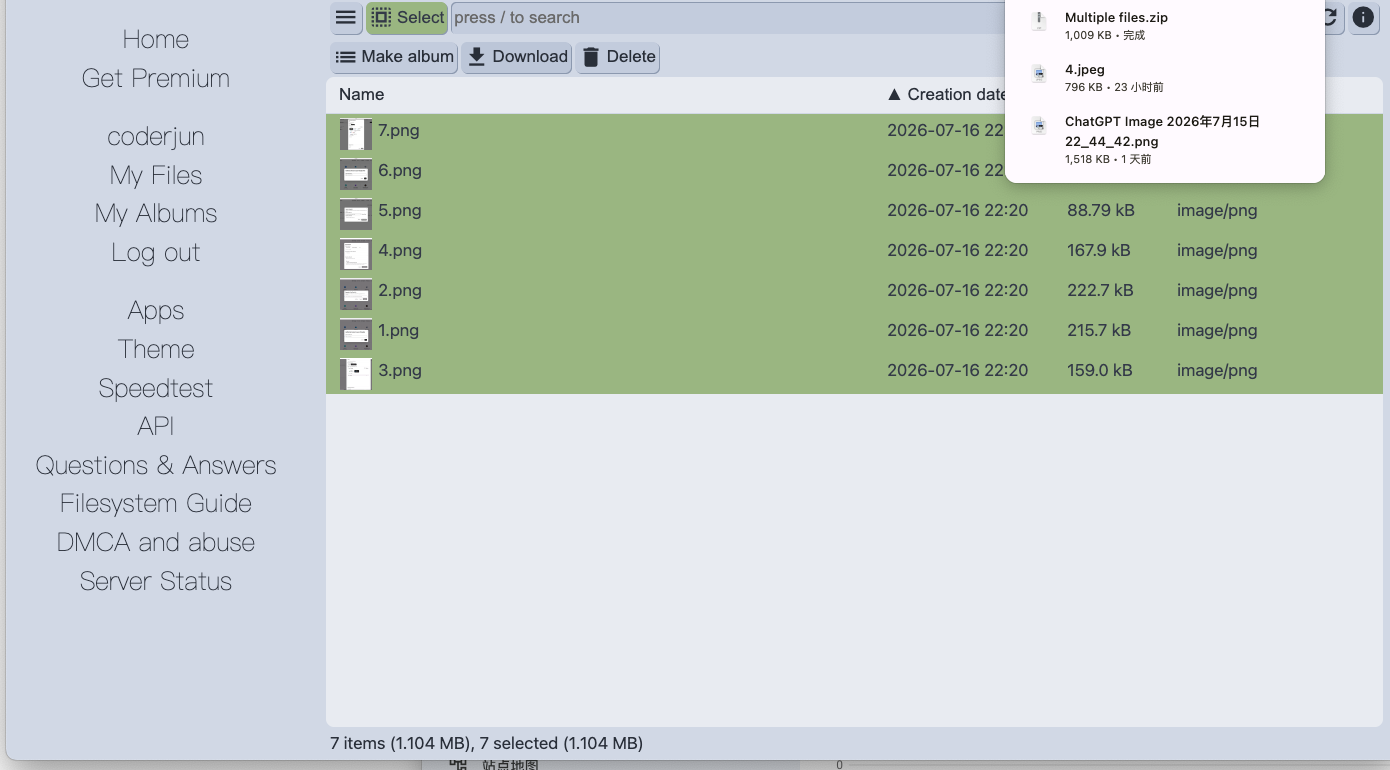
Step 1: Download from the Pixeldrain filesystem
Open the Pixeldrain filesystem, select the directories to retrieve and download them. The download is metered per TB, and on very large folders the browser route is fragile — interrupted downloads still count against the meter.
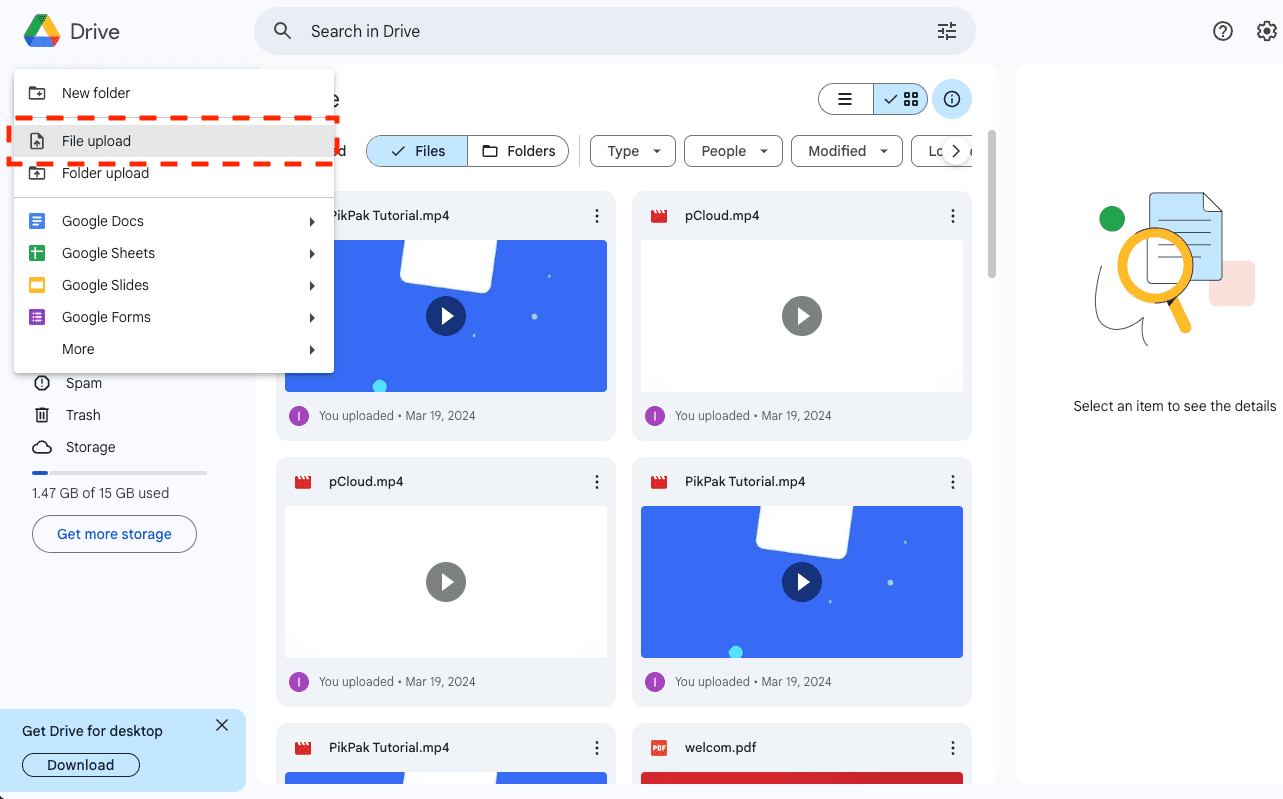
Step 2: Upload to Google Drive
Open drive.google.com and drag the downloaded folders into the destination. Files upload as-is — nothing needs conversion in this direction.
Acceptable for a retrieval of a few folders. As a full exit it doubles your bandwidth use and risks re-paying metered egress on any download that fails partway.
Method 2: Copy Pixeldrain to Google Drive in the Cloud
Pay the meter once, server-side
CloudsLinker reads the Pixeldrain filesystem by API key and writes directly into Google Drive over OAuth. The whole export is one continuous server-side pass — one metered egress charge, no local disk staging, and automatic pacing against Drive's 750 GB/day intake.
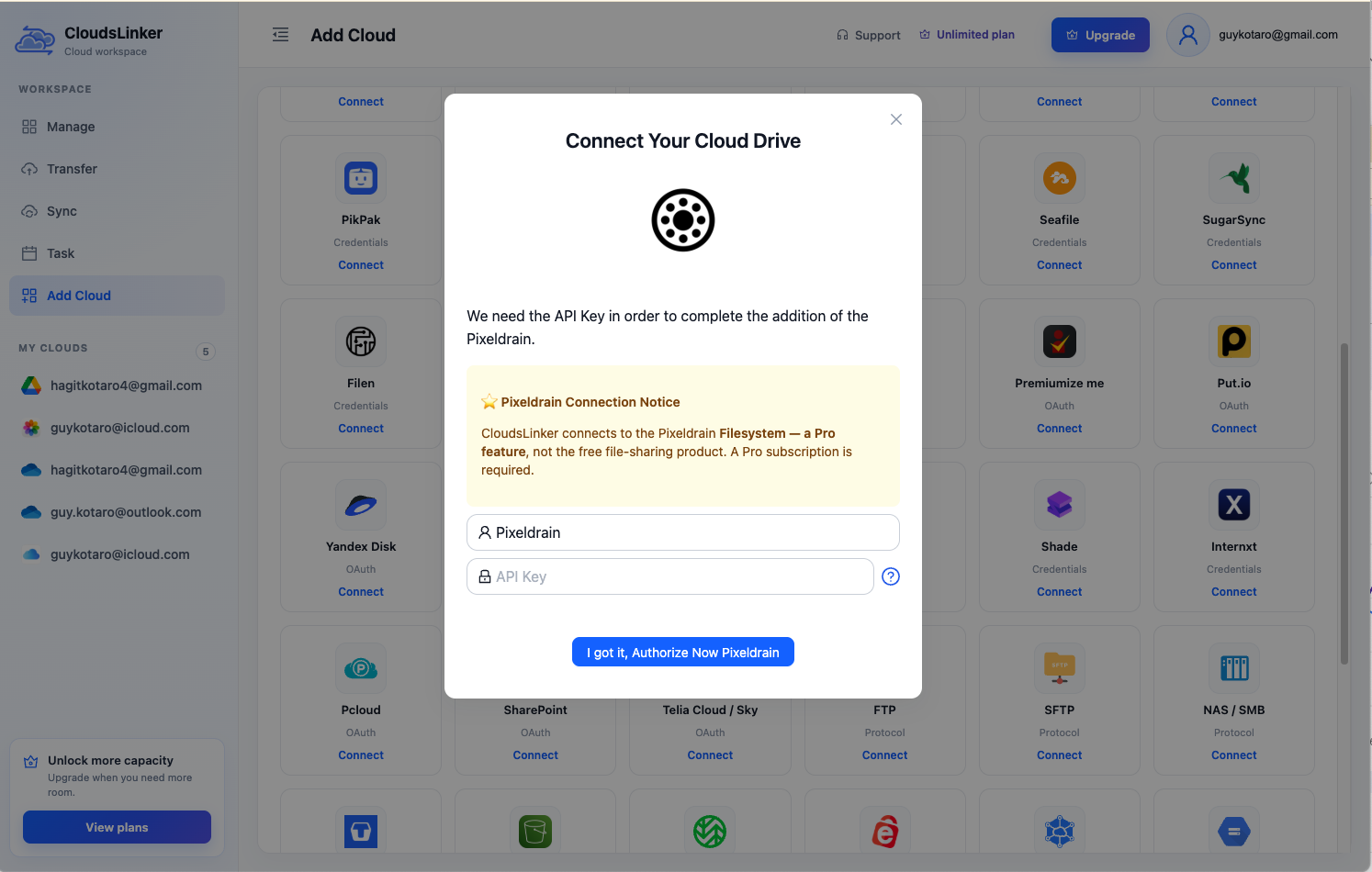
Step 1: Connect Pixeldrain
Click Add Cloud → Pixeldrain, enter a display name and paste an API key from pixeldrain.com/user/api_keys — the (?) icon in the dialog links to that page.
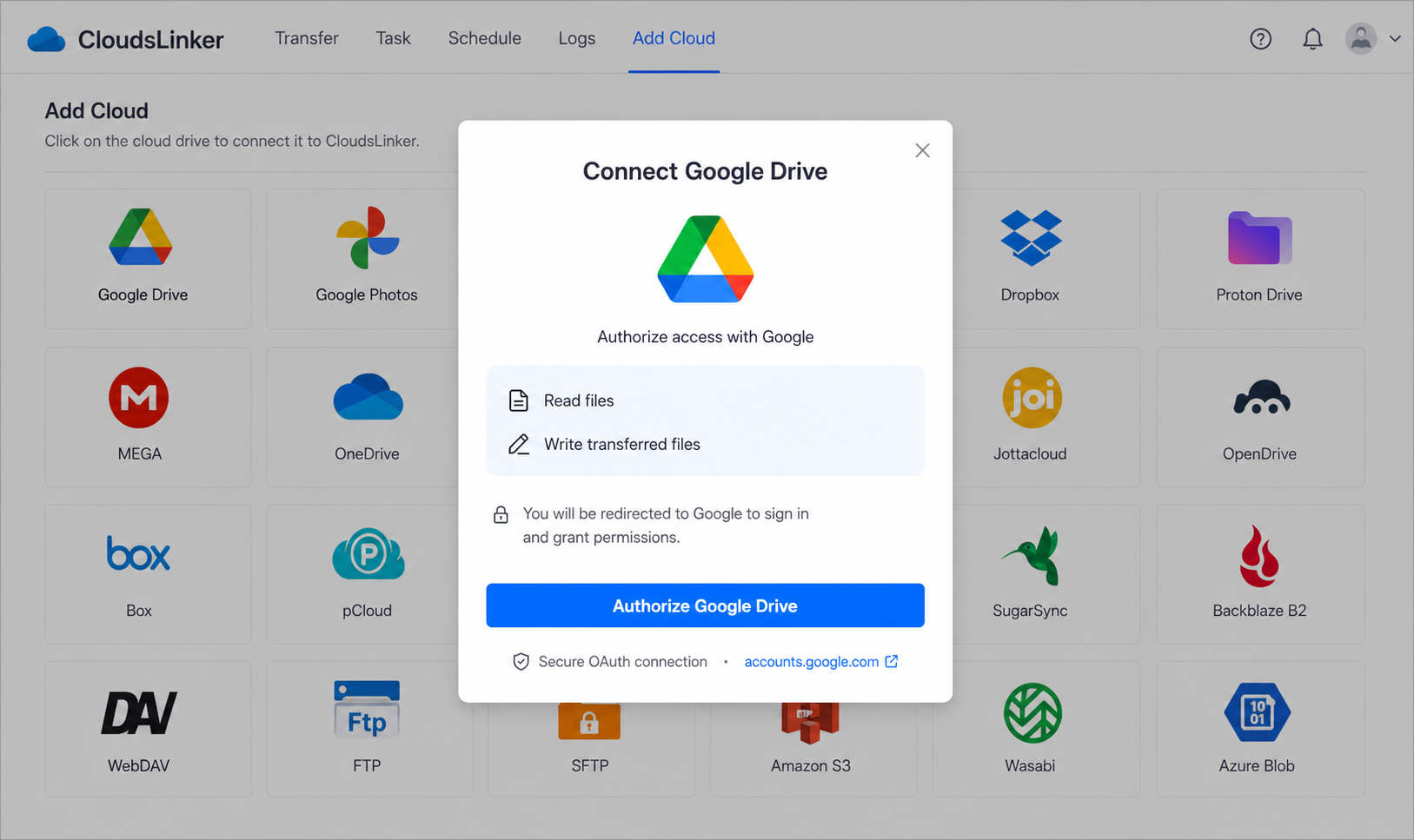
Step 2: Connect Google Drive
Click Add Cloud → Google Drive and approve access on Google's consent page at accounts.google.com. The OAuth grant is revocable anytime from your Google account's security settings.
Step 3: Configure the Transfer
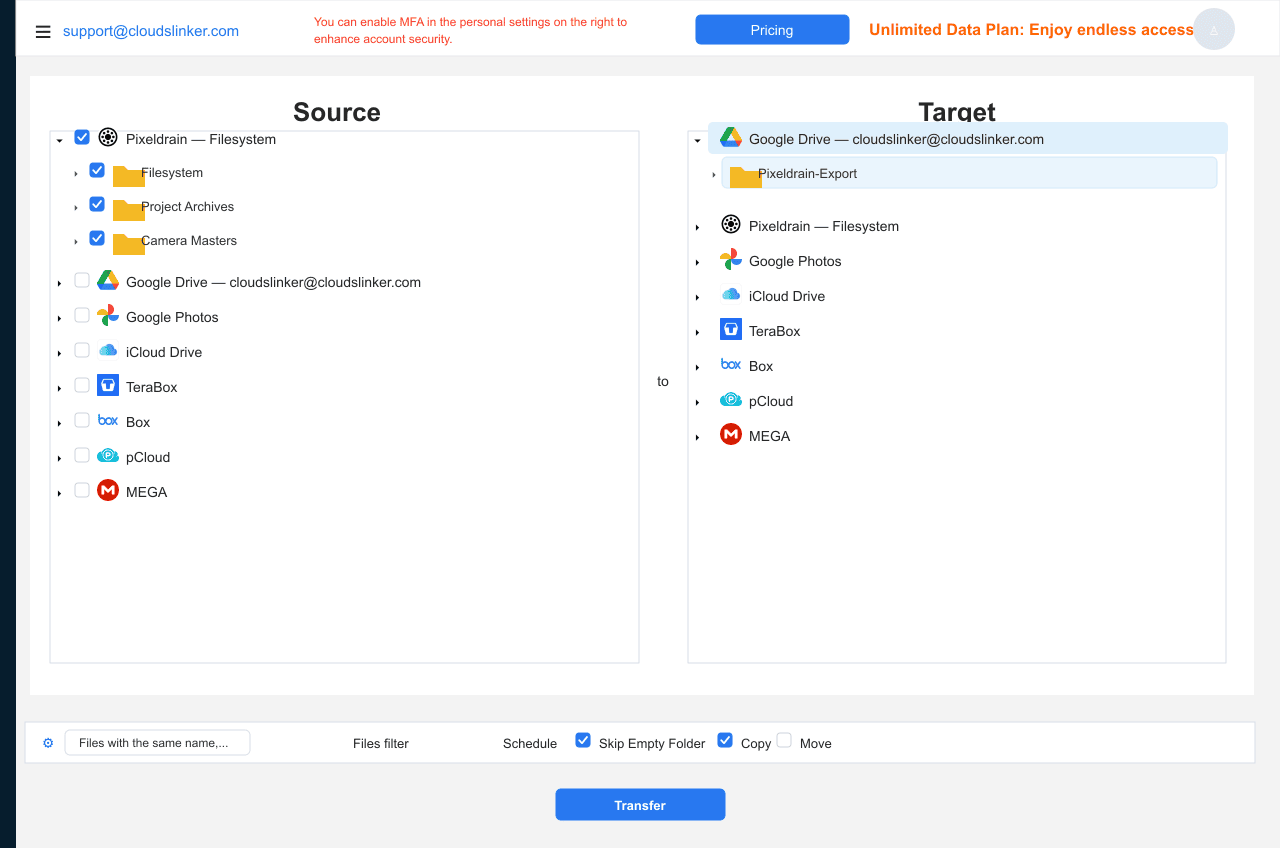
Set Pixeldrain as the source and select the directories to export — or the whole filesystem for a full exit. Choose the Google Drive destination folder (something like /Pixeldrain-Export/ keeps it tidy). Filters by type, size or date trim the export, and every gigabyte trimmed is egress you don't pay.
Step 4: Start and Monitor the Transfer
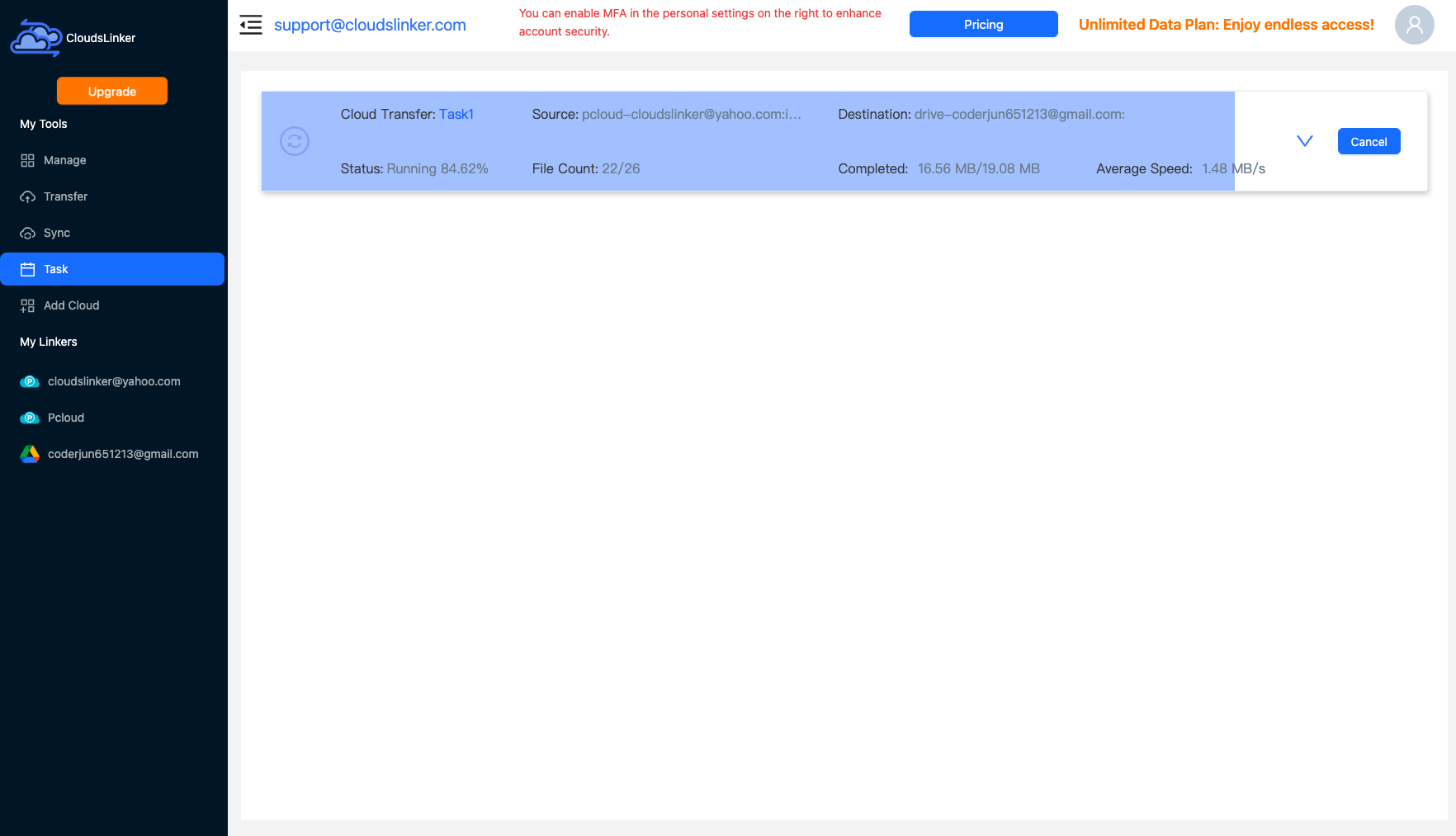
Start the job and track it in the Task List. If the library exceeds Drive's 750 GB/day intake, the job pauses at the cap and resumes automatically — no babysitting required.
Comparing the Ways to Transfer From Pixeldrain to Google Drive
| Method | Ease of Use | Speed | Best For | Uses Local Bandwidth | Skill Level |
|---|---|---|---|---|---|
| Manual download / upload | Medium | Slow | Retrieving a few folders | Yes — twice | Basic |
| CloudsLinker | Easy | Fast (server-side) | Full exits in one metered pass | No | Basic |
- Export once, deliberately: the meter runs on every download. Plan a single pass covering everything you'll ever want, rather than trickling files out over months.
- Provision Drive space first: 15 GB free won't hold a real library — put the Google One tier in place before starting, not when the job stalls.
- Budget the egress: ~€1/TB Prepaid means even a 2 TB exit costs about €2 — trivial as a one-off, annoying as a recurring habit.
- Expect the 750 GB/day rhythm: larger exports span days by design; the job resumes automatically at each reset.
- Verify before deleting: match file counts in Drive against the filesystem, then delete Pixeldrain directories to stop the €4/TB storage meter.
- Close out cleanly: after the exit, remove the CloudsLinker API key at pixeldrain.com/user/api_keys and downgrade or cancel the plan.
Frequently Asked Questions
Conclusion
If you're retrieving a folder or two, the manual route is fine — pay the small metered download and drag the files into Drive. For a full exit, one CloudsLinker pass is the economical shape: the filesystem is read once, the copy lands in Drive server-side, and Google's 750 GB/day upload allowance absorbs all but the largest libraries in a single day. Delete the Pixeldrain copies only after the file counts match.
Online Storage Services Supported by CloudsLinker
Transfer data between over 58 cloud services with CloudsLinker

OneDrive

Google Drive

Google Photos

Shared Drive

OneDrive for Business

Dropbox

Box

Mega

pCloud

Yandex

ProtonDrive

AWS

GCS

iDrive

Storj

DigitalOcean

Wasabi

1fichier

PikPak

TeleBox

OpenDrive

Backblaze B2

Fastmail file

SharePoint

Nextcloud

ownCloud

Premiumize me

HiDrive

Put.io

Sugar Sync

Jottacloud

Seafile

Ftp

SFtp

NAS

WebDav

4shared

Icedrive

Cloudflare R2

Scaleway

Hetzner Object Storage

Synology C2 Object Storage

S3 Compatible

Doi

iCloud Drive

iCloud Photos

FileLU

Zoho WorkDrive

Telia Cloud / Sky

Drime

Filen

TeraBox

Internxt

Degoo

Gofile

Pixeldrain

Shade

Koofr
Didn' t find your cloud service? Be free to contact: [email protected]
Further Reading
Effortless FTP connect to google drive: Transfer Files in 3 Easy Ways
Learn More >
Google Photos to OneDrive: 3 Innovative Transfer Strategies
Learn More >
Google Photos to Proton Drive: 3 Effective Transfer Techniques
Learn More >