Keep Proton for Secrets, Park the Bulk in Degoo: A Two-Cloud Split
How to move non-sensitive files from Proton Drive to Degoo and stop paying encrypted-cloud prices for camera dumps — manual and CloudsLinker methods.
Introduction
Degoo's pitch is volume: 5 TB for $9.99 a month, 20 GB free, mobile apps built for photo hoards. Proton Drive's pitch is the opposite — Swiss jurisdiction and end-to-end encryption, at 500 GB for the $9.99 Proton Unlimited bundle. Paying encryption-grade prices to store drone footage and phone camera dumps is the mismatch this guide fixes: keep contracts, IDs and health records in Proton, and move the space-hungry, non-sensitive bulk into Degoo at a tenth of the per-terabyte cost. What follows covers the manual export path and a server-side CloudsLinker transfer, plus the encryption caveats you should understand before either one.
Proton Drive is the encrypted cloud from the Swiss team behind Proton Mail. Every file is end-to-end encrypted client-side; not even Proton can read it. Free accounts get up to 5 GB, Drive Plus offers 200 GB at $3.99/mo, and the $9.99 Proton Unlimited bundle includes 500 GB plus Mail, VPN and Pass.
- End-to-end, zero-knowledge encryption by default
- Swiss jurisdiction, GDPR-plus privacy law
- No per-file size limit
- Up to 10-year version history on paid plans
Degoo also comes from Northern Europe — Stockholm — but plays a different game: maximum gigabytes per dollar. 20 GB free, 500 GB at $2.99/mo, 5 TB at $9.99/mo. Standard folders use server-side AES; zero-knowledge protection exists only in the paid Top Secret folder. Access is mobile-first with a web app for subscribers.
- 10× Proton Unlimited's storage at the same price
- Sweden-based (EU), single datacenter on free tier
- Top Secret folder = optional zero-knowledge zone
- Per-file caps: 256 MB free / 50 GB subscription
| Feature | Proton Drive | Degoo |
|---|---|---|
| Free storage | 2–5 GB | 20 GB |
| $9.99/mo buys | 500 GB (Unlimited bundle, with Mail + VPN) | 5 TB (Ultimate) |
| Encryption model | Zero-knowledge on everything | Server-side AES; zero-knowledge only in Top Secret (paid) |
| Max single file | No hard limit | 256 MB free / 50 GB subscription |
| Version history | Up to 10 years (paid) | None user-facing |
| Connection in CloudsLinker | Credentials (2FA must be off) | Credentials |
Sources: Proton Drive pricing, Proton Drive support, Degoo: plans, Degoo Help Center: Account limits.
The essential preparation here is classification, not logistics: walk the Proton folder tree and split it into stays encrypted (identity documents, finances, anything legal or medical) and moves to cheap storage (media, downloads, completed projects). Restructure into clearly-named top-level folders so the transfer selection is one click, not fifty. Then confirm the Degoo side: plan tier sized to the bulk (Pro 500 GB / Ultimate 5 TB), and no single file above the 50 GB subscription cap. Switch two-factor authentication off on the Proton account before the connection step — CloudsLinker signs in server-side and has no field for a code.
Method 1: Export from Proton Drive, Upload to Degoo
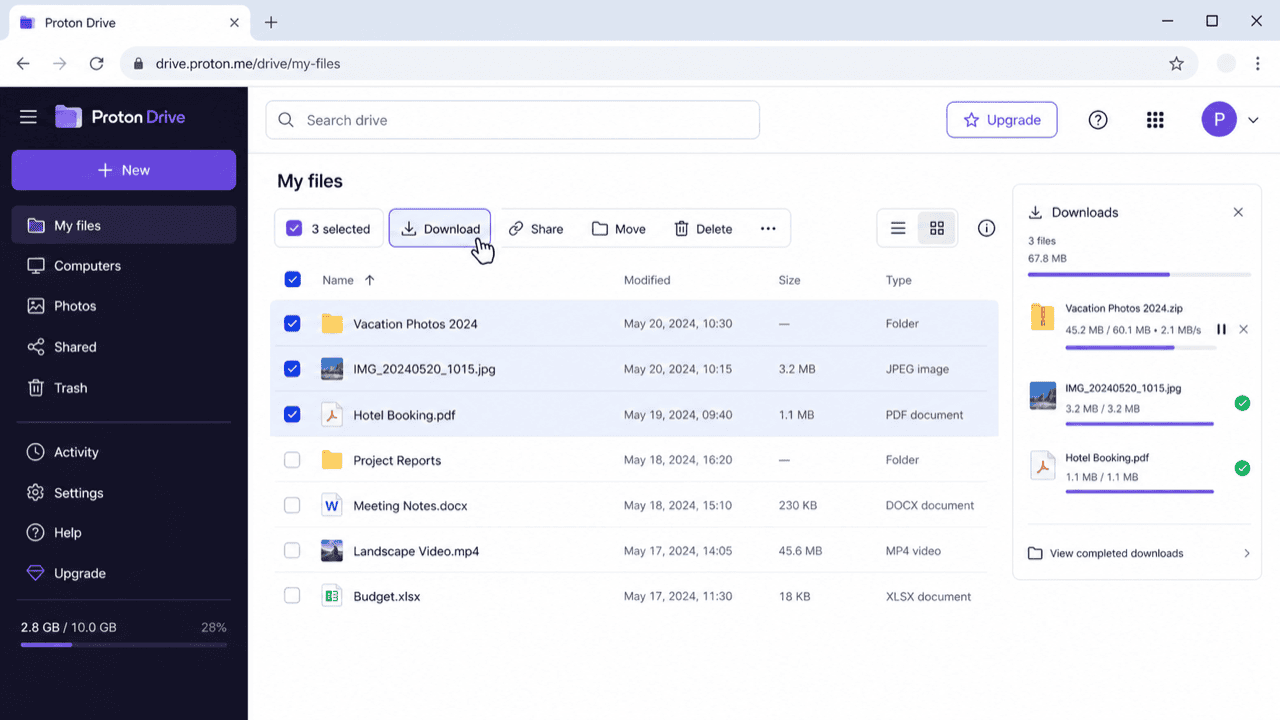
Step 1: Download from drive.proton.me
Select folders at drive.proton.me and hit Download — decryption happens in the browser, which makes large downloads CPU-heavy and slow compared with unencrypted clouds. Multi-folder selections arrive as ZIPs.
Step 2: Upload to Degoo
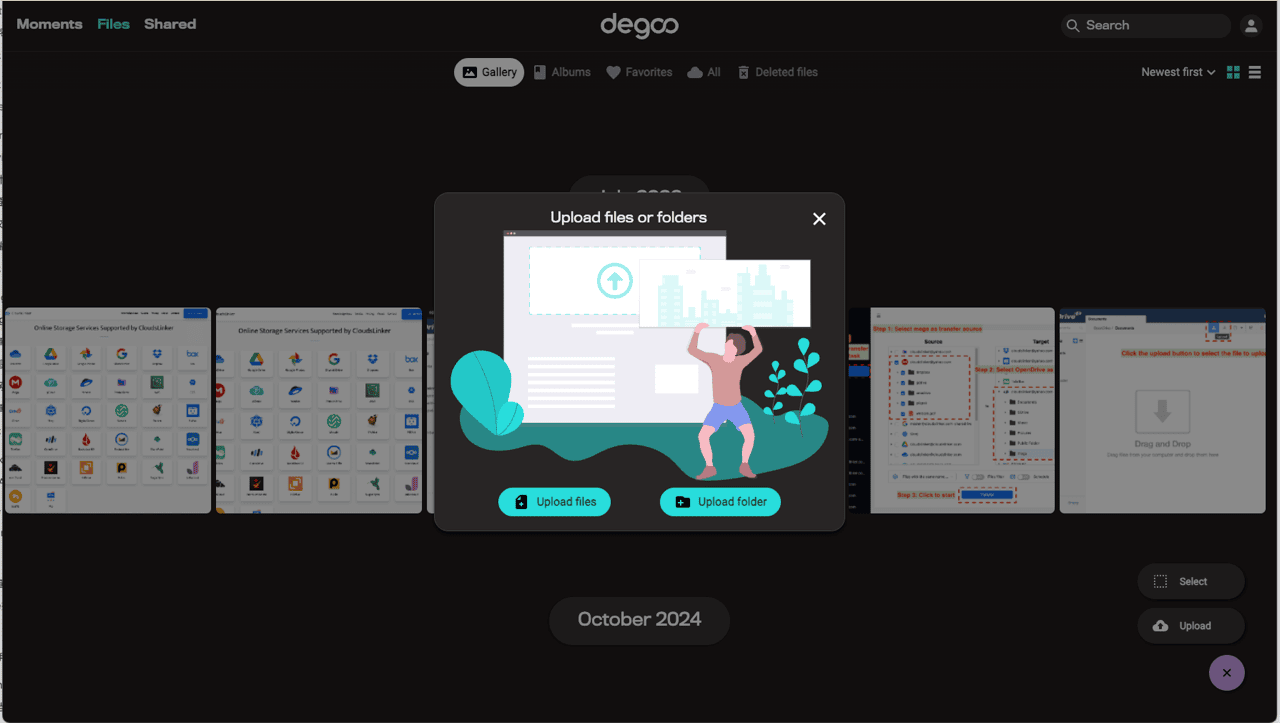
Extract and upload via app.degoo.com (subscribers) or the mobile app (free tier). Files land in Degoo's standard storage — if any of them belong in the zero-knowledge Top Secret folder, move them there inside the Degoo app afterwards.
Browser-side decryption makes this the slowest manual export among major clouds — acceptable for gigabytes, grinding for hundreds of them.
Method 2: Server-Side Transfer with CloudsLinker
Decrypt once, in the datacenter — not in your browser tab
CloudsLinker authenticates to Proton with your account credentials and performs the decrypt-and-forward on its servers, sidestepping the browser-decryption bottleneck that makes manual Proton exports crawl. Both clouds here use credential logins — no OAuth screens — and the whole media offload runs as one job, leaving Proton's encrypted space free for the files that earn it.
Step 1: Connect Proton Drive
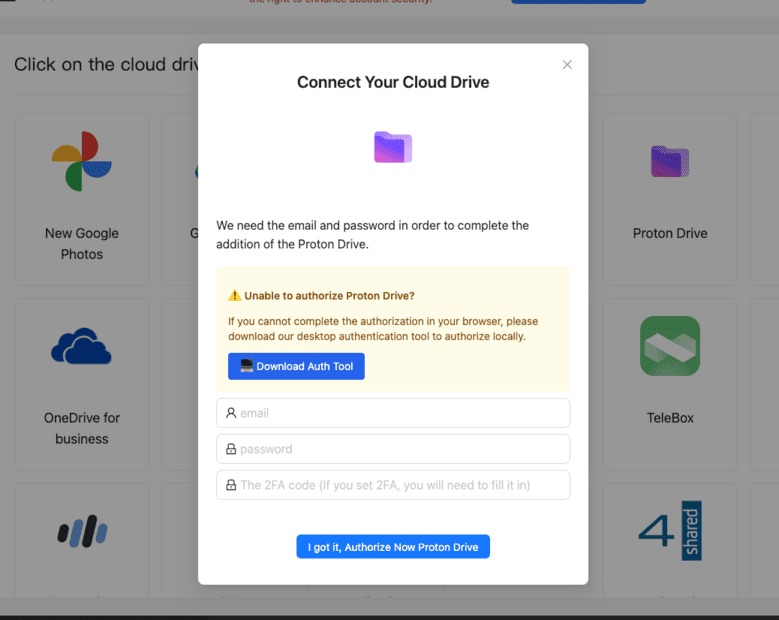
Click Add Cloud → Proton Drive. Enter your Proton email and password. Turn two-factor authentication off on the Proton account first — CloudsLinker signs in server-side and has no field for a code. The session appears in Proton's security settings, where it can be revoked independently of your password.
Step 2: Connect Degoo
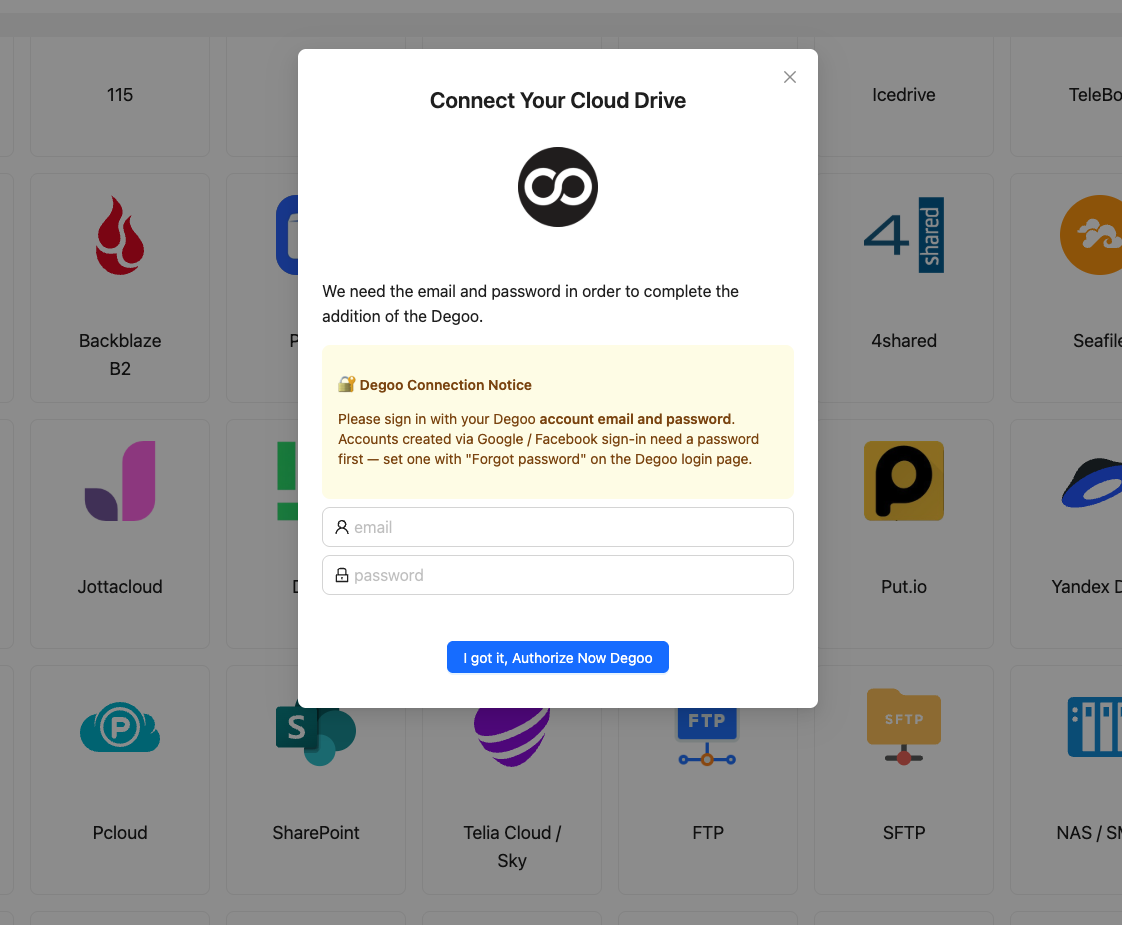
Click Add Cloud → Degoo and enter the Degoo account email and password. CloudsLinker validates against Degoo's API and caches the session. The Top Secret folder stays invisible — only standard folders are writable, which is exactly where non-sensitive bulk belongs.
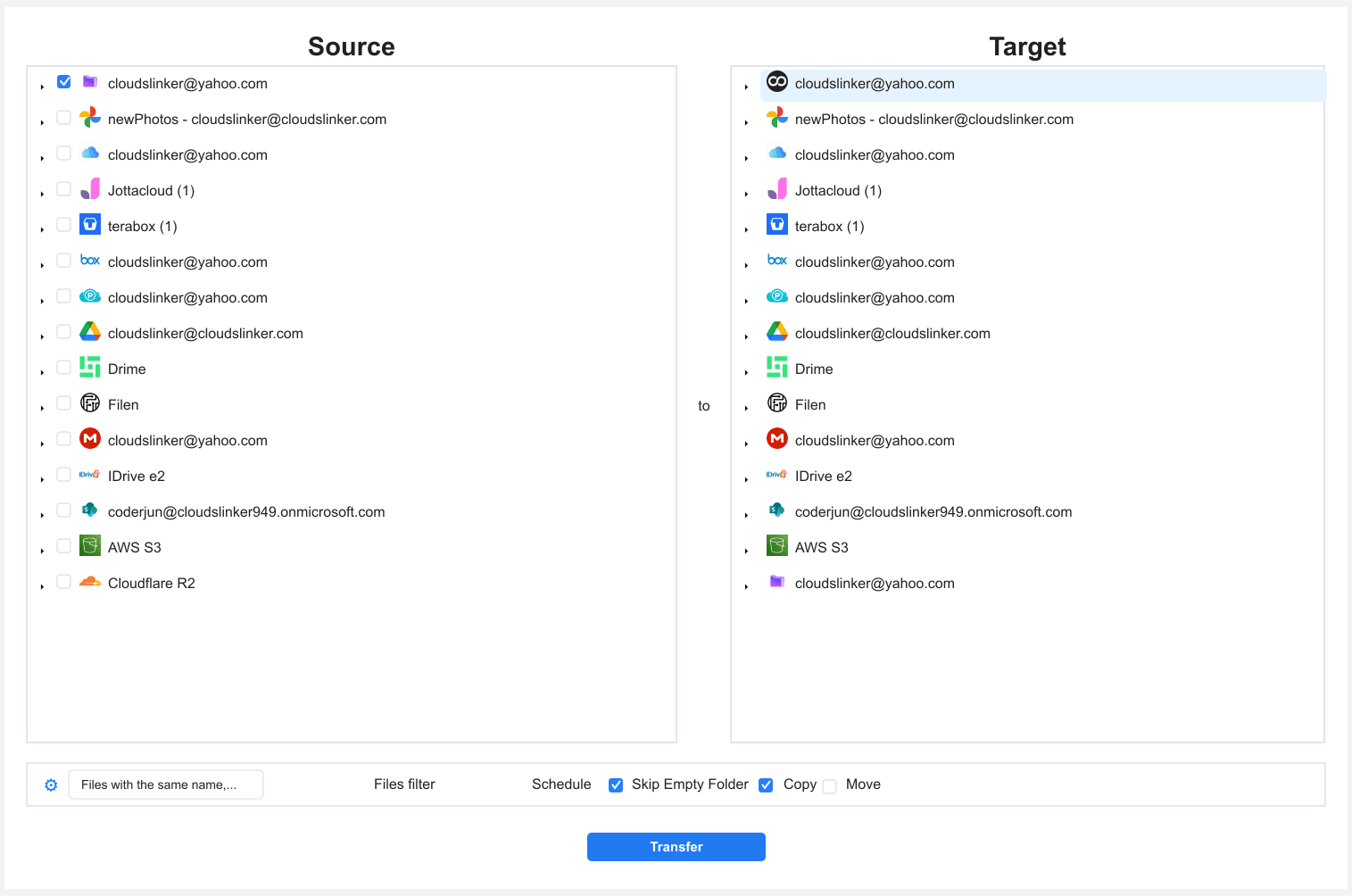
Step 3: Configure the Transfer
In Transfer, set Proton Drive as source and tick the bulk folders — media, downloads, archives. Choose the Degoo destination folder.
Filters help enforce the split: restrict by file type (video and images only) or by size. Start with Copy mode; delete from Proton manually once you've confirmed the arrival, so nothing sensitive gets moved by accident.
Step 4: Start and Monitor the Transfer
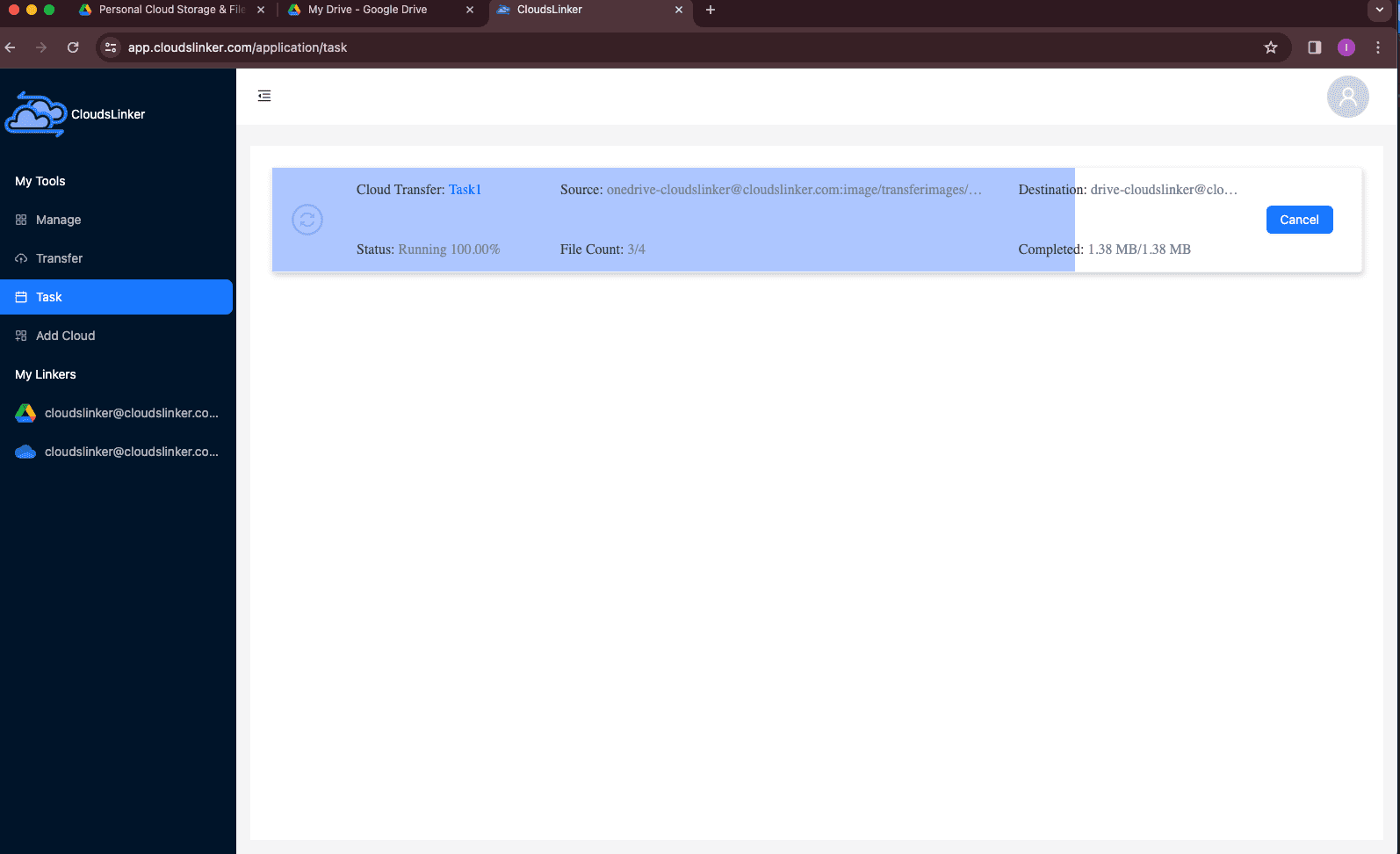
Start the job; the Task List tracks decrypted-and-forwarded volume, speed and remaining files. Encryption overhead makes Proton reads slower than plain clouds — the job compensates by running around the clock without your involvement.
Comparing the Ways to Transfer From Proton Drive to Degoo
| Method | Ease of Use | Speed | Best For | Uses Local Bandwidth | Skill Level |
|---|---|---|---|---|---|
| Manual export / upload | Medium | Slow (browser decryption) | A few folders; files headed for Top Secret | Yes — twice | Basic |
| CloudsLinker | Easy | Fast (server-side decrypt + copy) | Bulk media offloads of 100 GB+ | No | Basic |
- Sort by sensitivity before size: the point of the split is that IDs, contracts and medical records never leave Proton. Do the classification pass first, and only then look at what's big.
- Remember what Degoo's standard folders are not: they're not zero-knowledge. Anything that needs that guarantee either stays in Proton or goes into Degoo's paid Top Secret folder via the Degoo app.
- Check for 50 GB+ outliers: Proton happily stores files of any size; Degoo subscriptions cap at 50 GB per file. Long screen recordings and video masters are the usual offenders.
- Use a dedicated Degoo folder like
Proton-Offload/: it keeps the imported tree separate from phone backups and makes verification (and any future reverse move) trivial. - Version history is a one-way door: Proton keeps up to 10 years of versions; Degoo keeps none. Files whose history matters belong in the stay-in-Proton set.
- Revoke the session when done: Proton's security settings list active sessions — terminate the CloudsLinker one after the migration if you don't plan recurring syncs.
Frequently Asked Questions
Conclusion
A two-cloud split plays each provider to its strength: Proton's 500 GB stays reserved for genuinely sensitive material, while Degoo's 5 TB absorbs the media archive. Manual export works for single folders; CloudsLinker handles the bulk move server-side after logging into both clouds with account credentials. Be clear-eyed about the trade: files leaving Proton lose end-to-end encryption unless you place them in Degoo's paid Top Secret folder afterwards — that's the price of the cheaper shelf, and it's why the sensitive tier stays behind.
Online Storage Services Supported by CloudsLinker
Transfer data between over 58 cloud services with CloudsLinker

OneDrive

Google Drive

Google Photos

Shared Drive

OneDrive for Business

Dropbox

Box

Mega

pCloud

Yandex

ProtonDrive

AWS

GCS

iDrive

Storj

DigitalOcean

Wasabi

1fichier

PikPak

TeleBox

OpenDrive

Backblaze B2

Fastmail file

SharePoint

Nextcloud

ownCloud

Premiumize me

HiDrive

Put.io

Sugar Sync

Jottacloud

Seafile

Ftp

SFtp

NAS

WebDav

4shared

Icedrive

Cloudflare R2

Scaleway

Hetzner Object Storage

Synology C2 Object Storage

S3 Compatible

Doi

iCloud Drive

iCloud Photos

FileLU

Zoho WorkDrive

Telia Cloud / Sky

Drime

Filen

TeraBox

Internxt

Degoo

Gofile

Pixeldrain

Shade

Koofr
Didn' t find your cloud service? Be free to contact: [email protected]
Further Reading
Effortless FTP connect to google drive: Transfer Files in 3 Easy Ways
Learn More >
Google Photos to OneDrive: 3 Innovative Transfer Strategies
Learn More >
Google Photos to Proton Drive: 3 Effective Transfer Techniques
Learn More >