Proton Drive to Drime: Keep Privacy, Gain Sharing and Collaboration
Move files from Proton Drive to Drime without losing privacy. Covers browser export, desktop sync and cloud-to-cloud transfer through CloudsLinker.
Introduction
Drime and Proton Drive both sit in the European, end-to-end-encrypted category, so a migration here is not about changing privacy posture — it is usually about collaboration. Proton Drive's sharing options remain limited compared with Drime's password-protected links, expiring access, and team folders. Users who outgrow Proton Drive's file-at-a-time sharing often move to Drime to keep the encryption guarantees while gaining more practical workflow features. Two methods work reliably for the move: a browser-based download and upload, and a cloud-to-cloud transfer through CloudsLinker.
Proton Drive is the cloud storage arm of Proton AG, the Swiss company behind Proton Mail. It uses end-to-end encryption by design and stores data in Switzerland and Germany.
- End-to-end encryption: applied to files, filenames and metadata.
- Swiss and EU data centers: covered by Swiss privacy law and GDPR.
- Sharing: link-based sharing with a fixed password model.
- Plans: 5 GB free tier, paid tiers bundled with Proton Mail and VPN.
- Clients: web, desktop for Windows/Mac, mobile apps.
Drime is a French cloud workspace built around encrypted storage with collaboration and sharing features layered on top. Data lives in French data centers under GDPR.
- End-to-end encryption: applied to stored and shared files.
- French hosting: infrastructure located in France.
- Advanced sharing: password-protected and expiring links, download limits.
- Collaboration: shared folders with permissions.
- Workspace features: notes and file requests alongside storage.
Both providers encrypt end-to-end and host in Europe. The differences show up in how sharing and team workflows are handled, and in what is included with the storage plan.
| Feature | Proton Drive | Drime |
|---|---|---|
| Data center location | Switzerland and Germany | France |
| Encryption | End-to-end, including filenames | End-to-end on stored files |
| Sharing controls | Link + optional password | Password, expiry date, download limit, access log |
| Collaboration | Shared folders (basic) | Shared folders with permissions, file requests, notes |
| Bundled services | Mail, Calendar, VPN in paid plans | Workspace tools (notes, sharing controls) |
On the Proton Drive side
- Review storage usage in the Proton Drive web app so you know the total volume to move.
- Organize before exporting: Proton Drive's file list does not include album-style grouping, so a flat structure already mirrors what Drime expects.
- Note which items are shared: existing share links from Proton Drive will stop working after deletion. You will recreate them in Drime.
On the Drime side
- Confirm plan capacity: your Drime plan must fit the Proton Drive volume.
- Create a target folder in Drime such as
/Proton-Migration/so the imported files stay grouped. - Generate a developer token: Drime → avatar → Settings → Developer → Create Token. Save it for CloudsLinker.
Method 1: Browser Download from Proton Drive and Upload to Drime
Step 1: Download from Proton Drive
Open drive.proton.me and sign in. Select the files or folders you want to move. Right-click or use the toolbar to choose Download. Proton Drive decrypts files in-browser and packages folders into ZIP archives.
For large exports, download folder by folder to reduce the risk of a dropped session. Proton Drive's desktop app can also sync files into a local folder if you prefer a resilient local copy before uploading.
Step 2: Upload to Drime
Open the Drime web dashboard. Navigate to the folder where you want the files and drag the extracted content in, or use the Upload menu. Drime encrypts files during upload.
Verify a few files by opening them in Drime before deleting anything from Proton Drive. Because both services encrypt at rest, a corrupted file will not be obvious until you actually open it.
Method 2: Cloud-to-Cloud Transfer with CloudsLinker
Move the Library Without Local Downloads
CloudsLinker connects Proton Drive and Drime, then moves the files between them server-side. This avoids the full download-then-upload cycle that becomes painful above ten or twenty gigabytes.
Step 1: Connect Proton Drive
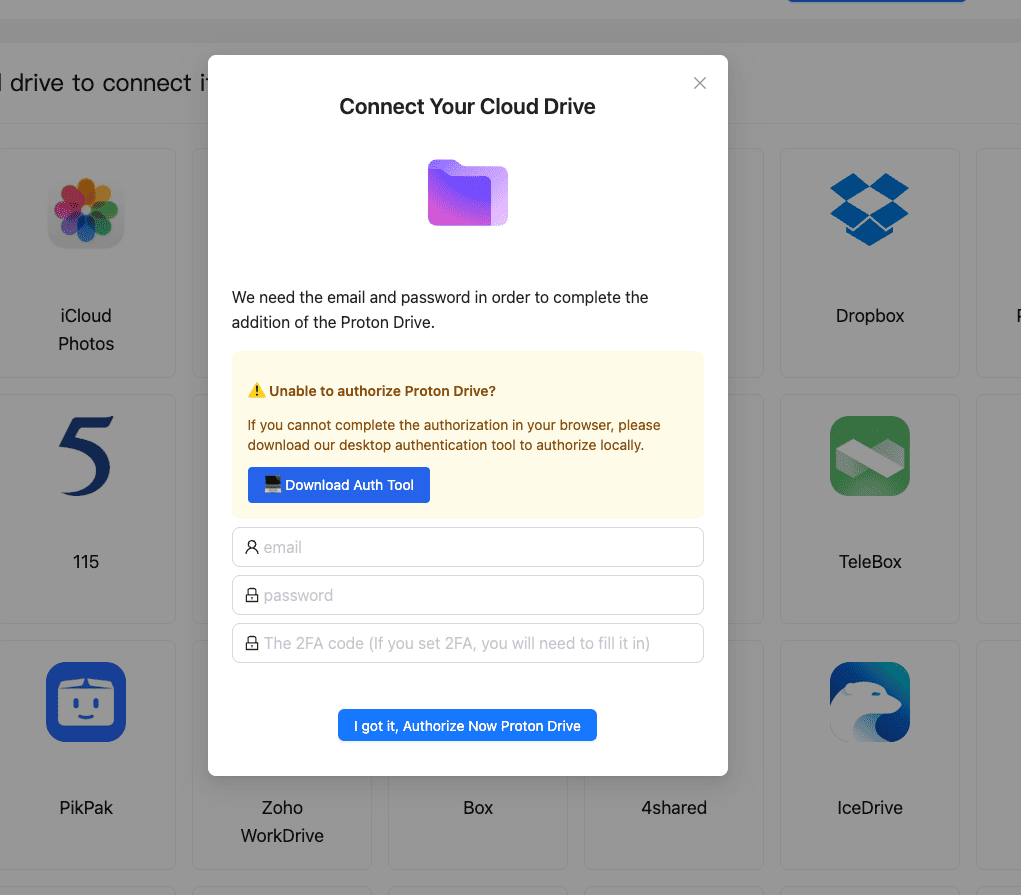
In CloudsLinker, click Add Cloud and select Proton Drive. Enter your Proton account email and password. Two-factor authentication has to be switched off on the Proton account first — CloudsLinker signs in server-side and has no field for a code. On confirmation, Proton Drive appears as a connected source.
Step 2: Connect Drime
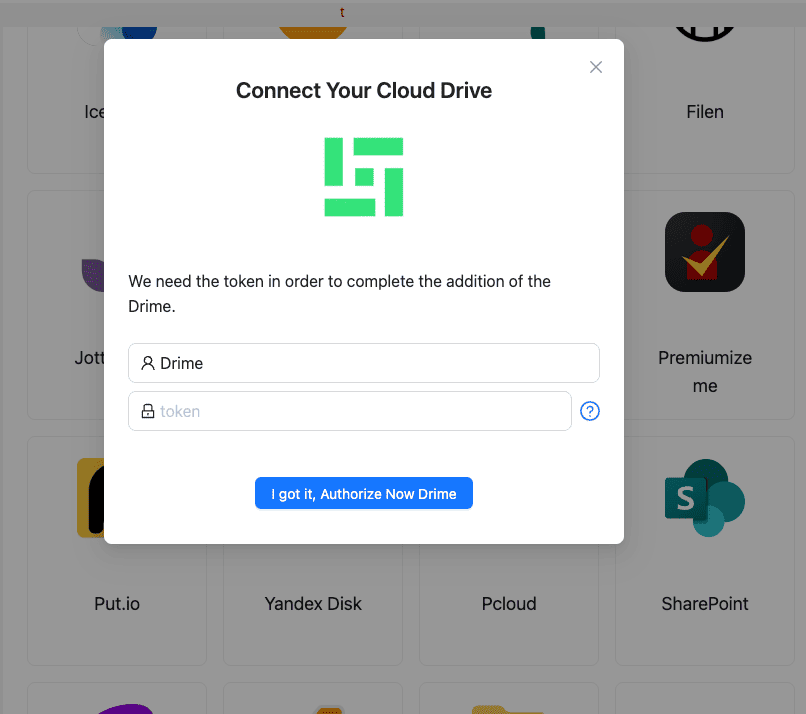
Click Add Cloud and pick Drime. Paste the developer token you generated in Drime → Settings → Developer. Confirm and Drime is ready as the destination.
Step 3: Configure the Transfer
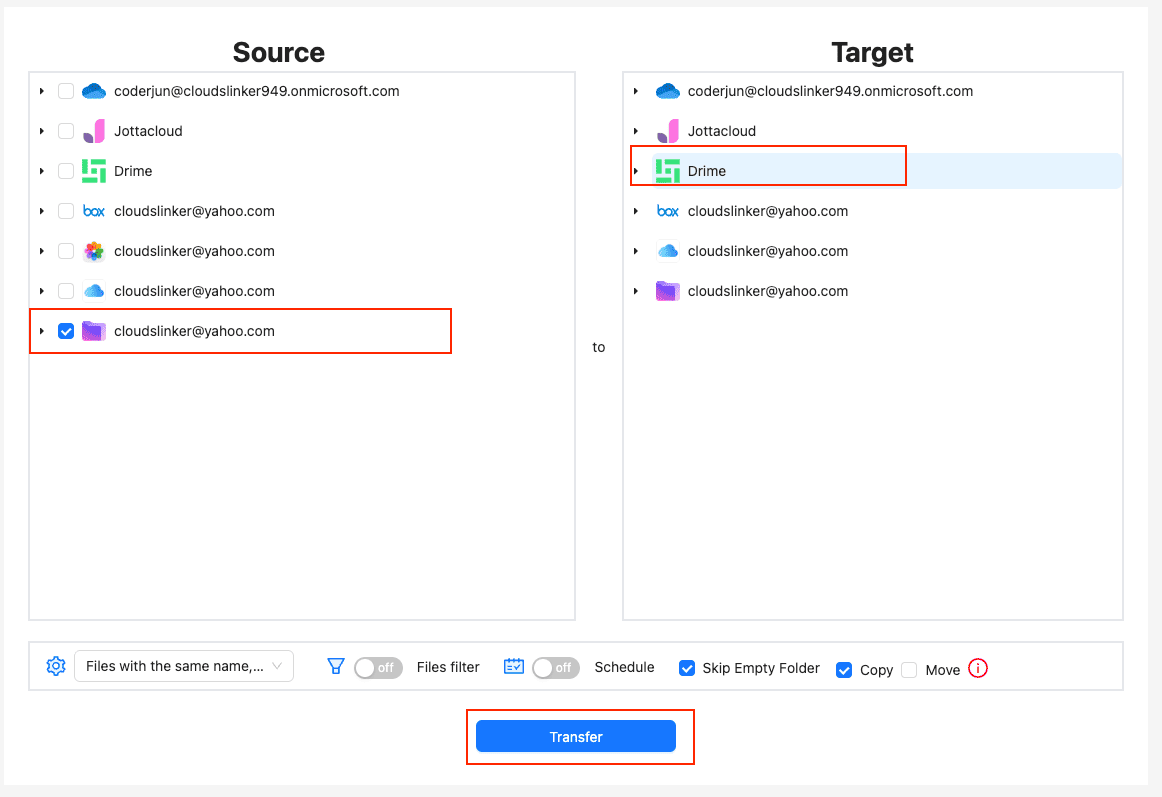
Open the Transfer section. Pick Proton Drive as the source and browse the files or folders you want to move. Select your Drime target directory as the destination. If you only want a subset, apply filters for file type, size or modification date.
Use Copy mode for the first run. Switch to Move mode later if you want CloudsLinker to delete the source files after a successful transfer.
Step 4: Start and Monitor
Click start. The Task List view shows progress, transferred volume and remaining items. The transfer continues on CloudsLinker servers even if you close the browser. Once complete, open Drime and verify a sample of files before freeing up Proton Drive storage.
Method Comparison
| Method | Ease of Use | Speed | Best For | Uses Local Bandwidth | Skill Level |
|---|---|---|---|---|---|
| Browser Download + Upload | ★★★★☆ | ★★☆☆☆ | Small libraries, one-off moves | Yes | Beginner |
| CloudsLinker | ★★★★★ | ★★★★★ | Large libraries, hands-off moves | No | Beginner |
- Recreate share links: Proton Drive share links become invalid when files are removed. Note which items were shared and regenerate share links in Drime afterward.
- Keep the Proton account active: if Proton Drive is bundled with Proton Mail or VPN, do not cancel the subscription immediately after migration — you may still need mail or VPN access tied to the same account.
-
Watch for filename edge cases: Proton Drive supports arbitrary filename
characters. If you see upload failures in Drime, check for very long paths or reserved
characters like
:and?. - Migrate in stages: move one top-level folder at a time so it is easy to verify and roll back if something looks off.
- Keep 2FA where it does not block the transfer: Drime connects with a developer token, so two-factor authentication on the Drime account can stay on. Proton has to keep 2FA off while CloudsLinker is connected; switch it back on once the migration is finished and the connection is removed. Coming from Proton's security posture, leaving Drime on password-only weakens the account unnecessarily.
- Compare plan costs by usable storage: Proton bundles multiple products; Drime sells storage directly. Compare per-GB cost after accounting for any Proton apps you actually use.
Frequently Asked Questions
/Proton-Migration/, the
Proton Drive folder structure is recreated underneath it.
Watch: Transfer Proton Drive Files to Drime with CloudsLinker
A start-to-finish demonstration of the server-side route: connecting Proton Drive with your account credentials, adding Drime with a developer access token from Settings, selecting the source and destination folders, and following the copy in the Task List without downloading anything locally.
Conclusion
If you are moving a handful of documents, the browser route is quick and transparent. For larger libraries — photo archives, scanned documents, design assets — CloudsLinker avoids the download-then-upload round trip and handles the transfer in the cloud. Whichever method you pick, keep Proton Drive intact until you have verified the files in Drime, since both services encrypt at rest and a broken file will not be obvious without opening it.
Online Storage Services Supported by CloudsLinker
Transfer data between over 58 cloud services with CloudsLinker

OneDrive

Google Drive

Google Photos

Shared Drive

OneDrive for Business

Dropbox

Box

Mega

pCloud

Yandex

ProtonDrive

AWS

GCS

iDrive

Storj

DigitalOcean

Wasabi

1fichier

PikPak

TeleBox

OpenDrive

Backblaze B2

Fastmail file

SharePoint

Nextcloud

ownCloud

Premiumize me

HiDrive

Put.io

Sugar Sync

Jottacloud

Seafile

Ftp

SFtp

NAS

WebDav

4shared

Icedrive

Cloudflare R2

Scaleway

Hetzner Object Storage

Synology C2 Object Storage

S3 Compatible

Doi

iCloud Drive

iCloud Photos

FileLU

Zoho WorkDrive

Telia Cloud / Sky

Drime

Filen

TeraBox

Internxt

Degoo

Gofile

Pixeldrain

Shade

Koofr
Didn' t find your cloud service? Be free to contact: [email protected]
Further Reading
Effortless FTP connect to google drive: Transfer Files in 3 Easy Ways
Learn More >
Google Photos to OneDrive: 3 Innovative Transfer Strategies
Learn More >
Google Photos to Proton Drive: 3 Effective Transfer Techniques
Learn More >