Proton Drive to Filen: 3 Reliable Ways to Move Your Files Securely
Moving files out of Proton Drive and into Filen isn’t complicated, but the best approach depends on how much data you have and how much control you want. This guide breaks down three proven methods — a simple browser-based download, a more technical workflow using Rclone, and a fully cloud-hosted transfer via CloudsLinker — so you can choose a path that fits your privacy expectations, time budget, and internet constraints.
Introduction
Proton Drive is often chosen for one clear reason: privacy. Built by the same team behind Proton Mail, it focuses on encrypted storage with minimal data exposure. But as storage needs evolve, some users decide to migrate their files into Filen — another privacy-first platform with a strong zero-knowledge design and flexible storage plans. The challenge isn’t deciding where to go; it’s figuring out how to move your data without breaking folder structures, wasting bandwidth, or babysitting long uploads. A small folder can be handled directly in the browser. A larger archive benefits from tools that can resume, retry, and run unattended. Below, you’ll find three practical ways to transfer files from Proton Drive to Filen, ranging from manual downloads to a fully automated cloud-to-cloud workflow using CloudsLinker.
How to Transfer Files from Proton Drive to Filen
Three realistic workflows — from quick manual downloads to unattended cloud-to-cloud transfers.
Proton Drive is Proton’s encrypted cloud storage service, designed to keep files private by default. Encryption is applied client-side, meaning file contents remain unreadable to the service itself.
- Strong privacy focus: encryption is built into the platform.
- Integrated ecosystem: works alongside Proton Mail and Proton Pass.
- Web-first experience: simple interface for everyday file storage.
Proton documents how encrypted downloads work in its official support resources, which can be useful when preparing large exports.
Filen is another zero-knowledge storage provider, popular with users who want encrypted cloud storage without giving up cross-platform access.
- End-to-end encryption: encryption happens before upload.
- Zero-knowledge model: stored data can’t be inspected by the provider.
- Flexible clients: web, desktop, and mobile apps available.
Filen’s documentation explains how account security features like 2FA can be enabled before large uploads.
Method 1: Download from Proton Drive and Upload to Filen
Trade-off: relies entirely on your local download and upload speed.
Sign in to the Proton Drive web interface and navigate to the folders you want to move. Select individual files or entire directories, then choose the download option.
For folders, Proton Drive typically prepares an archive before downloading. Once the download completes, extract the files locally so the directory structure remains intact for upload.
Next, open the Filen web app, create a destination folder if needed, and upload the extracted files. Encryption is handled automatically before data leaves your device.
This approach is straightforward, but it becomes tedious once file sizes grow into the hundreds of gigabytes. At that point, automation is usually more comfortable.
Method 2: Transfer with Rclone
Trade-off: requires command-line familiarity.
Rclone is widely used for managing large-scale file transfers between storage providers. Its strength lies in retries, logging, and the ability to resume interrupted jobs.
In a Proton Drive → Filen workflow, Rclone is often used as part of a controlled pipeline where data is staged locally or processed in batches. This gives you visibility and control that browser uploads don’t provide.
If you’re comfortable tuning flags, filtering paths, and monitoring logs, Rclone remains one of the most reliable tools for large migrations.
Method 2: Direct Cloud-to-Cloud Transfer with CloudsLinker
Overview: Transfer Files from Proton Drive to Filen Without Local Downloads
CloudsLinker is a web-based migration platform built for direct cloud-to-cloud transfers. Instead of downloading your Proton Drive data to your computer first, the transfer runs on remote servers and moves files straight into Filen. That means the migration can keep going in the background without tying up local bandwidth or requiring you to keep a browser tab open for hours.
Step 1: Sign In and Add Proton Drive (Email + Password)
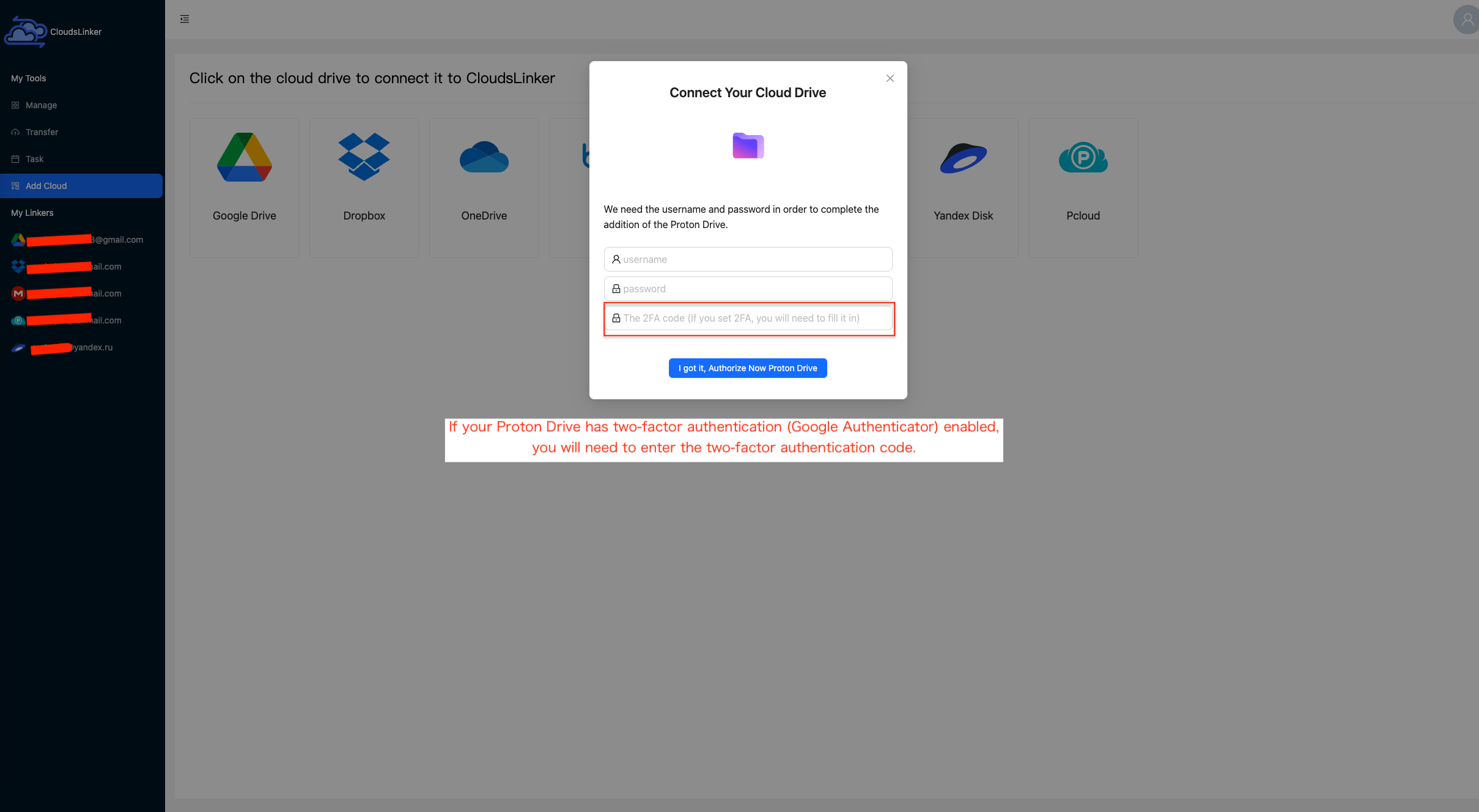
Start by signing in to your CloudsLinker account. From the main dashboard, click Add Cloud and choose Proton Drive from the list of supported services.
CloudsLinker connects to Proton Drive using your Proton account email and password. Enter the credentials for the Proton Drive account that contains the files you want to migrate, then proceed with the connection flow to authenticate securely.
Once the connection completes, your Proton Drive will appear as an available source inside the dashboard, and you’ll be able to browse folders and select specific data for transfer.
Step 2: Connect Filen as the Destination
Next, add Filen as the destination cloud. Click Add Cloud, select Filen, and sign in using your Filen account credentials.
Since Filen relies on end-to-end encryption, many users choose to enable two-factor authentication (2FA) before connecting their account. This can be configured within Filen’s security settings and adds an extra layer of protection during authentication.
Once connected, Filen will appear in CloudsLinker as a valid destination for transfer tasks.

Step 3: Set Up the Transfer Task
Open the Transfer section and select your connected Proton Drive account as the source. Browse through your folders and choose the data you want to migrate. On the destination side, select Filen and specify the target folder where the files should be stored.
If needed, you can apply optional rules such as skipping certain file types, excluding specific folders, or limiting the transfer to recently modified data. These options are useful when migrating large accounts but only a subset of files is required.

Step 4: Start the Transfer and Monitor Progress
Once everything is configured, start the transfer task. Progress can be tracked from the Task List, where you’ll see details such as transferred size, current speed, and remaining workload. Because the process runs entirely in the cloud, the task continues even if you close the browser or turn off your computer.
After completion, CloudsLinker provides a summary showing which files were transferred successfully and whether any items require attention. Your data will now be stored in Filen under its encrypted storage model, without having passed through your local device.
For users handling large Proton Drive libraries or looking for a hands-off migration process, CloudsLinker offers a practical and efficient way to move data directly from Proton Drive to Filen.
Looking to Transfer Between Other Cloud Platforms?
In addition to Proton Drive and Filen, CloudsLinker supports a wide range of cloud services, including Dropbox, MEGA, WebDAV, and S3-compatible storage. All transfers run cloud-to-cloud, making it possible to migrate large datasets without impacting local performance.
Comparing the 3 Ways to Transfer from Proton Drive to Filen
| Method | Ease of Use | Speed | Best For | Uses Local Bandwidth |
|---|---|---|---|---|
| Browser Download + Upload | ★★★★★ | ★★★☆☆ | Small, quick transfers | Yes |
| Rclone | ★★★☆☆ | ★★★★☆ | Large, controlled migrations | Usually yes |
| CloudsLinker | ★★★★★ | ★★★★★ | Hands-off, cloud-scale moves | No |
Conclusion
There’s no universal answer when migrating from Proton Drive to Filen. If you’re only moving a limited set of folders, a browser download and re-upload is perfectly acceptable. For users who want visibility, logs, and fine-grained control, Rclone provides a more technical but reliable route. And if you prefer to avoid local bandwidth limits altogether — or simply don’t want to keep your computer running — a cloud-to-cloud transfer with CloudsLinker offers the most hands-off experience. No matter which option you choose, start small, verify the results, and then scale up once you’re confident everything behaves as expected.
Online Storage Services Supported by CloudsLinker
Transfer data between over 48 cloud services with CloudsLinker

OneDrive

Google Drive

Google Photos

Shared Drive

OneDrive for Business

Dropbox

Box

Mega

pCloud

Yandex

ProtonDrive

AWS

GCS

iDrive

Storj

DigitalOcean

Wasabi

1fichier

PikPak

TeleBox

OpenDrive

Backblaze B2

Fastmail file

SharePoint

Nextcloud

ownCloud

Premiumize me

HiDrive

Put.io

Sugar Sync

Jottacloud

Seafile

Ftp

SFtp

NAS

WebDav

4shared

Icedrive

Cloudflare R2

Scaleway

Doi

iCloud Drive

iCloud Photos

FileLU

Zoho WorkDrive

Telia Cloud / Sky

Drime

Filen
Didn' t find your cloud service? Be free to contact: [email protected]
Further Reading
Effortless FTP connect to google drive: Transfer Files in 3 Easy Ways
Learn More >
Google Photos to OneDrive: 3 Innovative Transfer Strategies
Learn More >
Google Photos to Proton Drive: 3 Effective Transfer Techniques
Learn More >