Proton Drive to Koofr: Stay in Europe, Drop the Subscription
Move Proton Drive files to Koofr's German data centres — swap a monthly Proton plan for a one-time lifetime deal while keeping data under EU jurisdiction.
Introduction
Both of these clouds exist for the same reason — keeping files in Europe, out of US jurisdiction — but they charge for it differently. Proton Drive is subscription-only: 200 GB on Drive Plus, 500 GB inside the Unlimited bundle, forever monthly. Koofr runs from a 10 GB free-for-life tier through granular paid plans to one-time lifetime deals, all stored in ISO 27001-certified German data centres. The move makes sense for one specific user: someone paying for a Proton bundle mainly for Mail, whose Drive storage is a side benefit that filled up — or a Drive Plus subscriber eyeing a 1 TB Koofr lifetime as the cheaper decade. One honest trade-off sits in the middle: Proton encrypts end-to-end by default, Koofr does not (its free Vault add-on can, per folder). This guide covers the manual export and the server-side copy, and where that trade-off bites.
Proton Drive is the storage arm of Proton's Swiss privacy suite: end-to-end encrypted by default, keys held only by you. Free accounts start at 2 GB (5 GB after onboarding tasks); Drive Plus adds 200 GB and the Unlimited bundle 500 GB — subscription only.
- End-to-end encryption by default, Swiss servers
- Free 2 GB → 5 GB; Plus 200 GB; Unlimited 500 GB
- No lifetime plans — always monthly/annual
- Credentials for transfer tools (2FA must be off)
Koofr is a Slovenian cloud (since 2013) with all data in ISO 27001-certified German data centres: 10 GB free for life, plans from 25 GB (€0.5/mo) to 20 TB, popular one-time lifetime deals, no per-file size limit, and a free client-side encryption add-on (Koofr Vault).
- 10 GB free for life; lifetime plans available
- German ISO 27001 data centres, EU jurisdiction
- No per-file size limit
- Optional client-side encryption via Koofr Vault
| Feature | Proton Drive | Koofr |
|---|---|---|
| Jurisdiction / data location | Switzerland | EU (Slovenia; data in Germany, ISO 27001) |
| Encryption model | End-to-end by default | At rest + in transit; E2E optional via free Vault |
| Free allowance | 2 GB (5 GB after onboarding tasks) | 10 GB, for life |
| Paid structure | Subscription only: Plus 200 GB, Unlimited 500 GB | 25 GB–20 TB yearly, or one-time lifetime plans |
| Max single file | No hard published cap (chunked uploads) | No published limit |
| Connection in CloudsLinker | Account credentials (2FA must be off) | Email + app password (Koofr API) |
Sources: Proton: plans and pricing, Koofr: features and pricing.
Sort the library by sensitivity first — that decides each folder's destination. Bulk media, archives and finished projects go to regular Koofr storage; anything that genuinely needs zero-access encryption either stays in Proton or lands in a Koofr Vault folder afterwards. Check quota on the receiving end (a Drive Plus quota of 200 GB fits most Koofr paid tiers; size lifetime plans before, not after). Then prepare both credentials: your Proton email and password with two-factor authentication switched off, and a fresh Koofr app password from app.koofr.net → Preferences → Password — Koofr rejects the normal login password for third-party tools.
Method 1: Download from Proton and Re-upload
Step 1: Download from drive.proton.me
Select folders at drive.proton.me and click Download. Decryption happens in the browser as data streams down — end-to-end encryption means there is no server-side ZIP to shortcut this, so large selections take noticeably longer than their size suggests.
Step 2: Upload into Koofr
Sign in at app.koofr.net, create a destination folder and drag the downloaded content in. Sensitive folders can go into a Koofr Vault instead, where encryption happens client-side before upload.
Fine for a few gigabytes. For a full 200–500 GB Proton quota, browser-side decryption plus the double pass over your connection stretches this into days of open browser tabs.
Method 2: Transfer Proton Drive to Koofr in the Cloud
Europe to Europe, server-side
CloudsLinker authenticates to Proton with your credentials while 2FA is switched off, reads the drive through Proton's own access protocol, and writes into Koofr over its API with an app password. No browser decryption session to keep alive, and the folder tree from a years-old Proton account arrives intact in the German data centre.
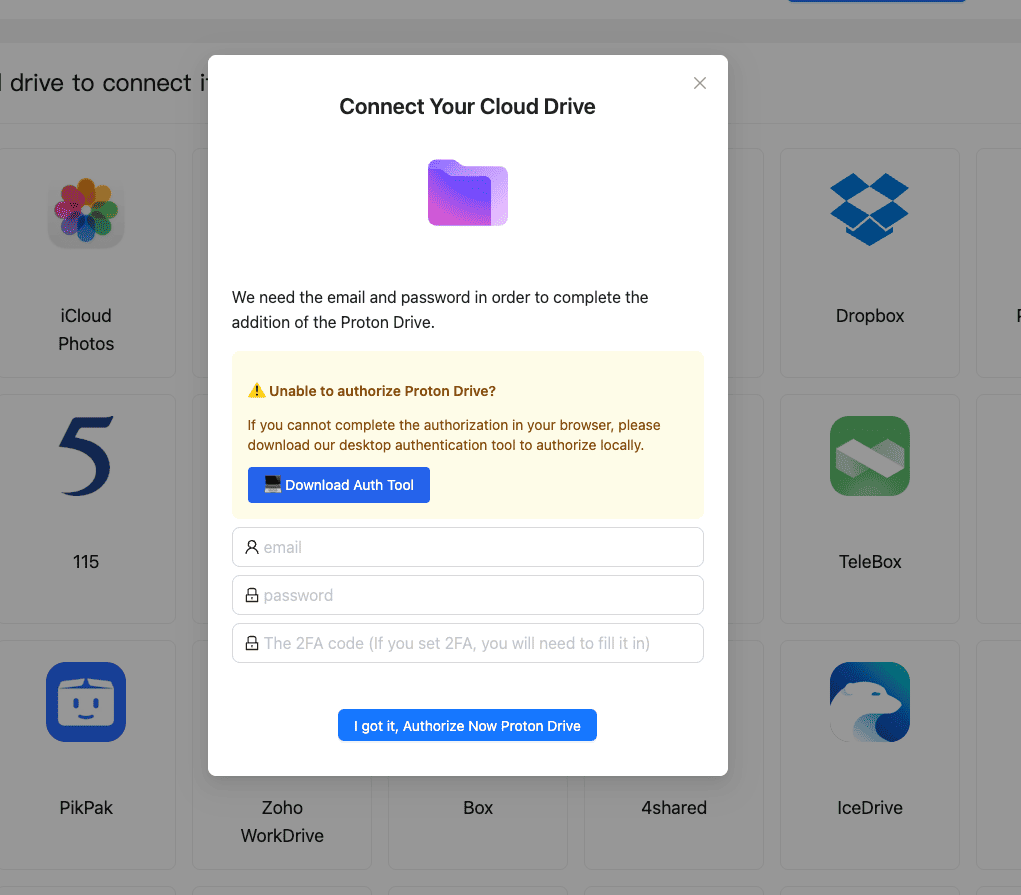
Step 1: Connect Proton Drive
Click Add Cloud → Proton Drive. Enter your Proton email and password. Two-factor authentication has to be switched off on the account first — the sign-in runs on CloudsLinker's servers and has no code field. The session appears in Proton's security settings, where it can be revoked later.
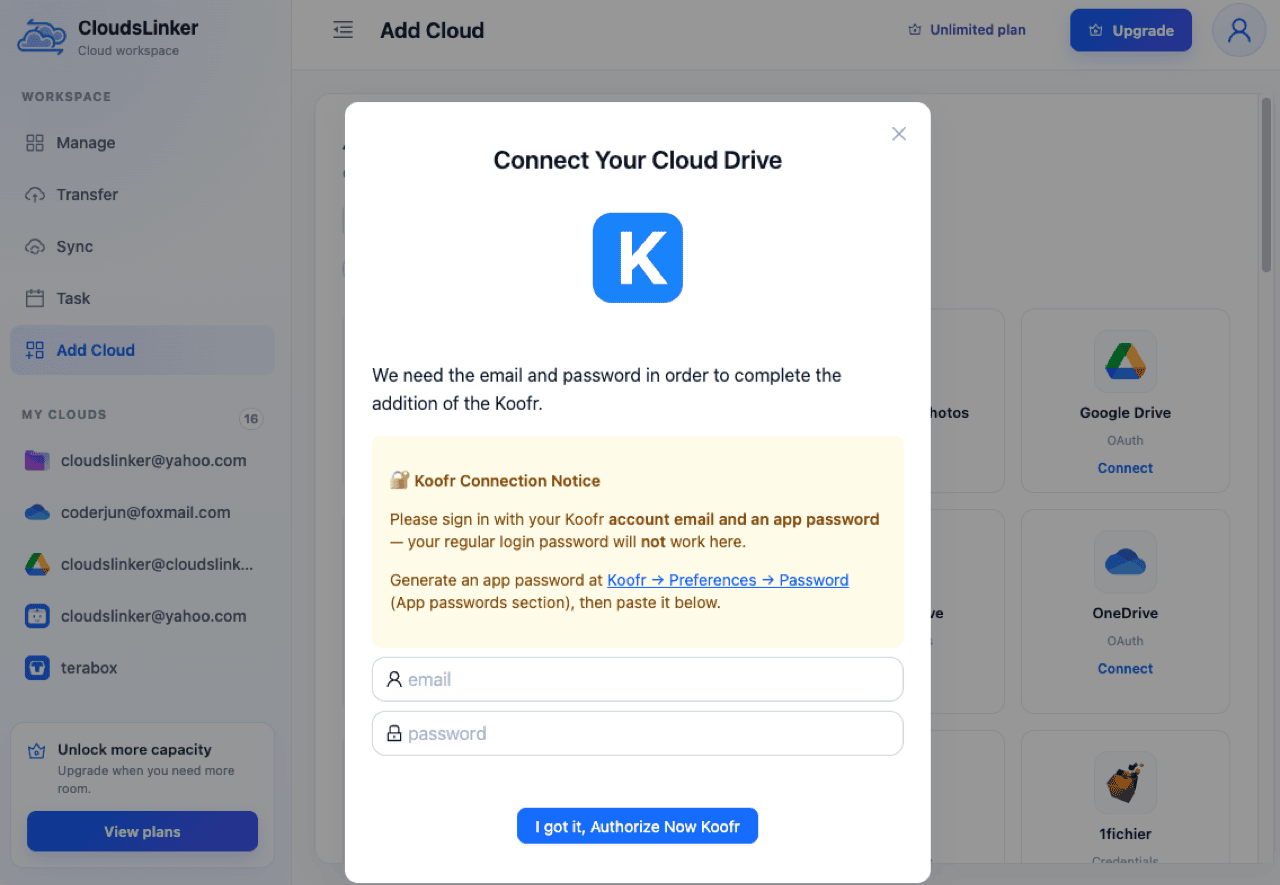
Step 2: Connect Koofr
Click Add Cloud → Koofr. Enter your Koofr account email and the app password generated under Preferences → Password — a per-tool credential you can revoke on its own.
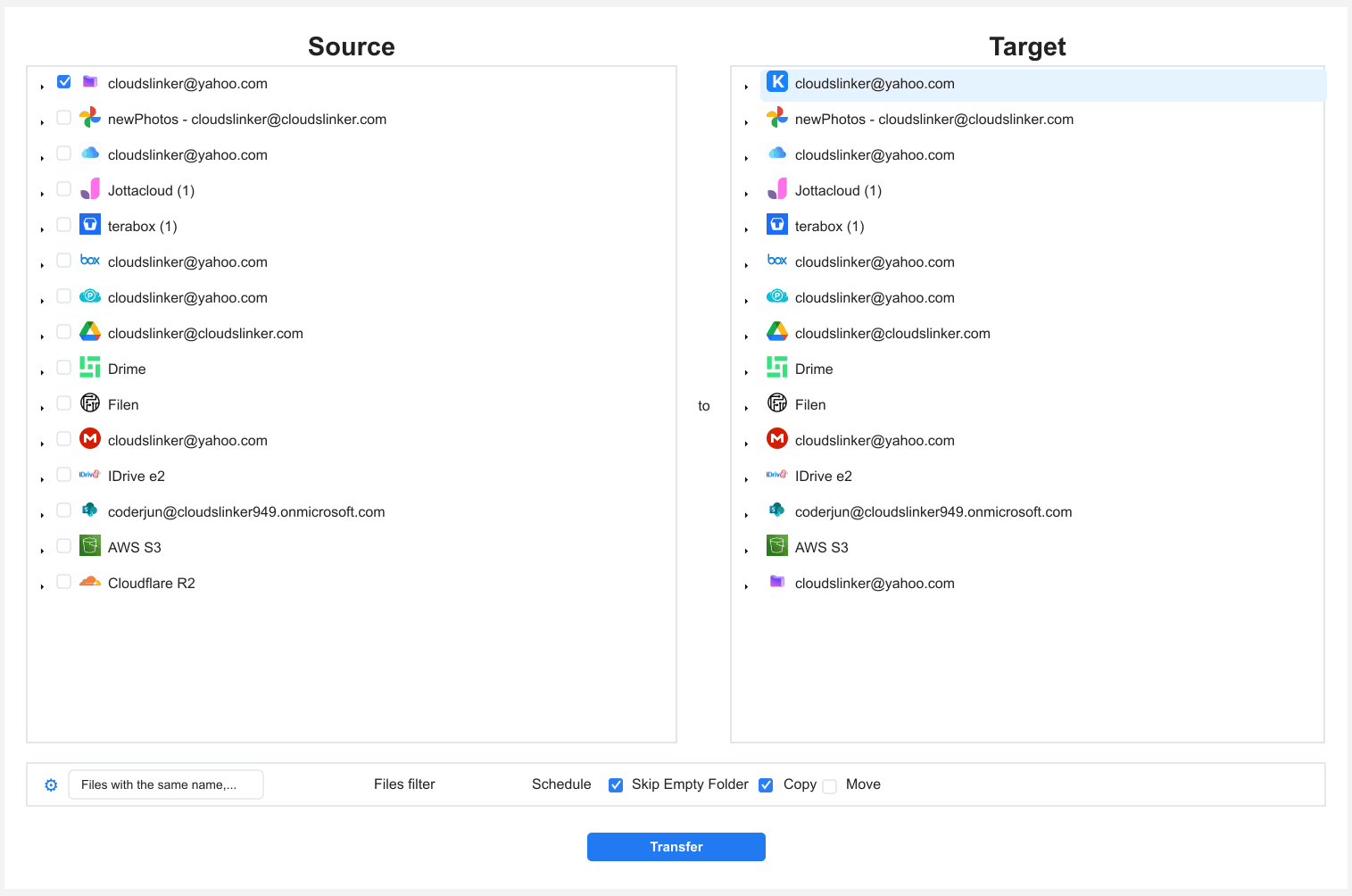
Step 3: Configure the Transfer
Set Proton Drive as the source and tick the folders leaving the E2E vault; set Koofr as the destination folder. Filters by type, size or date keep the selection tight. Copy mode leaves Proton untouched until you have verified the arrival.
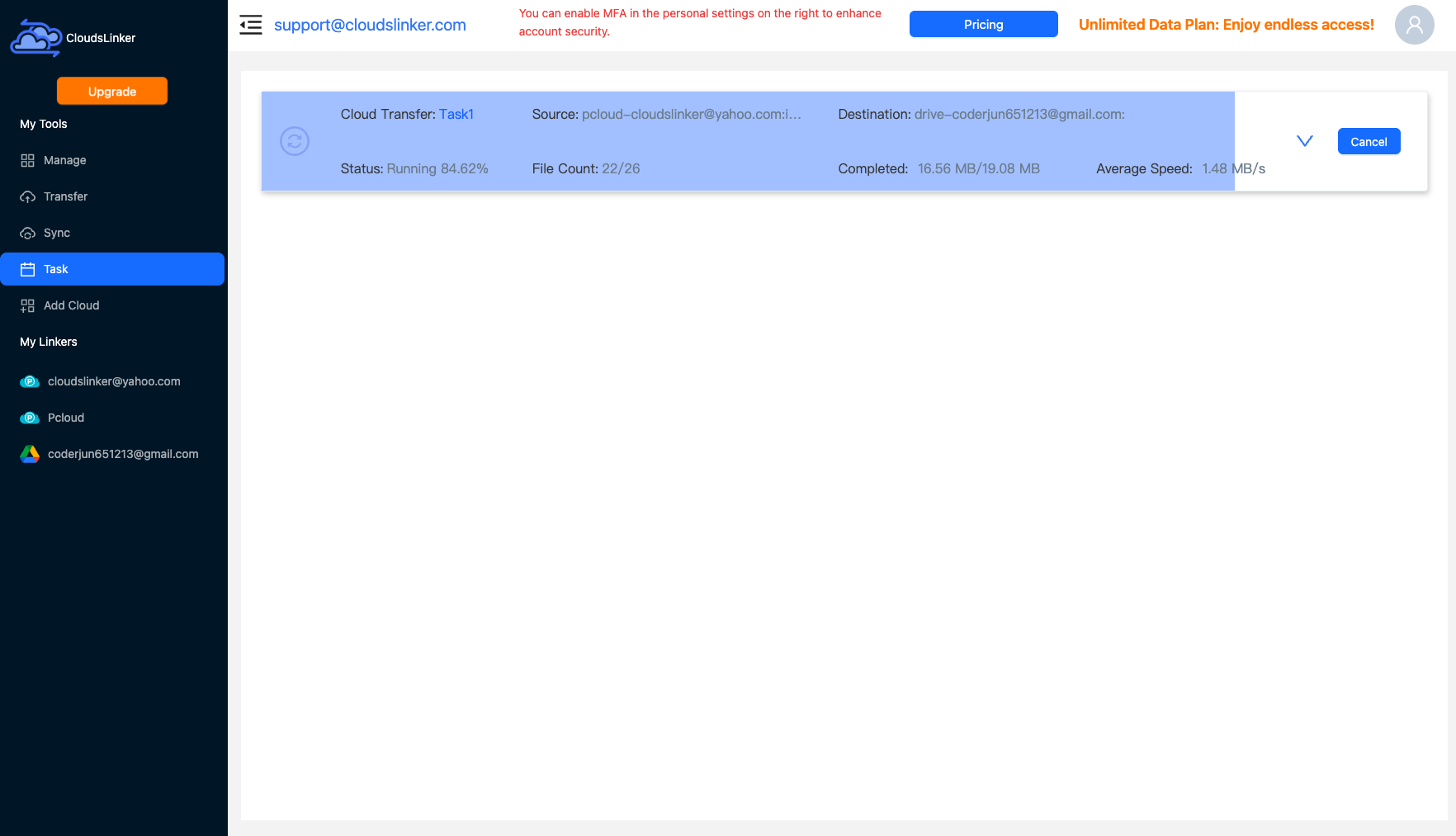
Step 4: Start and Monitor the Transfer
Start the job and follow the Task List — files done, speed, anything skipped. The copy runs on CloudsLinker's servers; your machine and browser can disconnect.
Comparing the Ways to Transfer From Proton Drive to Koofr
| Method | Ease of Use | Speed | Best For | Uses Local Bandwidth | Skill Level |
|---|---|---|---|---|---|
| Web download / upload | Medium | Slow (browser decryption + double pass) | A few GB; Vault-destined sensitive folders | Yes — twice | Basic |
| CloudsLinker | Easy | Fast (server-side) | Full-quota moves off a Proton subscription | No | Basic |
- Split by sensitivity, not by folder age: the E2E question is the real decision. Bulk to Koofr storage, genuinely sensitive material to Koofr Vault or left in Proton — make that list before connecting anything.
- Keep Proton Mail, drop the storage role: most people in this move stay Proton customers — the migration just stops Drive quota pressure from forcing the next bundle tier.
- Use a dedicated Koofr app password: one per tool, revocable alone. Delete it in Preferences after the job.
- Watch shared Proton links: share links die with the files that back them. Recreate sharing from Koofr (or keep shared folders in Proton) rather than assuming links survive.
- Verify before downgrading the Proton plan: spot-check arrivals in Koofr first — free-tier Koofr trash holds deletions only 7 days, and a downgraded Proton account locks writes above its new quota.
- Vault the subset that needs it: Koofr Vault is free, open-source and rclone-crypt compatible — client-side encryption for the folders that justified Proton in the first place.
- Schedule the tail: if Proton stays active for mail, a monthly scheduled sync keeps sweeping new bulk files into Koofr so the quota problem doesn't rebuild.
Frequently Asked Questions
Conclusion
A documents folder moves in an afternoon by hand — Proton's web download decrypts in the browser, Koofr's uploader takes the rest. A full Drive Plus quota is a job for the server-side route: Proton connected with credentials and 2FA switched off, Koofr with an app password, folder tree preserved, no browser session to babysit. Decide the encryption question deliberately: files that genuinely need zero-access encryption should land in Koofr Vault (client-side, rclone-crypt compatible) or stay in Proton; everything else gains a lifetime home in German data centres and loses nothing that matters.
Online Storage Services Supported by CloudsLinker
Transfer data between over 58 cloud services with CloudsLinker

OneDrive

Google Drive

Google Photos

Shared Drive

OneDrive for Business

Dropbox

Box

Mega

pCloud

Yandex

ProtonDrive

AWS

GCS

iDrive

Storj

DigitalOcean

Wasabi

1fichier

PikPak

TeleBox

OpenDrive

Backblaze B2

Fastmail file

SharePoint

Nextcloud

ownCloud

Premiumize me

HiDrive

Put.io

Sugar Sync

Jottacloud

Seafile

Ftp

SFtp

NAS

WebDav

4shared

Icedrive

Cloudflare R2

Scaleway

Hetzner Object Storage

Synology C2 Object Storage

S3 Compatible

Doi

iCloud Drive

iCloud Photos

FileLU

Zoho WorkDrive

Telia Cloud / Sky

Drime

Filen

TeraBox

Internxt

Degoo

Gofile

Pixeldrain

Shade

Koofr
Didn' t find your cloud service? Be free to contact: [email protected]
Further Reading
Effortless FTP connect to google drive: Transfer Files in 3 Easy Ways
Learn More >
Google Photos to OneDrive: 3 Innovative Transfer Strategies
Learn More >
Google Photos to Proton Drive: 3 Effective Transfer Techniques
Learn More >