SFTP to TeraBox: Retire an SSH File Server for a 1 TB Cloud Archive
Move SFTP server contents into TeraBox with an SFTP client or a cloud-to-cloud transfer through CloudsLinker. Honest limits — 4 GB free per-file cap, cookie auth.
Introduction
TeraBox provides 1 TB of advertised free storage with apps on every major platform, which makes it a workable home for the contents of an SFTP server you no longer want to keep running. SFTP is the secure successor to FTP — it tunnels file transfer over SSH on port 22, so credentials and data are encrypted — but it still ties files to a host that needs patching, uptime, and a shrinking reason to exist once the project it served is done. Moving the directory tree into TeraBox swaps server upkeep for a consumer cloud quota. Two paths handle the move: an SFTP client like WinSCP or FileZilla as a local bridge, and a cloud-to-cloud transfer through CloudsLinker that connects to SFTP with standard server parameters and to TeraBox with its session cookie.
SFTP (SSH File Transfer Protocol) moves files over an encrypted SSH connection on port 22. Unlike plain FTP, both credentials and file contents are encrypted in transit, which is why it is the standard for server-to-server and admin file transfer.
- Encryption: full SSH encryption in transit.
- Default port: 22 (shared with SSH).
- Authentication: password or SSH key.
- Typical hosts: Linux servers, VPS instances, managed hosting.
- Limitations: no link sharing, no quota UI, requires a maintained host.
TeraBox is a consumer cloud storage service operated by Flextech Inc., the international branch of Baidu Netdisk. It advertises a 1 TB free tier with native apps across platforms.
- Free tier: 1024 GB advertised; ~80 GB practical given the 20 large-file cap.
- Per-file cap: 4 GB free; 20 GB on Premium.
- Download throttle: roughly 200–800 KB/s on free.
- Connection: no public OAuth — third-party tools use the browser session cookie (
ndus,ndut_fmt). - Service split:
terabox.com(international) is separate from Baidu Netdisk.
SFTP is a secure transport protocol exposing a server's filesystem; TeraBox is a consumer cloud product with quotas, web sharing, and a large free tier. The migration replaces a maintained host with a managed account.
| Feature | SFTP | TeraBox |
|---|---|---|
| Encryption in transit | Full SSH encryption | TLS |
| Storage model | Server filesystem, sized by disk | 1 TB free tier, paid up to 2 TB |
| Sharing | Account-based; no link sharing | Public share links with passwords |
| Maintenance | You patch and run the server | None — managed service |
| Per-file cap | Filesystem-bound (typically multi-TB) | 4 GB free / 20 GB Premium |
On the SFTP side
- Confirm credentials: host, port (22 default), username, and password or SSH key.
- Inventory by file size: identify any file over 4 GB — database dumps and archives are common offenders. These need Premium or splitting.
- Resolve broken symlinks: SFTP exposes symlinks that may point to missing targets and fail on transfer.
- Check key vs password auth: if the server only allows key-based login, confirm your transfer tool can use the key.
On the TeraBox side
- Create a TeraBox account at terabox.com.
- Pick a tier: free if everything fits under 4 GB per file, Premium otherwise.
- Create top-level folders (for example,
/SFTP-Archive/) to keep the imported tree contained.
Method 1: SFTP Client (WinSCP / FileZilla) as a Local Bridge
Step 1: Pull Files from the SFTP Server
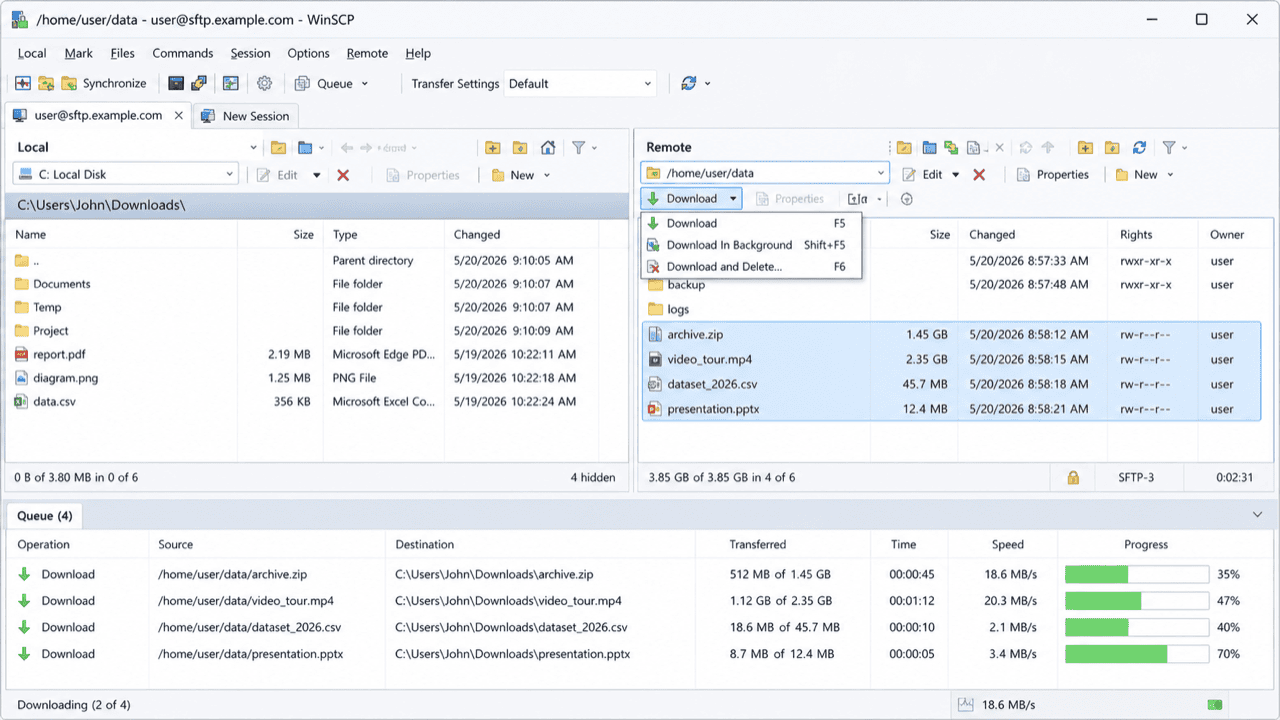
Install WinSCP (Windows) or FileZilla (cross-platform). Connect with the host, username, and password or SSH key, choosing the SFTP protocol on port 22. Browse to the directory and drag files into a local staging folder.
Enable resume-on-failure in the transfer settings so large trees survive transient drops. SSH connections are generally more stable across NAT than plain FTP.
Step 2: Filter Oversized Files
Sort the staging folder by size. Anything above 4 GB fails on a free TeraBox account. Move those
aside, upgrade TeraBox, or split with an archiver (7z a -v3.9g archive.7z largefile).
Step 3: Upload to TeraBox
Open terabox.com, navigate to your target folder, and upload the staging folder. Free-tier upload speeds are lower than Premium. Watch for per-file failures inline.
Method 2: Cloud-to-Cloud Transfer with CloudsLinker
Move SFTP to TeraBox Without a Local Staging Disk
CloudsLinker connects to the SFTP server with host, port and credentials, and to TeraBox with the session cookie. The transfer runs server-side, so a soon-to-be-decommissioned workstation does not block the move.
Step 1: Connect the SFTP Server
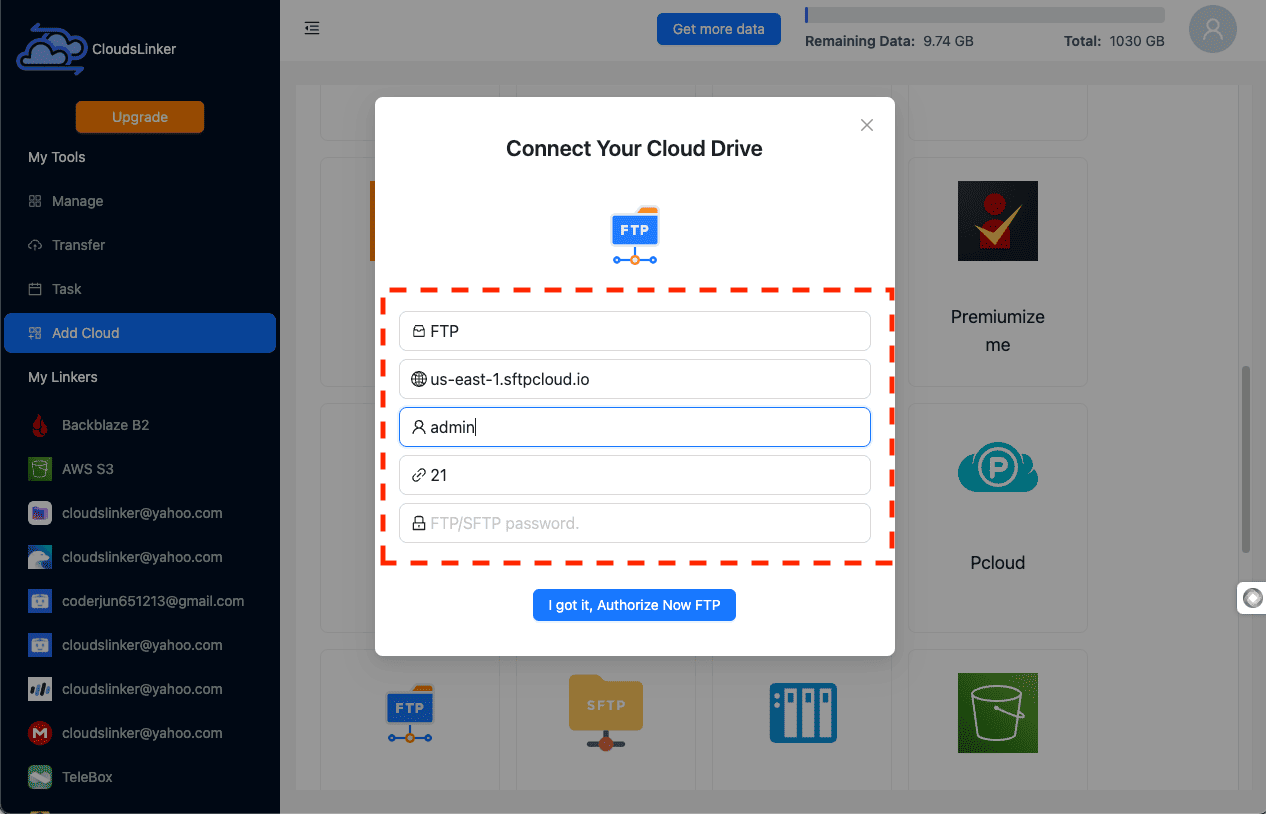
In CloudsLinker, click Add Cloud and select SFTP. Enter:
- Display name (anything you choose)
- Host — IP or DNS name of the server
- User and Password (or SSH key where supported)
- Port — 22 by default
- Path (optional) — initial directory
The SFTP host must be reachable from CloudsLinker's network. If the server restricts inbound SSH by IP, allow CloudsLinker's address range.
Step 2: Connect TeraBox (Browser Cookie)
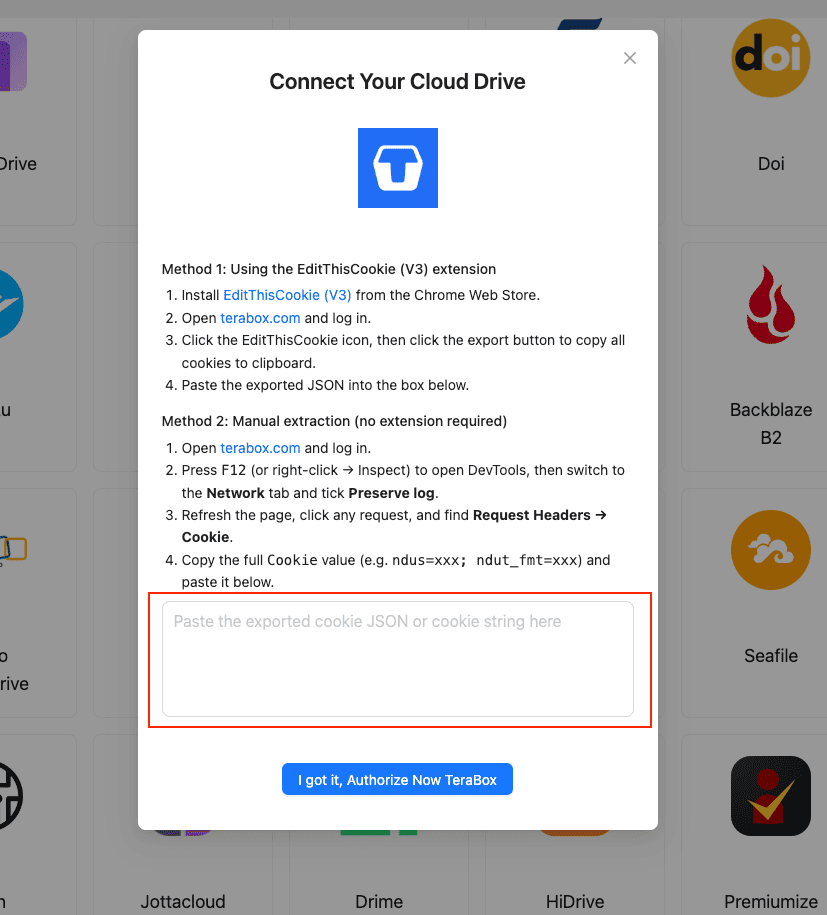
TeraBox has no public OAuth, so the connection uses the cookie from your logged-in TeraBox tab:
- Install EditThisCookie (V3).
- Open
www.terabox.comin the same browser and confirm you are signed in. - Click the EditThisCookie icon → Export. The cookie JSON copies to your clipboard.
- In CloudsLinker, click Add Cloud → TeraBox → enter a display name → paste the JSON → Confirm.
Without an extension, open DevTools (F12) → Network, refresh the
page, and copy the full Cookie header (ndus=...; ndut_fmt=...).
Step 3: Configure the Transfer
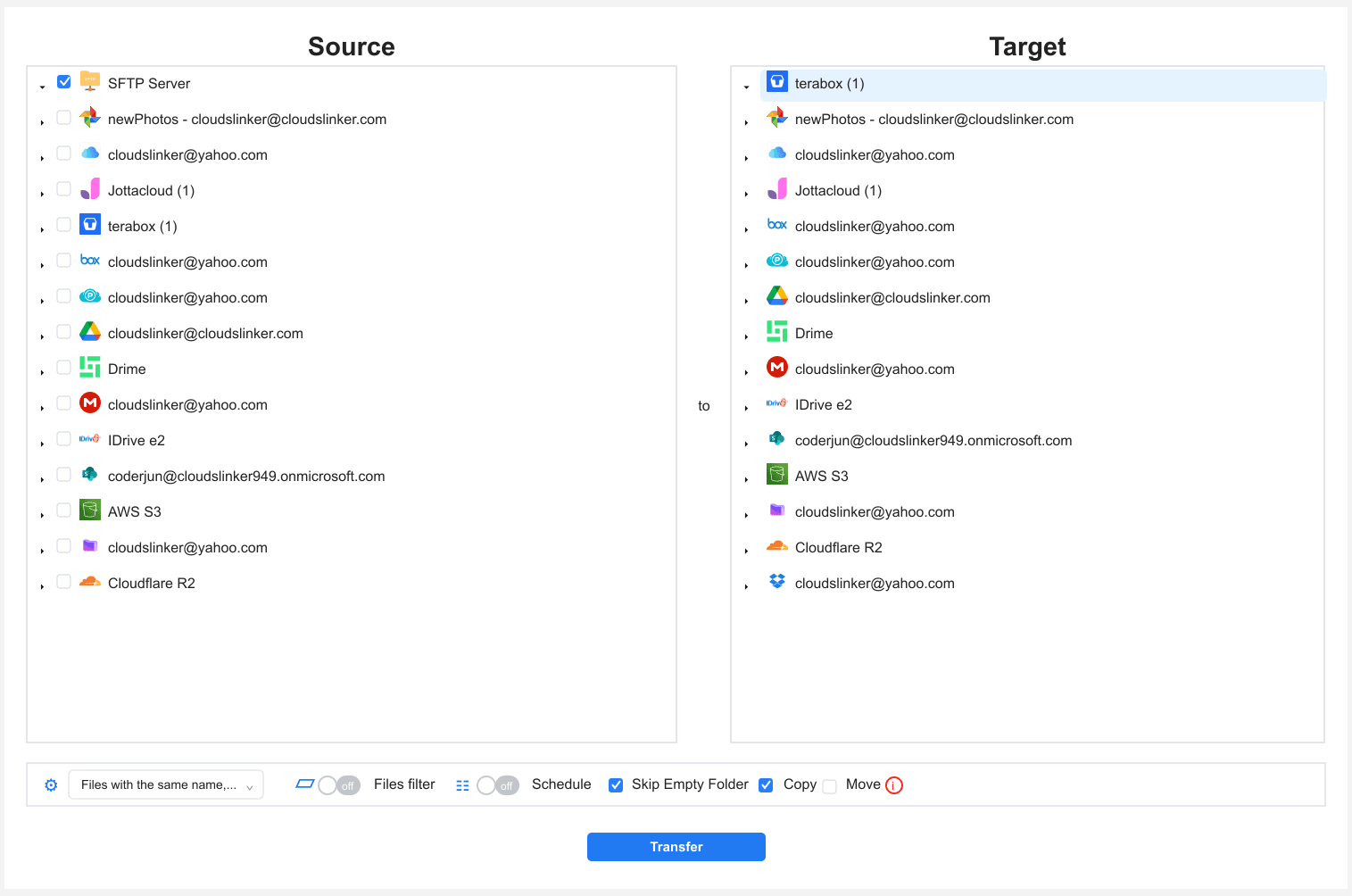
Open the Transfer section. Select the SFTP source and browse the directory tree.
Select TeraBox and pick the target directory. Apply a 4 GB file-size filter for
free TeraBox, and extension filters to skip files like .tmp, .bak, or
old logs. Copy mode keeps the server contents until you verify TeraBox.
Step 4: Start and Monitor
Click start. The Task List reports transferred volume and remaining items. If the TeraBox cookie expires mid-job, the task pauses and prompts you to paste a fresh cookie. Download the completion CSV log for audit.
Method Comparison
| Method | Ease of Use | Speed | Best For | Uses Local Bandwidth | Skill Level |
|---|---|---|---|---|---|
| SFTP Client + Web Upload | ★★★☆☆ | ★★☆☆☆ | Small trees, one-off pulls | Yes (download + upload) | Beginner-Intermediate |
| CloudsLinker | ★★★★★ | ★★★★★ | Decommissioning a server, multi-gigabyte trees | No | Beginner-Intermediate |
- Test connectivity from CloudsLinker first: if the SFTP server limits inbound SSH by IP, allow CloudsLinker's address range before queuing a large job.
-
Skip server metadata and dotfiles:
.ssh,.bash_history,.cacheand similar rarely belong in an archive. Filter them at the task level. - Resolve symlinks before transfer: SFTP exposes symlinks as references. Some tools follow them and re-copy the target; others fail. Clean them up on the server.
- Plan for the 4 GB cap: database backups and tarballs are often the largest items on a server. Split or upgrade before the run.
- Preserve permissions context if needed: TeraBox does not store Unix permissions or ownership. If those matter, keep a tarball of the original tree as a single file alongside the extracted copy.
- Rotate credentials after the move: change the SFTP password or rotate the SSH key once the migration is verified, especially if the server is being retired.
Frequently Asked Questions
Conclusion
For a small SFTP tree under a few gigabytes, WinSCP or FileZilla onto a local disk and a TeraBox web upload is straightforward. For multi-gigabyte archives, deep directory trees, or a server scheduled for decommissioning, CloudsLinker connects both sides without a staging download and runs server-side. Audit anything over 4 GB on the SFTP server before the run — TeraBox's free per-file cap will reject those uploads unless you upgrade or split them.
Online Storage Services Supported by CloudsLinker
Transfer data between over 58 cloud services with CloudsLinker

OneDrive

Google Drive

Google Photos

Shared Drive

OneDrive for Business

Dropbox

Box

Mega

pCloud

Yandex

ProtonDrive

AWS

GCS

iDrive

Storj

DigitalOcean

Wasabi

1fichier

PikPak

TeleBox

OpenDrive

Backblaze B2

Fastmail file

SharePoint

Nextcloud

ownCloud

Premiumize me

HiDrive

Put.io

Sugar Sync

Jottacloud

Seafile

Ftp

SFtp

NAS

WebDav

4shared

Icedrive

Cloudflare R2

Scaleway

Hetzner Object Storage

Synology C2 Object Storage

S3 Compatible

Doi

iCloud Drive

iCloud Photos

FileLU

Zoho WorkDrive

Telia Cloud / Sky

Drime

Filen

TeraBox

Internxt

Degoo

Gofile

Pixeldrain

Shade

Koofr
Didn' t find your cloud service? Be free to contact: [email protected]
Further Reading
Effortless FTP connect to google drive: Transfer Files in 3 Easy Ways
Learn More >
Google Photos to OneDrive: 3 Innovative Transfer Strategies
Learn More >
Google Photos to Proton Drive: 3 Effective Transfer Techniques
Learn More >