Deliver Finals from Shade to Google Drive Without a Local Round-Trip
Send finished videos from Shade drives to Google Drive for client delivery — free up per-seat active storage and hand off in the cloud clients already use.
Introduction
Google Drive is where clients already live: 15 GB free on every Google account, folders anyone can open without new software, and sharing that non-technical reviewers understand. Shade is the opposite end of the pipeline — a $20-per-seat production workspace whose AI-indexed drives are built for editors, not for handing a cut to a marketing manager. When a project wraps, two pressures point the same direction: the client wants files in a place they control, and the team wants the 500 GB of active storage each seat carries back for the next job. Moving finals from Shade to Google Drive answers both. Below, the manual download-and-upload path, and a server-side copy with CloudsLinker that delivers straight from drive to Drive.
Shade is a production media workspace: AI-indexed drives with visual search, browser previews and review tools, priced at $20 per seat per month with 500 GB of active storage per seat, pooled across the team.
- $20/seat/mo; 500 GB active storage per seat
- AI search and previews built for editors
- Unlimited drives; guests for review, not delivery
- API key + Drive ID access for tools
Google Drive is the storage every client already has: 15 GB free per Google account, folder sharing that needs no onboarding, and paid tiers through Google One (2 TB at $9.99/mo). Uploads cap at 750 GB per account per day; single files up to 5 TB.
- 15 GB free; 2 TB at $9.99/mo via Google One
- 750 GB/day upload cap per account
- 5 TB maximum single file
- OAuth access for transfer tools
| Feature | Shade | Google Drive |
|---|---|---|
| Built for | Editing teams searching footage | Universal storage and sharing |
| Pricing | $20/seat/mo, 500 GB active per seat | 15 GB free; 2 TB at $9.99/mo |
| Client access | Guest seats inside your workspace | Share a folder; client keeps their own account |
| Upload constraint | No published cap | 750 GB per account per day |
| Max single file | No published cap | 5 TB |
| Connection in CloudsLinker | API key + Drive ID | Google OAuth |
Sources: Shade: pricing, Google: storage and upload limits.
Settle the quota question first: files you upload into your own Drive count against your storage even after sharing, so either size your Google One plan to the delivery or ask the client for a Workspace Shared Drive you can write into. Gather the Shade side's credentials — an API key from account settings and the Drive ID from the source drive's settings panel. Stage the finals inside the Shade drive into a clean folder (Finals/, Masters/) so the transfer selection is one tick, and estimate size against Google's 750 GB/day upload window: bigger handoffs simply take a second day.
Method 1: Download from Shade and Re-upload
Step 1: Download the finals from Shade
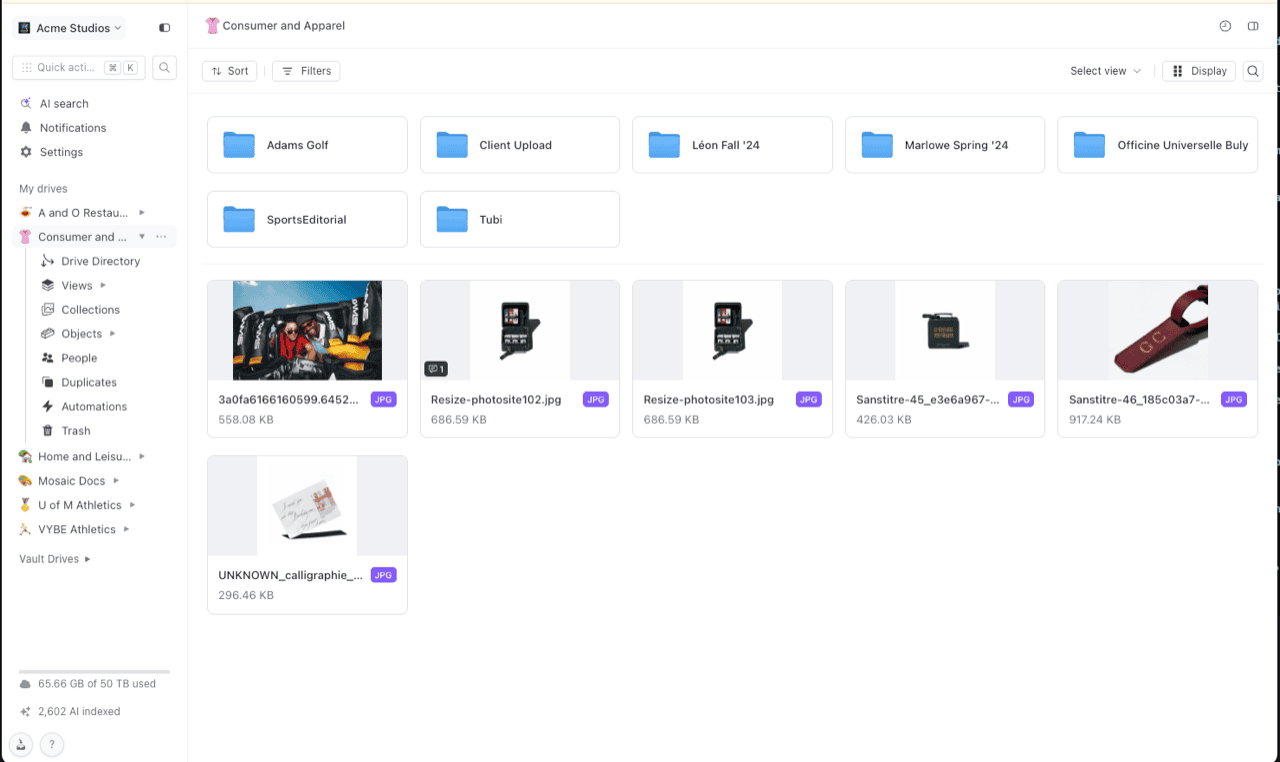
In Shade's web app, open the project drive and browse to the finals folders — the sidebar expands per drive into Drive Directory, Views, Collections and more, but plain folder navigation is all a delivery needs. Select the folders and download. Large selections arrive as archives; a full episode's masters can take a workstation offline for the afternoon.
Step 2: Upload into Google Drive
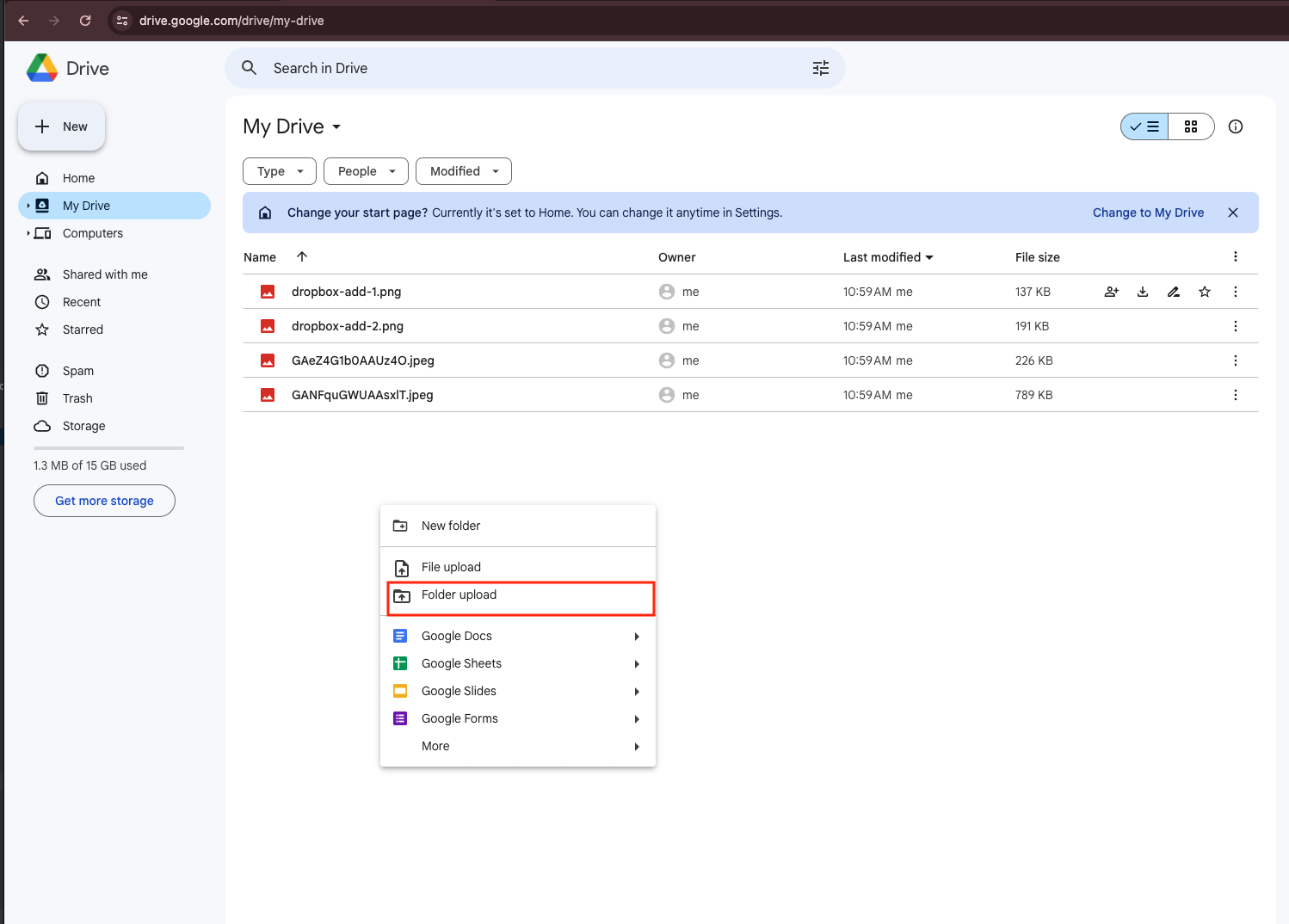
At drive.google.com, create the delivery folder, drag the files in, and share the folder with the client once the upload completes.
Acceptable for one master file. As a per-project routine, every delivery costs a download, an upload, and a machine pinned to both.
Method 2: Deliver Shade to Google Drive in the Cloud
Drive-to-Drive delivery while the team keeps editing
CloudsLinker reads the project drive through Shade's API — key plus Drive ID — and writes the finals into Google Drive over OAuth, pacing itself under Google's 750 GB/day ceiling automatically. The handoff runs server-side, so delivery day doesn't cost the team a workstation or the office connection.
Step 1: Connect Shade
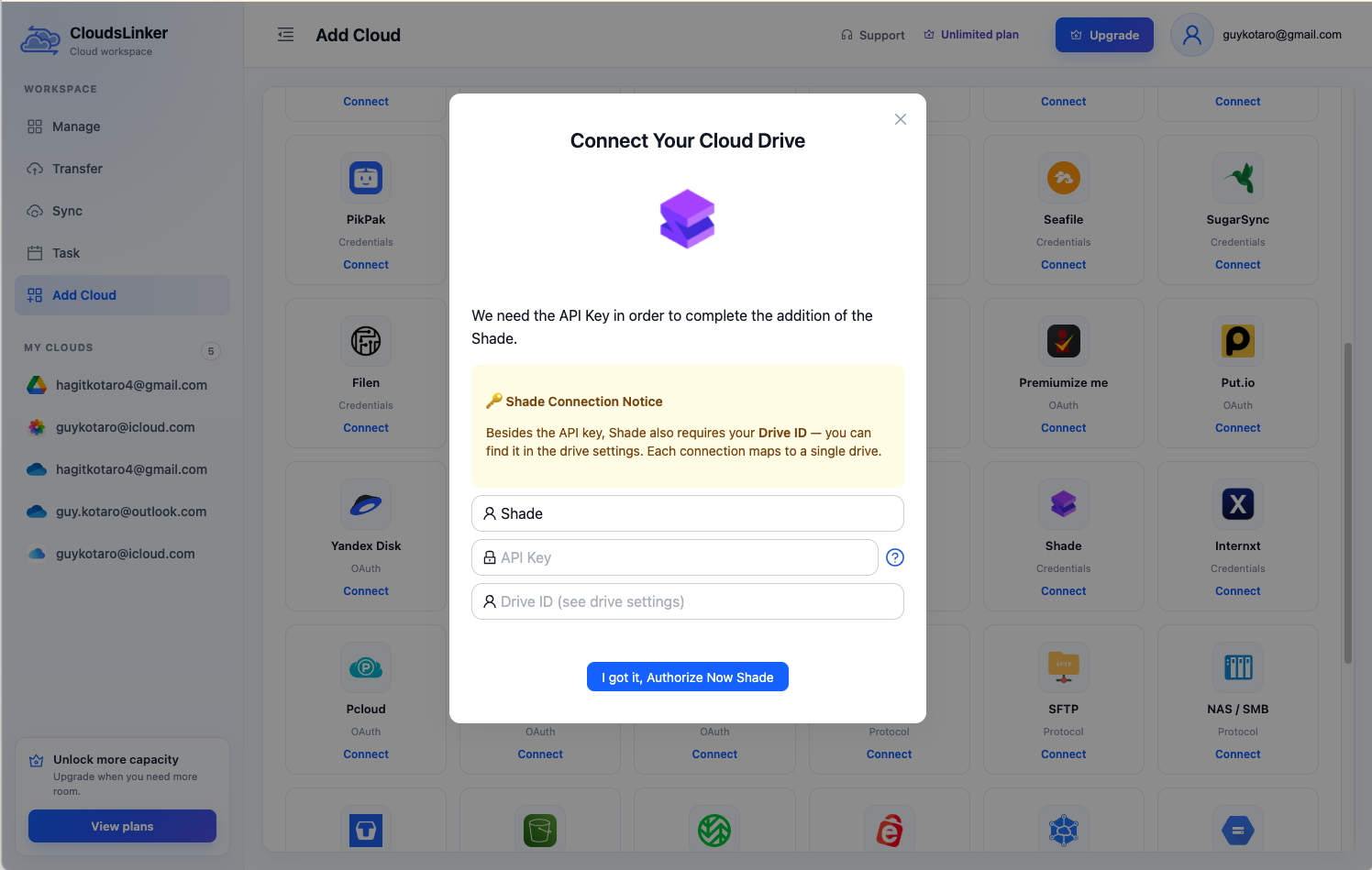
Click Add Cloud → Shade. Paste your API key and the Drive ID of the project drive holding the finals — the ID sits in that drive's settings panel. Each connection maps to one drive.
Step 2: Connect Google Drive
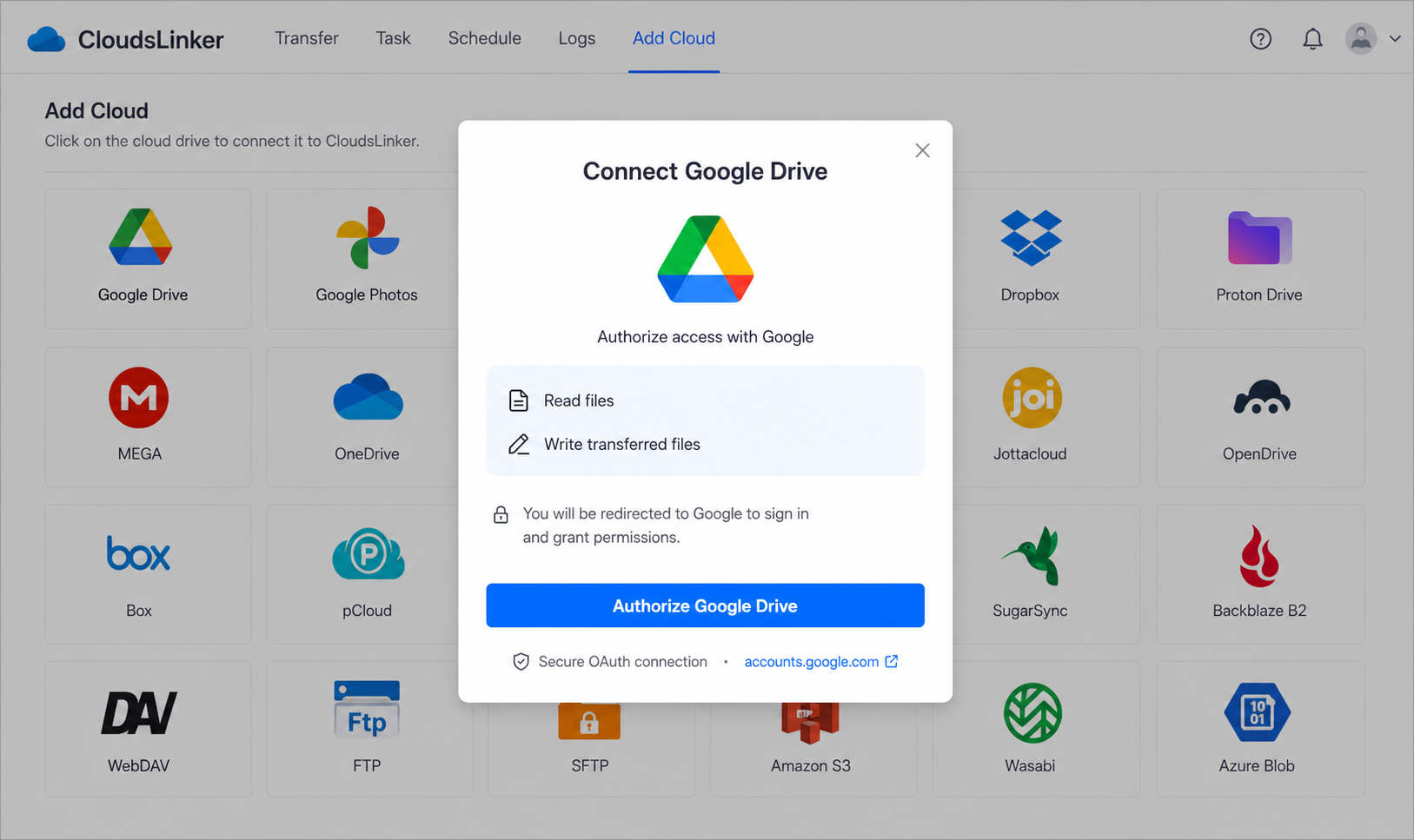
Click Add Cloud → Google Drive, sign in on Google's consent page and approve. To land quota on the client's side, connect the account that has access to their Shared Drive instead of your personal Drive.
Step 3: Configure the Transfer
Set Shade as the source and tick the Finals folder; set Google Drive as the destination delivery folder. A file-type filter keeps proxies and project files out of the handoff. Copy mode leaves the drive intact until the client signs off.
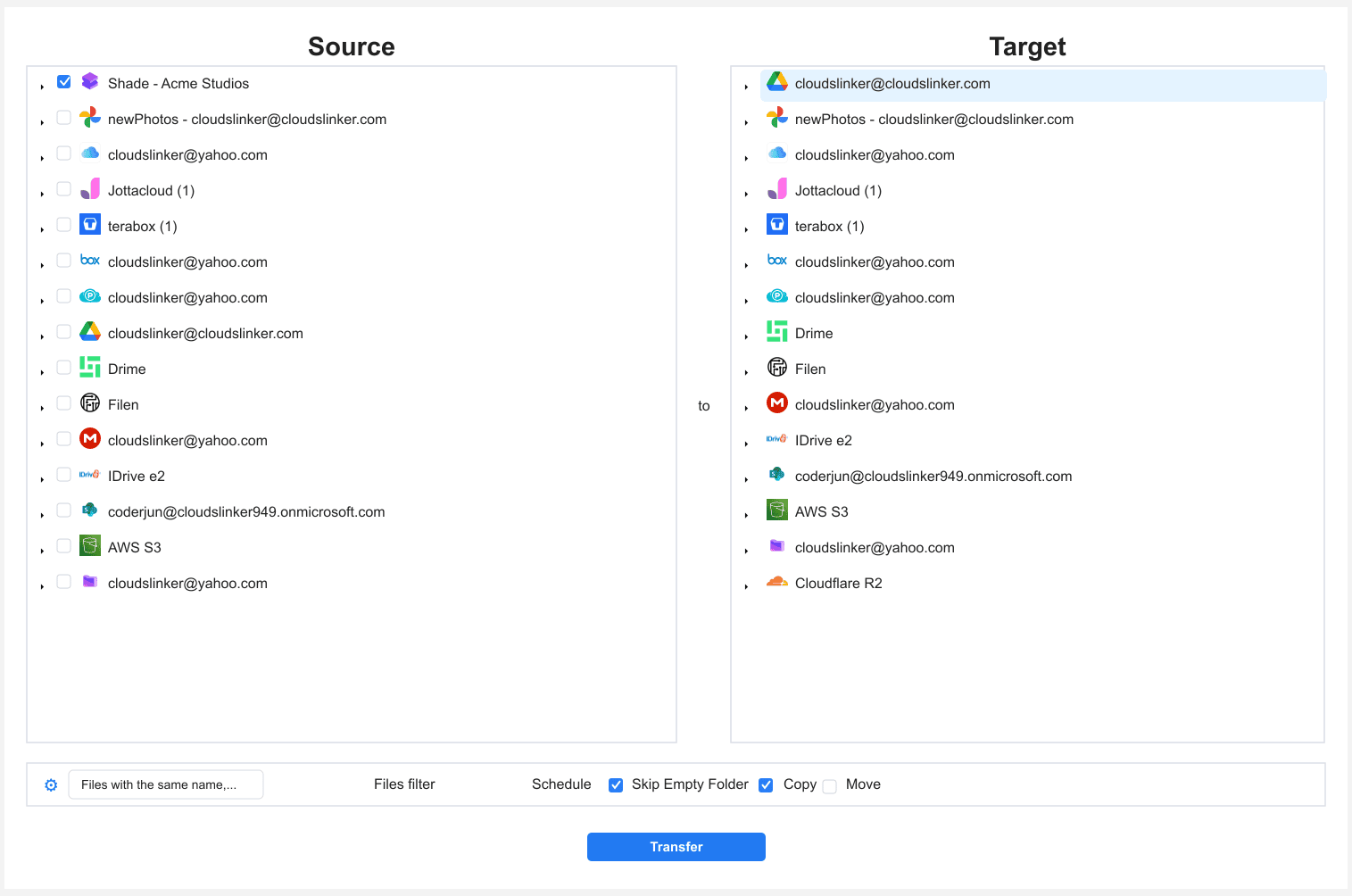
Step 4: Start and Monitor the Transfer
Start the job, watch the Task List, and share the Google Drive folder with the client when it completes. Multi-day deliveries (past the 750 GB window) resume automatically — no re-queuing.
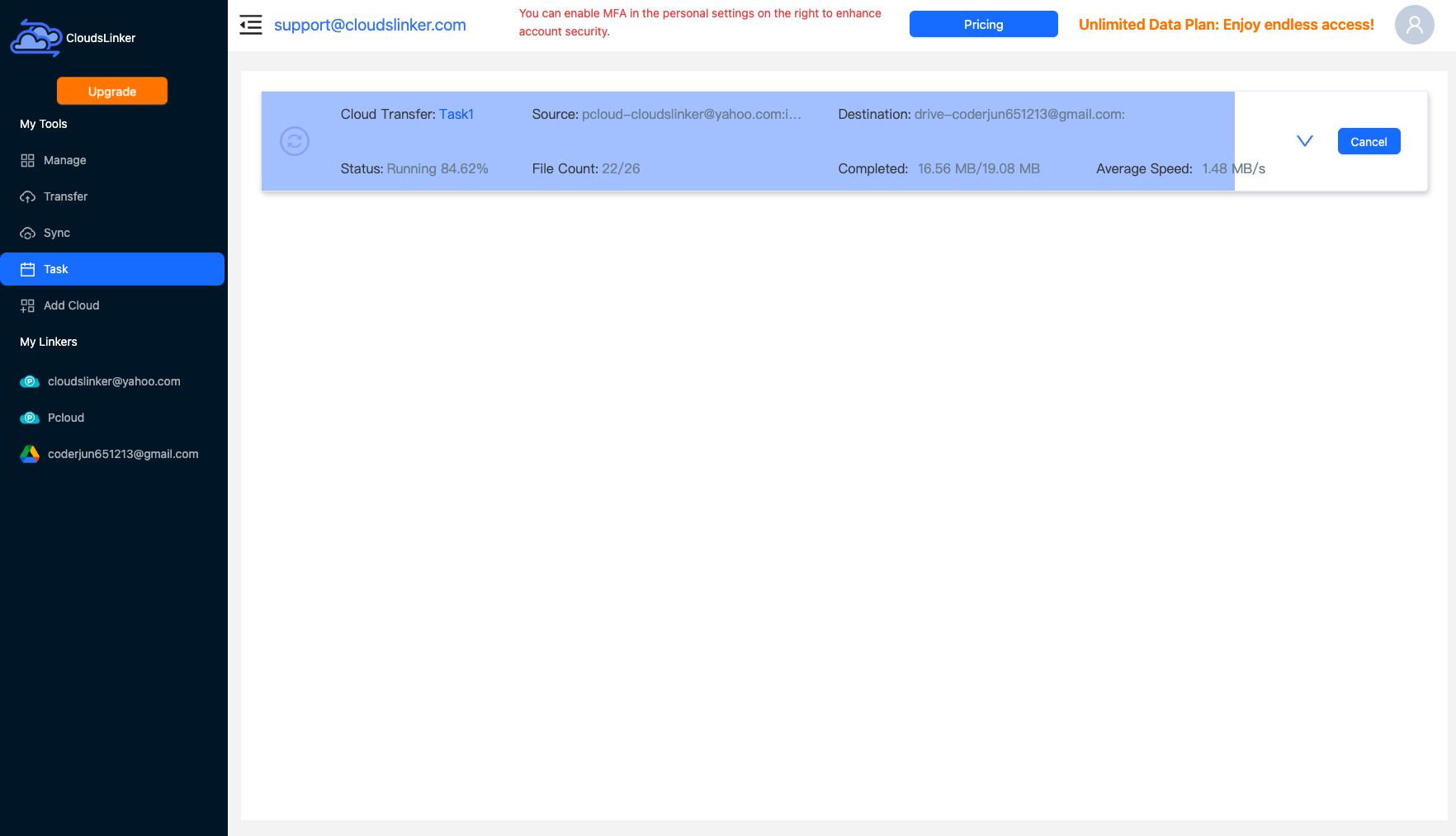
Comparing the Ways to Transfer From Shade to Google Drive
| Method | Ease of Use | Speed | Best For | Uses Local Bandwidth | Skill Level |
|---|---|---|---|---|---|
| Manual download / upload | Medium | Slow (double pass) | A single master file | Yes — twice | Basic |
| CloudsLinker | Easy | Fast (server-side, auto-paced) | Full-project handoffs, recurring deliveries | No | Basic |
- Deliver finals, keep the library: raw footage and selects are worth more inside Shade's search index than in a client's Drive. Hand off renders and masters; keep the source material searchable.
- Solve the quota question before delivery day: uploads count against the uploading account. A client-provided Shared Drive (Workspace) puts the bytes on their bill; otherwise size your Google One plan to the handoff.
- Plan around 750 GB/day: Google's upload ceiling is per account per day. A 2 TB delivery is a three-day transfer by design — start before the deadline, not on it.
- Reclaim seats after sign-off: copying doesn't free Shade's active-storage pool. Once the client confirms, archive or delete the project drive to hand 500 GB-per-seat capacity back to the next production.
- Share with permissions, not public links: set the delivery folder to specific client addresses with Viewer rights; add expiry where the relationship calls for it.
- Filter proxies out of the handoff: a type filter on final formats keeps editing by-products from padding the delivery and the quota.
- One connection per project drive: the Drive ID binds a connection to one drive, so recurring clients map cleanly — same two connections, new folder selection each delivery.
Frequently Asked Questions
Conclusion
A single master file ships fine by hand — download from Shade, drag into drive.google.com, share the folder. Recurring deliveries and full-project handoffs earn the server-side route: CloudsLinker reads the Shade drive by API key and Drive ID, writes into Google Drive over OAuth, and leaves your workstation out of a transfer that might be hundreds of gigabytes. Deliver finals, not the whole drive — raw footage keeps its value in Shade's searchable library, and Google's 750 GB per-day upload ceiling is better spent on files the client actually asked for.
Online Storage Services Supported by CloudsLinker
Transfer data between over 58 cloud services with CloudsLinker

OneDrive

Google Drive

Google Photos

Shared Drive

OneDrive for Business

Dropbox

Box

Mega

pCloud

Yandex

ProtonDrive

AWS

GCS

iDrive

Storj

DigitalOcean

Wasabi

1fichier

PikPak

TeleBox

OpenDrive

Backblaze B2

Fastmail file

SharePoint

Nextcloud

ownCloud

Premiumize me

HiDrive

Put.io

Sugar Sync

Jottacloud

Seafile

Ftp

SFtp

NAS

WebDav

4shared

Icedrive

Cloudflare R2

Scaleway

Hetzner Object Storage

Synology C2 Object Storage

S3 Compatible

Doi

iCloud Drive

iCloud Photos

FileLU

Zoho WorkDrive

Telia Cloud / Sky

Drime

Filen

TeraBox

Internxt

Degoo

Gofile

Pixeldrain

Shade

Koofr
Didn' t find your cloud service? Be free to contact: [email protected]
Further Reading
Effortless FTP connect to google drive: Transfer Files in 3 Easy Ways
Learn More >
Google Photos to OneDrive: 3 Innovative Transfer Strategies
Learn More >
Google Photos to Proton Drive: 3 Effective Transfer Techniques
Learn More >