Project Wrapped? Rotate Shade Drives into Wasabi Archive Storage
Move finished projects out of Shade's per-seat active storage into Wasabi at $6.99/TB — free the seats, keep the footage retrievable at no egress cost.
Introduction
Wasabi is where finished creative work goes to cost $6.99 per terabyte per month instead of occupying seat allowance: flat-rate S3 storage with no egress fees, so pulling a project back for a re-edit costs nothing. Shade's team plan allocates 500 GB of active storage per seat — deliberately sized for the working set, not for every project the studio has ever shipped. Once a project wraps, its drive is dead weight against that allowance; the operational rhythm Shade's model expects is archive rotation. Because each Shade drive is API-addressable by Drive ID, that rotation can be a repeatable server-side job rather than a quarterly chore. Two methods below: manual, and a per-drive copy with CloudsLinker (the same steps work for AWS S3 or any S3-compatible store).
Shade is media-first team storage with AI search, review workflows and editor panels — priced per seat ($20/month) with 500 GB of active storage each. It's built for the projects being worked on now, with archive rotation as the intended lifecycle.
- 500 GB active storage per seat
- Unlimited drives; per-drive permissions
- AI indexing on drive content
- API key + Drive ID access, per drive
Wasabi is S3-compatible archive storage: $6.99 per TB per month flat, no egress fees, a 1 TB billing minimum, and durability features like versioning and Object Lock that suit long-term project retention.
- $6.99/TB/month; free egress (fair use)
- 1 TB minimum monthly charge
- 5 TB max object; Object Lock immutability
- Access Key + Secret Key (S3-compatible)
| Feature | Shade | Wasabi |
|---|---|---|
| Role | Active workspace (edit, review, search) | Long-term archive |
| Storage economics | 500 GB per $20 seat (active allowance) | $6.99/TB/mo flat, 1 TB minimum |
| AI search / review tools | Yes — on drive content | No — plain object storage |
| Retrieval cost | Included | Free egress (fair use) |
| Immutability | No | Object Lock, versioning |
| Connection in CloudsLinker | API key + Drive ID | Access Key + Secret Key + endpoint |
Sources: Shade: official site, Capterra: Shade pricing, Wasabi: pricing, Wasabi Docs: service limits.
Agree on what "wrapped" means before automating anything — delivered, client-approved, retention clock started. Create the archive bucket once, in your preferred region, with Object Lock enabled at creation if immutability matters (it can't be added later), and settle a key-prefix convention like shade-archive/2026-client-project/. Generate a scoped Wasabi Access Key pair (never root keys). On the Shade side, collect the Drive IDs of the wrapped drives and create an API key in account settings. Confirm final deliverables and camera originals are all actually in the drive — the archive is only as complete as what you rotate.
Method 1: Download and Upload via the Wasabi Console
Step 1: Download the project from Shade
Open the wrapped drive in Shade's web app, select the project folders and download them locally. A finished project with camera originals means hundreds of gigabytes staged on a workstation disk before anything reaches the archive.
Step 2: Upload into the Wasabi bucket
Sign in to the Wasabi console, open the archive bucket, and drag the folders under the project's key prefix.
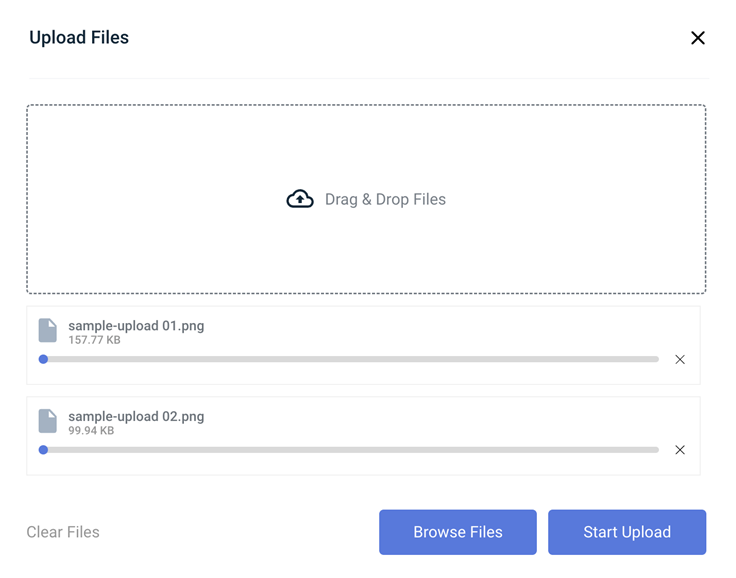
Fine exactly once. As a recurring rotation it ties up a workstation and the office uplink for every wrapped project — the reason studios script this instead.
Method 2: Copy Shade to Wasabi in the Cloud
Per-drive rotation as a repeatable job
CloudsLinker connects the wrapped Shade drive by API key + Drive ID and writes multipart uploads straight into the Wasabi bucket. No workstation staging, no office bandwidth — and because Shade connections are drive-scoped, each project rotation is the same three-minute setup with a different Drive ID.
Step 1: Connect Shade
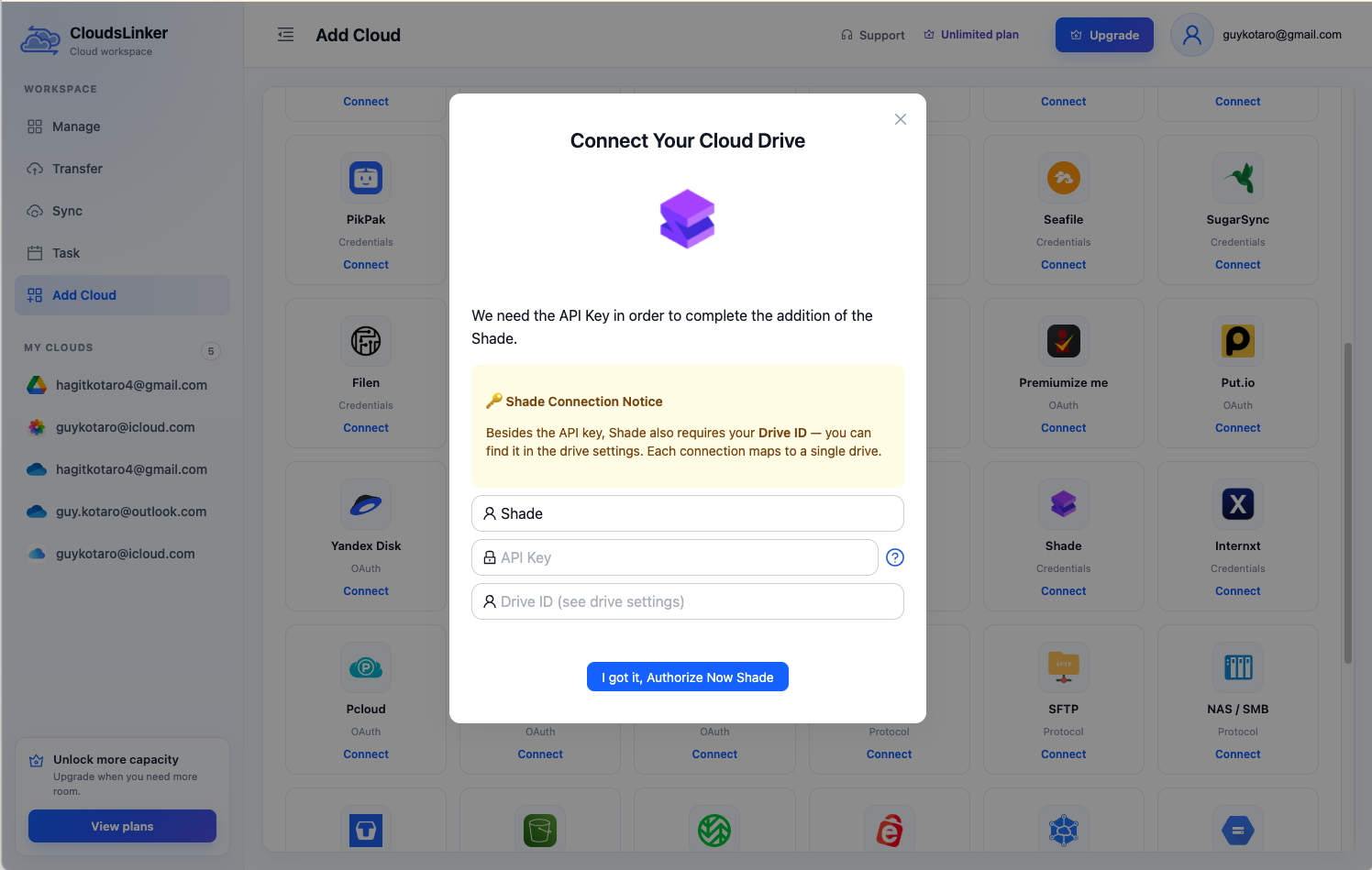
In Shade, copy the wrapped drive's Drive ID from its settings and use your account API key. In CloudsLinker, click Add Cloud → Shade, paste both, and name the connection after the project.
Step 2: Connect Wasabi
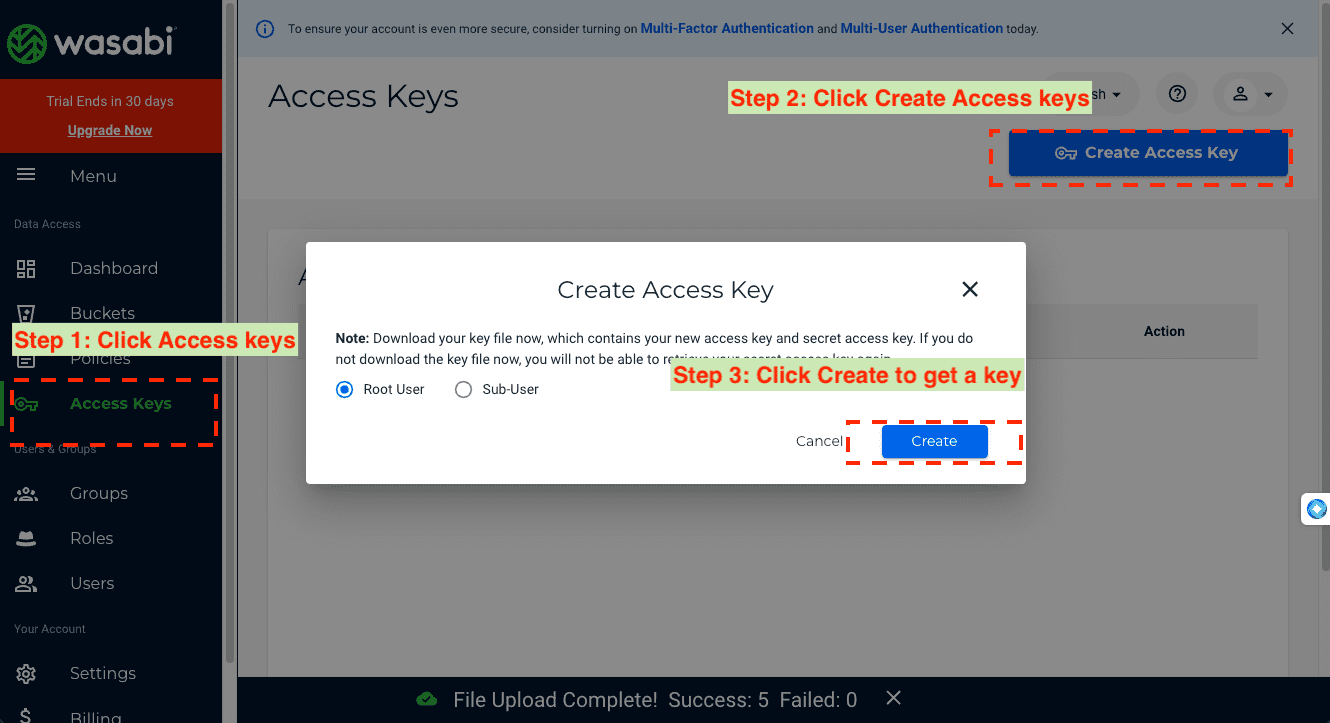
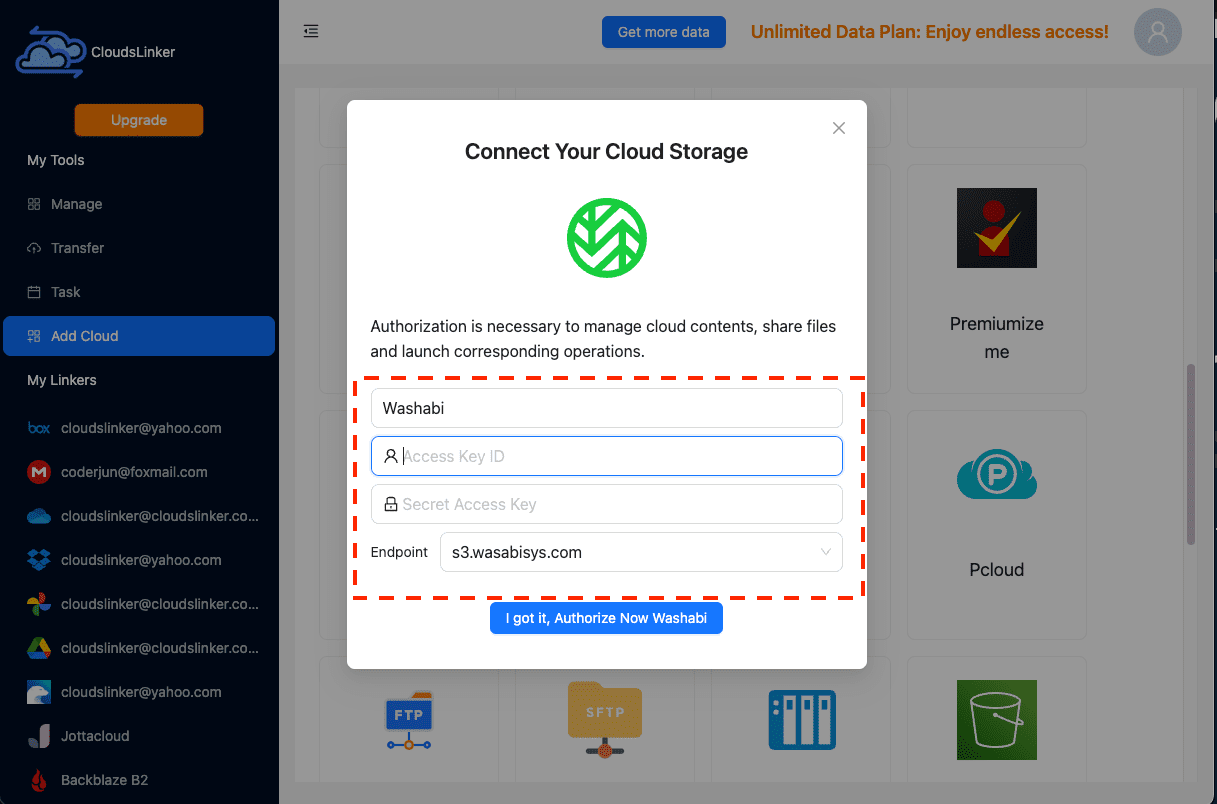
Generate a scoped Access Key pair in the Wasabi console under Access Keys, then in CloudsLinker click Add Cloud → Wasabi, paste the keys and select the endpoint for your bucket's region (e.g. s3.us-west-1.wasabisys.com).
Step 3: Configure the Transfer
Set the Shade drive as the source — typically the whole drive for a wrapped project — and the Wasabi bucket with the project's key prefix as the destination. If proxies live alongside originals, a size or format filter keeps regenerable files out of the archive.
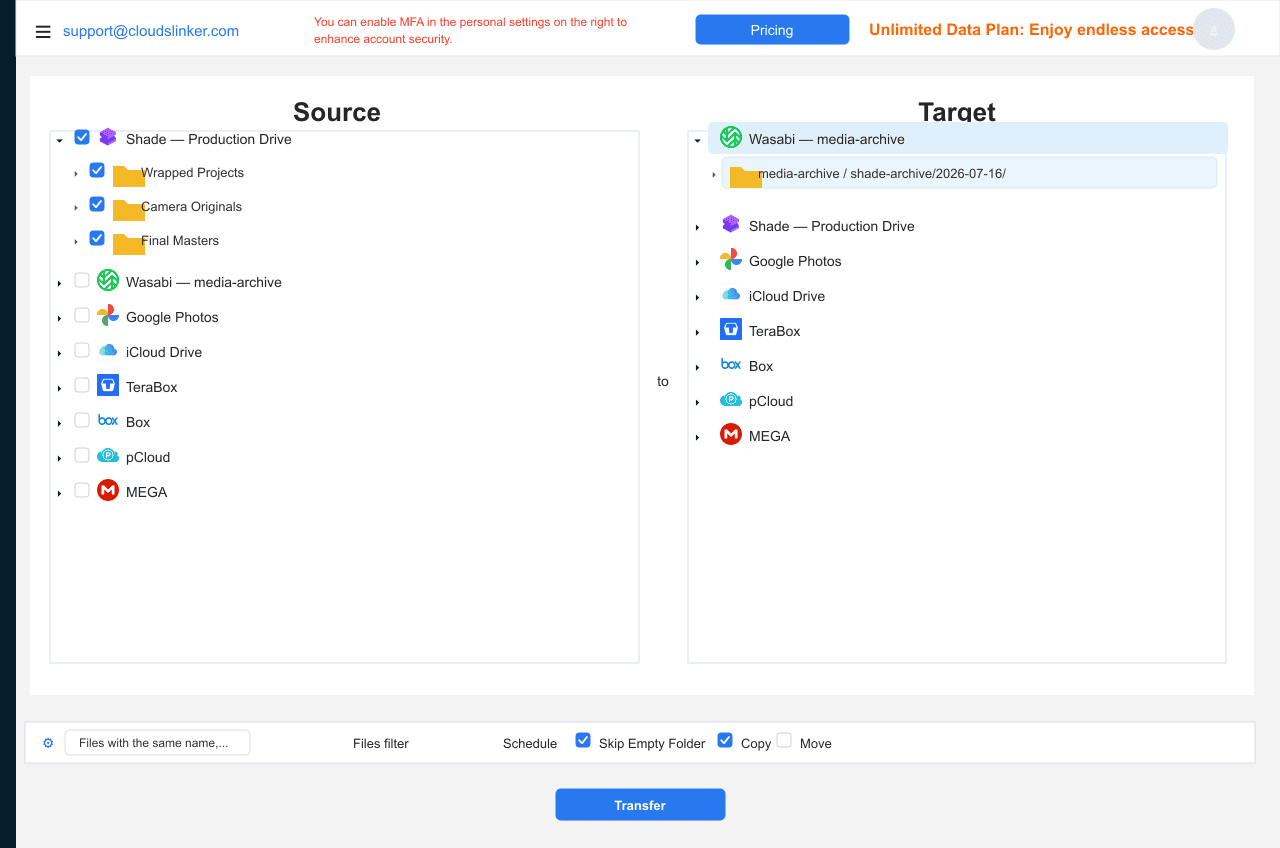
Step 4: Start and Monitor the Transfer
Start the rotation and follow the Task List. When it completes, compare object counts against the drive, then clear the Shade drive — that's the moment the seat allowance actually comes back.
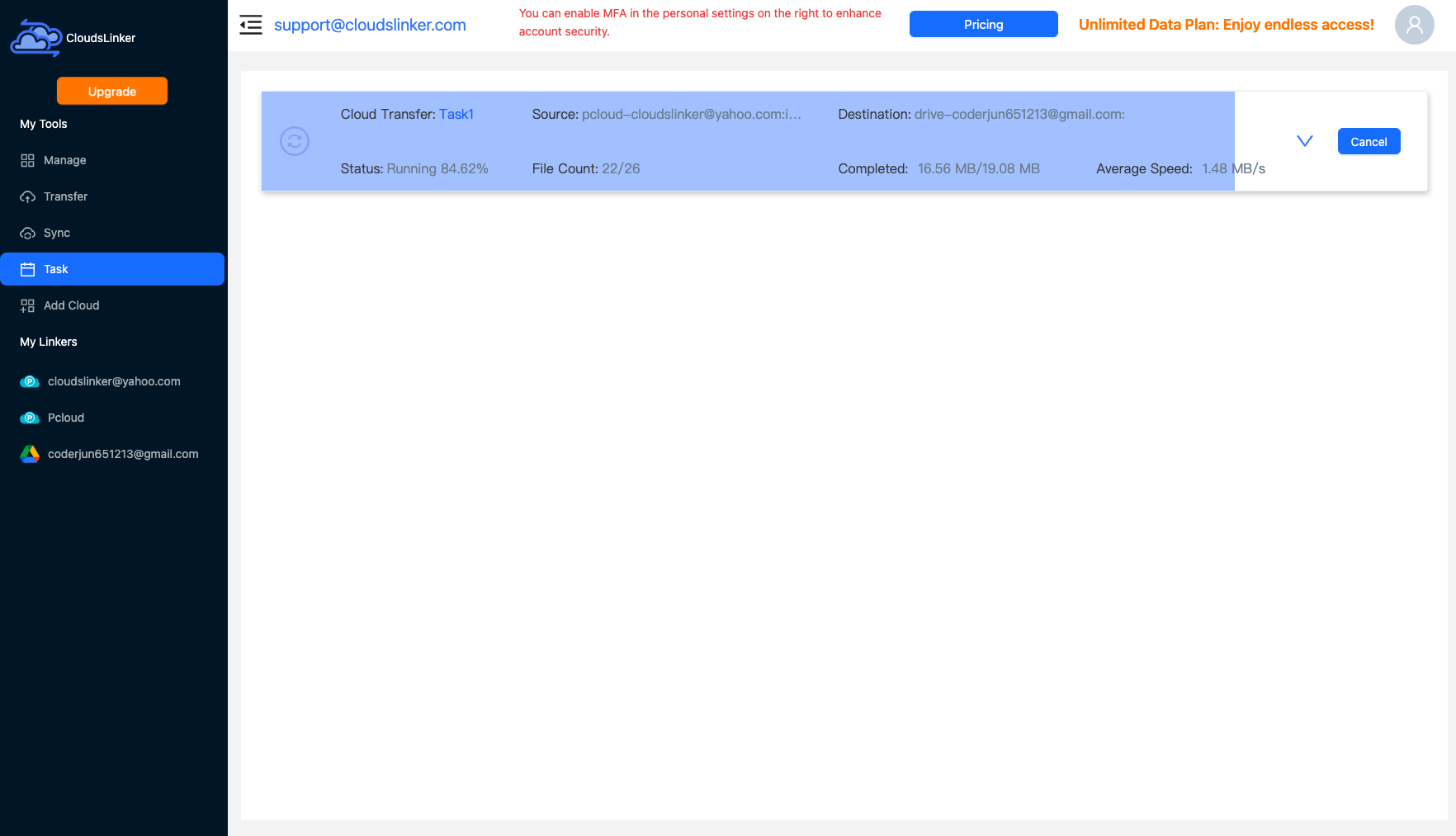
Comparing the Ways to Transfer From Shade to Wasabi
| Method | Ease of Use | Speed | Best For | Uses Local Bandwidth | Skill Level |
|---|---|---|---|---|---|
| Console download / upload | Medium | Slow + workstation staging | A single small project, once | Yes — twice | Basic |
| CloudsLinker | Easy | Fast (server-side, multipart) | Recurring per-drive rotations | No | Basic |
- Archive originals, drop proxies: proxies regenerate from masters — filtering them out keeps the archive lean and the restore path clean.
- Enable Object Lock at bucket creation: immutability for client deliverables can't be retrofitted onto an existing bucket.
- Date the key prefixes:
shade-archive/2026-client-project/today saves an unsearchable bucket three years from now. - Verify before clearing the drive: object counts in the bucket against the drive's file count — then delete in Shade to free the seats.
- Remember search stays behind: archived footage leaves the AI index — export any needed metadata or notes with the project.
- Restores are free: if a project revives, copy it from Wasabi back into a fresh Shade drive — egress costs nothing, so archiving is never a one-way door.
- The same steps fit AWS S3: any S3-compatible store works identically — swap the endpoint and keys if your archive lives on S3, IDrive e2 or Cloudflare R2 instead.
Frequently Asked Questions
shade-archive/2026-clientname/ keeps years of projects navigable.
Conclusion
The manual route — download the drive, upload to the bucket — works once, for one small project, and gets old immediately. The sustainable shape is per-drive server-side rotation: connect the wrapped drive by Drive ID, copy it into a dated key prefix in Wasabi, verify object counts, then clear the Shade drive to free seat allowance. With Object Lock on the bucket, the archive is also immutable — something the active workspace never was. Repeat per project; the connections take minutes to set up after the first.
Online Storage Services Supported by CloudsLinker
Transfer data between over 58 cloud services with CloudsLinker

OneDrive

Google Drive

Google Photos

Shared Drive

OneDrive for Business

Dropbox

Box

Mega

pCloud

Yandex

ProtonDrive

AWS

GCS

iDrive

Storj

DigitalOcean

Wasabi

1fichier

PikPak

TeleBox

OpenDrive

Backblaze B2

Fastmail file

SharePoint

Nextcloud

ownCloud

Premiumize me

HiDrive

Put.io

Sugar Sync

Jottacloud

Seafile

Ftp

SFtp

NAS

WebDav

4shared

Icedrive

Cloudflare R2

Scaleway

Hetzner Object Storage

Synology C2 Object Storage

S3 Compatible

Doi

iCloud Drive

iCloud Photos

FileLU

Zoho WorkDrive

Telia Cloud / Sky

Drime

Filen

TeraBox

Internxt

Degoo

Gofile

Pixeldrain

Shade

Koofr
Didn' t find your cloud service? Be free to contact: [email protected]
Further Reading
Effortless FTP connect to google drive: Transfer Files in 3 Easy Ways
Learn More >
Google Photos to OneDrive: 3 Innovative Transfer Strategies
Learn More >
Google Photos to Proton Drive: 3 Effective Transfer Techniques
Learn More >