SharePoint to Drime: Move SMB Document Libraries to an Independent European Host
Migrate SharePoint document libraries to Drime without per-seat licensing. Covers OneDrive Sync, manual download and cloud-to-cloud with CloudsLinker.
Introduction
Small and mid-sized teams often outgrow the administrative overhead that comes with SharePoint — site collections, permissions inheritance, per-seat Microsoft 365 licensing — long before they outgrow the storage itself. Drime offers a flatter folder model, French data residency, and flat storage pricing that does not scale linearly with headcount. This makes it a common landing spot for teams that want to keep their document libraries accessible and encrypted without staying inside the Microsoft ecosystem. Three methods move SharePoint content into Drime: a browser download for small libraries, the OneDrive Sync client as a local bridge, and CloudsLinker for everything else.
SharePoint Online is Microsoft's team content platform. It organizes files into site collections, each containing one or more document libraries, with permissions inherited from Microsoft 365 groups and Active Directory.
- Site collections: each team, project or department gets a dedicated site.
- Document libraries: versioned storage with metadata columns.
- Permissions: tied to Microsoft 365 groups; inherited or broken per library.
- Integration: native with Teams, Outlook and Office apps.
- Licensing: per-user Microsoft 365 seats, priced monthly.
Drime is a French cloud storage workspace with end-to-end encryption, collaboration features, and flat-rate storage pricing. It runs independently of the Microsoft 365 stack.
- Folder-based structure: no site collection concept.
- French data residency: GDPR-aligned hosting in France.
- End-to-end encryption: on stored files and shared links.
- Sharing: password-protected, expiring links with access logs.
- Pricing: flat storage tiers, not per-seat licensing.
SharePoint and Drime solve different problems. SharePoint is a full content management system layered on top of Microsoft 365. Drime is a file storage service with collaboration features layered on top. The trade-off is depth of feature versus simplicity and residency control.
| Feature | SharePoint | Drime |
|---|---|---|
| Content model | Site collections → document libraries → folders | Folder tree |
| Permissions | Inherited through Microsoft 365 groups; granular per library | Per-folder sharing with defined access levels |
| Data residency | Depends on Microsoft 365 tenant region | France |
| Office integration | Native with Word, Excel, PowerPoint, Teams | File storage, no native Office co-editing |
| Pricing model | Per-user Microsoft 365 license | Flat storage tier |
On the SharePoint side
- List the document libraries to migrate. Note which sites they live under and whether any still need to stay in SharePoint.
- Review permissions: map who has access to each library so you can recreate the right folder shares in Drime.
- Check for Office metadata columns: custom columns, content types and versioning do not carry over to Drime. Decide whether you need this history or only the current files.
- Resolve checked-out files: files checked out to someone else will not sync or download cleanly.
On the Drime side
- Create top-level folders per site or library (for example,
/Marketing/,/Finance/) so the structure stays organized. - Verify storage quota against the total SharePoint size — site collection quotas in SharePoint are often larger than what is actually used, so check real usage.
- Generate a developer token: Drime → avatar → Settings → Developer → Create Token.
Method 1: Browser Download from SharePoint and Upload to Drime
Step 1: Download from the SharePoint Document Library
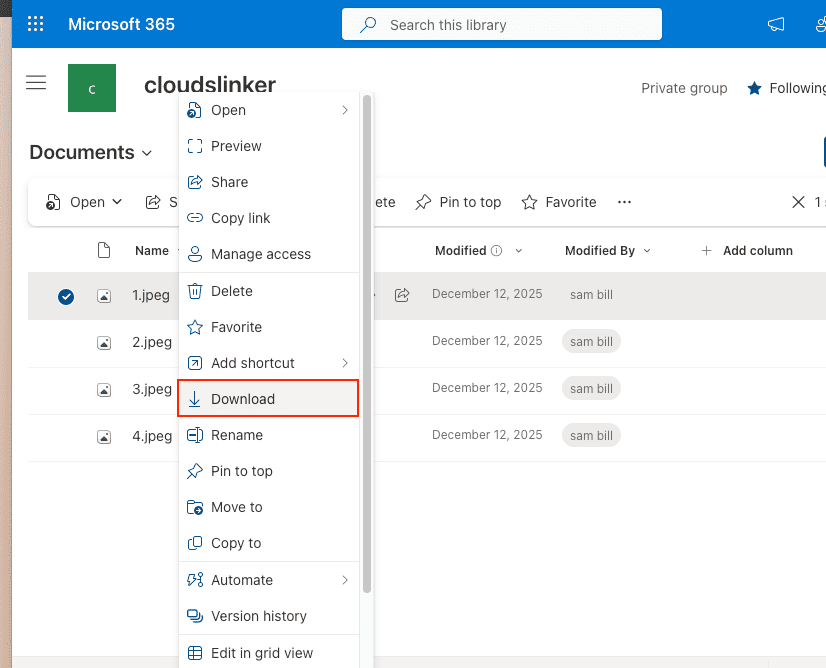
Open the SharePoint site in your browser and navigate to the document library. Select files or
folders — hold Ctrl/Cmd for multi-select — and click
Download in the command bar. SharePoint packages multiple selections into a ZIP
file.
For libraries with tens of thousands of files, browser download often hits size or item-count limits. In that case, split the download by subfolder or switch to the Sync or cloud-to-cloud method.
Step 2: Upload to Drime
Extract the ZIP. Open the Drime dashboard and drag the extracted folder into the target directory. Drime preserves the folder structure and encrypts files on arrival.
Method 2: OneDrive Sync Client as a Local Bridge
Useful if you already sync SharePoint libraries locally
The OneDrive Sync client can map SharePoint document libraries into a local folder. That local folder becomes a staging area — you copy files out of it into a neutral folder, then upload to Drime through its web or desktop app.
Step 1: Sync the Document Library
In SharePoint, open the document library you want to migrate and click Sync.
OneDrive Sync mounts the library under your user's SharePoint folder in Explorer or Finder (for
example, ~/CompanyName/Marketing - Documents).
Wait until sync completes and all files show a green checkmark. Files marked as cloud-only need to be pinned with Always keep on this device so they actually land on disk.
Step 2: Stage Files in a Neutral Local Folder
Copy files from the synced SharePoint folder into a plain folder outside OneDrive, such as
~/Desktop/SharePoint-Migration/. This detaches the files from OneDrive sync so that
removing them later will not affect SharePoint.
Step 3: Upload to Drime
Install Drime Desktop or use the web app. Drag the staging folder into your Drime target directory. Verify a sample of files open correctly, then delete the staging folder to reclaim disk space.
Method 3: Cloud-to-Cloud Transfer with CloudsLinker
Move SharePoint Libraries Without Local Staging
CloudsLinker connects SharePoint and Drime directly and runs the transfer server-side. Useful when document libraries run into tens or hundreds of gigabytes, or when you need to migrate multiple sites in sequence.
Step 1: Connect SharePoint
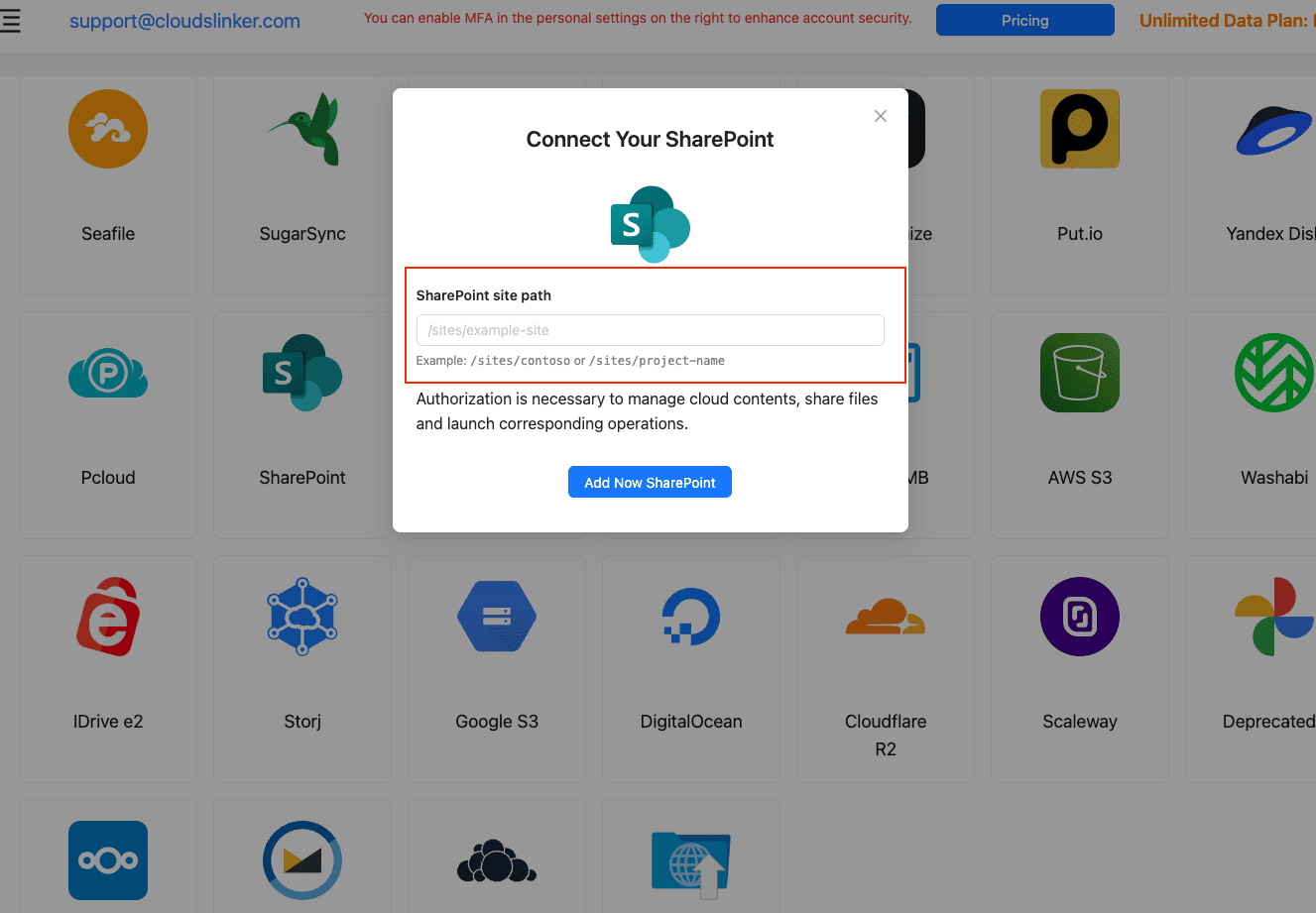
In CloudsLinker, click Add Cloud and select SharePoint. Enter the
site path (for example, /sites/marketing or /teams/finance) and approve the
Microsoft OAuth sign-in with an account that has access to the target document libraries. After
authorization, pick the specific library you want to connect.
Step 2: Connect Drime
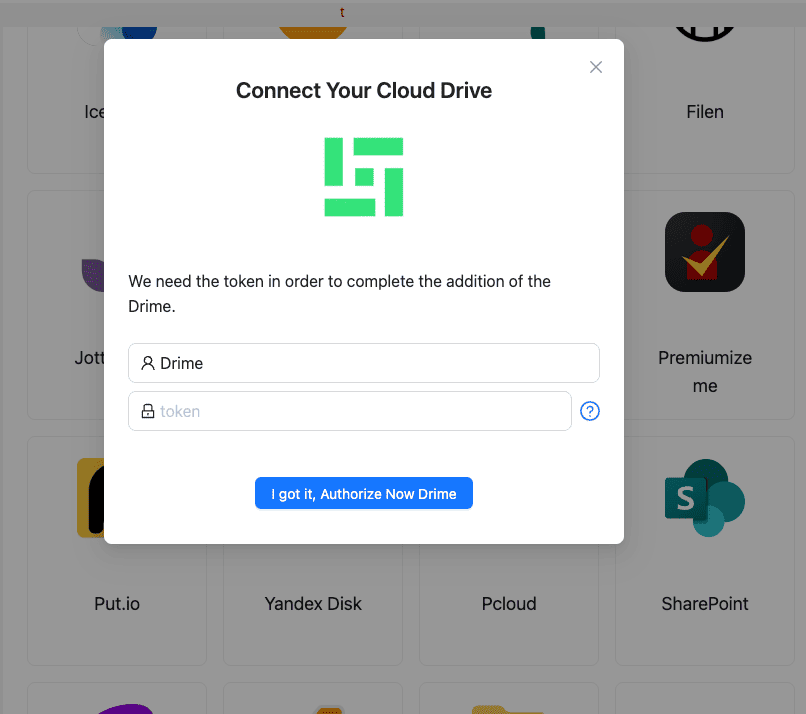
Click Add Cloud and pick Drime. Paste the developer token from Drime → Settings → Developer. Confirm to add Drime as a destination.
Step 3: Configure the Transfer
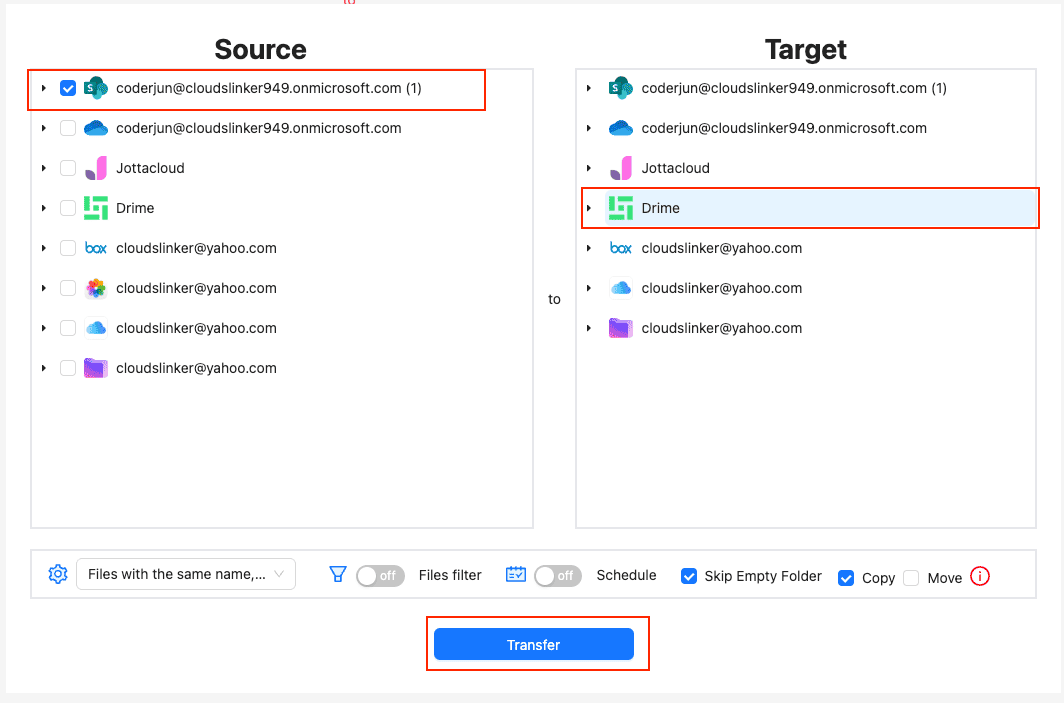
In the Transfer section, select the connected SharePoint library as the source and
browse to the folders you want to move. Select the Drime target directory on the destination side.
Apply file-type or size filters if you want to exclude, for example, .tmp or shortcut
files.
Use Copy mode the first time so the SharePoint copy stays intact until you confirm everything landed correctly in Drime.
Step 4: Start and Monitor
Start the transfer. Track progress from the Task List. For multi-library migrations, create separate tasks per document library so you can retry failures at a fine grain. The transfer runs on CloudsLinker servers even if you close the browser.
Method Comparison
| Method | Ease of Use | Speed | Best For | Uses Local Bandwidth | Skill Level |
|---|---|---|---|---|---|
| Browser Download + Upload | ★★★★☆ | ★★☆☆☆ | Small libraries, a few files | Yes | Beginner |
| OneDrive Sync Bridge | ★★★☆☆ | ★★★☆☆ | Teams already using Sync on Windows/Mac | Yes | Intermediate |
| CloudsLinker | ★★★★★ | ★★★★★ | Large or multi-site migrations, hands-off moves | No | Beginner |
- Migrate one library at a time: document libraries often correspond to team responsibilities. Moving them in sequence makes it easier to hand off ownership and fix permissions on the Drime side.
- Accept the loss of versioning: Drime does not store SharePoint's version history or custom metadata columns. If you need those for compliance, keep the SharePoint site in read-only mode instead of deleting it.
- Handle Office files as static copies: once in Drime, Word and Excel files become regular files. Team co-editing moves to another tool if you relied on Office for the Web.
- Recreate external sharing: external share links from SharePoint will not follow the files. Use Drime's password-protected share links to reissue access with expirations where appropriate.
- Watch the 400-character path limit: SharePoint allows longer paths than some sync clients handle cleanly. Shorten deep folder names before migration to avoid truncation on Drime.
-
Do a reconciliation count: after transfer, compare file counts between
SharePoint and Drime per folder. Tools like PowerShell (
Get-ChildItem -Recurse) on the Sync folder help cross-check.
Frequently Asked Questions
Watch: Move SharePoint Files to Drime with CloudsLinker
A walkthrough of the cloud-to-cloud route: connecting SharePoint through Microsoft OAuth with site and document-library selection, adding Drime with a developer token, then running the copy server-side while the Task List tracks progress.
Conclusion
If the SharePoint site is small — a handful of document libraries, under a few gigabytes — the browser download is the most direct route. For teams that already have OneDrive Sync mapping SharePoint locally, using the synced folder as a bridge is convenient. When document libraries run into tens of gigabytes or span multiple sites, CloudsLinker avoids downloading the entire library by connecting SharePoint and Drime directly. Verify permissions and sharing expectations on the Drime side before retiring the SharePoint site.
Online Storage Services Supported by CloudsLinker
Transfer data between over 58 cloud services with CloudsLinker

OneDrive

Google Drive

Google Photos

Shared Drive

OneDrive for Business

Dropbox

Box

Mega

pCloud

Yandex

ProtonDrive

AWS

GCS

iDrive

Storj

DigitalOcean

Wasabi

1fichier

PikPak

TeleBox

OpenDrive

Backblaze B2

Fastmail file

SharePoint

Nextcloud

ownCloud

Premiumize me

HiDrive

Put.io

Sugar Sync

Jottacloud

Seafile

Ftp

SFtp

NAS

WebDav

4shared

Icedrive

Cloudflare R2

Scaleway

Hetzner Object Storage

Synology C2 Object Storage

S3 Compatible

Doi

iCloud Drive

iCloud Photos

FileLU

Zoho WorkDrive

Telia Cloud / Sky

Drime

Filen

TeraBox

Internxt

Degoo

Gofile

Pixeldrain

Shade

Koofr
Didn' t find your cloud service? Be free to contact: [email protected]
Further Reading
Effortless FTP connect to google drive: Transfer Files in 3 Easy Ways
Learn More >
Google Photos to OneDrive: 3 Innovative Transfer Strategies
Learn More >
Google Photos to Proton Drive: 3 Effective Transfer Techniques
Learn More >