SharePoint to Filen: Move Document Libraries Into Zero-Knowledge Encrypted Storage
Migrate SharePoint document libraries to Filen with browser download, OneDrive sync client, or a cloud-to-cloud transfer through CloudsLinker. Keep files encrypted end to end.
Introduction
Filen stores everything as client-side encrypted blobs, which means the contents of a migrated document library are readable only to someone holding the Filen master password and recovery key. For small and mid-sized teams that have outgrown Microsoft 365 but still hold confidential files inside SharePoint, that threat model is different in kind, not just in degree — not even a subpoena against the provider produces cleartext. SharePoint is built around site collections, document libraries, and inherited permissions, all of which depend on Microsoft-managed identity. Migrating to Filen flattens that model into plain folders, so the real work is deciding what to keep, what to share, and how to rebuild access on the other side. This guide covers three practical methods: a SharePoint web download, the OneDrive sync client as a bridge, and a direct cloud-to-cloud transfer through CloudsLinker.
SharePoint is Microsoft's collaboration and document management platform. It organizes content into site collections, each hosting one or more document libraries with inherited permissions, metadata columns, and versioning.
- Site-based structure: documents grouped by team, project, or department.
- Inherited permissions: access governed through Microsoft 365 groups.
- Metadata columns: typed fields beyond filename and date.
- Version history: major and minor versions per document.
- Office integration: co-authoring in Word, Excel, PowerPoint.
Filen is a German end-to-end encrypted cloud storage service. Files, filenames, and folder structures are encrypted on the client before being uploaded, so the service stores only ciphertext.
- Client-side AES-256 encryption: applied before upload.
- Zero-knowledge architecture: provider cannot read file contents.
- Folder-based storage: no site collections, no metadata columns.
- Share links: password-protected links for per-file or folder sharing.
- EU data residency: servers located in Germany.
SharePoint is a full content management platform; Filen is a storage layer with encryption as its primary feature. The data model differences are the biggest thing to plan around in a migration.
| Feature | SharePoint | Filen |
|---|---|---|
| Data model | Sites and document libraries with metadata columns | Plain folders and files |
| Encryption model | Server-side, Microsoft-managed keys | Client-side, keys never leave the device |
| Access control | Inherited, group-based, admin-controlled | Per-file share links |
| Collaboration | Office co-editing, version comments, check-in/out | File upload and download, no co-editing |
| Best-fit use case | Active collaboration in Microsoft 365 teams | Encrypted archive or shared storage outside M365 |
On the SharePoint side
- Identify target libraries: not every library needs to move. List them by site and size.
- Document metadata-driven folders: if libraries rely on metadata columns for organization, capture the mapping — Filen only preserves folder names.
- Close open documents: any file currently checked out or open in Office will transfer as its last saved version, not the in-progress edit.
- Confirm export permissions: tenant DLP or sensitivity labels may block export for certain libraries. Check with the Microsoft 365 admin before running a large migration.
- Record the site path: for CloudsLinker, the SharePoint site path (for example
/sites/contoso) is needed during connection.
On the Filen side
- Pick a plan with headroom: Filen plans are flat-priced — choose one that fits the total document library size plus a 10–20% buffer.
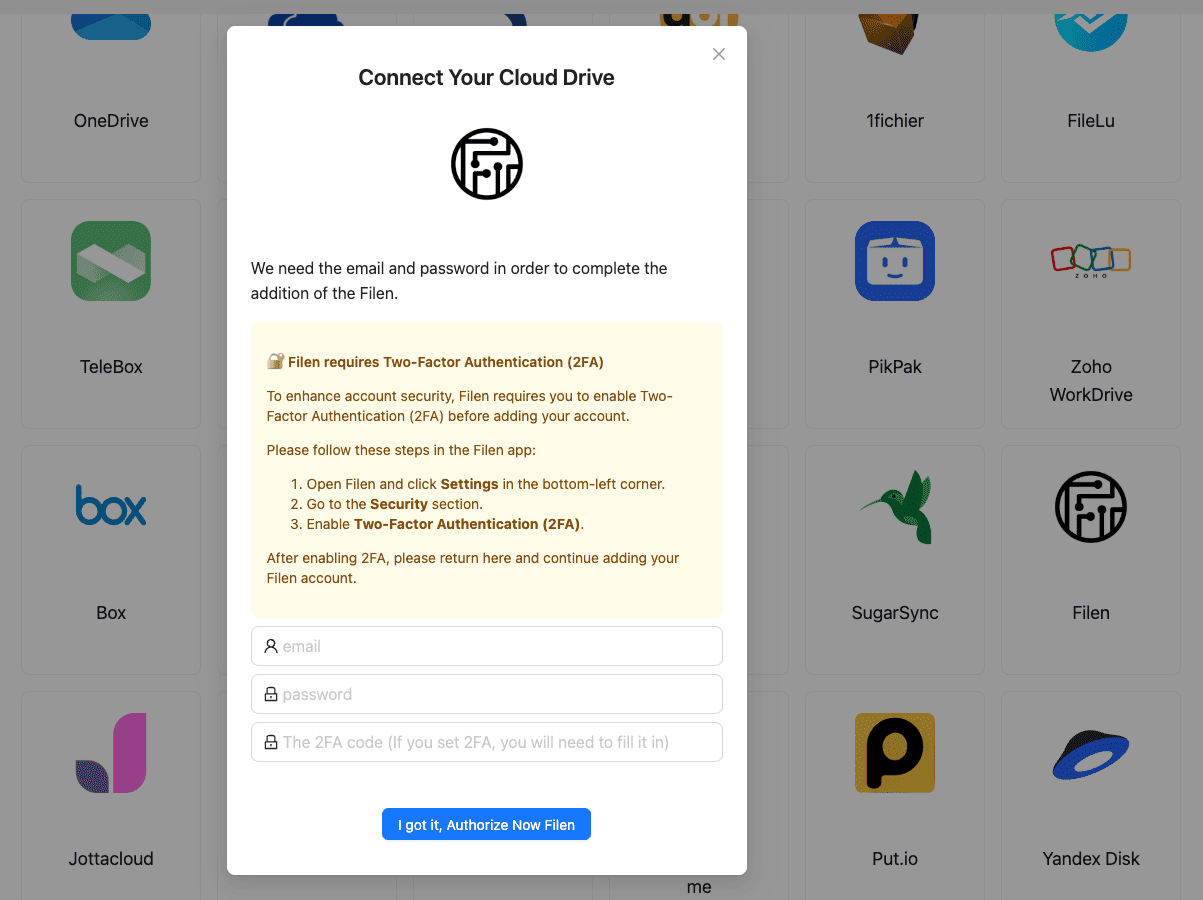
- Enable 2FA: required for CloudsLinker to connect. Pair it with an authenticator app.
- Store the recovery key safely: Filen cannot reset a lost password because of the zero-knowledge design.
- Plan the new folder layout: a common pattern is one top-level folder per migrated site, with sub-folders per library.
Method 1: Download from SharePoint and Upload to Filen
Step 1: Download from the SharePoint Document Library
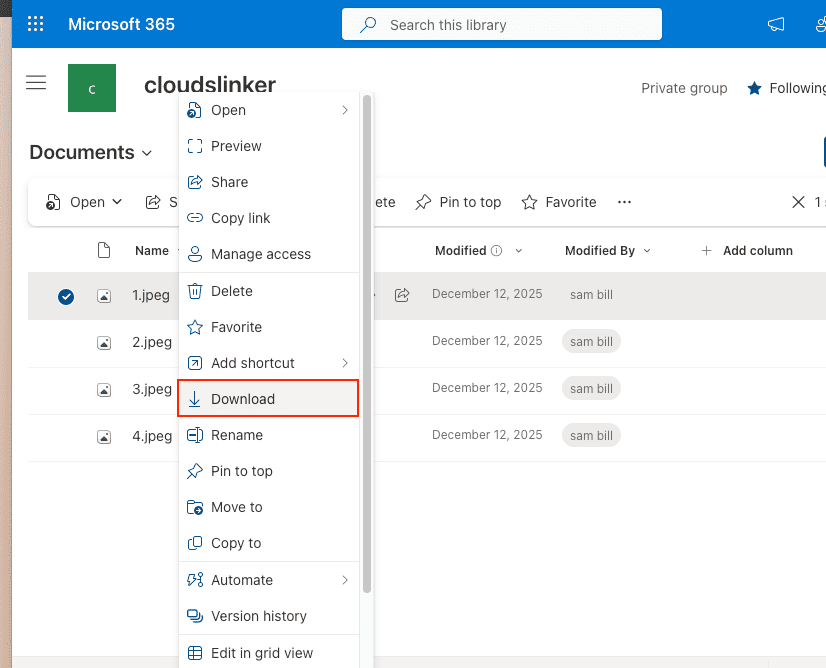
Open the SharePoint site in a browser and navigate to the document library. Select files or whole folders, then click Download. Multi-item selections come down as a ZIP file. SharePoint imposes practical limits around 250 GB per ZIP and file counts per download; larger libraries have to be split into batches.
Step 2: Extract Locally
Unzip the archive. Folder hierarchy is preserved. Metadata columns that lived only on SharePoint do not survive the export — filenames and folder names are all that transfer. If the columns carried important information, record them separately as CSV before clearing the SharePoint library.
Step 3: Upload to Filen
Open the Filen web app or desktop client, sign in, and drag the extracted folder into the target location. Client-side encryption runs before upload, so the effective speed depends on CPU in addition to bandwidth. Filen resumes interrupted uploads automatically.
Method 2: OneDrive Sync Client as a Bridge
Use the OneDrive sync client to stage SharePoint libraries locally
The OneDrive client can sync SharePoint document libraries to a local folder. That folder can then be used as a straightforward source for Filen's desktop app or web uploader.
Step 1: Sync the SharePoint Library
In the SharePoint library, click Sync. The OneDrive client maps the library to a local folder under the user's profile. Right-click folders and select Always keep on this device to force a full local download instead of on-demand placeholders.
Step 2: Install the Filen Desktop Client
Install the Filen
desktop app and sign in. Create a destination folder that mirrors the planned layout — for
example /Work/SharePoint/Marketing.
Step 3: Copy Files to Filen
Drag the contents of the synced SharePoint folder into the Filen destination folder. Filen encrypts and uploads concurrently; a paused connection resumes once network is back. Spot-check a handful of files once the upload completes, then consider unlinking the sync relationship to reclaim disk space.
Method 3: Cloud-to-Cloud Transfer with CloudsLinker
Move SharePoint Libraries Without Touching a Local Disk
CloudsLinker connects SharePoint through Microsoft OAuth and Filen through email, password, and 2FA, then copies files directly between the two services. Multiple document libraries can be queued in a single task, and the job runs unattended even after the browser is closed.
Step 1: Connect SharePoint
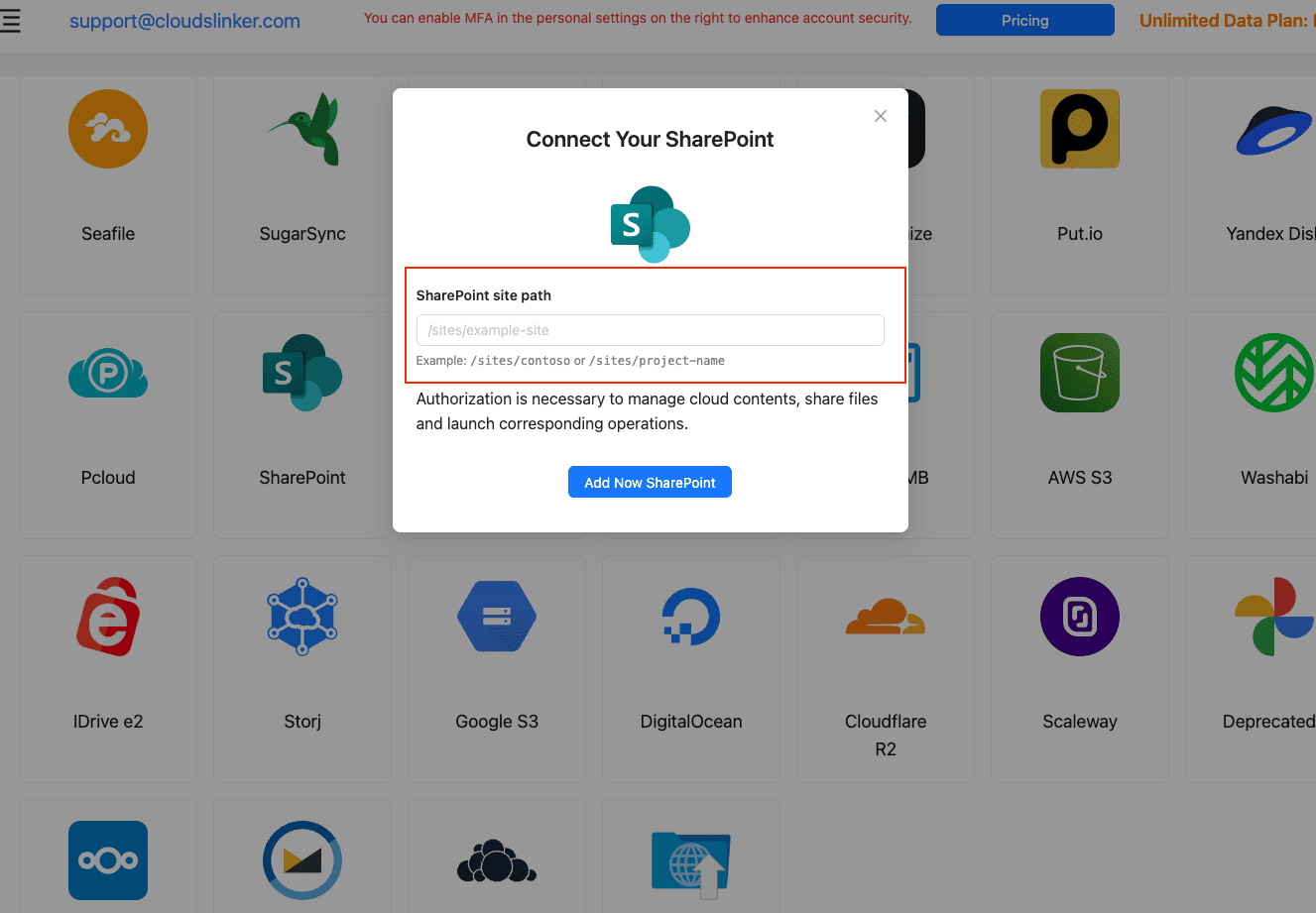
In CloudsLinker, click Add Cloud and choose SharePoint. Enter the
site path (for example /sites/contoso or /teams/marketing) and approve
Microsoft OAuth. After authorization, choose the target document library from the list.
Step 2: Connect Filen
Click Add Cloud again and select Filen. Enter the Filen account email and master password, followed by the 2FA code from an authenticator app. Once the connection appears in the cloud list, Filen is ready as a destination.
Step 3: Configure the Transfer
Open the Transfer section and choose the connected SharePoint document library as the source. Select the folders or files to migrate. On the destination side, pick the target Filen folder. Filters cover file type, path pattern, and date range.
Start with Copy mode. Once the Filen side has been verified, a second pass using Move can clean up the SharePoint source if that is the goal.

Step 4: Start and Monitor
Start the task. The Task List reports transferred size, current speed, and items remaining. Because the transfer runs entirely on CloudsLinker servers, closing the browser or shutting down a laptop does not affect progress. After completion, verify a sample of files in Filen before retiring or cleaning up the SharePoint library.
Comparing the Ways to Transfer From SharePoint to Filen
| Method | Ease of Use | Speed | Best For | Uses Local Bandwidth | Skill Level |
|---|---|---|---|---|---|
| Browser Download + Upload | ★★★★☆ | ★★☆☆☆ | Single library, under 20 GB | Yes | Beginner |
| OneDrive Sync Bridge | ★★★☆☆ | ★★★☆☆ | Users already syncing SharePoint locally | Yes | Intermediate |
| CloudsLinker | ★★★★★ | ★★★★★ | Multi-library, multi-site, unattended migrations | No | Beginner |
- Export metadata separately: SharePoint metadata columns do not translate to folder or file names. Before migrating, export the library view as CSV so column data can be referenced or rebuilt as filename prefixes or sub-folders.
- Handle version history deliberately: only the current version of each file transfers. If version history is compliance-relevant, keep the SharePoint site read-only for a retention period rather than deleting it immediately.
- Watch out for checked-out files: documents locked for co-editing transfer at their last saved state. Ask collaborators to close and check in files before the migration window starts.
- Reissue sharing links: SharePoint share links do not work after migration. Rebuild shares using Filen's password-protected links and communicate the new links to recipients.
- Watch file and folder name constraints: SharePoint has stricter naming rules than Filen, so most files carry over cleanly. Very long paths — close to the 400-character SharePoint limit — are worth reviewing before transfer.
- Test with a non-critical library first: migrate a small, low-risk document library end to end, verify file integrity and folder structure, then schedule larger libraries.
Frequently Asked Questions
/sites/contoso) and a sign-in on Microsoft's own page. After approval, the
specific document library is chosen from a list. Credentials are not stored by
CloudsLinker.
Conclusion
A small document library of a few gigabytes moves fine through the browser. Teams already syncing SharePoint libraries on desktop through OneDrive can use the synced folder as a staging area. For document libraries in the tens of gigabytes, spanning multiple sites, or carrying strict timestamp requirements, CloudsLinker runs the transfer directly between Microsoft and Filen servers with no local download. In every case, rebuild sharing expectations on the Filen side before retiring the SharePoint site, because link-based permissions do not carry over.
Online Storage Services Supported by CloudsLinker
Transfer data between over 58 cloud services with CloudsLinker

OneDrive

Google Drive

Google Photos

Shared Drive

OneDrive for Business

Dropbox

Box

Mega

pCloud

Yandex

ProtonDrive

AWS

GCS

iDrive

Storj

DigitalOcean

Wasabi

1fichier

PikPak

TeleBox

OpenDrive

Backblaze B2

Fastmail file

SharePoint

Nextcloud

ownCloud

Premiumize me

HiDrive

Put.io

Sugar Sync

Jottacloud

Seafile

Ftp

SFtp

NAS

WebDav

4shared

Icedrive

Cloudflare R2

Scaleway

Hetzner Object Storage

Synology C2 Object Storage

S3 Compatible

Doi

iCloud Drive

iCloud Photos

FileLU

Zoho WorkDrive

Telia Cloud / Sky

Drime

Filen

TeraBox

Internxt

Degoo

Gofile

Pixeldrain

Shade

Koofr
Didn' t find your cloud service? Be free to contact: [email protected]
Further Reading
Effortless FTP connect to google drive: Transfer Files in 3 Easy Ways
Learn More >
Google Photos to OneDrive: 3 Innovative Transfer Strategies
Learn More >
Google Photos to Proton Drive: 3 Effective Transfer Techniques
Learn More >