SharePoint to Google Drive: Bring Document Libraries into Google Workspace
Move files from Microsoft SharePoint to Google Drive with four methods: web browser, desktop sync, Rclone, and cloud-to-cloud transfer via CloudsLinker.
Introduction
Google Drive puts real-time co-editing at the center: several people can work in the same Doc, Sheet, or Slide and see changes instantly, without anyone holding a Microsoft 365 license. A team that has standardized on Google Workspace, or one that collaborates with outside partners living in Gmail, often finds SharePoint's document libraries and permission layers harder to share into. SharePoint is built for structured, tenant-wide governance, which helps inside a Microsoft organization but adds friction when the audience is not on Microsoft 365. Moving the underlying files to Google Drive flattens that structure into shareable folders. The methods below cover the move, from manual downloads to a transfer that runs entirely in the cloud.
Microsoft SharePoint is a document management and collaboration platform for organizations on Microsoft 365. Files live in structured document libraries with permissions controlled per site, group, or user.
- Document libraries: Storage organized by site and library rather than personal folders.
- Microsoft 365 integration: Works with Teams, Outlook, and the Office apps.
- Granular permissions: Access control for users, groups, and external guests.
- Metadata and columns: Custom properties and content types for governance.
- Compliance: Retention policies, auditing, and data loss prevention.
Google Drive is Google's cloud storage service, central to Google Workspace. A standard account includes 15 GB shared with Gmail and Google Photos, with more available through Workspace or Google One.
- Real-time co-editing: Multiple people edit Docs, Sheets, and Slides at once.
- Shared Drives: Team-owned storage that does not depend on one user account.
- Link sharing: Quick external sharing for collaborators on Gmail.
- Cross-platform access: Web, Android, iOS, Windows, and macOS clients.
- Large file support: Individual files up to 5 TB on supported plans.
SharePoint and Google Drive both store files in the cloud, but they serve different collaboration models. SharePoint centers on structured, governed libraries within a Microsoft tenant. Google Drive centers on flexible folders and live co-editing across Google Workspace.
| Feature | Microsoft SharePoint | Google Drive |
|---|---|---|
| Storage Model | Document libraries tied to sites | My Drive and Shared Drives |
| Co-Editing | Office apps via SharePoint, requires Microsoft 365 | Docs, Sheets, Slides in the browser, no license needed for editors with access |
| External Sharing | Guest access through Microsoft 365 | Link sharing to any Google or non-Google account |
| Metadata | Custom columns and content types | Basic folders and labels |
| Max File Size | 250 GB | Up to 5 TB on supported plans |
| Best Fit | Microsoft-centric governance | Cross-organization collaboration |
The move usually follows a shift toward Google Workspace or a need to share beyond a Microsoft tenant. Common reasons:
- License-free editing for collaborators: People with access can edit in Docs and Sheets without a Microsoft 365 seat.
- Simpler external sharing: Link sharing reaches partners and clients on Gmail without guest provisioning.
- Unified Workspace tools: Files sit alongside Gmail, Calendar, and Meet for teams already on Google.
- Flatter structure: Folders replace libraries and content types, which is easier for small teams to navigate.
- Shared Drives for ownership: Team-owned storage that survives staff changes, similar in spirit to a SharePoint site.
Once the destination fits, the remaining decision is which transfer method matches your data volume and whether the move happens all at once.
Identify which document libraries hold the files you actually need. SharePoint sites often accumulate templates, system folders, and old versions that do not need to move. Confirm your account has at least read access to every library in scope.
On the Google side, decide whether files belong in My Drive or a Shared Drive. A Shared Drive is closer to a SharePoint site, since the team owns the content rather than an individual. Check that your Google Workspace or Google One quota covers the incoming data.
Set expectations about what does not transfer: SharePoint version history, permissions, and metadata columns have no direct equivalent in Drive. If those matter for compliance, export or document them separately before you move the files with a browser, Rclone, or CloudsLinker.
Method 1: Transfer with a Web Browser
Step 1: Download Files from SharePoint
Open your organization's SharePoint site and go to the document library you want to move. Select files or folders, then choose Download. SharePoint compresses multiple items into a ZIP archive, so extract it locally once finished.
Step 2: Upload Files to Google Drive
Open Google Drive and sign in. Go to the destination — My Drive or a Shared Drive — then use New > Folder upload or drag the extracted files in. Rebuild the folder layout to match how your team will browse it.
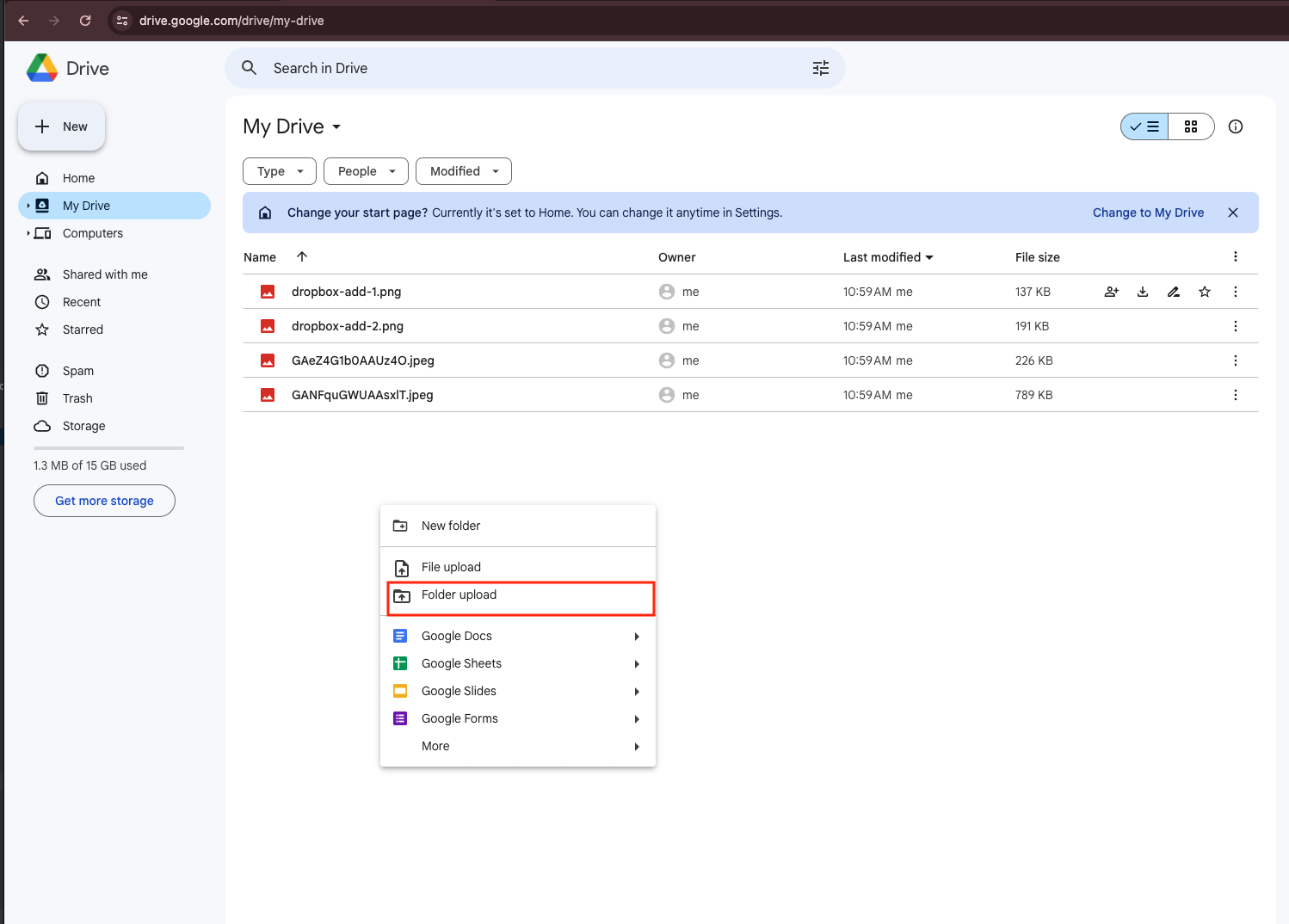
Browser transfers are practical for a single library or a few folders. The data downloads to your computer and uploads again, so larger libraries are slow and depend on your connection staying up.
Method 2: Use SharePoint Sync and Google Drive for Desktop
Step 1: Sync the SharePoint Library Locally
On the SharePoint library, click Sync to bring it into File Explorer or Finder through the OneDrive client. Set the synced folders to download fully rather than stay online-only, so the files exist on disk.
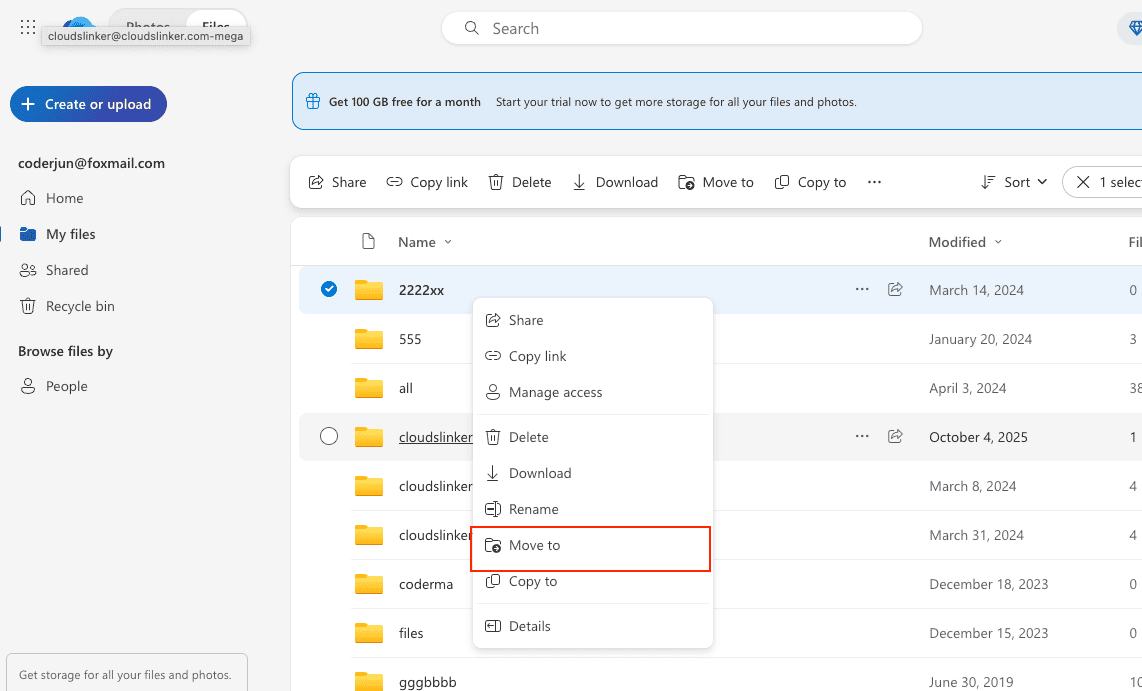
Step 2: Move Files into Google Drive for Desktop
Install Google Drive for desktop and sign in. Copy the synced SharePoint files into a mirrored Google Drive folder, and the client uploads them to Drive in the background.

This method works well for a gradual switch where files keep changing. It stages data on your machine, so you need enough free disk space and a connection that can handle the upload.
Method 3: Command-Line Transfer with Rclone
Step 1: Configure SharePoint and Google Drive Remotes
Rclone connects to SharePoint through its OneDrive backend and to Google Drive directly. Run rclone config, add a onedrive remote and choose SharePoint when prompted for the account type, then add a drive remote for Google Drive. The setup is documented in the OneDrive and SharePoint backend guide.
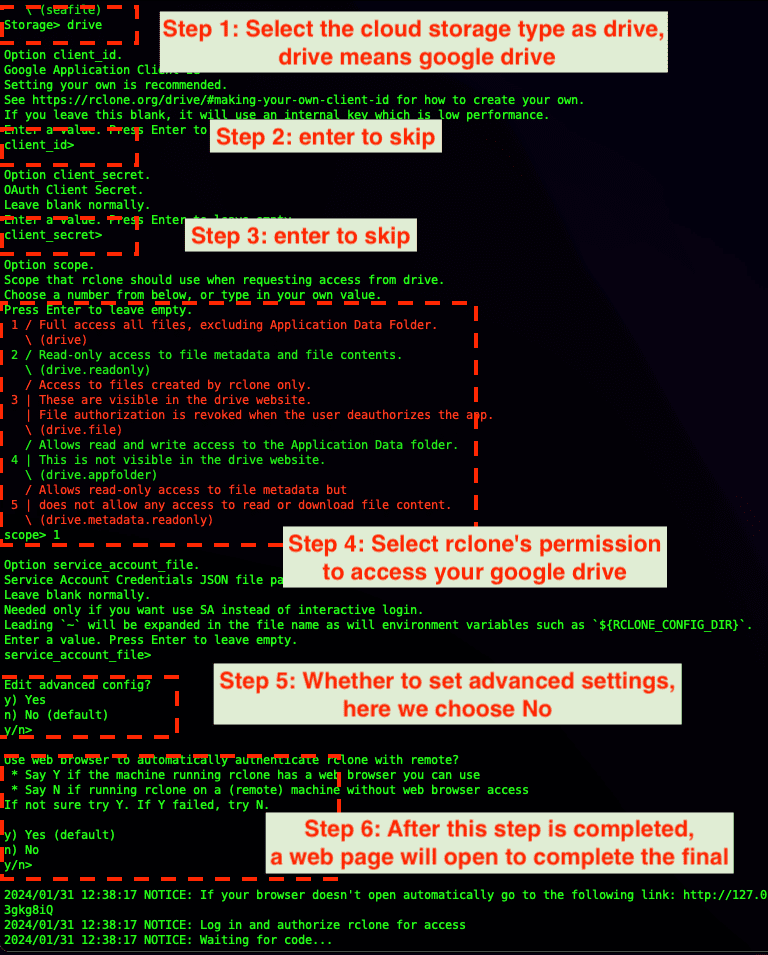
Step 2: Run the Transfer Command
With both remotes configured, copy data between them:
rclone copy sharepoint:/Shared Documents/Projects gdrive:/Projects --progressrclone sync sharepoint:/Archive gdrive:/Archive --progress --exclude "*.tmp"
The first command copies a library folder into Google Drive; the second performs a one-way sync while excluding temporary files. A --dry-run pass previews changes before they happen. Rclone supports bandwidth limits, filters, and scheduling through cron or Task Scheduler.
This option suits administrators handling large or recurring migrations. Selecting the correct SharePoint site and library during setup is the main hurdle.
Method 4: Cloud-to-Cloud Transfer with CloudsLinker
Transfer Without Local Downloads
CloudsLinker transfers files directly between cloud servers, so nothing routes through your computer and the task continues after you close the browser. It connects to 40+ services, including SharePoint and Google Drive.
Step 1: Connect SharePoint
Sign in at app.cloudslinker.com, click Add Cloud, and select SharePoint. Enter your site path, for example /sites/yoursite, then authorize through Microsoft. If the site has multiple document libraries, select the one to connect.
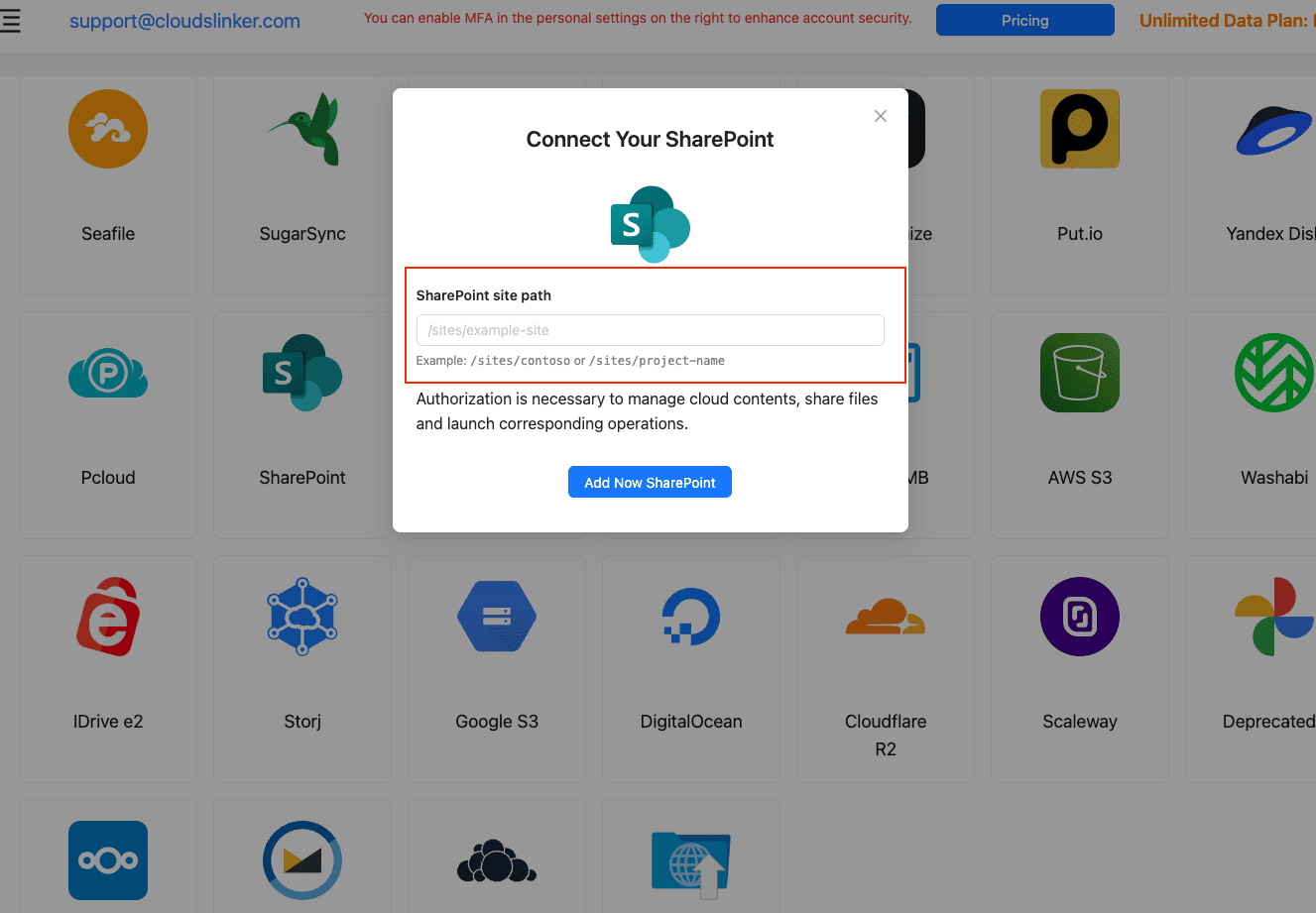
Step 2: Connect Google Drive
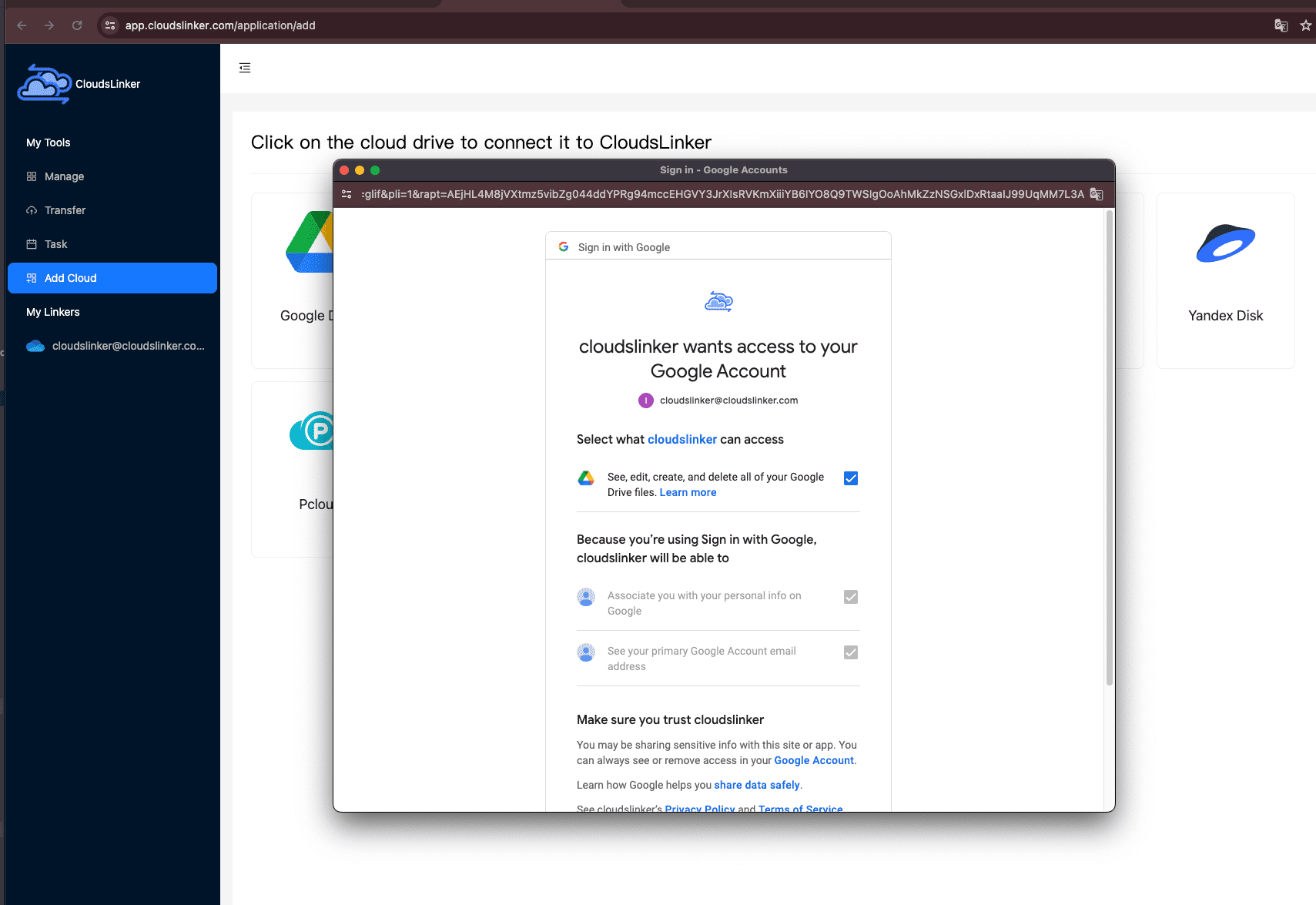
Click Add Cloud again and select Google Drive. Approve access on Google's official authorization page to link the account.
Step 3: Configure the Transfer
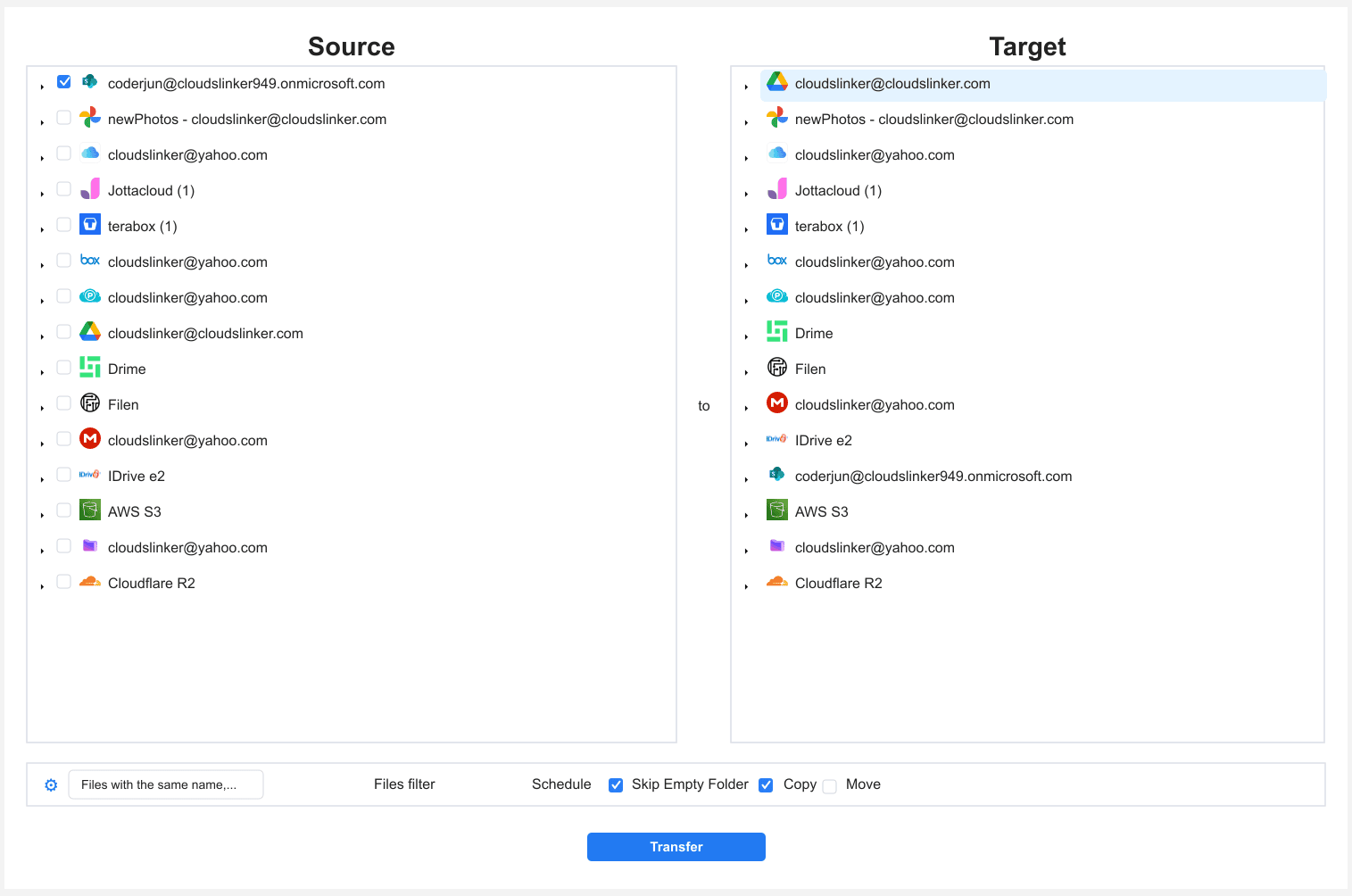
Open the Transfer section. Select SharePoint as the source and browse to the library folders you want to move. On the destination side, select Google Drive and choose My Drive or a Shared Drive folder.
Filters let you limit the move to certain file types or a date range, and you can choose Copy or Move mode. Copy keeps the SharePoint originals intact.
Step 4: Start and Monitor the Transfer
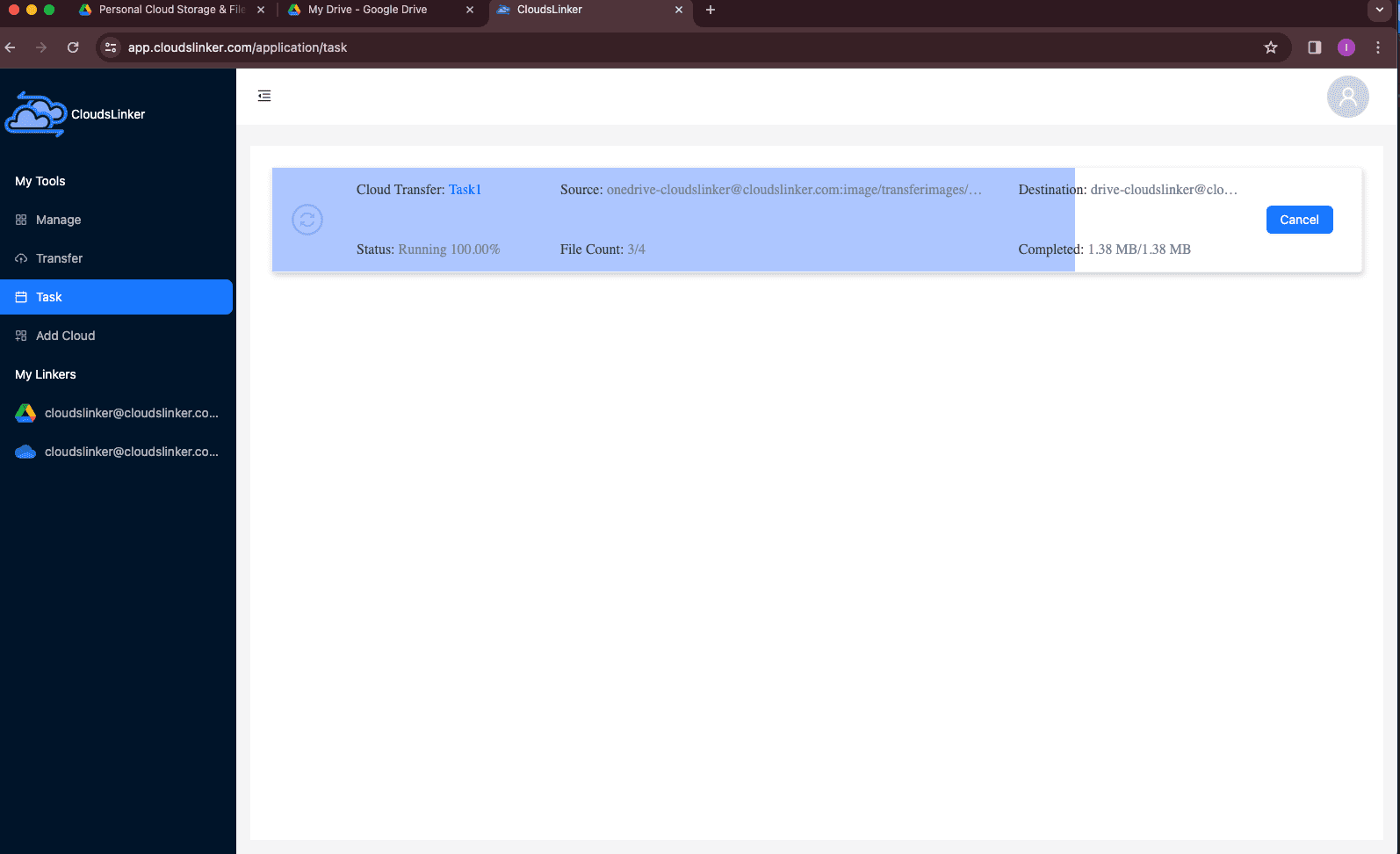
Start the task and watch progress in the Task List, which shows transferred size, speed, and any skipped items. Because the transfer runs in the cloud, you can close the browser and review the summary when it finishes.
Comparing the Ways to Transfer From SharePoint to Google Drive
| Method | Ease of Use | Speed | Best For | Uses Local Bandwidth | Skill Level |
|---|---|---|---|---|---|
| Web Browser | ★★★★★ | ★★★☆☆ | One library or a few folders | Yes | Beginner |
| Sync + Drive for Desktop | ★★★★☆ | ★★★☆☆ | Gradual switch with active files | Yes | Beginner |
| Rclone | ★★☆☆☆ | ★★★★☆ | Large or recurring migrations | Yes | Advanced |
| CloudsLinker | ★★★★★ | ★★★★★ | Whole sites, hands-off transfers | No | Beginner |
For one library, manual upload is enough. A gradual move benefits from desktop sync. Rclone gives administrators scriptable control, while CloudsLinker moves entire sites server-side without using your network.
- Pick My Drive vs Shared Drive deliberately: A Shared Drive mirrors a SharePoint site's team ownership; My Drive ties files to one person.
- Expect metadata loss: SharePoint columns, content types, and version history have no Drive equivalent — record them separately if compliance needs them.
- Keep Office files as-is first: Leave .docx and .xlsx in original format, then convert to Google Docs only where live co-editing is needed.
- Watch for path and name limits: Very long SharePoint paths and characters like # or % can cause upload errors; clean names before moving.
- Confirm Drive quota: Compare the library size to your Workspace or Google One allowance before a full transfer.
- Verify before deleting: Use Copy mode, open a sample of files in Drive, and only then clear the SharePoint library.
Frequently Asked Questions
Conclusion
How you move depends on scale and structure. A browser download and upload covers a single library or a few folders. Desktop clients suit a gradual switch where files keep changing. Rclone fits administrators comfortable scripting large or recurring transfers. For an entire site's worth of documents moved without local bandwidth, CloudsLinker runs the job server-side and reports what landed in Google Drive. Decide based on how much data you have and whether the move is one-time or ongoing.
Online Storage Services Supported by CloudsLinker
Transfer data between over 58 cloud services with CloudsLinker

OneDrive

Google Drive

Google Photos

Shared Drive

OneDrive for Business

Dropbox

Box

Mega

pCloud

Yandex

ProtonDrive

AWS

GCS

iDrive

Storj

DigitalOcean

Wasabi

1fichier

PikPak

TeleBox

OpenDrive

Backblaze B2

Fastmail file

SharePoint

Nextcloud

ownCloud

Premiumize me

HiDrive

Put.io

Sugar Sync

Jottacloud

Seafile

Ftp

SFtp

NAS

WebDav

4shared

Icedrive

Cloudflare R2

Scaleway

Hetzner Object Storage

Synology C2 Object Storage

S3 Compatible

Doi

iCloud Drive

iCloud Photos

FileLU

Zoho WorkDrive

Telia Cloud / Sky

Drime

Filen

TeraBox

Internxt

Degoo

Gofile

Pixeldrain

Shade

Koofr
Didn' t find your cloud service? Be free to contact: [email protected]
Further Reading
Effortless FTP connect to google drive: Transfer Files in 3 Easy Ways
Learn More >
Google Photos to OneDrive: 3 Innovative Transfer Strategies
Learn More >
Google Photos to Proton Drive: 3 Effective Transfer Techniques
Learn More >