TeraBox to Google Drive: Get Off the Free-Tier Download Throttle
Move files from TeraBox to Google Drive to escape one-file-at-a-time downloads and 100–500 KB/s throttling. Browser, Drive for Desktop, or CloudsLinker.
Introduction
Google Drive gives every account 15 GB free with no per-file download throttle and a real API that other tools can talk to — the opposite of TeraBox's free tier, where downloads run one file at a time at speeds that testers have measured as low as 100–500 KB/s against an advertised 1.5–6.5 Mbps. If you parked a library on TeraBox for the 1 TB headline and now find that pulling it back out is the slow part, moving to Google Drive trades raw free capacity for usable throughput and ecosystem reach. The catch on the way out is that TeraBox publishes no OAuth API, so every method depends on its browser session cookie. This guide covers three routes: a manual browser download, the TeraBox and Drive desktop apps as a local bridge, and a cloud-to-cloud transfer with CloudsLinker.
TeraBox is a consumer cloud service from Flextech Inc., the international arm of what began as Baidu Netdisk. Its draw is a 1 TB free tier; its cost is heavy throttling and ads on that free tier.
- Free download speed: advertised 1.5–6.5 Mbps; measured as low as 100–531 KB/s.
- One file at a time: no concurrent downloads on free.
- Per-file cap: 4 GB free / 20 GB Premium.
- No public API: third-party tools rely on the browser cookie (
ndus,ndut_fmt). - Encryption: server-side; TeraBox holds the keys.
Google Drive is the storage layer of Google Workspace, with 15 GB free shared across Drive, Gmail and Photos, and paid Google One tiers up to 2 TB and beyond.
- No download throttle: full-speed downloads on free and paid tiers.
- OAuth API: revocable, scoped third-party access.
- Workspace integration: Docs, Sheets, Slides, Gmail.
- Per-file cap: up to 5 TB on supported plans.
- Clients: web, Drive for Desktop, Android, iOS.
The 1 TB free quota is real, but it is a roach-motel kind of generous: data goes in fast and comes out slowly. The constraints that push people toward Google Drive are specific.
- Throughput on the way out: free-tier downloads are serialized one file at a time and capped well below what your connection can handle.
- No programmatic access: without an OAuth API, automation and most backup tools cannot talk to TeraBox directly.
- No Workspace tooling: there is nothing equivalent to Docs or Sheets — TeraBox stores files, it does not work on them.
- Free-account moderation risk: automated scanning can flag and lock free accounts, putting a single-copy library at risk.
Google Drive answers the first three directly and gives you a recoverable, API-addressable home for the data. The methods below differ mainly in how much of TeraBox's slow read you have to babysit.
| Feature | TeraBox | Google Drive |
|---|---|---|
| Free quota | 1 TB advertised; ~80 GB practical (20-file cap) | 15 GB shared with Gmail and Photos |
| Free download speed | ~100–531 KB/s, one file at a time | Full connection speed, concurrent |
| Third-party access | Browser cookie only | OAuth 2.0 with scopes |
| Productivity tools | None | Docs, Sheets, Slides |
| Per-file cap | 4 GB free / 20 GB Premium | Up to 5 TB |
On the TeraBox side
- Map what you actually need back: free-tier reads are slow, so leave behind anything you do not want to wait for.
- Stay logged in: every method depends on a live session cookie; a logout invalidates it mid-job.
- Note Premium expiry: if you have a paid TeraBox plan, run the migration before it lapses to keep the higher download speed.
On the Google Drive side
- Check the 15 GB ceiling: a large TeraBox library will likely need a Google One upgrade. Confirm capacity before starting.
- Create a destination folder such as
/TeraBox-Import/to keep the migration contained. - Decide on Drive for Desktop if you plan to use the bridge method — install and sign in ahead of time.
Method 1: Browser Download from TeraBox, Upload to Google Drive
Step 1: Download from TeraBox
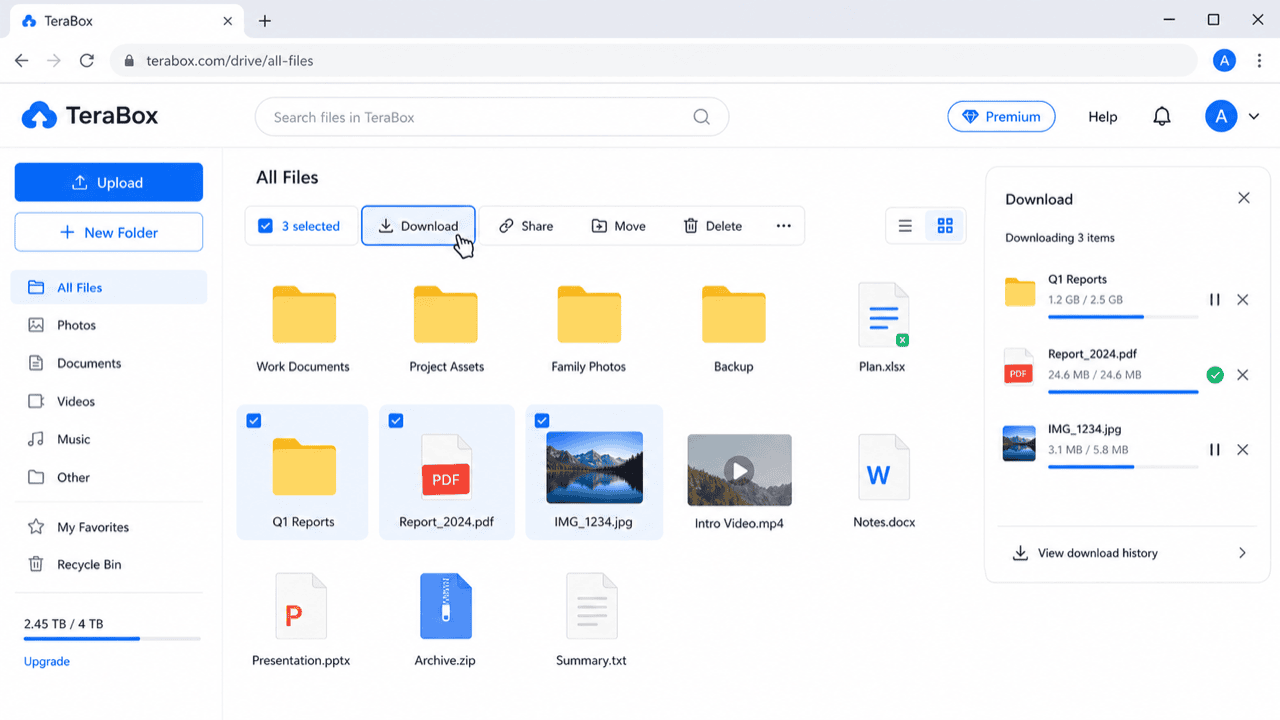
Sign in at terabox.com, select the files or folders you want back, and click Download. On a free account expect the queue to move one file at a time. For a folder, TeraBox builds a ZIP first, which can stall on very large selections — pull big folders in smaller batches.
Step 2: Upload to Google Drive
Open drive.google.com, navigate to your target folder, and drag the downloaded files in — or use New → Folder upload. Drive uploads at full speed, so the destination side is rarely the bottleneck. The TeraBox download in Step 1 is.
Method 2: Desktop App Bridge (TeraBox + Drive for Desktop)
Best for queuing a large library overnight on one machine
The TeraBox desktop app downloads into a local folder; Google's Drive for Desktop syncs a local folder up to Drive. Chaining them turns a slow, attended browser job into an unattended one.
Step 1: Download with the TeraBox Desktop App
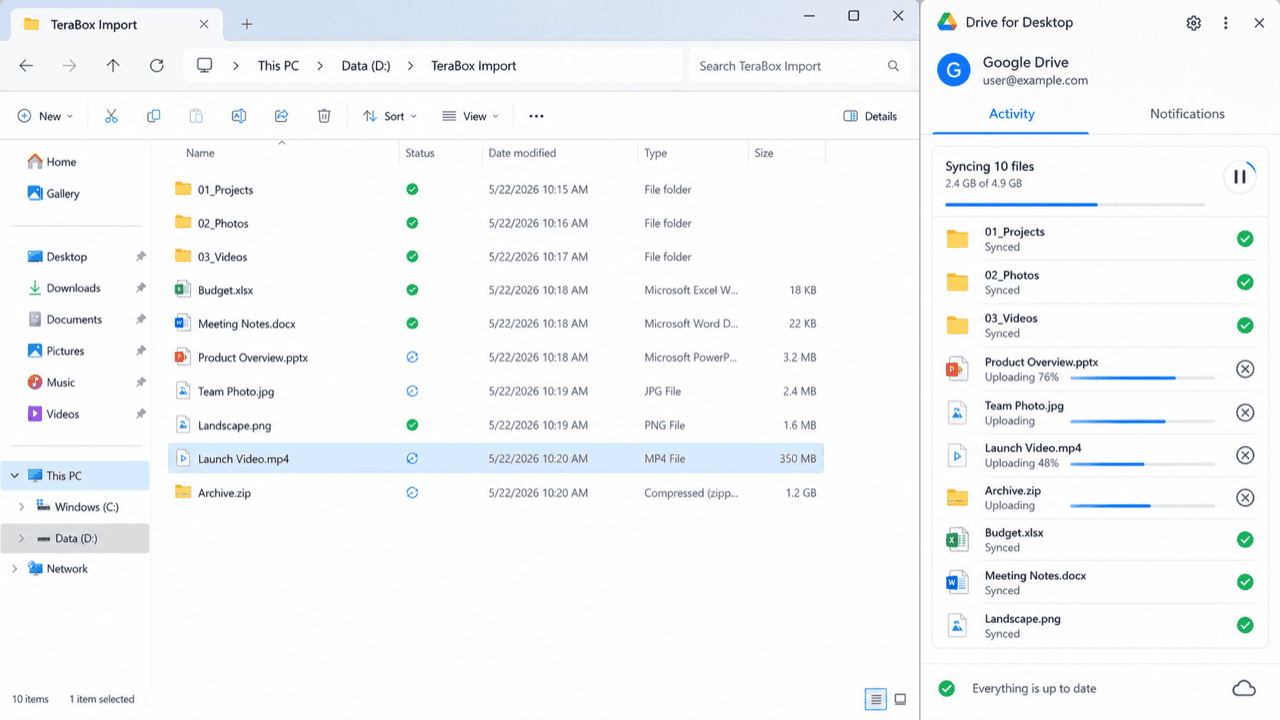
Install the TeraBox desktop client, sign in, and download the folders you want into a local directory. The app is generally steadier than the browser for long, serialized free-tier downloads because it manages the queue itself and resumes after drops.
Step 2: Sync That Folder with Drive for Desktop
Install Drive for Desktop, sign into your Google account, and add the local download folder as a synced or mirrored location. Drive uploads it in the background. Once the green check marks appear, the data is in Google Drive and the local copy can be removed.
Method 3: Cloud-to-Cloud Transfer with CloudsLinker
Move It Server-Side, Without Babysitting the Throttle
CloudsLinker reads from TeraBox using your session cookie and writes into Google Drive over OAuth. It still depends on TeraBox's read speed, but it runs on CloudsLinker's servers and handles TeraBox's rate-limit responses with automatic backoff, so a long job survives throttling instead of failing on it.
Step 1: Connect TeraBox (Browser Cookie)
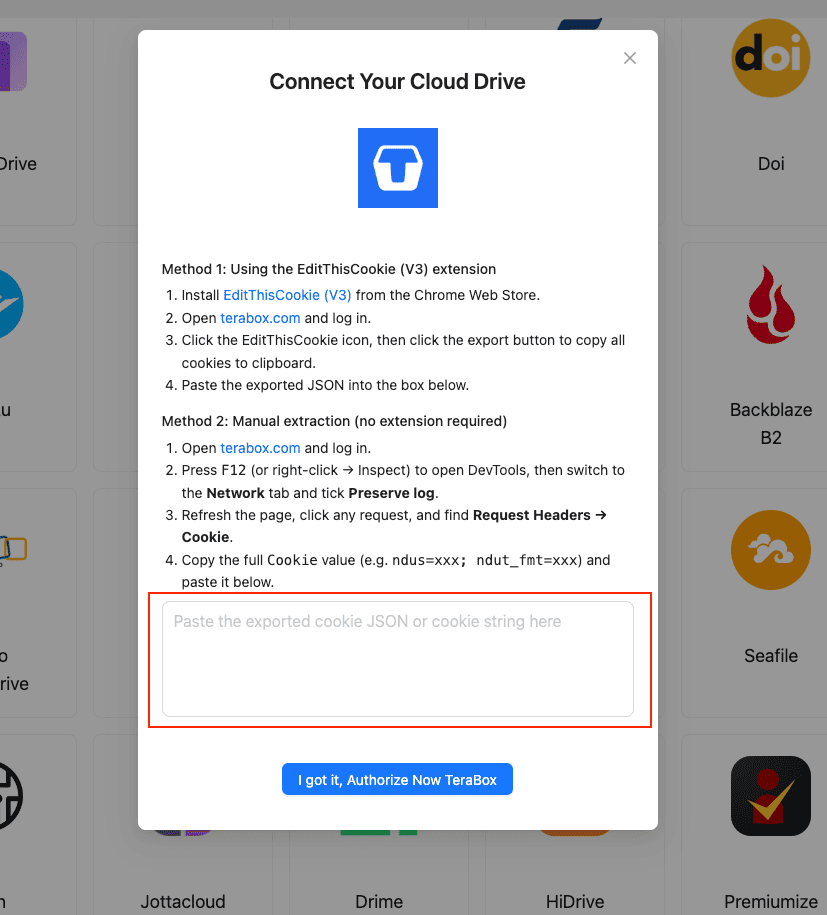
In CloudsLinker, click Add Cloud → TeraBox. Because TeraBox has no OAuth, you supply the session cookie:
- Install EditThisCookie (V3) in Chrome.
- Open
www.terabox.comin the same browser and confirm you are signed in. - Click the EditThisCookie icon → Export to copy the cookie JSON.
- Paste it into CloudsLinker's cookie field and confirm.
Without the extension, open DevTools (F12) → Network, refresh, and copy
the full Cookie header (ndus=...; ndut_fmt=...).
Step 2: Connect Google Drive
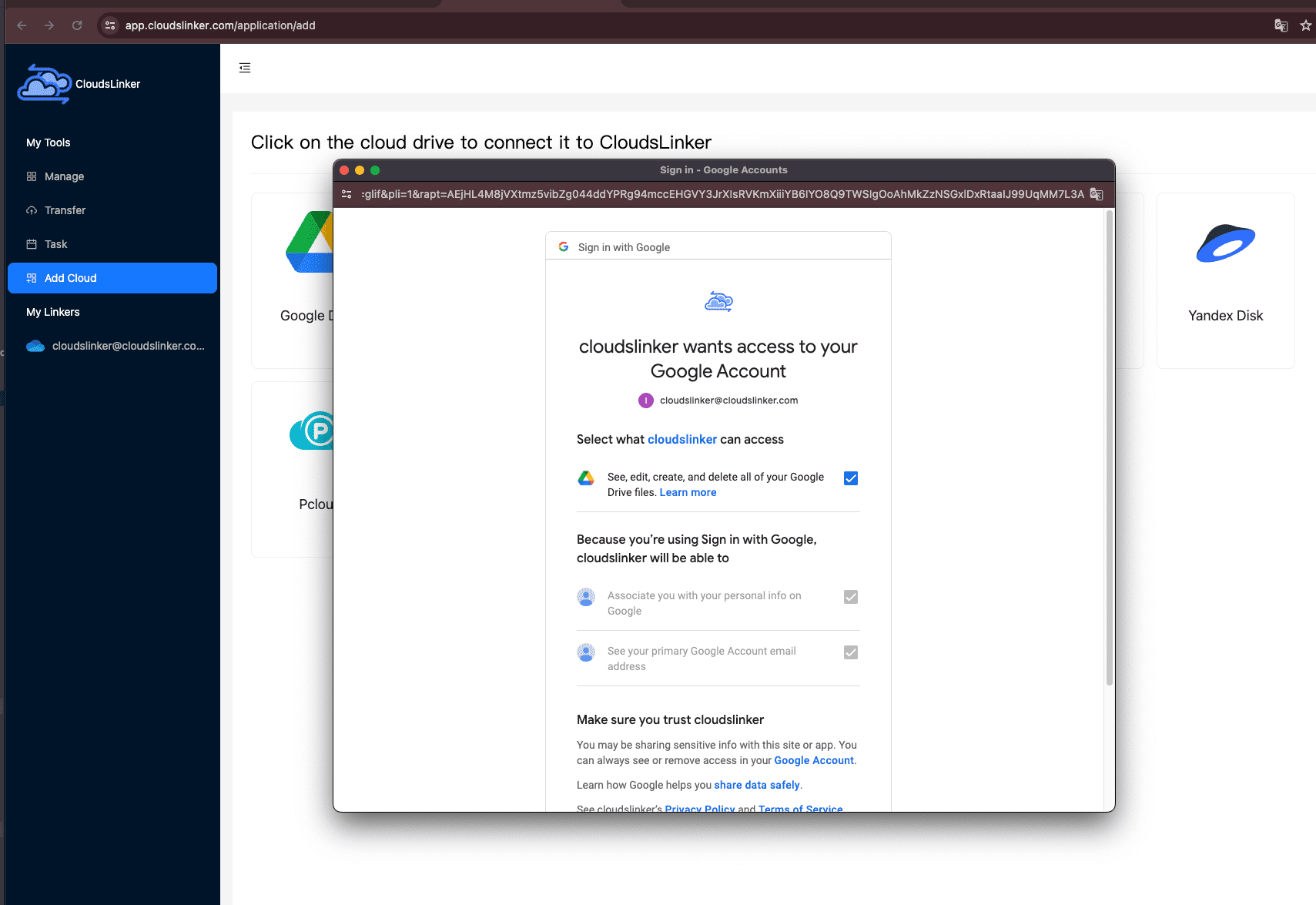
Click Add Cloud → Google Drive. Your browser redirects to Google's OAuth page; sign in and approve access. Google Drive appears as a connected destination, and you can revoke the token later from your Google account security settings.
Step 3: Configure the Transfer
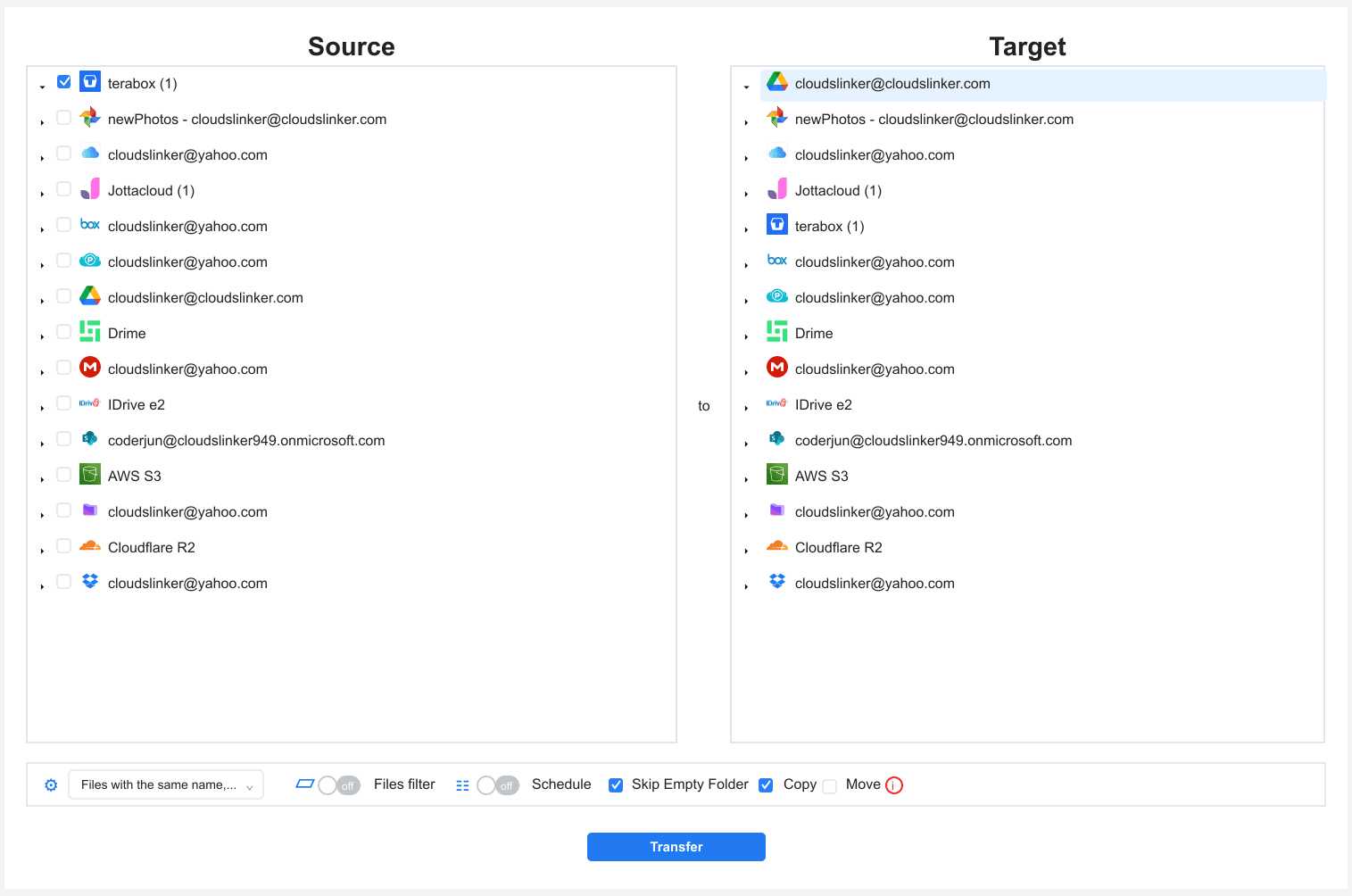
Open the Transfer section. Set TeraBox as the source, browse to
the folders you want, and set Google Drive as the destination with your
/TeraBox-Import/ folder. Filters by type, size or date let you pull only what matters.
Use Copy so the TeraBox originals stay in place until you have verified Drive.
Step 4: Start and Monitor
Start the task. The Task List reports transferred size, speed and remaining items. If the TeraBox cookie expires (logout, password change, long inactivity), the task pauses and prompts you for a fresh cookie rather than failing the queue. Verify a sample in Google Drive before deleting anything from TeraBox.
Method Comparison
| Method | Ease of Use | Speed | Best For | Uses Local Bandwidth | Skill Level |
|---|---|---|---|---|---|
| Browser Download + Upload | ★★★★☆ | ★★☆☆☆ | A few files, one-off pulls | Yes | Beginner |
| Desktop App Bridge | ★★★☆☆ | ★★★☆☆ | Large library, unattended overnight queue | Yes | Intermediate |
| CloudsLinker | ★★★★★ | ★★★★☆ | Hands-off moves, surviving throttle with backoff | No | Beginner |
Note the speed column: no method beats TeraBox's free-tier read limit outright. The difference is whether your machine has to stay awake for it (browser, desktop) or not (CloudsLinker).
- Run the move while any TeraBox Premium is still active: the higher download ceiling (15–20 Mbps vs ~100–500 KB/s) shortens the slow read dramatically. Time the migration before a paid plan lapses.
- Batch by folder, not all at once: TeraBox ZIP packaging and one-file serialization make small batches more reliable than a single giant job.
- Mind Google's 15 GB shared quota: it is split with Gmail and Photos. A large import likely needs a Google One tier — size it first.
- Refresh the cookie before long runs: re-login to TeraBox right before exporting the cookie so it does not expire halfway through.
- Verify counts per folder: after the move, compare file counts between TeraBox and Drive before you delete anything on the TeraBox side.
- Keep a local copy of anything irreplaceable: until Drive is confirmed, do not treat the migration as a backup — it is a move in progress.
Frequently Asked Questions
ndus, ndut_fmt) exported from a logged-in browser tab. The
cookie is tied to your active session and can be invalidated by logging out.
Watch: Transfer Files from TeraBox to Google Drive with CloudsLinker
A walkthrough of the cloud-to-cloud method: pasting the TeraBox cookie, connecting Google Drive via OAuth, selecting the files to move, and monitoring the server-side transfer in the Task List.
Conclusion
If you only have a few files, the browser download into Google Drive's web uploader is the least setup. When the library is large, the desktop-app bridge lets you queue everything overnight on one machine, while CloudsLinker moves it server-side and handles TeraBox's rate limits with automatic backoff so a long job does not die on a single throttle. The slow link in every approach is reading data out of TeraBox's free tier — that constraint is the whole reason to leave, and it is also why the hands-off server-side route tends to finish what a browser tab gives up on.
Online Storage Services Supported by CloudsLinker
Transfer data between over 58 cloud services with CloudsLinker

OneDrive

Google Drive

Google Photos

Shared Drive

OneDrive for Business

Dropbox

Box

Mega

pCloud

Yandex

ProtonDrive

AWS

GCS

iDrive

Storj

DigitalOcean

Wasabi

1fichier

PikPak

TeleBox

OpenDrive

Backblaze B2

Fastmail file

SharePoint

Nextcloud

ownCloud

Premiumize me

HiDrive

Put.io

Sugar Sync

Jottacloud

Seafile

Ftp

SFtp

NAS

WebDav

4shared

Icedrive

Cloudflare R2

Scaleway

Hetzner Object Storage

Synology C2 Object Storage

S3 Compatible

Doi

iCloud Drive

iCloud Photos

FileLU

Zoho WorkDrive

Telia Cloud / Sky

Drime

Filen

TeraBox

Internxt

Degoo

Gofile

Pixeldrain

Shade

Koofr
Didn' t find your cloud service? Be free to contact: [email protected]
Further Reading
Effortless FTP connect to google drive: Transfer Files in 3 Easy Ways
Learn More >
Google Photos to OneDrive: 3 Innovative Transfer Strategies
Learn More >
Google Photos to Proton Drive: 3 Effective Transfer Techniques
Learn More >