TeraBox to MEGA: Move to Zero-Knowledge Encryption You Actually Hold
Move TeraBox files to MEGA for zero-knowledge end-to-end encryption and 20 GB free. Browser, MEGA desktop app, or a cloud-to-cloud transfer with CloudsLinker.
Introduction
MEGA encrypts every file end-to-end with zero-knowledge keys held only by you, applied by default across the whole service — which is exactly what TeraBox does not do, since TeraBox holds its own encryption keys and can scan or be compelled to hand over stored files. For anyone who put personal documents, scans, or private media on TeraBox and later read the fine print, that difference is the reason to leave. MEGA's free 20 GB is smaller than TeraBox's headline 1 TB, but it is private in a way TeraBox structurally is not. TeraBox exposes no OAuth API, so the export depends on its browser cookie. This guide covers a browser download, the MEGA desktop app as a bridge, and a cloud-to-cloud transfer with CloudsLinker.
TeraBox is a consumer file locker from Flextech Inc., with roots in Baidu Netdisk. Its large free tier comes without zero-knowledge encryption — the provider holds the keys.
- Free quota: 1 TB advertised; ~80 GB practical (20-file cap).
- Encryption: server-side; TeraBox holds the keys and can scan files.
- Open source: no.
- Per-file cap: 4 GB free / 20 GB Premium.
- Access: browser cookie (
ndus,ndut_fmt); no OAuth.
MEGA is a New Zealand-based storage service built on zero-knowledge, end-to-end encryption applied to all files by default. The free tier starts at 20 GB.
- Zero-knowledge encryption: files encrypted on your device; only you hold the keys.
- Free tier: 20 GB baseline, expandable via bonuses.
- Bundled privacy apps: MEGA VPN, Pass, and encrypted chat on paid plans.
- Clients: web, MEGAsync desktop, mobile apps.
- Access: account credentials (email + password; 2FA if enabled).
This migration is almost entirely about who can read your files. TeraBox stores them server-side with keys it controls; MEGA encrypts them so it cannot read them at all.
- Keys you hold: MEGA encrypts client-side, so the provider — and anyone who compels it — cannot read your files. TeraBox holds its own keys.
- No content scanning of plaintext: because MEGA never sees plaintext, it cannot scan your files the way an unencrypted locker can.
- Default, not optional: MEGA's encryption is on for everything automatically — there is no setting to forget.
- Lower account-seizure risk to your data: even if an account is actioned, encrypted contents are not readable by the provider.
The trade-off is capacity: 20 GB free versus TeraBox's headline 1 TB. For sensitive data, most people decide privacy outweighs raw space. The methods below move the files across.
| Feature | TeraBox | MEGA |
|---|---|---|
| Encryption model | Server-side; provider holds keys | Zero-knowledge end-to-end; you hold keys |
| Can the provider read files? | Yes | No |
| Free quota | 1 TB advertised; ~80 GB practical | 20 GB baseline |
| Per-file cap | 4 GB free / 20 GB Premium | No fixed small cap; quota-bound |
| Third-party access | Browser cookie only | Account credentials (with 2FA) |
On the TeraBox side
- Prioritize sensitive files: scans, IDs, financial records, private media — these are what the move is for, and they fit within 20 GB more easily than a full library.
- Keep the session live: every method depends on a current cookie or login.
- Plan around the 20 GB free ceiling: a large TeraBox library will not fit a free MEGA account — either select a subset or choose a MEGA paid plan.
On the MEGA side
- Save your Recovery Key: because MEGA is zero-knowledge, losing your password without the Recovery Key means losing access to the encrypted data. Store it safely.
- Enable 2FA on the MEGA account before connecting any tool.
- Create a target folder such as
/TeraBox-Import/.
Method 1: Browser Download from TeraBox, Upload to MEGA
Step 1: Download from TeraBox
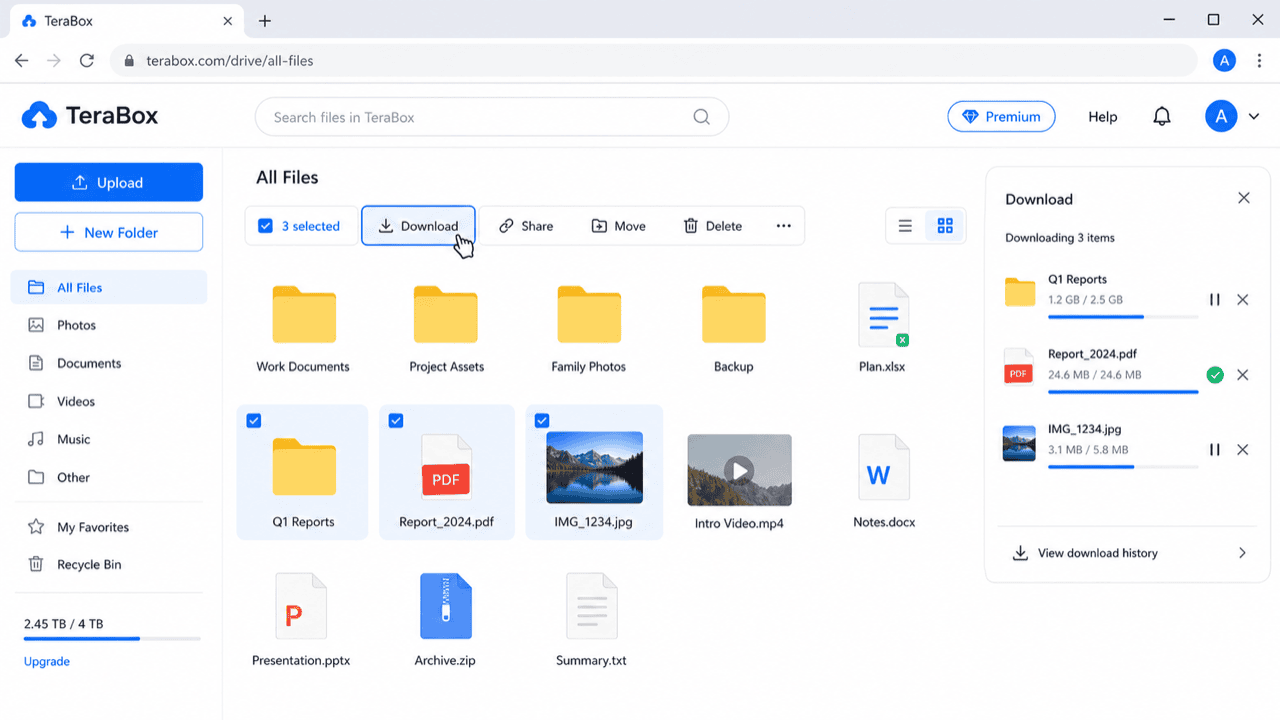
Sign in at terabox.com and download the files you want to protect. Free downloads run one at a time; prioritize sensitive items first.
Step 2: Upload to MEGA
Open mega.nz, open your target folder, and drag the files in. MEGA encrypts each file in your browser before it leaves your device, so the upload is end-to-end encrypted by the time it reaches MEGA's servers.
Method 2: MEGA Desktop App (MEGAsync) as a Bridge
Best for a larger set, with encryption handled locally
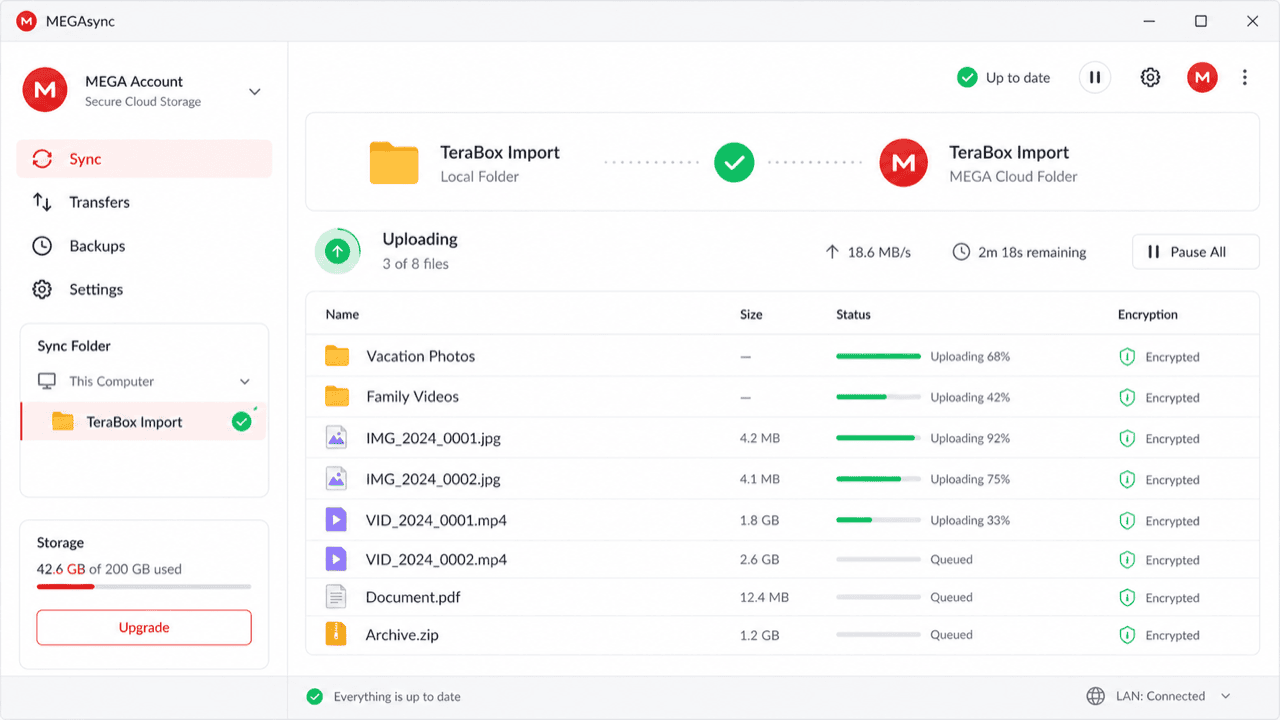
MEGAsync mirrors a local folder to your encrypted MEGA account, encrypting client-side as it uploads. Download from TeraBox into a synced folder and MEGAsync does the rest.
Step 1: Install MEGAsync and Pick a Synced Folder
Install MEGAsync,
sign in, and configure a local folder to sync to a MEGA destination (for example,
TeraBox-Import).
Step 2: Download TeraBox Files Into It
Using the TeraBox desktop app or browser, download into that synced folder. MEGAsync encrypts and uploads each file as it appears. Wait for the sync indicator to clear, then verify in the MEGA web app before removing local copies.
Method 3: Cloud-to-Cloud Transfer with CloudsLinker
Move It Server-Side, Into Your Encrypted Account
CloudsLinker reads from TeraBox by cookie and writes into MEGA using your account credentials, running server-side and retrying through TeraBox's throttle. Files are stored encrypted on MEGA once they arrive.
Step 1: Connect TeraBox (Browser Cookie)
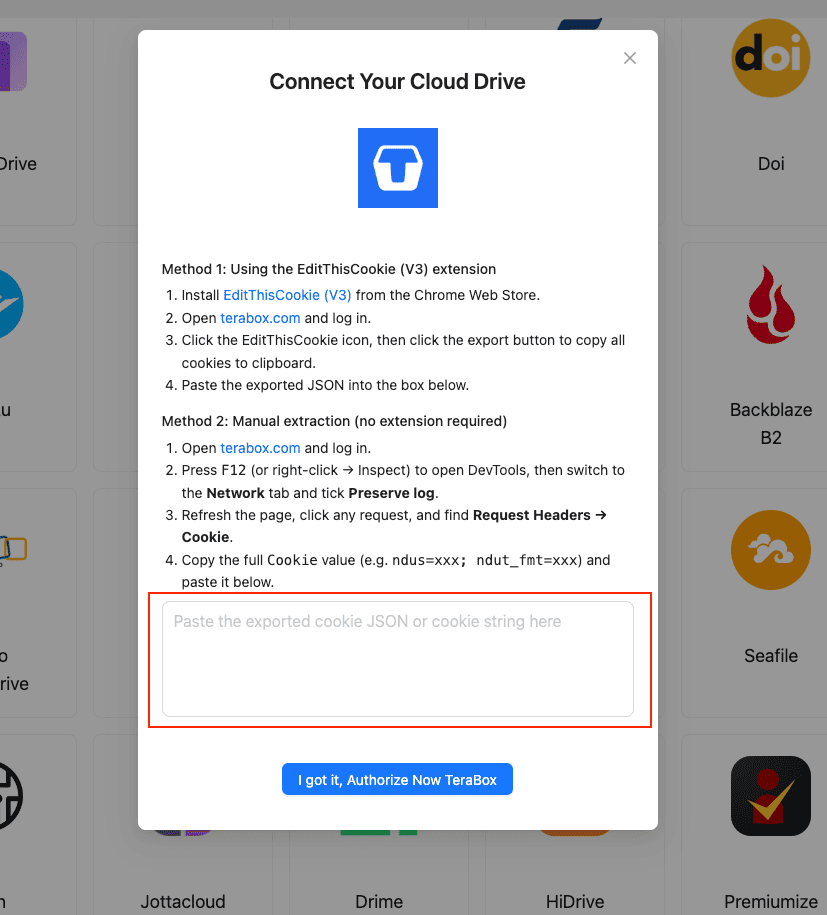
In CloudsLinker, click Add Cloud → TeraBox and supply the session cookie:
- Install EditThisCookie (V3) in Chrome.
- Open
www.terabox.comin the same browser, signed in. - Click EditThisCookie → Export to copy the cookie JSON.
- Paste it into CloudsLinker and confirm.
Or copy the Cookie header (ndus=...; ndut_fmt=...) from DevTools
(F12) → Network.
Step 2: Connect MEGA
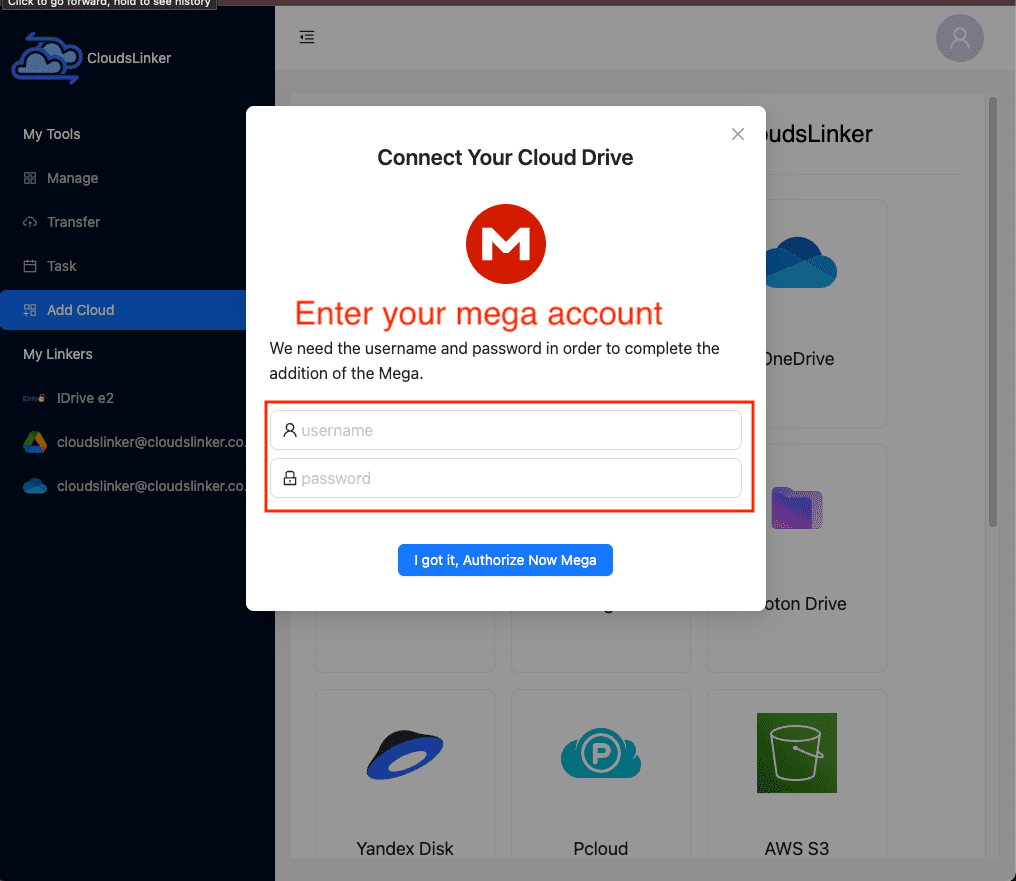
Click Add Cloud → MEGA. Enter your MEGA email and password, and the 2FA code if you have it enabled. MEGA appears as a connected destination. Files written here are stored under MEGA's encryption.
Step 3: Configure the Transfer
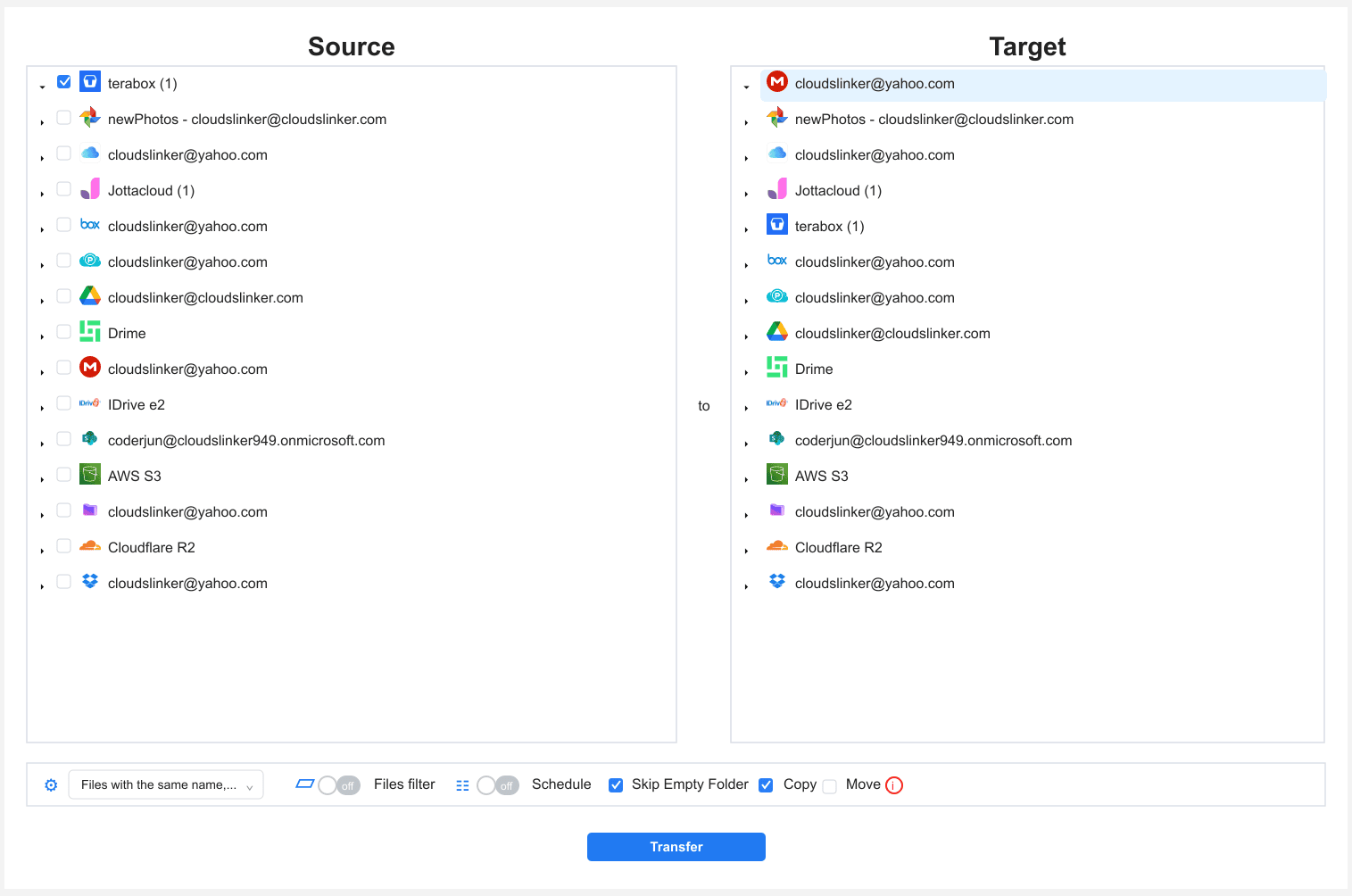
In the Transfer section, set TeraBox as the source and
MEGA as the destination with your /TeraBox-Import/ folder. Filter by
type, size or date — useful for selecting just the sensitive files that justify the move.
Copy mode keeps TeraBox intact until MEGA is verified.
Step 4: Start and Monitor
Start the task and watch the Task List. If the TeraBox cookie expires, the task pauses for a fresh one. After completion, open MEGA and confirm the files — then delete the TeraBox copies of anything you wanted off the unencrypted service.
Method Comparison
| Method | Ease of Use | Speed | Best For | Uses Local Bandwidth | Skill Level |
|---|---|---|---|---|---|
| Browser Download + Upload | ★★★★☆ | ★★☆☆☆ | A few sensitive files | Yes | Beginner |
| MEGAsync Bridge | ★★★☆☆ | ★★★☆☆ | Larger sets, encryption handled locally | Yes | Intermediate |
| CloudsLinker | ★★★★★ | ★★★★☆ | Hands-off moves into the encrypted account | No | Beginner |
- Back up your MEGA Recovery Key first: zero-knowledge encryption means MEGA cannot reset your data if you lose the password. Store the Recovery Key somewhere safe before you move anything important.
- Move sensitive files first: the 20 GB free tier favors a curated set — documents, scans, private media — over a full bulk library.
- Grow free space with bonuses: MEGA adds storage for installing apps and other actions, which can stretch the free 20 GB a bit further.
- Delete TeraBox copies of private data: the privacy gain only fully applies once the unencrypted TeraBox copy is gone — after verifying MEGA.
- Refresh the cookie before long jobs: re-login to TeraBox right before exporting the cookie for CloudsLinker.
- Enable 2FA on MEGA: pair strong encryption with two-factor login so the account itself is hard to compromise.
Frequently Asked Questions
Watch: Transfer Files from TeraBox to MEGA with CloudsLinker
A walkthrough of the cloud-to-cloud method: pasting the TeraBox cookie, connecting MEGA with your account credentials, selecting the files to move, and monitoring the server-side transfer in the Task List.
Conclusion
For a few files, the browser download into MEGA's web app encrypts them on the way in. For a larger set, MEGAsync mirrors a local folder up to your encrypted account. For a hands-off move, CloudsLinker connects TeraBox by cookie and MEGA by account credentials, transferring server-side and retrying through TeraBox's throttle. Whatever the route, the privacy gain is the same: once files land in MEGA they are encrypted with keys only you hold. Keep the 20 GB free ceiling in mind, and treat sensitive files as the priority for the move.
Online Storage Services Supported by CloudsLinker
Transfer data between over 58 cloud services with CloudsLinker

OneDrive

Google Drive

Google Photos

Shared Drive

OneDrive for Business

Dropbox

Box

Mega

pCloud

Yandex

ProtonDrive

AWS

GCS

iDrive

Storj

DigitalOcean

Wasabi

1fichier

PikPak

TeleBox

OpenDrive

Backblaze B2

Fastmail file

SharePoint

Nextcloud

ownCloud

Premiumize me

HiDrive

Put.io

Sugar Sync

Jottacloud

Seafile

Ftp

SFtp

NAS

WebDav

4shared

Icedrive

Cloudflare R2

Scaleway

Hetzner Object Storage

Synology C2 Object Storage

S3 Compatible

Doi

iCloud Drive

iCloud Photos

FileLU

Zoho WorkDrive

Telia Cloud / Sky

Drime

Filen

TeraBox

Internxt

Degoo

Gofile

Pixeldrain

Shade

Koofr
Didn' t find your cloud service? Be free to contact: [email protected]
Further Reading
Effortless FTP connect to google drive: Transfer Files in 3 Easy Ways
Learn More >
Google Photos to OneDrive: 3 Innovative Transfer Strategies
Learn More >
Google Photos to Proton Drive: 3 Effective Transfer Techniques
Learn More >