TeraBox to OneDrive: Put Your Files Back Inside the Microsoft 365 Workflow
Move TeraBox files to OneDrive for Office co-editing, Windows File Explorer integration, and Files On-Demand. Browser, sync client, or CloudsLinker.
Introduction
OneDrive is built into Windows File Explorer and ties directly into Word, Excel, and the rest of Microsoft 365, so a document you open from OneDrive can be co-edited and version-tracked without leaving the app — none of which TeraBox offers, since it only stores files rather than working on them. If you keep your working documents in the Microsoft world but ended up parking a pile of files on TeraBox for its free 1 TB, the day-to-day friction is real: nothing on TeraBox is reachable from Explorer, Office, or Teams. Moving that data into OneDrive folds it back into the tools you already use. TeraBox has no OAuth API, so the export hinges on its browser session cookie. Three routes cover it: a browser download, the OneDrive sync client as a bridge, and a cloud-to-cloud transfer with CloudsLinker.
TeraBox is a consumer cloud service from Flextech Inc. (formerly tied to Baidu Netdisk). It is a file locker — generous on free capacity, but with no productivity layer and no desktop OS integration.
- Free quota: 1 TB advertised; ~80 GB practical (20-file cap).
- No OS integration: not surfaced in File Explorer or Finder.
- No co-editing: stores files, does not open or edit them.
- Per-file cap: 4 GB free / 20 GB Premium.
- Access: browser session cookie (
ndus,ndut_fmt); no OAuth.
OneDrive is Microsoft's storage service, built into Windows and Microsoft 365. A free account includes 5 GB; Microsoft 365 subscriptions bundle 1 TB per user.
- Explorer integration: appears as a folder in Windows File Explorer.
- Office co-editing: real-time collaboration in Word, Excel, PowerPoint.
- Files On-Demand: cloud files visible locally without taking disk space.
- Version history: restore previous versions of files.
- Access: Microsoft OAuth for third-party tools.
TeraBox wins on free capacity; OneDrive wins on everything that touches a workflow — desktop integration, document collaboration, and version history. The migration is about moving from a parking lot back to a workspace.
| Feature | TeraBox | OneDrive |
|---|---|---|
| Free quota | 1 TB advertised; ~80 GB practical | 5 GB free; 1 TB with Microsoft 365 |
| Desktop integration | None | Native in Windows File Explorer; macOS Finder |
| Document collaboration | None | Real-time Office co-editing |
| Version history | Limited | Built-in, restorable |
| Third-party access | Browser cookie only | Microsoft OAuth |
On the TeraBox side
- Pick your working set: the files you actually open in Office are the priority; archive media can wait given the slow free-tier read.
- Keep the session live: every method depends on a current cookie or login.
- Flag files over 4 GB: if you intend to re-upload anything to TeraBox later, note its plan limits; for the move itself, OneDrive's per-file ceiling is far higher.
On the OneDrive side
- Confirm capacity: a free 5 GB OneDrive will not hold a large library — a Microsoft 365 subscription brings 1 TB.
- Create a target folder such as
/TeraBox-Import/. - Set Files On-Demand if you use the sync client, so the import does not fill your local disk.
Method 1: Browser Download from TeraBox, Upload to OneDrive
Step 1: Download from TeraBox
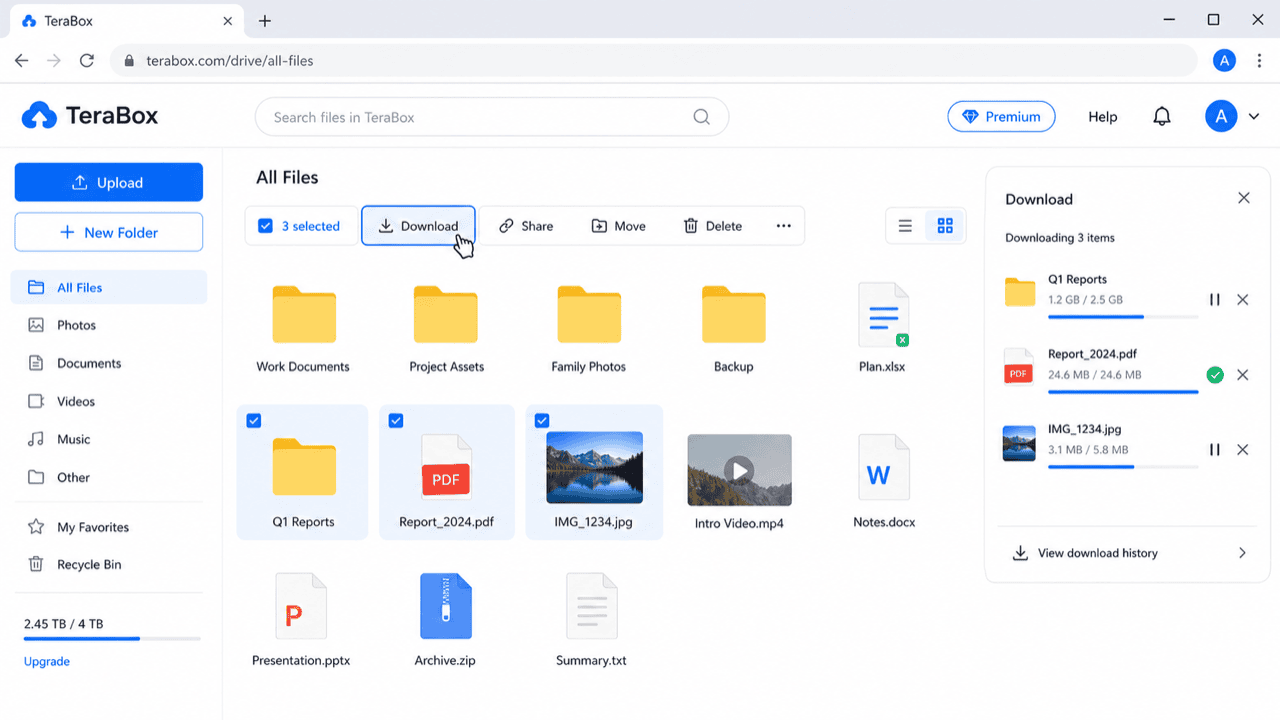
Sign in at terabox.com, select your files, and click Download. Free accounts download one file at a time, so pull working documents first and leave bulk media for an unattended method.
Step 2: Upload to OneDrive
Open onedrive.live.com (or your synced OneDrive folder in Explorer), navigate to the target folder, and drag the files in. Office documents become editable in place — a Word file uploaded here opens in Word for the web or the desktop app with version history attached.
Method 2: OneDrive Sync Client as a Bridge
Best if you already run OneDrive on Windows or Mac
Download from TeraBox into your local OneDrive folder and the sync client uploads it automatically. With Files On-Demand on, the files then free their local space once synced.
Step 1: Download into the OneDrive Folder
Using the TeraBox desktop app or browser, download your files directly into a subfolder of your
local OneDrive directory (for example, OneDrive\TeraBox-Import\). The sync client
picks them up immediately.
Step 2: Let Sync Complete, Then Free Space
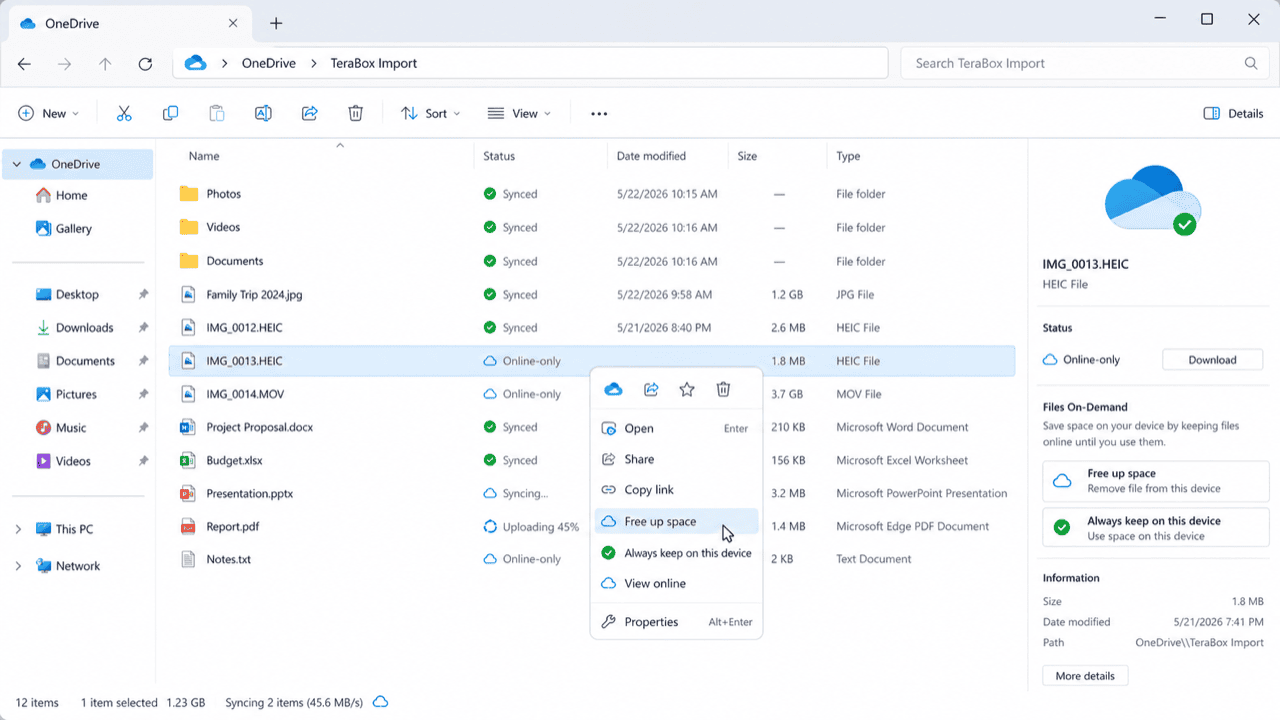
Wait for the green check marks in Explorer. Once synced, right-click the folder and choose Free up space to convert the local copies to cloud-only placeholders, keeping the data in OneDrive without consuming disk.
Method 3: Cloud-to-Cloud Transfer with CloudsLinker
Move It Server-Side, No Local Staging
CloudsLinker reads from TeraBox using your session cookie and writes into OneDrive over Microsoft OAuth. The job runs on CloudsLinker's servers and works through TeraBox's read throttle with automatic backoff, so a large library does not tie up a workstation.
Step 1: Connect TeraBox (Browser Cookie)
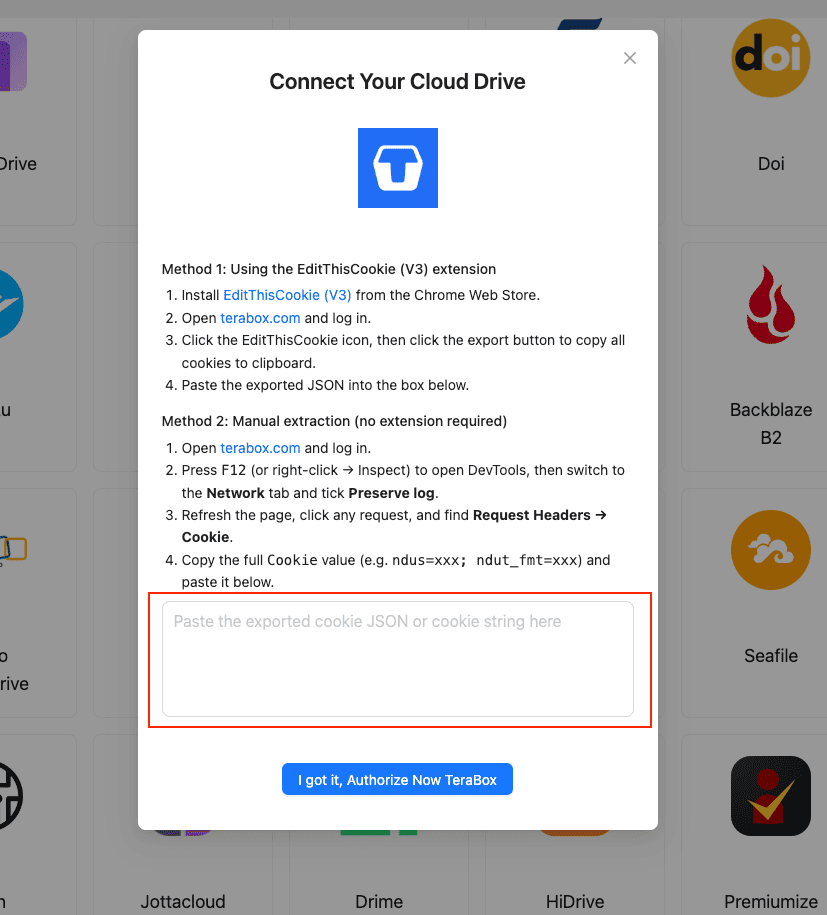
In CloudsLinker, click Add Cloud → TeraBox and supply the session cookie:
- Install EditThisCookie (V3) in Chrome.
- Open
www.terabox.comin the same browser, signed in. - Click the EditThisCookie icon → Export to copy the cookie JSON.
- Paste it into CloudsLinker and confirm.
Or use DevTools (F12) → Network → copy the Cookie header
(ndus=...; ndut_fmt=...).
Step 2: Connect OneDrive
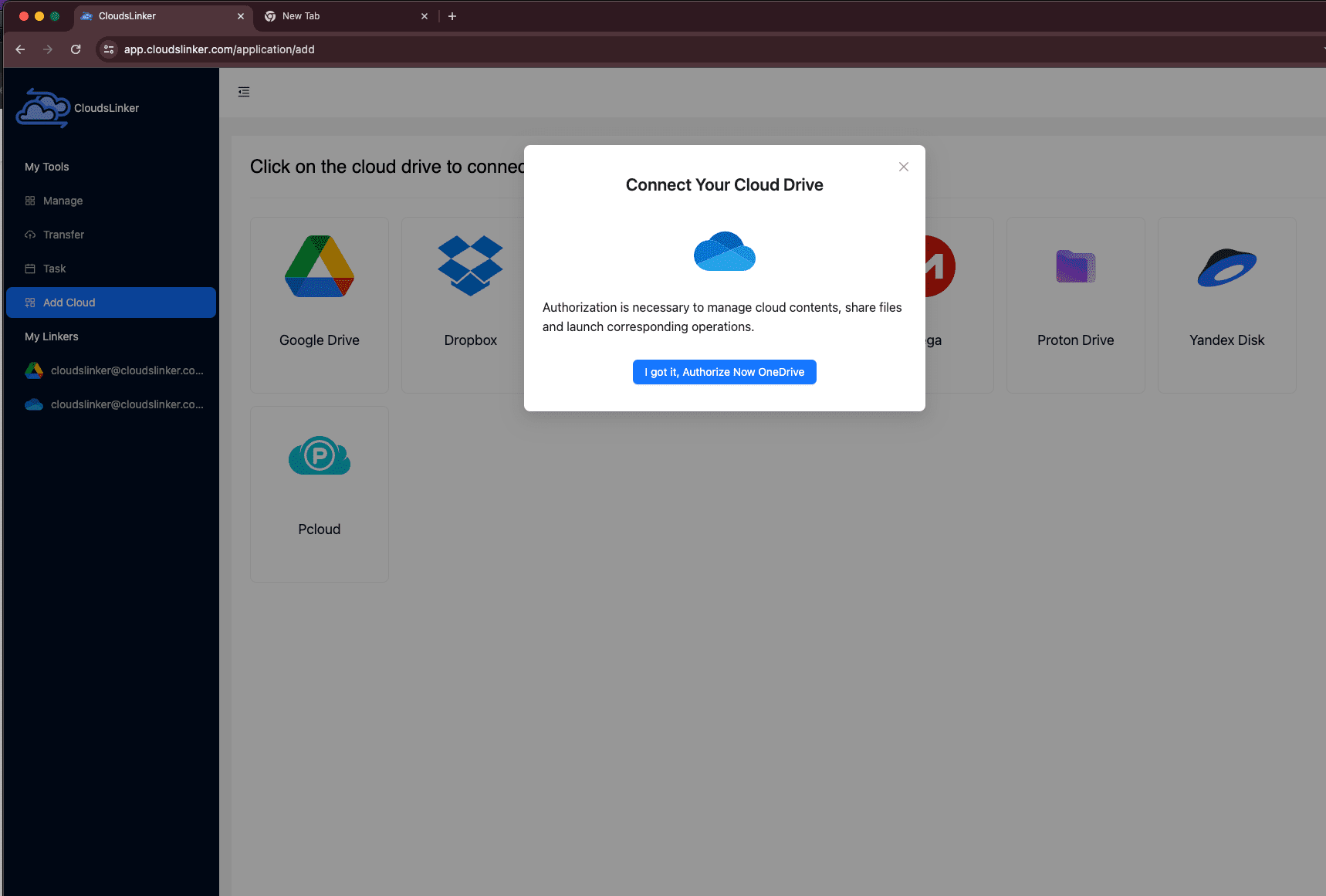
Click Add Cloud → OneDrive. Complete the Microsoft OAuth sign-in. If your account exposes more than one drive resource, select the one you want. OneDrive appears as a connected destination.
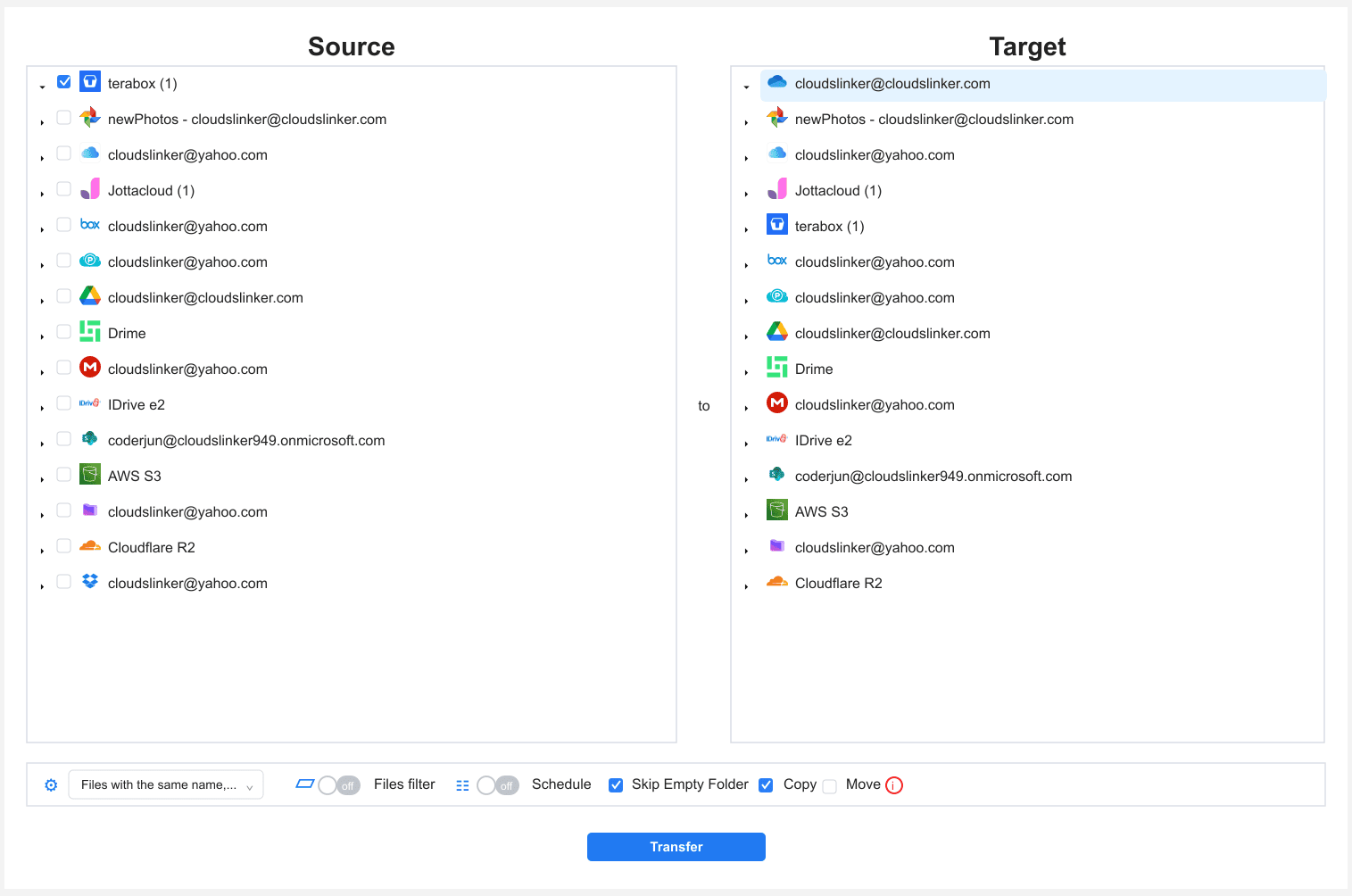
Step 3: Configure the Transfer
In the Transfer section, set TeraBox as the source and
OneDrive as the destination with your /TeraBox-Import/ folder. Filter
by type, size or date to pull only what you want. Copy mode keeps TeraBox intact
until OneDrive is verified.
Step 4: Start and Monitor
Start the task and watch the Task List for transferred size and remaining items. If the TeraBox cookie expires, the task pauses and prompts for a fresh one. Once complete, open the files in OneDrive and confirm Office documents open and version history is intact.
Method Comparison
| Method | Ease of Use | Speed | Best For | Uses Local Bandwidth | Skill Level |
|---|---|---|---|---|---|
| Browser Download + Upload | ★★★★☆ | ★★☆☆☆ | A few working documents | Yes | Beginner |
| OneDrive Sync Bridge | ★★★☆☆ | ★★★☆☆ | Existing OneDrive users on Windows/Mac | Yes | Intermediate |
| CloudsLinker | ★★★★★ | ★★★★☆ | Large libraries, hands-off moves | No | Beginner |
- Watch the OneDrive path-length limit: deeply nested TeraBox folders can exceed OneDrive's effective path length on Windows. Flatten very deep trees before the move to avoid sync errors.
- Use Files On-Demand for big imports: turn it on so a large TeraBox library lands in OneDrive without filling your local SSD.
- Re-check Office files after the move: Word and Excel files gain version history once in OneDrive — open a couple to confirm they edit cleanly.
-
Strip TeraBox app artifacts: filter out any stray
.tmpor placeholder files so they do not clutter OneDrive. - Refresh the cookie before a long run: re-login to TeraBox right before exporting the cookie for CloudsLinker.
- Mind the free 5 GB tier: without Microsoft 365, OneDrive caps at 5 GB — confirm your plan before starting a large import.
Frequently Asked Questions
ndus, ndut_fmt), since
TeraBox has no OAuth API. OneDrive, by contrast, connects through Microsoft OAuth with
revocable access.
Watch: Transfer Files from TeraBox to OneDrive with CloudsLinker
A walkthrough of the cloud-to-cloud method: pasting the TeraBox cookie, connecting OneDrive via Microsoft OAuth, selecting the files to move, and monitoring the server-side transfer in the Task List.
Conclusion
For a handful of documents, downloading from TeraBox and dropping them into the OneDrive web app or your synced OneDrive folder is the quickest path. If you already run OneDrive on Windows, the sync folder is the natural staging point and Files On-Demand keeps local disk use low afterward. For a large library, CloudsLinker connects TeraBox by cookie and OneDrive by Microsoft OAuth and runs the move server-side, working through TeraBox's read throttle with retries. Once files land in OneDrive, the payoff is integration — Explorer, Office, and sharing controls that TeraBox never had.
Online Storage Services Supported by CloudsLinker
Transfer data between over 58 cloud services with CloudsLinker

OneDrive

Google Drive

Google Photos

Shared Drive

OneDrive for Business

Dropbox

Box

Mega

pCloud

Yandex

ProtonDrive

AWS

GCS

iDrive

Storj

DigitalOcean

Wasabi

1fichier

PikPak

TeleBox

OpenDrive

Backblaze B2

Fastmail file

SharePoint

Nextcloud

ownCloud

Premiumize me

HiDrive

Put.io

Sugar Sync

Jottacloud

Seafile

Ftp

SFtp

NAS

WebDav

4shared

Icedrive

Cloudflare R2

Scaleway

Hetzner Object Storage

Synology C2 Object Storage

S3 Compatible

Doi

iCloud Drive

iCloud Photos

FileLU

Zoho WorkDrive

Telia Cloud / Sky

Drime

Filen

TeraBox

Internxt

Degoo

Gofile

Pixeldrain

Shade

Koofr
Didn' t find your cloud service? Be free to contact: [email protected]
Further Reading
Effortless FTP connect to google drive: Transfer Files in 3 Easy Ways
Learn More >
Google Photos to OneDrive: 3 Innovative Transfer Strategies
Learn More >
Google Photos to Proton Drive: 3 Effective Transfer Techniques
Learn More >