TeraBox to pCloud: Pay Once, Keep the Storage, Drop the Upsell
Move TeraBox files to pCloud and swap a throttled, ad-supported free tier for a one-time lifetime plan. Browser, pCloud Drive, or CloudsLinker.
Introduction
pCloud sells storage as a one-time purchase — $199 for 500 GB, $399 for 2 TB, $1,190 for 10 TB — so the meter stops after a single payment, with optional zero-knowledge Crypto encryption as a $150 lifetime add-on. That model is the opposite of TeraBox, where the free 1 TB comes wrapped in ads, download throttling, and a steady push toward a Premium subscription that some users report is awkward to cancel. If you originally chose TeraBox to avoid a recurring bill, a pCloud lifetime plan reaches the same goal without the throttle or the upsell. TeraBox has no OAuth API, so the move depends on its browser cookie. Three routes follow: a browser download, pCloud Drive as a bridge, and a cloud-to-cloud transfer with CloudsLinker.
TeraBox is a consumer file locker from Flextech Inc. with a 1 TB free tier funded by ads and steered toward a monthly Premium plan.
- Free quota: 1 TB advertised; ~80 GB practical (20-file cap).
- Free download: ~100–531 KB/s, one file at a time.
- Monetization: ads on free; recurring Premium subscription.
- Per-file cap: 4 GB free / 20 GB Premium.
- Access: browser cookie (
ndus,ndut_fmt); no OAuth.
pCloud is a Swiss-based storage service best known for one-time lifetime plans. Storage is a single purchase, with optional zero-knowledge Crypto encryption.
- Lifetime plans: $199 / 500 GB, $399 / 2 TB, $1,190 / 10 TB (one-time).
- Crypto add-on: $150 lifetime for zero-knowledge encrypted folders.
- pCloud Drive: virtual drive that streams files without filling disk.
- Data region: choose US or EU at signup.
- Access: OAuth for third-party tools.
The decision usually comes down to cost structure and what you get for it. TeraBox's free tier is large but rented attention — paid for with ads and throttling. pCloud asks for money up front and then leaves you alone.
- One payment, no meter: a pCloud lifetime plan is a single purchase. Over a few years it can undercut a recurring TeraBox Premium subscription.
- No throttle, no ads: pCloud downloads run at full speed and the interface is not ad-supported.
- Optional zero-knowledge encryption: the Crypto add-on encrypts client-side, so pCloud cannot read those files — TeraBox holds its own keys.
- Region choice: pick US or EU data residency at signup, which TeraBox does not offer.
If TeraBox was a stopgap to dodge a subscription, pCloud's lifetime model reaches that goal more cleanly. The methods below move your data across.
| Feature | TeraBox | pCloud |
|---|---|---|
| Pricing model | Free (ads) or recurring Premium | One-time lifetime purchase |
| Sample cost | Premium subscription, billed monthly/yearly | $399 once for 2 TB lifetime |
| Download speed | ~100–531 KB/s free; faster on Premium | Full speed, no tier throttle |
| Zero-knowledge encryption | No | Optional Crypto add-on ($150 lifetime) |
| Data region choice | No | US or EU at signup |
On the TeraBox side
- Size what you are keeping: pCloud lifetime tiers are fixed (500 GB, 2 TB, 10 TB). Know your real data size before choosing one.
- Keep the session live: every method needs a current cookie or login.
- Cancel TeraBox Premium only after verifying: if you pay for TeraBox, keep it active until pCloud has the data — the higher speed also helps the move.
On the pCloud side
- Choose your region (US or EU) at signup — it cannot be changed later.
- Decide on Crypto: if some files are sensitive, set up a Crypto folder for them; note that Crypto folders are encrypted client-side and handled separately.
- Create a target folder such as
/TeraBox-Import/.
Method 1: Browser Download from TeraBox, Upload to pCloud
Step 1: Download from TeraBox
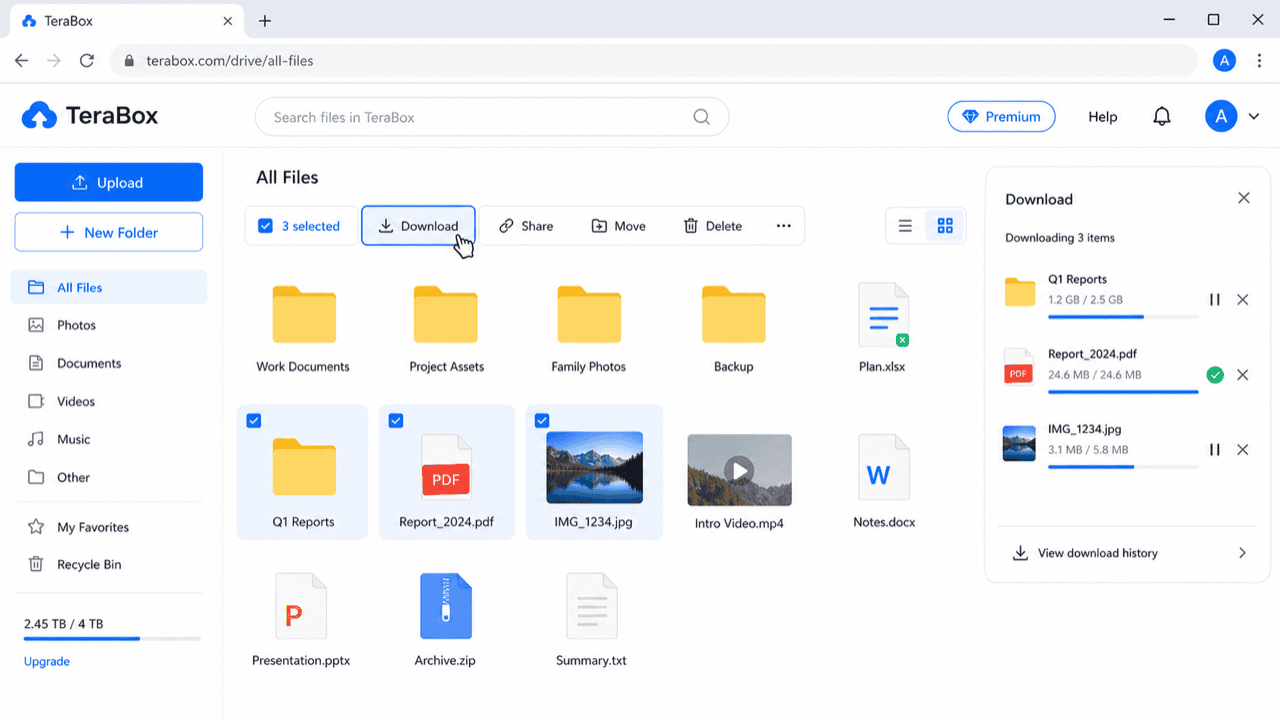
Sign in at terabox.com and download your files. Free downloads run one at a time, so batch large folders and start with what you most want preserved.
Step 2: Upload to pCloud
Open my.pcloud.com, open your target folder, and drag the files in. For sensitive items, upload into a Crypto folder so they are encrypted client-side before they reach pCloud's servers.
Method 2: pCloud Drive as a Bridge
Best for moving a large library without filling local disk
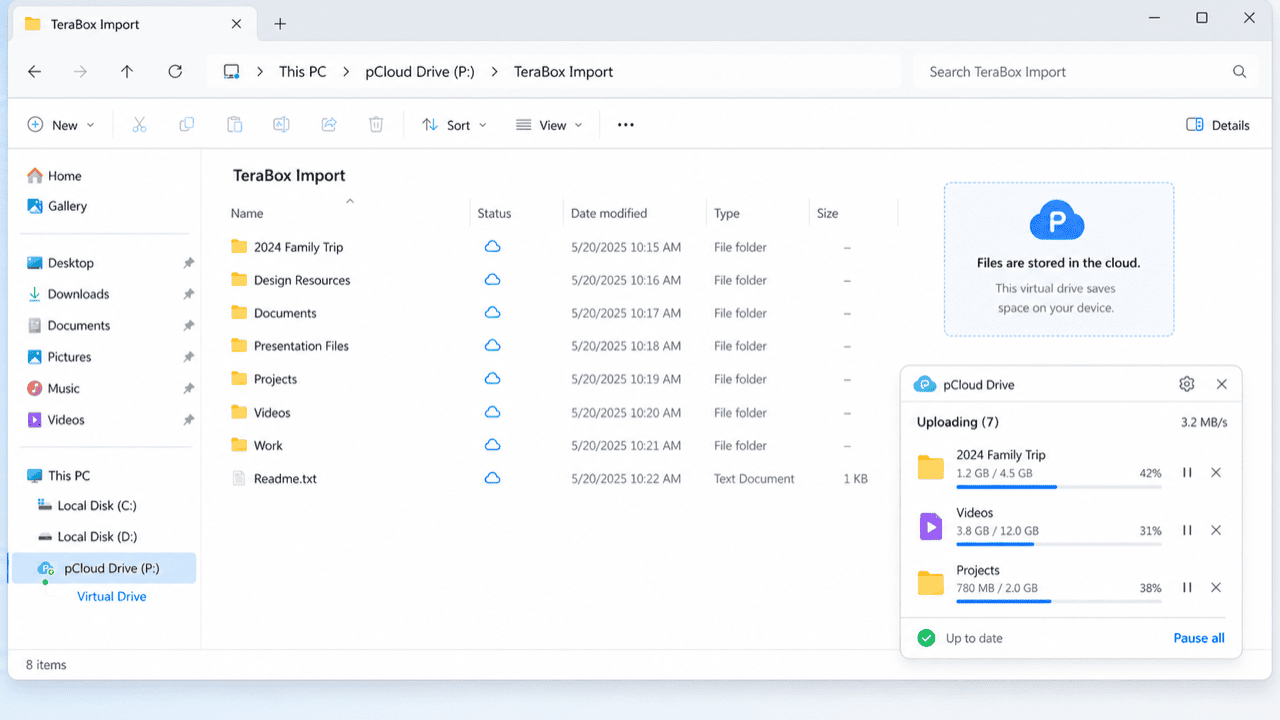
pCloud Drive mounts your account as a virtual drive — files stream on demand rather than downloading in full. Copy TeraBox downloads into it and they upload in the background.
Step 1: Install pCloud Drive
Install pCloud Drive and sign in. It appears as a mounted drive in Explorer or Finder, taking little local space because files stream rather than sync in full.
Step 2: Copy TeraBox Downloads Into It
Download from TeraBox (browser or desktop app), then copy the files into the pCloud Drive location. pCloud uploads them in the background. Because the drive is virtual, you are not doubling local disk use the way a full sync folder would.
Method 3: Cloud-to-Cloud Transfer with CloudsLinker
Move It Server-Side, Onto Your Lifetime Plan
CloudsLinker reads from TeraBox by cookie and writes into pCloud over OAuth, running server-side and retrying through TeraBox's throttle. Note that files routed this way land in standard pCloud folders; Crypto folders are encrypted client-side and are handled through pCloud's own apps.
Step 1: Connect TeraBox (Browser Cookie)
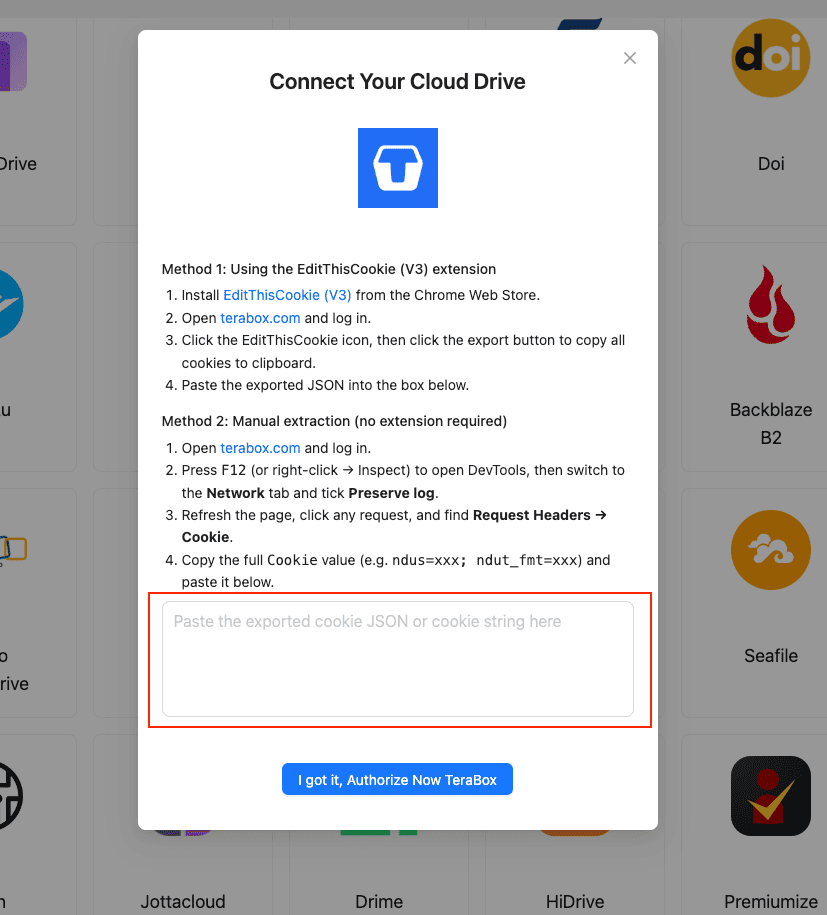
In CloudsLinker, click Add Cloud → TeraBox and supply the session cookie:
- Install EditThisCookie (V3) in Chrome.
- Open
www.terabox.comin the same browser, signed in. - Click EditThisCookie → Export to copy the cookie JSON.
- Paste it into CloudsLinker and confirm.
Or copy the Cookie header (ndus=...; ndut_fmt=...) from DevTools
(F12) → Network.
Step 2: Connect pCloud
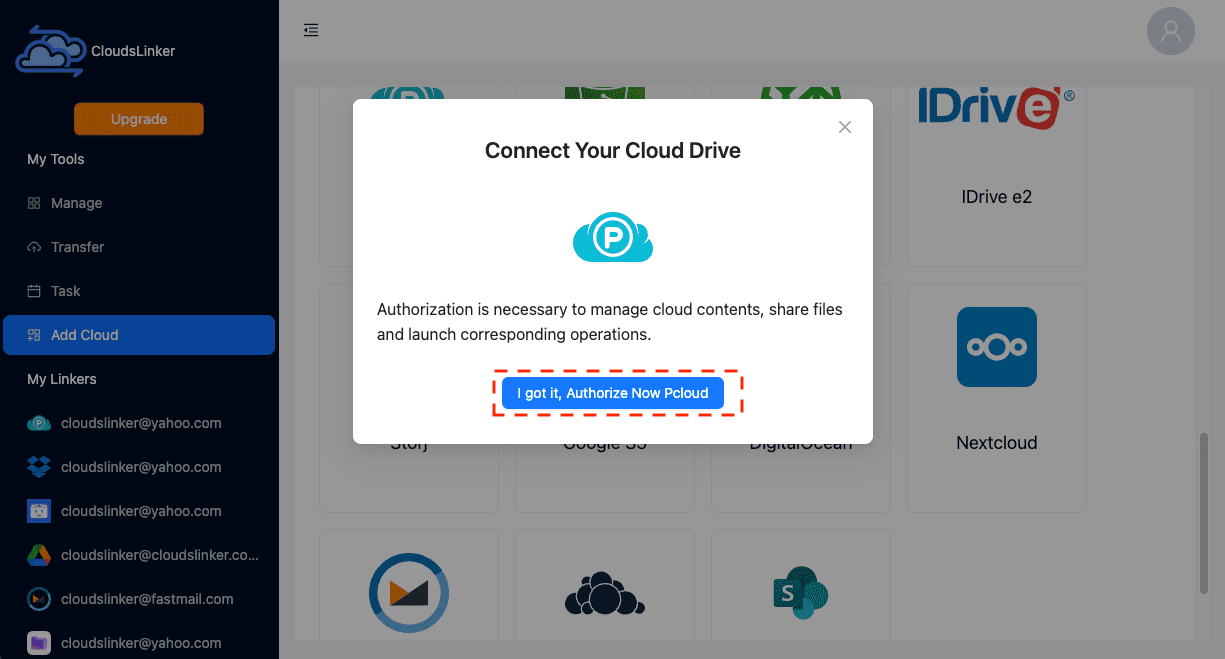
Click Add Cloud → pCloud. If prompted, pick your data region (US or EU) to match your account, then complete the OAuth sign-in. pCloud appears as a connected destination.
Step 3: Configure the Transfer
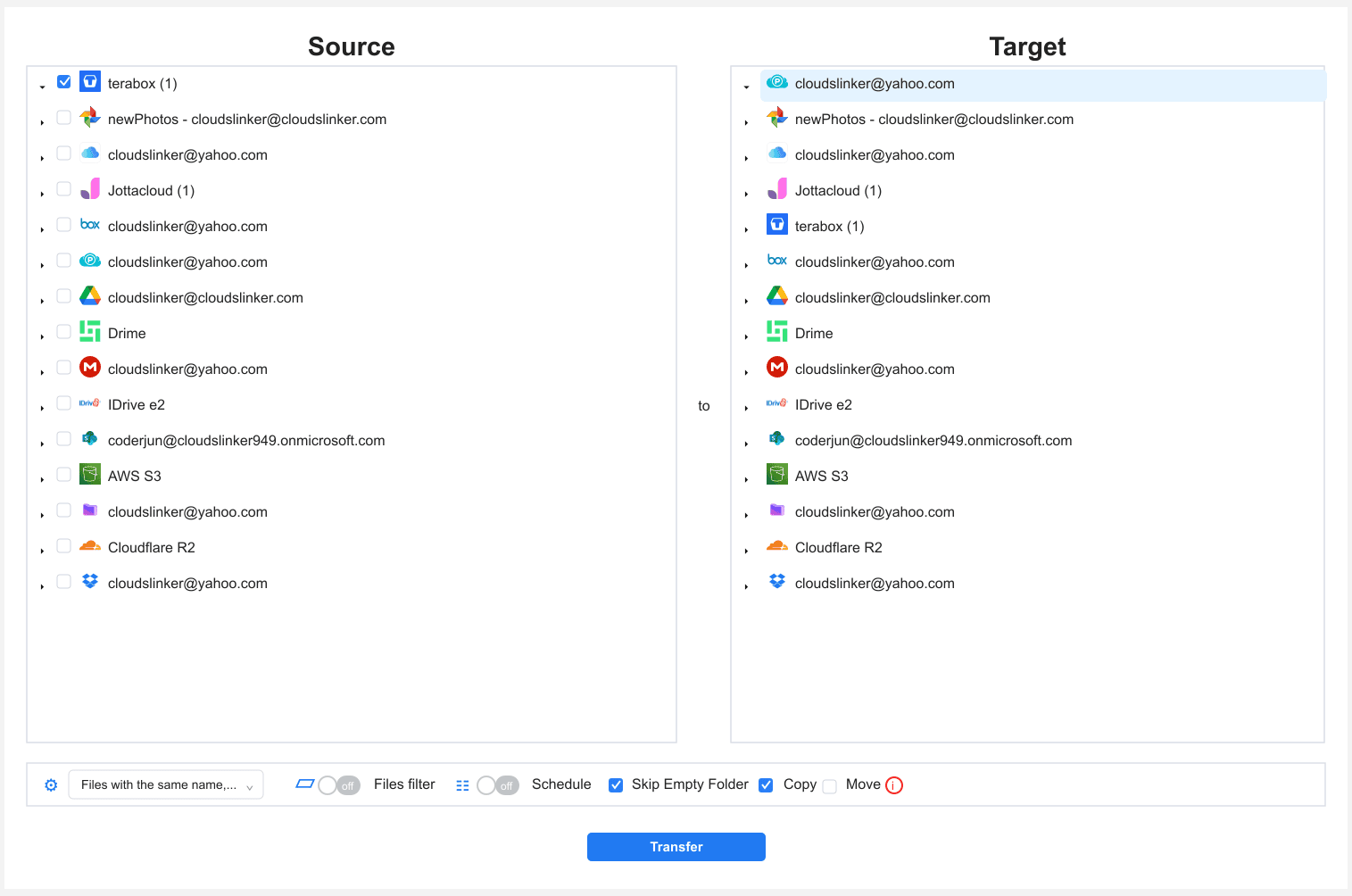
In the Transfer section, set TeraBox as the source and
pCloud as the destination with your /TeraBox-Import/ folder. Filter by
type, size or date. Copy mode keeps TeraBox intact until pCloud is verified.
Step 4: Start and Monitor
Start the task and watch the Task List. If the TeraBox cookie expires, the task pauses for a fresh one. Once complete, verify the files in pCloud — and only then consider letting a TeraBox Premium subscription lapse.
Method Comparison
| Method | Ease of Use | Speed | Best For | Uses Local Bandwidth | Skill Level |
|---|---|---|---|---|---|
| Browser Download + Upload | ★★★★☆ | ★★☆☆☆ | A few files; encrypting via Crypto folder | Yes | Beginner |
| pCloud Drive Bridge | ★★★☆☆ | ★★★☆☆ | Large library, low local disk use | Yes | Intermediate |
| CloudsLinker | ★★★★★ | ★★★★☆ | Hands-off moves into standard folders | No | Beginner |
For zero-knowledge Crypto folders, use the browser or pCloud Drive route — client-side encryption happens in pCloud's own apps, not in a server-side transfer.
- Right-size the lifetime tier: pCloud lifetime plans are fixed at 500 GB, 2 TB, or 10 TB. Measure your actual TeraBox usage before buying — paying for 10 TB to hold 300 GB wastes the lifetime value.
- Pick the region deliberately: US or EU is chosen at signup and is permanent. EU residency matters if you have GDPR considerations.
- Route sensitive files through Crypto: the $150 lifetime Crypto add-on encrypts client-side. Use the browser or pCloud Drive method for those, not a server-side transfer.
- Keep TeraBox Premium until verified: if you pay for TeraBox, the higher download speed helps the move — cancel only after pCloud is confirmed.
- Refresh the cookie before long jobs: re-login to TeraBox right before exporting the cookie for CloudsLinker.
- Use pCloud's file versioning: after the move, pCloud keeps version history (longer on lifetime family plans), a safety net TeraBox barely offers.
Frequently Asked Questions
Watch: Transfer Files from TeraBox to pCloud with CloudsLinker
A walkthrough of the cloud-to-cloud method: pasting the TeraBox cookie, connecting pCloud via OAuth, selecting the files to move, and monitoring the server-side transfer in the Task List.
Conclusion
For a small set of files, the browser download into pCloud's web app is enough. With pCloud Drive mounted, you can pull TeraBox files into a virtual drive that uploads in the background without filling local disk. For a large library, CloudsLinker connects TeraBox by cookie and pCloud by OAuth and runs the move server-side, retrying through TeraBox's throttle. The lifetime math is the point: once the data sits on a pCloud lifetime plan, there is no monthly fee and no throttle — and if the files are sensitive, the Crypto add-on adds zero-knowledge encryption TeraBox never offered.
Online Storage Services Supported by CloudsLinker
Transfer data between over 58 cloud services with CloudsLinker

OneDrive

Google Drive

Google Photos

Shared Drive

OneDrive for Business

Dropbox

Box

Mega

pCloud

Yandex

ProtonDrive

AWS

GCS

iDrive

Storj

DigitalOcean

Wasabi

1fichier

PikPak

TeleBox

OpenDrive

Backblaze B2

Fastmail file

SharePoint

Nextcloud

ownCloud

Premiumize me

HiDrive

Put.io

Sugar Sync

Jottacloud

Seafile

Ftp

SFtp

NAS

WebDav

4shared

Icedrive

Cloudflare R2

Scaleway

Hetzner Object Storage

Synology C2 Object Storage

S3 Compatible

Doi

iCloud Drive

iCloud Photos

FileLU

Zoho WorkDrive

Telia Cloud / Sky

Drime

Filen

TeraBox

Internxt

Degoo

Gofile

Pixeldrain

Shade

Koofr
Didn' t find your cloud service? Be free to contact: [email protected]
Further Reading
Effortless FTP connect to google drive: Transfer Files in 3 Easy Ways
Learn More >
Google Photos to OneDrive: 3 Innovative Transfer Strategies
Learn More >
Google Photos to Proton Drive: 3 Effective Transfer Techniques
Learn More >