Yandex Disk to Drime: Move Files out of Russian Jurisdiction to GDPR Hosting
Transfer Yandex Disk files to Drime for European, GDPR-aligned storage. Step-by-step guide covering browser export and cloud-to-cloud transfer with CloudsLinker.
Introduction
Yandex Disk stores data under Russian jurisdiction, which has become an issue for users subject to EU data protection rules, sanctions compliance, or simply wanting GDPR-aligned hosting. Drime provides a French-hosted, end-to-end encrypted alternative that sits firmly inside the EU regulatory perimeter. The migration itself is technically straightforward — Yandex Disk exposes OAuth for third-party tools and a working web download — so the decision usually comes down to whether you move everything manually or run a cloud-to-cloud transfer. This guide covers both paths.
Yandex Disk is the cloud storage service of Yandex, Russia's largest internet company. It provides personal cloud storage with a free 10 GB tier and paid plans, along with sync clients and mobile apps.
- Hosting jurisdiction: data stored under Russian law.
- Free quota: 10 GB baseline.
- Access: web, Windows/Mac sync client, mobile apps.
- Sharing: public links; password protection on paid plans.
- Mail integration: tied to Yandex Mail attachments.
Drime is a French cloud storage workspace. Files are hosted in France, encrypted end-to-end, and covered by GDPR. Sharing controls include password-protected, expiring links.
- French data residency: servers in France.
- End-to-end encryption: on stored files and share links.
- Access logs: visibility into who downloaded shared files.
- Flat pricing: storage tiers without per-user licensing.
- Cross-platform apps: web, desktop, mobile.
The biggest contrast is jurisdiction and encryption posture. Yandex Disk is a general-purpose consumer storage service; Drime is tuned for users who want stronger residency and sharing controls.
| Feature | Yandex Disk | Drime |
|---|---|---|
| Data center location | Russia | France |
| Regulatory framework | Russian data laws | GDPR |
| Encryption at rest | Server-side | End-to-end |
| Free tier | 10 GB | Limited free tier; paid storage plans |
| Share link controls | Public links; passwords on paid tiers | Password, expiry and download-limit controls |
On the Yandex Disk side
- Review the total volume in the Yandex Disk settings so you know how much you are moving.
- Check account region: accounts registered on yandex.com and yandex.ru can differ slightly in sign-in URLs and language.
- List public share links — these will stop working after files are removed. Plan to reissue the ones that still matter.
On the Drime side
- Verify plan capacity: the Drime plan must fit the Yandex Disk volume.
- Create a migration folder in Drime (for example,
/Yandex-Migration/) so the import stays separate from existing content. - Generate a developer token: Drime → avatar → Settings → Developer → Create Token. Save it for CloudsLinker.
Method 1: Browser Download from Yandex Disk and Upload to Drime
Step 1: Download from Yandex Disk
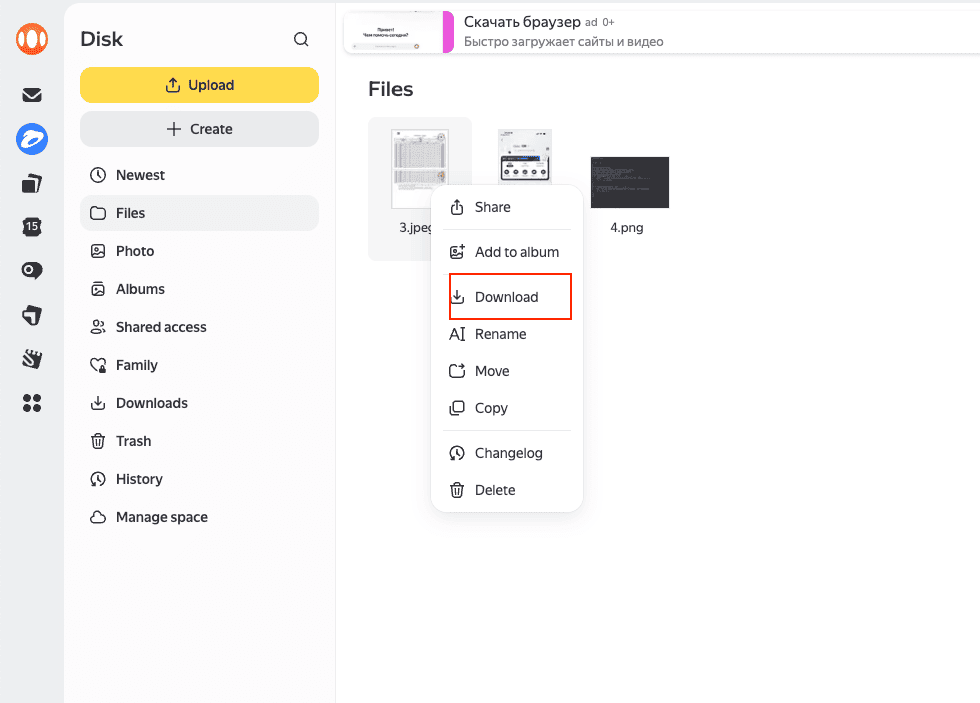
Open disk.yandex.com and sign in. Select the files or folders you want to migrate. Use the toolbar's Download button — Yandex packages multiple selections as a ZIP archive.
For large downloads, work folder by folder. Yandex Disk enforces per-request download size limits, so a 50 GB archive in one ZIP will fail or be split. The Yandex Disk desktop client can also sync files to a local folder if you prefer to use sync instead of ZIP export.
Step 2: Upload to Drime
Extract the ZIP and open the Drime web dashboard. Navigate to your target folder and drag the extracted content in. Drime encrypts files on arrival and preserves the folder structure as laid out in the archive.
Method 2: Cloud-to-Cloud Transfer with CloudsLinker
Move Yandex Disk Without Local Downloads
CloudsLinker connects Yandex Disk through OAuth and pushes the data directly into Drime. Because the transfer runs on CloudsLinker servers, it is not limited by your local bandwidth or your machine being online.
Step 1: Connect Yandex Disk
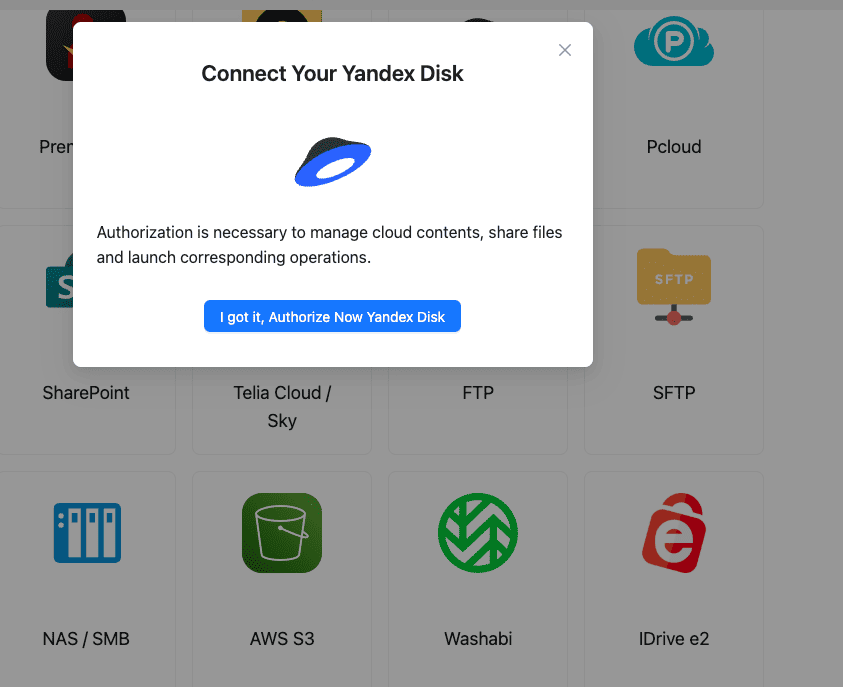
In CloudsLinker, click Add Cloud and select Yandex Disk. Your browser opens the Yandex OAuth sign-in page. Enter your Yandex credentials and approve the requested read access. The account appears as a connected source in CloudsLinker.
Step 2: Connect Drime
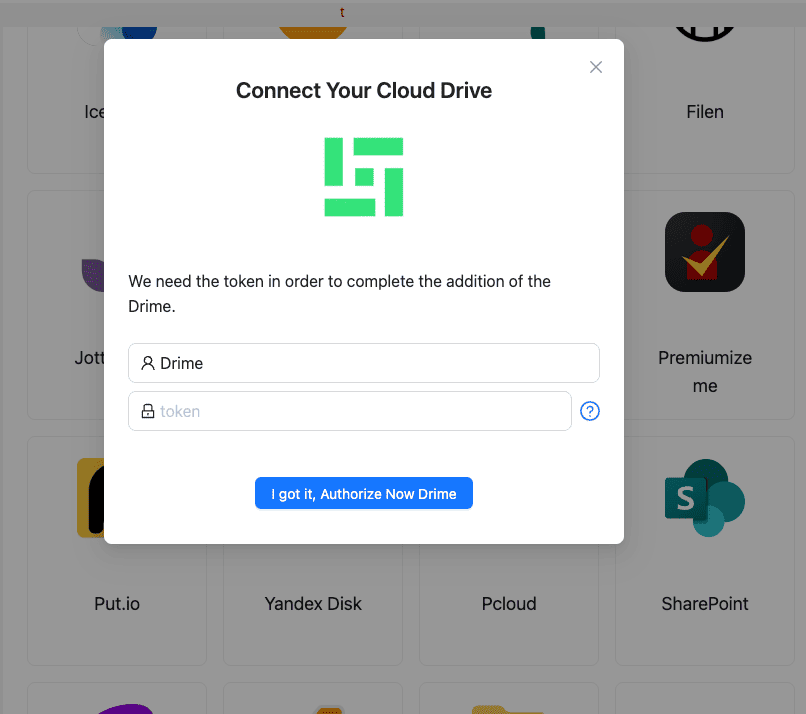
Click Add Cloud and pick Drime. Paste the developer token from Drime → Settings → Developer. Confirm and Drime is ready as a destination.
Step 3: Configure the Transfer
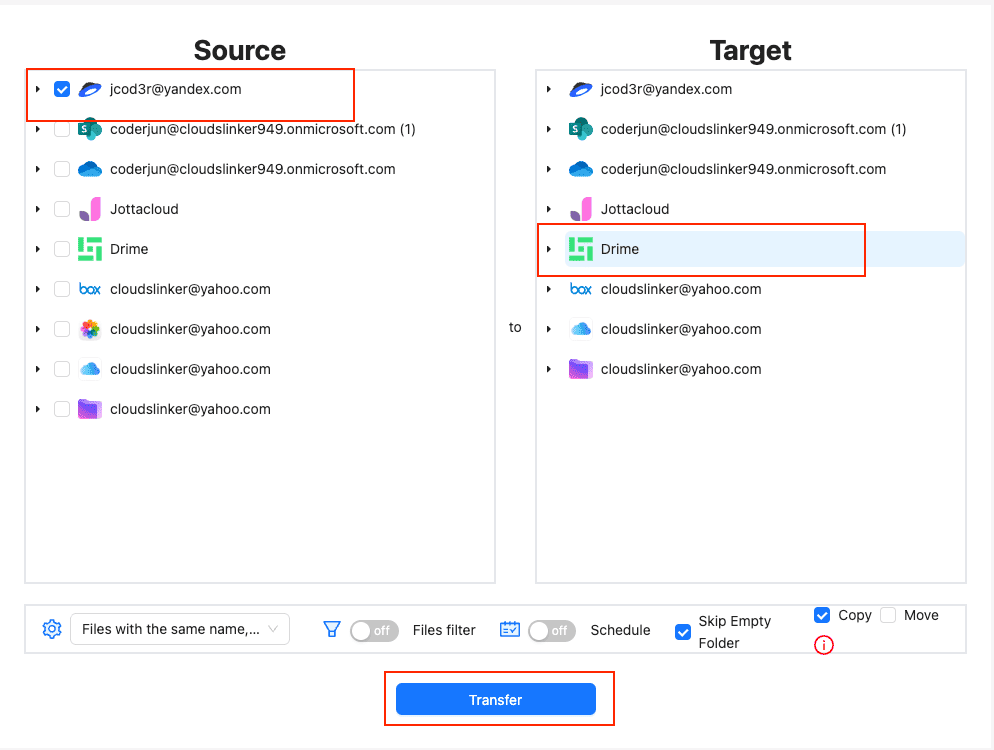
In the Transfer section, choose Yandex Disk as the source and browse to the folders you want to move. Select the Drime target directory as the destination. Use filters to skip specific file types, sizes or older items if you only want to bring over active data.
Use Copy the first time so the Yandex Disk copy stays intact. Switch to Move mode later if you want CloudsLinker to delete the Yandex Disk source after a successful transfer.
Step 4: Start and Monitor
Start the task. The Task List view reports transferred size, item count and estimated time remaining. Transfers continue on CloudsLinker servers even if you close the browser. When it finishes, open Drime and verify a sample before freeing up Yandex Disk storage.
Method Comparison
| Method | Ease of Use | Speed | Best For | Uses Local Bandwidth | Skill Level |
|---|---|---|---|---|---|
| Browser Download + Upload | ★★★★☆ | ★★☆☆☆ | Small libraries, one-off moves | Yes | Beginner |
| CloudsLinker | ★★★★★ | ★★★★★ | Large libraries, multi-account or sanctions-driven moves | No | Beginner |
- Export with your preferred filename encoding: Cyrillic filenames transfer fine, but some older ZIP extractors corrupt non-Latin characters. If you use the browser route, extract with an encoding-aware tool like 7-Zip or Keka.
- Keep a local mirror temporarily: for a sanctions-related migration where the Yandex account may be suspended, keep the downloaded copy on a local drive until Drime is verified.
- Reset share links: public Yandex Disk share links stop working after files are removed. Recreate the necessary ones in Drime using password and expiry controls.
- Run in stages: move one top-level folder at a time. Easier to verify and roll back than migrating a whole account in one task.
- Check two-factor authentication: if your Yandex account uses 2FA, the OAuth consent for CloudsLinker may require app-specific confirmation through the Yandex Key app.
- Confirm Yandex quota is not mirrored in Drime: a 1 TB Yandex plan does not map to 1 TB in Drime automatically — check the Drime plan tier fits the actual used space.
Frequently Asked Questions
.jpg and
.raw files from a Photos folder and leave everything else behind.
Conclusion
A few gigabytes of documents can be pulled from Yandex Disk through the browser and re-uploaded into Drime in one sitting. Larger archives, photo libraries or multi-account moves are where CloudsLinker pays off: OAuth into Yandex, developer-token into Drime, and the entire job runs server-side. Keep the Yandex account intact until the Drime copy is verified, and re-issue any external share links after the migration is finished.
Online Storage Services Supported by CloudsLinker
Transfer data between over 58 cloud services with CloudsLinker

OneDrive

Google Drive

Google Photos

Shared Drive

OneDrive for Business

Dropbox

Box

Mega

pCloud

Yandex

ProtonDrive

AWS

GCS

iDrive

Storj

DigitalOcean

Wasabi

1fichier

PikPak

TeleBox

OpenDrive

Backblaze B2

Fastmail file

SharePoint

Nextcloud

ownCloud

Premiumize me

HiDrive

Put.io

Sugar Sync

Jottacloud

Seafile

Ftp

SFtp

NAS

WebDav

4shared

Icedrive

Cloudflare R2

Scaleway

Hetzner Object Storage

Synology C2 Object Storage

S3 Compatible

Doi

iCloud Drive

iCloud Photos

FileLU

Zoho WorkDrive

Telia Cloud / Sky

Drime

Filen

TeraBox

Internxt

Degoo

Gofile

Pixeldrain

Shade

Koofr
Didn' t find your cloud service? Be free to contact: [email protected]
Further Reading
Effortless FTP connect to google drive: Transfer Files in 3 Easy Ways
Learn More >
Google Photos to OneDrive: 3 Innovative Transfer Strategies
Learn More >
Google Photos to Proton Drive: 3 Effective Transfer Techniques
Learn More >