Zoho WorkDrive to Google Drive: Moving Team Folders into Google Workspace (2026)
Transfer files from Zoho WorkDrive to Google Drive three ways — manual export, rclone, and a server-side copy that moves Team Folder content into Google Drive or a Shared Drive without a local download.
Introduction
Teams move files from Zoho WorkDrive to Google Drive when the organisation standardises on Google Workspace — Docs, Sheets, Meet and Gmail are where the day's work already happens, and a second file platform is one login too many. The two services are shaped differently. WorkDrive pools storage per team (1 TB, 3 TB or 5 TB for 3–10 users on the Starter, Team and Business plans) and stores native Zoho Writer, Sheet and Show documents that only become .docx, .xlsx and .pptx on export. Google Drive gives 15 GB free per account, 2 TB for $99.99 a year on Google One, pooled storage on Workspace plans — and enforces one limit every migration has to respect: each user can upload at most 750 GB to Drive within 24 hours, whatever tool does the uploading. This guide covers the manual export route, an rclone copy, and a server-side transfer with CloudsLinker that skips the download/re-upload cycle and can be restarted after that daily cap resets without repeating completed files.
Zoho WorkDrive is the file platform of the Zoho suite, built around shared Team Folders rather than personal drives. Storage is pooled: a team of 3–10 users shares 1 TB, 3 TB or 5 TB depending on plan, and documents created inside it are native Zoho Writer, Sheet and Show files.
- Team Folders with role-based access as the core unit
- Per-file upload caps by plan: 10 GB / 50 GB / 250 GB
- Native Zoho documents export as .docx / .xlsx / .pptx
- TrueSync desktop client; data-centre regions worldwide
Google Drive is the storage layer of Google Workspace: files open in Docs, Sheets and Slides in place, surface in Gmail and Meet, and live either in a personal My Drive or in a Shared Drive owned by the organisation.
- 15 GB free; Google One 2 TB at $99.99/year; Workspace plans pool storage
- Single files up to 5 TB
- 750 GB upload cap per user per 24 hours
- Shared Drives for team-owned content
| Feature | Zoho WorkDrive | Google Drive |
|---|---|---|
| Storage model | Pooled per team (1 / 3 / 5 TB for 3–10 users) | Per account (15 GB free, 2 TB Google One) or pooled on Workspace |
| Team content | Team Folders | Shared Drives |
| Native documents | Zoho Writer / Sheet / Show | Google Docs / Sheets / Slides |
| Max single file | 10 GB / 50 GB / 250 GB by plan | 5 TB |
| Daily upload limit | Not published | 750 GB per user per 24 hours |
| Suite integration | Zoho Workplace, CRM, Projects | Gmail, Meet, Calendar, Workspace admin |
- Workspace standardisation: once Gmail, Meet and Docs are the daily tools, keeping files in a separate Zoho tenant means two logins, two sharing models and two admin consoles.
- Collaboration in native formats: Zoho documents become static Office files on the way out; teams that want live co-editing move them into Docs and Sheets once and stop converting.
- Consolidating after a merger or a Zoho Workplace cancellation: the pooled Team Folders have to land somewhere before the plan lapses.
- Storage economics at scale: Workspace pooled storage grows with seats; a 2 TB Google One plan covers a small team's pool for $99.99 a year.
- Inventory the Team Folders and their sizes from the WorkDrive admin console — the pooled total decides whether a personal Drive, Google One or Workspace storage is the target.
- Decide the destination shape: personal My Drive for one user's files, a Shared Drive per Team Folder for organisation-owned content.
- Plan for the 750 GB/day cap: divide the total by 750 GB to get the minimum number of days; schedule the migration accordingly rather than expecting a single overnight run.
- Note your Zoho region (Global, EU, India, Japan, Australia, Canada) — both rclone and CloudsLinker ask for it during authorization.
- Freeze WorkDrive edits once the copy starts: set Team Folders read-only or announce a change freeze so nothing drifts underneath the transfer.
Method 1: Manual Export from WorkDrive and Upload to Google Drive
Step 1: Download from Zoho WorkDrive
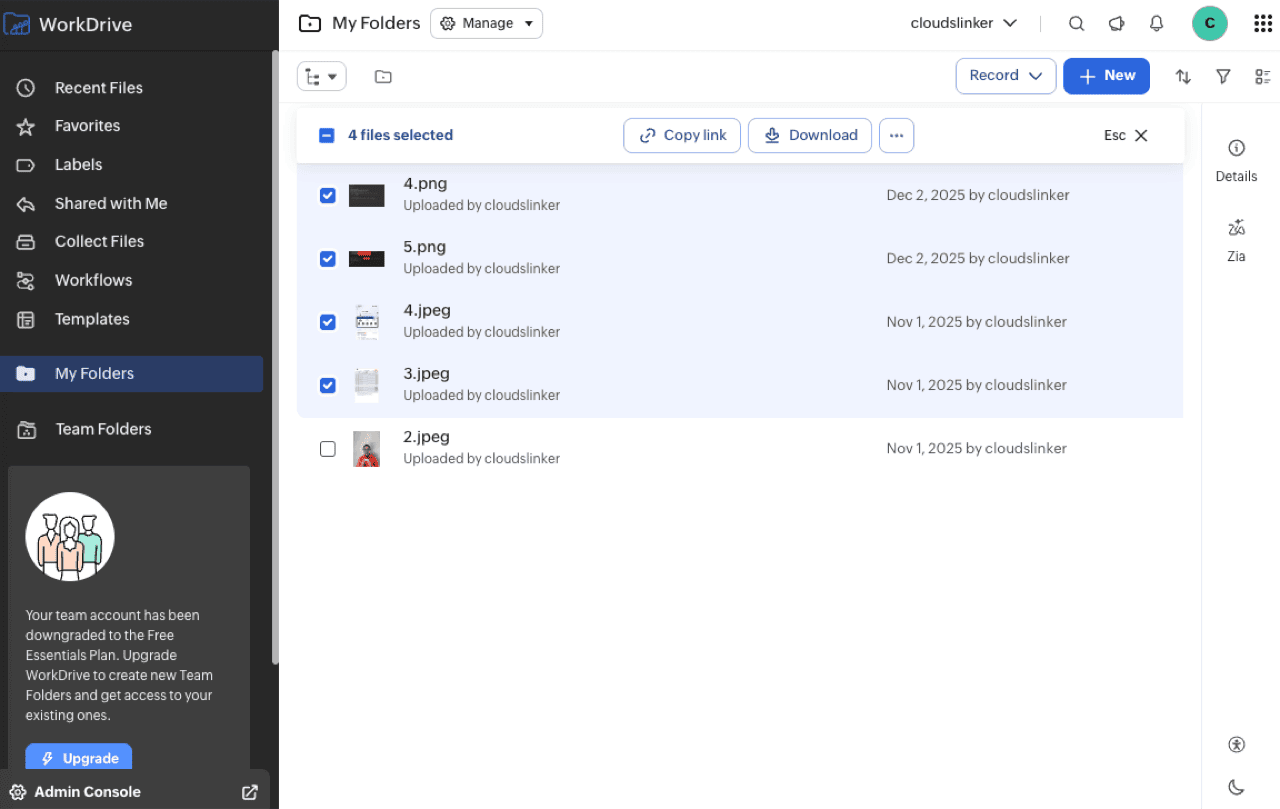
In the WorkDrive web app, open My Folders or a Team Folder, select the items and choose Download. Multiple selections arrive as a zip; native Zoho documents are exported to Office formats inside it. Alternatively, let the TrueSync desktop client mirror the folders locally and copy from the synced directory.
Step 2: Extract and Upload to Google Drive
Extract the zip, open Google Drive in the browser and drag the folders into My Drive or the target Shared Drive. Drive keeps the folder structure. If you want Office files to become editable Google Docs, enable Convert uploads in Drive settings before dragging. The whole batch comes down your connection and goes back up it, and the 750 GB daily cap applies to what you upload.
Method 2: rclone with the Zoho and Google Drive Backends
For admins who prefer a terminal
rclone has native backends for both services. Be clear about what it does: a copy between a Zoho remote and a Drive remote streams every file through the machine running rclone. Two backend details matter here — the Zoho backend supports neither modification times nor hashes (so syncs compare by size) and paces itself to Zoho's API rate limits, which makes large trees slow.
Step 1: Configure Both Remotes
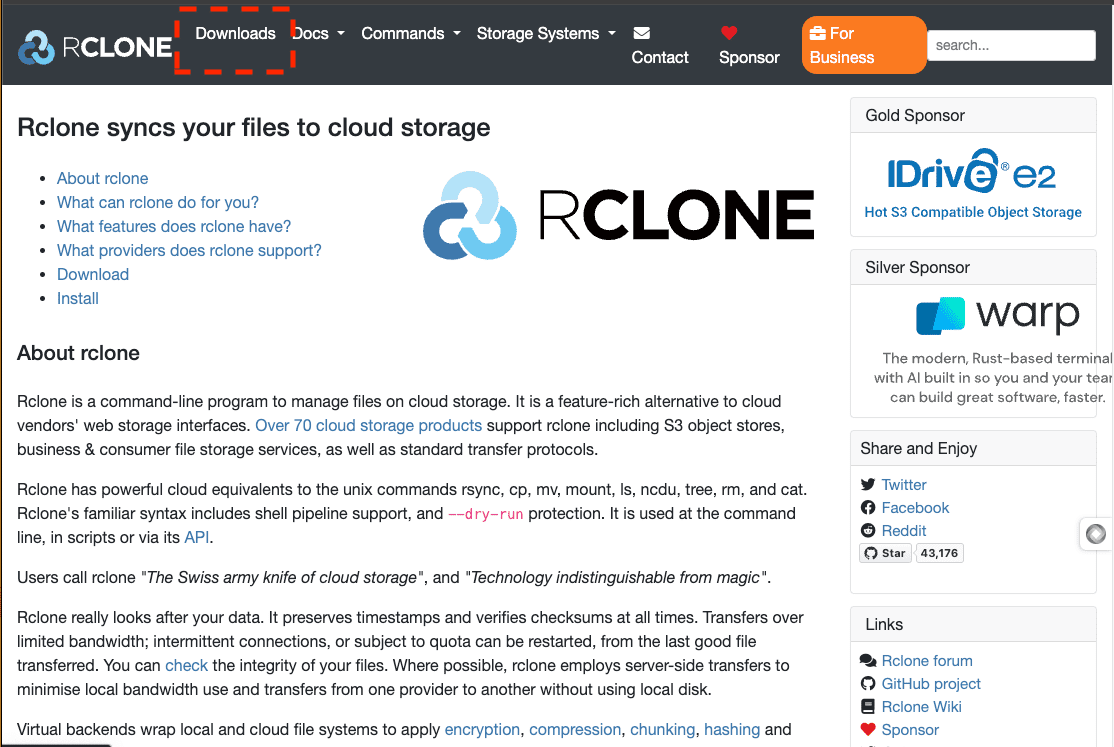
Run rclone config twice. For the zoho remote, rclone opens a
browser for Zoho's OAuth sign-in, asks for your region and then for the Team and Workspace to
use. For the drive remote, it does the same with Google's consent page.
Step 2: Run the Copy and Verify
rclone copy zoho:"Team Folders/Marketing" gdrive:"Migration/Marketing" --progress
Afterwards, rclone check --size-only compares the two trees. Expect the job to
pause if Google's 750 GB daily cap is hit; rerunning the same command skips files already
present.
Method 3: Server-Side Copy with CloudsLinker
Team Folders to Google Drive without the double transfer
CloudsLinker authorizes both WorkDrive and Google Drive through OAuth and copies files between the two clouds on its own servers. Nothing routes through your computer, the folder tree is preserved, and a task interrupted by Google's daily cap can be restarted without repeating the files already copied.
Step 1: Connect Zoho WorkDrive
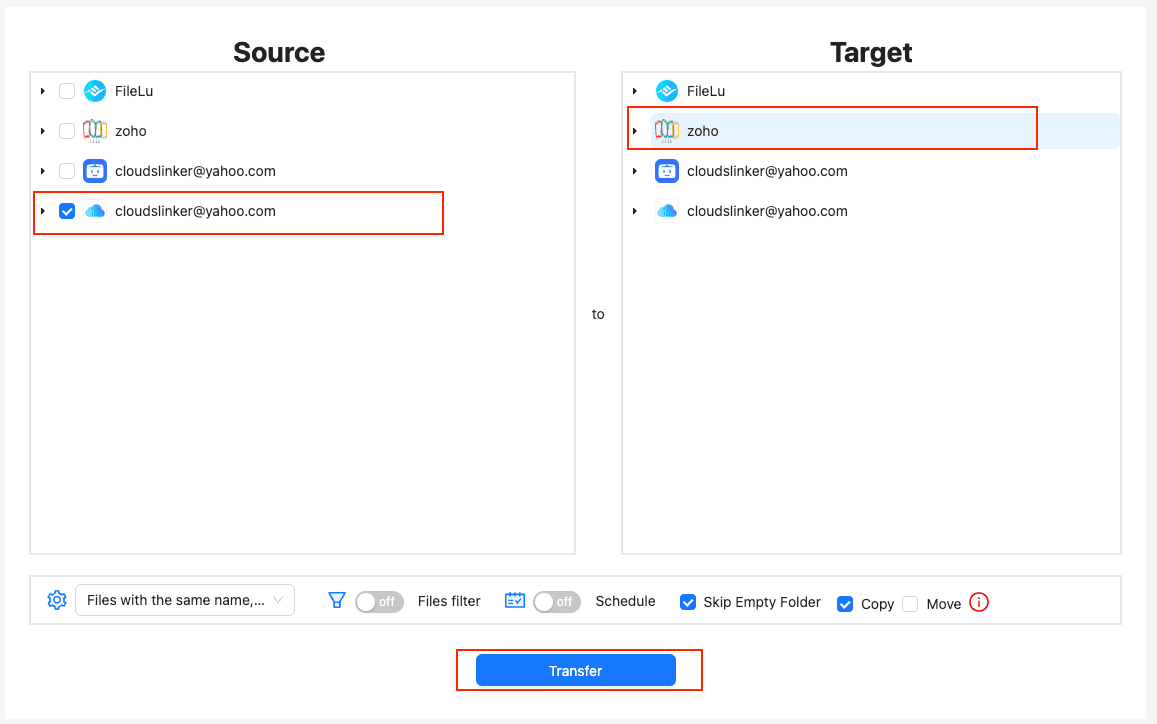
Click Add Cloud, choose Zoho WorkDrive, name the connection and pick your data-centre region. Sign in on Zoho's OAuth page, approve access, then select the Team and optionally a Workspace. That selection is what makes Team Folders visible as a source.
Step 2: Connect Google Drive
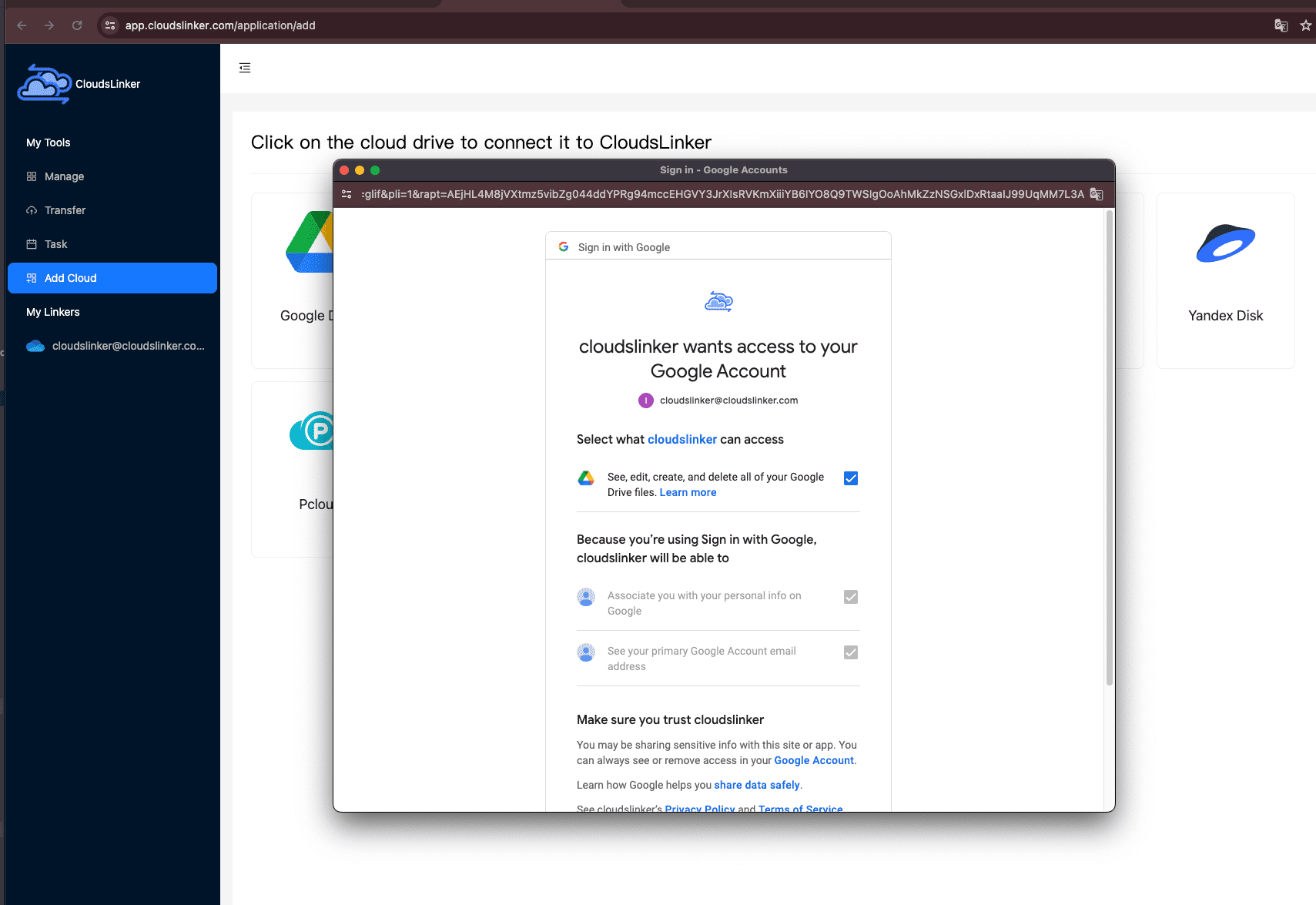
Click Add Cloud again and choose Google Drive — or Google Shared Drive if the destination is organisation-owned. Approve Google's consent screen; no password is stored and access can be revoked from your Google account's third-party access page at any time.
Step 3: Configure the Transfer
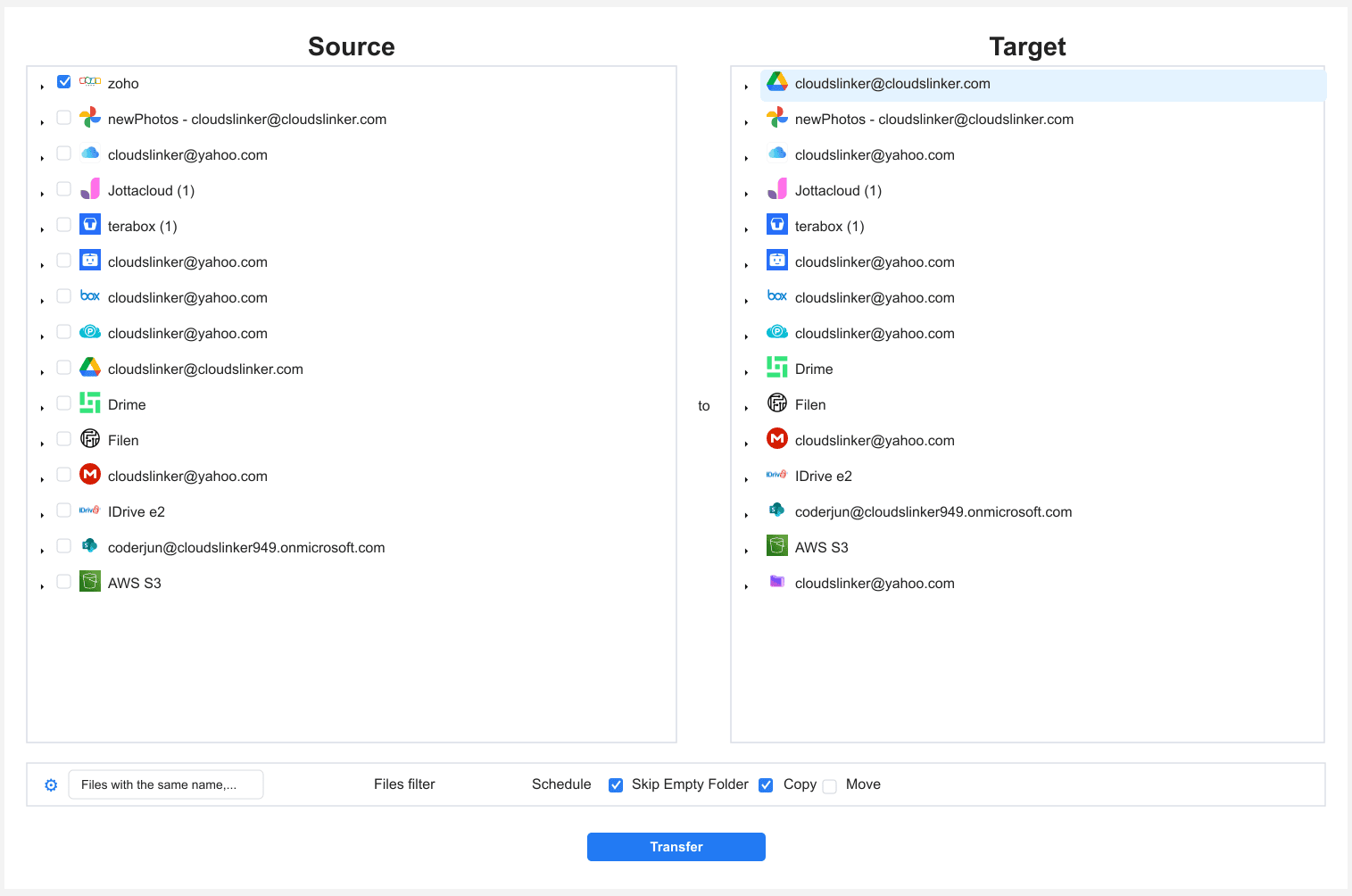
In the Transfer section, pick the WorkDrive connection as the source and browse to the Team Folders or My Folders to move; pick the Google Drive folder or Shared Drive as the target. Filters by file extension and minimum or maximum size let you leave out exports and temp files. Use Copy mode so WorkDrive stays intact until you have verified the result.
Step 4: Start and Monitor the Transfer
Start the task and follow it in the Task List. Failed files are listed per task and retried; if Google's 750 GB daily cap is reached, restart the task once it resets and only the remaining files are copied. One task per Team Folder keeps retries and reconciliation fine-grained.
Quick Comparison
| Method | Uses Your Bandwidth | Handles the 750 GB/day Cap | Best For | Skill Level |
|---|---|---|---|---|
| Manual export + upload | Yes — twice | Manually, batch by batch | One user's files, a few GB | Beginner |
| rclone | Yes — on the machine running it | Rerun the command each day | Admins with a terminal and a fast box | Advanced |
| CloudsLinker | No — server-side | Restart; completed files skipped | Team Folders in the hundreds of GB to TB range | Beginner |
- Map Team Folders to Shared Drives, not to one person's My Drive: files in a personal Drive leave with that employee; a Shared Drive belongs to the organisation.
- Decide on document conversion once: keep .docx/.xlsx as-is if other tools still need Office files; convert to Google formats if the team will co-edit in Docs and Sheets from now on.
- Budget days, not hours: 750 GB per user per day is the ceiling for any method. A 3 TB pool needs four days minimum; running several tasks under different Google users does not change the per-user cap.
- Reconcile per folder: compare file counts between each WorkDrive Team Folder and its Google Drive counterpart before moving to the next one.
- Recreate sharing after, not during: set up Shared Drive members and folder permissions once the files are in place, so people are not editing a tree that is still filling up.
- Revoke access when finished: remove CloudsLinker from Zoho's connected apps and from your Google account's third-party access once the migration is verified.
Watch: Move Zoho WorkDrive to Google Drive Without Downloading
A narrated walkthrough of Method 3: connecting Zoho WorkDrive (region, team and workspace) and Google Drive through their own sign-in pages, picking folders, creating a target folder in Google Drive and following the server-side copy to the end.
Frequently Asked Questions
Conclusion
Match the method to the volume. One person's My Folders with a few gigabytes fits the manual export-and-upload route, zip quirks aside. An admin comfortable in a terminal can script the move with rclone, accepting that every byte flows through the machine running it and that Zoho's API pacing makes it a slow job. For Team Folders measured in hundreds of gigabytes — the pooled 1–5 TB that WorkDrive plans accumulate — the server-side copy with [CloudsLinker](https://www.cloudslinker.com) is the practical route: OAuth on both sides, folder tree preserved, nothing routed through a local connection, and a task that can be restarted after Google's 750 GB daily cap resets without repeating completed files. Keep WorkDrive read-only until the file counts in Google Drive match. Heading to Microsoft instead? See [Zoho WorkDrive to OneDrive](/guides/transfer-files-from-zoho-workdrive-to-onedrive/). For other destinations, start from the [Zoho WorkDrive migration hub](/guides/migrate-files-from-zoho-workdrive-to-another-clouds/), and for connector details see the [Zoho WorkDrive](/support-clouds/zoho/) and [Google Drive](/support-clouds/google-drive/) support pages.
Online Storage Services Supported by CloudsLinker
Transfer data between over 58 cloud services with CloudsLinker

OneDrive

Google Drive

Google Photos

Shared Drive

OneDrive for Business

Dropbox

Box

Mega

pCloud

Yandex

ProtonDrive

AWS

GCS

iDrive

Storj

DigitalOcean

Wasabi

1fichier

PikPak

TeleBox

OpenDrive

Backblaze B2

Fastmail file

SharePoint

Nextcloud

ownCloud

Premiumize me

HiDrive

Put.io

Sugar Sync

Jottacloud

Seafile

Ftp

SFtp

NAS

WebDav

4shared

Icedrive

Cloudflare R2

Scaleway

Hetzner Object Storage

Synology C2 Object Storage

S3 Compatible

Doi

iCloud Drive

iCloud Photos

FileLU

Zoho WorkDrive

Telia Cloud / Sky

Drime

Filen

TeraBox

Internxt

Degoo

Gofile

Pixeldrain

Shade

Koofr
Didn' t find your cloud service? Be free to contact: [email protected]
Further Reading
Effortless FTP connect to google drive: Transfer Files in 3 Easy Ways
Learn More >
Google Photos to OneDrive: 3 Innovative Transfer Strategies
Learn More >
Google Photos to Proton Drive: 3 Effective Transfer Techniques
Learn More >