A Practical Way to Mirror iCloud Photos into Dropbox (So You’re Not Stuck in One Ecosystem)
Trying to keep a second copy of your iCloud Photos in Dropbox? This guide walks through three realistic paths—browser exports, iPhone uploads, and a cloud-to-cloud option—so you can choose based on library size, album structure, and how much waiting you can tolerate.
Introduction
I didn’t move my photos because iCloud Photos was “bad.” It’s great at what it’s built for: syncing a photo library across Apple devices. My issue was everything around it—sharing with non-Apple friends, organizing photos next to my Dropbox work folders, and having an off-Apple backup that I can browse anywhere. The catch is that iCloud Photos behaves like a library, while Dropbox behaves like storage. That mismatch shows up fast: albums vs folders, HEIC/Live Photos quirks, and the simple fact that downloading and re-uploading burns time twice. Below are three methods that actually fit real usage, including one option when the library is big enough that “just export it” stops being fun.
- Method 1: Download from iCloud Photos and Upload to Dropbox (Browser)
- Method 2: Upload from iPhone Using the Dropbox App
- Method 3: Transfer Directly in the Cloud with CloudsLinker
- Quick Comparison
- Important Things to Know
- Frequently Asked Questions
- Step-by-Step Video: Transfer iCloud Photos to Dropbox
iCloud Photos is less “a folder in the cloud” and more a synced photo library tied tightly to Apple’s Photos apps. That’s why it’s so effortless on iPhone and Mac—and also why exporting at scale can feel awkward.
- Library-first design: albums and moments are managed like a database, not normal folders.
- Apple device integration: works best inside iOS/iPadOS/macOS Photos.
- HEIC / Live Photos common: great in Apple apps, sometimes annoying elsewhere.
- 2FA is the norm: Apple ID logins often require verification codes.
The strength is automatic syncing. The friction shows up when you want a second copy outside Apple, or you need photo access on devices where “Photos.app” isn’t part of the story.
Dropbox is basically “files that sync everywhere,” and photos are treated the same way: they live in folders, get normal filenames, and can be shared like any other directory. That’s exactly why it’s a useful destination for iCloud exports.
- Folders instead of albums: great for organizing exports, not a full photo-library experience.
- Cross-platform neutral: consistent on macOS, Windows, iOS, Android, and web.
- Sharing is simple: one folder link works well for families and small teams.
- Real limitation: Dropbox isn’t built around “smart” photo features like Apple Photos (memories, deep library views).
A realistic scenario where this shines: after a trip, you can export the album, drop it into a shared “Trip Photos” folder, and send one link to everyone—no Apple login required. The inconvenience is also real: on very large photo sets, folder-based sorting and previews can feel less “photo-native,” and desktop sync may consume local disk space unless you manage selective sync/online-only settings.
The motivation is usually straightforward: keep a second copy somewhere you actually use, and make it easier to access outside Apple’s apps. iCloud Photos is brilliant at syncing; Dropbox is practical at storage, sharing, and cross-device access—especially when a Windows PC is part of your life.
There are also real functional differences that matter day-to-day: iCloud Photos is a photo library with albums and Apple-specific formats, while Dropbox stores files in folders and expects you to organize them that way. And because Dropbox is frequently used for project files, photos often end up sitting next to the documents they relate to.
- Meaningful difference #1: iCloud Photos is a library/sync service; Dropbox is file storage and sync.
- Meaningful difference #2: Albums vs folders — exports often need re-organization when they land in Dropbox.
- Meaningful difference #3: Apple formats (HEIC/Live Photos) are common in iCloud Photos; Dropbox can store them, but the experience varies by device/app.
- Realistic limitation of Dropbox: it won’t replicate Apple Photos features like a true “photo library” view, smart organization, or the same album semantics.
If you’re expecting Dropbox to behave like Apple Photos, you’ll be disappointed. If you want a dependable second copy you can share and browse anywhere, it’s a solid target. Below are three methods that match those realities.
Method 1: Download from iCloud Photos, Then Upload to Dropbox
This is the simplest “no extra setup” method: export from iCloud Photos in a browser, then upload to Dropbox. It’s also the one that makes you feel the cost of moving data twice.
You open iCloud Photos on the web , download what you need, and then upload those files into Dropbox . It works well for selective albums, especially if you’re only moving recent photos.
- No additional tools required
- Good control over which albums you export
- Best when you’re moving a small-to-medium amount
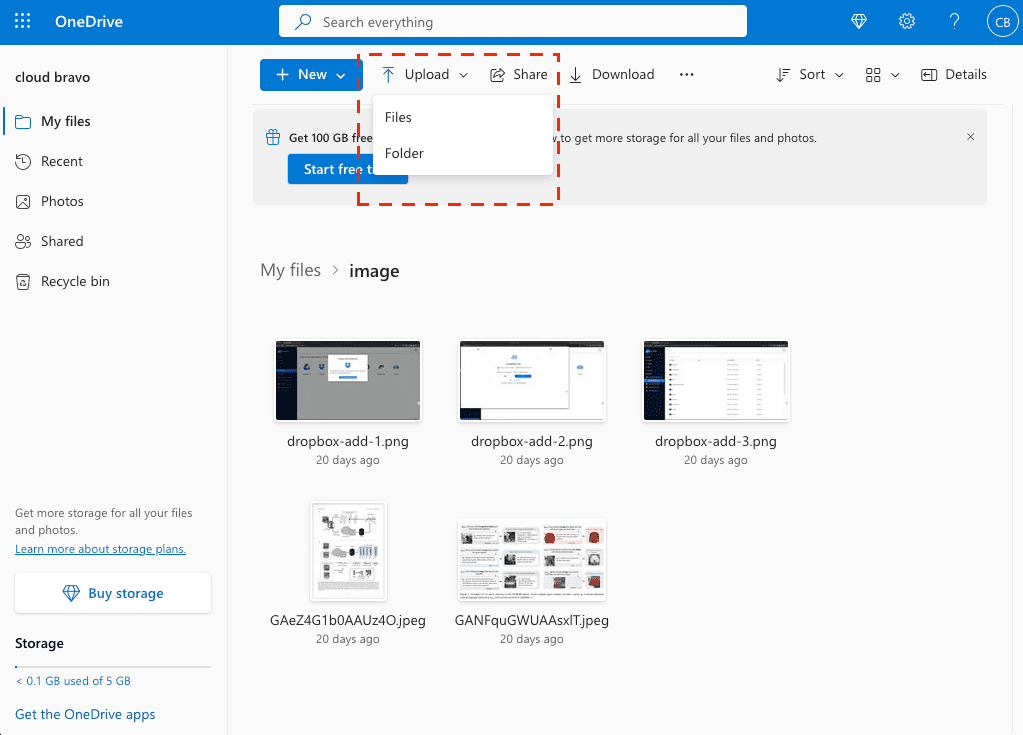
The practical downside is bandwidth and time: download from iCloud to your computer, then upload from your computer to Dropbox. If your upload speed is slow, this becomes the bottleneck.
Another thing to expect: the export may arrive as a batch of files rather than a perfect mirror of your Apple albums. That’s normal—Dropbox organizes by folders, not the same album system Apple uses.
For a clean start, export one album first, upload it, confirm it looks right in Dropbox, then repeat.
Method 2: Upload Directly from Your iPhone Using the Dropbox App
If the photos you care about are on your phone and you want to skip using a computer, uploading via the Dropbox iOS app can be the most direct route. It’s also the easiest way to move “just the recent stuff.”
Install Dropbox for iOS , sign in, and upload directly from your photo library.
The usual steps look like this:
- Open the Dropbox app on your iPhone.
- Tap the “+” button.
- Select Upload photos (or Create → upload).
- Choose photos and videos from your library.
- Select the albums or individual photos you want to move.

Uploads can continue in the background, but iOS may pause them depending on battery settings, network conditions, or if the app is closed for long periods. For big batches, that can turn into a stop-and-go experience.
This method is most useful when you’re doing a realistic subset: the last few months, a specific trip, or a single family event. It’s not the method you pick for a multi-year archive unless you enjoy babysitting uploads.
Also note the “Dropbox inconvenience” here: Dropbox is folder-first, so your uploads may land in a single folder and need organizing afterward. If you expected Apple-style albums to carry over automatically, you’ll likely spend a bit of time sorting.
Method 3: Move iCloud Photos to Dropbox Directly in the Cloud (No Local Downloads)
When the “Download Then Upload” Loop Becomes the Problem
If your library is large, the slowest part is often your own internet connection—especially uploads. With CloudsLinker , the transfer runs between iCloud Photos and Dropbox in the cloud, so you don’t have to keep your laptop online for hours (or days).
Step 1: Connect iCloud Photos
After signing in, click Add Cloud and select iCloud Photos. You’ll sign in with your Apple ID (email + password) and complete the two-factor verification code step if prompted.

Once connected, your albums appear inside the dashboard. For better efficiency, select albums or folders rather than clicking single images one by one.
Step 2: Authorize Dropbox (OAuth 2.0)
Next, add Dropbox from the cloud list. Dropbox uses OAuth 2.0 authorization: you’ll be redirected to Dropbox to sign in and approve access, then returned to CloudsLinker.

After approval, Dropbox appears as a destination alongside iCloud Photos. CloudsLinker does not store your raw passwords—Dropbox access is granted via the official OAuth token flow.
Step 3: Configure the Transfer
Go to the Transfer section. Choose iCloud Photos as the source and Dropbox as the destination.

A realistic approach is to run it in stages: start with a few albums (for example, “2019 Archive”), confirm results in Dropbox, then expand to the rest.
Step 4: Monitor the Progress
The task appears in your Task List, where you can track progress. Because the transfer runs in the cloud, your computer doesn’t need to stay awake for the whole process.
This is usually the least frustrating option for very large libraries, mainly because it removes the biggest bottleneck: your local download-and-upload loop.
Comparing the 3 Ways to Move Photos from iCloud Photos to Dropbox
There isn’t a single “correct” way to move your iCloud Photos into Dropbox. The deciding factor is usually scale: are you moving a few albums, or an entire archive? Also keep expectations realistic: Dropbox stores files well, but it doesn’t recreate the same Apple Photos library feel. Here’s a practical side-by-side comparison.
| Method | Ease of Use | Speed | Best For | Uses Local Bandwidth | Skill Level |
|---|---|---|---|---|---|
| Web Browser (Download → Upload) | ★★★★★ | ★★★☆☆ | Small exports, selective albums | Yes (download + upload) | Beginner |
| iPhone (Dropbox App Upload) | ★★★★★ | ★★☆☆☆ | Recent photos or specific albums | Yes (Wi-Fi/mobile upload) | Beginner |
| CloudsLinker (Cloud-to-Cloud) | ★★★★☆ | ★★★★★ | Large libraries, minimal supervision | No | Beginner |
If you’re only moving a few albums, the browser route is usually enough. If you live on your phone, the Dropbox app is straightforward. But when the library gets big, the cloud-to-cloud option is often the most tolerable because it avoids the “two transfers” problem.
iCloud Photos behaves like a library, not a normal folder tree. Dropbox behaves like folders and files. A few habits make the handoff much smoother.
- Move albums, not single images: Exporting or transferring whole albums is typically faster and more stable than selecting photos one by one.
- Expect selection limits on the web: iCloud Photos in the browser isn’t designed for “select everything.” Export in batches, ideally album-by-album.
- Remember the bandwidth math: Browser method uses bandwidth twice (download + upload). If your upload speed is limited, that’s where your time disappears.
- HEIC and Live Photos reality: Dropbox can store originals, but not every device/app previews them the same way. If you frequently share outside Apple devices, you may eventually convert HEIC to JPEG for compatibility. It’s usually easier to convert after the transfer.
- Dropbox space check matters: Large photo libraries grow quickly in original quality. Make sure your Dropbox plan has room before you start a big move.
- Transfer in stages: Start with one or two albums, confirm results, then expand. This catches issues early without wasting hours.
- Use official authorization flows: Dropbox connects via OAuth 2.0 inside CloudsLinker (Dropbox login + consent page). iCloud Photos requires Apple ID login and can prompt for a two-factor verification code. You can revoke access anytime from your account security settings.
One last sanity tip: name your Dropbox destination folders clearly (by year or trip). Because Dropbox is folder-based, that naming ends up being your “album system” later.
Frequently Asked Questions
Step-by-Step Video: Transfer iCloud Photos to Dropbox
If you prefer learning visually, this video walks you through how to move your photos from iCloud Photos to Dropbox. You’ll see how to connect both cloud accounts, configure the transfer, choose albums for better performance, and complete the entire migration without downloading anything to your local device. It’s simple, efficient, and ideal for backing up or reorganizing your photo library.
Conclusion
If you only need a handful of albums, exporting from iCloud.com and uploading to Dropbox is perfectly fine—just slow. If your photos are mostly on your phone, the Dropbox app can be the most direct route, with the tradeoff that large batches take patience and iOS may pause background uploads. And if the library is huge, cloud-to-cloud transfer avoids the download-upload loop entirely. Whichever path you pick, think in terms of albums → folders, verify counts on a small batch first, and expect Dropbox to behave like file storage (not a full photo-library replacement).
Online Storage Services Supported by CloudsLinker
Transfer data between over 48 cloud services with CloudsLinker

OneDrive

Google Drive

Google Photos

Shared Drive

OneDrive for Business

Dropbox

Box

Mega

pCloud

Yandex

ProtonDrive

AWS

GCS

iDrive

Storj

DigitalOcean

Wasabi

1fichier

PikPak

TeleBox

OpenDrive

Backblaze B2

Fastmail file

SharePoint

Nextcloud

ownCloud

Premiumize me

HiDrive

Put.io

Sugar Sync

Jottacloud

Seafile

Ftp

SFtp

NAS

WebDav

4shared

Icedrive

Cloudflare R2

Scaleway

Doi

iCloud Drive

iCloud Photos

FileLU

Zoho WorkDrive

Telia Cloud / Sky

Drime

Filen
Didn' t find your cloud service? Be free to contact: [email protected]
Further Reading
Effortless FTP connect to google drive: Transfer Files in 3 Easy Ways
Learn More >
Google Photos to OneDrive: 3 Innovative Transfer Strategies
Learn More >
Google Photos to Proton Drive: 3 Effective Transfer Techniques
Learn More >