Backing Up iCloud Photos to OneDrive Without Breaking Your Albums
Need a reliable way to move photos from iCloud Photos to OneDrive? This guide shares three realistic approaches—from album downloads to direct mobile uploads and automated cloud-to-cloud transfer—based on what actually works in day-to-day use.
Introduction
My reason for moving photos from iCloud Photos to OneDrive had nothing to do with switching ecosystems. I simply had extra storage sitting unused in my Microsoft 365 plan, while iCloud was constantly warning me about space. I didn’t want to delete anything, and I definitely didn’t want to lose album organization. What sounds simple—‘just download and upload’—turns complicated once you’re dealing with years of photos. After testing different ways to handle it, here are three methods that are practical depending on how much you’re moving and how much time you’re willing to spend.
- Method 1: Download from iCloud Photos and Upload to OneDrive (Browser)
- Method 2: Upload from iPhone Using the OneDrive App
- Method 3: Transfer Directly in the Cloud with CloudsLinker
- Quick Comparison
- Important Things to Know
- Frequently Asked Questions
- Step-by-Step Video: Transfer iCloud Photos to OneDrive
iCloud Photos isn’t just a storage space — it’s a sync engine. Every picture you take quietly appears across your iPhone, iPad, and Mac without you thinking about it. That convenience is hard to give up.
- 5 GB free shared across backups, mail, files, and photos.
- iCloud+ plans scale up to 12 TB.
- Original quality storage with device optimization options.
- Deep Apple integration — works best inside Apple hardware.
The problem usually isn’t usability — it’s growth. Once your photo library crosses a few hundred gigabytes, the monthly cost becomes noticeable.
OneDrive is less “photo-library magic” and more “a place you can actually manage files.” If you spend any time on Windows, it’s basically built into your daily workflow.
- 5 GB free standalone, larger storage included with Microsoft 365.
- Deep Windows integration via File Explorer.
- Family sharing options with Microsoft 365 plans.
- Automatic PC sync for local folders.
The moment this clicked for me was on a Windows PC: I could browse, rename, and sort exported albums in File Explorer like normal folders, then share a link without explaining “how to open iCloud.” That alone made it feel worth moving a backup copy over.
In my case, the decision was practical. I wasn’t trying to abandon Apple — I just realized I was paying for two storage subscriptions. My Microsoft 365 plan included 1 TB of OneDrive space, while iCloud kept asking me to upgrade again.
Another reason is device flexibility. When editing photos on a Windows PC, having them directly inside OneDrive — visible in File Explorer like normal folders — makes organization simpler. No extra apps. No browser tabs.
- Better Use of Existing Storage: Many Microsoft 365 users already have 1 TB included.
- Windows-Friendly Workflow: Works naturally with PCs.
- Family Account Sharing: Easier to distribute storage across members.
- Secondary Backup Strategy: Keeps a copy outside the Apple ecosystem.
That said, exporting from iCloud Photos isn’t the same as dragging a folder. Apple stores photos in a structured database behind the scenes. So here are three ways that actually work in real-world scenarios.
Method 1: Download from iCloud Photos, Then Upload to OneDrive
This is the route most people try first — mostly because it doesn’t require learning anything new.
You open iCloud Photos on the web , download the albums you want, and then upload those files into OneDrive . Simple in theory. Slightly tedious in practice.
- No additional tools required
- Full control over which albums move
- Best for smaller collections
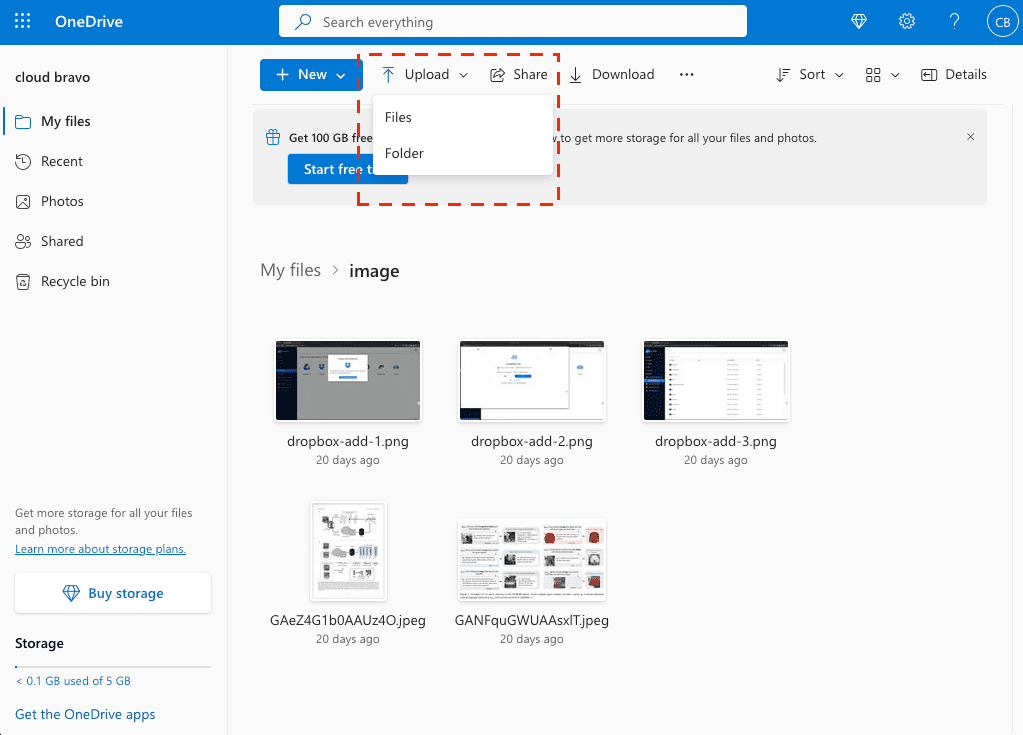
The main thing to understand is that you’re moving the data twice: once from iCloud down to your computer, and again from your computer up to OneDrive. That means double bandwidth and double waiting time.
If you’re transferring 10 or 20 GB, this isn’t a big deal. If you’re staring at 400 GB or more, it quickly turns into an all-day process — sometimes longer depending on your internet speed.
I’d personally use this method only when moving selected albums, not an entire multi-year photo archive.
Method 2: Upload Directly from Your iPhone Using the OneDrive App
If your photos mainly live on your iPhone and you don’t feel like exporting everything to a laptop first, this approach feels more natural.
Install Microsoft OneDrive for iOS , sign in, and upload directly from your camera roll.
The usual steps look like this:
- Open the OneDrive app on your iPhone.
- Tap the “+” button.
- Select Upload.
- Choose Photos and Videos from your library.
- Select the albums or individual photos you want to move.

The upload continues in the background, although iOS may pause it if the app stays closed too long or if low-power mode is enabled.
One practical advantage here is selectivity. If you only want to move recent trips or family albums, this method avoids touching the rest of your library.
The downside is speed. Uploading large volumes over Wi-Fi (or worse, mobile data) is slower than using a desktop — and significantly slower than a direct cloud transfer. For anything above 100 GB, patience becomes part of the process.
Method 3: Move iCloud Photos to OneDrive Directly in the Cloud (No Local Downloads)
When Downloading Everything No Longer Makes Sense
Once your library passes a few hundred gigabytes, the idea of downloading it to your computer just to upload it again feels inefficient. In that situation, using CloudsLinker allows the transfer to run directly between iCloud Photos and OneDrive, without routing the data through your laptop.
Step 1: Connect iCloud Photos
After signing in, click Add Cloud and select iCloud Photos. You’ll log in using your Apple ID and complete two-factor authentication if prompted.

Once connected, your albums appear inside the dashboard. It’s structured similarly to what you see on iCloud.com, which makes selecting specific albums straightforward.
Step 2: Authorize OneDrive (OAuth 2.0)
Next, add OneDrive from the cloud list. Just like adding Google Drive, this uses OAuth 2.0 authorization. You’ll be redirected to Microsoft’s secure login page to approve access.
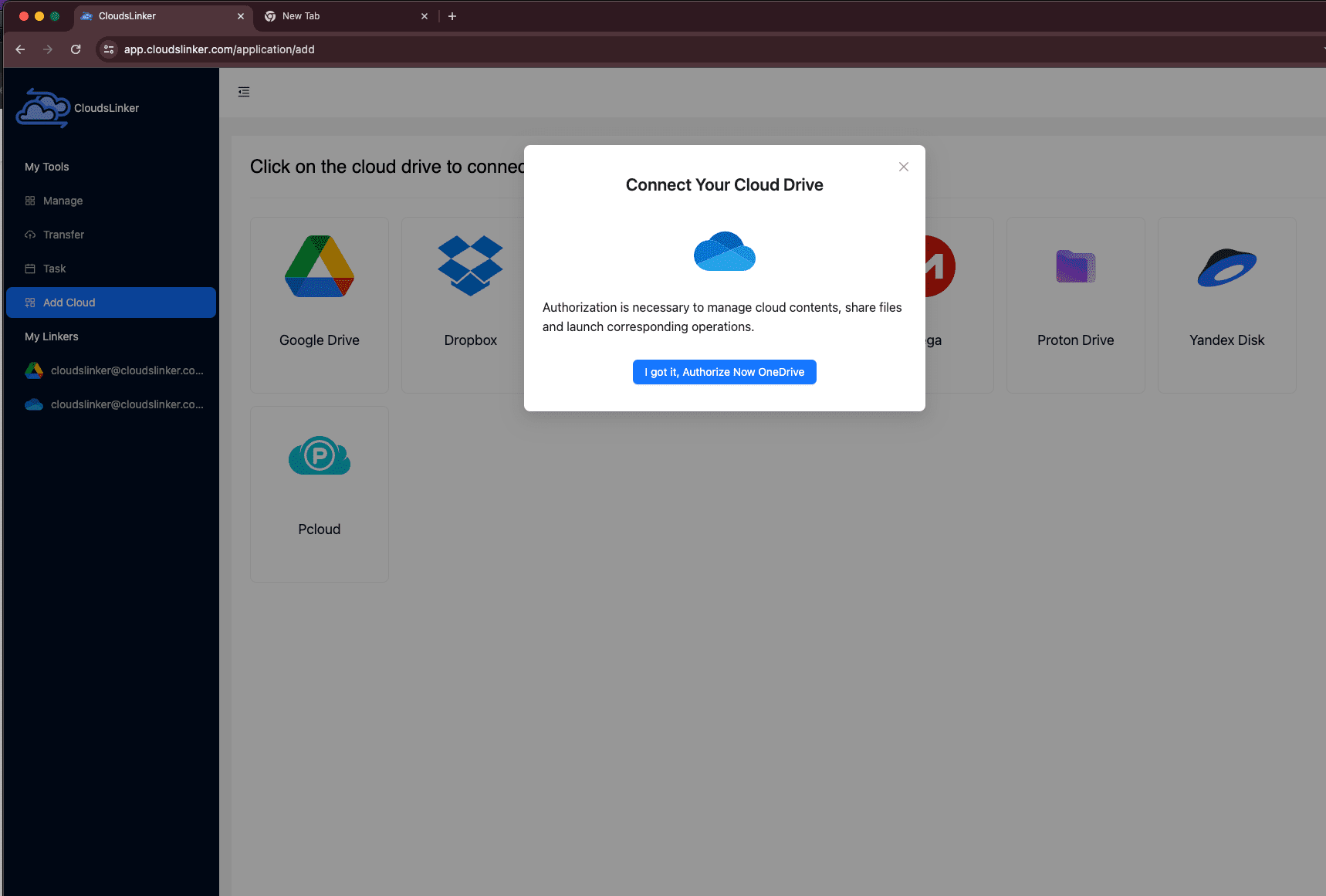
After approval, OneDrive appears as a selectable destination alongside iCloud Photos. No passwords are stored — access is granted via Microsoft’s official token system.
Step 3: Configure the Transfer
Go to the Transfer section. Choose iCloud Photos as the source and OneDrive as the destination.

You don’t have to move everything at once. Many users prefer starting with a few albums first, especially when dealing with multi-year libraries.
Step 4: Monitor the Progress
The task appears in your Task List, where you can track progress in real time. Since the transfer runs in the cloud, your computer doesn’t need to stay on.
If you’re transferring several hundred gigabytes, this approach removes the biggest bottleneck: your home internet connection.
Comparing the 3 Ways to Move Photos from iCloud Photos to OneDrive
There isn’t a single “correct” way to move your iCloud Photos library into OneDrive. The right choice mostly depends on how large your collection is — and how much time you want to spend supervising the process. If your goal is to make better use of your Microsoft 365 storage (or simply keep a second copy outside Apple’s ecosystem), the priority is usually reliability rather than speed. Here’s a practical side-by-side comparison.
| Method | Ease of Use | Speed | Best For | Uses Local Bandwidth | Skill Level |
|---|---|---|---|---|---|
| Web Browser (Download → Upload) | ★★★★★ | ★★★☆☆ | Small exports, selective albums | Yes (download + upload) | Beginner |
| iPhone (OneDrive App Upload) | ★★★★★ | ★★☆☆☆ | Recent photos or specific albums | Yes (Wi-Fi/mobile upload) | Beginner |
| CloudsLinker (Cloud-to-Cloud) | ★★★★☆ | ★★★★★ | Large libraries, minimal supervision | No | Beginner |
If you’re moving a few albums, the browser route works fine. If you’re mostly on your phone and only need recent photos, the OneDrive app does the job. But once you’re dealing with hundreds of gigabytes, avoiding the download–upload loop becomes the biggest relief — that’s where cloud-to-cloud transfer tends to feel smoother.
iCloud Photos isn’t a normal file system — it behaves more like a synced database. That means a few small adjustments can save you a lot of frustration.
- Move albums, not single images: Selecting entire albums is usually faster and more stable than clicking individual photos one by one.
- Expect selection limits on the web: iCloud Photos in the browser won’t let you select unlimited items at once. Work album-by-album if you’re exporting large batches.
- Remember the bandwidth math: If you download locally and upload again, you’re using your internet connection twice. On slower upload speeds, that becomes the bottleneck.
- HEIC and Live Photos: OneDrive stores the originals without issue, but if you frequently share with non-Apple users, you might eventually convert HEIC to JPEG for compatibility. It’s usually better to convert after transfer, not during.
- Check available OneDrive space first: Microsoft 365 plans often include 1 TB, but if you’re close to the limit, uploads may pause or fail mid-way.
- Transfer in stages: You don’t need to migrate everything at once. Many people start with older archives, confirm everything looks correct in OneDrive, then move more.
- Use official authorization flows: Whether adding OneDrive or Google Drive in CloudsLinker, both use OAuth 2.0 authorization. You log in on Microsoft’s official page, and access can be revoked anytime from your account security settings.
The most underrated strategy is simple: move a portion first, verify albums and file counts, then scale up. It prevents unpleasant surprises later.
Frequently Asked Questions
Step-by-Step Video: Transfer iCloud Photos to OneDrive
If you prefer learning visually, this video walks you through how to move your photos from iCloud Photos to OneDrive. You’ll see how to connect both cloud accounts, configure the transfer, choose albums for better performance, and complete the entire migration without downloading anything to your local device. It’s simple, efficient, and ideal for backing up or reorganizing your photo library.
Conclusion
Moving photos from iCloud Photos to OneDrive isn’t technically hard, but the experience changes depending on library size and how organized you want things to stay. For smaller sets, manual downloads are fine. If everything lives on your phone, uploading directly to OneDrive can be quicker. And for larger libraries, cloud-to-cloud transfer removes most of the waiting. Whatever method you choose, take a few minutes to confirm album structure and file counts once everything reaches OneDrive.
Online Storage Services Supported by CloudsLinker
Transfer data between over 48 cloud services with CloudsLinker

OneDrive

Google Drive

Google Photos

Shared Drive

OneDrive for Business

Dropbox

Box

Mega

pCloud

Yandex

ProtonDrive

AWS

GCS

iDrive

Storj

DigitalOcean

Wasabi

1fichier

PikPak

TeleBox

OpenDrive

Backblaze B2

Fastmail file

SharePoint

Nextcloud

ownCloud

Premiumize me

HiDrive

Put.io

Sugar Sync

Jottacloud

Seafile

Ftp

SFtp

NAS

WebDav

4shared

Icedrive

Cloudflare R2

Scaleway

Doi

iCloud Drive

iCloud Photos

FileLU

Zoho WorkDrive

Telia Cloud / Sky

Drime

Filen
Didn' t find your cloud service? Be free to contact: [email protected]
Further Reading
Effortless FTP connect to google drive: Transfer Files in 3 Easy Ways
Learn More >
Google Photos to OneDrive: 3 Innovative Transfer Strategies
Learn More >
Google Photos to Proton Drive: 3 Effective Transfer Techniques
Learn More >