iCloud Photos to TeraBox: Park Your Photo Library on 1 TB of Free Storage
Move iCloud Photos to TeraBox for 1 TB free space with Android and Windows access. Export via iCloud.com, macOS Photos, or a cloud-to-cloud transfer with CloudsLinker.
Introduction
TeraBox advertises 1 TB of free storage with native Android and Windows apps, which is the draw for iCloud Photos users whose 5 GB Apple tier filled up years ago. A photo library that needs to be reachable on a non-Apple phone, or simply parked somewhere cheaper than iCloud+, fits TeraBox's capacity model well. The catch is that TeraBox stores files in plain folders rather than a photo timeline, and its free tier caps a single file at 4 GB — only an issue for long 4K videos in your library, not stills. This guide covers three ways to move the library: a web export from iCloud.com, an Apple Photos app export that keeps HEIC and Live Photos intact, and a cloud-to-cloud transfer through CloudsLinker.
iCloud Photos keeps the Photos library on iPhone, iPad and Mac synced through Apple's cloud. Originals live in the cloud while devices can hold optimized copies to save space.
- Format support: HEIC, Live Photos, RAW and video alongside JPEG.
- Albums and Memories: grouping tied to Apple apps.
- Optimize Storage: reduced device copies with originals in the cloud.
- Free tier: 5 GB shared with iCloud Drive, Mail, backups.
- Cross-platform: web at iCloud.com; limited iCloud for Windows.
TeraBox is a consumer cloud storage service operated by Flextech Inc., the international branch of Baidu Netdisk. It advertises a 1 TB free tier with native apps across platforms.
- Free tier: 1024 GB advertised; ~80 GB practical given the 20 large-file cap.
- Per-file cap: 4 GB free; 20 GB on Premium.
- Layout: plain folder tree — no photo timeline or albums.
- Connection: no public OAuth — third-party tools use the browser session cookie (
ndus,ndut_fmt). - Cross-platform apps: Windows, macOS, Android, iOS, web.
One is a managed photo library tied to Apple devices; the other is a general-purpose storage product with a large free quota. Moving between them trades the timeline and album features for raw capacity and broad device support.
| Feature | iCloud Photos | TeraBox |
|---|---|---|
| Data model | Photo library with albums, Memories, faces | Plain folder tree |
| Free quota | 5 GB shared | 1 TB advertised; ~80 GB practical |
| Per-file cap | ~50 GB on iCloud+ | 4 GB free / 20 GB Premium |
| Format handling | Native HEIC, Live Photos, RAW | Stores any file format as-is |
| Android / Windows access | Web + limited iCloud for Windows | Native apps with parity |
On the iCloud side
- Check total library size in Settings → Apple ID → iCloud on any device.
- Identify videos over 4 GB: long 4K clips can exceed the free TeraBox per-file cap. List them for Premium or splitting.
- Decide HEIC vs JPEG: iCloud.com can export "Most Compatible" (JPEG) or "Unmodified Original" (HEIC). Choose based on where you will view the photos.
- Enable Access iCloud Data on the Web in Apple ID → Sign-In & Security if you plan to use CloudsLinker.
On the TeraBox side
- Create a TeraBox account at terabox.com (separate from Baidu Netdisk).
- Plan a folder layout: a date-based tree such as
/Photos/2024/2024-07/mirrors common photo organization since TeraBox has no albums. - Pick a tier: free if all files are under 4 GB, Premium if you have large videos.
Method 1: Export from iCloud.com and Upload to TeraBox
Step 1: Download Photos from iCloud.com
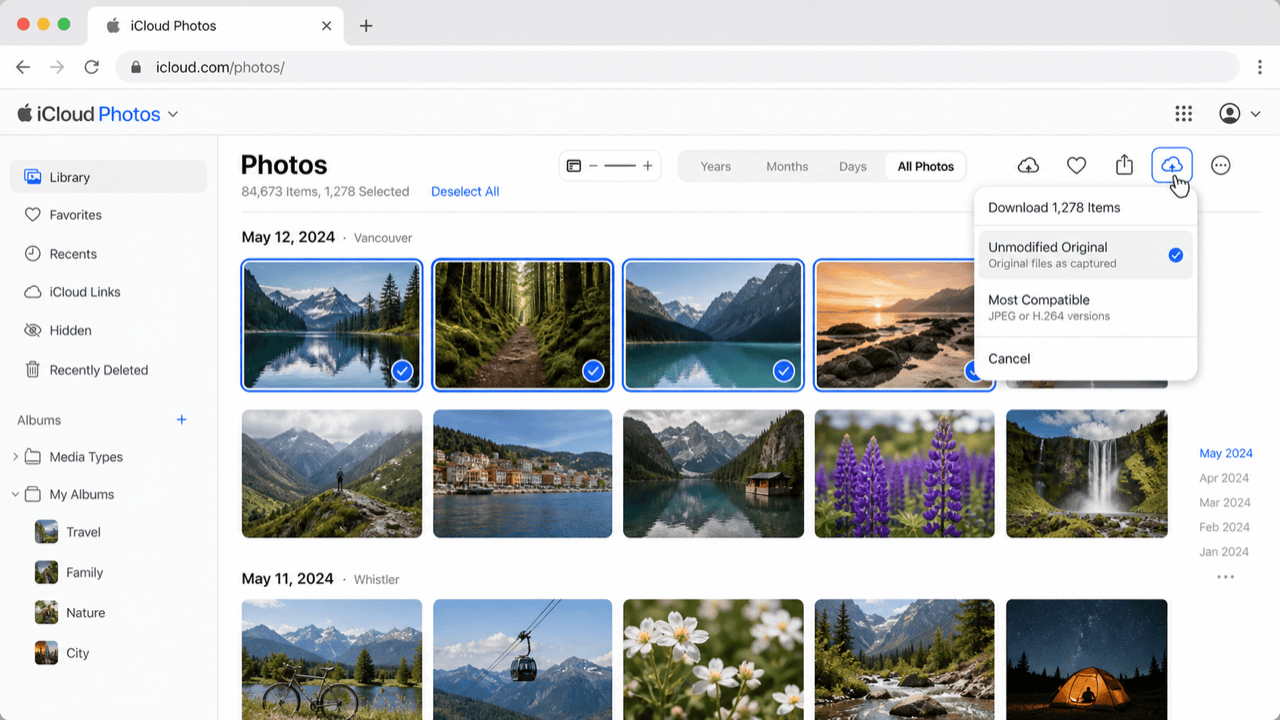
Open iCloud.com/photos
and sign in. Select photos — hold Shift for a range or Cmd/Ctrl
for individual items — then click the download icon. Choose Unmodified Original
to keep HEIC and Live Photos, or Most Compatible for JPEG. Large selections
download as ZIP files.
Step 2: Extract and Check File Sizes
Unzip the archive. iCloud exports photos flat, named by capture filename, with no album structure. Sort by size and set aside any video over 4 GB if you are on a free TeraBox account.
Step 3: Upload to TeraBox
Open terabox.com, navigate to your target folder, and drag the extracted photos in. Free-tier uploads run slower than Premium. Keep the tab open until the queue clears.
Method 2: macOS Photos App Export
Best when you want HEIC, Live Photos and RAW preserved
The macOS Photos app exports with more control than the web. It keeps original formats and respects album organization. The full library has to be downloaded to the Mac first.
Step 1: Download Originals to Your Mac
Open Photos → Settings → iCloud and select Download Originals to this Mac. Wait for the library to finish syncing — large libraries take time and need enough free disk space.
Step 2: Export from Photos
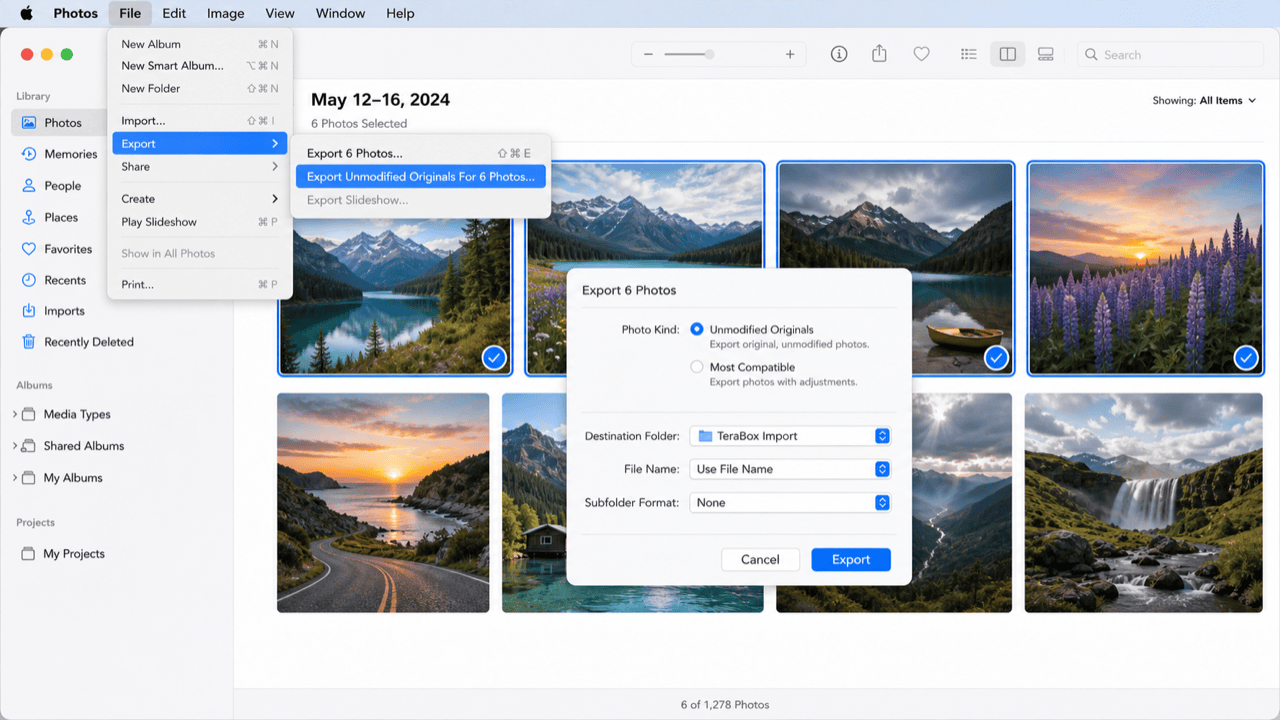
Select photos or full albums. Choose File → Export → Export Unmodified Originals
to preserve HEIC, Live Photos pairs (.HEIC + .MOV), RAW, and capture timestamps. Export to a
folder outside ~/Pictures.
Step 3: Upload to TeraBox
Install the TeraBox desktop app or use the web app, then drag the exported folder into the target directory. Keep Live Photos pairs together in the same folder so they can be recombined if you move them back to an Apple device later.
Method 3: Cloud-to-Cloud Transfer with CloudsLinker
Move the Library Without Downloading It
CloudsLinker connects iCloud Photos with your Apple ID and 2FA, and TeraBox with its session cookie. The library transfers server-side, so a large collection does not need to land on local disk first.
Step 1: Connect iCloud Photos
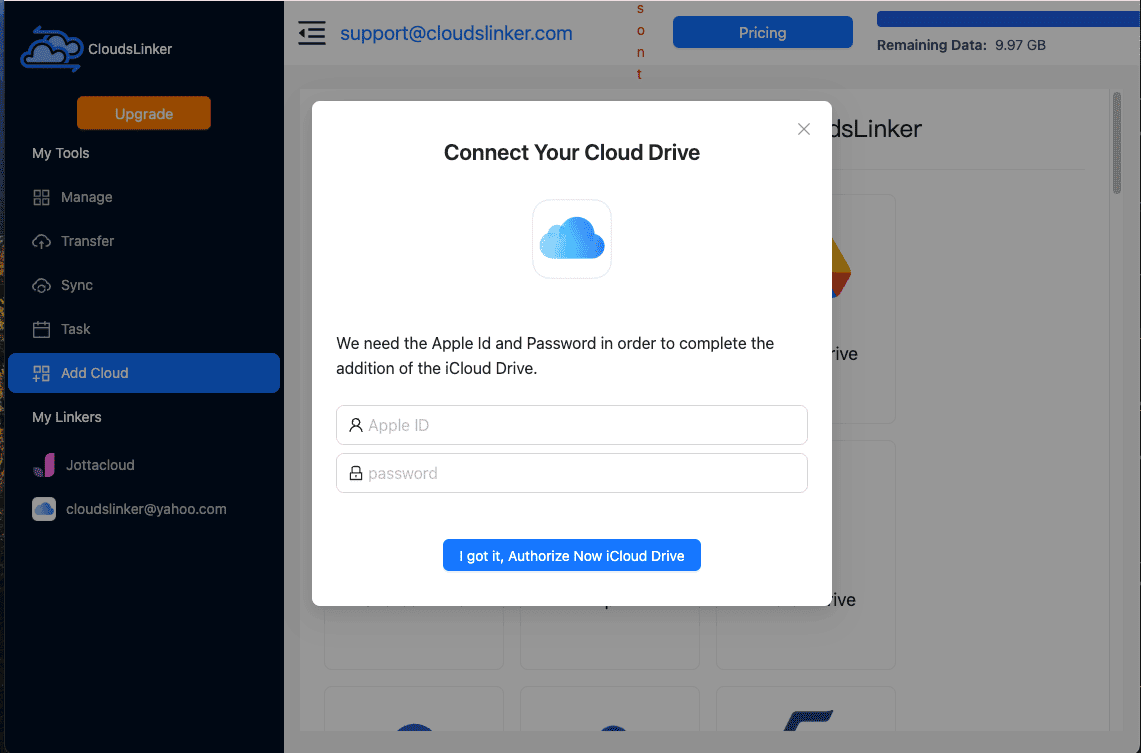
In CloudsLinker, click Add Cloud and select iCloud Photos. Enter your Apple ID and password, then the 6-digit verification code from a trusted Apple device. Make sure Access iCloud Data on the Web is enabled in Apple Account settings.
Step 2: Connect TeraBox (Browser Cookie)
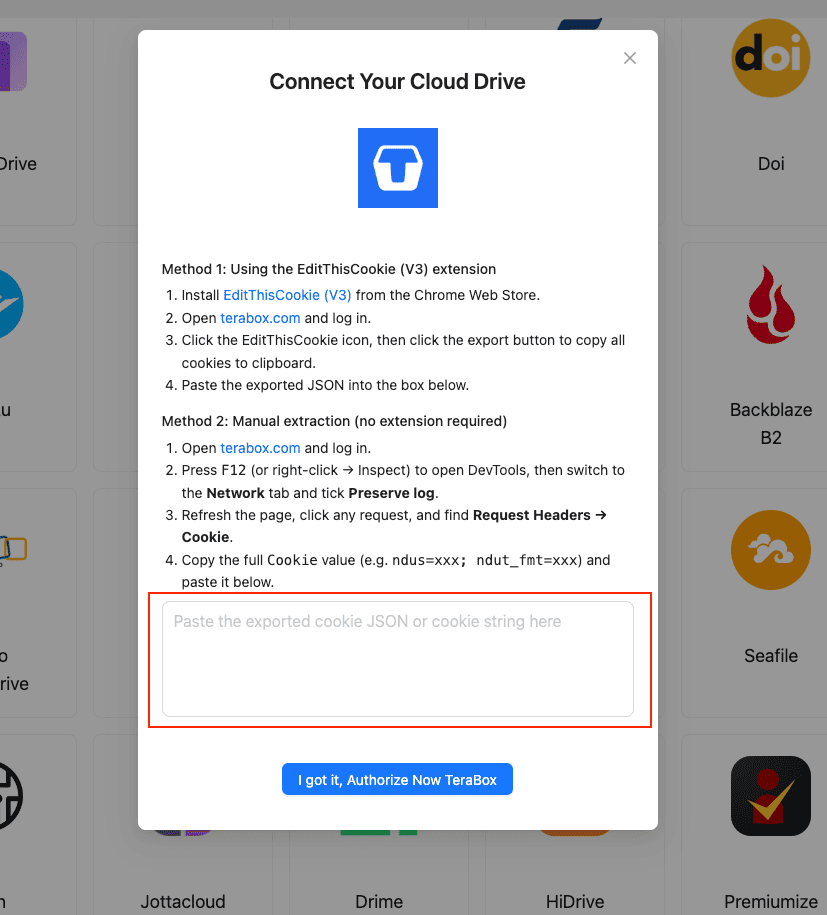
TeraBox has no public OAuth, so the connection uses the cookie from your logged-in TeraBox tab:
- Install EditThisCookie (V3) in Chrome.
- Open
www.terabox.comin the same browser and confirm you are signed in. - Click the EditThisCookie icon → Export. The cookie JSON copies to your clipboard.
- In CloudsLinker, click Add Cloud → TeraBox → enter a display name → paste the JSON → Confirm.
Without an extension, open DevTools (F12) → Network, refresh the
page, and copy the full Cookie header (ndus=...; ndut_fmt=...).
Step 3: Configure the Transfer
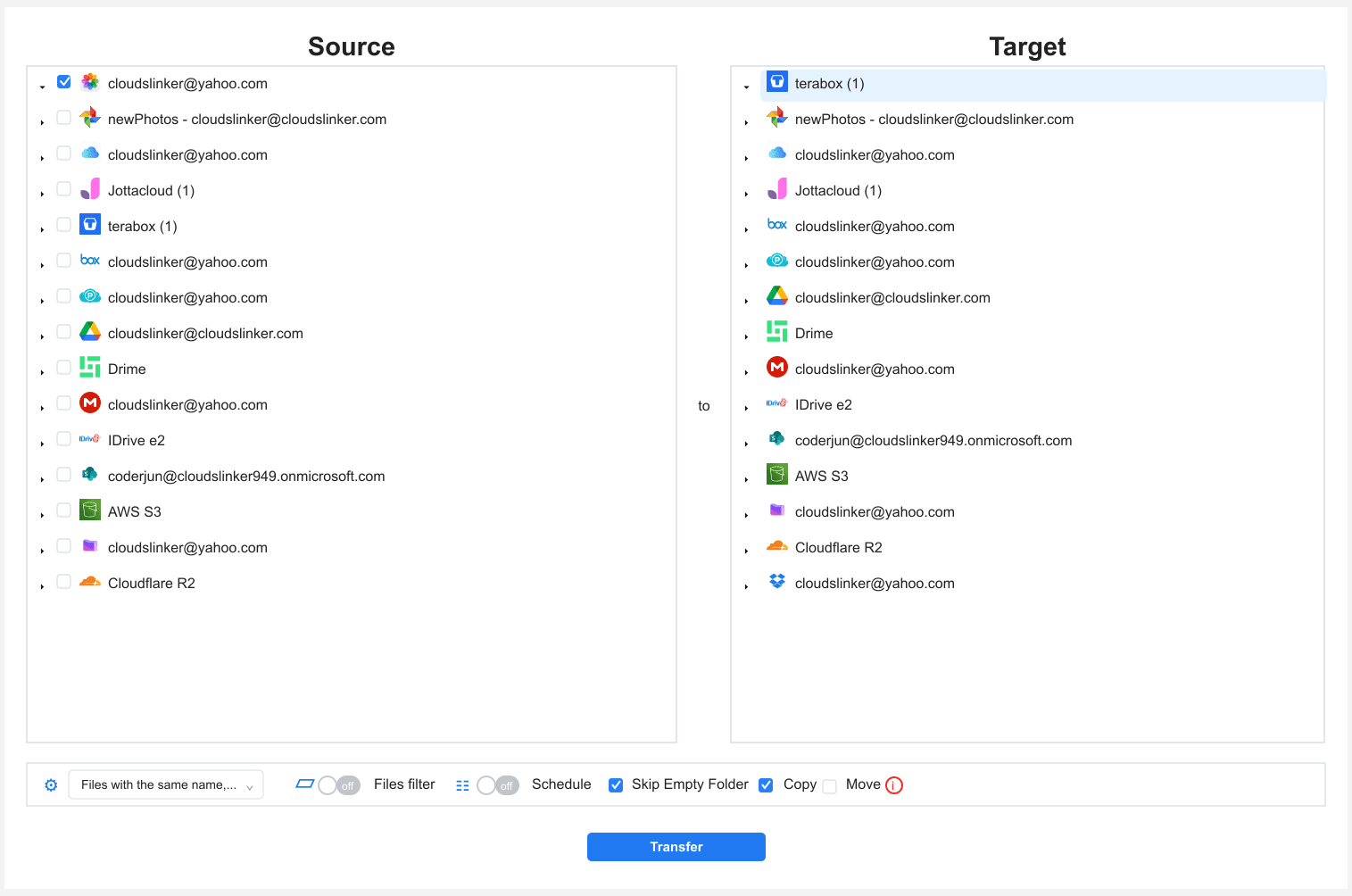
Open the Transfer section. Select iCloud Photos as the source — everything or specific albums — and TeraBox as the destination folder. Apply a 4 GB file-size filter for free TeraBox so oversized videos do not queue and fail. Use Copy to keep the iCloud library intact.
Step 4: Start and Monitor
Start the task. The Task List shows transferred size and remaining items. If the TeraBox cookie expires mid-job, the task pauses and prompts you to paste a fresh one. Verify a sample in TeraBox before removing anything from iCloud.
Method Comparison
| Method | Ease of Use | Speed | Best For | Uses Local Bandwidth | Skill Level |
|---|---|---|---|---|---|
| iCloud.com Export | ★★★★☆ | ★★☆☆☆ | Small selections, cross-platform users | Yes | Beginner |
| macOS Photos Export | ★★★☆☆ | ★★★☆☆ | Mac users wanting original formats | Yes | Intermediate |
| CloudsLinker | ★★★★★ | ★★★★★ | Large libraries, Windows users, hands-off moves | No | Beginner |
- Only videos hit the 4 GB cap: stills, even large RAW files, are well under it. Filter long 4K videos before the run if you are on free TeraBox.
- Keep Live Photos paired: they export as a .HEIC plus a .MOV. Store both in the same TeraBox folder so they stay grouped.
-
Recreate a date folder structure: TeraBox has no albums. A
/Photos/YYYY/YYYY-MM/layout keeps the library browsable. - Mind HEIC viewing on Windows: HEIC needs a codec on older Windows. Export as JPEG if you will browse on Windows without it.
- Refresh the TeraBox cookie before long jobs: re-login right before exporting the cookie for a longer effective lifetime.
- Test one album first: move a small album, open a few files in TeraBox, then queue the rest.
Frequently Asked Questions
Conclusion
For a few hundred photos, the iCloud.com download into the TeraBox web app is the quickest path. Mac users who want HEIC, Live Photos, and RAW preserved in original form should export through the Photos app and upload that folder once. For a multi-thousand-image library or anyone on Windows, CloudsLinker connects iCloud Photos through Apple ID with two-factor authentication and TeraBox through its session cookie, then runs the move server-side without the slow free-tier upload throttle. Check for any video over 4 GB before you start — those need TeraBox Premium or to be split.
Online Storage Services Supported by CloudsLinker
Transfer data between over 58 cloud services with CloudsLinker

OneDrive

Google Drive

Google Photos

Shared Drive

OneDrive for Business

Dropbox

Box

Mega

pCloud

Yandex

ProtonDrive

AWS

GCS

iDrive

Storj

DigitalOcean

Wasabi

1fichier

PikPak

TeleBox

OpenDrive

Backblaze B2

Fastmail file

SharePoint

Nextcloud

ownCloud

Premiumize me

HiDrive

Put.io

Sugar Sync

Jottacloud

Seafile

Ftp

SFtp

NAS

WebDav

4shared

Icedrive

Cloudflare R2

Scaleway

Hetzner Object Storage

Synology C2 Object Storage

S3 Compatible

Doi

iCloud Drive

iCloud Photos

FileLU

Zoho WorkDrive

Telia Cloud / Sky

Drime

Filen

TeraBox

Internxt

Degoo

Gofile

Pixeldrain

Shade

Koofr
Didn' t find your cloud service? Be free to contact: [email protected]
Further Reading
Effortless FTP connect to google drive: Transfer Files in 3 Easy Ways
Learn More >
Google Photos to OneDrive: 3 Innovative Transfer Strategies
Learn More >
Google Photos to Proton Drive: 3 Effective Transfer Techniques
Learn More >