
Copy an FTP Server to the Cloud Without Running FileZilla for a Week
Copy a legacy FTP server to Amazon S3, Google Drive, OneDrive or TeraBox without downloading it first. Passive mode, port 21, per-server connection cap.
By CloudsLinker Team · Updated September 18, 2026
What is FTP?
CloudsLinker's FTP connector is a passive-mode FTP client that runs on CloudsLinker's own servers. The Add Cloud dialog asks for a display name, host, username, port (21 by default) and password, an optional start path, and one control no other connector has: Max concurrent connections. Shared hosts, cPanel accounts and home NAS units cap the number of simultaneous FTP sessions from one address and answer 421 Too many connections when it is exceeded; set the cap to your server's limit (anything from 2 to 64, or 0 for unlimited) and CloudsLinker divides that budget between file transfers and directory checks so the server is never over-driven. The connection is tested the moment you click Authorize: the control channel is opened, the login is checked and the server's support for MLSD, MDTM and UTF-8 file names is probed, all before anything is saved. The connector speaks plain FTP over passive EPSV or PASV data connections and works with vsftpd, ProFTPD, Pure-FTPd (the cPanel default), FileZilla Server, Microsoft IIS FTP and the FTP service on Synology and QNAP NAS units.
FTP survives because it is often the only network door a system exposes: cPanel and Plesk web hosts, ageing CCTV recorders, lab instruments and inherited company servers. Getting a site off shared hosting before the account closes usually means FileZilla on a laptop for two or three days, restarting queues every time the host's 8-connection cap trips a 421. CloudsLinker runs the same copy from its own infrastructure, throttles itself to the cap you set, retries individual files rather than the whole queue, and lands the data directly in Amazon S3, Google Drive, OneDrive or TeraBox with no local disk in between.
Key features of FTP
Why connect FTP to CloudsLinker
CloudsLinker connects to FTP with host, username, password and port, always in passive mode. The dialog has no TLS switch, so explicit FTPS (AUTH TLS on port 21) and implicit FTPS (port 990) cannot be selected; servers that enforce encryption should be connected through the SFTP connector instead. FTP has no checksum command, so copies are verified by size, plus modification time where the server supports MFMT. Common destinations: Amazon S3, Cloudflare R2, Google Drive, OneDrive, Dropbox, Box and TeraBox.
What you can do with FTP on CloudsLinker

FTP → Amazon S3, Google Drive or OneDrive in one task
Pick a folder on the FTP server as source and any connected cloud as destination; CloudsLinker lists the tree over the control channel and streams each file into the destination's API. Run it the other way to publish PikPak or iCloud Drive files onto a web host.

Runs on CloudsLinker's servers, not yours
Close the browser once the task starts. A file that fails on a flaky host is retried on its own, and the task page keeps a per-file log so a 50,000-file website migration can be audited afterwards.

Repeat once, weekly or monthly
Schedule the same FTP → cloud copy weekly or on chosen days each month. Files already present with the same size (and timestamp, where the server reports one) are skipped, so repeat runs move only new uploads.

Filter by extension and file size
Restrict a run to .jpg and .mp4, or set a maximum size in MB so a forgotten 40 GB database dump stays behind. Minimum and maximum sizes are entered in MB; -1 means unlimited.
Common FTP transfer scenarios
Leave shared hosting: FTP → Amazon S3 or Cloudflare R2
When a cPanel or Plesk contract ends, connect the account's FTP login and copy public_html, uploads and backups into an S3 bucket (objects up to 5 TB) or Cloudflare R2, which charges no egress fees when you later serve the files. Set the connection cap to the host's limit (often 8 on cPanel) and let the copy run from CloudsLinker's side. See FTP to Amazon S3 and FTP to Cloudflare R2.
Weekly 3-2-1 backup: FTP server → OneDrive, Dropbox or pCloud
Schedule a weekly FTP → OneDrive task for a site's upload directory or a NAS share exposed over FTP. OneDrive takes files up to 250 GB, Dropbox up to 350 GB per file through its API, and pCloud offers lifetime plans that suit a set-and-forget archive. After the first run, each week copies only files whose size changed.
Cheap cold archive: CCTV or log dumps from FTP → TeraBox or Drime
Recorders and appliances that can only push to an FTP folder fill local disks fast. A monthly CloudsLinker task moves the previous month's footage or logs from that FTP folder into TeraBox (1 TB free) or Drime, and a maximum-size filter keeps the occasional corrupt multi-gigabyte file out of the archive.
Team consolidation: partner FTP drop → SharePoint, Zoho WorkDrive or Box
Suppliers that deliver price lists, invoices or EDI files by FTP do not have to change their process. CloudsLinker copies new arrivals into a SharePoint document library, a Zoho WorkDrive team folder or Box on a weekly schedule, and the 250 GB per-file ceiling on SharePoint is never a problem for documents.
Publish to a web host: Google Photos, iCloud or PikPak → FTP
The connector also writes to FTP. Push a Google Photos library, iCloud Drive documents or PikPak downloads straight into a host's public_html or a NAS media folder. The Lite plan's 800 GB per month covers most personal libraries in a single run.
How to connect an FTP server to CloudsLinker
FTP is a server-parameter connection. There is no OAuth handshake; you enter the details you would give FileZilla, plus an optional connection cap, and CloudsLinker checks them against the server before saving.
Before you start
- A reachable host. Port
21(or whichever port the server uses) and the server’s passive port range must be open to the public internet. Test from outside your own network with a desktop client in passive mode; if a directory listing hangs there, it will hang for CloudsLinker too. - A plain-FTP login. The connector cannot negotiate TLS, so an account that is forced to FTPS will be rejected at login. Where the host also offers SSH, use the SFTP connector for that account instead.
- The per-IP session limit. Look it up in the host’s documentation or control panel (cPanel lists it under FTP Server Configuration; vsftpd uses
max_per_ip). You will enter it as the connection cap. - A start path, if you want CloudsLinker limited to one directory such as
/public_html/uploads.
Connection steps
- Sign in at
app.cloudslinker.com, open Add Cloud and choose FTP. - Display name is pre-filled with “FTP”. Rename it to something you will recognise later, for example “Old cPanel host”.
- Host: hostname or IP address, without
ftp://and without a port. - Username and Password: the FTP account. For an anonymous archive use
anonymousand an e-mail address. - Port: pre-filled with
21; change it only if the server listens elsewhere. - Access Path (optional): leave empty to start at the account’s root, or enter a directory.
- Max concurrent connections (optional): leave empty (unlimited) or enter the server’s per-IP limit, from
2to64. Enter2for a home NAS that allows two sessions. - Click I got it, Authorize Now FTP. CloudsLinker logs in immediately and probes the server’s features. On success the page reloads and the server appears under My Linkers; on failure the error is shown and nothing is saved.
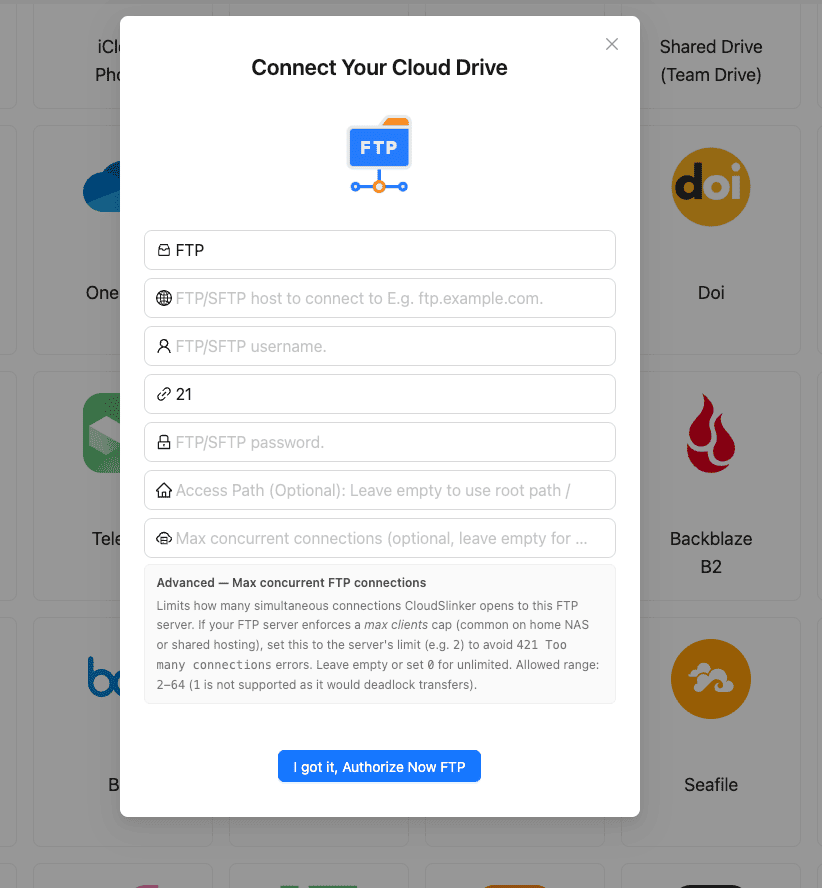
Choosing the connection cap
The cap is the total number of FTP sessions CloudsLinker will hold open to this server at once. CloudsLinker reserves one and splits the rest between file transfers and directory checks:
- Cap 2: 1 transfer, 1 check, and the whole tree is checked before copying starts.
- Cap 4: 1 transfer, 2 checks.
- Cap 8: 3 transfers, 4 checks.
- Cap 16: 7 transfers, 8 checks.
- Empty or 0: no limit; CloudsLinker uses its normal parallelism, which is right for a dedicated server you control.
If both the source and the destination of a task are FTP servers, the smaller of the two caps applies to the whole task.
Creating the first transfer task
Open Transfer, choose a folder on the FTP server as the source and a folder in the destination cloud as the target. Add extension and size filters if needed, then run the task once or schedule it weekly or monthly. The task page shows each file’s status, so a file the host dropped mid-transfer can be retried on its own.
Revoke access
Delete the FTP entry under My Linkers to remove the stored login from CloudsLinker. On the server side, change the FTP account’s password or delete the account; FTP has no tokens, so a password change is the only revocation that matters.
FTP limits and behaviours you should know
FTP is a protocol rather than a hosted service, so most ceilings come from your server. These are the ones the CloudsLinker connector itself sets or depends on:
- Authentication: username and password; anonymous logins work where the server allows them.
- Encryption: none. Explicit FTPS (
AUTH TLS, port 21) and implicit FTPS (port 990) are not selectable. - Transfer mode: passive only,
EPSVfirst andPASVas fallback; the server’s passive port range must be open. - Connection cap: optional,
0or2to64;1is rejected. Applied when the FTP server is source or destination. - Integrity check: size, plus modification time when the server supports it. No checksums.
- Timestamps: read via
MLSDorMDTM; written viaMFMTonly (not on vsftpd). - Listings:
MLSDwhen advertised, otherwiseLIST; UTF-8 file names when the server advertisesUTF8. - Idle connection timeout: 60 seconds; low-level errors retried twice per file.
- Maximum file size: none imposed by the connector. Limits come from the server filesystem (ext4 16 TiB per file) and the destination: OneDrive 250 GB, Google Drive 5 TB, Amazon S3 5 TB per object.
- Scheduling: run once, weekly, or on selected days each month.
- Filters: file extension include list, minimum and maximum size in MB.
- Traffic allowance: free account 10 GB per month for testing; Lite 800 GB per month with rollover at $3.33 per month on yearly billing; Unlimited at $5.83 per month on yearly billing; Lifetime Unlimited $138.80 one-time.
Sources: RFC 959: File Transfer Protocol, RFC 2428: FTP extensions for IPv6 and NATs (EPSV), RFC 4217: Securing FTP with TLS, vsftpd.conf manual: max_per_ip, force_local_logins_ssl, mdtm_write, EnterpriseDT: SFTP and FTPS ports and the passive range, CloudsLinker pricing.
FTP + CloudsLinker — Frequently Asked Questions
Does CloudsLinker support FTPS (FTP over TLS)?
530 Non-anonymous sessions must use encryption (vsftpd) or 550 SSL/TLS required on the control channel (ProFTPD). Connect through the SFTP connector instead when the host also runs SSH, which almost every Linux host does.
Active or passive mode?
EPSV and falls back to PASV, so the server, not CloudsLinker, must accept the inbound data connection. Make sure the server's passive port range is open in its firewall; if directory listings hang or fail with 425, the passive range is the first thing to check.
What should I enter in Max concurrent connections?
max_per_ip. Leave it empty or 0 when there is no cap. A value of 2 gives one transfer and one check with the tree checked first; 8 gives 3 transfers and 4 checks; 1 is rejected.
Why do I get 421 Too many connections?
Are copied files verified?
MDTM or MLSD for reading and MFMT for writing. FTP has no hash command, so there is no checksum comparison; if you need one, expose the same data over SFTP and use that connector.
Will the original timestamps survive the copy?
MLSD or MDTM, which almost every modern server does. Into FTP, only servers that implement MFMT keep the original time: ProFTPD, Pure-FTPd and FileZilla Server do; vsftpd does not, so files written to vsftpd carry the upload time.
How long does 1 TB take, and what does it cost?
Can CloudsLinker upload to my FTP server, not just download from it?
MFMT.
Can I connect to an anonymous or public FTP archive?
anonymous as the username and an e-mail address as the password, then set an Access Path such as /pub/datasets to avoid listing the whole tree. Public mirrors usually enforce strict per-IP limits, so set Max concurrent connections to 2 and expect the mirror's own speed cap.
Is CloudsLinker an official product of any FTP server vendor, and how do I disconnect?
FTP transfer guides
Step-by-step walkthroughs for moving data to and from FTP.
Conclusion
FTP hosts rarely offer another way out, and the client-side tools all need a computer that stays online while a 421 cap turns days into a week. CloudsLinker connects with the same host, username, password and port you already use, throttles itself to the server's session limit, and copies straight into Amazon S3, Google Drive, OneDrive or TeraBox from its own servers. Add the server, set the cap, and try one directory to measure the throughput before scheduling the rest.
Online storage services supported by CloudsLinker
Transfer data between over 58 cloud services with CloudsLinker

OneDrive

Google Drive

Google Photos

Shared Drive

OneDrive for Business

Dropbox

Box

Mega

pCloud

Yandex

ProtonDrive

AWS

GCS

iDrive

Storj

DigitalOcean

Wasabi

1fichier

PikPak

TeleBox

OpenDrive

Backblaze B2

Fastmail file

SharePoint

Nextcloud

ownCloud

Premiumize me

HiDrive

Put.io

Sugar Sync

Jottacloud

Seafile
Ftp

SFtp

NAS

WebDav

4shared

Icedrive

Cloudflare R2

Scaleway

Hetzner Object Storage

Synology C2 Object Storage

S3 Compatible

Doi

iCloud Drive

iCloud Photos

FileLU

Zoho WorkDrive

Telia Cloud / Sky

Drime

Filen

TeraBox

Internxt

Degoo

Gofile

Pixeldrain

Shade

Koofr
Didn't find your cloud service? Contact: [email protected]