
Google Takeout Zip Import — Open Your Photos Export Without Downloading It
Add the Google Takeout zips sitting in Google Drive, Dropbox, OneDrive or Box as a read-only drive, then copy the album and year folders inside them to any cloud.
By CloudsLinker Team · Updated October 22, 2026
What is Google Takeout?
Google Takeout is Google's own export service at takeout.google.com. For Google Photos it produces a series of numbered archives — in .zip or .tgz, split into parts of 1, 2, 4, 10 or 50 GB — and can deliver them by email link or straight into Google Drive, Dropbox, OneDrive or Box. Inside, the export has one Photos from YYYY folder per year holding every item, one folder per album holding copies of the album's photos, and a JSON file beside each photo with the capture time, location and description Google Photos stored for it. Since Google limited third-party access to Google Photos in 2025 — apps now see only the items a user picks in Google's Photo Picker, up to 2,000 per selection — Takeout is the only export that still contains a whole library together with its album structure.
The catch is that the four cloud destinations store the zips but none of them extracts them: Drive only lists what a zip contains, and OneDrive's advice is to sync the files to a PC and unzip them there. CloudsLinker's Google Takeout import removes that step. It reads the archives remotely from the Drive, Dropbox, OneDrive or Box account that received them — fetching each photo out of its zip and checking it against the zip's CRC-32 checksum — and presents the unpacked folders as a read-only drive. From there the photos copy to any of the 50-plus services CloudsLinker connects, or to a different folder in the same account.
Key features of Google Takeout
Why connect Google Takeout to CloudsLinker
A Google Takeout in CloudsLinker is not a separate login. You pick an account you have already connected — Google Drive or a Shared drive, Dropbox or Dropbox Business, OneDrive, OneDrive for Business or SharePoint, or Box — tick the Takeout folder or its .zip files, and check the archives. CloudsLinker lists the albums, file count and unpacked size, flags any zip it cannot read, and adds the export as a drive that can be browsed and copied from. Nothing is downloaded to your computer and the zips stay untouched.
What you can do with Google Takeout on CloudsLinker

Unpacks in place, from four delivery targets
Works on exports that Takeout added to Google Drive, Dropbox, OneDrive or Box — the four cloud destinations Takeout offers. Business and team accounts of the same services, Shared drives and SharePoint sites are accepted too.
Albums and years as real folders
Every part of the export is merged into one folder tree, so an album split across three zips appears as one folder. The outer Takeout and Google Photos folders are removed; everything below keeps Takeout's names.
Copy only what you need
Copy the year folders for a complete backup, a handful of albums for sharing, or single files. Rerunning a task skips files that are already at the destination with the same size.

Checksummed and read-only
Each file read from a zip is verified against the CRC-32 value recorded in the archive, so a damaged part fails loudly instead of producing a broken photo. A Takeout can only be copied from; nothing can be written into it.
Common Google Takeout transfer scenarios
Google Photos library to OneDrive, albums included
Microsoft 365 Family gives each of up to six people 1 TB of OneDrive. Have Takeout add the export to OneDrive itself, add it as a Google Takeout in CloudsLinker, and copy the album folders into OneDrive's Pictures folder — the zips become browsable folders in the same account, and can then be deleted.
Google Photos to a Synology or QNAP NAS
Self-hosting photo apps such as Synology Photos and Immich index by EXIF date, so the year folders are all they need. Export to Google Drive, then copy only the Photos from YYYY folders to the NAS share — every photo once, no album duplicates, no 300 GB download to a laptop first.
Leave Google for Proton Drive with an end-to-end encrypted copy
Proton Drive encrypts files on the way in, which is why many people move photos there when leaving Google. Copy the unpacked folders from the Takeout to Proton Drive, check the result, then delete the library in Google Photos and the zips in Drive.
Cold archive of the whole library in Backblaze B2 or Amazon S3
For an off-site archive, copy the complete Takeout — JSON files included, so dates and descriptions can be restored later — into a Backblaze B2 or Amazon S3 bucket. Object storage keeps the folder tree as prefixes and charges per GB, so excluding the album folders keeps the bill down.
Hand one album to a family member's Dropbox or pCloud
Not every move is a migration. Pick the one album folder — a wedding, a holiday — and copy it to a relative's Dropbox or pCloud account connected in CloudsLinker, without sharing your Google account or downloading the whole export.
How to add a Google Takeout to CloudsLinker
A Google Takeout has no credentials of its own. It reads archives from a Google Drive, Dropbox, OneDrive or Box account that is already connected to CloudsLinker, so connect that account first through its normal sign-in page (accounts.google.com, www.dropbox.com, login.microsoftonline.com or account.box.com).
Before you start
- Create the export. At takeout.google.com click Deselect all, tick Google Photos, choose file type .zip and a file size of 2 GB or 10 GB, and set the delivery method to Add to Drive, Add to Dropbox, Add to OneDrive or Add to Box.
- Wait for every part. Takeout can take hours or days and emails you when the export is complete. Albums are split across parts, so a Takeout added before the last zip arrives has incomplete folders.
- Check storage. An export added to Drive counts toward your Google storage; the other services need space for the full export too.
Steps
- In CloudsLinker, open Add Cloud and choose Google Takeout (listed as Zip import).
- Under Cloud with your export, select the account that holds the archives.
- In Takeout archives, tick the
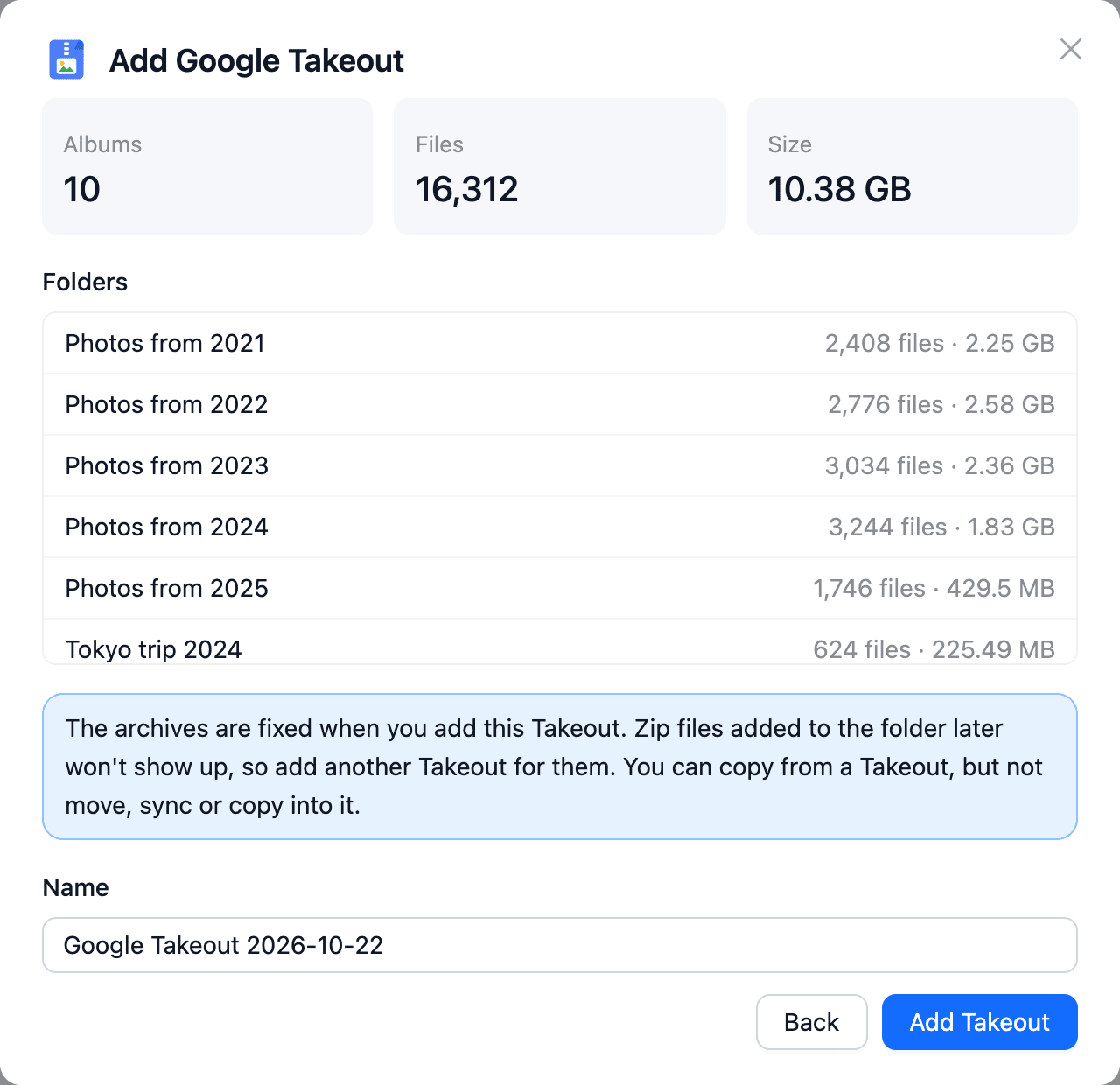
Takeoutfolder, or individual.zipfiles. A ticked folder includes every .zip inside it, subfolders included. - Click Check archives. CloudsLinker reads the archives and shows the number of top-level folders (labelled Albums, year folders included), files and unpacked size, the folder list, and any zip it could not read.
- Enter a Name and click Add Takeout. The Takeout opens as a drive and appears under your clouds.
To copy, open Transfer, select folders of the Takeout as the source and a folder in another cloud as the target. Only Copy is available. To remove the import, delete the Google Takeout from your clouds; deleting the source account’s connection removes it automatically.
Google Takeout export limits you should know
- Delivery methods: 5 — download link by email, Add to Drive, Add to Dropbox, Add to OneDrive, Add to Box. CloudsLinker works with the last four.
- Archive file types: .zip and .tgz. CloudsLinker reads .zip only; password-protected zips are not supported.
- Part sizes: 1, 2, 4, 10 or 50 GB per file; exports larger than the chosen size are split into several files.
- Frequency: export once, or every 2 months for 1 year (6 exports).
- Storage: archives added to Drive count toward your Google storage until you delete them.
- CloudsLinker import: up to 500 .zip files per Google Takeout, all from one connected account; the archive list is fixed when the Takeout is added.
- Google Photos layout: one
Photos from YYYYfolder per year, one folder per album (copies of album photos), and a.supplemental-metadata.jsonfile per item withphotoTakenTime, location and description. - Google Photos API (for comparison): since 2025, third-party apps get only the items a user picks in Google’s Photo Picker — up to 2,000 per selection — and no album structure. Picked photos download with EXIF but without location; videos download as a transcoded copy.
Sources: How to download your Google data — Google Account Help, Google Photos Picker API: sessions, Picker API: list and retrieve media items, Microsoft Q&A: unzipping files in OneDrive.
Google Takeout + CloudsLinker — Frequently Asked Questions
What is the CloudsLinker Google Takeout import?
Do I have to download or unzip the Takeout first?
Which Takeout settings should I choose?
How many zip files can one Google Takeout include?
Why are some zip files listed as unreadable?
Are albums and photo dates preserved?
Why do I see the same photo in two folders?
Can I move, sync or upload into a Google Takeout?
What happens if I delete the zips or the account they are in?
Is a Google Takeout better than connecting Google Photos directly?
Google Takeout transfer guides
Step-by-step walkthroughs for moving data to and from Google Takeout.
Conclusion
Google Takeout remains the only way to get an entire Google Photos library out with its albums, and the archives no longer have to pass through your computer. Export to Drive, Dropbox, OneDrive or Box in .zip parts of 2 or 10 GB, add the archives as a Google Takeout in CloudsLinker, and copy the year or album folders to wherever the photos should live next. The step-by-step version, with what the files look like at the destination, is in Unzip Google Takeout in the Cloud.
Online storage services supported by CloudsLinker
Transfer data between over 60 cloud services with CloudsLinker

OneDrive

Google Drive

Google Photos
Google Takeout

Shared Drive

OneDrive for Business

Dropbox

Box

Mega

pCloud

Yandex

ProtonDrive

AWS

GCS

iDrive

Storj

DigitalOcean

Wasabi

1fichier

PikPak

TeleBox

OpenDrive

Backblaze B2

Fastmail file

SharePoint

Nextcloud

ownCloud

Premiumize me

HiDrive

Put.io

Sugar Sync

SmugMug

Jottacloud

Seafile

Ftp

SFtp

NAS

WebDav

4shared

Icedrive

Cloudflare R2

Scaleway

Hetzner Object Storage

Synology C2 Object Storage

S3 Compatible

Doi

iCloud Drive

iCloud Photos

FileLU

Zoho WorkDrive

Telia Cloud / Sky

Drime

Filen

TeraBox

Internxt

Degoo

Gofile

Pixeldrain

Shade

Koofr
Didn't find your cloud service? Contact: [email protected]