
SmugMug Originals, Copied Out Gallery by Gallery — Read-Only, Server-Side
Connect SmugMug read-only and copy your folders and galleries — original files, RAW included — to Google Drive, Dropbox, Backblaze B2, pCloud or a NAS, server-side.
By CloudsLinker Team · Updated October 22, 2026
What is SmugMug?
SmugMug is a paid photo-hosting service for photographers: unlimited storage of full-resolution originals, portfolio websites with custom domains, client galleries with passwords, and print and download sales. Every upload lands in a private Library; your Site is built from folders, which can hold more folders, and galleries, which show photos from the Library publicly, unlisted or privately. SmugMug keeps what you upload — JPEG, GIF, PNG and HEIC photos up to 500 MB and 4 gigapixels each, and with a SmugMug Source subscription RAW files up to 3 GB each — and lets the owner download originals at any time, either per gallery as a .zip archive from Site Organizer, as a selection from the Library, or through third-party desktop apps such as Folio and WinMug.
Those official routes all go through a local disk. A ten-year client archive of several terabytes has to be downloaded, then uploaded again to wherever it is going next, which is where CloudsLinker comes in. It connects to SmugMug through SmugMug's own OAuth authorization with read-only permission, shows your Site as the same folder-and-gallery tree you see in Site Organizer, and copies the original files to Google Drive, Dropbox, OneDrive, Backblaze B2, pCloud, a NAS or any of the other services it supports — from its servers, without a computer in between. SmugMug is a source only: CloudsLinker cannot upload, rename or delete anything there. Photos that sit only in the Library, in no gallery, are not visible through SmugMug's API, so add them to a gallery before copying.
Key features of SmugMug
Why connect SmugMug to CloudsLinker
CloudsLinker adds SmugMug through a pop-up on SmugMug's own authorization page, requesting full access (needed for private galleries and originals) with read permission only. The connection is named after your SmugMug nickname and does not expire. Folders and galleries can then be browsed and selected as the source of copy tasks; for each image CloudsLinker downloads the original file SmugMug stores, which comes with an MD5 checksum. Move and Sync are unavailable because nothing can be deleted from SmugMug.
What you can do with SmugMug on CloudsLinker

Originals, not display sizes
Each photo is fetched as the original file SmugMug stores — the same bytes you uploaded, with embedded EXIF and IPTC — and SmugMug's smaller renditions are used only when no original exists.
Galleries become folders
Folders and galleries are copied as a folder tree with the same names, so Clients/Miller wedding 2025 on SmugMug becomes the same path in Google Drive, Dropbox or a NAS share.

Read-only by design
CloudsLinker asks SmugMug for read permission and its servers refuse any write, so a misconfigured task can never change, overwrite or delete a SmugMug gallery.

Filters for RAW and video
Copy only JPEGs to a shared drive and RAW files to an archive bucket, or leave out videos, with file-type and size filters on the same task.
Common SmugMug transfer scenarios
Leave SmugMug for Google Drive
A photographer whose portfolio has moved to another site keeps paying SmugMug only for storage. CloudsLinker copies every folder and gallery into Google Drive as the same folder tree, where Google One plans range from 100 GB to 30 TB and sharing works with any Google account. Copy, verify the counts, then cancel.
Off-site archive of client work in Backblaze B2
Client galleries are the business record. A scheduled copy from SmugMug to a Backblaze B2 bucket keeps an independent second copy of every original — RAW files included for Source subscribers — in object storage priced per GB, outside SmugMug's account and billing.
Bring the library home to a Synology NAS
Copy the galleries to a shared folder on a Synology or QNAP NAS reachable from the internet. Synology Photos indexes the originals by their EXIF dates, and the NAS becomes the local master while SmugMug remains the public portfolio.
Deliver a finished gallery to a client's Dropbox
Instead of sending a SmugMug zip link that anyone can reuse, connect a shared Dropbox and copy just the delivered gallery into it. Use a file-type filter to send JPEGs and keep RAW files back.
Second copy in pCloud on a lifetime plan
pCloud sells one-time lifetime storage plans. Photographers who want an archive without another subscription copy their SmugMug folders to pCloud once, then repeat the copy for new galleries — files already there with the same name and size are skipped.
How to connect SmugMug to CloudsLinker
SmugMug uses OAuth 1.0a: you approve CloudsLinker on SmugMug’s own authorization page at secure.smugmug.com, and CloudsLinker never sees your SmugMug password.
Steps
- In CloudsLinker, click Add Cloud and choose SmugMug (search for it if the list is long).
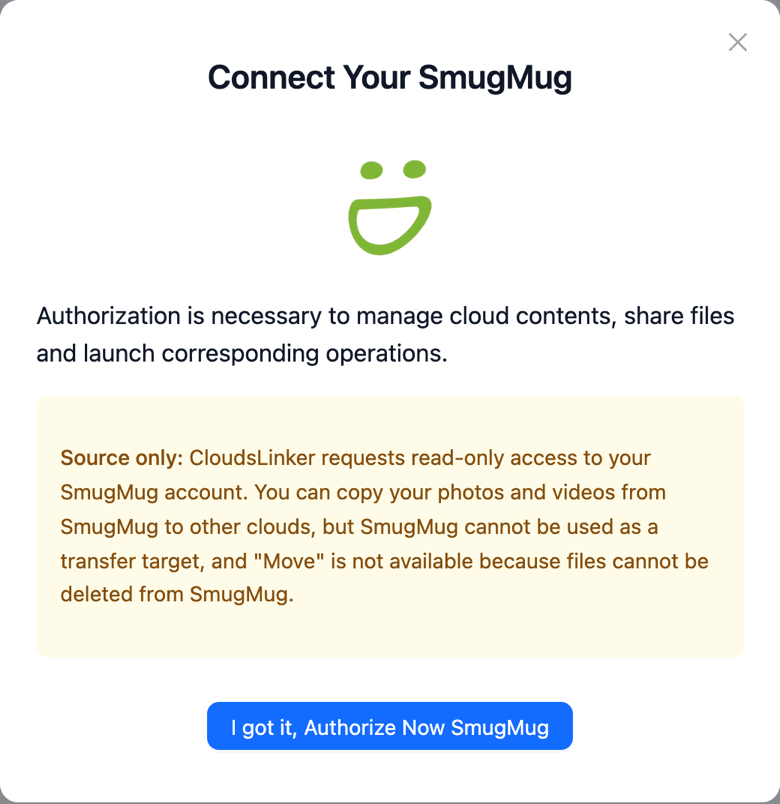
- Read the Source only notice: CloudsLinker requests read-only access, so SmugMug cannot be a transfer target and Move is not available.
- Click I got it, Authorize Now SmugMug. A pop-up opens SmugMug’s authorization page; sign in if needed and approve the request.
- The pop-up closes and SmugMug appears under your clouds, named after your SmugMug nickname. Open it to browse your folders and galleries — photos that are only in the Library (Media Location → Only in Library) don’t appear until you add them to a gallery.
The authorization link is renewed every few minutes while the dialog is open, because SmugMug request tokens expire quickly; if approval fails, close the dialog and start again.
To copy, open Transfer, tick SmugMug folders or galleries as the source and choose a folder in another cloud as the target; Copy is selected automatically. To revoke access, delete the connection in CloudsLinker and remove CloudsLinker from the authorized applications in your SmugMug account settings.
SmugMug limits you should know
- Photo uploads: JPEG, GIF, PNG and HEIC, up to 500 MB and 4 gigapixels per photo.
- RAW files: up to 3 GB each, only with a SmugMug Source subscription; owner downloads include RAW and sidecar files.
- Storage: unlimited on every paid plan; there is no free plan, only a trial.
- Library and Site: every upload is in the private Library; the Site has folders (which can contain folders) and galleries (which show photos). The Library’s Media Location filter shows Anywhere, Added to Galleries or Only in Library.
- Owner zip download: per gallery, from My Site → Site Organizer → Select All → Download, which opens a Download Images dialog with a .zip archive of the originals; Library selections use More → Download.
- Hidden photos: included in owner downloads.
- Visitor downloads: a separate per-gallery setting (Allow Downloads on the Photo Protection tab).
- API authorization: OAuth 1.0a; access is public or full, permission is read, add or modify; request tokens expire within minutes, access tokens do not expire.
Sources: SmugMug: accepted file types for uploading, SmugMug: download several images in a gallery, SmugMug: third-party downloaders and migration tools.
SmugMug + CloudsLinker — Frequently Asked Questions
Can I upload to SmugMug or move files into it with CloudsLinker?
Why does the authorization ask for full access?
Do I get the original files?
Are titles, captions and keywords typed into SmugMug copied?
How are folders and galleries organised at the destination?
Are RAW files and hidden photos included?
How large can the files be?
Can I copy new galleries later without duplicating everything?
How do I disconnect SmugMug?
Why don't some of my SmugMug photos appear in CloudsLinker?
SmugMug transfer guides
Step-by-step walkthroughs for moving data to and from SmugMug.
Conclusion
SmugMug gives owners their originals back, but its own export works one gallery at a time through a local disk. CloudsLinker reads the whole Site folder-and-gallery tree with read-only permission and copies the originals to Google Drive, Dropbox, Backblaze B2, pCloud or a NAS from its servers, leaving SmugMug untouched. The step-by-step version for Google Drive, with what stays behind and a checklist before cancelling, is in SmugMug to Google Drive.
Online storage services supported by CloudsLinker
Transfer data between over 60 cloud services with CloudsLinker

OneDrive

Google Drive

Google Photos

Google Takeout

Shared Drive

OneDrive for Business

Dropbox

Box

Mega

pCloud

Yandex

ProtonDrive

AWS

GCS

iDrive

Storj

DigitalOcean

Wasabi

1fichier

PikPak

TeleBox

OpenDrive

Backblaze B2

Fastmail file

SharePoint

Nextcloud

ownCloud

Premiumize me

HiDrive

Put.io

Sugar Sync
SmugMug

Jottacloud

Seafile

Ftp

SFtp

NAS

WebDav

4shared

Icedrive

Cloudflare R2

Scaleway

Hetzner Object Storage

Synology C2 Object Storage

S3 Compatible

Doi

iCloud Drive

iCloud Photos

FileLU

Zoho WorkDrive

Telia Cloud / Sky

Drime

Filen

TeraBox

Internxt

Degoo

Gofile

Pixeldrain

Shade

Koofr
Didn't find your cloud service? Contact: [email protected]