Unzip Google Takeout in the Cloud and Copy Your Albums Anywhere
Google Takeout puts Google Photos into zip files in Drive, Dropbox, OneDrive or Box. Unpack them in the cloud, copy albums to any drive, and see what changes.
Introduction
You don't have to download a Google Photos Takeout to unpack it. If Takeout delivered the export to Google Drive, Dropbox, OneDrive or Box, CloudsLinker's Google Takeout import reads the zip files where they are and lets you copy the album folders inside them to another cloud — OneDrive, a NAS, Proton Drive, an S3 bucket — without a computer in the middle.
That matters because the usual route is heavy. A 300 GB library arrives as about 150 two-gigabyte zips that have to be downloaded, extracted (another 300 GB of disk), then uploaded again. And since Google stopped giving apps access to whole Photos libraries, a direct Google Photos connection only reaches photos you pick by hand. Takeout is the one export that still contains everything, albums included. This guide explains what is inside an export, the two ways to unpack it, and what the files look like when they land.
The Short Answer
Google Drive, OneDrive, Dropbox and Box can store a zip file but cannot extract one on their servers. To get a Google Photos Takeout from one of them into another cloud without downloading it, something has to read the zips remotely. CloudsLinker does this: it opens each archive in place, shows the album folders inside, and copies the photos you select to the destination.
Use Route A when the export is (or can be) in Drive, Dropbox, OneDrive or Box. Use Route B when the destination is a local or external disk.
What's Inside a Google Photos Takeout Export
A Takeout export of Google Photos is a set of numbered zip files. Inside them, Takeout writes one folder tree, spread across the parts:
takeout-20261015T091522Z-001.zip
takeout-20261015T091522Z-002.zip   …and so on, one file per size step
└── Takeout/
    ├── archive_browser.html         index page Takeout adds
    └── Google Photos/
        ├── Photos from 2024/        every item taken in 2024
        │   ├── IMG_20240412_093011.jpg
        │   ├── IMG_20240412_093011.jpg.supplemental-metadata.json
        │   └── PXL_20240414_064310.mp4
        ├── Tokyo trip 2024/         one folder per album (copies)
        │   ├── IMG_20240412_093011.jpg
        │   └── metadata.json        album title and description
        └── …
Three details decide how the rest of the move goes:
-
Year folders are complete; album folders are copies. Every photo appears in a
Photos from YYYYfolder. Photos that also belong to an album appear a second time in that album's folder. The folder names follow your Google account's language. -
Each photo has a JSON file next to it. Recent exports name it
<photo>.supplemental-metadata.json. It holds the capture time (photoTakenTime), location and description as Google Photos knows them. No photo app reads these files directly. - Folders are split across zips. Takeout fills one part, then starts the next, so a single album can be spread over several zips. You need all parts to get complete folders.
Why You Can't Simply Unzip It in Drive or OneDrive
Takeout can send the export to five places: a download link by email, or straight into Google Drive, Dropbox, OneDrive or Box. The last four look convenient — the archive is already in the cloud — but none of them extracts zip files on the server. Google Drive lists what is inside a zip without offering an extract button. On OneDrive, Microsoft's own answer to users with Takeout zips is to sync and extract them on a PC (Microsoft Q&A). Drive add-ons that offer to "unzip in Drive" usually do the extraction in your browser, so the data still goes through your device.
The local route has a cost that grows with the library. For 300 GB of photos you download 300 GB of zips, need roughly another 300 GB free to extract them, then upload 300 GB to the new service — and Takeout's download links must be used before they expire. On a 50 Mbit/s upload connection the upload alone is more than half a day of continuous transfer.
The other obvious route is closed too. Since April 2025, Google lets third-party apps read only the photos a user picks in Google's own Photo Picker, up to 2,000 items per selection, and never the album structure. What the Picker hands over is not the original either: Google's download format keeps a photo's EXIF data but strips its location, and videos come as Google's transcoded copy (Picker API docs). Connecting Google Photos directly is fine for a few hundred pictures, not for a library. Takeout is now the only export that contains everything as original files.
Route A: Unpack the Export Where It Landed
CloudsLinker treats a set of Takeout zips as a read-only drive. It reads each archive's table of contents, then fetches every photo straight out of its zip when it is copied, and checks it against the CRC-32 checksum stored in the archive. Nothing is unpacked on your computer, and the zips themselves are not changed.
Step 1: Export Google Photos to Drive, Dropbox, OneDrive or Box
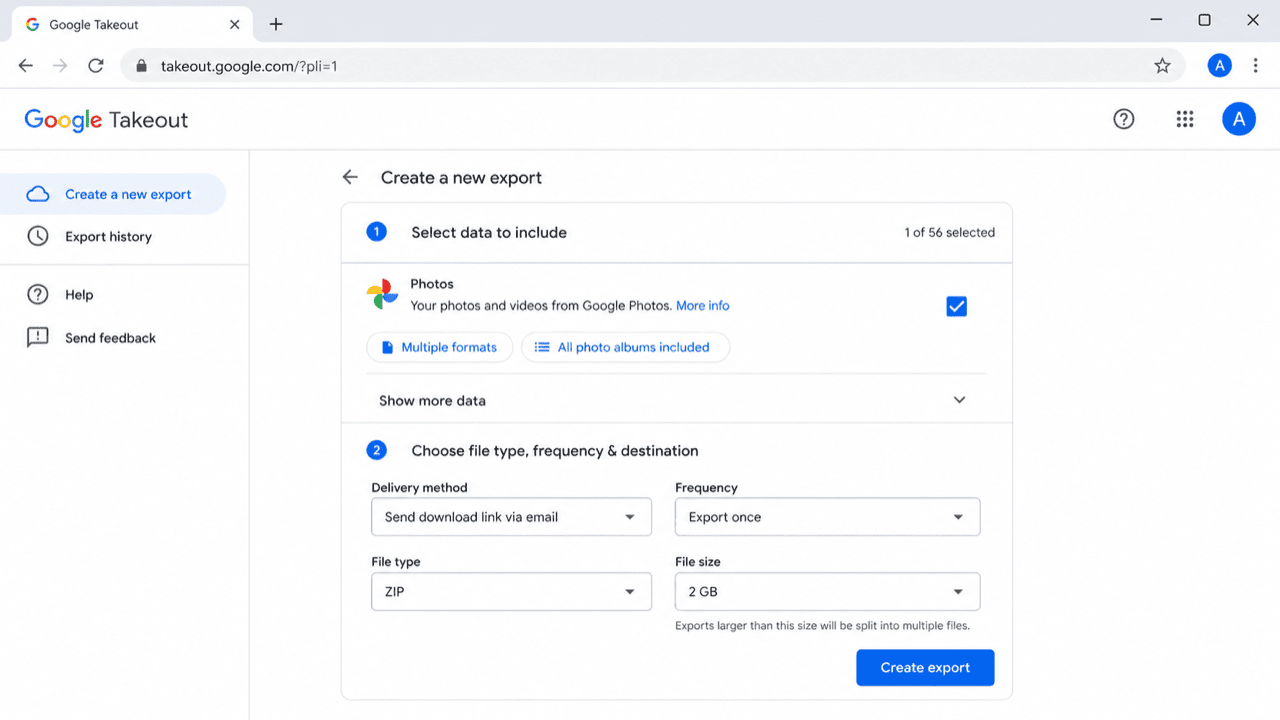
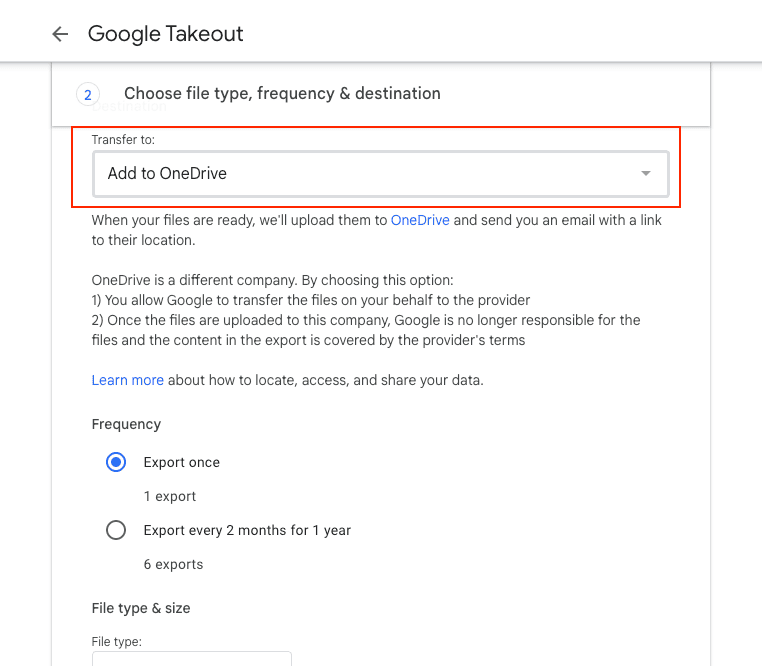
Open takeout.google.com, click Deselect all and tick Google Photos only (the All photo albums included button lets you leave some out). Under Choose file type, frequency & destination, keep the file type .zip and pick a file size of 2 GB or 10 GB. Then set the delivery method (labelled Delivery method or Transfer to, depending on the Takeout version) to Add to Drive, Add to Dropbox, Add to OneDrive or Add to Box and link the account when Google asks.
Takeout can take hours or days for a large library, and it emails you when every part has been
delivered. An export added to Drive is placed in a Takeout folder and counts toward your
Google storage, so check that the archives fit next to your photos; Dropbox, OneDrive and Box need room
for the full export on their side. Connect the account that received the export to CloudsLinker with
Add Cloud if it isn't connected yet — all four use the provider's own sign-in page.
Step 2: Add the Export as a Google Takeout
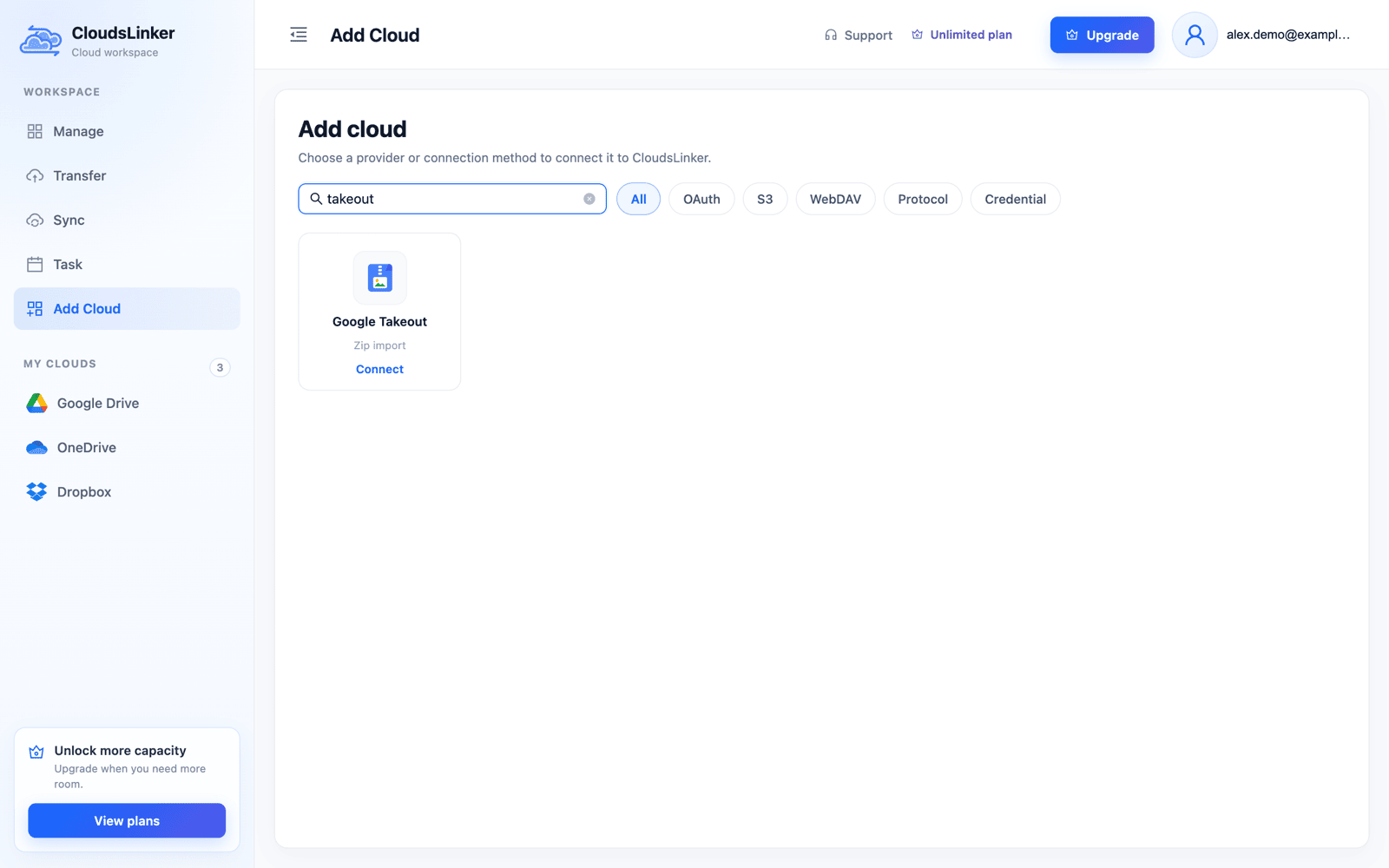
In CloudsLinker, open Add Cloud and choose Google Takeout; it is
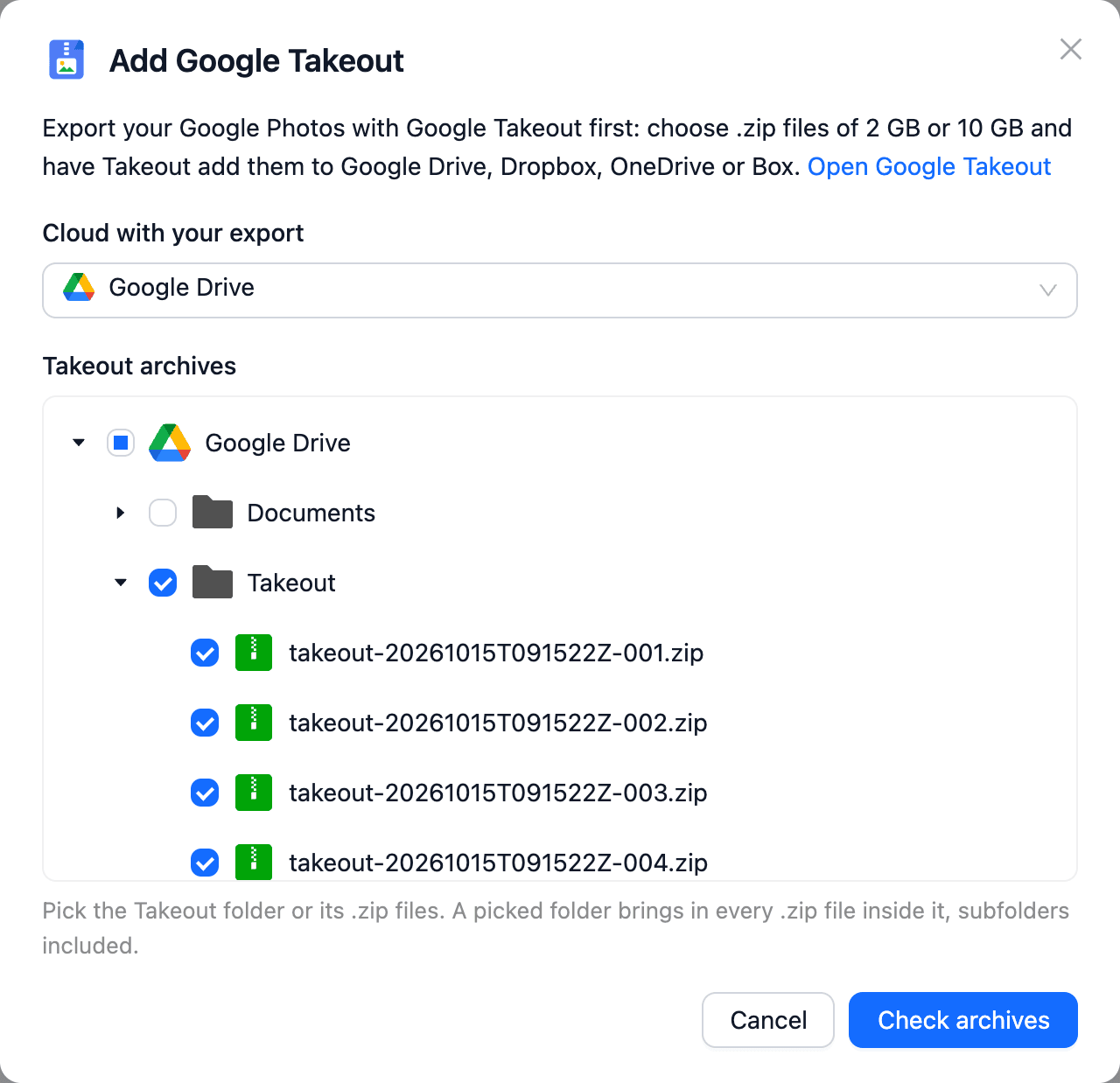
listed as Zip import. In the dialog, set Cloud with your export to the
account that holds the archives, then tick the Takeout folder in the tree below. A ticked
folder brings in every .zip inside it, subfolders included, so you don't have to select the parts one by
one. Click Check archives.
Step 3: Review the Albums and Add the Takeout
CloudsLinker reads the selected archives and shows what it found: the number of top-level folders (labelled Albums, year folders included), the number of files, the unpacked size, and each folder with its file count. Zips that can't be read — a .tgz part, an encrypted or damaged file — are listed in a warning and left out. Give the Takeout a name and click Add Takeout.
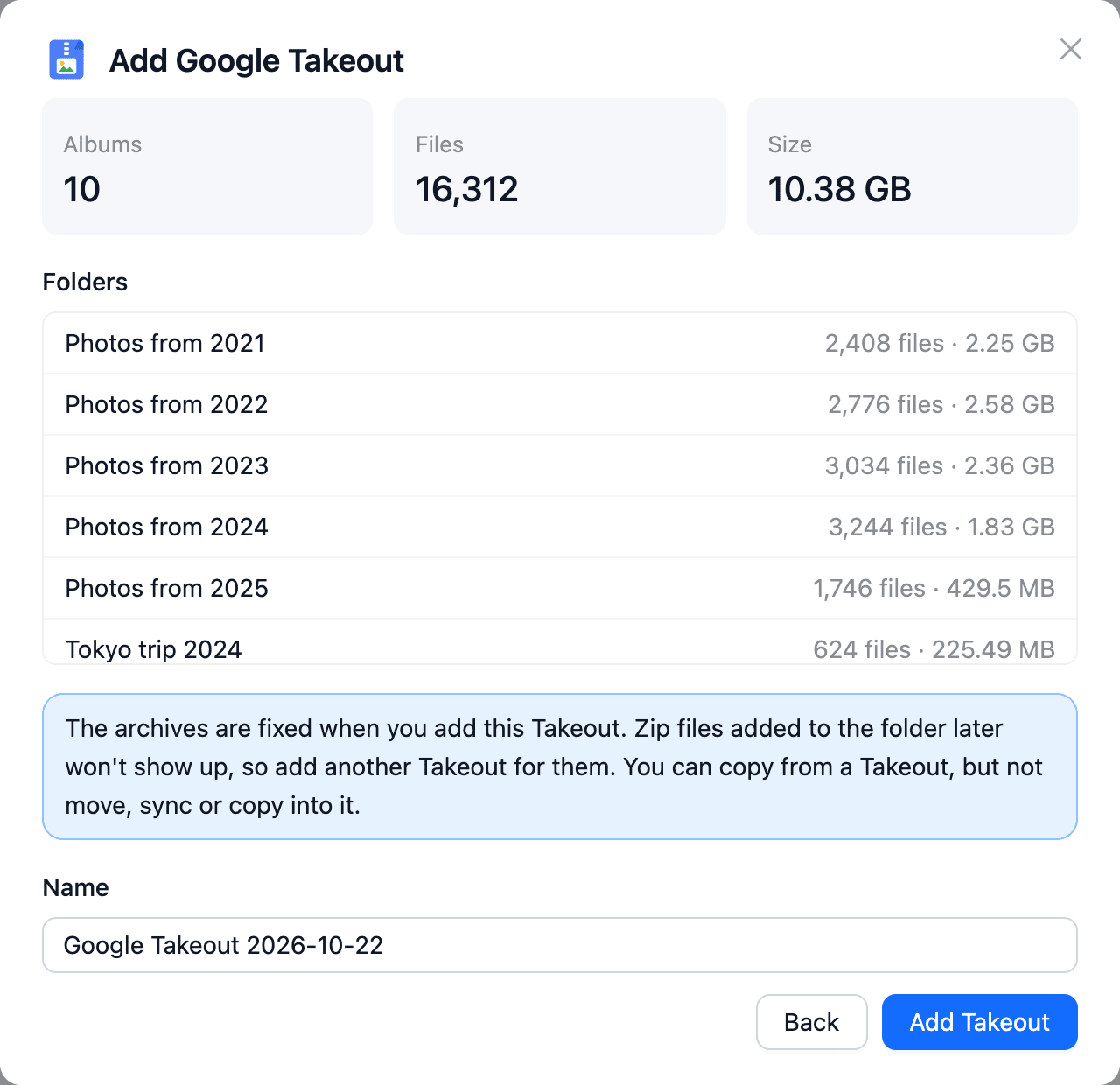
The new Takeout appears in the sidebar and opens like any other drive, with the year and album folders at the top level. The list of archives is fixed at this point: zips that arrive later need a second Takeout.
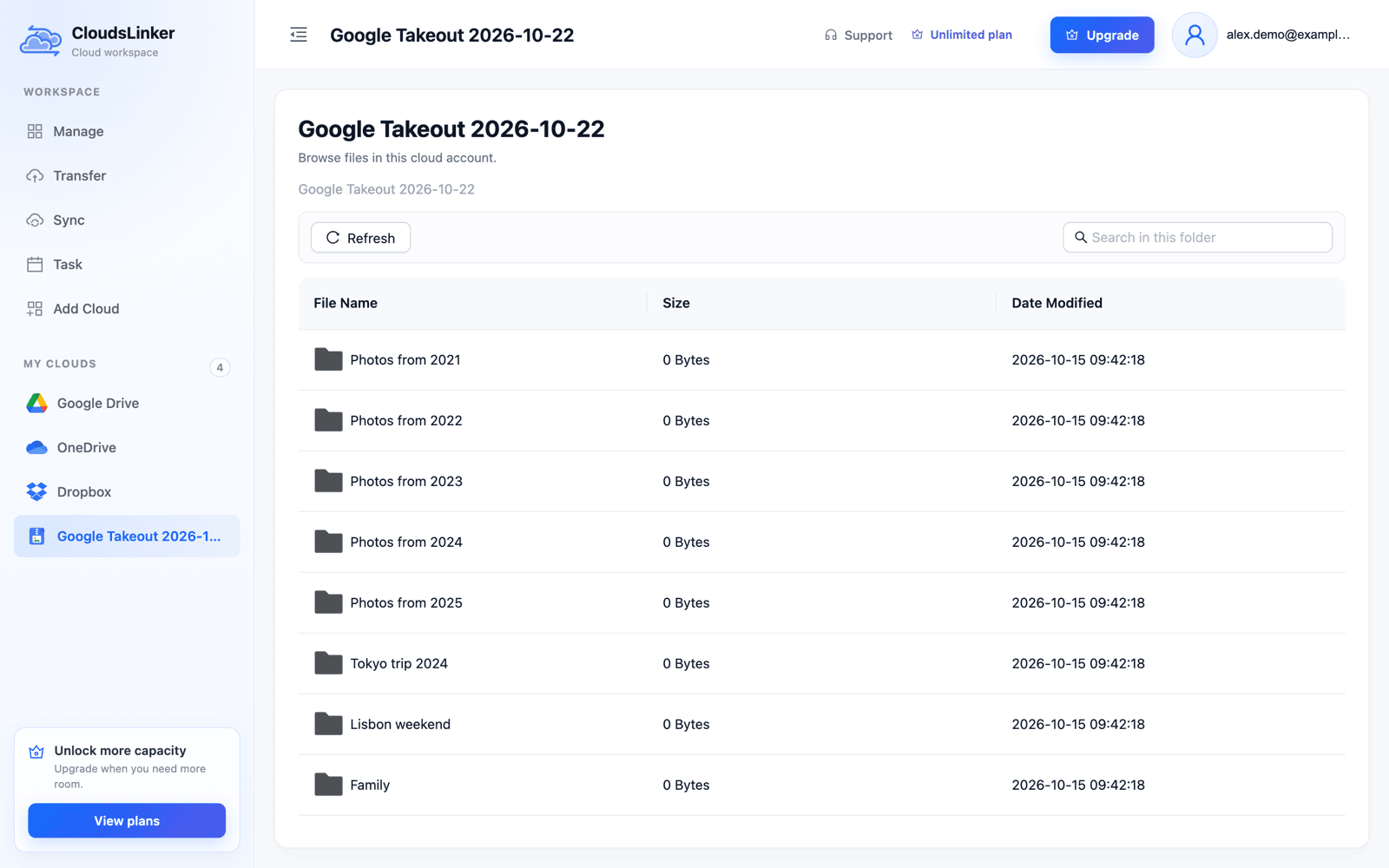
Step 4: Copy the Folders to Your Destination
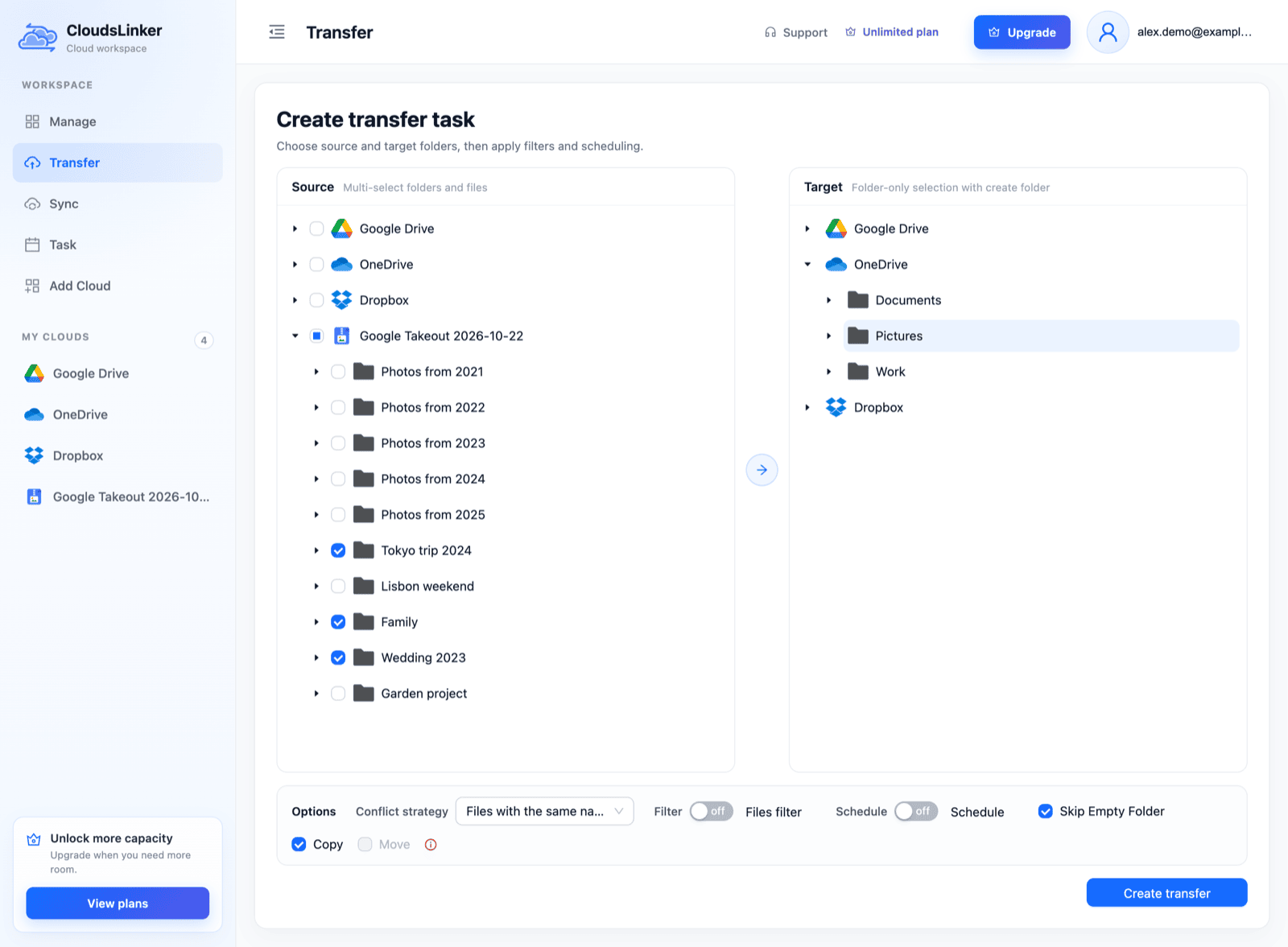
Open Transfer. In Source, expand the Takeout and tick the folders to copy; in Target, select a folder in the destination, or create one. A Takeout can only be copied from, so Copy is selected and Move is unavailable. Selecting folders places each one directly in the target folder; selecting the whole Takeout puts everything in a folder named after it. Click Create transfer.
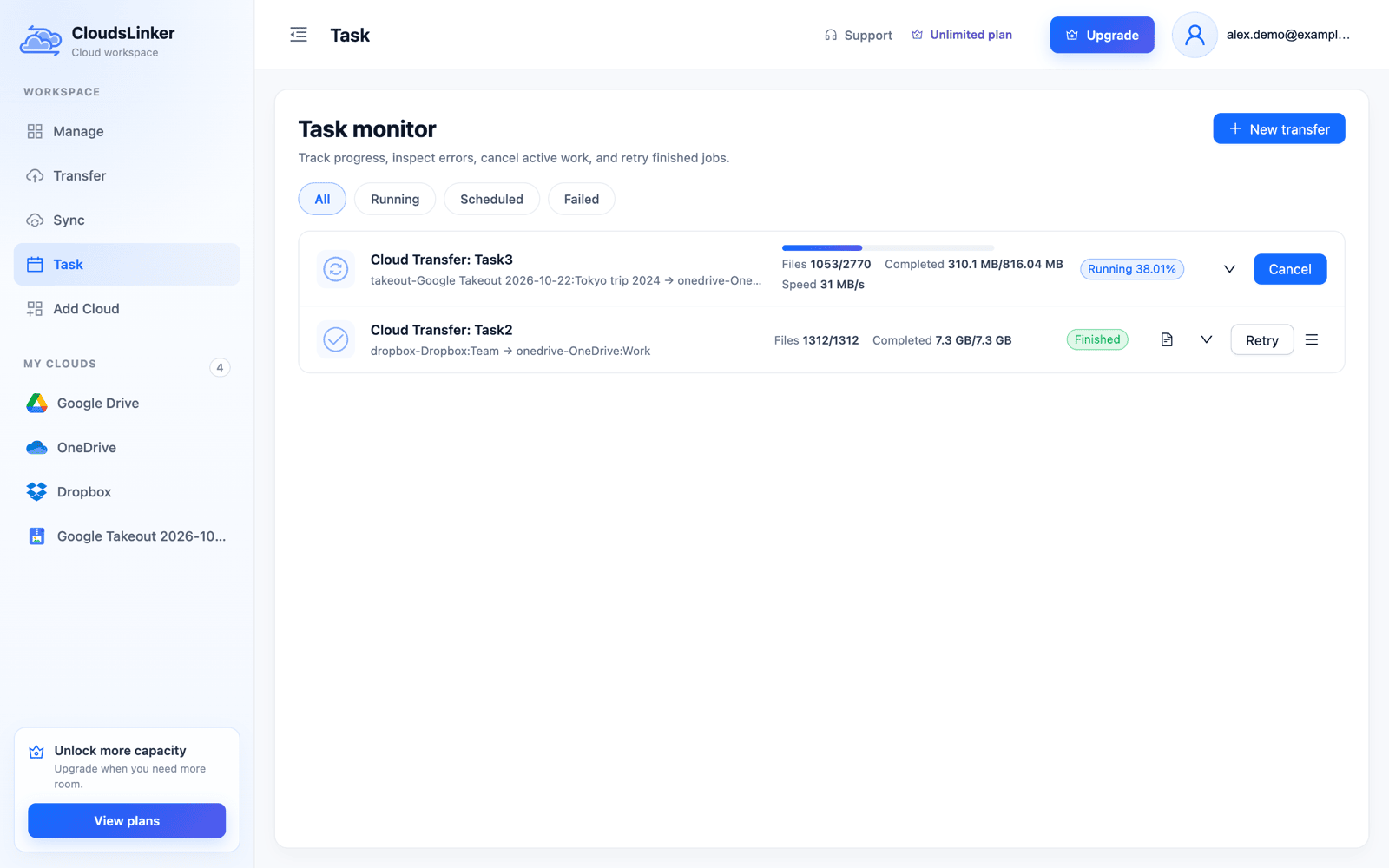
The copy runs on CloudsLinker's servers, so you can close the browser. Task monitor shows files and bytes done, speed, and the files in flight. Files already at the destination with the same size are skipped when you run the task again, which makes a second run after an interruption cheap.
Export in Dropbox, OneDrive or Box already? The destination can be the same account. A
Takeout delivered to OneDrive can be copied into OneDrive/Pictures, which turns the zips
into browsable folders in place; delete the zips afterwards to get the space back.
Route B: Download and Extract on a Computer
Downloading is the better choice when the destination is a disk — an external drive, a computer you back up locally — or when you have no Drive, Dropbox, OneDrive or Box account to receive the export.
- Request the export with Send download link via email and the largest size your tools handle comfortably; 10 GB parts mean fewer files to manage.
- Download every part from the email or from Manage exports before the links expire.
- Extract all parts into the same folder, so album folders split across zips merge back together. Use 7-Zip on Windows or The Unarchiver on macOS for parts larger than 4 GB; the built-in extractors are slow with them or stop with an error.
- Move the extracted
Google Photosfolder to its destination, or upload it with the destination's desktop app.
Plan disk space for both the zips and the extracted files at the same time — about twice the size of the export — or extract one part at a time and delete it afterwards.
What Arrives at the Destination
The table describes a copy made through Route A. A local extraction gives the same files, apart from the checksum step.
| Part of the export | After the copy |
|---|---|
| Photos and videos | Identical files, original quality, each verified against the zip's CRC-32 checksum |
| Year folders and album folders | Kept with their names; the outer Takeout/Google Photos/ folders are dropped |
| Capture date inside the photo (EXIF) | Unchanged, because the file is unchanged; photo apps that sort by it show the right date |
| File modified date | The date of the export, not the capture date |
.supplemental-metadata.json files |
Copied next to each photo as plain files; their dates, locations and descriptions are not applied to the photos |
Album metadata.json |
Copied inside the album folder |
archive_browser.html |
Left out |
| Empty album folders | Not created while Skip Empty Folder is on (the default) |
If dates matter for screenshots and saved images, keep the JSON files: tools such as exiftool can write
photoTakenTime back into the files later. If they don't, add a file filter that excludes
the json extension when you create the transfer.
Copy Years, Albums, or Both
Because album photos are stored twice in the export, copying the whole Takeout copies them twice. In a small test export we checked, 97 media files held only 52 different photos and videos. Decide what the destination is for before you start:
| Select | You get | Good for |
|---|---|---|
The Photos from YYYY folders |
Every photo once, sorted by year, no albums | A backup copy, or a destination with its own photo app (Synology Photos, Immich) |
| The album folders | Your albums as folders; photos in no album are missing | Sharing or browsing curated sets |
| Both, or the whole Takeout | Everything, with album photos stored twice | When storage and transfer volume are not a concern |
Transfer volume counts the unpacked size, duplicates included, so the first option is also the cheapest. You can copy the year folders now and a few albums later as separate tasks.
Frequently Asked Questions
Conclusion
For a whole Google Photos library, Takeout is still the complete export, and its zips don't need to touch your computer. Send the export to Drive, Dropbox, OneDrive or Box, add it as a Google Takeout in CloudsLinker, and copy the year folders, the album folders, or both to the destination. Download and extract locally only when the destination is a disk, or when you have no account at one of those four services. Either way, keep in mind that the JSON files hold the capture dates of files without embedded EXIF, and that album photos are stored twice.
Related: Google Takeout import, Google Photos, Google Photos to OneDrive, Google Photos to Synology NAS and Google Photos to Proton Drive.
Online Storage Services Supported by CloudsLinker
Transfer data between over 60 cloud services with CloudsLinker

OneDrive

Google Drive

Google Photos

Google Takeout

Shared Drive

OneDrive for Business

Dropbox

Box

Mega

pCloud

Yandex

ProtonDrive

AWS

GCS

iDrive

Storj

DigitalOcean

Wasabi

1fichier

PikPak

TeleBox

OpenDrive

Backblaze B2

Fastmail file

SharePoint

Nextcloud

ownCloud

Premiumize me

HiDrive

Put.io

Sugar Sync

SmugMug

Jottacloud

Seafile

Ftp

SFtp

NAS

WebDav

4shared

Icedrive

Cloudflare R2

Scaleway

Hetzner Object Storage

Synology C2 Object Storage

S3 Compatible

Doi

iCloud Drive

iCloud Photos

FileLU

Zoho WorkDrive

Telia Cloud / Sky

Drime

Filen

TeraBox

Internxt

Degoo

Gofile

Pixeldrain

Shade

Koofr
Didn' t find your cloud service? Be free to contact: [email protected]
Further Reading
Effortless FTP connect to google drive: Transfer Files in 3 Easy Ways
Learn More >
Google Photos to OneDrive: 3 Innovative Transfer Strategies
Learn More >
Google Photos to Proton Drive: 3 Effective Transfer Techniques
Learn More >