
Migrate, Sync and Back Up Infomaniak kDrive Without WebDAV
Move files between Infomaniak kDrive and Google Drive, OneDrive, Dropbox, Proton Drive or S3 storage. Paste an API token with the drive scope and pick a kDrive.
By CloudsLinker Team · Updated November 15, 2026
What is Infomaniak kDrive?
kDrive is the file storage product of Infomaniak, a Swiss hosting company that markets it as a sovereign alternative to Google Drive and OneDrive, with in-browser editing through OnlyOffice or Microsoft 365. It is sold in three ways, which matters because the limits differ: as part of the free my kSuite account (15 GB) and its paid sibling my kSuite+; as a standalone kDrive Solo, Team or Pro subscription; or inside kSuite for organisations (Free, Standard, Business, Enterprise). All of them accept files up to 1,000 GB each through the web app, the desktop app and the API. Version history ranges from 30 versions over 30 days on my kSuite to 200 versions over 365 days on kSuite Enterprise, and deleted files stay in the trash for at least 30 days — 365 days on every standalone kDrive plan. Each kDrive is split into a personal Private folder and a shared Common documents folder for the organisation, and one Infomaniak login can belong to several kDrives at once.
For third-party tools the important detail is how kDrive lets you in. WebDAV, the usual route, is not available on kSuite Free, kSuite Standard, my kSuite or my kSuite+ — which includes every free account. CloudsLinker therefore connects through Infomaniak's REST API with a personal API token that you create in the Infomaniak Manager and limit to the drive scope. The token works on every offer, the free 15 GB tier included, needs no app password, and can be deleted on its own at any time. After the token is verified, CloudsLinker lists the kDrives it can reach and you choose the one to bind, so an account that belongs to a personal kDrive and a company kDrive can connect each of them separately.
Key features of Infomaniak kDrive
Why connect Infomaniak kDrive to CloudsLinker
CloudsLinker talks to kDrive over the Infomaniak REST API using an API token with the drive scope. Each connection is bound to one kDrive and opens its Private folder. Transfers run on CloudsLinker's servers: files stream between kDrive and the other cloud without going through your computer, small files in a single request and files above 20 MB in parallel 20 MB chunks. Deleted items go to the kDrive trash, and overwriting a file keeps the previous content as a version, so a sync that goes wrong can be rolled back from kDrive itself.
What you can do with Infomaniak kDrive on CloudsLinker

API-token access where kDrive has no WebDAV
my kSuite, my kSuite+, kSuite Free and kSuite Standard cannot use WebDAV. A token with the drive scope connects all of them, so a free 15 GB kDrive can be migrated to Google Drive or OneDrive just like a paid one.
Chunked server-side uploads into kDrive
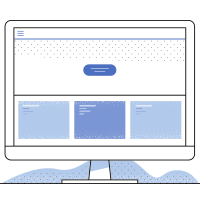
Files larger than 20 MB are uploaded to kDrive in 20 MB chunks, four at a time, from CloudsLinker's servers. Seeding a kDrive from Dropbox or Box is not limited by the upload speed of your own connection.

Scheduled copies with kDrive's own safety net
Schedule a nightly copy from SharePoint, Google Drive or a NAS into kDrive. Changed files are kept as kDrive versions and removed files land in the trash for 30 to 365 days depending on the plan.

Pick the kDrive, then filter what moves
Choose which kDrive a connection uses when a login belongs to several, then narrow a job by folder, extension, size or modified date before it starts.
Common Infomaniak kDrive transfer scenarios
Switch to a Swiss provider: Google Drive or OneDrive → kDrive
Individuals and teams leaving US platforms can copy a Google Drive or OneDrive account into kDrive folder by folder. Run the job once for the bulk, keep working in the old account, then run it again before the cut-over so only the files changed since the first pass are transferred.
Second copy of kDrive on Proton Drive, Wasabi or Backblaze B2
kDrive's trash and versions protect against mistakes, not against losing access to the account. A weekly CloudsLinker copy from kDrive to Proton Drive, Wasabi or Backblaze B2 gives an independent copy with a different provider.
Grow out of the free 15 GB: my kSuite → kDrive Solo or Team
When a personal my kSuite fills up and a new standalone kDrive is ordered, both show up under the same Infomaniak login. Connect each kDrive as its own cloud with one token and copy the Private folder from the old drive to the new one.
Bring a NAS or SFTP server into kDrive
Offices consolidating onto kSuite can copy shares from a Synology or QNAP NAS, or an SFTP server, into kDrive on a schedule. Files of up to 1,000 GB are accepted, so large project archives do not need to be split first.
Merge several clouds before a kSuite roll-out
Before moving a team to kSuite, collect what is scattered across Dropbox, Box and personal Google Drive accounts into one kDrive. Give each source its own top-level folder so nothing overwrites anything else, then reorganise inside kDrive.
How to connect Infomaniak kDrive to CloudsLinker
kDrive connects with an Infomaniak API token and a kDrive choice. No password is shared and no WebDAV access is needed.
Before you start
Create an API token in the Infomaniak Manager:
- Sign in at https://manager.infomaniak.com.
- Open the profile menu and go to Developer → API tokens (direct link: https://manager.infomaniak.com/v3/ng/accounts/token/list).
- Click Create a token.
- Leave Application on Default application.
- Under Scopes, select drive - Drive products. No other scope is needed.
- Create the token and copy it. Infomaniak shows it only once.
Security note: the token can read and write every kDrive your account can reach. Keep it out of shared documents and chats, and create one only for CloudsLinker so it can be revoked without affecting anything else.
Connection steps
- In CloudsLinker, open Add Cloud and choose kDrive.
- Paste the API token and click Verify & Choose kDrive. CloudsLinker checks the token with Infomaniak and lists the kDrives it can reach. A wrong token, or one without the
drivescope, is rejected here and nothing is saved. - Select the kDrive this connection should use. The connection name is filled in from the kDrive name; change it if you like.
- Confirm. CloudsLinker opens the Private folder of that kDrive once to make sure it is readable, then adds it to your cloud list.
To connect another kDrive, repeat the steps with the same token and select a different drive.
Revoke access
Delete the token under Developer → API tokens in the Infomaniak Manager. It stops working immediately. Remove the connection from CloudsLinker afterwards.
Infomaniak kDrive upload & download limits you should know
- Maximum file size: 1,000 GB per file via the web app, desktop app and API, on every offer.
- Files of unknown size: the kDrive API needs the file size before an upload starts. Items whose size the source cannot report in advance cannot be written to kDrive.
- Chunked upload: files above 20 MB are sent in 20 MB chunks, four in parallel. The API accepts chunks from 1 MB to 1 GB and up to 10,000 chunks per file, so the chunk size is raised automatically for very large files.
- Overwrites create versions: replacing an existing file keeps the old content as a version, and versions count toward the quota.
- Version history (versions / days): my kSuite 30 / 30; my kSuite+ 60 / 120; kDrive Solo and Team 100 / 60; kDrive Pro 200 / 120; kSuite Free 30 / 30; kSuite Standard 100 / 120; kSuite Business 200 / 180; kSuite Enterprise 200 / 365.
- Trash retention: at least 30 days; up to 60 on my kSuite+ and kSuite Standard, 180 on kSuite Business, 365 on kDrive Solo, Team, Pro and kSuite Enterprise.
- Daily bandwidth (indicative, per user): 200 GB on my kSuite, my kSuite+ and kSuite Free; 1,000 GB on kDrive Solo, Team, Pro and paid kSuite plans.
- Free storage: 15 GB with my kSuite.
- Visible area: a connection opens the Private folder of the token owner; Common documents is not included.
- WebDAV: not available on kSuite Free, kSuite Standard, my kSuite or my kSuite+. The API token method is unaffected.
- Share links with an expiry date: not available on every plan; this does not affect transfers.
Sources: Infomaniak — Manage kDrive storage (file size and bandwidth), Infomaniak — Restore a kDrive file to a previous version, Infomaniak — Manage kDrive file deletion, Infomaniak — Connect to kDrive via WebDAV, Infomaniak — my kSuite and kSuite Pro compared, Infomaniak — Manage kDrive storage on my kSuite, Rclone kDrive backend reference.
Infomaniak kDrive + CloudsLinker — Frequently Asked Questions
How do I create an Infomaniak API token for kDrive?
Which scopes does the token need?
drive. CloudsLinker uses it to list your kDrives and to read and write files. Scopes such as accounts or user_info are not required and should be left unselected.
Does this work with the free 15 GB my kSuite?
I have more than one kDrive. Which one gets connected?
Why do I only see my Private folder?
What is the maximum file size on kDrive?
What happens when a transfer overwrites a file that already exists on kDrive?
Are files deleted by a sync job gone for good?
Does the API token expire?
How do I revoke CloudsLinker's access?
Is CloudsLinker an official Infomaniak partner?
Conclusion
kDrive gives 15 GB for free, accepts files up to 1,000 GB and keeps deleted files for 30 to 365 days, but it only offers WebDAV on some plans. CloudsLinker connects with an Infomaniak API token limited to the drive scope, which works on every offer, lets you choose which kDrive to bind, and copies in either direction on the server side. Create the token, pick your kDrive and add the cloud on the other end.
Online storage services supported by CloudsLinker
Transfer data between over 62 cloud services with CloudsLinker

OneDrive

Google Drive

Google Photos

Google Takeout

Shared Drive

OneDrive for Business
Dropbox

Box

Mega

pCloud

Yandex

ProtonDrive

AWS
GCS
iDrive
Storj

DigitalOcean

Wasabi

1fichier

PikPak

TeleBox

OpenDrive

Backblaze B2

Fastmail file
SharePoint

Nextcloud

ownCloud

Premiumize me

HiDrive

Put.io

Sugar Sync

SmugMug

Jottacloud

Seafile
Ftp

SFtp

NAS

WebDav

4shared

Icedrive

Cloudflare R2

Scaleway

Hetzner Object Storage

Synology C2 Object Storage

S3 Compatible

Doi

iCloud Drive

iCloud Photos

FileLU

Zoho WorkDrive

Telia Cloud / Sky

Drime

Filen

TeraBox
Internxt

Degoo

Gofile

Pixeldrain

Shade

Koofr

Dosya
Infomaniak kDrive
Didn't find your cloud service? Contact: support@cloudslinker.com