SmugMug to Google Drive: Get Every Original Out, Gallery by Gallery
Leaving SmugMug or keeping a second copy? Get your originals into Google Drive with SmugMug's zip download, a desktop app, or a server-side copy — and what stays behind.
Introduction
SmugMug keeps every original you upload — JPEG, HEIC and, with a SmugMug Source subscription, RAW files up to 3 GB each — and hands them back when you ask. What it doesn't hand back is the rest of the service: galleries become plain folders, client sales stop, and share links die with the account. Photographers usually look for the exit when a subscription renewal comes up, when a client archive needs a second home, or when the portfolio has moved elsewhere and SmugMug is just storage.
Google Drive is a natural landing spot for that storage role: folders that mirror your SmugMug galleries, sharing that works with any Google account, and Google One plans from 100 GB to 30 TB. This guide answers the questions to settle before moving — what you can get out, how a SmugMug library maps to Drive, which of three routes fits, and what to check before cancelling.
Can You Get Your Originals Out of SmugMug?
Yes, all of them. SmugMug stores what you upload rather than a compressed copy — JPEG, GIF, PNG and HEIC photos up to 500 MB and 4 gigapixels each, and RAW files up to 3 GB each with a SmugMug Source subscription (SmugMug help). As the account owner you can download those originals at any time, and so can an application you authorize with full access.
Two details are easy to miss. Visitor downloads are a separate setting (Allow Downloads on the gallery's Photo Protection tab) and have nothing to do with your own access as the owner. And downloads include photos you have hidden with the Hide option, which is usually what you want for an archive but worth knowing if hidden photos were rejects.
How Does a SmugMug Library Map to Google Drive?
SmugMug now keeps photos in two layers. The Library holds everything you upload and stays private. The Site holds folders, which can contain more folders, and galleries, which show photos from the Library — publicly, unlisted, or only to you. Google Drive has only one container, the folder, so each SmugMug folder and gallery becomes a Drive folder of the same name:
| In SmugMug | In Google Drive |
|---|---|
Folder Clients |
Folder Clients |
Gallery Miller wedding 2025 |
Folder Clients/Miller wedding 2025 |
Photo MW25-0412.jpg, original 17 MB |
The same file, unchanged, with its embedded EXIF and IPTC data |
| Photo that is only in the Library, in no gallery | Not copied by API-based tools until it is added to a gallery |
| Title, caption and keywords typed into SmugMug | Not carried over — they are SmugMug fields, not part of the file |
| Gallery sort order, cover photo, theme | Not carried over; Drive sorts by name or date |
Photos that are only in the Library. Tools that read SmugMug through its API — CloudsLinker included — see the Site's folders and galleries; a photo that sits in the Library without being in any gallery doesn't appear. In the Library, set the Media Location filter to Only in Library to find them, select them and choose Add to Site Gallery (an Unlisted or Private gallery is fine) before copying. For a local download, More → Download on the same selection works too.
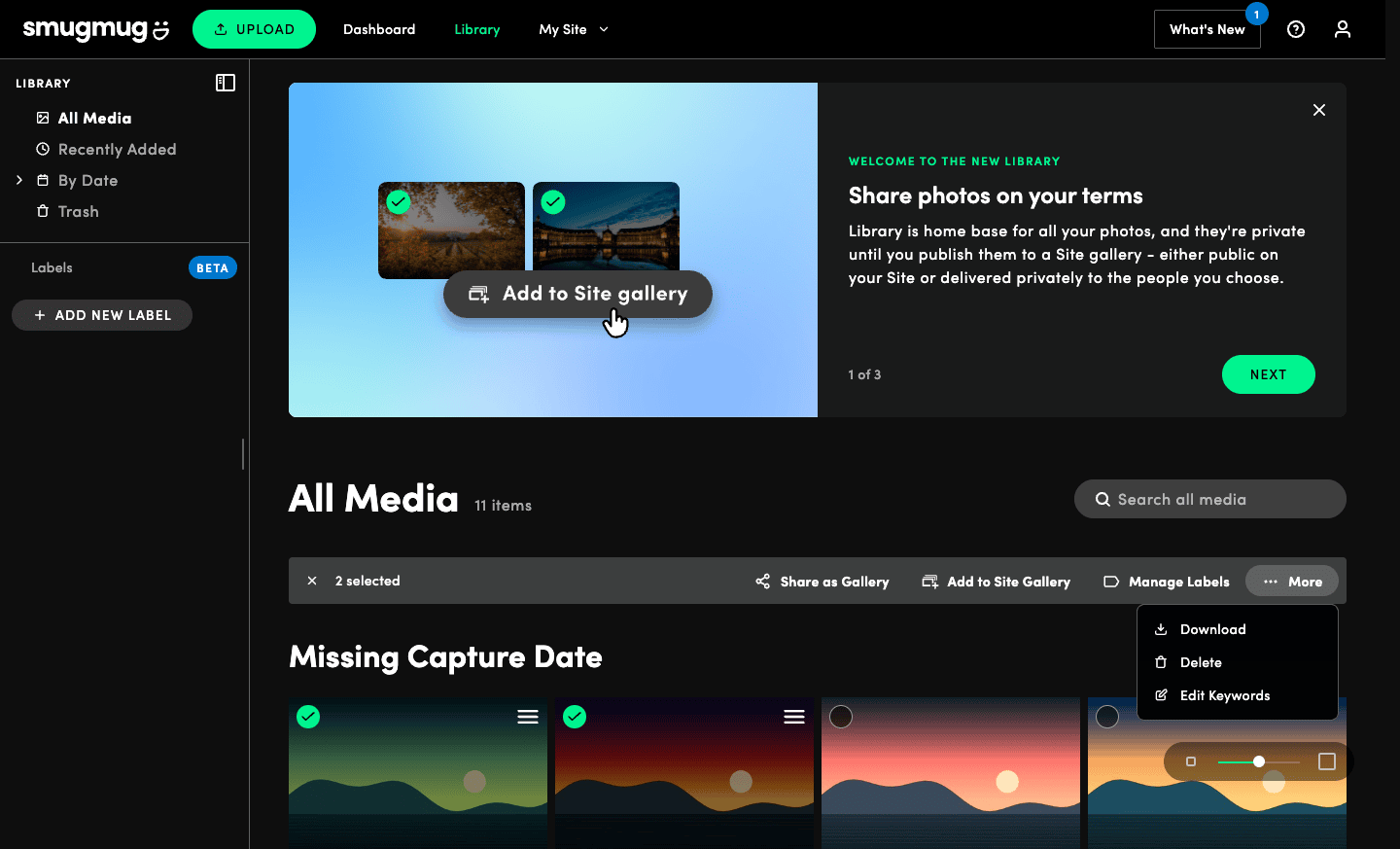
If you added captions and keywords in Lightroom before publishing, they are written into the file's IPTC data and survive the move. Anything typed only into SmugMug's web interface does not.
Which Way Out: Zip Download, Desktop App or Cloud Copy?
| Route | Suits | Needs |
|---|---|---|
| SmugMug zip download | A few galleries | One request per gallery; local disk; manual upload to Drive |
| Desktop downloader (Folio, WinMug) | Whole libraries, if you have the disk space | Disk for the full library; Drive for desktop to upload it |
| CloudsLinker | Whole libraries without a local copy | A Google Drive plan with room for the library |
SmugMug's own zip download
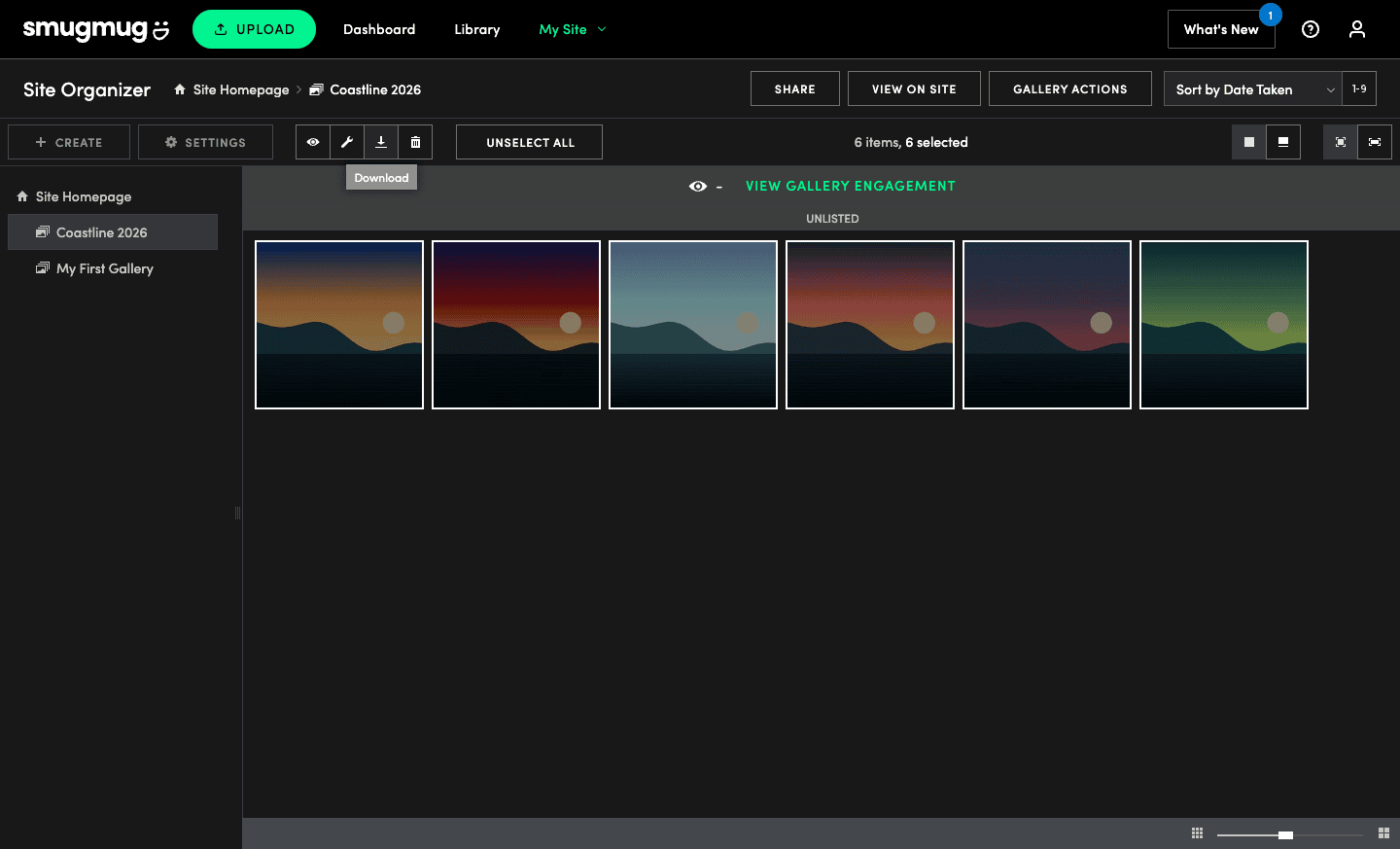
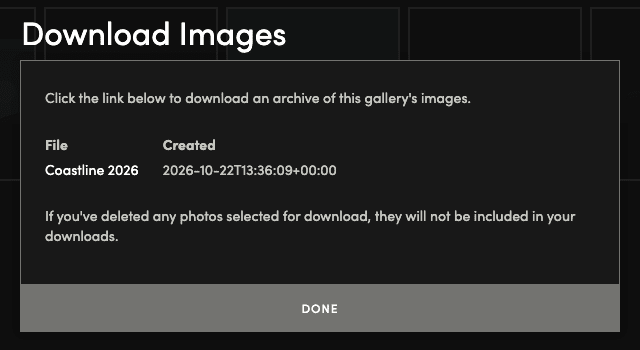
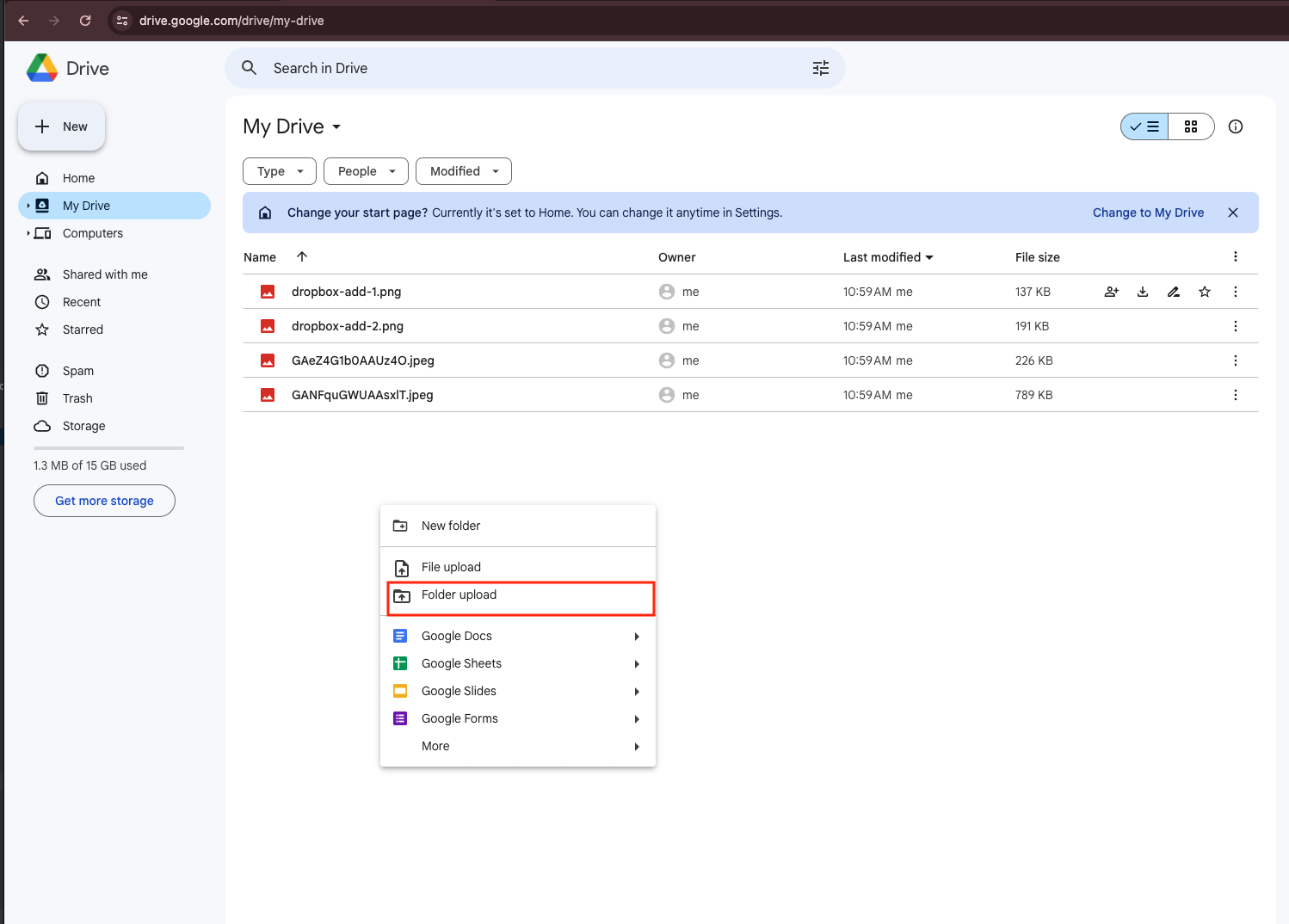
As the owner, open My Site → Site Organizer, select a gallery, click Select All and then the Download icon in the toolbar. SmugMug prepares an archive of the gallery's originals and shows it in a Download Images dialog; click the file name to download the .zip (SmugMug help). Photos that are only in the Library are downloaded from the Library instead (More → Download). Extract the zip and upload the folder to Google Drive in a browser or through Drive for desktop. One gallery per request makes this practical for a handful of galleries, not for a decade of client work.
A desktop downloader
SmugMug's help center lists third-party apps that download a whole library at original quality, including Folio on macOS and WinMug on Windows (SmugMug's list). They recreate the folder and gallery tree on your disk; from there, Google Drive for desktop uploads it in the background. The cost is disk space — the whole library has to fit locally — and upload time over your home connection.
A server-side copy with CloudsLinker
CloudsLinker reads your Site's folders and galleries through SmugMug's API with read-only access and writes into Google Drive from its own servers, so neither your disk nor your upload speed is involved. It fetches each image's original file, which SmugMug publishes together with an MD5 checksum.
Step 1: Connect SmugMug (Read-Only)
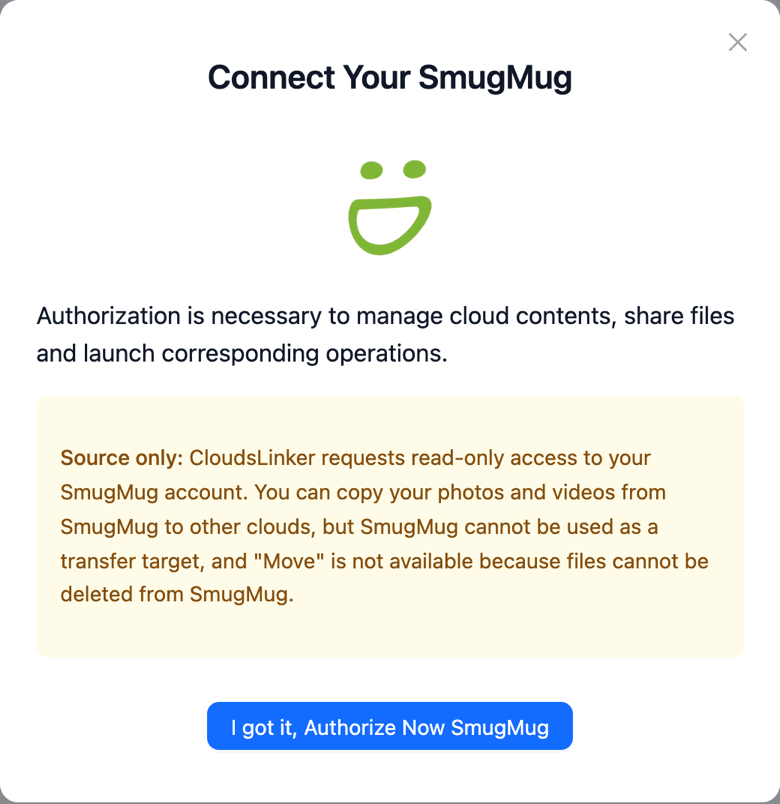
Click Add Cloud and choose SmugMug. The dialog notes that SmugMug is source only: CloudsLinker requests read-only access, so files can be copied out of SmugMug but never written to or deleted from it. Click I got it, Authorize Now SmugMug and approve the request on SmugMug's own page. SmugMug asks for full access because private galleries and originals are not visible otherwise; the permission level stays read.
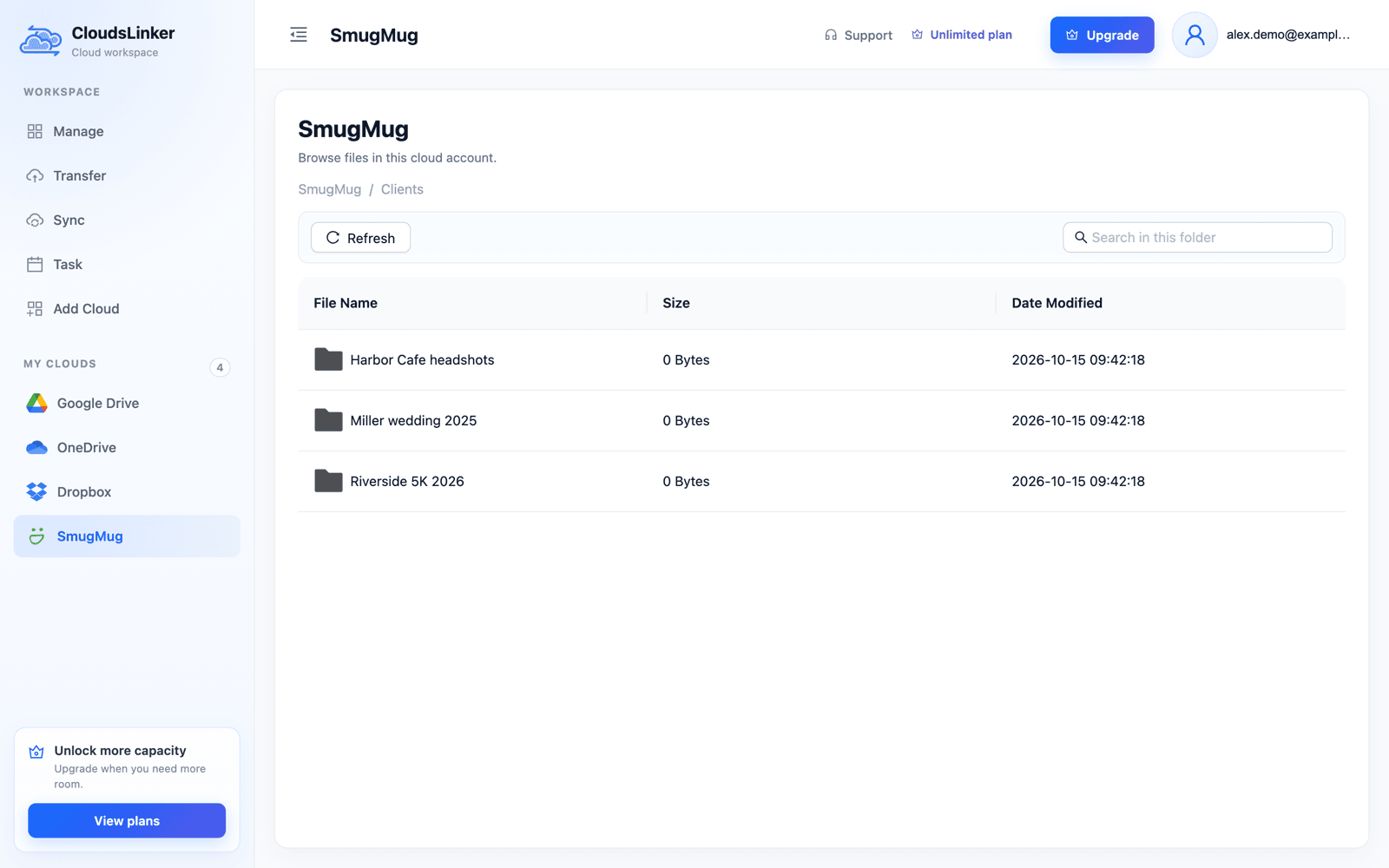
Once connected, SmugMug appears under your clouds and opens like any drive: your folders at the top, galleries inside them — the same tree as Site Organizer. Photos that are only in the Library are not listed; add them to a gallery first.
Step 2: Connect Google Drive
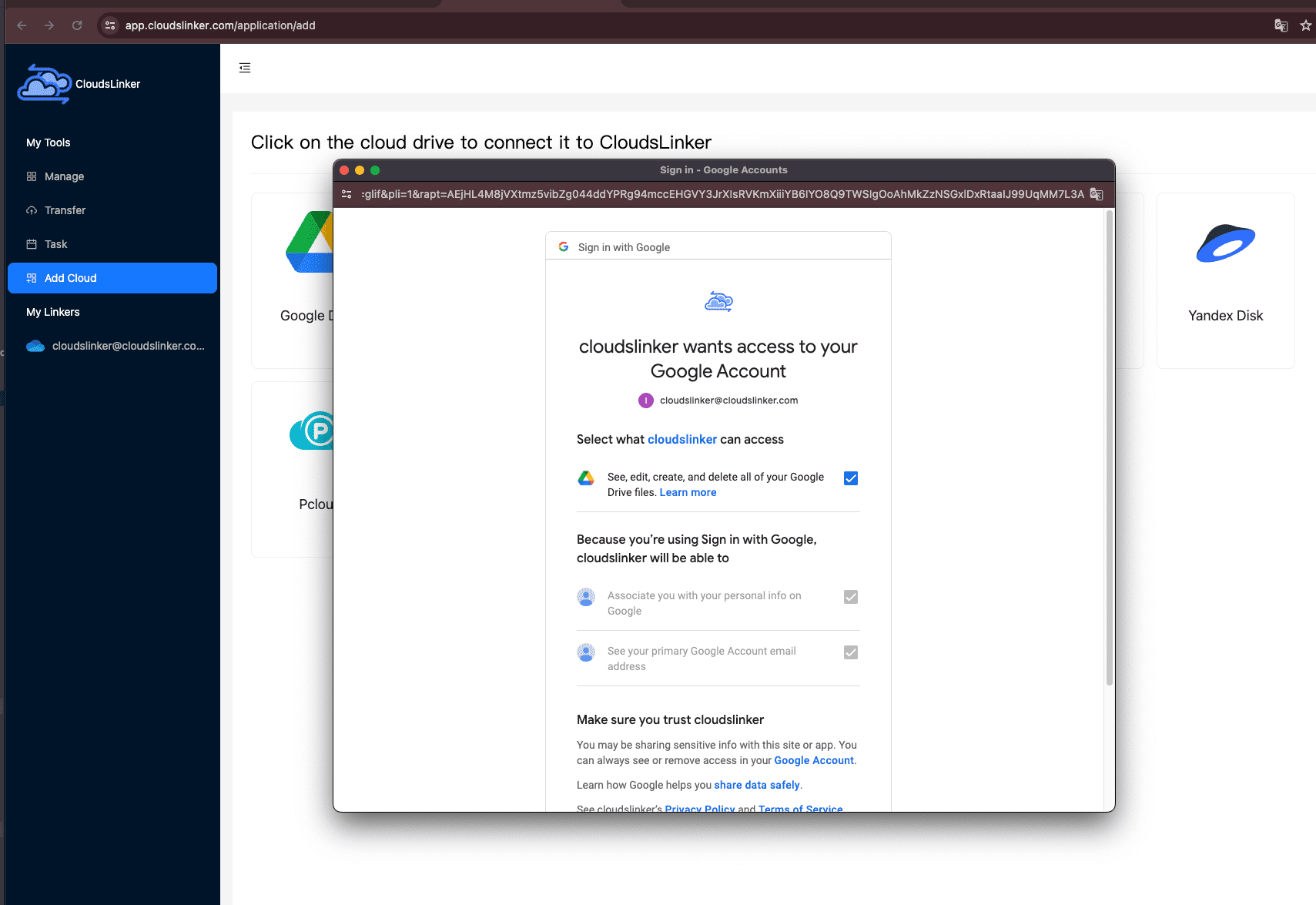
Click Add Cloud, choose Google Drive and sign in on Google's page at
accounts.google.com. Before starting a large copy, check the plan: the free 15 GB is shared
with Gmail and Google Photos, and Google One plans run from 100 GB to 30 TB.
Step 3: Choose Folders and a Drive Target
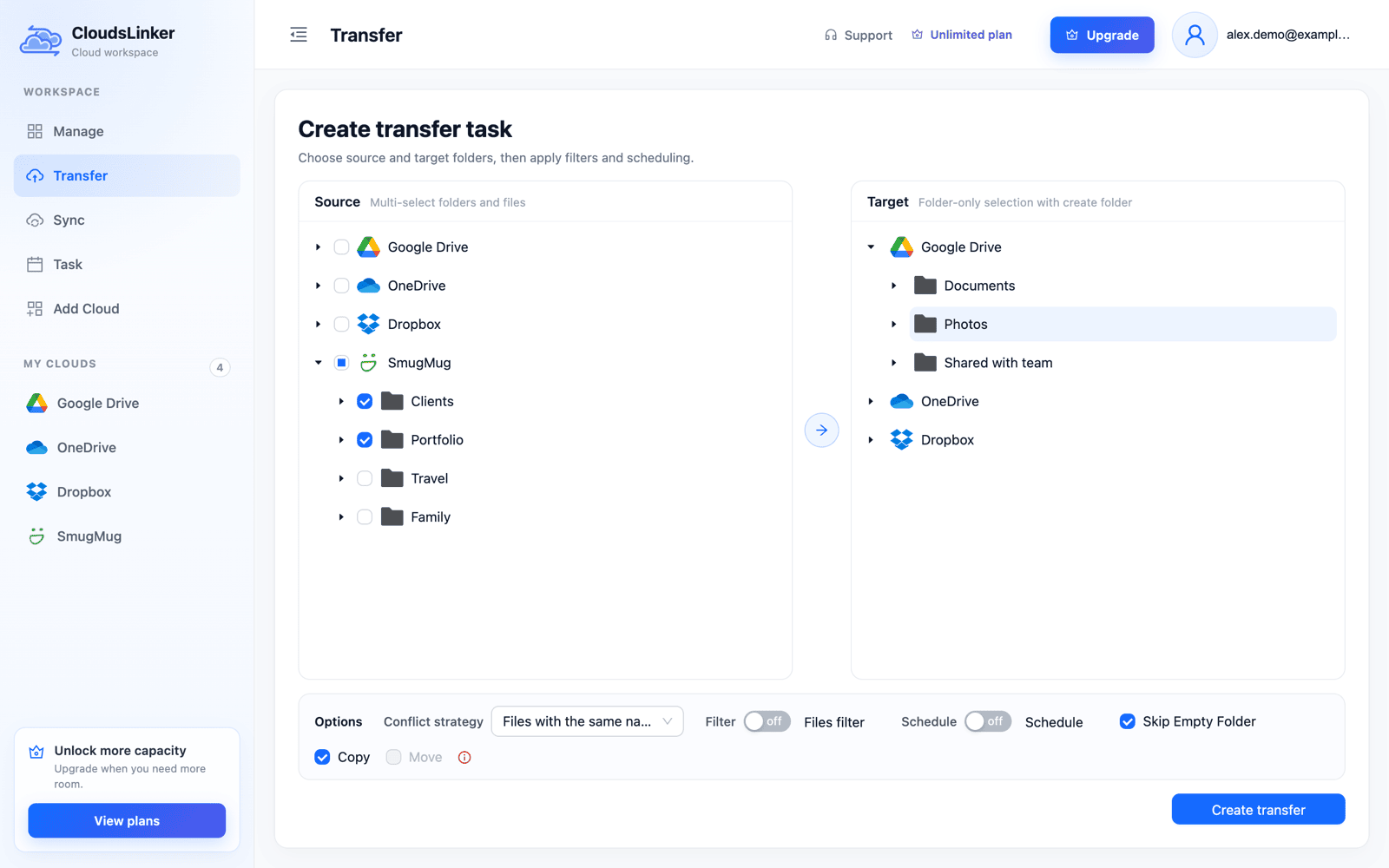
Open Transfer. In Source, expand SmugMug and tick the folders or galleries to copy; in Target, pick a Google Drive folder or create one. Because CloudsLinker cannot delete anything from SmugMug, Copy is selected and Move is greyed out. Size or file-type filters can leave out videos or RAW files if you only want JPEGs in Drive.
Step 4: Start and Monitor the Copy
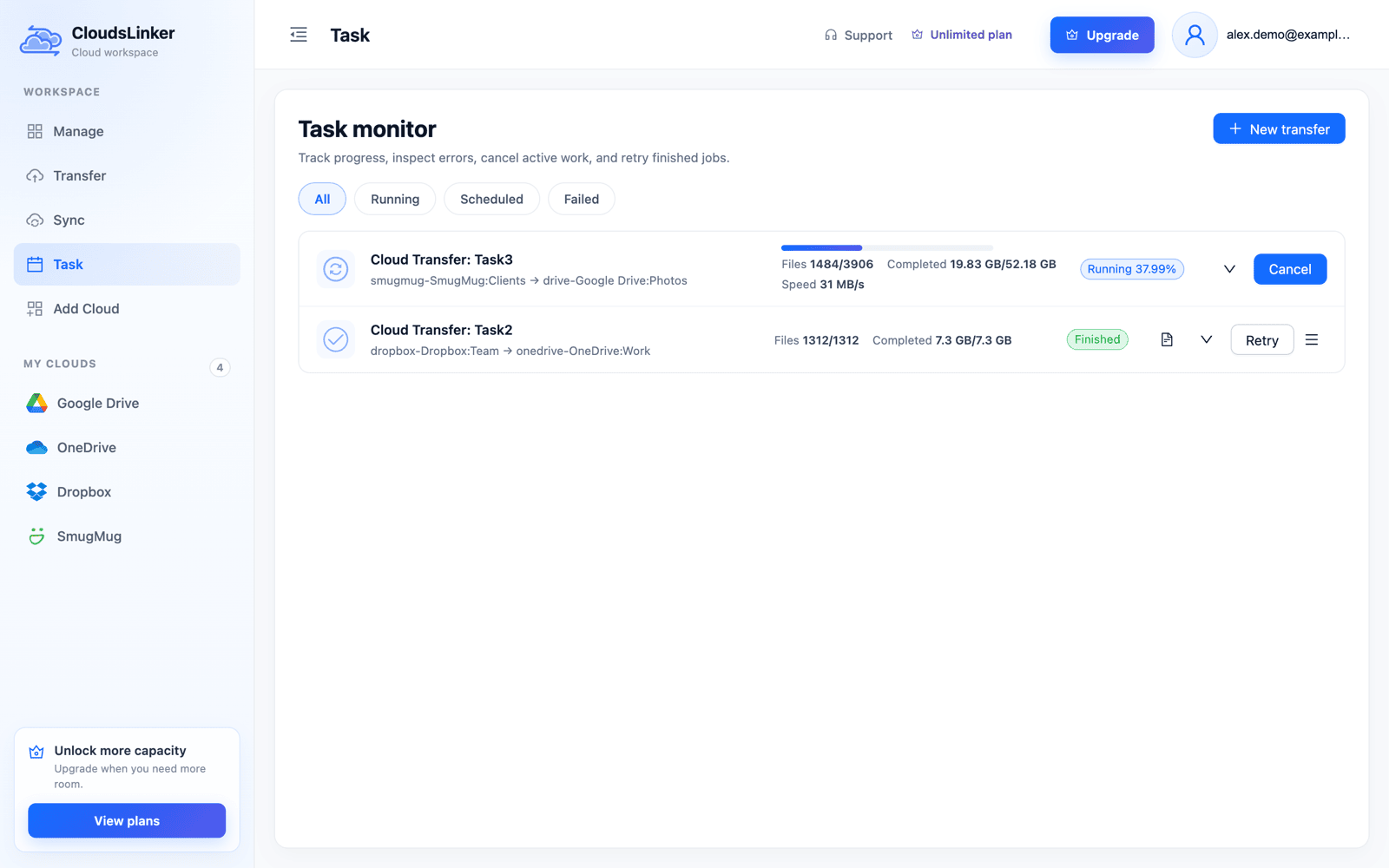
Click Create transfer. Task monitor shows files and bytes done and the speed, and the task keeps running after you close the browser. Google limits each account to 750 GB of uploads per day, so a multi-terabyte library spreads over several days; split it into tasks by top-level folder to make progress easier to follow.
What Doesn't Come With the Photos?
Whichever route you take, these stay in SmugMug and disappear with the account:
- Titles, captions and keywords typed into SmugMug — export them separately if they matter, or rely on the IPTC data written by your editing software.
- Galleries as web pages: themes, cover photos, sort order and the portfolio site itself. Google Drive shows folders and a file grid.
- Client features: passwords on galleries, proofing, print and download sales, and order history.
- Share links and the custom domain: every link you have sent points at SmugMug.
- Lightroom's SmugMug publish service: published collections stop syncing once the account closes.
What to Check Before You Cancel SmugMug
- Check the Library. In SmugMug's Library, set Media Location to Only in Library; anything listed there is not in a gallery, so add it to one or download it before relying on the copy.
- Count per gallery. Compare the number of files in a few large galleries on both sides, including one with videos and one with hidden photos.
- Open a sample of originals in Drive — a RAW file if you store them, a long video, a panorama — and check dimensions and file size against SmugMug.
- Export what isn't a photo: client lists, order history, and any captions you need.
- Replace live links: create Drive share links for galleries clients still use, and update your website and email signature.
- Revoke access: remove the SmugMug connection from CloudsLinker and the authorization from your SmugMug account settings.
- Only then cancel, and keep the cancellation confirmation. Don't count on SmugMug keeping the photos once the account is closed.
Frequently Asked Questions
Conclusion
For a handful of galleries, SmugMug's own download is enough: a zip archive of originals per gallery, or a selection from the Library. For a library of hundreds of galleries, a desktop downloader such as Folio or WinMug avoids the clicking but still needs a disk large enough to hold everything. CloudsLinker copies the originals from SmugMug into Google Drive on its own servers, folder by folder, with read-only access to SmugMug — nothing on SmugMug is changed or deleted. Photos that only live in SmugMug's Library need to be added to a Site gallery first, because the API that tools like CloudsLinker use sees folders and galleries only. Whichever you pick, export client and order records and replace share links before the account closes.
Related: SmugMug connection notes, Google Drive, and moving a Google Photos library with Takeout.
Online Storage Services Supported by CloudsLinker
Transfer data between over 60 cloud services with CloudsLinker

OneDrive

Google Drive

Google Photos

Google Takeout

Shared Drive

OneDrive for Business

Dropbox

Box

Mega

pCloud

Yandex

ProtonDrive

AWS

GCS

iDrive

Storj

DigitalOcean

Wasabi

1fichier

PikPak

TeleBox

OpenDrive

Backblaze B2

Fastmail file

SharePoint

Nextcloud

ownCloud

Premiumize me

HiDrive

Put.io

Sugar Sync

SmugMug

Jottacloud

Seafile

Ftp

SFtp

NAS

WebDav

4shared

Icedrive

Cloudflare R2

Scaleway

Hetzner Object Storage

Synology C2 Object Storage

S3 Compatible

Doi

iCloud Drive

iCloud Photos

FileLU

Zoho WorkDrive

Telia Cloud / Sky

Drime

Filen

TeraBox

Internxt

Degoo

Gofile

Pixeldrain

Shade

Koofr
Didn' t find your cloud service? Be free to contact: [email protected]
Further Reading
Effortless FTP connect to google drive: Transfer Files in 3 Easy Ways
Learn More >
Google Photos to OneDrive: 3 Innovative Transfer Strategies
Learn More >
Google Photos to Proton Drive: 3 Effective Transfer Techniques
Learn More >