From S3 Buckets to Searchable Footage: Ingest AWS S3 Media into Shade
Move media from AWS S3 buckets into Shade's AI-indexed drives — plan the one-time egress cost, connect by access key and Drive ID, transfer server-side.
Introduction
Shade turns a pile of footage into a searchable library: every file that lands in a drive gets AI-indexed for visual search, auto-tagging and in-browser preview, at $20 per seat with 500 GB of active storage each. An S3 bucket is the opposite kind of storage — cheap, durable, and completely opaque, a place where dailies and project archives accumulate as object keys nobody can browse. Production teams usually run into this exact seam: the material sits in S3 because that's where uploads landed, but editors need to find shots, not list objects. Moving media into Shade fixes the findability problem; the one number to plan around is AWS egress — data leaving S3 bills at about $0.09/GB, a one-time toll of roughly $85 per terabyte. Both methods below pay it once, not twice.
AWS S3 is Amazon's object storage: durable, cheap to keep (Standard runs about $0.023/GB/month), and built for programmatic access rather than browsing. Objects up to 5 TB, organized by key prefixes, with egress billed at ~$0.09/GB.
- ~$23/TB/month Standard storage
- 5 TB maximum object size
- Egress ~$0.09/GB (first 100 GB/mo free)
- Access via IAM keys; no human-friendly browsing
Shade is a media workspace for production teams: drives whose contents are AI-indexed for visual search and auto-tagging, previews in the browser, and review workflows. $20 per seat per month with 500 GB active storage per seat, pooled team-wide.
- $20/seat/mo; 500 GB active storage per seat
- AI visual search, auto-tagging, previews
- Unlimited drives; up to 15 seats + 150 guests
- SOC 2 and TPN; API key + Drive ID access
| Feature | AWS S3 | Shade |
|---|---|---|
| Purpose | Durable object archive | Searchable working media library |
| Findability | Key listings only | AI visual search, tags, previews |
| Pricing | ~$0.023/GB/mo + $0.09/GB egress | $20/seat/mo, 500 GB active per seat |
| Max single file | 5 TB per object | No published cap; production files typical |
| Team access | IAM policies per user/role | Seats + guest reviewers (up to 150) |
| Connection in CloudsLinker | Access Key + Secret Key + Region | API key + Drive ID |
Sources: AWS: S3 pricing, Shade: pricing.
Price the egress before anything else: multiply the ingest size by ~$0.09/GB and decide whether the whole bucket really needs to become searchable — usually only the working material does. In IAM, create a dedicated user with a read-only policy scoped to the media bucket and generate an access key for it; note the bucket's region. On the Shade side, create (or pick) the destination drive, then copy its Drive ID from the drive settings and generate an API key. Finally, sanity-check the team's active-storage pool — 500 GB per seat — against the planned ingest so the job doesn't land against a full quota.
Method 1: S3 Client Download and Web Upload
Step 1: Download from the bucket with an S3 client
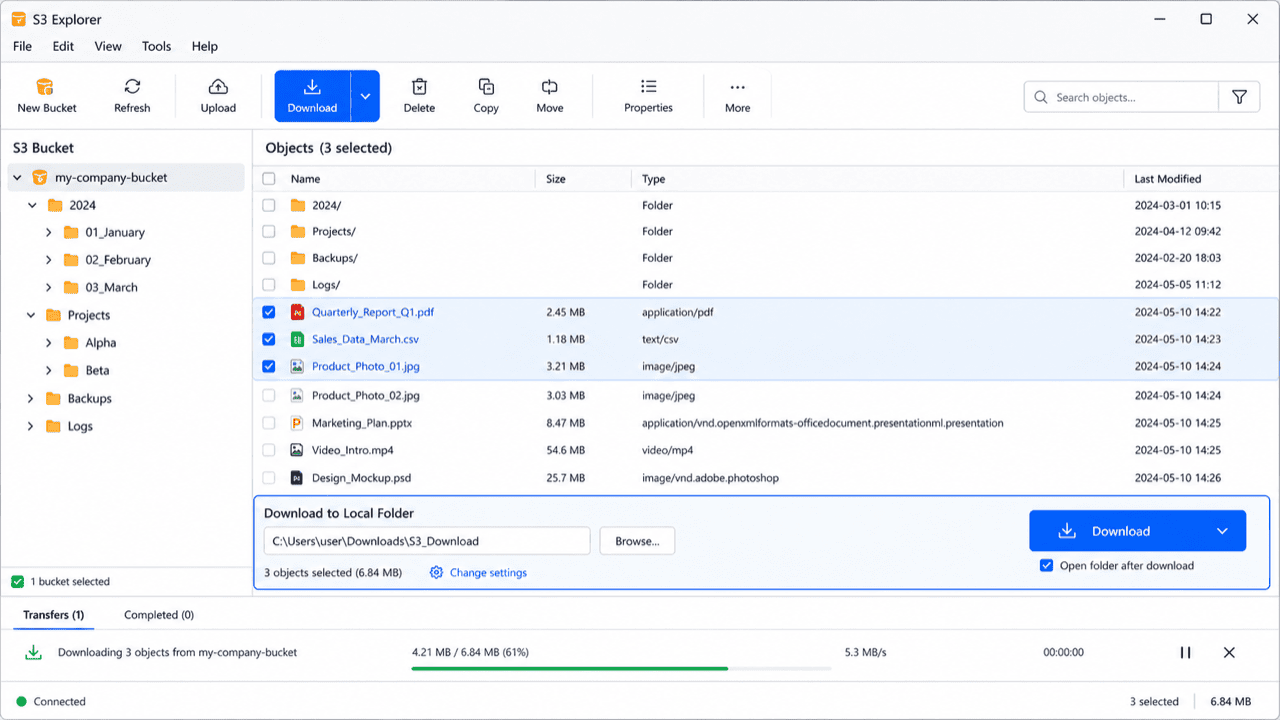
Connect a desktop S3 client — Cyberduck is free — with the access key and region, browse to the prefixes you need and download them locally. Egress billing starts here: every byte downloaded is metered by AWS regardless of what happens next.
Step 2: Upload into the Shade drive
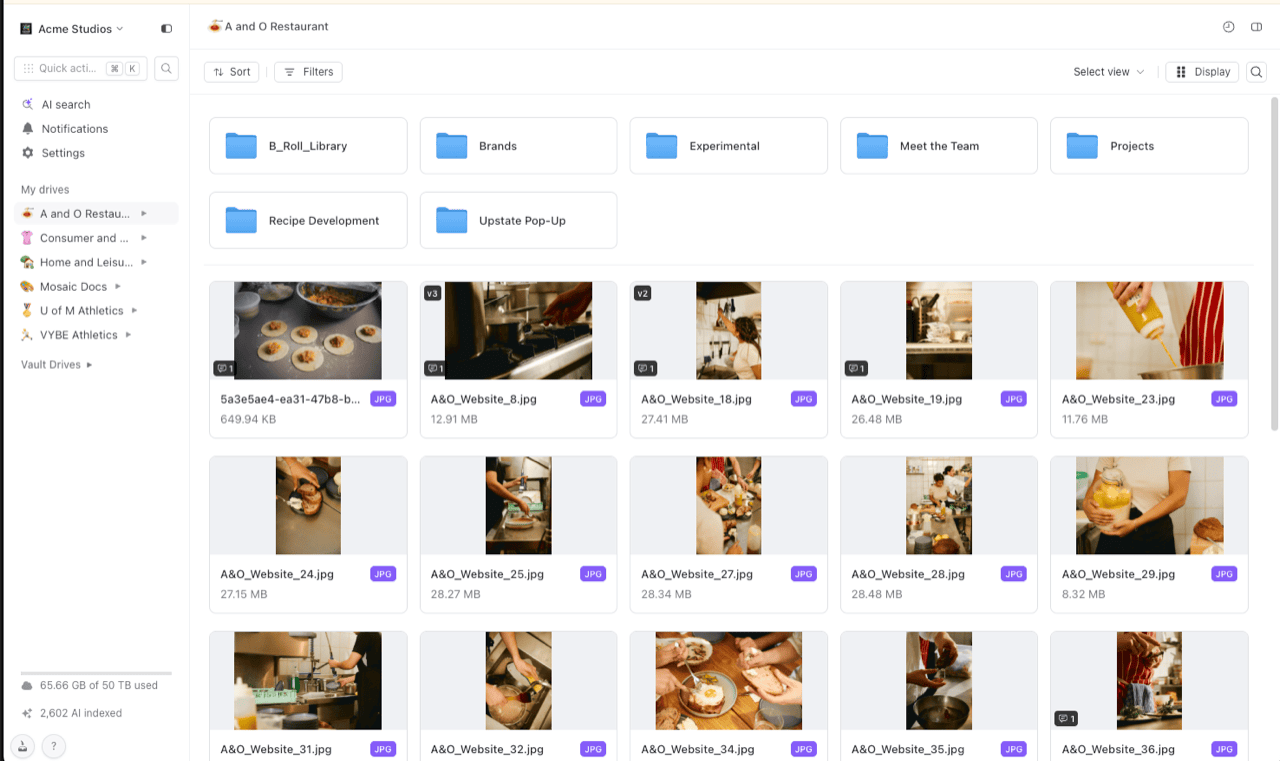
In Shade's web app, open the destination drive and folder, then drag the downloaded material in. Indexing starts as files land — the sidebar's AI-indexed counter ticks up as previews and search data are generated.
Fine for a reel's worth of clips. For a multi-hundred-GB dailies archive, the local staging disk, the double transfer time, and a workstation pinned to the job for hours make this the fallback, not the plan.
Method 2: Ingest S3 into Shade in the Cloud
Bucket to indexed drive without a staging disk
CloudsLinker reads the bucket with a scoped IAM key and writes into the target Shade drive by API key and Drive ID, server to server — no workstation staging terabytes of footage, and S3's prefix structure arrives as a browsable folder tree that Shade indexes on landing. AWS egress is the same either way; the hours of local shuttling are not.
Step 1: Connect AWS S3
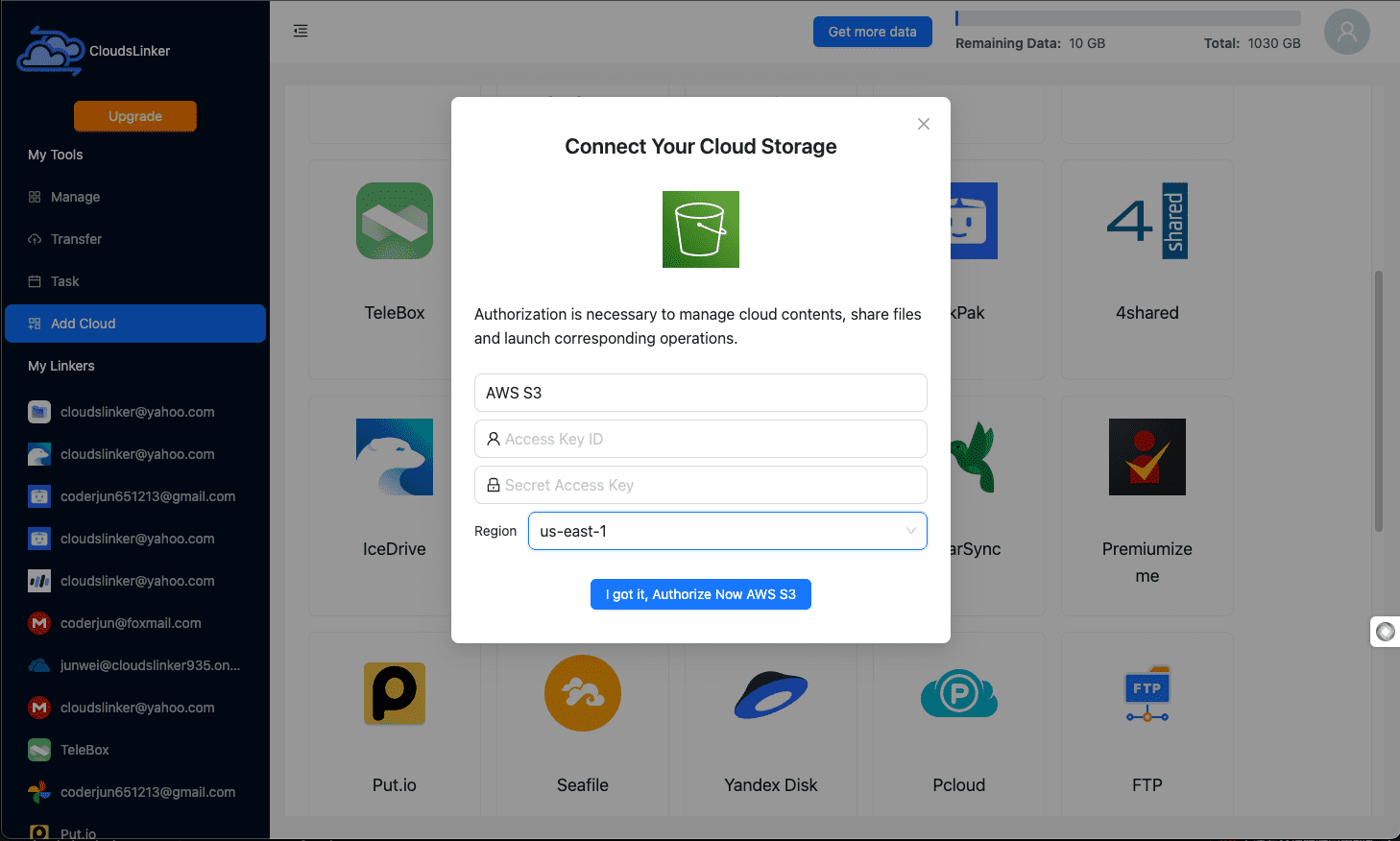
Click Add Cloud → AWS S3. Enter a display name, the Access Key and Secret Key of the read-only IAM user, and the bucket's region. The key never needs more than read scope for this job.
Step 2: Connect Shade
Click Add Cloud → Shade. Paste the API key and the Drive ID copied from the destination drive's settings. One connection maps to one drive — add another connection later if a second drive needs its own ingest.
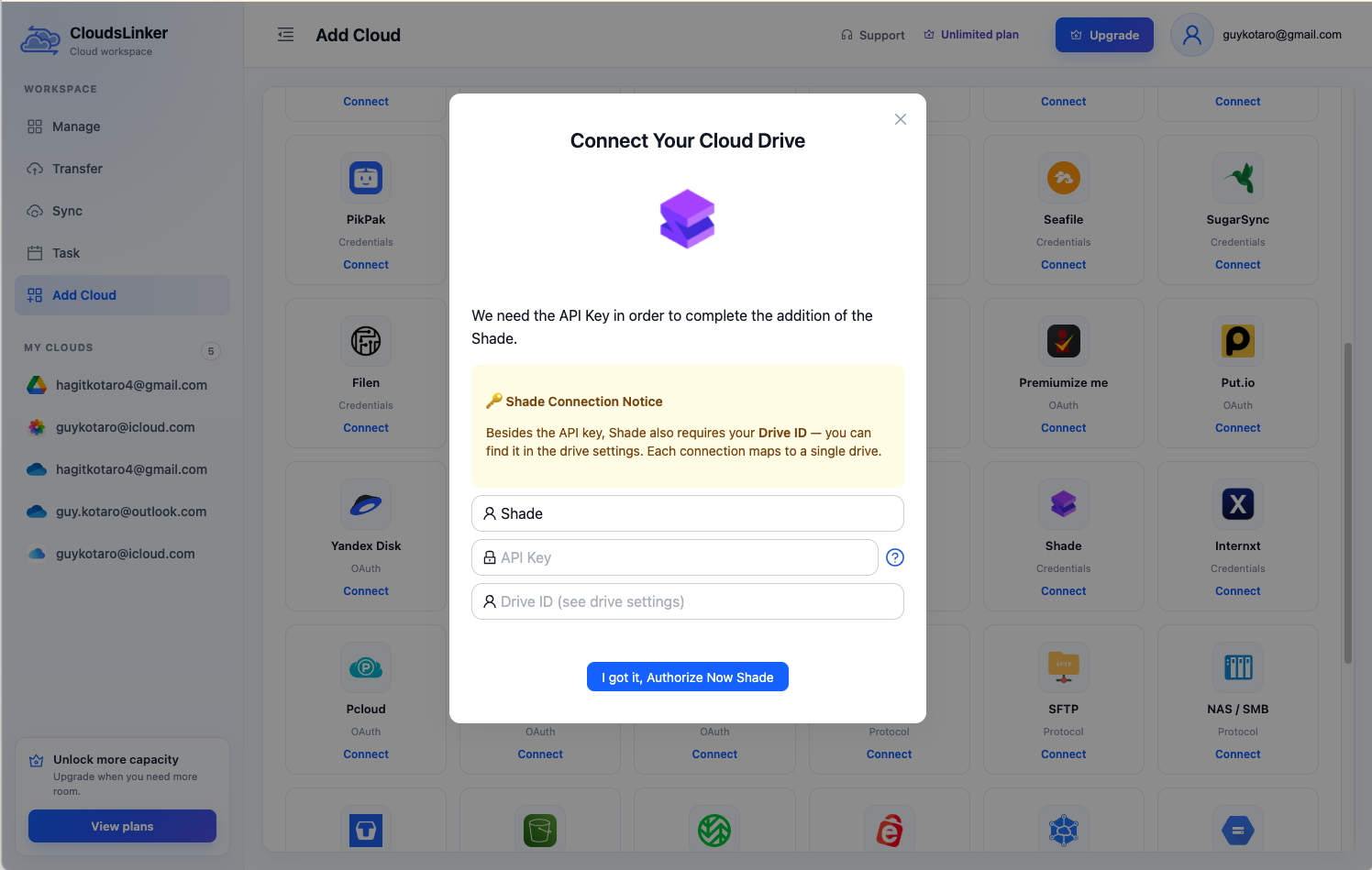
The Drive ID lives in the drive's settings panel in Shade — see the Dropbox-to-Shade guide for a screenshot of where to copy it.
Step 3: Configure the Transfer
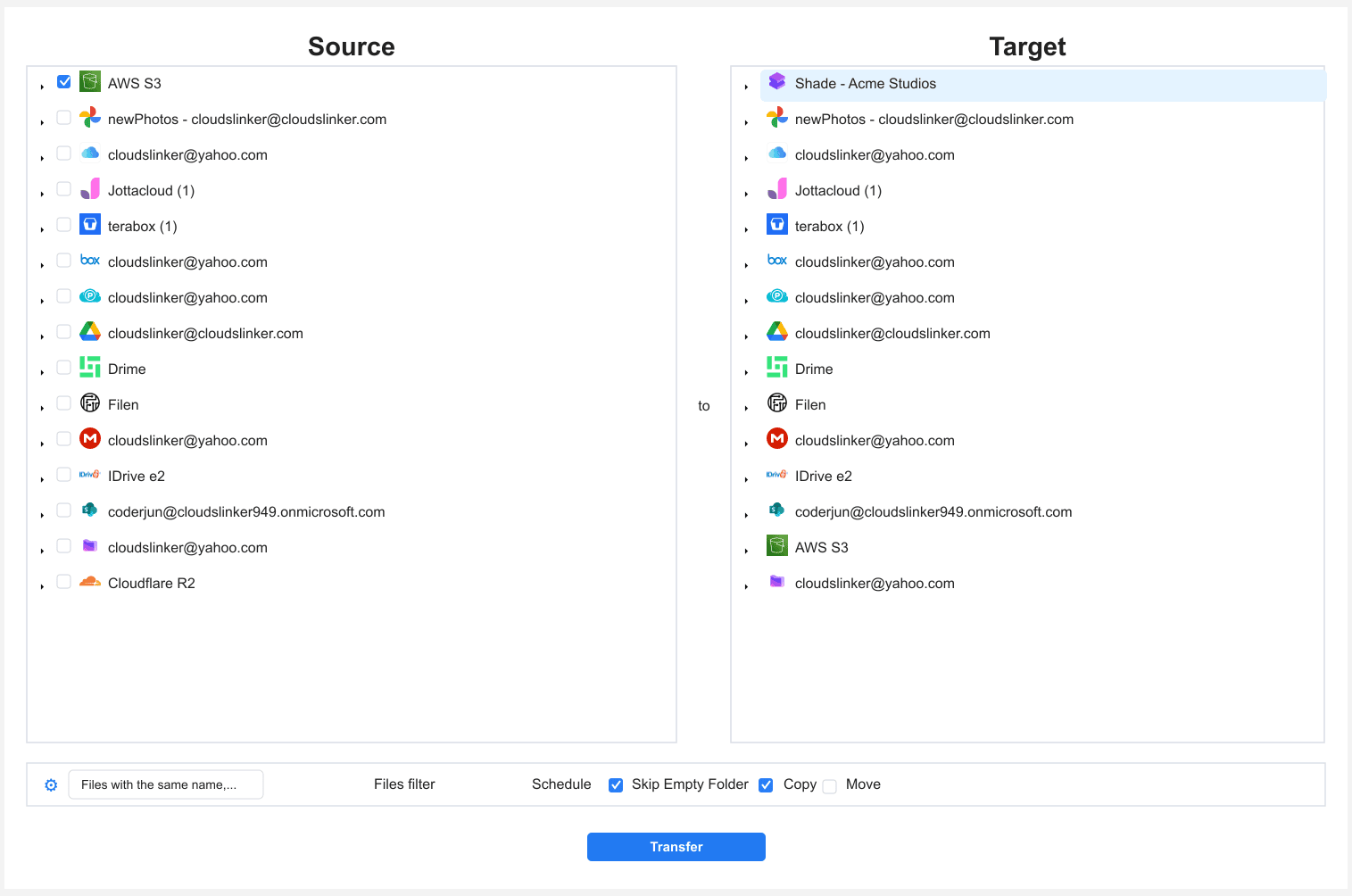
Set AWS S3 as the source, tick the bucket prefixes worth indexing, and set Shade as the destination folder inside the drive. Filter by file type to ingest camera formats and cuts while skipping logs and sidecars — every excluded gigabyte is ~$0.09 of egress saved and active storage kept free.
Step 4: Start and Monitor the Transfer
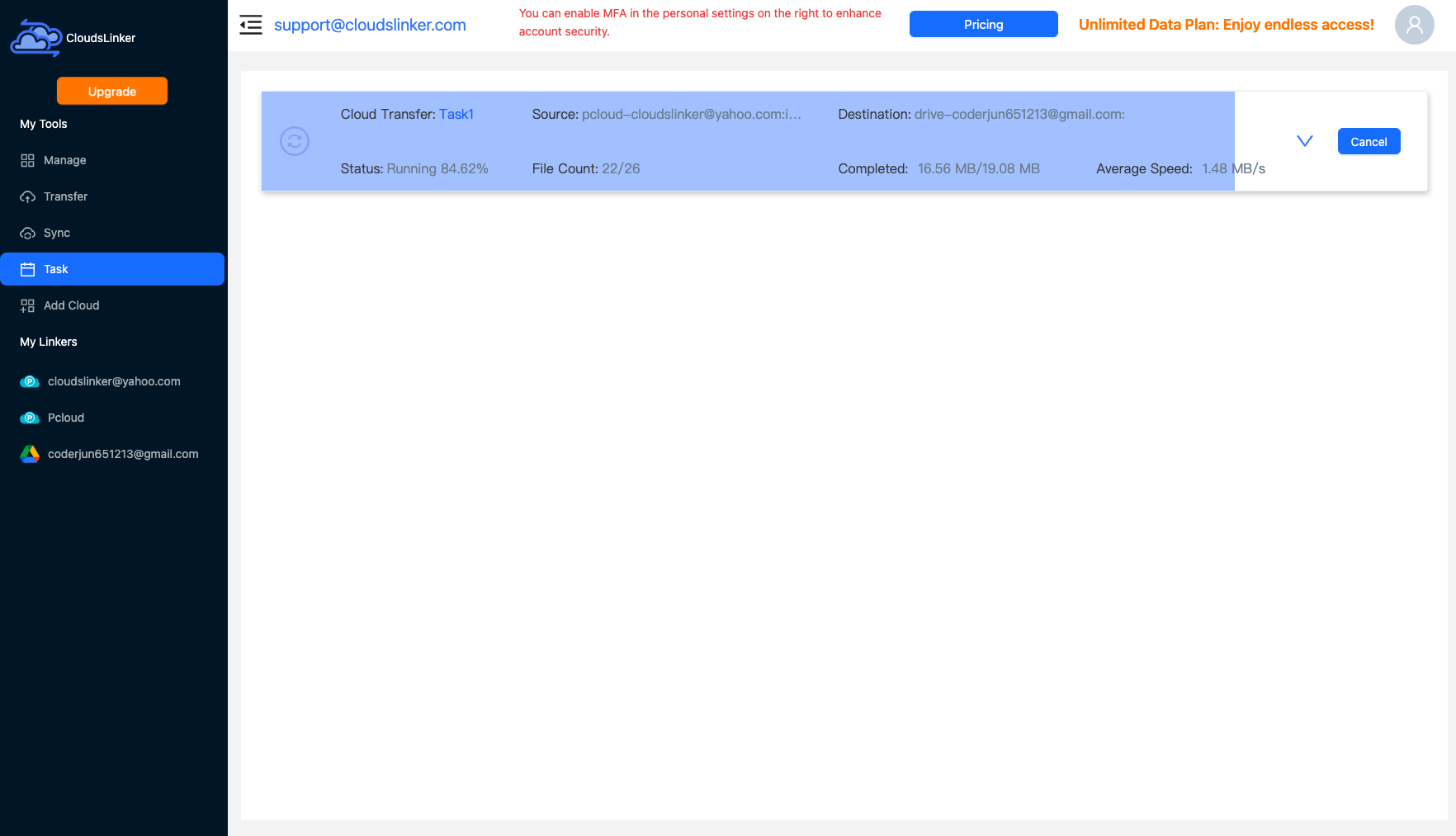
Start the job and watch the Task List — objects copied, throughput, and any skips. As files land, Shade begins generating previews and search indexes; editors can start searching before the tail of the job finishes.
Comparing the Ways to Transfer From AWS S3 to Shade
| Method | Ease of Use | Speed | Best For | Uses Local Bandwidth | Skill Level |
|---|---|---|---|---|---|
| S3 client + web upload | Medium | Slow (local staging) | A few clips, one-off pulls | Yes — twice, plus disk space | Intermediate |
| CloudsLinker | Easy | Fast (server-side) | Bucket-scale ingests, recurring project loads | No | Basic |
- Budget egress up front: ~$0.09/GB means a 2 TB ingest costs about $170–180 in AWS fees before anything else. Filter the job so the bill buys searchability for material that gets searched.
- Ingest working sets, archive stays put: S3 at ~$23/TB/month is the right home for cold masters; Shade's active pool (500 GB/seat) is for what editors touch. The bucket and the drive are complements, not rivals.
- Use a read-only, bucket-scoped IAM key: never the account root key. Create it for the job, delete it in IAM afterward — revocation is instant.
- Watch Glacier storage classes: objects in Glacier or Deep Archive aren't immediately readable — restore them to Standard first or the job logs them as skipped.
- Filter out non-media keys: logs, manifests and sidecar files inflate egress and clutter the drive. A file-type filter on video and image formats keeps the ingest clean.
- One drive per project maps well: since each Shade connection binds to a Drive ID, ingesting per-project prefixes into per-project drives keeps team permissions and guest review scoped naturally.
- Let indexing settle before judging search: on multi-hundred-GB ingests, AI indexing trails the copy. Give Shade time to finish before evaluating whether a shot search works.
Frequently Asked Questions
Conclusion
A handful of clips moves fine through an S3 client like Cyberduck and Shade's web uploader — acceptable for a one-off, wasteful as a workflow. Bucket-scale ingests belong to the server-side route: CloudsLinker reads S3 with a scoped access key and writes into the target Shade drive by API key and Drive ID, preserving prefix structure as folders. Either way the AWS egress toll is the same, so filter deliberately — index the material editors actually search for, and leave deep archive in the bucket where storage is cheap.
Online Storage Services Supported by CloudsLinker
Transfer data between over 58 cloud services with CloudsLinker

OneDrive

Google Drive

Google Photos

Shared Drive

OneDrive for Business

Dropbox

Box

Mega

pCloud

Yandex

ProtonDrive

AWS

GCS

iDrive

Storj

DigitalOcean

Wasabi

1fichier

PikPak

TeleBox

OpenDrive

Backblaze B2

Fastmail file

SharePoint

Nextcloud

ownCloud

Premiumize me

HiDrive

Put.io

Sugar Sync

Jottacloud

Seafile

Ftp

SFtp

NAS

WebDav

4shared

Icedrive

Cloudflare R2

Scaleway

Hetzner Object Storage

Synology C2 Object Storage

S3 Compatible

Doi

iCloud Drive

iCloud Photos

FileLU

Zoho WorkDrive

Telia Cloud / Sky

Drime

Filen

TeraBox

Internxt

Degoo

Gofile

Pixeldrain

Shade

Koofr
Didn' t find your cloud service? Be free to contact: [email protected]
Further Reading
Effortless FTP connect to google drive: Transfer Files in 3 Easy Ways
Learn More >
Google Photos to OneDrive: 3 Innovative Transfer Strategies
Learn More >
Google Photos to Proton Drive: 3 Effective Transfer Techniques
Learn More >