Cloudflare R2 to Backblaze B2: Move Cold Buckets and Cut Storage Cost by More Than Half
Move objects from Cloudflare R2 to Backblaze B2 for cheaper long-term storage — rclone, small manual copies, or a server-side copy with CloudsLinker.
Introduction
Backblaze B2 charges $6.95 per TB per month for storage, while Cloudflare R2 Standard costs $0.015 per GB-month — about $15 per TB. R2 earns that premium with free egress, which matters for images, downloads and Worker assets that get read constantly. It stops mattering for the buckets that are written once and rarely opened again: database dumps, backup sets, log archives, finished media projects. A 5 TB archive sitting in R2 Standard costs roughly $75 a month; the same data in B2 costs about $35.
Leaving R2 is cheap because R2 charges nothing for egress, so the move itself mostly costs read operations — usually inside the free tier. Neither vendor offers a migration tool for this direction: Cloudflare's Super Slurper only imports into R2, and Backblaze's migration service does not list R2 as a source. The guide below is a four-phase runbook — prepare B2, copy, verify, cut over — with rclone and CloudsLinker as the two ways to do the copy.
The short answer
- B2 stores data for $6.95 per TB-month; R2 Standard costs $0.015 per GB-month, about $15 per TB. Cold data costs 54% less on B2.
- Leaving R2 costs almost nothing. R2 has no egress fee, and reading objects uses Class B operations, 10 million of which are free every month.
- Keep a bucket on R2 if it is downloaded more than about 3.8 times its size every month — beyond that, B2's egress charges outweigh the storage saving.
On this page
The Cost Math
Cloudflare R2 and Backblaze B2 price the same thing in opposite ways: R2 charges more to store and nothing to download, B2 charges less than half as much to store and includes free downloads only up to three times what you keep there.
| Monthly storage cost | 1 TB | 5 TB | 20 TB |
|---|---|---|---|
| R2 Standard ($0.015 / GB-month, first 10 GB free) | $14.85 | $74.85 | $299.85 |
| R2 Infrequent Access ($0.01 / GB-month, no free tier) | $10.00 | $50.00 | $200.00 |
| Backblaze B2 ($6.95 / TB-month, first 10 GB free) | $6.88 | $34.68 | $138.93 |
Storage only, 1 TB = 1,000 GB. Prices checked October 2026 on the R2 pricing page and the B2 pricing page.
Where the break-even sits. B2 includes free egress up to 3x your average stored volume, then charges $0.01 per GB. Each TB moved to B2 saves $8.05 a month, which pays for 805 GB of overage, so B2 stays cheaper until a bucket is downloaded about 3.8 times its own size in a month. Backups, database dumps, log archives and finished projects sit far below that line; public images, downloads and Worker assets often sit above it and belong on R2.
What the move itself costs. Listing a bucket is a Class A operation (up to 1,000 keys per call, 1 million free per month, then $4.50 per million). Reading each object is Class B (10 million free, then $0.36 per million). There is no egress fee and no retrieval fee on Standard storage, and B2 charges nothing for uploads. A 5 TB bucket of 1 million Standard objects therefore costs close to nothing to move. Objects in R2 Infrequent Access are the exception: they carry a $0.01 per GB retrieval fee, about $50 for 5 TB.
Phase 1 — Prepare the B2 Side
Most migration problems on this route come from B2 defaults that nobody changed. Do these before any data moves:
- Create the bucket under Buckets → Create a Bucket and leave it private.
- Change its versioning. B2 keeps every version of a file by default, and a deleted file is only hidden, so overwrites during a re-run are stored — and billed — twice. Open the bucket's Lifecycle Settings and choose Keep only the last version; the old copy is then hidden for a day and deleted (lifecycle rules).
- Check Caps & Alerts. A daily storage or transaction cap set long ago will stop a large upload halfway.
-
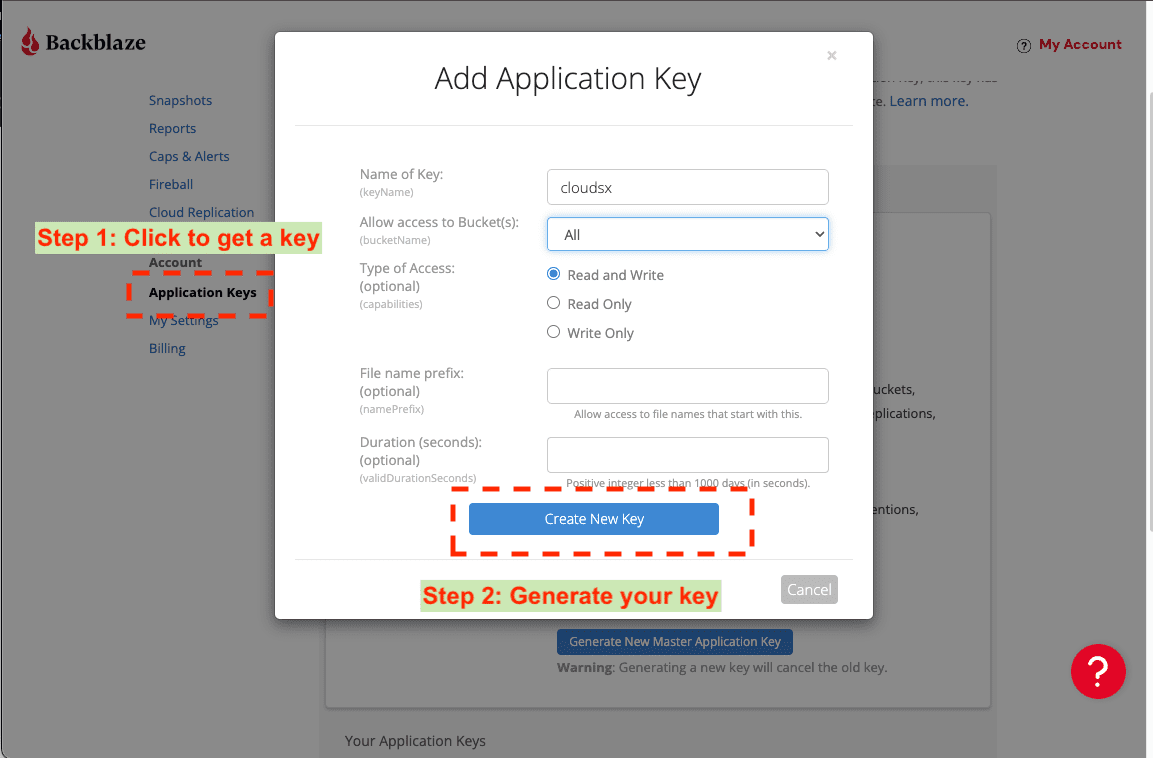
Create an application key under Application Keys → Add a New Application
Key, with Read and Write access to all buckets or to the target bucket. Copy the keyID and
applicationKey; the key is shown only once.
-
Collect the R2 credentials. In the Cloudflare dashboard, open R2,
copy your Account ID (it forms the endpoint
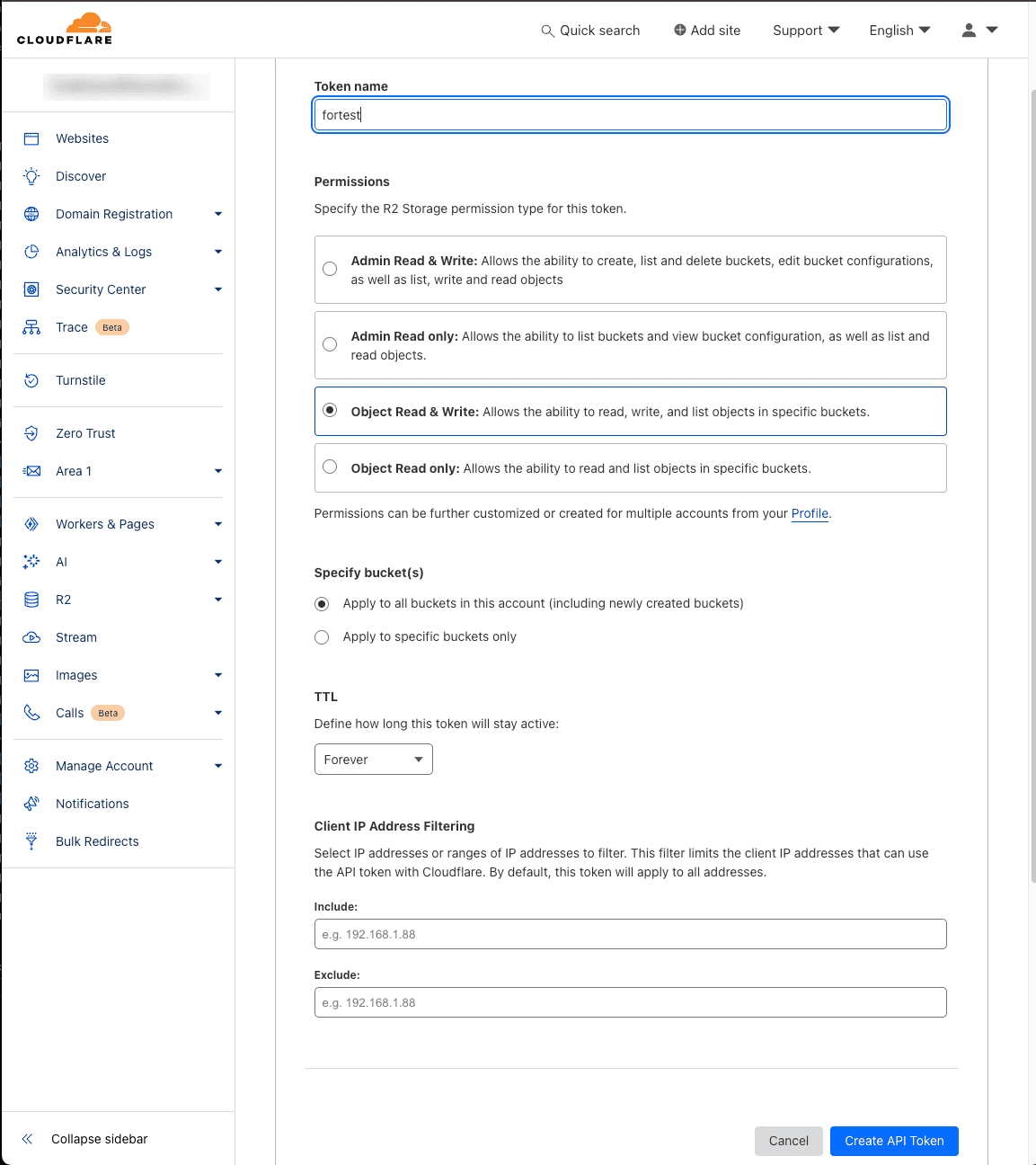
https://<ACCOUNT_ID>.r2.cloudflarestorage.com) and open Manage R2 API Tokens.Create a token. Admin Read & Write can list every bucket; an Object Read & Write token cannot list buckets even when applied to all of them, so with that type you will have to name the bucket. Copy the Access Key ID and Secret Access Key — Cloudflare shows them once.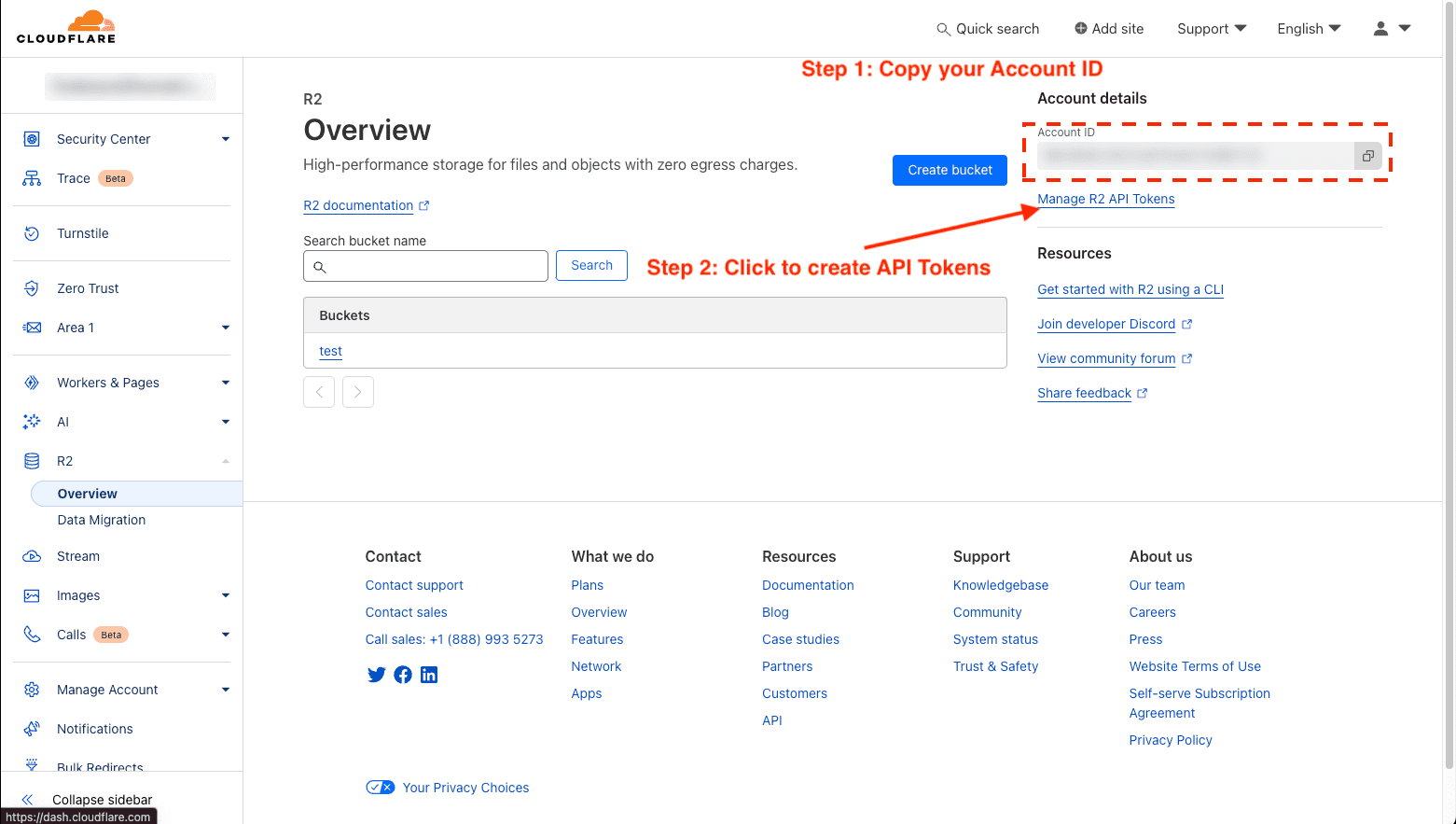
Phase 2 — Copy the Objects
Super Slurper and Sippy only copy data into R2, and Backblaze's Universal Data Migration lists AWS, Azure, Google Cloud and Wasabi as sources, so the copy needs a third tool. Two handle whole buckets well. For a few gigabytes, a desktop S3 client such as S3 Browser or Cyberduck plus the B2 web uploader is enough, at the cost of routing everything through your own connection twice.
Option A: rclone on a server you already run
rclone reads R2 through its S3 backend and writes B2 through its native backend. The data streams
through the machine running it, so use a server with good bandwidth. In rclone.conf:
[r2]
type = s3
provider = Cloudflare
access_key_id = YOUR_R2_ACCESS_KEY_ID
secret_access_key = YOUR_R2_SECRET_ACCESS_KEY
endpoint = https://YOUR_ACCOUNT_ID.r2.cloudflarestorage.com

[b2]
type = b2
account = YOUR_B2_KEY_ID
key = YOUR_B2_APPLICATION_KEY
rclone copy r2:archive-bucket b2:archive-bucket --fast-list --transfers 16 --progressUse copy, not sync or move, until Phase 4.
Option B: CloudsLinker, with nothing to run yourself
CloudsLinker reads R2 over the S3 API and writes B2 over the native B2 API on its own servers, so there is no machine to rent or watch. It uses the keys you collected in Phase 1.
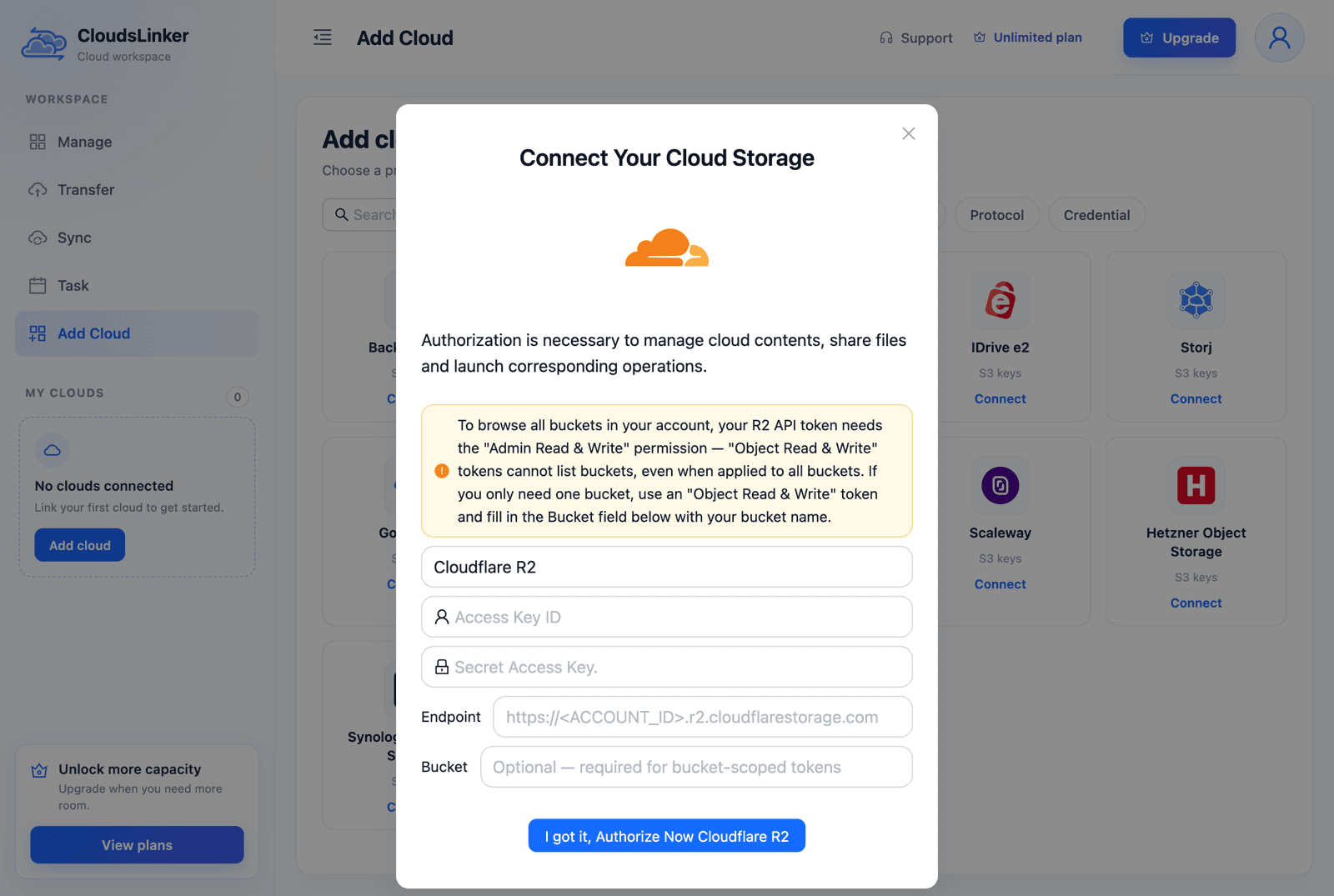
Step 1: Connect Cloudflare R2
Click Add Cloud and choose Cloudflare R2. Enter a name, the Access Key ID, the Secret Access Key and the Endpoint with your own account ID. Fill in Bucket only if you created an Object Read & Write token.
Step 2: Connect Backblaze B2
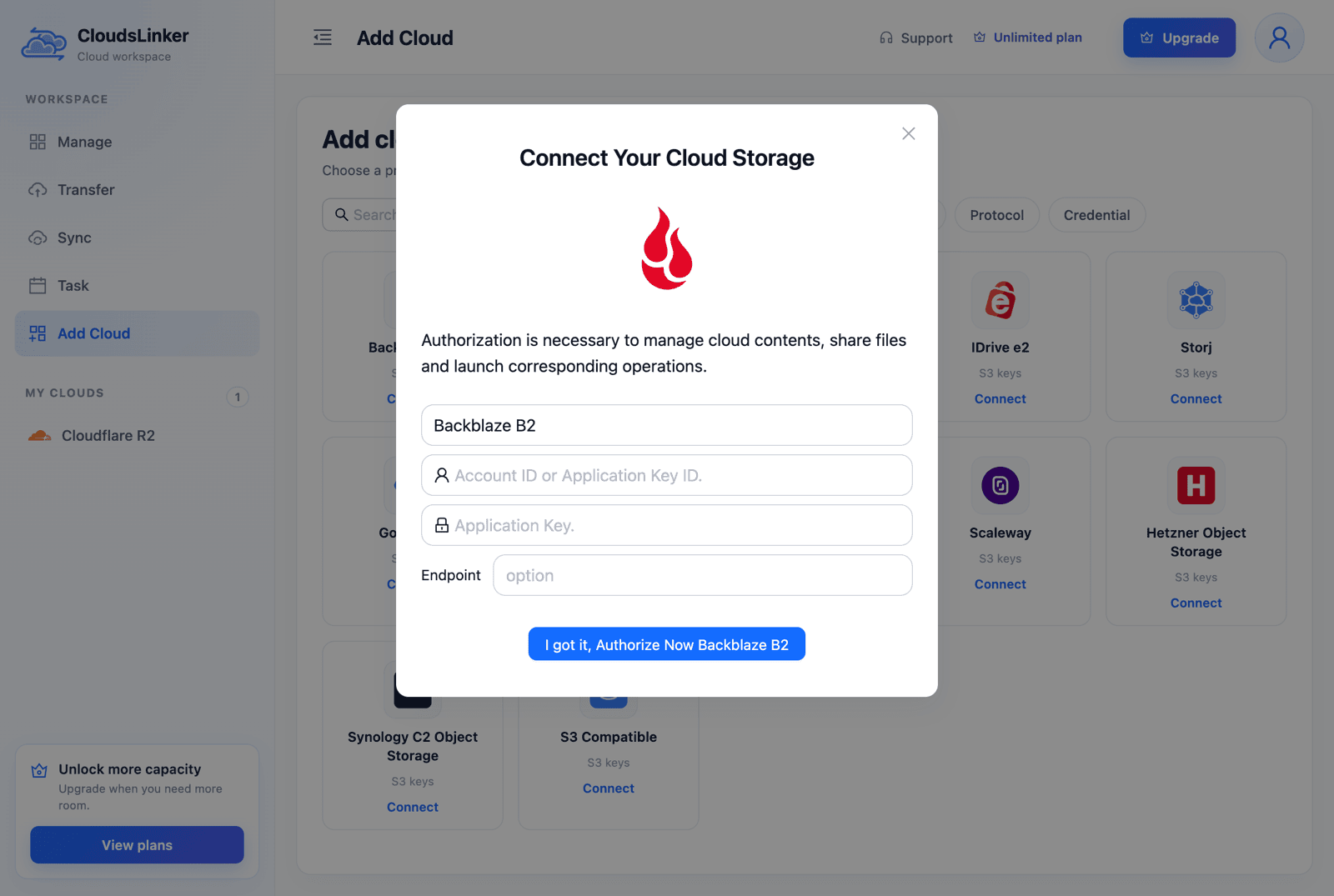
Click Add Cloud again and choose Backblaze B2. Put the keyID in Account ID or Application Key ID and the secret in Application Key; B2 connects through its native API, so the Endpoint field can stay empty.
Step 3: Configure the Transfer
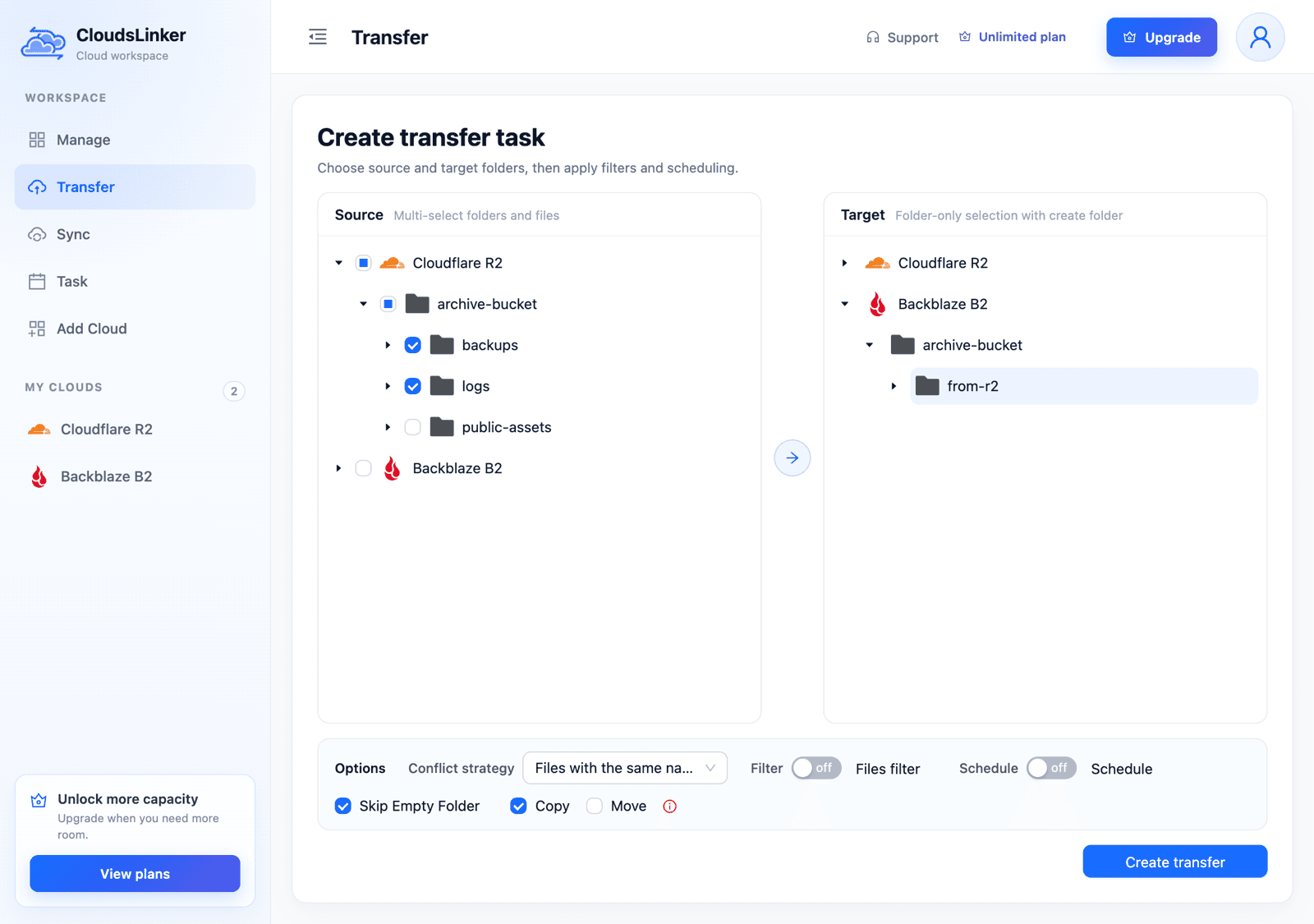
On Create transfer task, pick the R2 bucket or a prefix as the source and a folder in the B2 bucket as the target (the target side selects folders only and can create a new one). Leave the mode on Copy — Move deletes each object from R2 after copying. The default conflict strategy re-sends a same-name file only when its size differs or its date is newer, which keeps re-runs from creating B2 versions. Filters accept file extensions or a size range in MB.
Step 4: Start and Monitor the Transfer
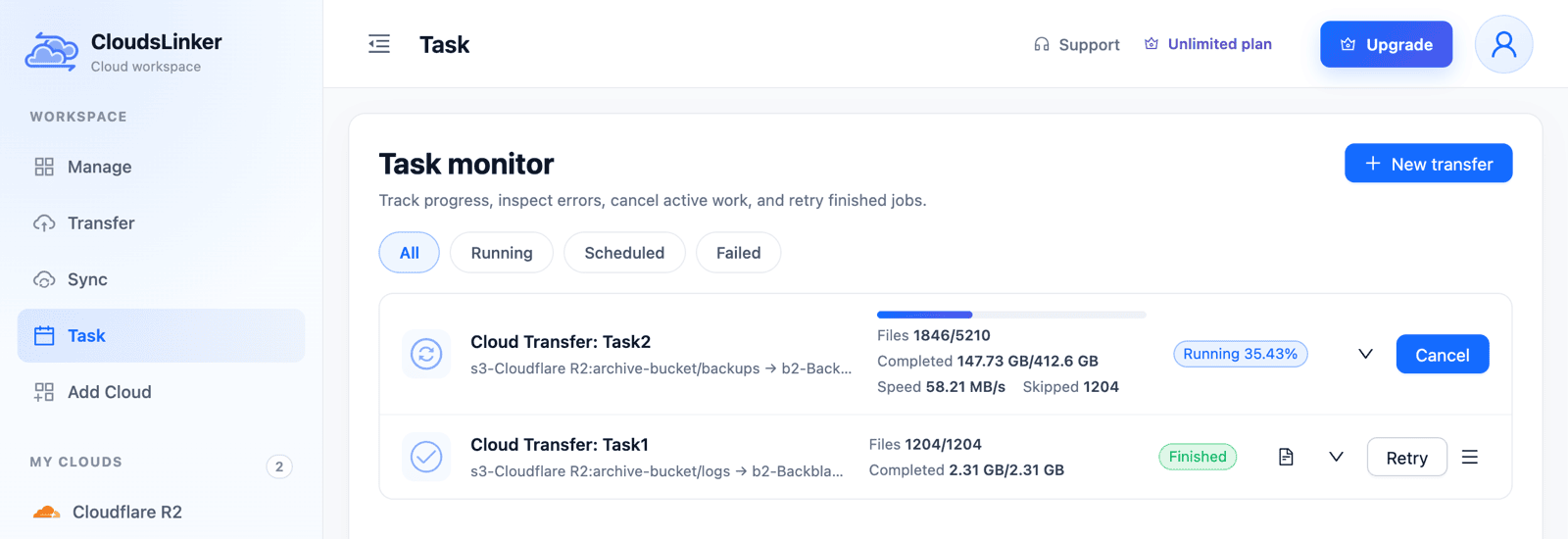
Click Create transfer and follow the task in Task monitor (All, Running,
Scheduled and Failed tabs, Retry on finished tasks). The browser can be closed while it
runs. In the example below, Task1 was a trial run on the logs prefix; when Task2 reaches
those objects they already sit in B2 unchanged, so they are counted under Skipped
instead of being uploaded a second time.
Phase 3 — Verify the Copy
| Check | Where | Why it matters |
|---|---|---|
| Object count and total size | R2 bucket → Metrics; B2 bucket list (Current Files, Current Size) | A count mismatch means objects were skipped; tiny size differences are usually rounding |
| Per-object sizes | rclone check r2:archive-bucket b2:archive-bucket --size-only |
R2's S3 API uses MD5 and B2 uses SHA-1, so the two have no checksum in common |
| Contents, if you need certainty | add --download to the check |
Compares bytes by reading every object again — Class B operations on R2, bandwidth on your server |
| A sample by hand | Download from the B2 console | The largest object, a few small ones, and names with spaces or non-Latin characters |
Object size limits are not a concern: R2 objects top out at 4.995 TiB and B2 large files at 10 TB (R2 limits, B2 large files).
Phase 4 — Cut Over and Clean Up
- Catch up on new writes. If the bucket is still in use, re-run the copy — or save the CloudsLinker task with a weekly or monthly schedule (paid plans) — so only new or changed objects are sent.
- Repoint what reads the data. Backup tools, scripts, Workers and public URLs that use R2 need the B2 endpoint and keys.
- Stop writing to R2 and run one last pass.
- Delete from R2 after a waiting period. Deletes are free; objects in
Infrequent Access are billed for 30 days regardless. If you use
rclone syncormoveagainst B2 from here on, remember that files removed on the B2 side are hidden and still billed unless you add--b2-hard-delete. - Revoke the migration keys — the R2 API token and the B2 application key.
Frequently Asked Questions
https://<ACCOUNT_ID>.r2.cloudflarestorage.com. To browse every bucket the token needs the Admin Read & Write permission; an Object Read & Write token cannot list buckets, so if you use one, type the bucket name into the optional Bucket field.
backups/2026/ become the same folder paths in the B2 bucket. If you choose a target folder inside the B2 bucket, the whole tree is placed under that folder.
Conclusion
For a few gigabytes, a desktop S3 client and the B2 web console are enough. For whole buckets, rclone works well if you have a server with good bandwidth to run it on, and it gives you full control over flags and verification. If you would rather not run anything yourself, CloudsLinker connects R2 with its S3 credentials and B2 with an application key, then copies bucket to bucket on its own servers. Whichever route you pick, set the B2 bucket's lifecycle to Keep only the last version before the first run, and keep R2 for the hot, publicly served data where its free egress pays off.
Related: Backblaze B2 to IDrive e2, Amazon S3 vs Backblaze B2, Amazon S3 vs Cloudflare R2, and the cloud storage pricing comparison.
Online Storage Services Supported by CloudsLinker
Transfer data between over 58 cloud services with CloudsLinker

OneDrive

Google Drive

Google Photos

Shared Drive

OneDrive for Business

Dropbox

Box

Mega

pCloud

Yandex

ProtonDrive

AWS

GCS

iDrive

Storj

DigitalOcean

Wasabi

1fichier

PikPak

TeleBox

OpenDrive

Backblaze B2

Fastmail file

SharePoint

Nextcloud

ownCloud

Premiumize me

HiDrive

Put.io

Sugar Sync

Jottacloud

Seafile

Ftp

SFtp

NAS

WebDav

4shared

Icedrive

Cloudflare R2

Scaleway

Hetzner Object Storage

Synology C2 Object Storage

S3 Compatible

Doi

iCloud Drive

iCloud Photos

FileLU

Zoho WorkDrive

Telia Cloud / Sky

Drime

Filen

TeraBox

Internxt

Degoo

Gofile

Pixeldrain

Shade

Koofr
Didn' t find your cloud service? Be free to contact: [email protected]
Further Reading
Effortless FTP connect to google drive: Transfer Files in 3 Easy Ways
Learn More >
Google Photos to OneDrive: 3 Innovative Transfer Strategies
Learn More >
Google Photos to Proton Drive: 3 Effective Transfer Techniques
Learn More >