Google Photos Storage Full? Moving Your Photo Library into Degoo
Transfer photos from Google Photos to Degoo three ways — Takeout export, phone re-backup, or a direct CloudsLinker copy — with album and quality caveats explained.
Introduction
Degoo is one of the few budget clouds actually designed around photos — its apps are a photo feed first and a file manager second, with an AI 'rediscover' stream and 5 TB of space for $9.99 a month. Google Photos remains the best photo organizer available, but its storage is the shared 15 GB Google pot, and once Gmail and Drive have eaten their share, every new phone backup pushes you toward a Google One subscription priced at $9.99 for 2 TB. Moving the archive — or just the pre-2021 bulk — into Degoo keeps the memories browsable in a photo-native app at less than half the per-terabyte cost. Three routes below, each with different album and metadata trade-offs.
Google Photos is Google's photo platform — automatic phone backup, face and object search, memories — drawing on the account's shared 15 GB free pool. Paid space comes via Google One (100 GB $1.99/mo → 2 TB $9.99/mo). Photos backed up in High Quality before June 1, 2021 don't count against quota.
- 15 GB free, shared with Gmail and Drive
- Best-in-class search, faces, memories
- Storage Saver mode recompresses to 16 MP / 1080p
- API strips GPS EXIF on third-party downloads
Degoo is a Swedish photo-first cloud: phone backup apps on all major mobile stores, an AI feed resurfacing old shots, and bulk pricing — 20 GB free, 500 GB at $2.99/mo, 5 TB at $9.99/mo. It organizes by folders rather than smart albums, and search is filename-based, not content-based.
- 5 TB for the price of Google One's 2 TB
- Photo-feed UI, AI rediscovery stream
- No face/object search — folders and filenames
- Per-file caps: 256 MB free / 50 GB subscription
| Feature | Google Photos | Degoo |
|---|---|---|
| Free storage | 15 GB (shared account pool) | 20 GB (photo-dedicated; 90-day activity rule) |
| $9.99/mo buys | 2 TB (Google One) | 5 TB (Ultimate) |
| Organization | Albums + AI search / faces | Folders + AI rediscovery feed |
| Max video file | 10 GB per video | 256 MB free / 50 GB subscription |
| Export friction | API strips GPS; Takeout for full fidelity | No export tooling (mobile-first) |
| Connection in CloudsLinker | Google OAuth | Account email + password |
Sources: Google Photos: storage policy, Google Photos API limits, Degoo: plans, Degoo Help Center: Account limits.
Photo libraries only grow, and the reasons to relocate them compound:
- The 15 GB pool is a photo problem: photos and video dominate most accounts' usage, so offloading them is the single move that un-fills Gmail and Drive too.
- Half the per-terabyte price: $9.99 buys 2 TB at Google One, 5 TB at Degoo Ultimate — the gap widens every year the library grows.
- A photo-native destination: unlike a generic file cloud, Degoo keeps the archive browsable as a feed with AI resurfacing — closer to the Google Photos experience than a folder tree in a file manager.
- Vendor diversification for irreplaceable data: family photos are the canonical don't-keep-one-copy dataset; a second provider in a second jurisdiction (Sweden) is cheap insurance.
- Archive-and-continue works cleanly: old years move out, the phone keeps backing up to Google Photos — no workflow change, just reclaimed quota.
The trade-offs are real too: Google's face search and smart albums don't export, and its API withholds GPS tags from third-party downloads. The method choice below is mostly about which of those you care to work around.
Look up the library's true size (Google Photos → Settings → Manage storage) and pick the Degoo tier accordingly — 500 GB Pro covers most, 5 TB Ultimate covers videographers. Decide the scope: full library, or archive-years-only with a date cutoff. If geotags are precious, plan a one-time Takeout export for the JSON sidecars even if the images travel by another method. Videos over your Degoo cap (256 MB free / 50 GB paid) need flagging; Google allows single videos to 10 GB, so free-tier Degoo destinations will skip many of them.
Method 1: Google Takeout Export
Step 1: Export Google Photos via Takeout
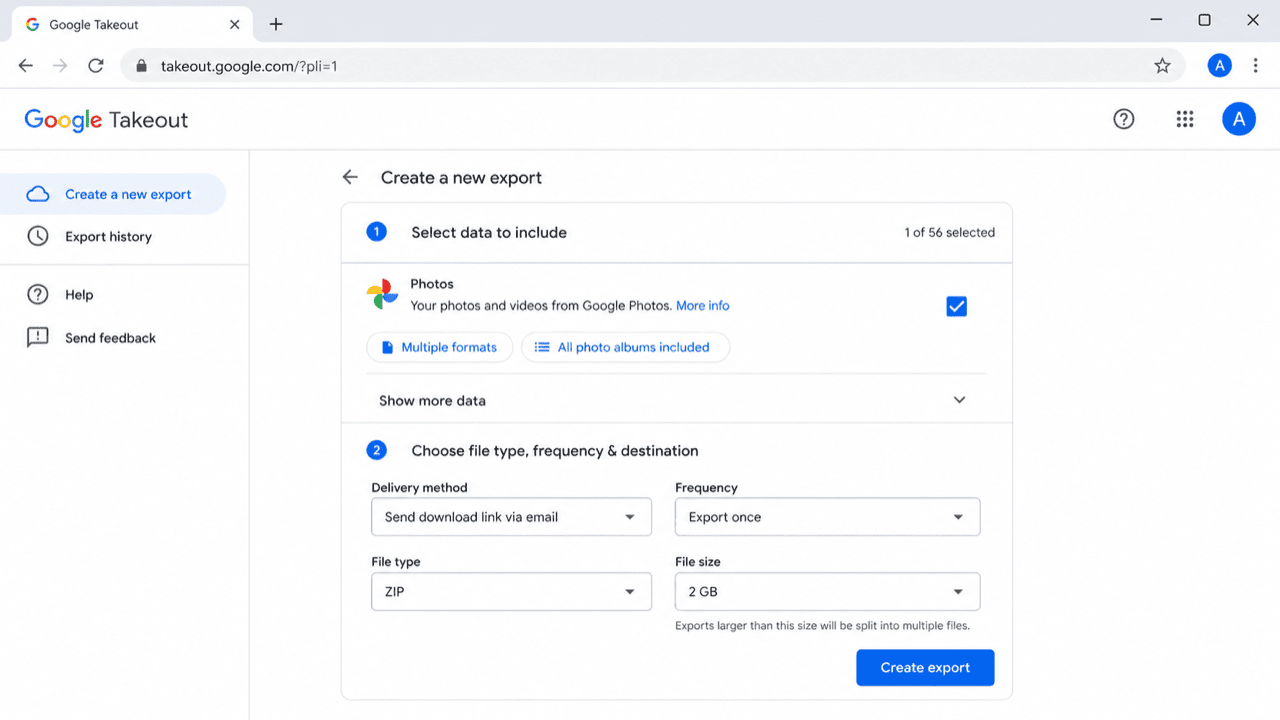
At takeout.google.com, select only Google Photos, choose ZIP segments (up to 50 GB each), and request the export. Albums arrive as folders, each photo paired with a JSON sidecar holding the metadata Google keeps out of the files themselves — including GPS coordinates and album membership.
Step 2: Download, extract, upload to Degoo
Download every segment before the links expire (about a week), extract, and upload the album folders through app.degoo.com or the mobile app. A 200 GB library means handling four-plus 50 GB archives locally — budget disk space and patience accordingly.
Takeout is the fidelity champion (JSON sidecars preserve everything) and the labor champion in the wrong sense. Use it when metadata completeness outranks convenience.
Method 2: Re-backup from Your Phone with the Degoo App
Step 1: Install Degoo and enable photo backup
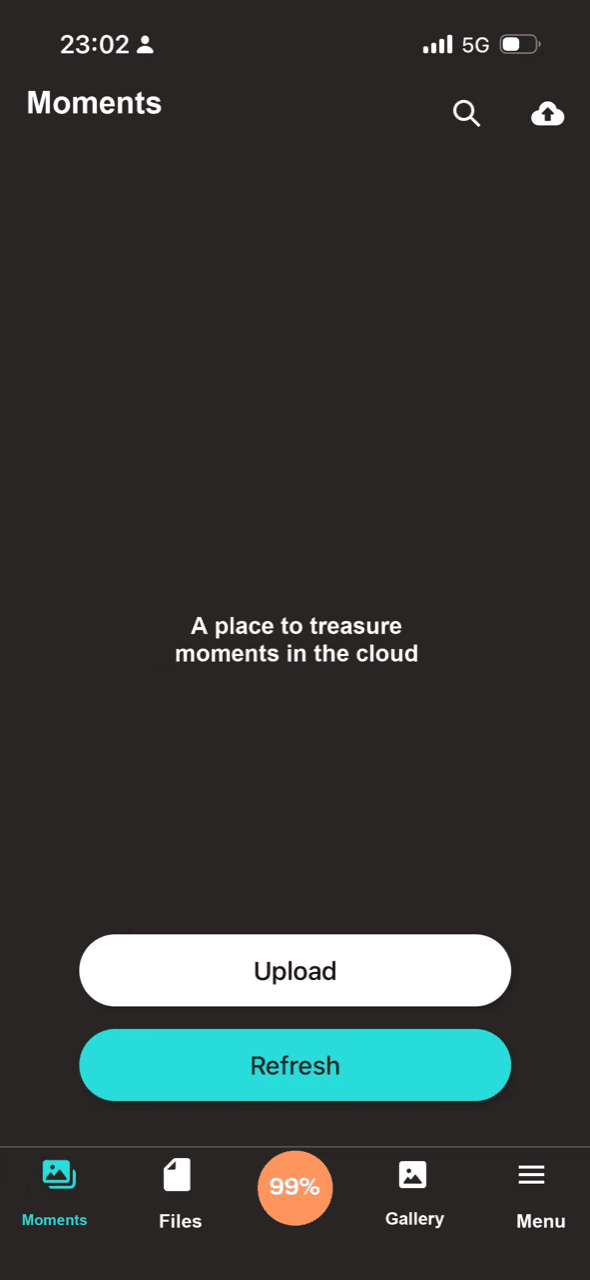
Install Degoo from Google Play (or the App Store), sign in, and switch on photo backup. The app uploads the device's camera roll — on Wi-Fi by default — into Degoo's photo feed.
Step 2: Verify coverage against Google Photos
Here's the catch: this backs up what's on the phone, not what's in Google Photos. If you've used 'Free up space' — which deletes local copies of backed-up photos — the cloud-only majority never reaches Degoo. Check Google Photos for items missing from the device before trusting this method with the archive.
Best for fresh libraries still resident on the handset; wrong for accounts where Google holds years of cloud-only history.
Method 3: Direct Library Copy with CloudsLinker
The cloud-only years, moved without touching a phone or a ZIP
CloudsLinker reads the Google Photos library through Google's Photos API — albums and all, including the cloud-only history a phone re-backup can't see — and writes album-named folders into Degoo. Google's daily API quotas set the pace; CloudsLinker throttles to them and keeps multi-day jobs alive automatically, which is precisely the babysitting Takeout makes you do by hand.
Step 1: Connect Google Photos
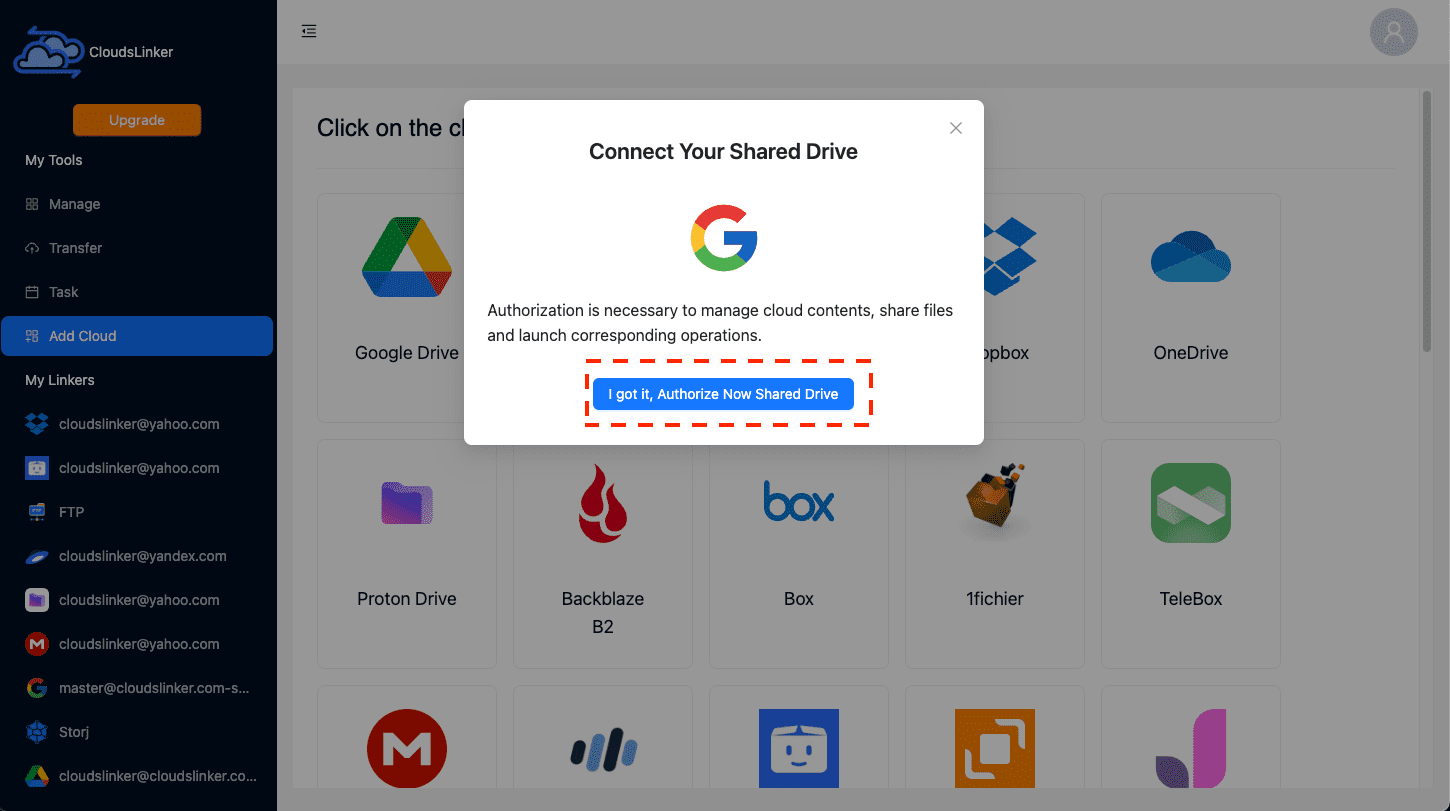
Click Add Cloud → Google Photos. Approve the scoped grant on Google's consent page at accounts.google.com. Photos access only — Drive and Gmail aren't touched — and the grant is revocable from your Google security settings.
Step 2: Connect Degoo
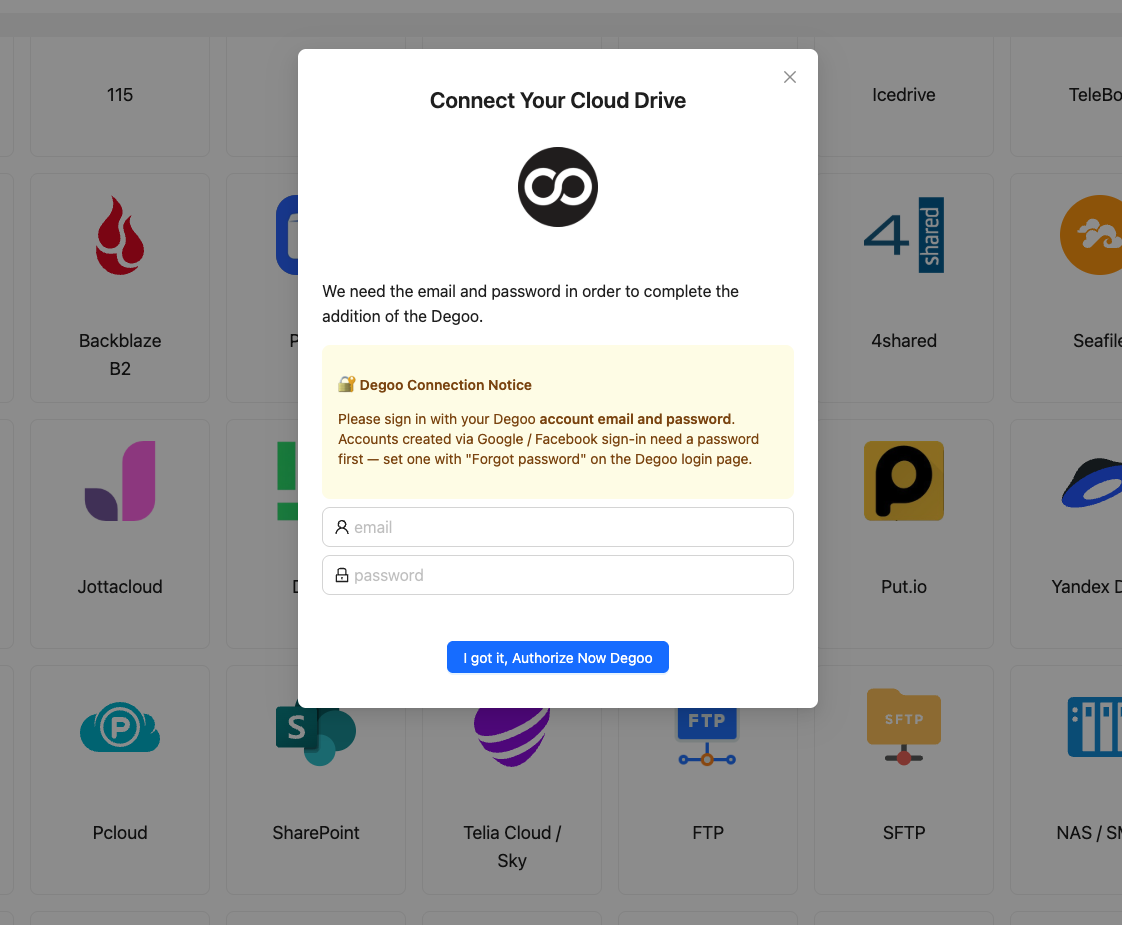
Click Add Cloud → Degoo and sign in with the account email and password — the same login as the Degoo app from Method 2, if you tried it. The cached session persists for the annual archive runs this pairing invites.
Step 3: Configure the Transfer
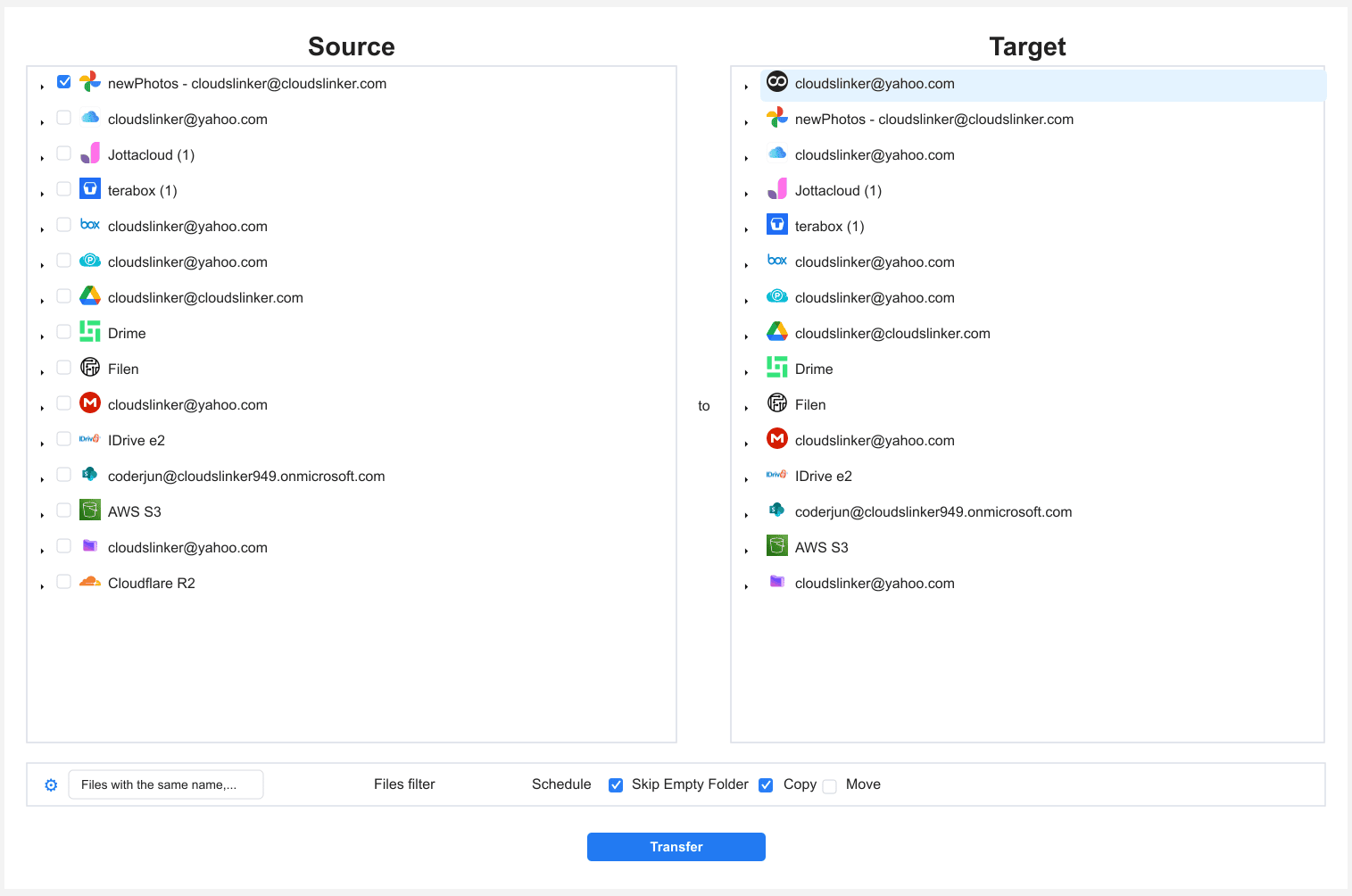
In Transfer, choose Google Photos as source — select specific albums or the whole library — and point the destination at a Degoo folder such as Google-Photos-Archive/.
A date filter carves out the archive years while recent shots stay in Google. Size filtering matters mainly for video on free-tier Degoo destinations (256 MB cap); paid tiers at 50 GB swallow anything a phone produces.
Step 4: Start and Monitor the Transfer
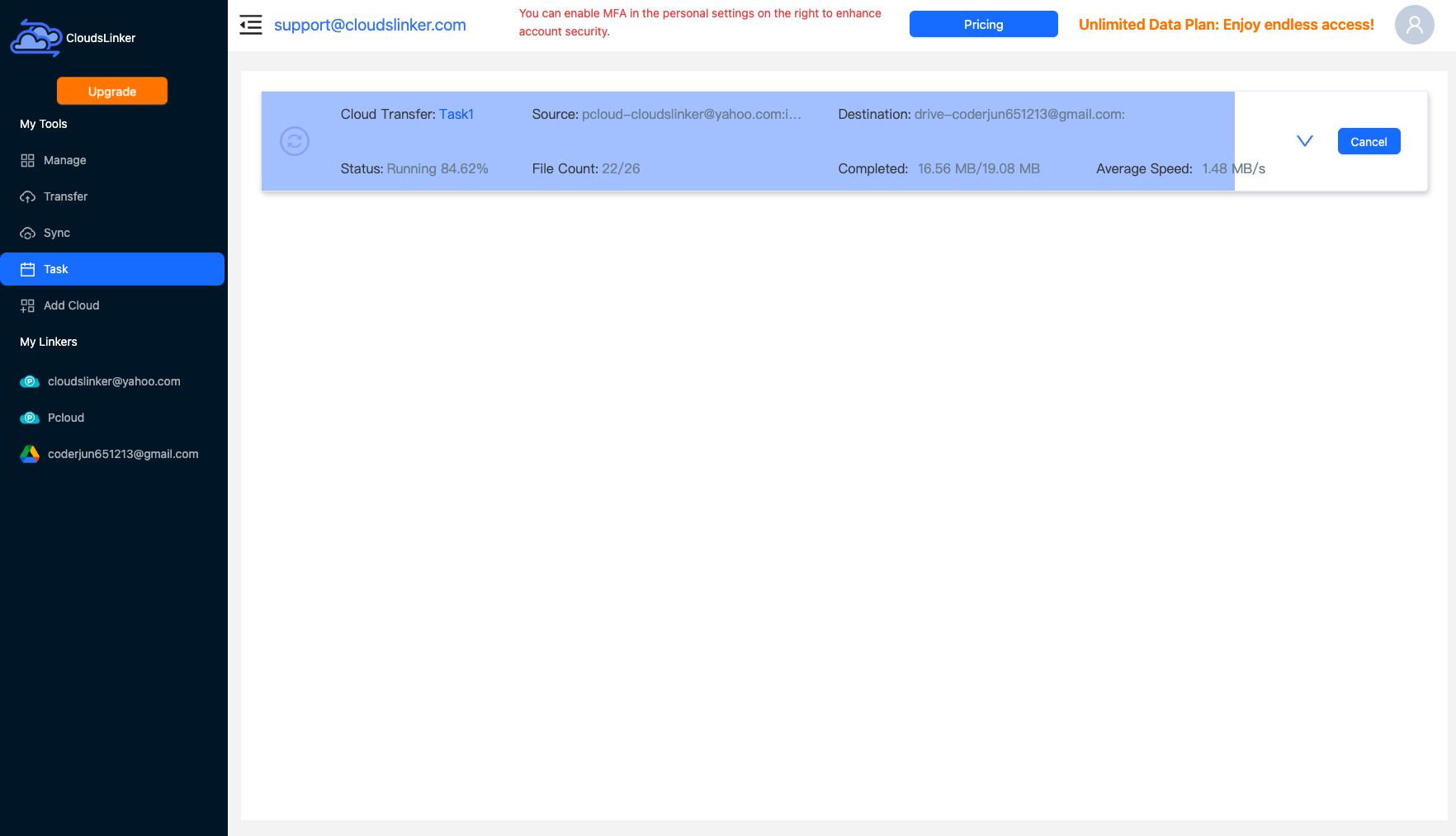
Start the job. The Task List shows albums processed and items remaining; big libraries stretch across Google's daily API windows, resuming without attention. When it completes, spot-check albums in Degoo's app before deleting anything from Google.
Comparing the Ways to Transfer From Google Photos to Degoo
| Method | Ease of Use | Speed | Best For | Uses Local Bandwidth | Skill Level |
|---|---|---|---|---|---|
| Google Takeout | Laborious (ZIP handling) | Slow — wait, download, re-upload | Full-fidelity export incl. GPS JSON | Yes — heavily | Basic |
| Degoo app re-backup | Easiest | Phone-upload speed | Libraries still on the device | Phone data/Wi-Fi | Basic |
| CloudsLinker | Easy | API-paced, unattended | Cloud-only libraries; album-folder mapping | No | Basic |
- Run one Takeout for the sidecars regardless of method: the JSON files are the only complete record of GPS tags and album membership. Store them in Degoo next to the photos as the metadata archive.
- Don't expect Google's search in Degoo: faces, objects, and "photos of receipts" queries are Google-index features. In Degoo you navigate by album-folder and date — name folders accordingly.
- Mind video on free-tier destinations: Google Photos holds videos to 10 GB each; free Degoo cuts off at 256 MB. Migrate video only onto a paid Degoo tier.
- Archive by year, then repeat annually: a date-filtered job each January keeps Google under quota permanently, with Degoo accumulating the history.
- Empty the trash to reclaim quota: deleted Google Photos linger 60 days in trash, still counting against the 15 GB. Settings → Trash → Empty after verifying the Degoo copy.
- Keep the Degoo account warm if it's free: the 90-day inactivity deletion is unforgiving to set-and-forget photo archives — a paid tier or a calendar reminder solves it.
Watch: Transfer Google Photos to Degoo with CloudsLinker
A walkthrough of the cloud-to-cloud method: authorizing Google Photos via OAuth, connecting Degoo with account credentials, selecting the photos to move, and following the server-side transfer in the Task List.
Frequently Asked Questions
Conclusion
Match the method to what you're preserving. Takeout is the only route that exports Google's album JSON alongside the images — pick it if album structure must be reconstructed byte-perfectly somewhere else. The phone re-backup suits people whose photos still live on the device. For the common case — a cloud-resident library that needs to move without days of ZIP handling — CloudsLinker copies Google Photos into Degoo server-side, organized by album-named folders. Whichever route: verify in Degoo's app before freeing Google storage, and empty Google Photos' trash to actually reclaim the quota.
Online Storage Services Supported by CloudsLinker
Transfer data between over 58 cloud services with CloudsLinker

OneDrive

Google Drive

Google Photos

Shared Drive

OneDrive for Business

Dropbox

Box

Mega

pCloud

Yandex

ProtonDrive

AWS

GCS

iDrive

Storj

DigitalOcean

Wasabi

1fichier

PikPak

TeleBox

OpenDrive

Backblaze B2

Fastmail file

SharePoint

Nextcloud

ownCloud

Premiumize me

HiDrive

Put.io

Sugar Sync

Jottacloud

Seafile

Ftp

SFtp

NAS

WebDav

4shared

Icedrive

Cloudflare R2

Scaleway

Hetzner Object Storage

Synology C2 Object Storage

S3 Compatible

Doi

iCloud Drive

iCloud Photos

FileLU

Zoho WorkDrive

Telia Cloud / Sky

Drime

Filen

TeraBox

Internxt

Degoo

Gofile

Pixeldrain

Shade

Koofr
Didn' t find your cloud service? Be free to contact: [email protected]
Further Reading
Effortless FTP connect to google drive: Transfer Files in 3 Easy Ways
Learn More >
Google Photos to OneDrive: 3 Innovative Transfer Strategies
Learn More >
Google Photos to Proton Drive: 3 Effective Transfer Techniques
Learn More >