Transfer iCloud Photos to Degoo: Move an iPhone Library to 5 TB for $9.99
Move iCloud Photos to Degoo — web download, Degoo's iPhone app, or an Apple ID-authenticated CloudsLinker transfer — with HEIC and Live Photo notes.
Introduction
Degoo stores 5 TB of photos for $9.99 a month and shows them as a browsable feed on any phone — the archive tier iCloud Photos lacks between its 2 TB plan at the same price and the $29.99 6 TB jump. iPhone photo libraries grow relentlessly (4K video at 400 MB a minute does the growing), and Apple's own escape hatch at privacy.apple.com only transfers libraries to Google Photos, nowhere else. That leaves three real routes into Degoo: downloading from iCloud.com by hand, letting Degoo's iPhone app re-backup the camera roll, or connecting both clouds in CloudsLinker and copying server-side. Each handles HEIC files, Live Photos and Apple's session throttling differently — details below.
iCloud Photos is Apple's photo sync — every shot on every Apple device, originals in the cloud, optimized copies locally. It shares the Apple ID's storage pool: 5 GB free, then iCloud+ from $0.99/mo (50 GB) through $9.99 (2 TB) to $59.99 (12 TB). Faces, Memories and edits live in Apple's ecosystem, not in the files.
- Seamless on Apple hardware; browser-only elsewhere
- 2 TB at $9.99/mo; next stop 6 TB at $29.99
- Official export path: Google Photos only
- ~50–150 GB/day practical export throttle
Degoo is a Stockholm-based photo cloud whose entire product is what iCloud charges most for: bulk photo storage. 20 GB free, 500 GB at $2.99/mo, 5 TB at $9.99/mo, browsable as a feed with AI 'rediscover' resurfacing — on iPhone and Android alike. No desktop client; the phone app and web app are the interface.
- 5 TB at iCloud's 2 TB price point
- Native iOS app with camera-roll backup
- Feed-style browsing, AI memory resurfacing
- Per-file caps: 256 MB free / 50 GB subscription
| Feature | iCloud Photos | Degoo |
|---|---|---|
| Free storage | 5 GB (whole Apple ID) | 20 GB (90-day activity rule) |
| $9.99/mo buys | 2 TB | 5 TB |
| Photo intelligence | Faces, Memories, semantic search | AI rediscovery feed; no face search |
| Official export options | privacy.apple.com → Google Photos only | — (mobile-first, no export tooling) |
| Deleted-photo retention | 30 days (Recently Deleted) | Recycle bin until emptied |
| Connection in CloudsLinker | Apple ID + 2FA code | Account email + password |
Sources: Apple: iCloud+ plans, Apple: transfer photos to Google Photos, Degoo: plans, Degoo Help Center: Account limits.
The motives cluster around price, platform and permanence:
- The 2 TB wall: iCloud's next tier after 2 TB is 6 TB at $29.99 — a 3× price jump. Degoo inserts the missing rung: 5 TB at the price you already pay.
- Video does the damage: 4K/60 iPhone footage runs ~400 MB per minute. A family's video habit outgrows 2 TB in a few years; archiving old years to Degoo resets the clock.
- Android in the household: iCloud Photos on Android is a browser tab; Degoo is a native app. Mixed households get one shared archive both platforms browse comfortably.
- Independence from a single vendor: photos are the least replaceable data most people own; a copy outside Apple's ecosystem (and jurisdiction — Degoo is Swedish) is prudent redundancy.
- Apple's export tool won't take you here: the official service moves libraries to Google Photos exclusively — choosing any other destination requires the approaches in this guide.
What you give up is Apple's photo intelligence — faces, Memories, semantic search stay behind. The files, capture dates and quality travel; the index doesn't.
Check the library size (Settings → Apple ID → iCloud → Photos, or the storage bar at icloud.com) and match it to a Degoo tier — video-heavy libraries want Ultimate, and definitely a subscription tier for its 50 GB file cap, since a single ten-minute 4K clip already exceeds the free tier's 256 MB. Apple-side: 'Access iCloud Data on the Web' on, Advanced Data Protection off for the window. Save any Shared Album keepers to your own library first — shared spaces don't transfer. Then choose your route by where the originals live: on the phone (Method 2 shines) or cloud-only (Methods 1 and 3)."
Method 1: Manual Download from iCloud.com
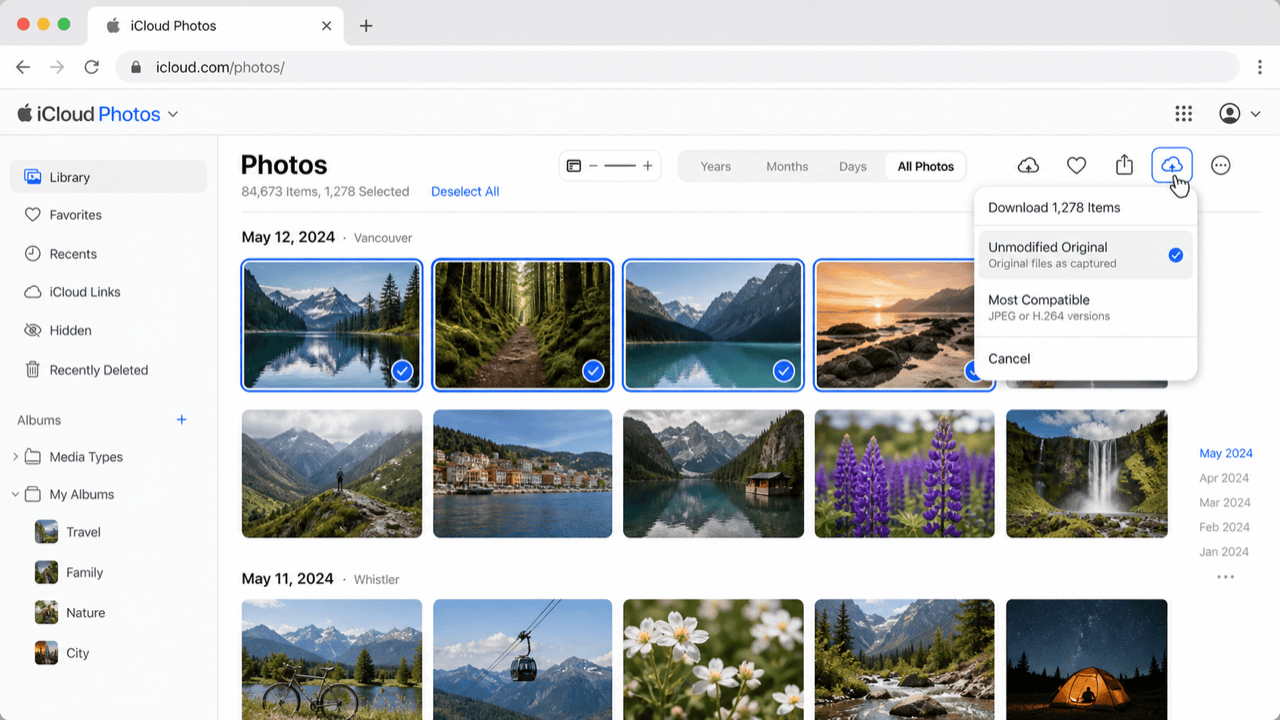
Step 1: Select and download at icloud.com/photos
Sign in at icloud.com/photos, select photos (shift-click ranges work; select-all across a big library doesn't) and download. Originals arrive as HEIC/MOV; batches over a few hundred items get flaky, so a large library means many supervised rounds.
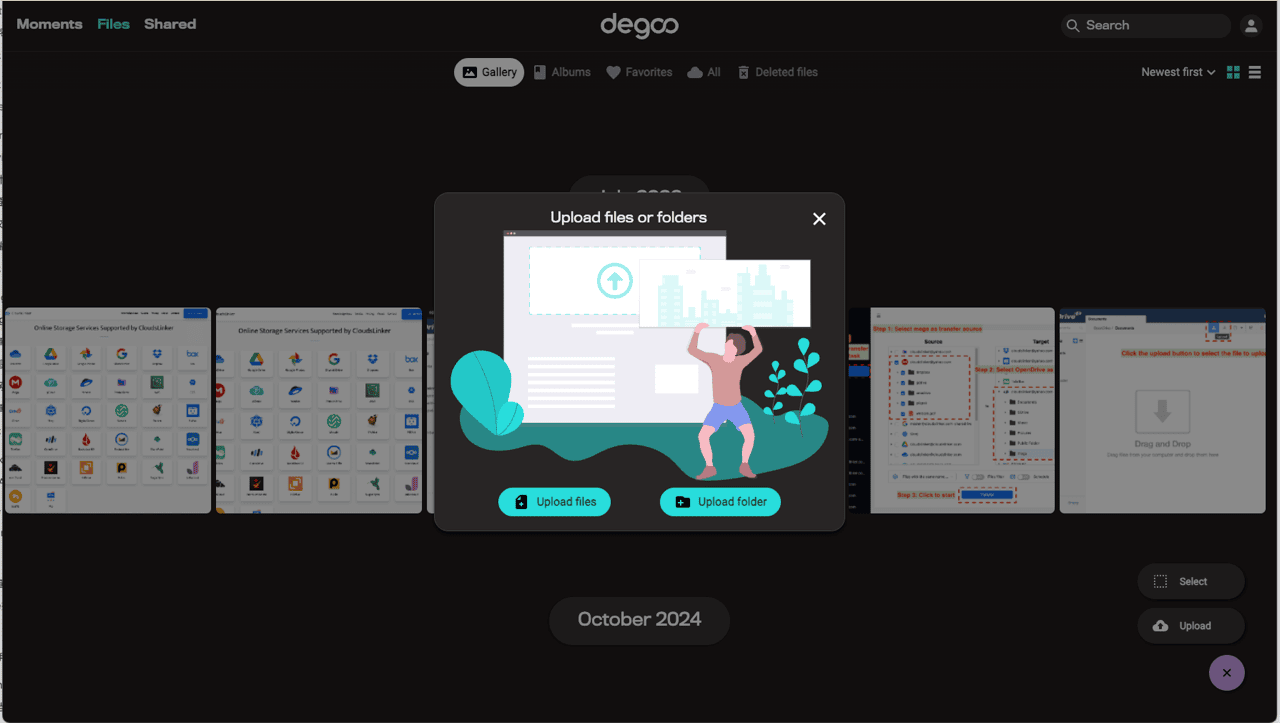
Step 2: Upload batches to Degoo
Push each batch to Degoo via app.degoo.com (subscribers) or the mobile app. Chronological folder names ("2019-Q3") imposed at this stage substitute for the albums that don't transfer.
Workable for curated selections — the honeymoon album, one year of highlights. Nobody manually round-trips 100,000 photos.
Method 2: Re-backup with Degoo's iPhone App
Step 1: Ensure originals are on the device
This method uploads what the iPhone holds. If iCloud's 'Optimize iPhone Storage' is on, most of the library is thumbnails — switch to Download and Keep Originals (Settings → Photos) and let the phone re-download everything first, which needs enough free device storage to hold the full library.
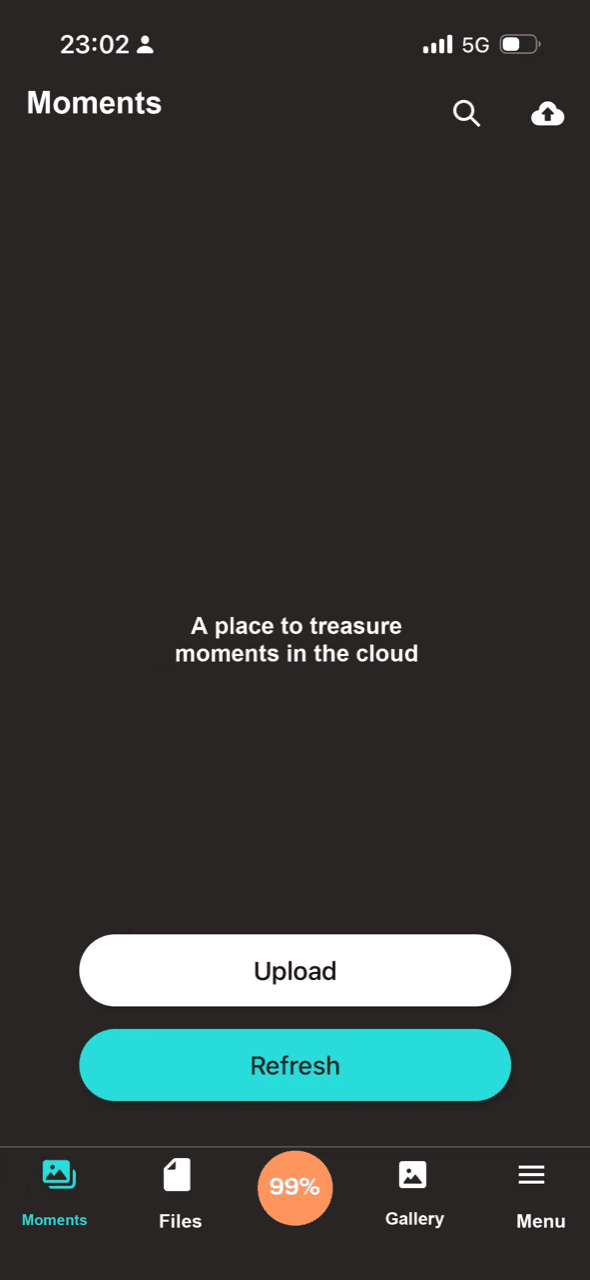
Step 2: Install Degoo and back up the camera roll
Install Degoo from the App Store, sign in, enable photo backup (Wi-Fi only recommended) and leave the app to work — iOS background limits mean opening it periodically speeds things up. Photos land in Degoo's feed with capture dates intact.
Zero desktop involvement and Degoo's intended workflow — but hostage to device storage and iOS backgrounding. A 256 GB iPhone can't stage a 500 GB library.
Method 3: Server-Side Copy with CloudsLinker
For the library that no longer fits on any phone
CloudsLinker connects to iCloud Photos with your Apple ID — the dedicated photo-library connector, not the Drive one — and streams originals into Degoo from the cloud side, so device storage never constrains the job. Apple's throttling (50–150 GB/day in practice) sets the tempo; the task paces itself through as many days as the library demands, delivering HEIC originals and video into date-organized Degoo folders.
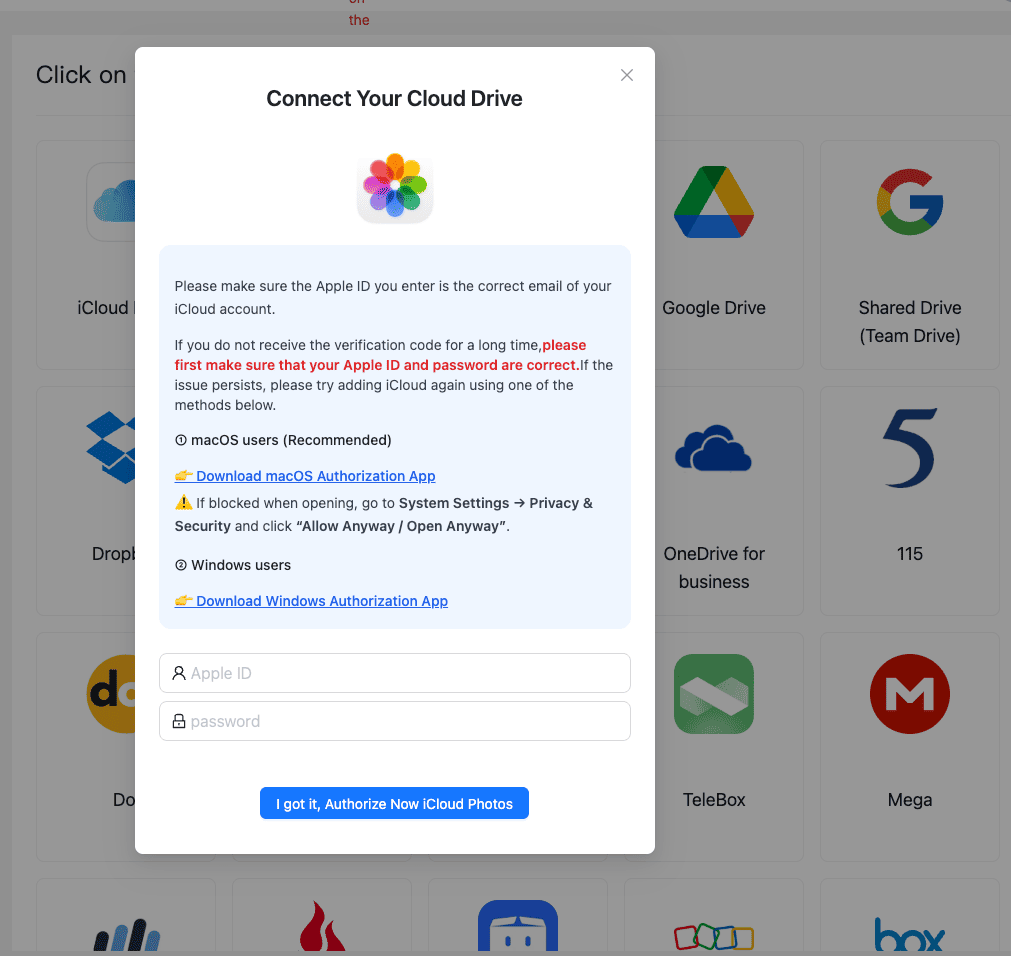
Step 1: Connect iCloud Photos
Click Add Cloud → iCloud Photos. Enter the Apple ID and password, approve the 6-digit code on a trusted device, done. The session registers in your Apple ID device list like any browser login.
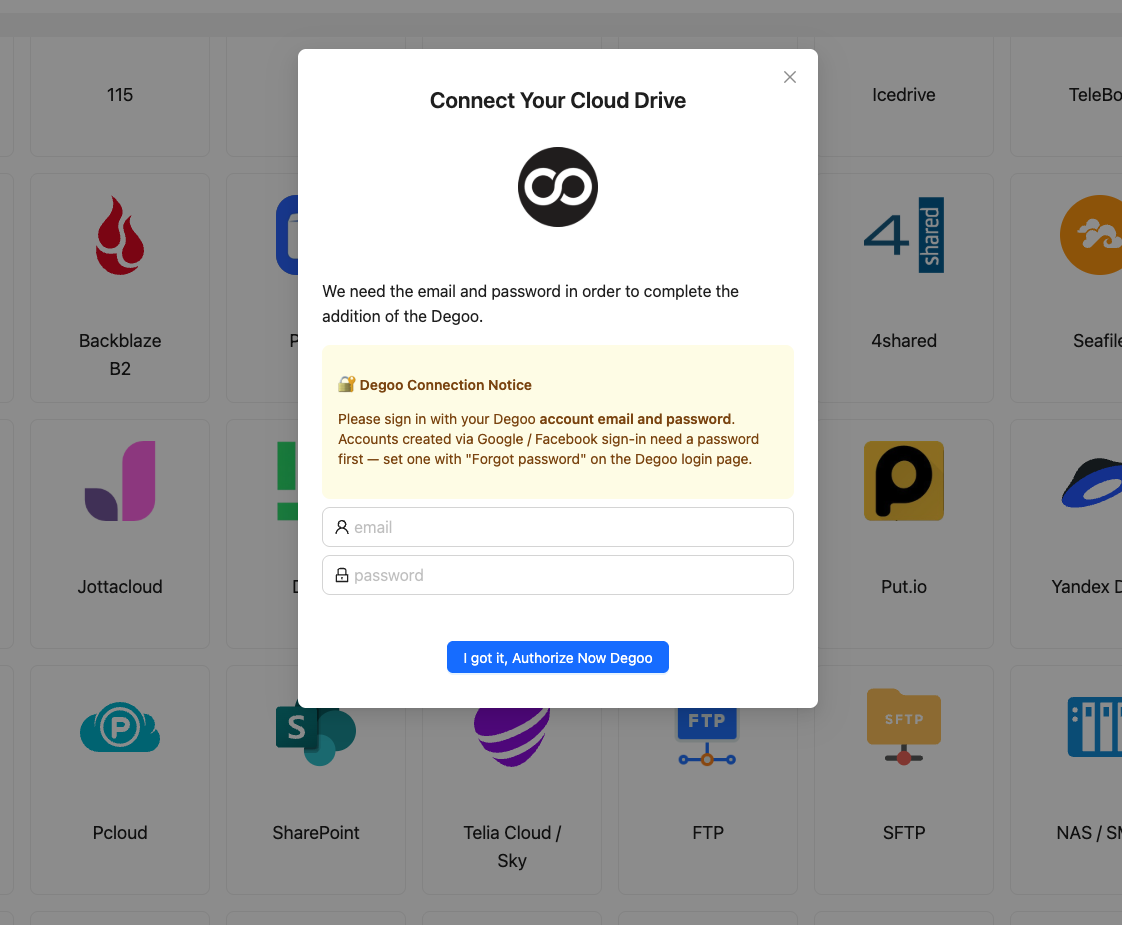
Step 2: Connect Degoo
Click Add Cloud → Degoo, enter email and password, confirm. Same account the Degoo iPhone app uses — the feed will show the incoming archive as it lands.
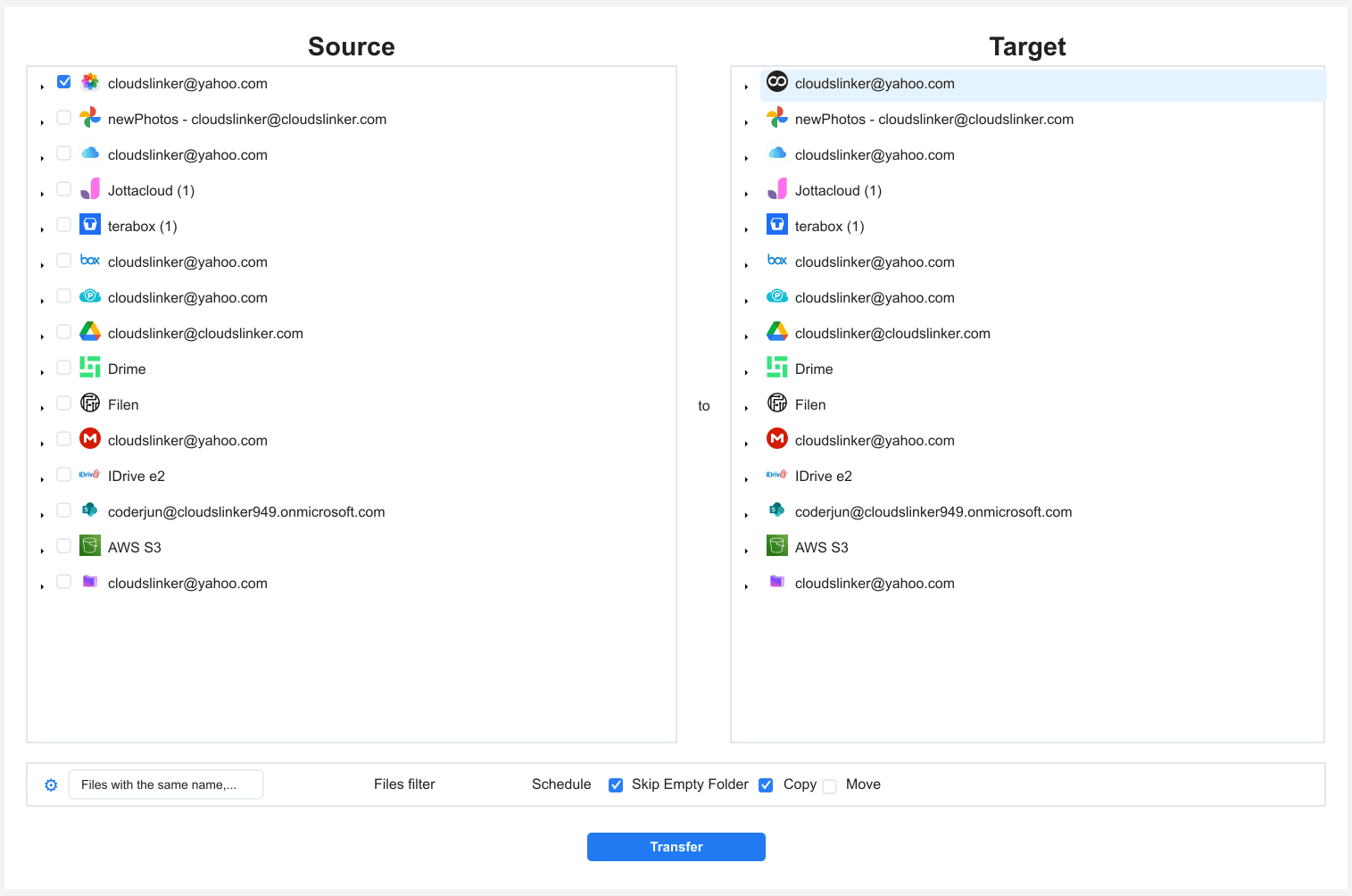
Step 3: Configure the Transfer
In Transfer, source is iCloud Photos — whole library or date ranges. Destination: a Degoo folder like iPhone-Archive/.
Useful filter patterns here: date ranges for year-by-year archiving, or a type filter separating stills from video if only footage is being offloaded. Copy mode always — iCloud stays intact until verification.
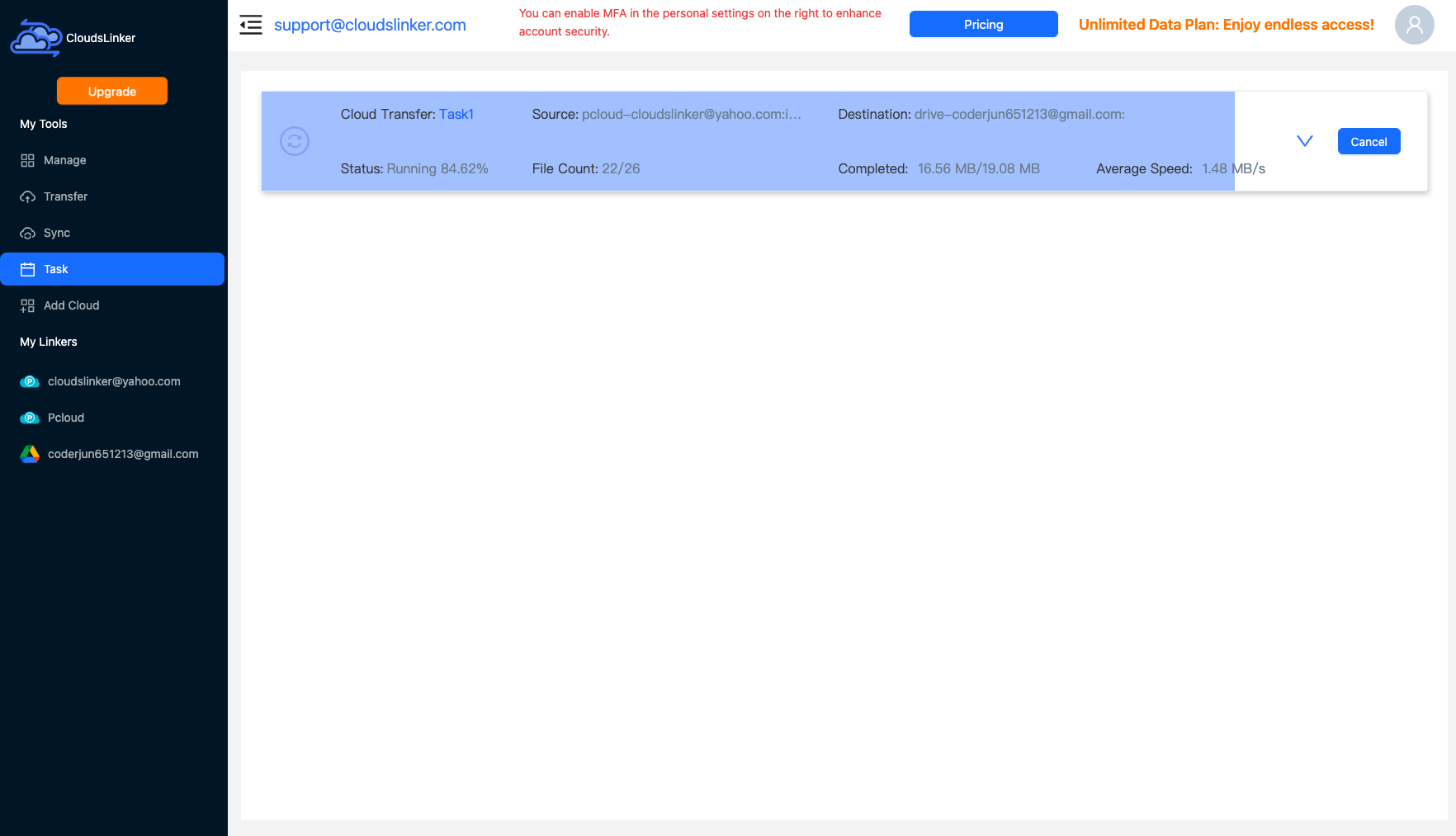
Step 4: Start and Monitor the Transfer
Start it and check back daily if you like — the Task List shows items moved and the current pace through Apple's throttle. Re-verification prompts from Apple (rare, mid-multi-day jobs) surface in the task status waiting for a fresh code.
Comparing the Ways to Transfer From iCloud Photos to Degoo
| Method | Ease of Use | Speed | Best For | Uses Local Bandwidth | Skill Level |
|---|---|---|---|---|---|
| iCloud.com download / upload | Tedious in batches | Slow, supervised | Curated selections | Yes — twice | Basic |
| Degoo iPhone app | Easiest | Phone-upload pace | Libraries fully on-device | Phone Wi-Fi | Basic |
| CloudsLinker | Easy (one 2FA code) | Apple-throttled, unattended | Cloud-optimized libraries too big for the phone | No | Basic |
- Route by where originals live: 'Optimize iPhone Storage' users have a cloud-resident library — that's CloudsLinker territory. 'Download and Keep Originals' users can let the Degoo app do it from the handset.
- Subscription tier for video, non-negotiable: free Degoo's 256 MB cap is minutes of iPhone footage; the 50 GB subscription cap swallows hours. Match the tier before starting, not after the skip report.
- Preserve chronology with folder names: albums don't travel, capture dates do. Year- or event-named destination folders rebuild the navigation Degoo's feed doesn't infer.
- Rescue Shared Album content first: shared spaces hold reduced-resolution copies outside your library — save keepers to your own library on-device before any migration.
- ADP off, web access on, for the window: the two Apple settings that silently empty a transfer's results. Flip them back after.
- Verify against Apple's counts: Settings → iCloud → Photos shows exact photo/video totals; match them to the Degoo task report before touching Recently Deleted or downgrading iCloud+.
- Keep the Degoo account active: an archive parked on free Degoo dies quietly after 90 idle days — a paid tier or a recurring phone-app open keeps it alive.
Watch: Transfer iCloud Photos to Degoo with CloudsLinker
A walkthrough of the cloud-to-cloud method: signing in with an Apple ID and two-factor code, connecting Degoo with account credentials, picking the photo library items to move, and monitoring the server-side transfer in the Task List.
Frequently Asked Questions
Conclusion
The phone-app route wins for libraries that still physically live on the iPhone with originals downloaded; it's Degoo doing what Degoo was built for. Cloud-optimized libraries — the common case once storage pressure started the whole problem — need a method that reads iCloud itself: manual downloads for small selections, CloudsLinker for the archive, authenticated by Apple ID and paced through Apple's 50–150 GB/day throttle unattended. Whatever the route, leave iCloud's Recently Deleted alone for its 30-day window until Degoo's copy is verified album by album.
Online Storage Services Supported by CloudsLinker
Transfer data between over 58 cloud services with CloudsLinker

OneDrive

Google Drive

Google Photos

Shared Drive

OneDrive for Business

Dropbox

Box

Mega

pCloud

Yandex

ProtonDrive

AWS

GCS

iDrive

Storj

DigitalOcean

Wasabi

1fichier

PikPak

TeleBox

OpenDrive

Backblaze B2

Fastmail file

SharePoint

Nextcloud

ownCloud

Premiumize me

HiDrive

Put.io

Sugar Sync

Jottacloud

Seafile

Ftp

SFtp

NAS

WebDav

4shared

Icedrive

Cloudflare R2

Scaleway

Hetzner Object Storage

Synology C2 Object Storage

S3 Compatible

Doi

iCloud Drive

iCloud Photos

FileLU

Zoho WorkDrive

Telia Cloud / Sky

Drime

Filen

TeraBox

Internxt

Degoo

Gofile

Pixeldrain

Shade

Koofr
Didn' t find your cloud service? Be free to contact: [email protected]
Further Reading
Effortless FTP connect to google drive: Transfer Files in 3 Easy Ways
Learn More >
Google Photos to OneDrive: 3 Innovative Transfer Strategies
Learn More >
Google Photos to Proton Drive: 3 Effective Transfer Techniques
Learn More >