OneDrive to Gofile: Share OneDrive Folders Through Gofile Links Without Downloading (2026)
Copy files from OneDrive into Gofile three ways — manual upload, rclone with the Gofile backend, or a server-side copy with CloudsLinker — and hand out Gofile links that need no Microsoft account. Includes the Premium-only API rule and Gofile's retention clock.
Introduction
Short answer: people copy OneDrive folders into Gofile to share them outward — with clients, communities or anyone who does not have a Microsoft account — because a Gofile link is a plain public URL that downloads without sign-in, while OneDrive sharing is tied to Microsoft identities and to whatever external-sharing policy your tenant enforces. Two facts shape every route in this guide. First, Gofile's retention clock: on a free account, content that stops being downloaded is removed after roughly 10 days, and only Premium accounts keep files permanently. Second, Gofile's API is a Premium feature — free accounts cannot be connected to CloudsLinker, rclone or any other third-party tool, so the automated methods below assume a Premium account, and the manual upload is the only route that works on free. Treat Gofile as a distribution layer, not a backup: keep OneDrive as the master copy and use Copy, never Move. This guide covers the manual download-and-upload, an rclone copy with the Gofile backend, and a cloud-to-cloud transfer with CloudsLinker that pushes folders from OneDrive straight into your Gofile account server-side.
OneDrive is Microsoft's cloud storage, allocated per user and wired into Microsoft 365. Sharing works through Microsoft identities and links whose behaviour — external access, expiry, anonymous links — is governed by the account or tenant policy.
- 5 GB free; 100 GB at $1.99/month; 1 TB per user on Microsoft 365
- Single files up to 250 GB
- Sharing tied to Microsoft accounts and tenant policy
- Durable storage — the right place for the master copy
Gofile is a file-sharing host built around public links: upload a folder, hand out the URL, and anyone can download without an account. It is optimised for distribution, not for keeping things.
- Free content kept ~10 days by default; downloads reset the clock
- Premium: permanent storage (soft ceiling reported around 1 TB)
- API is Premium-only — free accounts cannot be connected to tools
- Public links, no recipient login
| Feature | OneDrive | Gofile |
|---|---|---|
| Purpose | Personal / team storage and collaboration | Public-link distribution |
| Recipient needs | Microsoft account or a link permitted by policy | Nothing — the link downloads directly |
| Retention | Permanent while the account exists | Free: ~10 days without downloads; Premium: permanent |
| Third-party API access | Any account via Microsoft OAuth | Premium accounts only |
| Max single file | 250 GB | No published cap; free uploads throttled |
| Access control | Per-user permissions, link expiry, tenant policy | Whoever holds the link |
- Recipients without Microsoft accounts: a client, a class, a forum — a Gofile link works for everyone, no sign-in prompt, no "request access" loop.
- Tenant sharing policy is in the way: many Microsoft 365 tenants block anonymous links or external sharing. Copying deliverables to Gofile hands them out without asking an admin to change policy — check that this is allowed for the content in question.
- Large, short-lived distributions: a video set or dataset that needs to be downloadable for a couple of weeks, then forgotten. Gofile's retention model fits that; OneDrive quota does not have to carry it.
- Keeping the master where it is: the copy in Gofile is disposable; OneDrive keeps versions, permissions and the durable original.
- Decide free or Premium first: free Gofile = browser upload only; Premium = rclone and CloudsLinker become available, and content stops expiring.
- Get the API token (Premium, automated methods): open gofile.io/myProfile and copy the API Token.
- Sort what is shareable: anything in the target folder becomes reachable by link. Move sensitive files out of the folder in OneDrive before copying, not after.
- Plan the Gofile folder tree: one Gofile folder per deliverable or audience gives each its own link and its own delete date.
- Mind the item cap: Gofile accounts are limited to 100,000 items (per rclone's documentation); zip very large trees of tiny files before sharing.
Method 1: Download from OneDrive and Upload to Gofile
Step 1: Download from OneDrive
In the OneDrive web app, select the folders or files and click Download; multiple selections arrive as a zip. If OneDrive is synced locally, copy from the synced folder instead — but only files marked as available offline are actually on disk.
Step 2: Upload to Gofile
Open gofile.io, sign in if you want the folder kept in your account, and drag the extracted folder into the upload area. Gofile returns a public link when the upload completes. This is the only route that works on a free account; expect throttled upload speeds there, and remember the ~10-day retention clock starts as soon as downloads stop.
Method 2: rclone with the Gofile Backend
For command-line users with a Premium account
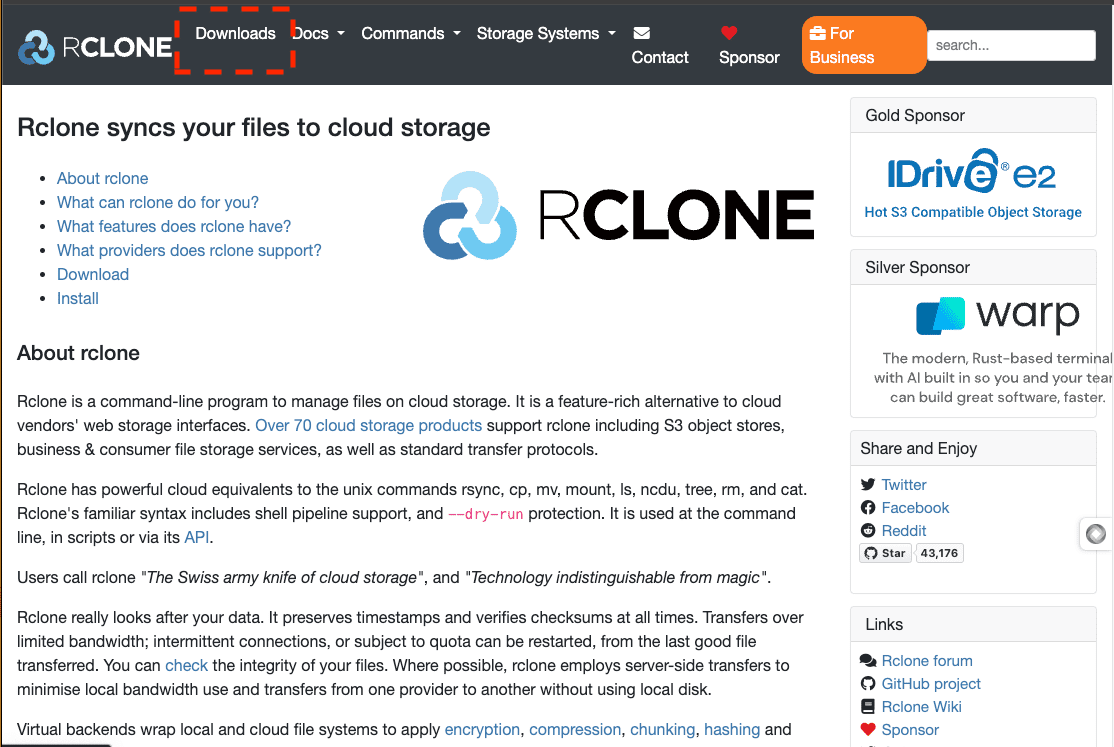
rclone has native backends for OneDrive and Gofile. The Gofile backend authenticates
with the same Premium API token, supports modification times and MD5 hashes, and can
even generate the public link with rclone link. Be clear on one point: a copy
between the two remotes streams every file through the machine running rclone.
Step 1: Configure Both Remotes
Run rclone config twice. For the onedrive remote, rclone opens a
browser for Microsoft's OAuth sign-in. For the gofile remote, paste the API
token from your Gofile profile when prompted.
Step 2: Copy, Then Mint the Link
rclone copy onedrive:"Deliverables/Client-A" gofile:"Client-A" --progress
rclone link gofile:"Client-A"
Gofile allows duplicate filenames inside one folder, which ordinary filesystems cannot
represent — if a sync ever complains, rclone dedupe resolves it. Filenames are
limited to 255 characters.
Method 3: Server-Side Copy with CloudsLinker
OneDrive folders into Gofile without the download
CloudsLinker authorizes OneDrive through Microsoft OAuth, connects Gofile through your Premium API token, and copies folders between the two on its own servers. Nothing routes through your computer, the folder tree is preserved, and the task keeps running after you close the browser.
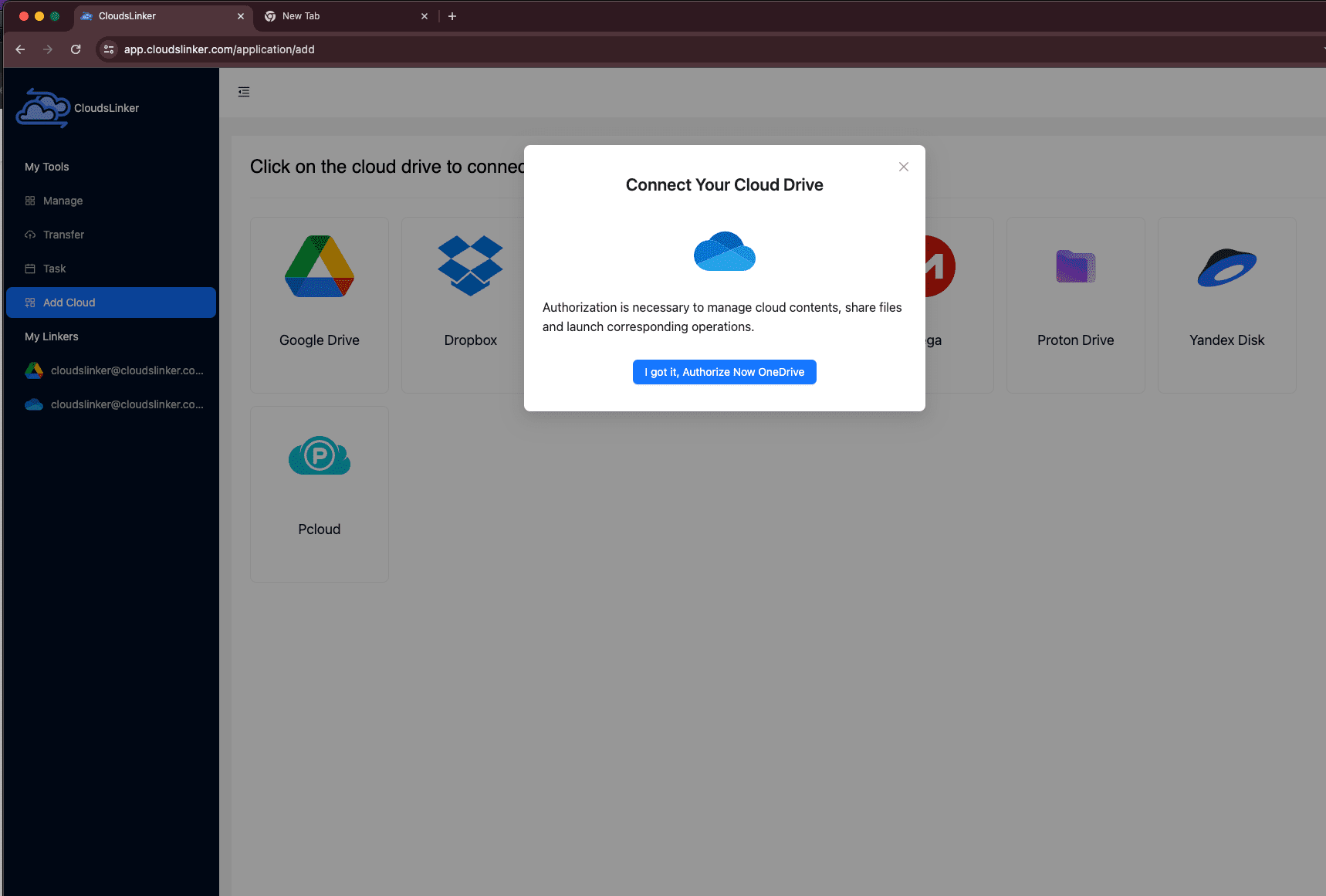
Step 1: Connect OneDrive
Click Add Cloud, choose OneDrive and approve Microsoft's consent screen. No password is stored; access can be revoked from your Microsoft account's app permissions at any time.
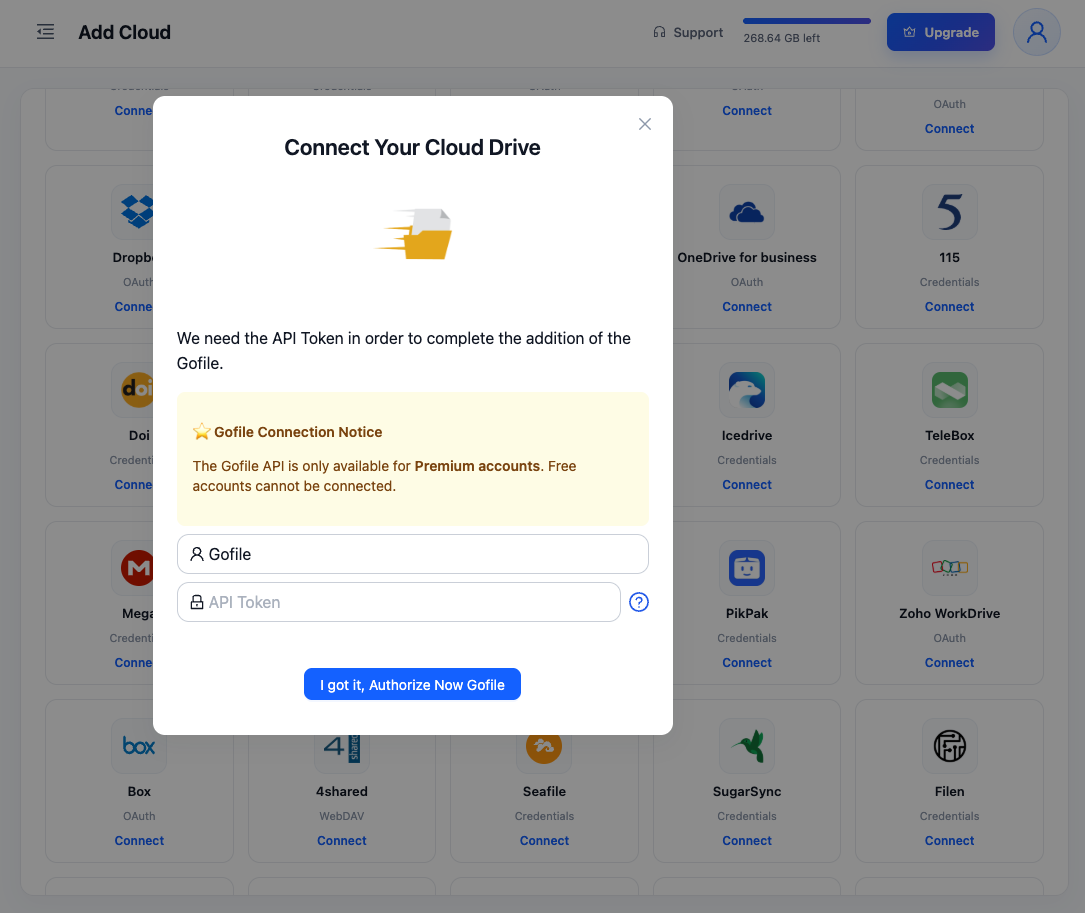
Step 2: Connect Gofile with the Premium API Token
Click Add Cloud → Gofile. Enter a display name and paste the API Token from gofile.io/myProfile. This step only succeeds on a Premium account — Gofile's API is not available to free accounts, and the same rule applies to rclone and every other third-party tool.
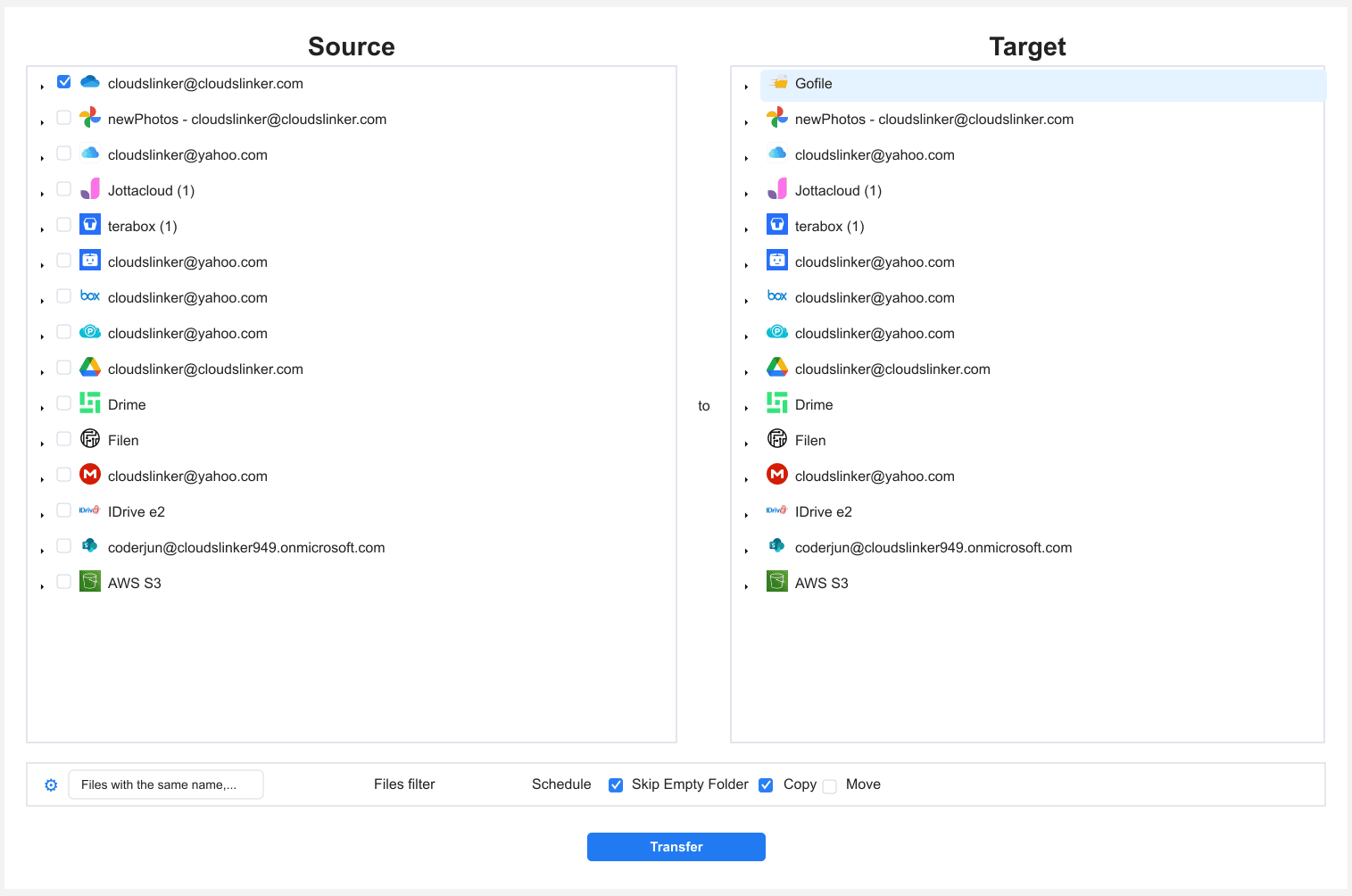
Step 3: Configure the Transfer
In the Transfer section, pick the OneDrive connection as the source and browse to the folder you want to share; pick the Gofile folder as the target. Use Copy mode — OneDrive stays the master, Gofile gets the shareable copy. File-type and size filters let you leave working files and drafts behind.
Step 4: Start, Monitor and Share
Start the task and follow it in the Task List; failed files are listed per task and retried. When it finishes, open the folder in Gofile and copy its public link — that link is what your recipients get, and they need neither a Microsoft account nor a Gofile login to download.
Quick Comparison
| Method | Works on Free Gofile | Uses Your Bandwidth | Best For | Skill Level |
|---|---|---|---|---|
| Manual download + upload | Yes | Yes — twice | A few files, one-off shares | Beginner |
| rclone | No — Premium token required | Yes — on the machine running it | Scripted, repeatable distributions | Advanced |
| CloudsLinker | No — Premium token required | No — server-side | Multi-GB folders, hands-off copies | Beginner |
- Copy, never move: Gofile's retention model and Premium storage ceiling make it a poor home for the only copy of anything. OneDrive keeps the master.
- Curate before you copy: everything in the Gofile folder is one link away from anyone. Remove sensitive files from the source folder in OneDrive first.
- One folder per audience: separate Gofile folders give each client or group its own link, and let you delete one distribution without touching the others.
- Know your account's clock: free content vanishes after roughly 10 days without downloads; Premium content stays but reportedly draws warnings past ~1 TB. Clean up finished distributions so the ceiling never becomes a problem.
- Zip trees of tiny files: the 100,000-item account cap arrives long before any size limit for photo libraries or code exports.
- Rotate the token when done: the Gofile API token grants full account access to any tool holding it. Regenerate it in your profile after a one-off migration.
Frequently Asked Questions
Conclusion
Choose by size and by account type. A few files on a free Gofile account: download from OneDrive and upload in the browser. Command-line users with a Premium account: rclone talks to both ends and can even mint the public link, though every byte flows through the machine running it. For folders in the tens of gigabytes — the client deliverables and video sets that make people reach for Gofile in the first place — a server-side copy with [CloudsLinker](https://www.cloudslinker.com) moves OneDrive content into Gofile without touching your connection, using Microsoft's OAuth on one side and a Premium API token on the other. Whatever the route, the OneDrive copy stays the master and the Gofile copy is the one you share. Going the other way — rescuing a Gofile share before its retention clock runs out — is covered in [Gofile to OneDrive](/guides/transfer-files-from-gofile-to-onedrive/) and [how to save Gofile files before they expire](/guides/download-gofile-files-before-they-expire/). Connector details are on the [Gofile](/support-clouds/gofile/) and [OneDrive](/support-clouds/onedrive/) support pages.
Online Storage Services Supported by CloudsLinker
Transfer data between over 60 cloud services with CloudsLinker

OneDrive

Google Drive

Google Photos

Google Takeout

Shared Drive

OneDrive for Business

Dropbox

Box

Mega

pCloud

Yandex

ProtonDrive

AWS

GCS

iDrive

Storj

DigitalOcean

Wasabi

1fichier

PikPak

TeleBox

OpenDrive

Backblaze B2

Fastmail file

SharePoint

Nextcloud

ownCloud

Premiumize me

HiDrive

Put.io

Sugar Sync

SmugMug

Jottacloud

Seafile

Ftp

SFtp

NAS

WebDav

4shared

Icedrive

Cloudflare R2

Scaleway

Hetzner Object Storage

Synology C2 Object Storage

S3 Compatible

Doi

iCloud Drive

iCloud Photos

FileLU

Zoho WorkDrive

Telia Cloud / Sky

Drime

Filen

TeraBox

Internxt

Degoo

Gofile

Pixeldrain

Shade

Koofr
Didn' t find your cloud service? Be free to contact: [email protected]
Further Reading
Effortless FTP connect to google drive: Transfer Files in 3 Easy Ways
Learn More >
Google Photos to OneDrive: 3 Innovative Transfer Strategies
Learn More >
Google Photos to Proton Drive: 3 Effective Transfer Techniques
Learn More >