pCloud to OneDrive (and Back): What Changes When You Switch, in Either Direction
Moving between pCloud and OneDrive either way: the differences that break a naive copy — Crypto folder, Personal Vault, 250 GB files, file names — and how to copy.
Introduction
pCloud and OneDrive end up swapping users in both directions. People move from pCloud to OneDrive when a Microsoft 365 subscription already includes 1 TB per person and paying for pCloud on top stops making sense; others move from OneDrive to pCloud to get off the subscription with a one-time lifetime plan, or to keep files in pCloud's European data region. Either way the move is mostly a folder copy — both services are plain file storage with folders — but a handful of features exist on one side only and quietly break a naive copy.
This guide starts with those differences, then covers what to watch in each direction: pCloud's Crypto folder and file names OneDrive rejects on the way in; Personal Vault and OneNote notebooks on the way out. The last part shows one transfer that works both ways and how to run both services side by side while you switch.
The Short Answer
Copy the folders across — both services are folder-based — but first move anything out of pCloud's Crypto folder or OneDrive's Personal Vault, because no transfer tool can read either. Coming from pCloud, also check for files over 250 GB and names with characters OneDrive forbids. Going to pCloud, export OneNote notebooks separately.
Differences That Change the Move
| pCloud | OneDrive | What it means for the move | |
|---|---|---|---|
| How you pay | Yearly plans or one-time lifetime plans (500 GB, 2 TB, 10 TB) | 5 GB free; 100 GB with Microsoft 365 Basic; 1 TB per person with Personal or Family (up to 6 people) | A Family subscription is six separate 1 TB drives — large pCloud libraries may need splitting across accounts |
| Largest file | No limit | 250 GB | Only matters pCloud → OneDrive |
| Client-side encrypted area | Crypto folder (paid add-on, passphrase only you know) | Personal Vault (extra sign-in step, not end-to-end encrypted) | Neither is readable by transfer tools; empty it into a normal folder first |
| File names | Accepts characters such as : ? * | " < > |
Rejects them, plus leading or trailing spaces and a few reserved names | Renamed or adjusted on the way into OneDrive |
| Deleted files and versions | Trash and Rewind for 15 days (free) or 30 days (paid); up to 365 days with Extended File History | Recycle bin for 30 days; previous versions per file | History stays behind; only current versions move |
| Data region | US or EU (Luxembourg), chosen when the account is created | Microsoft data centres, by account and country | pCloud's EU region is a common reason to move OneDrive → pCloud |
| Non-file items | — | OneNote notebooks, shortcuts to shared folders | Not copied as files when leaving OneDrive |
Sources: Microsoft: restrictions and limitations in OneDrive, pCloud plans, rclone OneDrive notes on restricted characters and OneNote.
Moving pCloud → OneDrive
-
Decrypt the Crypto folder first. Its files are encrypted on your device and pCloud
doesn't hand them to other apps in readable form. Unlock it in the pCloud Drive desktop app and copy
the contents into a normal pCloud folder — or straight into your local OneDrive folder — then leave
Crypto Folderout of the transfer selection. - Find files over 250 GB. Search pCloud for very large disk images and video masters. OneDrive won't accept them; split them, compress them, or keep them in pCloud.
-
Expect some renamed files. Names with
: ? * | " < > \are legal in pCloud and not in OneDrive. A transfer either fails on them or, as CloudsLinker does, swaps in similar-looking full-width characters (:?*). Rename them in pCloud first if scripts or links depend on the exact names. - Size the Microsoft 365 plan. A Family subscription gives each of up to six people their own 1 TB OneDrive; it does not pool into 6 TB. A 3 TB pCloud lifetime library has to be split by person or folder.
- Don't cancel a lifetime plan. There is nothing to save by deleting a paid-up pCloud lifetime account; keep it as an independent second copy for a while.
Moving OneDrive → pCloud
- Empty Personal Vault into a normal folder. Apps using the OneDrive API can't open Personal Vault. Unlock it in the OneDrive app or website and move what you want to keep into a regular folder; in pCloud, put those files into the Crypto folder if they need the same protection.
- Export OneNote notebooks. They live in OneDrive but are not files a transfer tool can copy. Keep them in OneDrive, or export them from OneNote.
- Check "Shared" and shortcuts. Folders shared with you and added to My files as shortcuts belong to someone else's OneDrive; ask the owner, or copy the parts you are allowed to keep.
- Decide the pCloud region before the account exists. pCloud asks for US or EU storage when you sign up, and moving an account to the other region later is a separate process, so create the account in the region you want before copying.
- Office files stay editable, collaboration doesn't. Word, Excel and PowerPoint files copy as normal files, but co-authoring and Office's version history stay in OneDrive.
One Transfer, Either Direction
Three tools can do the copy. The desktop apps — pCloud Drive and OneDrive — let you drag folders from one to the other on a Windows or Mac computer, which works for a few gigabytes but pulls every file through your connection and fills the local cache. rclone supports both services and handles large libraries from a terminal, with the same character replacement for OneDrive. CloudsLinker does the copy on its own servers in either direction, with nothing installed:
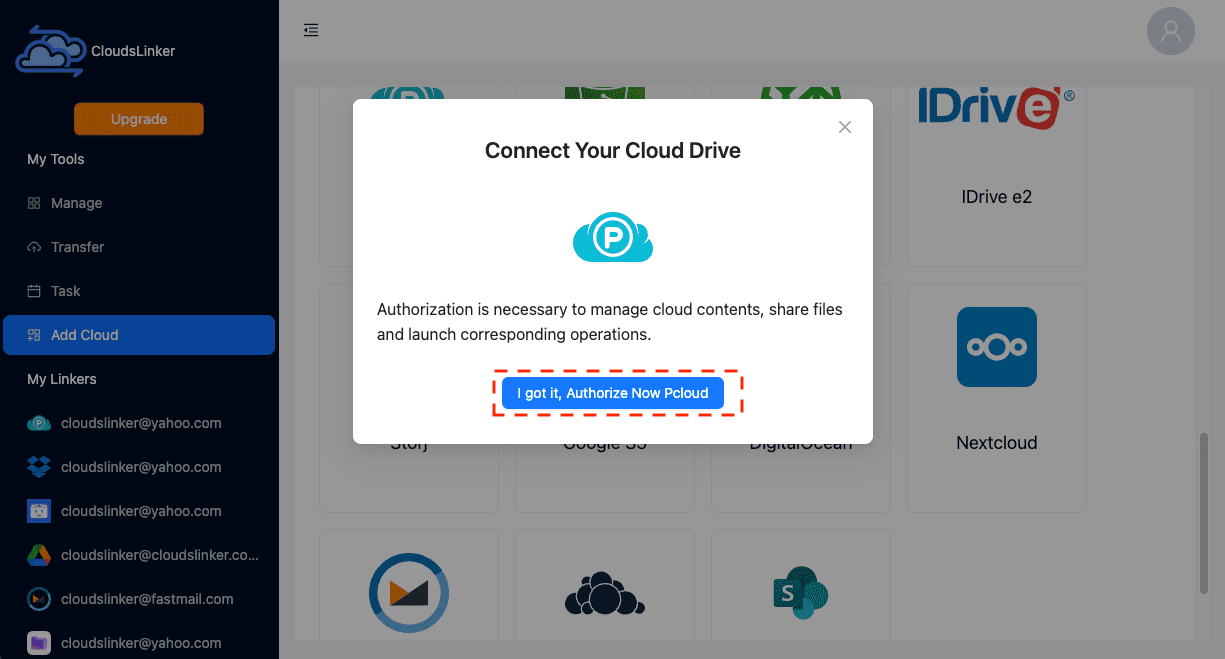
Step 1: Connect pCloud
Click Add Cloud, choose Pcloud and click I got it, Authorize Now Pcloud. Sign in on pCloud's own page; CloudsLinker reads the account's region from pCloud's reply and uses the US or EU endpoint accordingly, so EU accounts need no extra setting.
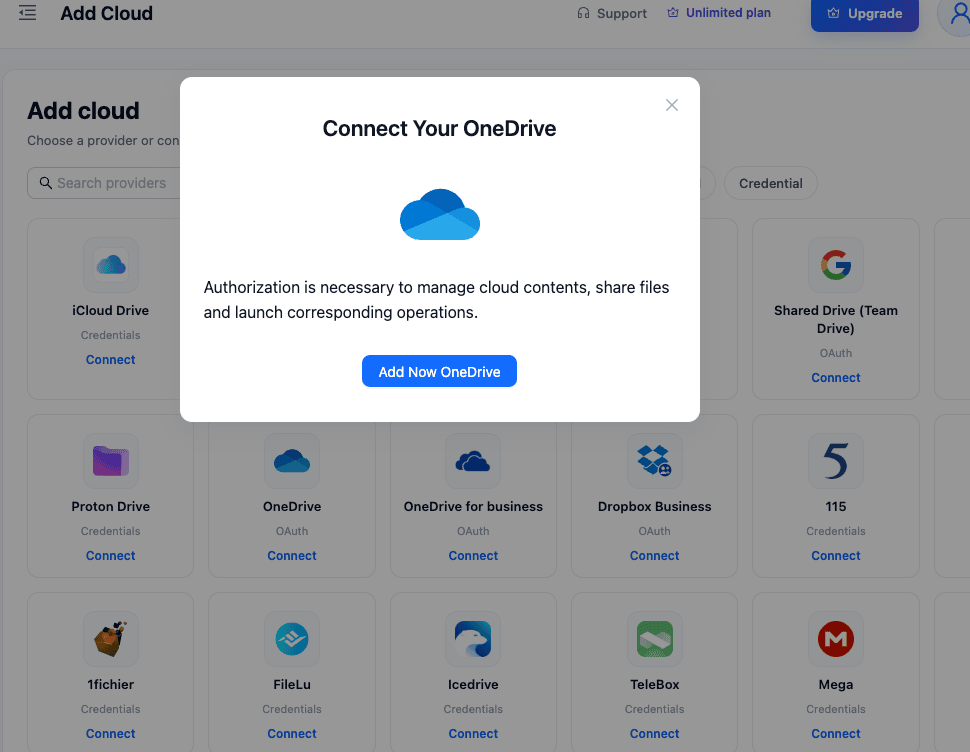
Step 2: Connect OneDrive and Pick the Drive
Click Add Cloud, choose OneDrive and sign in on Microsoft's page. CloudsLinker then lists the drives the account can reach; click the one to use — your own OneDrive, not a shared library — and press Confirm Selection.
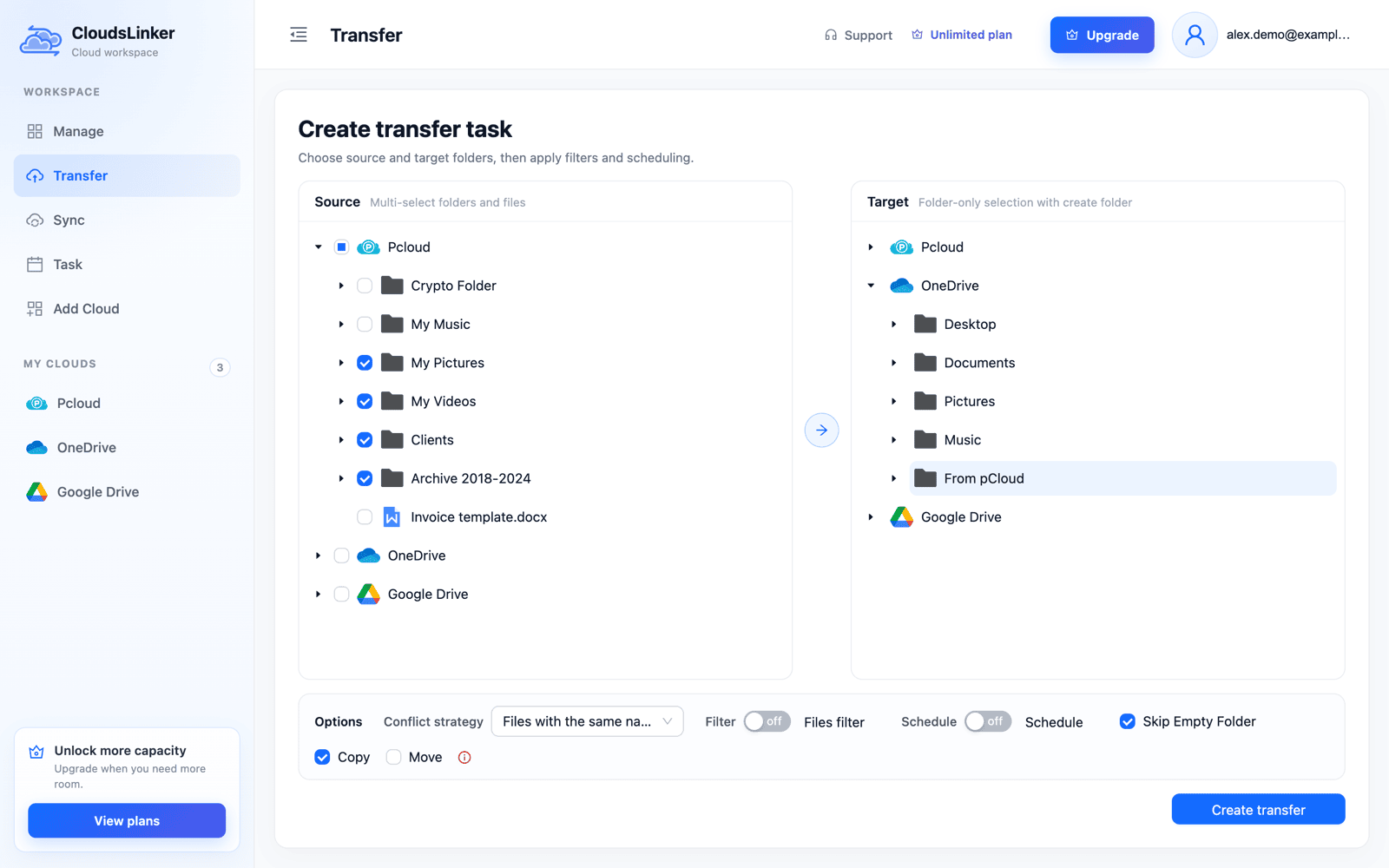
Step 3: Choose the Direction, Folders and Target
Open Transfer. Put the service you are leaving on the left: tick its folders in
Source, leaving pCloud's Crypto Folder unticked. On the right, create a
landing folder such as From pCloud (or From OneDrive) and select it. Keep
Copy; Move would delete each file from the source after copying it.
Size filters can hold back files over 250 GB on the way into OneDrive.
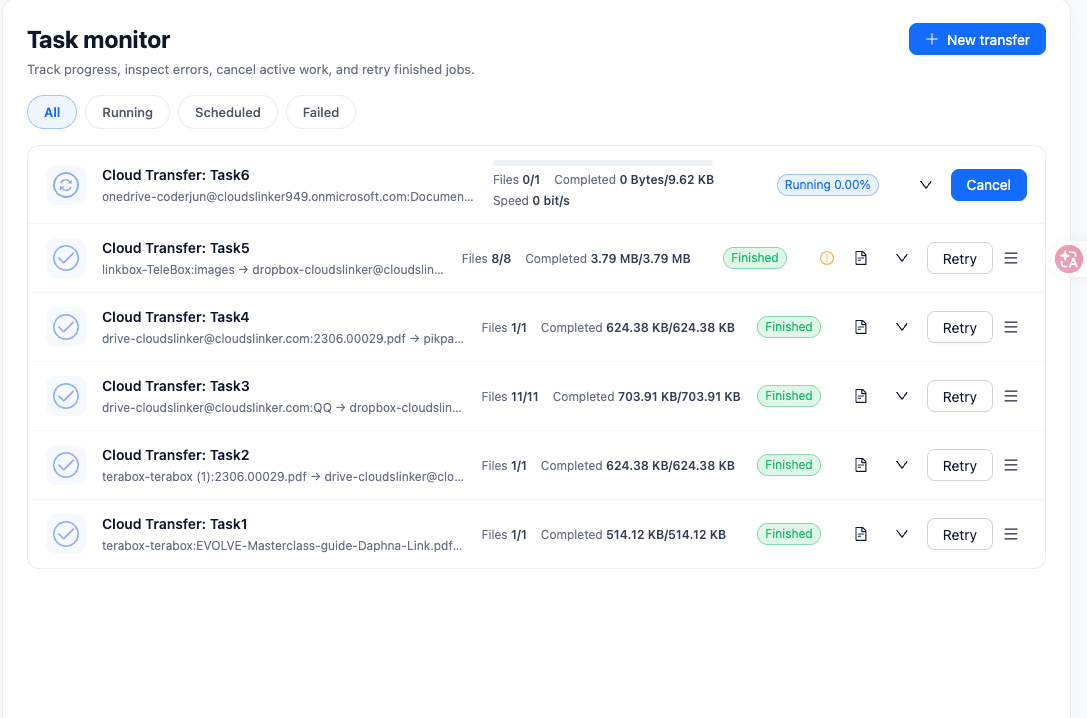
Step 4: Start and Monitor the Transfer
Click Create transfer and follow it in Task monitor; it continues after you close the browser. When it finishes, open a few files with special characters in their names and the largest files at the destination, and compare folder sizes on both sides.
Running Both During the Switch
A switch rarely happens in one evening. While devices still save to the old service, run the same transfer again from time to time — or schedule it on a paid CloudsLinker plan — and only new or changed files are copied. Point one device at a time to the new service: install the new desktop app, move phone photo backup over, then sign out of the old app.
When nothing writes to the old service any more, run the transfer one last time, check the landing folder, and move its contents into place. On pCloud, a lifetime plan can simply stay as the archive copy; on OneDrive, the files remain available until the Microsoft 365 subscription ends.
Frequently Asked Questions
Conclusion
Before copying, decrypt pCloud's Crypto folder or empty OneDrive's Personal Vault into normal folders, because neither can be read by a transfer tool, and plan for OneDrive's 250 GB file limit and its character rules. Then copy with the desktop apps if the library is small, with rclone if you live in a terminal, or with CloudsLinker to copy server-side in either direction without a local download. Keep the old service for a while as a safety net — on a pCloud lifetime plan that costs nothing extra.
Related: pCloud and OneDrive connection notes, pCloud to Google Drive, and pCloud to SharePoint for business accounts.
Online Storage Services Supported by CloudsLinker
Transfer data between over 60 cloud services with CloudsLinker

OneDrive

Google Drive

Google Photos

Google Takeout

Shared Drive

OneDrive for Business

Dropbox

Box

Mega

pCloud

Yandex

ProtonDrive

AWS

GCS

iDrive

Storj

DigitalOcean

Wasabi

1fichier

PikPak

TeleBox

OpenDrive

Backblaze B2

Fastmail file

SharePoint

Nextcloud

ownCloud

Premiumize me

HiDrive

Put.io

Sugar Sync

SmugMug

Jottacloud

Seafile

Ftp

SFtp

NAS

WebDav

4shared

Icedrive

Cloudflare R2

Scaleway

Hetzner Object Storage

Synology C2 Object Storage

S3 Compatible

Doi

iCloud Drive

iCloud Photos

FileLU

Zoho WorkDrive

Telia Cloud / Sky

Drime

Filen

TeraBox

Internxt

Degoo

Gofile

Pixeldrain

Shade

Koofr
Didn' t find your cloud service? Be free to contact: [email protected]
Further Reading
Effortless FTP connect to google drive: Transfer Files in 3 Easy Ways
Learn More >
Google Photos to OneDrive: 3 Innovative Transfer Strategies
Learn More >
Google Photos to Proton Drive: 3 Effective Transfer Techniques
Learn More >