Zoho WorkDrive to OneDrive: Moving Your Team's Files into Microsoft 365 (2026)
Transfer files from Zoho WorkDrive to OneDrive three ways — manual export, rclone, and a server-side copy that moves Team Folder content into Microsoft 365.
Introduction
Teams usually move files from Zoho WorkDrive to OneDrive for one reason: the organisation has standardised on Microsoft 365, and OneDrive is where Word, Excel, Teams and SharePoint already expect files to live — with 1 TB per user on business plans and single files up to 250 GB. WorkDrive's model is different: storage is pooled per team (1 TB, 3 TB or 5 TB for 3–10 users on the Starter, Team and Business plans), and its native documents are Zoho Writer, Sheet and Show files that only become .docx, .xlsx and .pptx on export. That gap — pooled team storage and Zoho-format documents on one side, per-user Microsoft storage on the other — is what a migration has to bridge. This guide covers the manual export route, an rclone sync, and a server-side copy with CloudsLinker that skips the download/re-upload cycle.
Zoho WorkDrive is the file platform of the Zoho suite, built around shared Team Folders rather than personal drives. Storage is pooled: a team of 3–10 users gets 1 TB on the Starter plan, 3 TB on Team and 5 TB on Business, growing with each additional seat.
- Team Folders with role-based access as the core unit
- Per-file upload caps by plan: 10 GB / 50 GB / 250 GB
- Native Zoho Writer, Sheet and Show documents; TrueSync desktop client
- Storage pool expandable to 20–100 TB depending on plan
OneDrive is Microsoft's cloud storage, allocated per user and wired into Microsoft 365: files open in Word and Excel in place, surface in Teams, and sync through the OneDrive client with Files On-Demand.
- 1 TB per user on Microsoft 365 personal and standard business plans
- Single files up to 250 GB
- 5 GB free tier; 100 GB Basic at $1.99/month
- Deep Microsoft 365 integration (Office, Teams, SharePoint)
| Feature | Zoho WorkDrive | OneDrive |
|---|---|---|
| Storage model | Pooled per team: 1 TB (Starter), 3 TB (Team), 5 TB (Business) for 3–10 users; +100/300/500 GB per extra user | Per user: 5 GB free, 100 GB Basic, 1 TB on Microsoft 365 Personal and standard business plans |
| Max single file | 10 GB / 50 GB / 250 GB by plan | 250 GB on current plans |
| Native documents | Zoho Writer / Sheet / Show; export to .docx / .xlsx / .pptx on the way out | Word / Excel / PowerPoint stored natively |
| Desktop sync | TrueSync client | OneDrive client with Files On-Demand, bundled with Windows |
| Ecosystem | Zoho One suite (CRM, Mail, Projects) | Microsoft 365 (Office apps, Teams, SharePoint) |
| Entry price beyond free | Per-user team plans (Starter tier; annual billing) | $1.99/month for 100 GB; $9.99/month for 1 TB with Office apps |
Sources: Zoho WorkDrive pricing, Zoho WorkDrive upload limits, Microsoft OneDrive plans, OneDrive restrictions and limitations
This migration is rarely about storage prices — it follows a platform decision. The common triggers:
- Microsoft 365 standardisation: Once email, Teams and Office move to Microsoft, files left in WorkDrive sit outside every workflow the organisation now uses.
- Per-user storage instead of a shared pool: A WorkDrive team shares 1–5 TB; Microsoft 365 gives each user their own 1 TB, which maps better to personal working files.
- Documents in Office formats natively: Files stored as .docx and .xlsx from day one, with no export step when sharing outside the Zoho suite.
- Windows integration: The OneDrive client ships with Windows and syncs with Files On-Demand — no separate TrueSync deployment to manage.
- Leaving a partially-adopted suite: Teams that trialled Zoho One but committed to Microsoft consolidate to cut the second subscription.
The move has real friction — pooled Team Folders must land somewhere, and Zoho-native documents change format — so the method choice matters more than usual.
Three checks before any files move:
1. Measure what you are moving. Open WorkDrive's admin storage view and note the real total. A Business team pooling several terabytes will not fit one OneDrive account's 1 TB — decide upfront what goes to which user's OneDrive and what belongs in a SharePoint document library instead.
2. Settle the Zoho-native documents. Writer, Sheet and Show files convert to .docx, .xlsx and .pptx when they leave WorkDrive. Finish active co-editing first, and treat the migration as the format cutover.
3. Freeze the source for the cutover. Announce a read-only window for the folders being moved. Files edited mid-transfer are the main source of "missing changes" complaints after a migration.
Method 1: Manual Export and Re-Upload
The zero-tooling route: pull the files out of WorkDrive through the browser, push them into OneDrive. Workable for one person's folders; painful for a team's.
Step 1: Download from Zoho WorkDrive
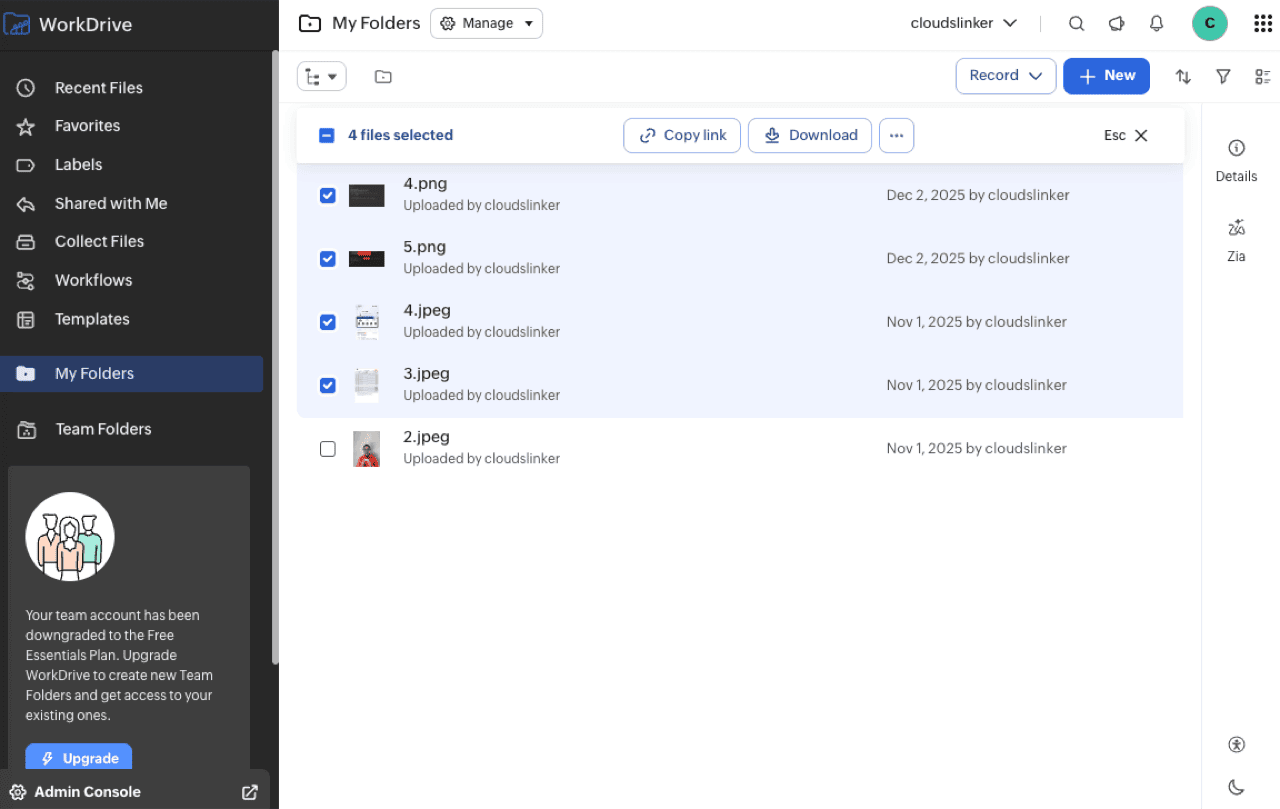
In the WorkDrive web app, open My Folders (or the Team Folder you are clearing), select the files or folders to export and choose Download from the selection toolbar. WorkDrive packages multi-item selections as zip archives, and Zoho-native documents are exported to Office formats inside the zip. Large selections are split across multiple archives, so download over a stable connection and check that every part arrives. Teams already running the TrueSync desktop client can instead let the folders sync to a local drive and skip the zip handling.
Step 2: Extract and Upload to OneDrive
Unzip the archives locally, reassemble the folder tree, and upload it to OneDrive — either by dragging folders into onedrive.com or by dropping them into the local OneDrive folder and letting the sync client push them. Watch two OneDrive rules while re-assembling: names cannot contain characters like " * : < > ? / \ |, and the full path is limited to 400 characters, which deeply nested WorkDrive trees can exceed.
The whole library crosses your connection twice — down, then up. For a few gigabytes that is an afternoon; for a pooled Team Folder it is days of open browser tabs, which is exactly what the next two methods remove.
Method 2: Rclone from the Command Line
Rclone, the open-source cloud sync tool, has backends for both Zoho WorkDrive and OneDrive, making it the scriptable route for admins comfortable in a terminal.
Step 1: Install Rclone and Configure Both Remotes
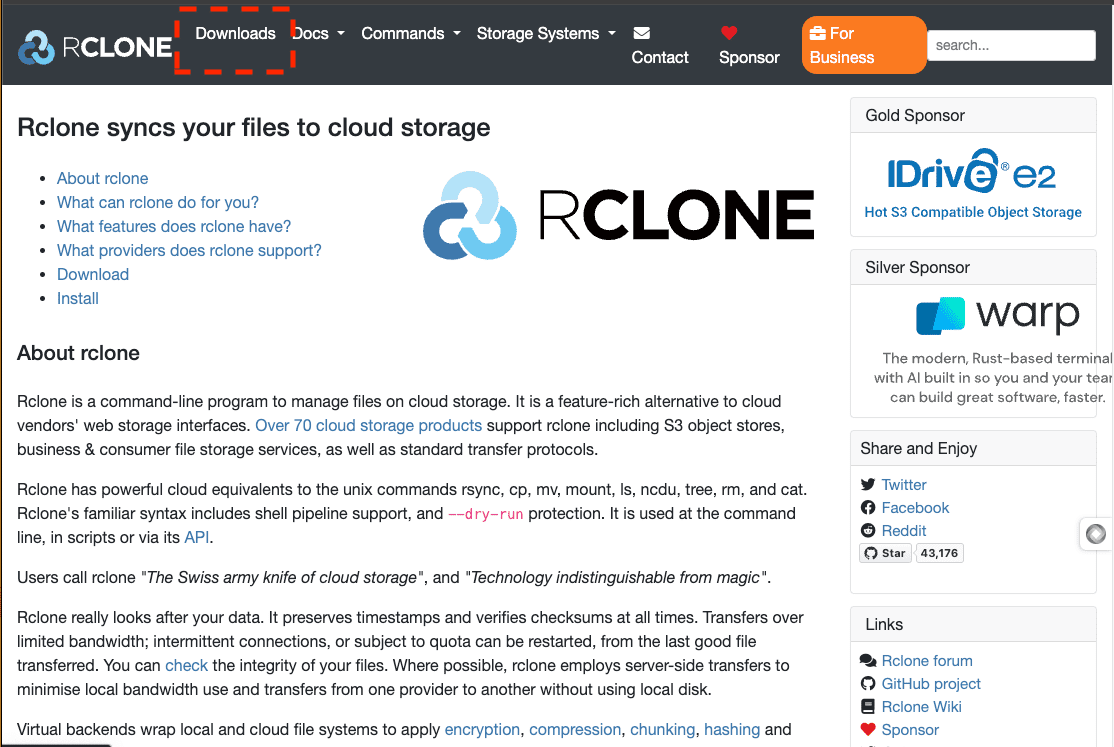
Download rclone from rclone.org and run rclone config twice: once creating a zoho remote (it opens a browser for Zoho's OAuth and asks for your region, then lists your Teams to pick from) and once creating an onedrive remote through Microsoft's OAuth. Both tokens are stored locally in the rclone config file.
Step 2: Run the Copy and Verify
A single command moves a folder tree: rclone copy zoho:"Team Folder/Projects" onedrive:Projects --progress. Re-running it copies only what changed, and rclone check compares the two sides afterwards. The honest caveats: every byte still flows through the machine running rclone, so speed is bounded by that connection; the session must stay alive for the duration; and Zoho-native documents that have no binary form can fail to export this way — spot-check Writer-heavy folders and export those through the web app if needed.
Method 3: Server-Side Copy with CloudsLinker
Team Folders to OneDrive without the double transfer
CloudsLinker connects to WorkDrive through Zoho's region-aware OAuth — selecting your Team and Workspace after authorization, so pooled Team Folder content is reachable, not just personal files — and writes into OneDrive through Microsoft's API. The copy runs between the two clouds directly: a 500 GB Team Folder never touches your bandwidth, no session has to stay open, and the folder tree arrives in OneDrive as it stood in WorkDrive.
Step 1: Connect Zoho WorkDrive
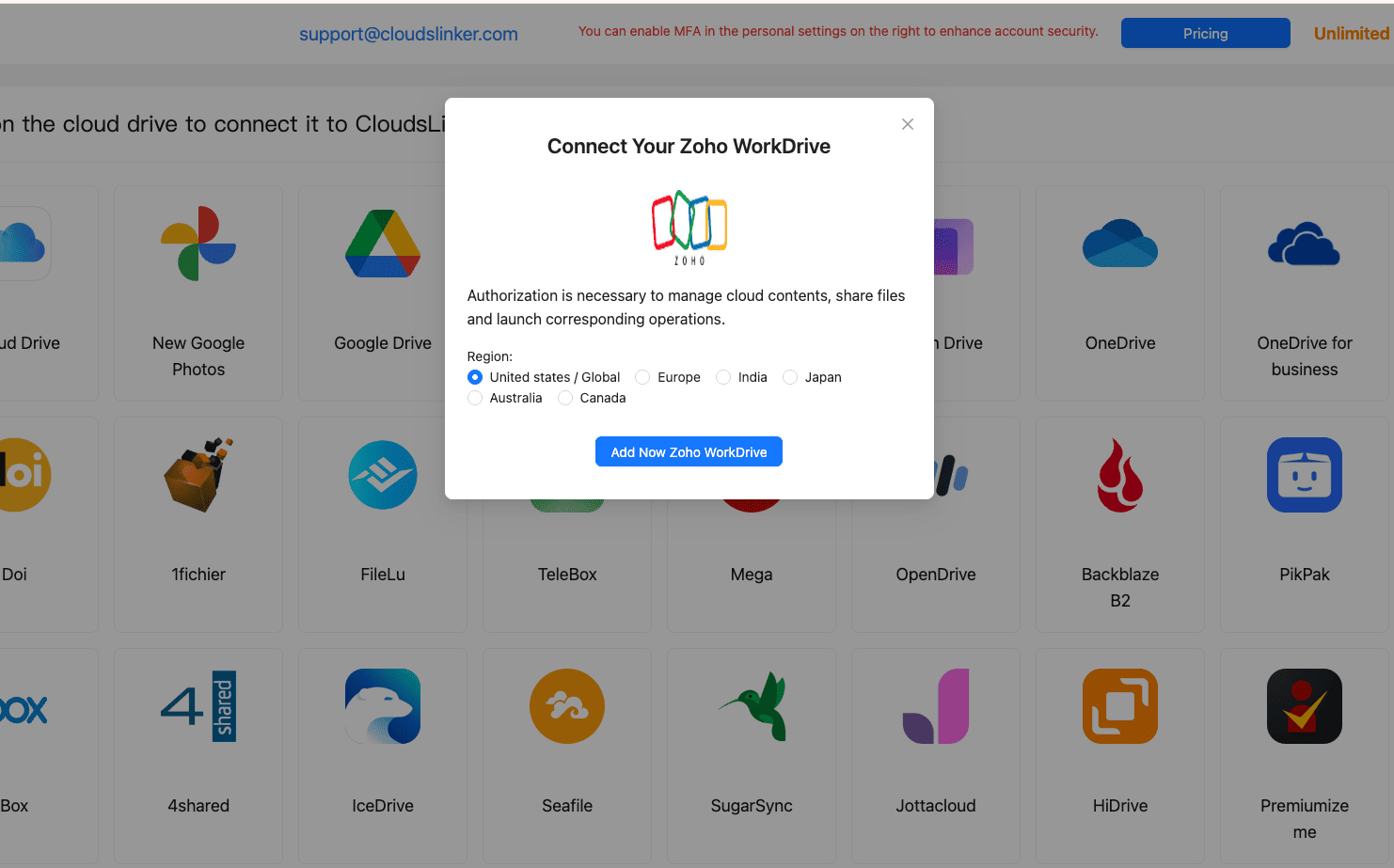
Sign in at app.cloudslinker.com, click Add Cloud and choose Zoho WorkDrive. Select the region your Zoho account is hosted in (United States/Global, Europe, India, Japan, Australia or Canada — OAuth fails against the wrong region), then click Add Now Zoho WorkDrive and approve access on Zoho's own consent page. After authorization, pick the Team and, if you want to scope the connection down, a specific Workspace.
Step 2: Connect OneDrive
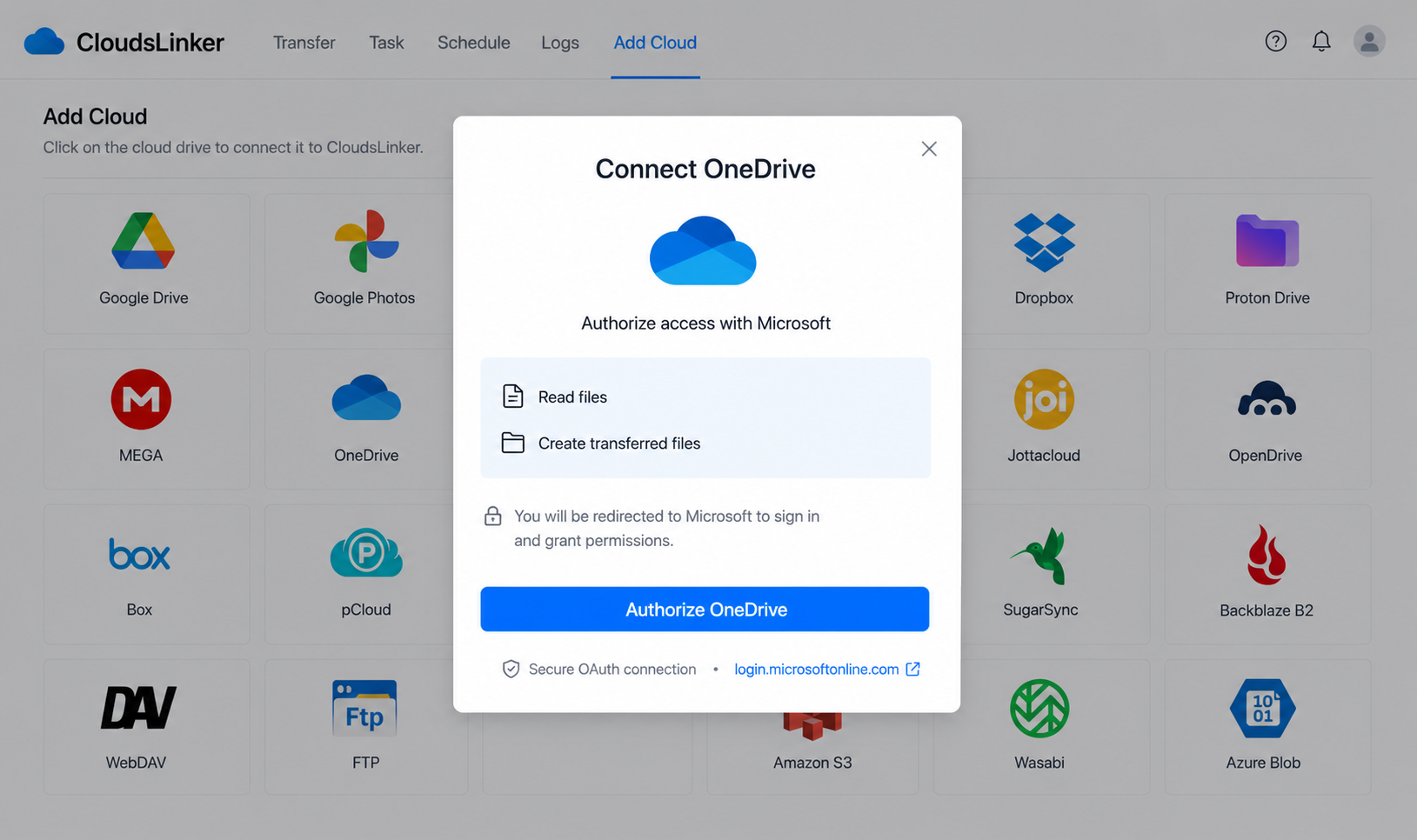
Click Add Cloud again and choose OneDrive (or OneDrive for Business for a Microsoft 365 work account). Microsoft's OAuth page handles the sign-in; if your account exposes several drive resources, select the one to use. CloudsLinker holds a revocable token — no Microsoft password is stored, and access can be cut from your Microsoft account's app permissions.
Step 3: Configure the Transfer
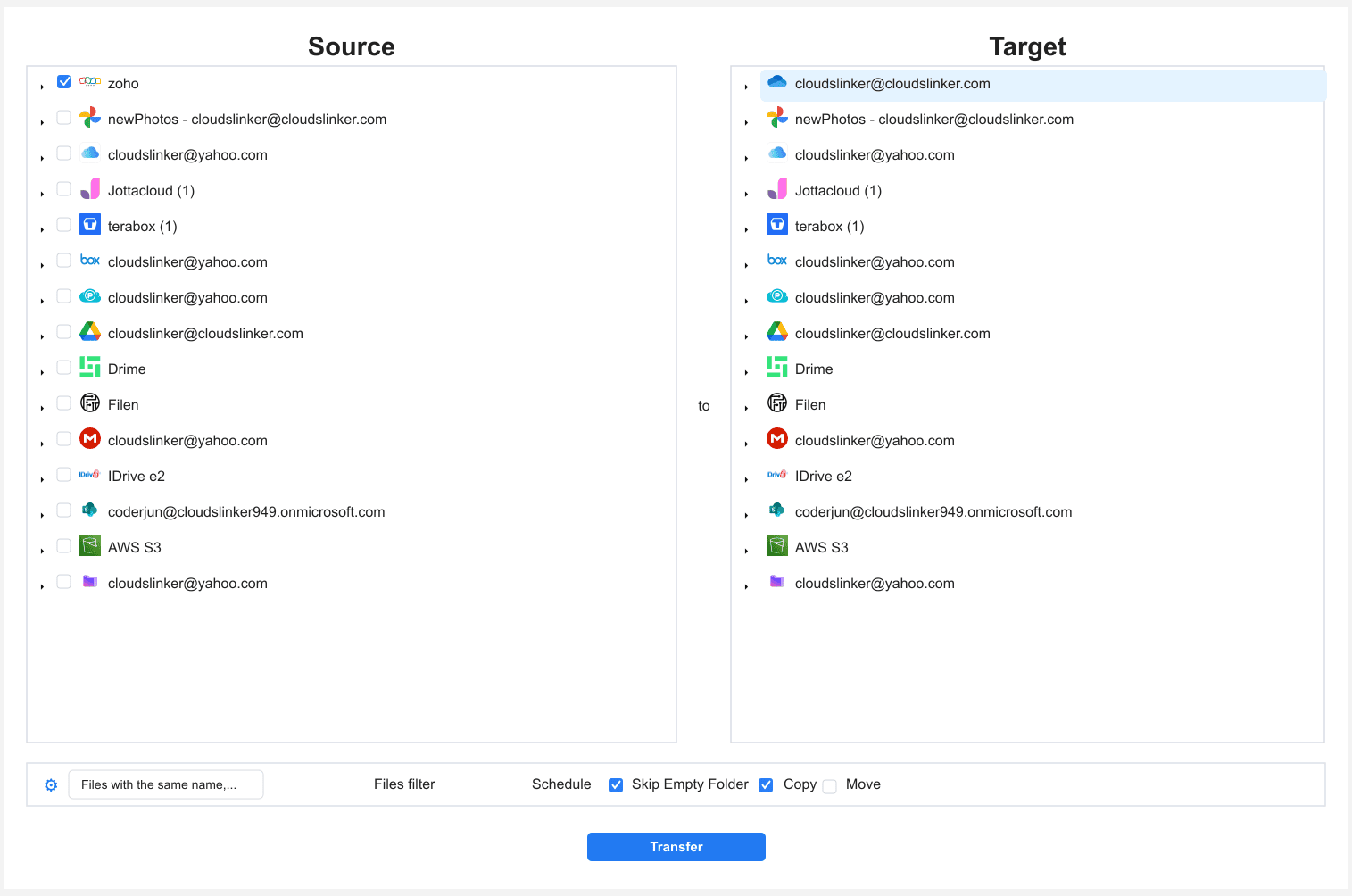
Open the Transfer section. Select the connected Zoho WorkDrive as the source and browse to the Team Folders or My Folders content to move. On the destination side, select OneDrive and choose the target directory.
Filters restrict a task by file type, size or date — useful for phased cutovers (archives first, active folders later). Copy mode leaves WorkDrive untouched; Move removes source files after a successful transfer. For a team migration, run Copy and keep WorkDrive as the fallback until verification is done.
Step 4: Start and Monitor the Transfer
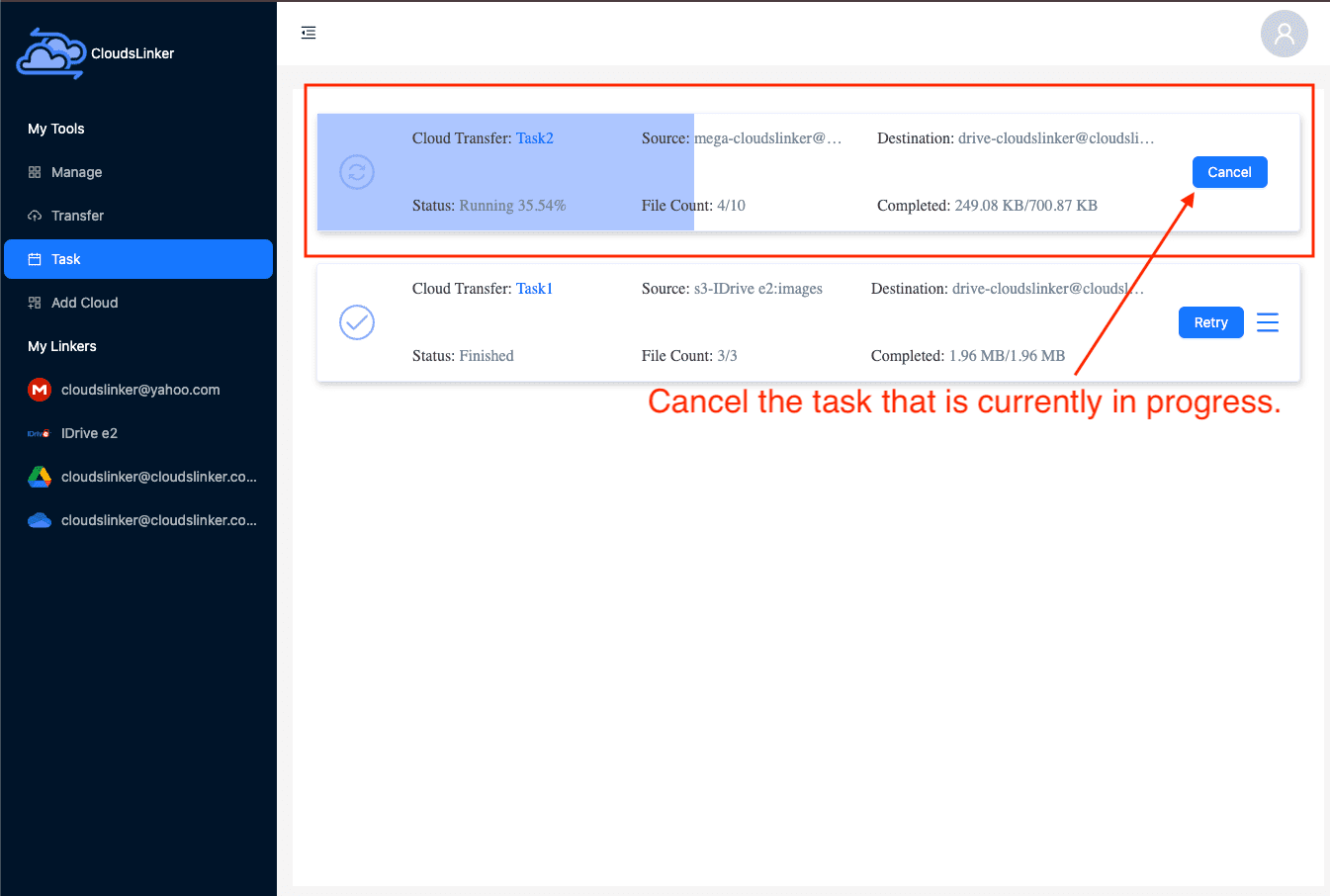
Start the task and follow it in the Task List — transferred size, speed, and per-file results. The job runs server-side between Zoho and Microsoft, so closing the browser or shutting the laptop changes nothing. Re-running the task after the read-only window picks up files added since the first pass.
Comparing the Ways to Transfer From Zoho WorkDrive to OneDrive
| Method | Ease of Use | Speed | Best For | Uses Local Bandwidth | Skill Level |
|---|---|---|---|---|---|
| Manual export & upload | Simple but tedious | Slow — data crosses your line twice | One user's folders, a few GB | Yes, heavily | Beginner |
| Rclone | Terminal setup, two OAuth configs | Bounded by the machine running it | Scriptable, repeatable syncs by an admin | Yes | Advanced |
| CloudsLinker | Web interface, OAuth both sides | Server-side, independent of your connection | Team Folders and large pooled libraries | No | Beginner |
- Map Team Folders before moving anything. WorkDrive's pooled Team Folders have no direct OneDrive equivalent — decide per folder whether it becomes part of someone's OneDrive or a SharePoint document library, and write the mapping down. The migration executes the map; it cannot invent it.
- Convert or finish Zoho-native documents first. Writer, Sheet and Show files export to .docx/.xlsx/.pptx on the way out. Close out live co-editing sessions, and spot-check converted files that used Zoho-specific features.
- Check OneDrive naming rules against your tree. Characters like
" * : < > ? / \ |in file names and paths beyond 400 characters fail on the Microsoft side. Deeply nested WorkDrive folders with long names are the usual offenders — flatten or rename before the run. - Do the storage arithmetic per destination account. A 3 TB Team pool does not fit a 1 TB OneDrive. Split by owner across user accounts, or target SharePoint for genuinely shared content.
- Declare a read-only window for the cutover. Lock the WorkDrive folders being moved, run the transfer, verify, then point the team at OneDrive. Edits made mid-copy are how files go missing.
- Verify counts, then re-share. Compare file counts and total size per folder after the run, and rebuild sharing in OneDrive/Teams — permissions never migrate between the two systems.
Frequently Asked Questions
Conclusion
Match the method to the volume. A single user's My Folders with a few gigabytes fits the manual export-and-upload route, Zoho's zip quirks aside. An admin comfortable with a terminal can script the move with rclone, accepting that every byte flows through the machine running it. For Team Folders measured in hundreds of gigabytes — the pooled 1–5 TB that WorkDrive plans accumulate — the server-side copy is the practical route: OAuth on both sides, folder tree preserved, nothing routed through a local connection. Keep WorkDrive read-only until the file counts in OneDrive match.
Online Storage Services Supported by CloudsLinker
Transfer data between over 60 cloud services with CloudsLinker

OneDrive

Google Drive

Google Photos

Google Takeout

Shared Drive

OneDrive for Business

Dropbox

Box

Mega

pCloud

Yandex

ProtonDrive

AWS

GCS

iDrive

Storj

DigitalOcean

Wasabi

1fichier

PikPak

TeleBox

OpenDrive

Backblaze B2

Fastmail file

SharePoint

Nextcloud

ownCloud

Premiumize me

HiDrive

Put.io

Sugar Sync

SmugMug

Jottacloud

Seafile

Ftp

SFtp

NAS

WebDav

4shared

Icedrive

Cloudflare R2

Scaleway

Hetzner Object Storage

Synology C2 Object Storage

S3 Compatible

Doi

iCloud Drive

iCloud Photos

FileLU

Zoho WorkDrive

Telia Cloud / Sky

Drime

Filen

TeraBox

Internxt

Degoo

Gofile

Pixeldrain

Shade

Koofr
Didn' t find your cloud service? Be free to contact: [email protected]
Further Reading
Effortless FTP connect to google drive: Transfer Files in 3 Easy Ways
Learn More >
Google Photos to OneDrive: 3 Innovative Transfer Strategies
Learn More >
Google Photos to Proton Drive: 3 Effective Transfer Techniques
Learn More >