Transfer Google Drive Files to Another Account: 5 Ways, and What Each Keeps
Move Google Drive files to another Google account with Takeout, sharing and ownership transfer, rclone, CloudsLinker or Alist — and see which keep Google Docs native, folders intact and ownership.
Introduction
Google has no button that moves a whole Google Drive to another account. What it does have — sharing, ownership transfer between personal accounts, Takeout — each solves part of the problem, and the cloud-to-cloud tools solve the rest. The right choice depends on three questions: are both accounts personal Gmail accounts, or is one a work or school account; do Google Docs, Sheets and Slides need to stay Google files; and is it a handful of folders or years of data. This guide answers those first, then walks through five methods and what each one keeps.
Quick Navigation
- Which Situation Are You In?
- Method One: Export & Import Using Google Takeout
- Method Two: Share, Then Transfer Ownership or Copy
- Method Three: Use Rclone to Copy Between Google Drive Accounts
- Method Four: Use CloudsLinker to Copy Between Google Drive Accounts
- Method Five: Use Alist to Copy Files Between Google Drive Accounts
- Comparative Overview of Transfer Methods
- Frequently Asked Questions (FAQ)
- Step-by-Step Video Tutorial
| Situation | Best fit |
|---|---|
| A few files from one personal Gmail account to another, Google Docs must stay Google Docs | Share, then transfer ownership |
| A work or school account to a personal one (or the reverse) | Copy: ownership can't cross that boundary — CloudsLinker or rclone |
| A whole drive, or folders with thousands of files | A cloud-to-cloud copy — CloudsLinker, rclone or Alist |
| An offline archive before an account is closed | Google Takeout |
| Files for a team in Google Workspace | Move them into a Shared drive, which the organisation owns, or copy into one |
One thing to decide up front: Google Docs, Sheets and Slides only stay native Google files when they are shared and transferred, or copied with Google's own Make a copy. Every export-based route — Takeout, rclone by default, CloudsLinker, Alist — turns them into Word, Excel and PowerPoint files (Drawings into SVG). They open in Google Docs again, but comments and edit history stay behind. Google Forms, Sites and My Maps can't be exported by these tools at all.
Method One: Export & Import Using Google Takeout
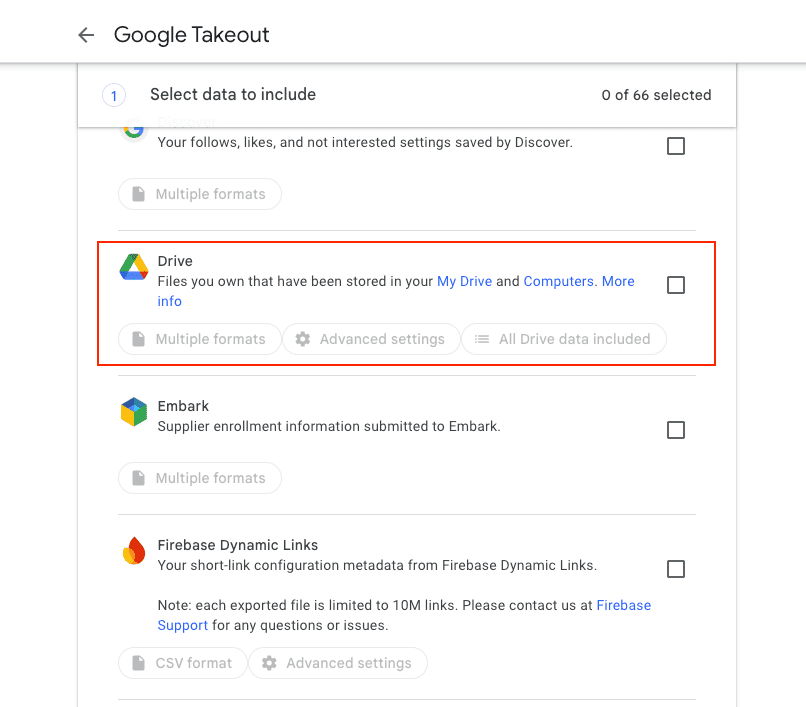
Step 1: Visit Google Takeout and Select Drive Data
Sign in to the old account at Google
Takeout, Google's official export tool. Click Deselect all, tick
Drive, then use All Drive data included to limit the export to certain
folders and Multiple formats to choose what Google Docs, Sheets and Slides are converted
to (Word, Excel and PowerPoint by default).
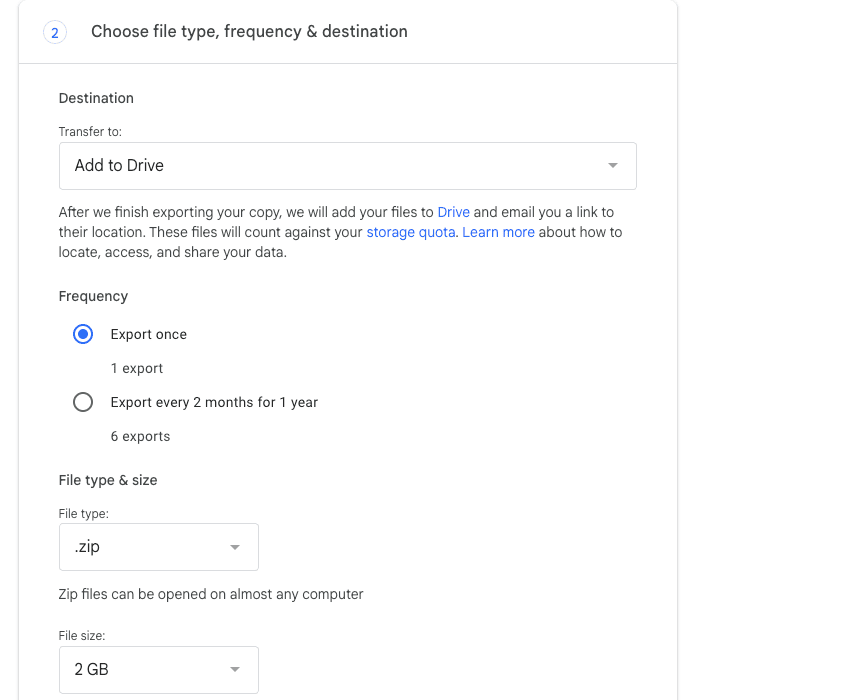
Step 2: Choose Export Format and Delivery Method
Choose Export once, the .zip file type and a part size of 1, 2, 4,
10 or 50 GB — larger exports are split into several numbered files. For a move to another Google
account, pick Send download link via email: Add to Drive puts the
archive into the same old account's Drive, not into another account, and the Dropbox, OneDrive and Box
options deliver to those services.
Step 3: Download, Unpack, and Re-Upload
When Google emails that the export is ready, download every part before the links expire, extract them into one folder, and upload the folders to the new account — in a browser, or with Google Drive for desktop signed in to the new account.
Tip: uploaded .docx, .xlsx and .pptx files stay Office files unless you open each one in Google Docs and save it as a Google file, or turn on Convert uploads in Drive's web settings before uploading through the browser.
Method Two: Share, Then Transfer Ownership or Copy
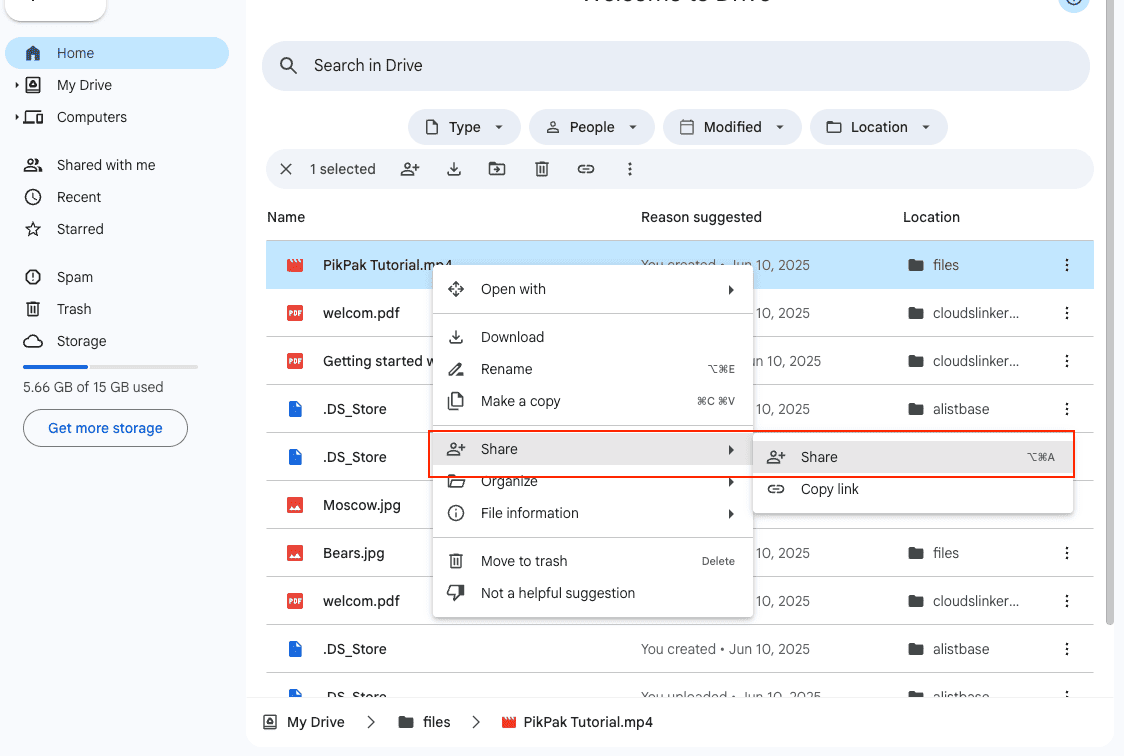
Step 1: Open the Source Account and Locate the Files
Sign in to the old Google Drive account and select the files or folders to move. Right-click and choose Share. Grouping files into one folder first makes the next steps shorter.
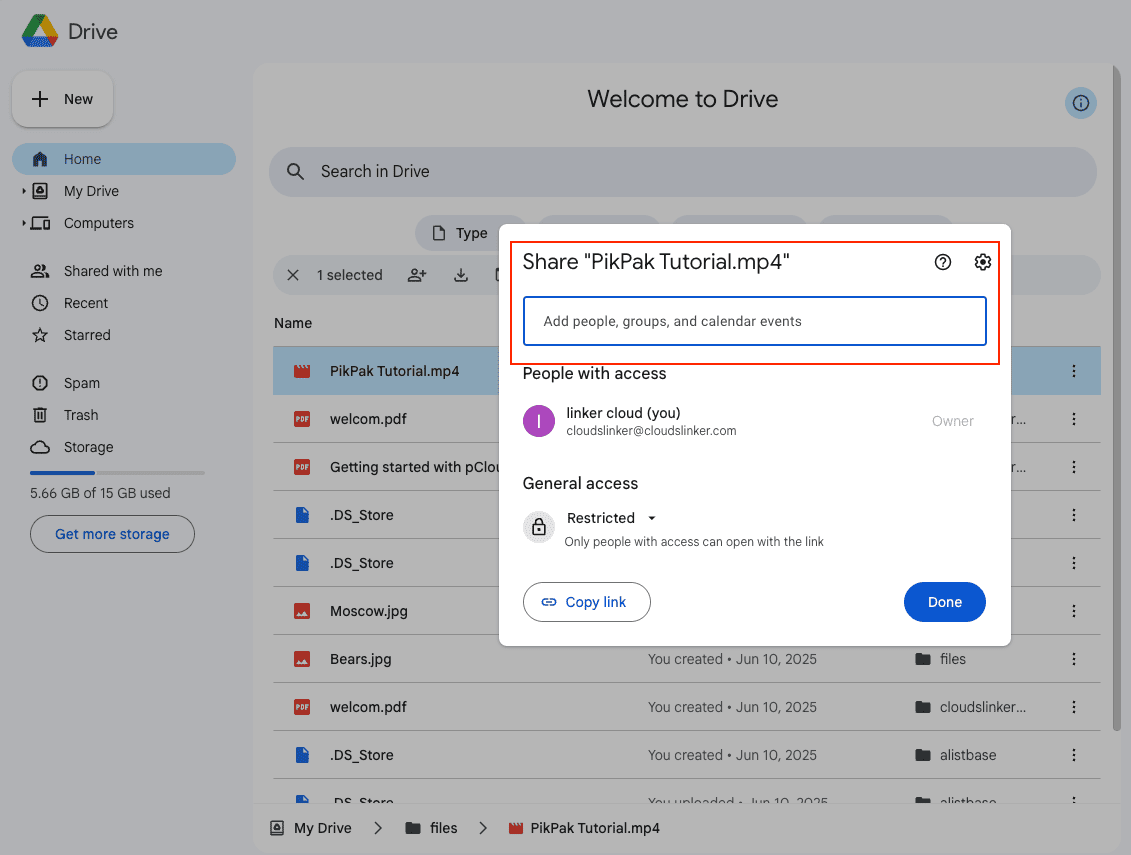
Step 2: Add the Destination Account’s Email
Enter the new account's address, give it Editor access and click
Send. The items appear in the new account under Shared with me.
Step 3: Transfer Ownership, or Make Copies in the Second Account
Both accounts personal? Back in the old account, open Share again on the shared files, open the menu next to the new account and choose Transfer ownership. The new account receives a request and becomes the owner once it accepts; until then the old account stays the owner. Ownership doesn't cascade, so transfer the files themselves, not just the folder that contains them. Google Docs stay native, and the files count against the new owner's storage from then on.
Work or school account involved? Ownership can't move between a Google Workspace
account and a personal one. In the new account, select the shared files and choose Make a
copy — this works on files, not on folders, so recreate the folders yourself or use a
cloud-to-cloud copy for whole folder trees.
Method Three: Use Rclone to Copy Between Google Drive Accounts
Step 1: Install and Initialize Rclone
Download rclone from rclone.org, then open a terminal and run:
rclone config
The wizard creates remotes — rclone's name for a configured account.
Step 2: Set Up Two Google Drive Remotes
Create two Google Drive remotes, for example gdrive1 for the old account and
gdrive2 for the new one, signing in to the right account in the browser each time.
Check them with:
rclone listremotes
Step 3: Copy Files Between Accounts
Test with a dry run, then copy:
rclone copy gdrive1:Docs "gdrive2:From old account/Docs" --dry-runrclone copy gdrive1:Docs "gdrive2:From old account/Docs" --progress
--server-side-across-configs lets Google copy them directly, which keeps Google Docs
native and uses no local bandwidth
(rclone Google Drive docs).
Method Four: Use CloudsLinker to Copy Between Google Drive Accounts
About CloudsLinker:
CloudsLinker holds several Google accounts at once — personal, Workspace and Shared drives — and copies between them on its own servers, so nothing passes through your computer and the browser can be closed while it runs. Each account is connected through Google's own sign-in page with OAuth; CloudsLinker never sees the passwords.
Step 1: Connect Your First Google Drive Account
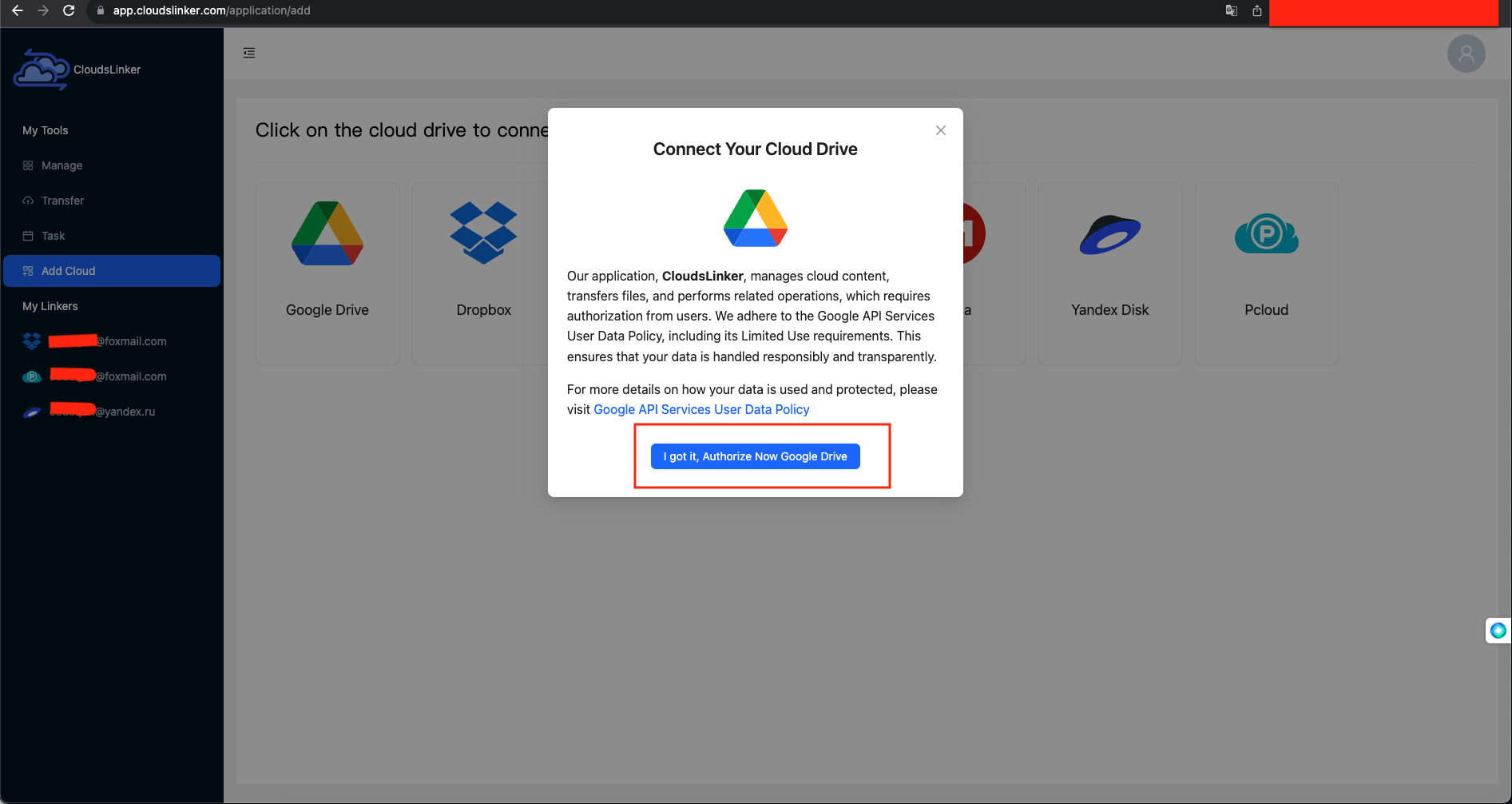
Sign in to CloudsLinker, click Add Cloud and choose Google Drive. Sign in on Google's page with the account you are moving files from and approve access to its Drive files. The connection is named after the account's email address.
Step 2: Connect the Second Google Drive Account
Click Add Cloud → Google Drive again and sign in with the account you are moving files to. If Google signs in the first account automatically, choose Use another account on Google's account picker. For a Workspace Shared drive, use the Shared Drive (Team Drive) tile instead.
Step 3: Set Up the Transfer
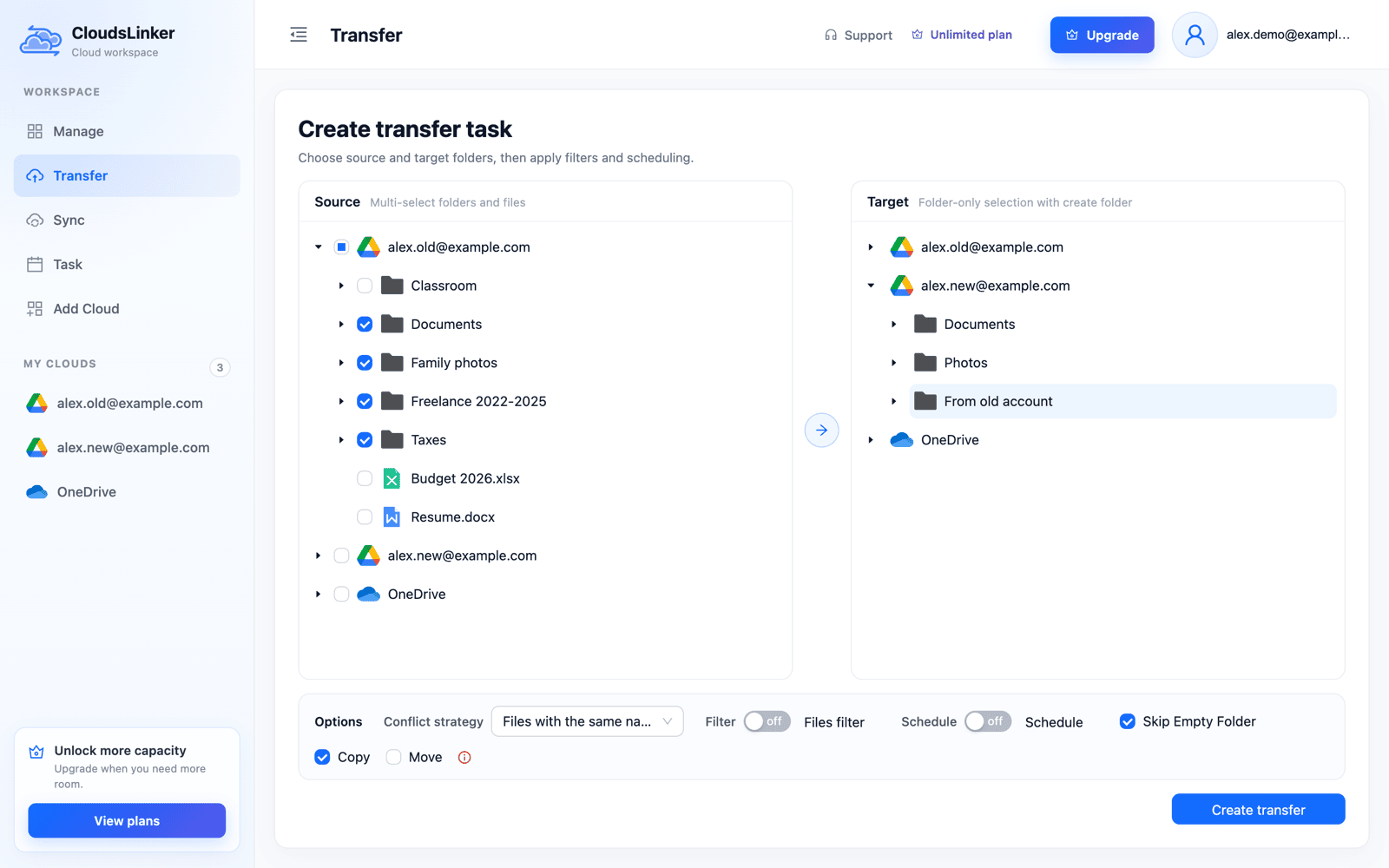
Open Transfer. In Source, expand the old account and tick the folders
and files to copy. In Target, expand the new account, create a folder such as
From old account and select it. Keep Copy; Move deletes
each file from the old account after copying it. The Conflict strategy decides what
happens to files that already exist in the target, and filters can include or exclude file types or
limit file sizes.
Step 4: Start the Transfer
Click Create transfer. The copy runs in the cloud, so you can close the browser; Task shows live progress, and a finished task can be retried, which by default only copies files that are new or changed. Google limits uploads to 750 GB per account per day, so a very large drive takes more than one day whatever the tool.
Step 5: Confirm Completion
When the task shows Finished, sign in to the new account and check the folders. Google
Docs, Sheets and Slides arrive as .docx, .xlsx and .pptx files; open one in Google Docs to confirm it
converts the way you expect before deleting anything from the old account.
Method Five: Use Alist to Copy Files Between Google Drive Accounts
About Alist:
Alist is an open-source, self-hosted file manager that mounts several storage accounts — including more than one Google Drive — in one web interface, where files can be copied or moved between them.
Step 1: Install Alist
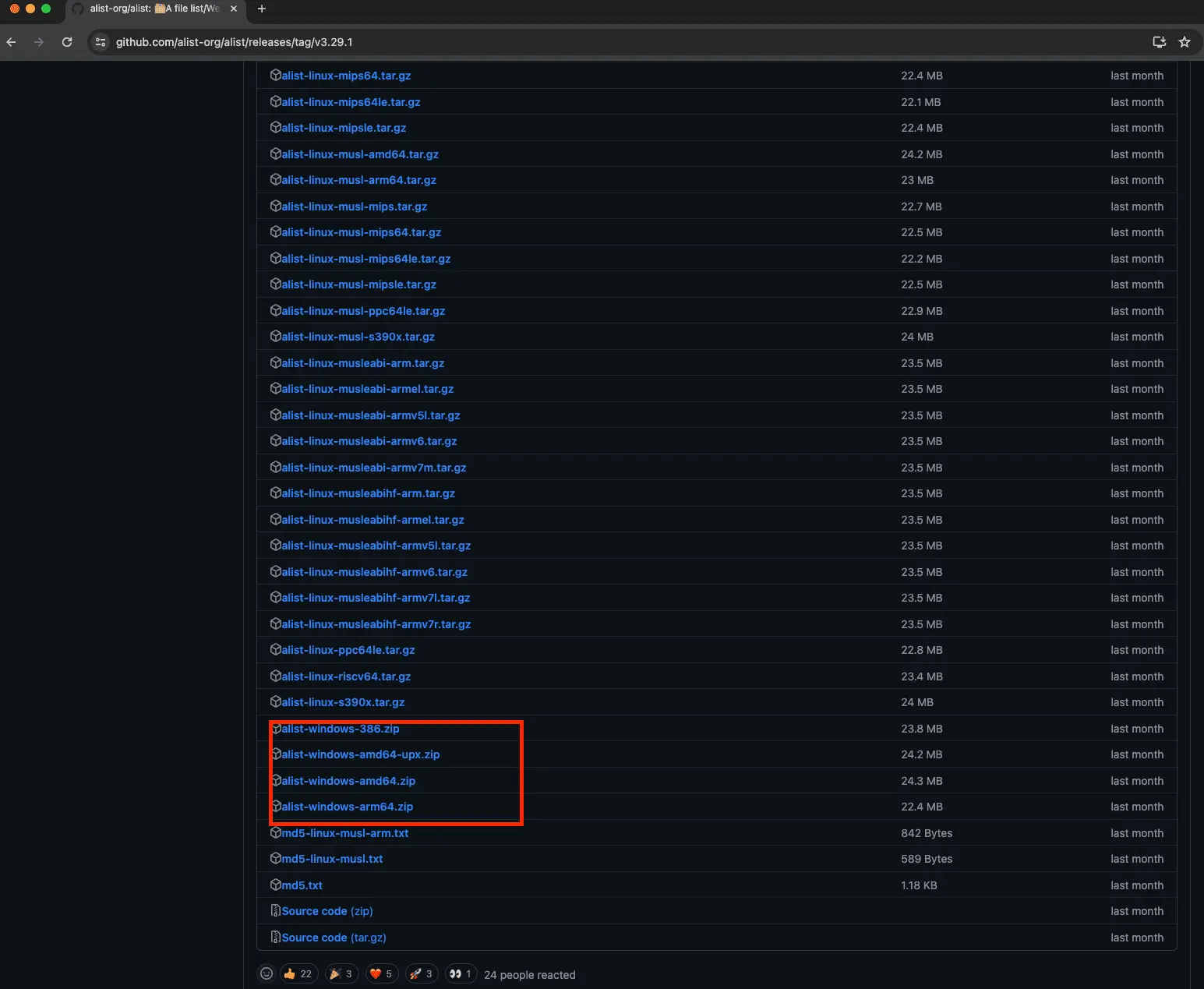
Download the latest release for Windows, macOS or Linux from the Alist GitHub release page and unzip it; no compilation is needed.
Step 2: Launch and Log In
Start Alist with:
./alist admin random./alist server
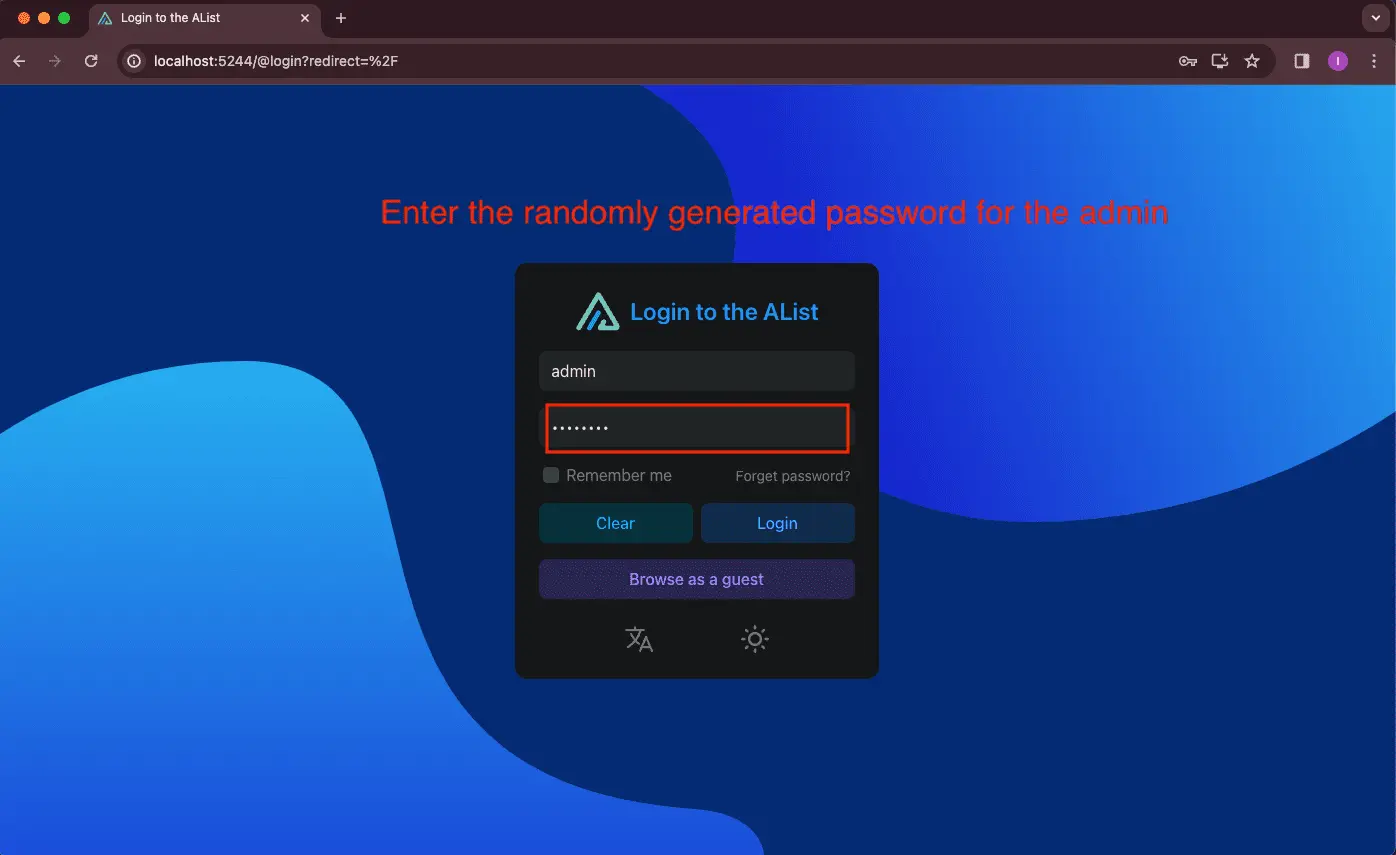
Then open http://127.0.0.1:5244 and log in with the admin password the first command
printed.
Step 3: Add Two Google Drive Accounts
Under Manage > Storage, add the first Google Drive account, then the second one as a separate storage; each needs its own OAuth token, as described in Alist's Google Drive driver documentation.
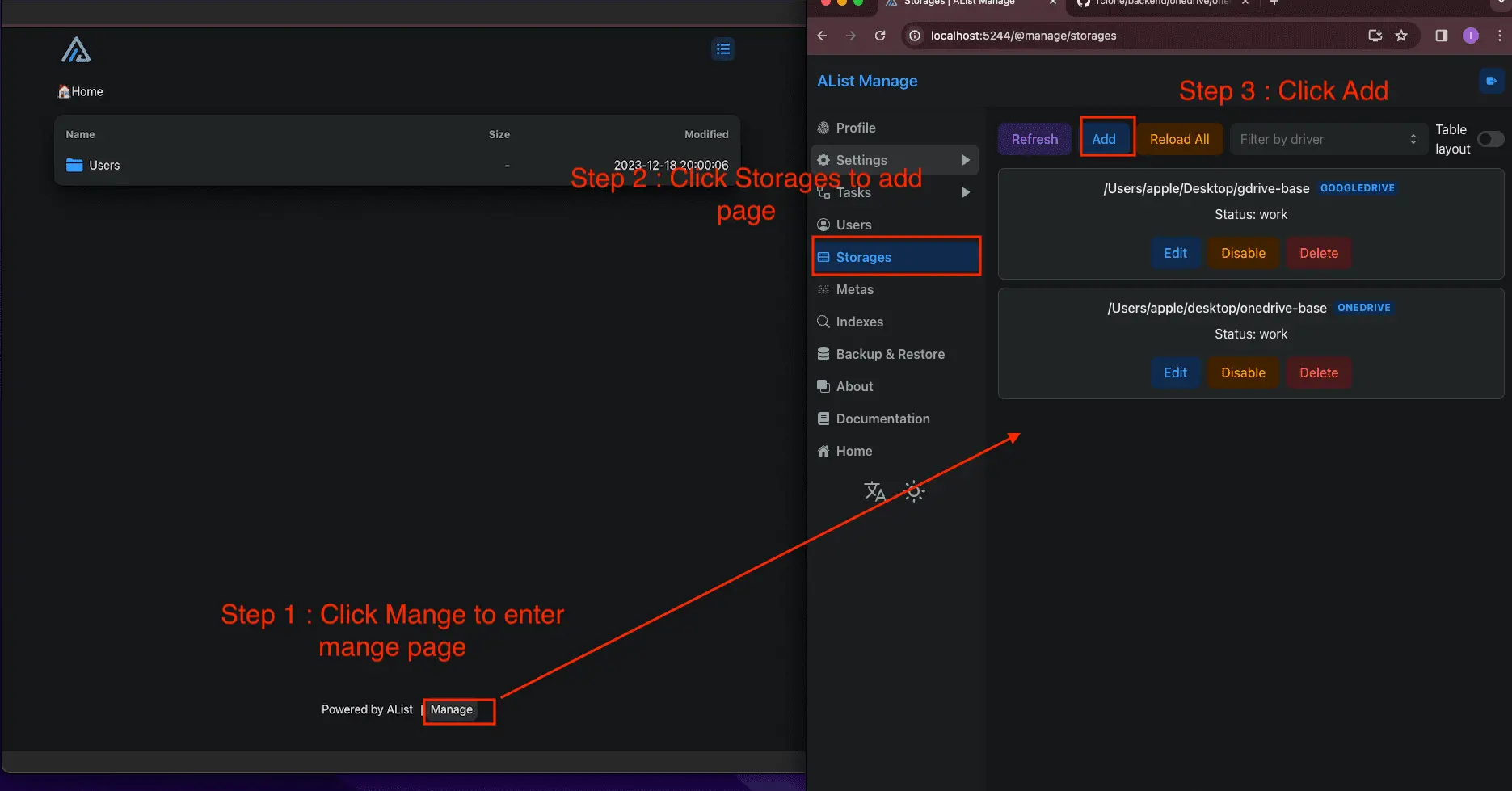
Step 4: Copy Files Between Drives
On the home page both accounts appear as folders. Open the source folder, select the files, click Copy and choose a folder in the second account.
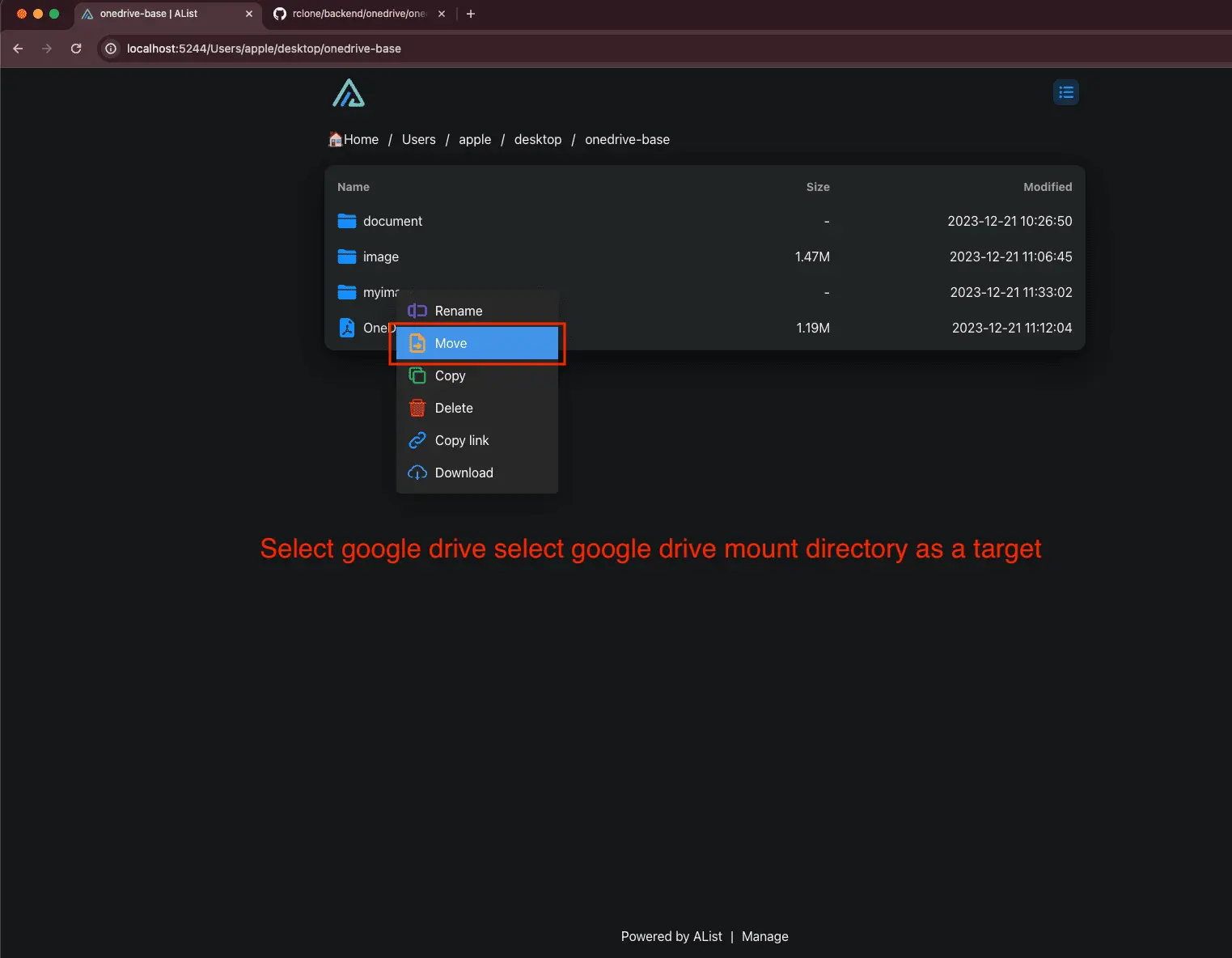
The copy runs on the machine where Alist is installed: on your computer the traffic goes through your connection; on a VPS or NAS, through that server's.
Comparative Overview of Transfer Methods
| Method | Best For | Google Docs | Data passes through | Limits |
|---|---|---|---|---|
| Google Takeout | Offline archive of an account | Converted (formats selectable) | Your computer, twice | Parts of 1–50 GB; manual download and upload |
| Share + transfer ownership | A few files between personal accounts | Stay native | Nothing — Google changes the owner | Personal accounts only; new owner must accept; file by file |
| Rclone | Scripted or very large copies | Converted, or native with server-side copy | The rclone machine, unless server-side | Command line; 750 GB/day upload cap |
| CloudsLinker | Whole folders or drives from a browser, incl. work ↔ personal | Converted to Office files | CloudsLinker's servers | 750 GB/day upload cap; Forms and Sites not copied |
| Alist | Self-hosters with a server | Depends on Alist's export handling | The machine running Alist | Setup and OAuth tokens to maintain |
Frequently Asked Questions (FAQ)
Watch Our Step-by-Step Video Tutorial
A walkthrough of five ways to move files between Google Drive accounts: Google Takeout, direct sharing, rclone, CloudsLinker and the self-hosted Alist, each shown with real examples.
Conclusion
Between two personal Google accounts, sharing and then transferring ownership keeps Google Docs native and costs no transfer at all, but works file by file and needs the new account to accept each request. For whole drives, or when a work or school account is involved, copy instead: rclone and CloudsLinker copy folders between accounts, with Google Docs, Sheets and Slides arriving as Office files, while Takeout gives an offline archive. CloudsLinker runs the copy on its own servers from a browser, so nothing passes through your computer. Whichever you use, copy into a separate folder, check the result in the new account, and only then delete or downgrade the old one.
Online Storage Services Supported by CloudsLinker
Transfer data between over 60 cloud services with CloudsLinker

OneDrive

Google Drive

Google Photos

Google Takeout

Shared Drive

OneDrive for Business

Dropbox

Box

Mega

pCloud

Yandex

ProtonDrive

AWS

GCS

iDrive

Storj

DigitalOcean

Wasabi

1fichier

PikPak

TeleBox

OpenDrive

Backblaze B2

Fastmail file

SharePoint

Nextcloud

ownCloud

Premiumize me

HiDrive

Put.io

Sugar Sync

SmugMug

Jottacloud

Seafile

Ftp

SFtp

NAS

WebDav

4shared

Icedrive

Cloudflare R2

Scaleway

Hetzner Object Storage

Synology C2 Object Storage

S3 Compatible

Doi

iCloud Drive

iCloud Photos

FileLU

Zoho WorkDrive

Telia Cloud / Sky

Drime

Filen

TeraBox

Internxt

Degoo

Gofile

Pixeldrain

Shade

Koofr
Didn' t find your cloud service? Be free to contact: [email protected]
Further Reading
Effortless FTP connect to google drive: Transfer Files in 3 Easy Ways
Learn More >
Google Photos to OneDrive: 3 Innovative Transfer Strategies
Learn More >
Google Photos to Proton Drive: 3 Effective Transfer Techniques
Learn More >