How to backup one Google Photos to another Google Photos?
Explore a smooth and efficient way to migrate your valuable photo archive between two Google Photos accounts, enhancing your digital storage strategy.
Introduction
In today’s image-driven world, ensuring the safety and accessibility of personal memories has never been more crucial. This guide walks you through modern cloud storage practices, emphasizing top solutions and offering a detailed roadmap for transferring your photo data from one Google Photos account to another. To copy the whole library with its albums, use the Google Takeout route: each Takeout folder becomes an album of the same name in the second account.
Quick Navigation
A Closer Look at Google Photos
Google Photos stands out for its intelligent backup solutions and visual content management, making it an ideal tool for organizing and securing your photographic memories. Its integration with Google’s ecosystem allows seamless usage across multiple platforms and devices.
Transferring between two Google Photos accounts allows you to efficiently manage storage limits, separate personal and professional content, or simply ensure greater redundancy and security for your photo archives.
Standout Capabilities of Google Photos
- Automatic Uploads and Organization: Ensures your images are safely stored and neatly sorted with minimal user effort.
- Smart Search Features: Lets you find pictures based on content, date, or people using Google’s advanced algorithms.
- Effortless Sharing Tools: Supports simple sharing through direct links, albums, and group collaborations.
- Consistent Multi-Device Access: Allows users to access their full photo library across all their devices without hiccups.
Why Users Prefer Google Photos
Google Photos has built a loyal following through its automation and ease of use. Backing up between two Google Photos accounts enhances flexibility and storage management, ensuring your memories remain safe and accessible.
- Streamlined Experience with AI Assistance: Smart tagging and auto-sorting ensure your gallery stays organized without hassle.
- Strong Integration with Google Services: Easily interacts with Gmail, Google Drive, and Android for a unified user environment.
Managing Multiple Google Photos Accounts
Utilizing two Google Photos accounts offers significant advantages such as enhanced storage management, clear separation of different types of media, and increased data security through redundancy.
Managing photos between two Google Photos accounts allows you to fully leverage Google’s robust ecosystem, providing flexible and powerful options for organizing your digital memories.
Benefits of Using Multiple Google Photos Accounts
- Enhanced Storage Flexibility: Distribute your photo archives to efficiently manage storage limits and optimize your cloud space usage.
- Improved Content Organization: Separate personal, professional, or project-specific images clearly and intuitively.
- Increased Data Security: Maintain redundancy by backing up important images across multiple Google Photos accounts, reducing risk from account issues or data loss.
The Advantages of Backing Up Between Google Photos Accounts
Creating a backup between two Google Photos accounts introduces a resilient and flexible storage strategy—empowering users with better organization, data redundancy, and peace of mind:
- Avoid Storage Limitations: By distributing your content across two Google Photos accounts, you can avoid hitting storage quotas and enjoy extended capacity without immediate upgrades.
- Maintain Separate Archives: Keep different collections—such as work and personal photos—distinct and easy to manage, using separate accounts for clear organization.
- Redundancy for Added Security: Backing up to a second Google Photos account ensures a fail-safe layer of protection if something goes wrong with your primary account.
- Simple Sharing Across Accounts: Take advantage of Google’s robust sharing features to move or sync selected albums, maintaining control and convenience.
Backing up from one Google Photos account to another isn’t just about duplicating files—it’s about creating a resilient system for organizing and protecting your memories. With thoughtful setup and regular syncs, you can optimize your storage while staying in control.
Preparing for a Smooth Google Photos-to-Google Photos Backup
Proper preparation can make your backup process faster and more reliable. Here’s how to get started with setting up two Google Photos accounts for a seamless photo migration:
- Access and Authenticate Both Accounts: Make sure you are logged in to both Google Photos accounts, and verify access permissions if using a transfer tool or shared albums.
- Organize Your Photos in Advance: Clean up your current library, create or update albums, and label your files clearly to simplify the selection and transfer process.
- Plan Transfer Tools or Manual Methods: Decide whether to use shared albums, download/upload, or a third-party service. Shared albums can be a quick option, while Takeout and manual uploads allow full control.
By organizing your files and clarifying your approach, you ensure that transferring between two Google Photos accounts is efficient and error-free—giving you a backup system that is both effective and easy to manage.
Navigating Your Backup from One Google Photos Account to Another
Step 1: Export Photos Using Google Takeout
Visit https://takeout.google.com/ and select 'Google Photos'. Choose the albums or folders you want to export. Google will generate downloadable archives containing your photo data.
Step 2: Download and Unzip the Archive
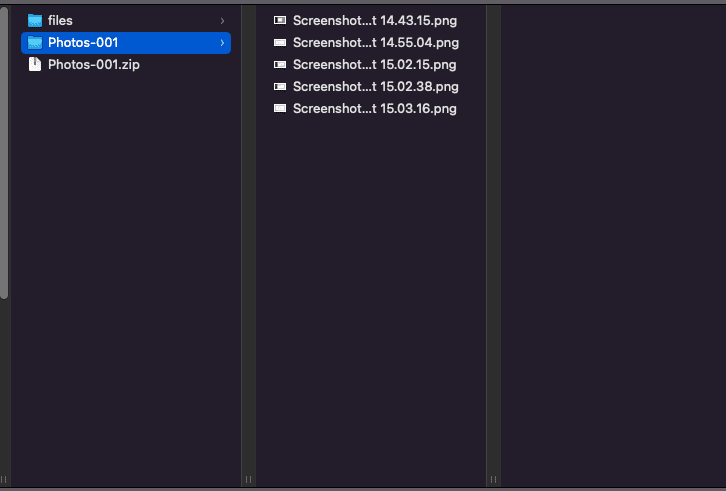
After receiving the email from Google, download the archive and extract its contents. Make sure the files are complete and correctly organized.
Step 3: Switch to Your Second Google Account
Log out of your primary Google account and log in to your secondary Google Photos account. This is where the backup will be uploaded.
Step 4: Upload Photos to the Second Account
Open Google Photos and upload your extracted photos. Use album folders to mirror your original organization, and verify everything uploads correctly.
This method gives you full control over what gets backed up and when, helping you create an organized and secure photo archive across multiple Google accounts.
Essential Tools and Services for Smooth Photo Backup
Discover CloudsLinker:
CloudsLinker redefines how users move data across 36+ cloud platforms, making photo backups between two Google Photos accounts seamless and secure. With encrypted, bandwidth-free cloud-to-cloud transfers, there's no need to download files locally. Designed for both individuals and teams, it simplifies even the largest transfers using an intuitive interface and robust synchronization engine. Learn more in our comprehensive Knowledge Base.
Two ways to copy between Google Photos accounts
The source account can be read through Google's Photo Picker or through a Takeout export. They give different results in the second account:
| You want to move | Use | What arrives |
|---|---|---|
| The library with its albums | Google Takeout + CloudsLinker | Each copied folder becomes an album of the same name, filled with original files |
| Up to 2,000 picked photos at a time | Photo Picker — the steps below | Photos in one album you create, or in the library; no location data; transcoded videos |
Step 1: Add the Source Google Photos Account
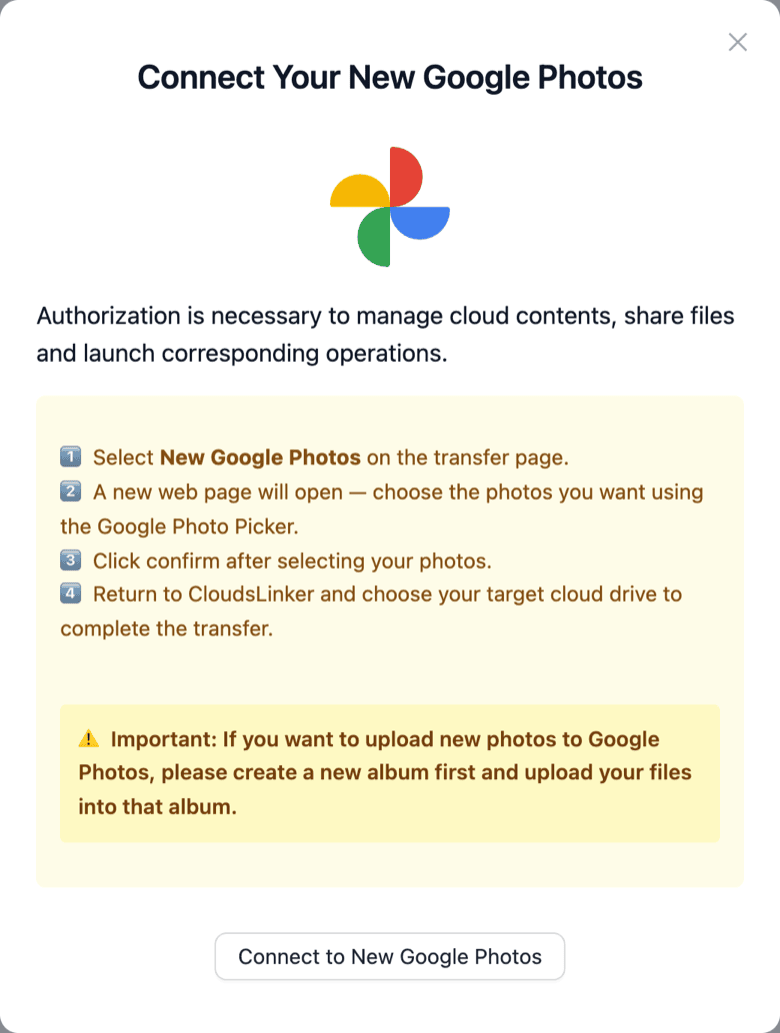
Log into CloudsLinker, click Add Cloud, choose New Google Photos and sign in on Google's page with the account you want to copy from. Since April 2025 Google no longer lets apps read a whole library, so the photos to copy are picked in Google's Photo Picker when you set up the transfer.
Step 2: Add the Target Google Photos Account
Add New Google Photos a second time and sign in with the other Google account; use a private browser window or sign out of the first account if Google picks it automatically. Rename the two connections (for example Photos - old and Photos - new) so you can tell them apart on the Transfer page. Copied photos count toward the target account's Google storage.
Step 3: Configure Backup Between Google Photos Accounts
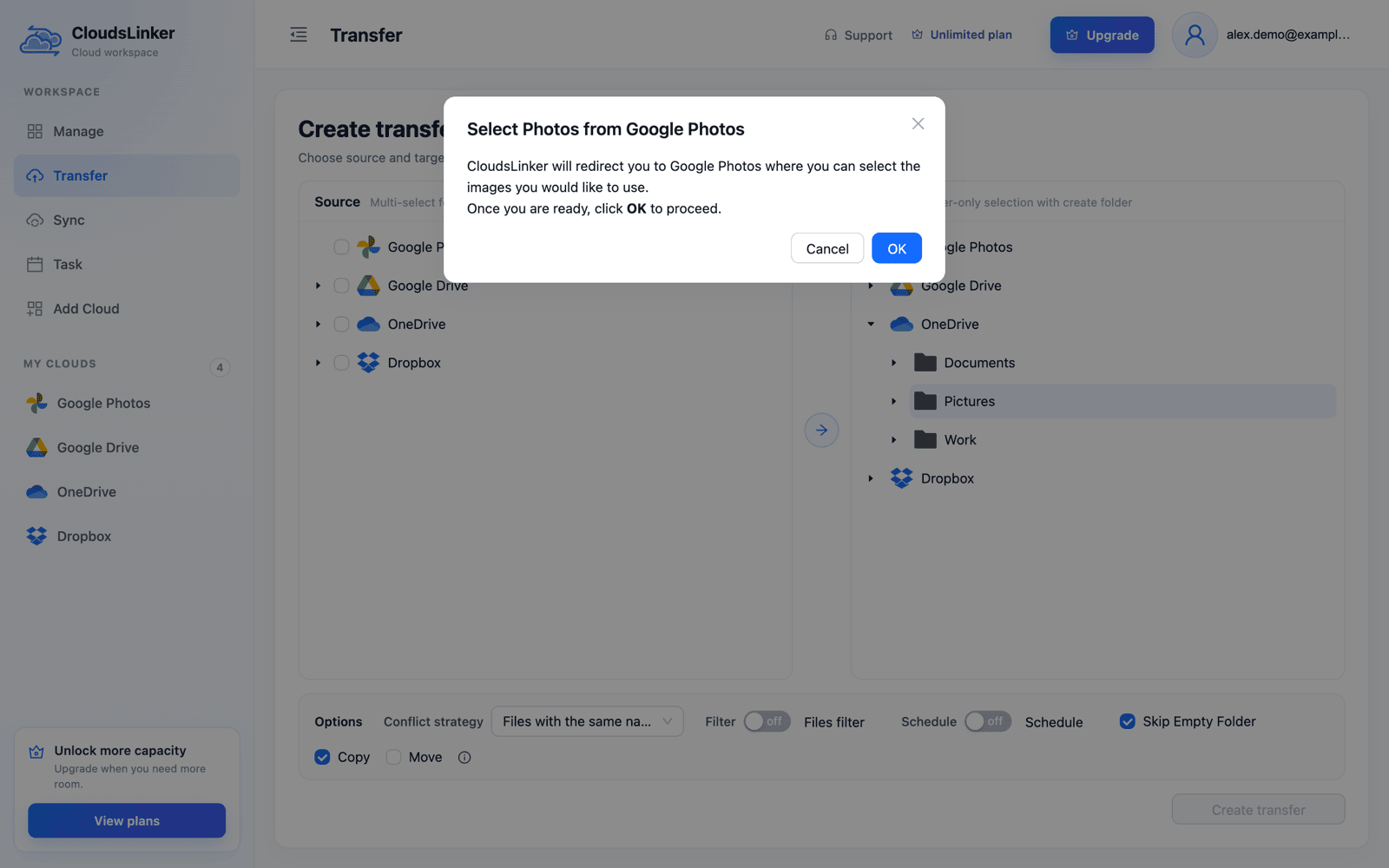
Open Transfer and tick the source account's New Google Photos connection. In Select Photos from Google Photos click OK, pick up to 2,000 items in the Google Photos tab that opens, confirm, and return to CloudsLinker. As the target, expand the second account: it shows an album and an upload folder. Google only lets apps add photos to albums the app created, so create a new album under album and select it, or select upload to add the photos to the library without an album. Photos arrive without their location data and videos as Google's transcoded copy.
Copying the whole library, albums included? Use the Google Takeout route — it recreates your albums in the second account.
Step 4: Start the Backup Process
Review your configurations and start the transfer. CloudsLinker will handle everything in the cloud, so your computer doesn't need to stay on. Monitor progress from the dashboard in real time.
Step 5: Verify Files in the Target Google Photos Account
After the backup completes, log into your second Google Photos account to verify the transferred media. Photos copied into an album appear in that album; photos sent to the upload folder appear in the library only.
Method 3: Copy the Whole Library with Its Albums Using Google Takeout + CloudsLinker
Google's Photo Picker never tells apps which album a photo belongs to, so the steps above can't rebuild your albums in the second account. Google Takeout can: its export has one folder per album, and CloudsLinker turns each folder copied into the second account's album folder into an album with the same name. The export stays in the first account's Google Drive; nothing is downloaded to your computer.
Step 1: Export the First Account's Photos to Its Google Drive
Signed in to the source account, open takeout.google.com, keep only Google Photos selected, and choose Add to Drive, .zip and 2 GB or 10 GB parts. The export lands in that account's Takeout folder in Drive and needs free Google storage there. When it is complete, add that Google Drive to CloudsLinker with Add Cloud.
Step 2: Add the Export as a Google Takeout
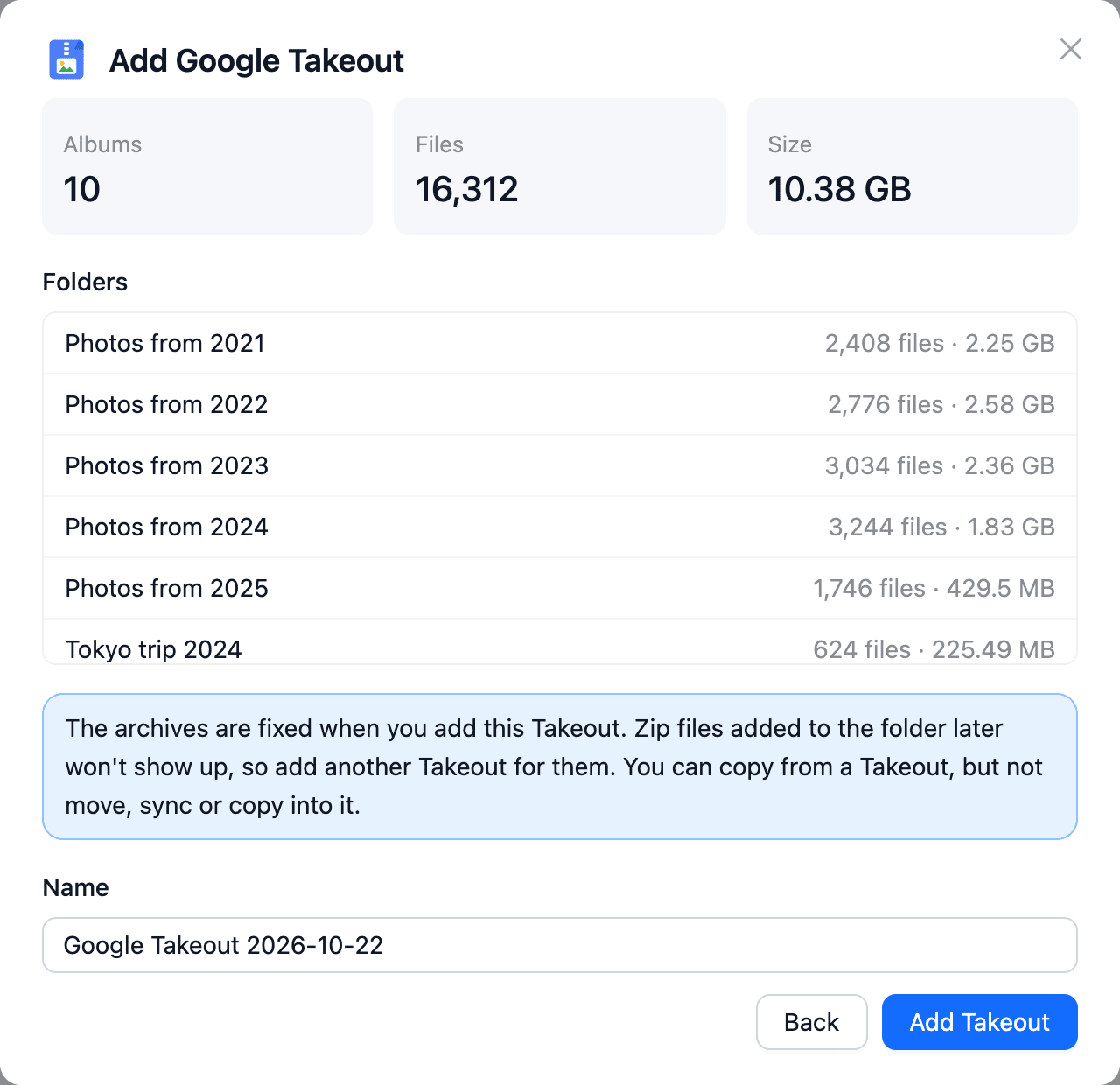
Open Add Cloud and pick Google Takeout. Choose the source account's Google Drive as the cloud with your export, tick the export folder and click Check archives. CloudsLinker reads the zips in place and lists the year and album folders it found, with file counts and the unpacked size; .tgz or encrypted parts are flagged and left out. Click Add Takeout — the export now opens like a read-only drive.
Step 3: Copy the Album Folders into the album Folder
On Transfer, expand the Takeout and tick the album folders — Tokyo trip 2024, Family and so on. As the target, expand the second account's Google Photos connection and select its album folder. Before creating the task, switch on Filter, choose to exclude, and enter json: Google Photos accepts only photos and videos, so leave out the JSON file Takeout puts next to every picture. Click Create transfer.
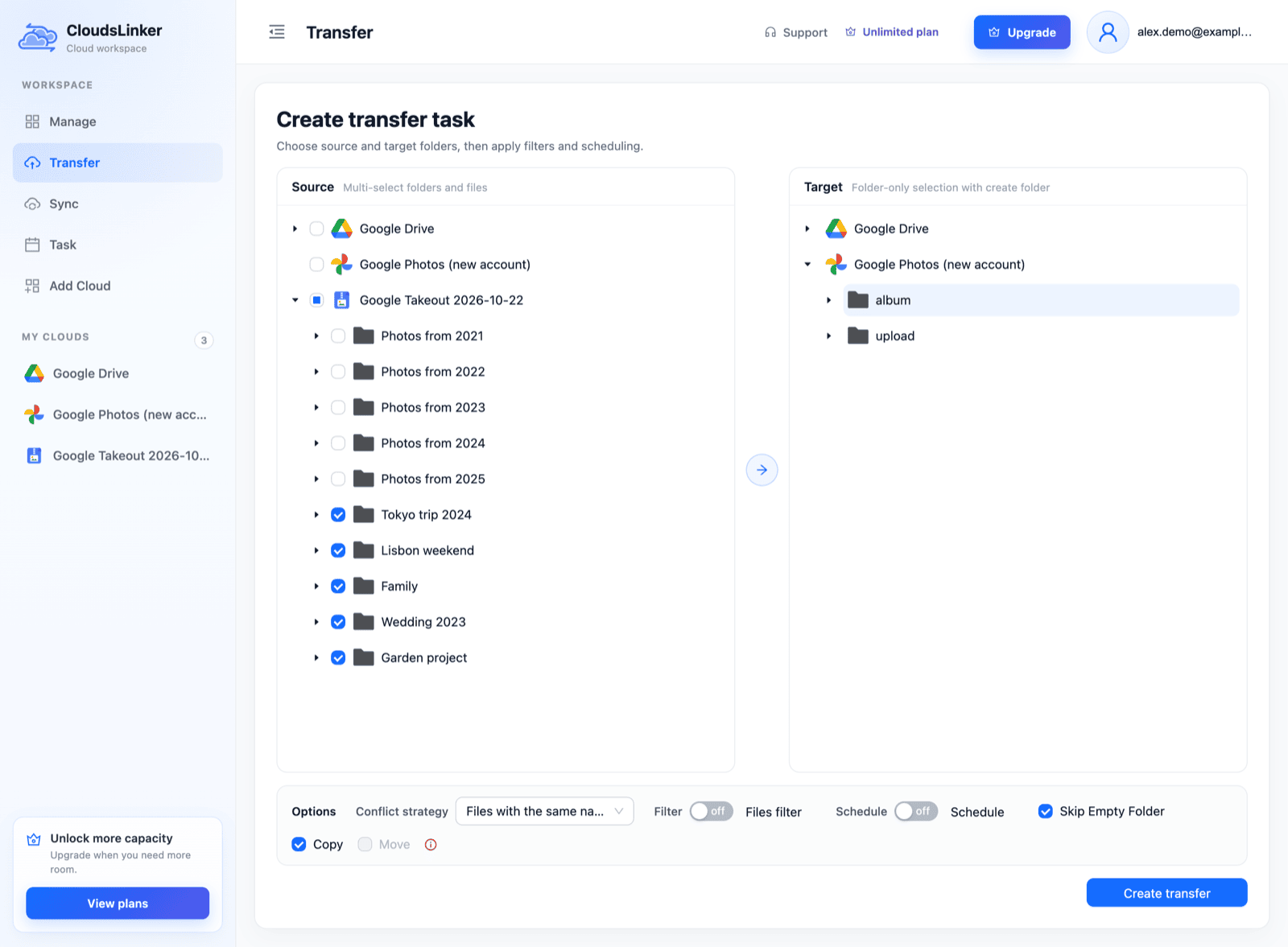
Photos that are in no album exist only in the Photos from YYYY folders. To bring those over too, run a second task that copies the year folders into upload, which adds them to the library without creating albums; album photos are in the year folders as well, so they are uploaded twice. Everything you copy counts toward the second account's Google storage. Details: Unzip Google Takeout in the Cloud.
Making the Most of Your Backup Google Photos Account
Organize and Maintain the Backup Library
Keeping your second Google Photos account tidy helps ensure long-term accessibility and clarity:
- Create album-based organization: Sort images by event, date, or theme. Google Photos allows easy creation and rearrangement of albums.
- Review duplicated or redundant content: After backup, remove unnecessary duplicates to save space and reduce clutter.
- Enable shared albums if needed: Set up shared albums for collaborative access, while retaining control over content visibility.
Strengthening Security in Both Google Accounts
Your backed-up content is only as safe as the security of both accounts. Take these steps:
- Enable two-factor authentication: Add 2FA to both Google accounts to prevent unauthorized access to your data.
- Use different recovery methods: Ensure each account has unique recovery email/phone settings for better control and isolation.
- Regularly audit connected apps: Review app permissions for both accounts to remove unnecessary or outdated integrations.
Benefits of Dual Google Photos Accounts
Using a secondary Google Photos account for backups has unique benefits:
- Distribute storage usage: Spread your photo storage across accounts to maximize free quotas or better manage content categories.
- Create offline protection: Use the second account as a cold backup, ensuring recovery in case of accidental deletion in the primary account.
- Support multiple users or roles: Great for separating personal and professional media or granting team access without compromising the main account.
Frequently Asked Questions: Google Photos to Google Photos Backup
Is my data safe during the backup?
Why use two Google Photos accounts?
Can the backup be scheduled automatically?
Will albums and metadata be preserved?
Are there any costs involved?
Watch Our Step-by-Step Video Tutorial
learn how to backup photos from Google Photos to another Google Photos using Cloudslinker. Experience the convenience of cloud-to-cloud transfers with zero local effort! Let Cloudslinker handle the heavy lifting while you sit back and relax.
Conclusion
As we wrap up this guide, we emphasize the notable advantages of backing up your photos between two Google Photos accounts, helping you redefine your storage strategy for improved accessibility and redundancy. For a full copy with albums, the Google Takeout route is the only one that carries album names over: copy the Takeout's album folders into the second account's album folder.
Online Storage Services Supported by CloudsLinker
Transfer data between over 60 cloud services with CloudsLinker

OneDrive

Google Drive

Google Photos

Google Takeout

Shared Drive

OneDrive for Business

Dropbox

Box

Mega

pCloud

Yandex

ProtonDrive

AWS

GCS

iDrive

Storj

DigitalOcean

Wasabi

1fichier

PikPak

TeleBox

OpenDrive

Backblaze B2

Fastmail file

SharePoint

Nextcloud

ownCloud

Premiumize me

HiDrive

Put.io

Sugar Sync

SmugMug

Jottacloud

Seafile

Ftp

SFtp

NAS

WebDav

4shared

Icedrive

Cloudflare R2

Scaleway

Hetzner Object Storage

Synology C2 Object Storage

S3 Compatible

Doi

iCloud Drive

iCloud Photos

FileLU

Zoho WorkDrive

Telia Cloud / Sky

Drime

Filen

TeraBox

Internxt

Degoo

Gofile

Pixeldrain

Shade

Koofr
Didn' t find your cloud service? Be free to contact: [email protected]
Further Reading
Effortless FTP connect to google drive: Transfer Files in 3 Easy Ways
Learn More >
Google Photos to OneDrive: 3 Innovative Transfer Strategies
Learn More >
Google Photos to Proton Drive: 3 Effective Transfer Techniques
Learn More >