Google Takeout to iCloud: Photos Transfer or iCloud Drive Folders?
Takeout can send Google Photos to iCloud Photos if your account offers it. What that transfer skips, and how to unpack Takeout zips into iCloud Drive instead.
Introduction
Searching for Google Takeout to iCloud usually means one of two things. Either you want your Google Photos library inside Apple Photos, where Google Takeout now has a direct transfer — Apple's help calls it Apple - iCloud Photos as a Takeout destination — or you already have Takeout zip files and want the photos, albums and metadata files as folders in iCloud Drive.
The two routes give different results. Apple's transfer puts photos and videos into your iCloud Photos library, but it isn't offered on every Google account (it wasn't on the Google Workspace account we tested), it skips Live Photos, Motion Photos and Memories, and it can't run while Advanced Data Protection is on. A Takeout export unpacked into iCloud Drive keeps Takeout's album and year folders and Google's JSON metadata, and works from any account that can export. This guide sets out what each route does, then walks through both — the second with CloudsLinker's Google Takeout import, which reads the zips in the cloud instead of on your Mac.
- The Short Answer
- Two Routes, Two Different Results
- Check Whether Your Account Offers iCloud Photos
- Method 1: Takeout's Transfer to iCloud Photos
- Method 2: Unpack a Takeout Into iCloud Drive With CloudsLinker
- Getting iCloud Drive Folders Into Apple Photos
- iCloud Storage for a Google Photos Library
- Frequently Asked Questions
The Short Answer
- Want the photos in Apple Photos? Use Takeout's transfer with Apple - iCloud Photos as the destination (Method 1) — if your Google account offers it. It skips Live Photos, Motion Photos and Memories.
- No iCloud option, or want folders and metadata? Export with Takeout to Drive, Dropbox, OneDrive or Box and copy the unpacked folders to iCloud Drive (Method 2).
Two Routes, Two Different Results
| Takeout → iCloud Photos (Apple's transfer) | Takeout zips → iCloud Drive (CloudsLinker) | |
|---|---|---|
| Lands in | The Photos library, album Import from Google with the transfer date | A folder you choose in iCloud Drive, e.g. Google Photos |
| Albums | Not described in Apple's help | Takeout's album folders, by name, plus Photos from YYYY year folders |
| Live Photos, Motion Photos, Memories | Not transferred | Whatever files the Takeout export contains are copied as they are |
| RAW and other unsupported files | Go to iCloud Drive › Import from Google | Copied with the rest |
| Google's metadata (JSON) | Name, description, type and location are carried as metadata | JSON files copied next to the photos, not applied |
| Google accounts | Only where Takeout offers it; not on the Workspace account we tested | Any account that can export to Drive, Dropbox, OneDrive or Box |
| Advanced Data Protection | Must be off | Must be off for the iCloud Drive connection |
| Cost | Free | CloudsLinker transfer volume for the unpacked size |
Sources: Apple's Transfer a copy of your photos and videos to iCloud Photos, Google's How to download your Google data, and our own test exports.
Check Whether Your Account Offers iCloud Photos
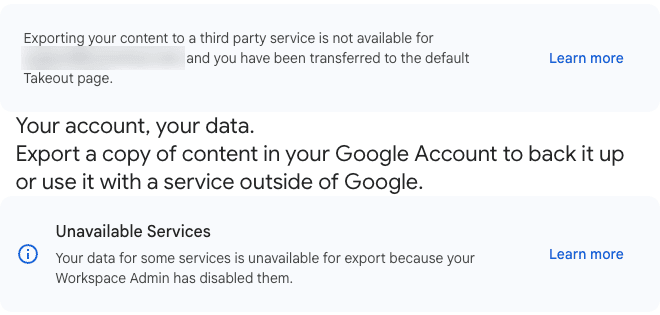
Apple's instructions start at Google Takeout's transfer page, takeout.google.com/takeout/transfer/custom/photos, and note that you'll see the option only if it's available for your account. Open that link while signed in to the Google account you want to move. On the Google Workspace account we tested, Takeout answered that exporting content to a third-party service was not available for the account and switched to the normal Takeout page, where only downloads and the Drive, Dropbox and Box deliveries remained.
On the Apple side, the transfer also needs:
- iCloud Photos and iCloud Drive turned on;
- enough iCloud storage for the library;
- Advanced Data Protection turned off;
- a regular Apple Account — not a child account or a Managed Apple Account.
Method 1: Takeout's Transfer to iCloud Photos
This is Google and Apple's own data transfer: Google sends the files to Apple, nothing is downloaded, and your originals stay in Google Photos. The steps below follow Apple's help page.
- Prepare iCloud. On your iPhone or Mac, turn on iCloud Photos and iCloud Drive, check that iCloud has room for the library, and turn Advanced Data Protection off if you use it (Settings → your name → iCloud).
- Start the export. Open Google Takeout's transfer page and follow the instructions to start an export from Google Photos.
- Choose Apple. Pick Apple - iCloud Photos as the destination and sign in to your Apple Account.
- Allow. Tap Allow to let Google add photos and videos to iCloud. Apple emails the addresses on your Apple Account when the transfer starts and again when it's complete.
- Wait, then check. The transfer can take from several hours to a few days. Photos and videos appear in the Photos app in an album called Import from Google with the transfer date. Anything missing — RAW files, unsupported formats — is in iCloud Drive in a folder of the same name. You can follow or cancel the request at privacy.apple.com.
Keep iCloud Photos on until the transfer finishes: turning it off stops the import, and only the items already transferred stay. To finish, turn it back on and request another transfer — Apple says the repeat won't add duplicates. A storage error is handled the same way: add iCloud storage, then request again.
Method 2: Unpack a Takeout Into iCloud Drive With CloudsLinker
When Takeout doesn't offer iCloud Photos, or you want the export's folder structure rather than a single import album, export Google Photos to one of the clouds Takeout can deliver to and copy the unpacked folders into iCloud Drive. CloudsLinker reads the zips where Takeout left them and writes the photos into iCloud Drive from its own servers, checking each file against the CRC-32 checksum in the archive.
Step 1: Export Google Photos With Takeout to a Supported Cloud
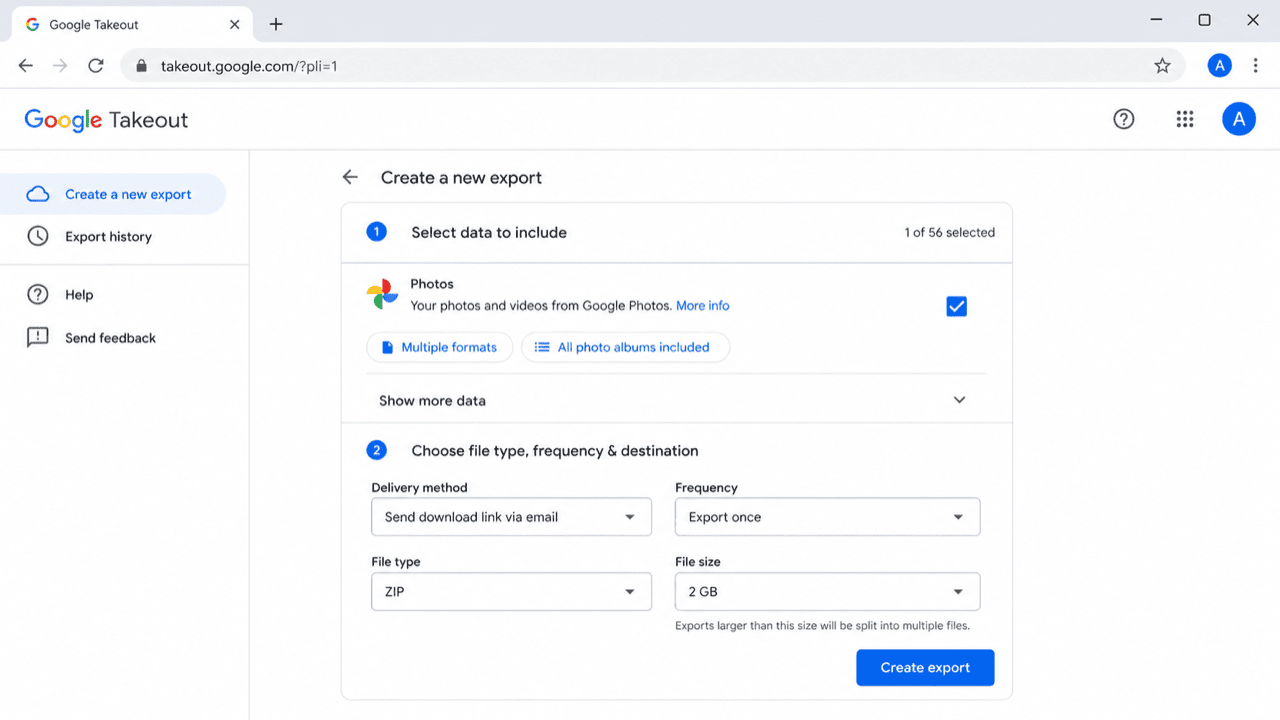
At takeout.google.com, click Deselect all, tick Google Photos and go to the next step. Keep .zip with 2 GB or 10 GB parts and choose Add to Drive, Add to Dropbox, Add to OneDrive or Add to Box — whichever is offered and has room. Google emails you when every part has arrived. Connect that account to CloudsLinker with Add Cloud; all four sign in on the provider's own page.
Step 2: Add the Zips as a Google Takeout
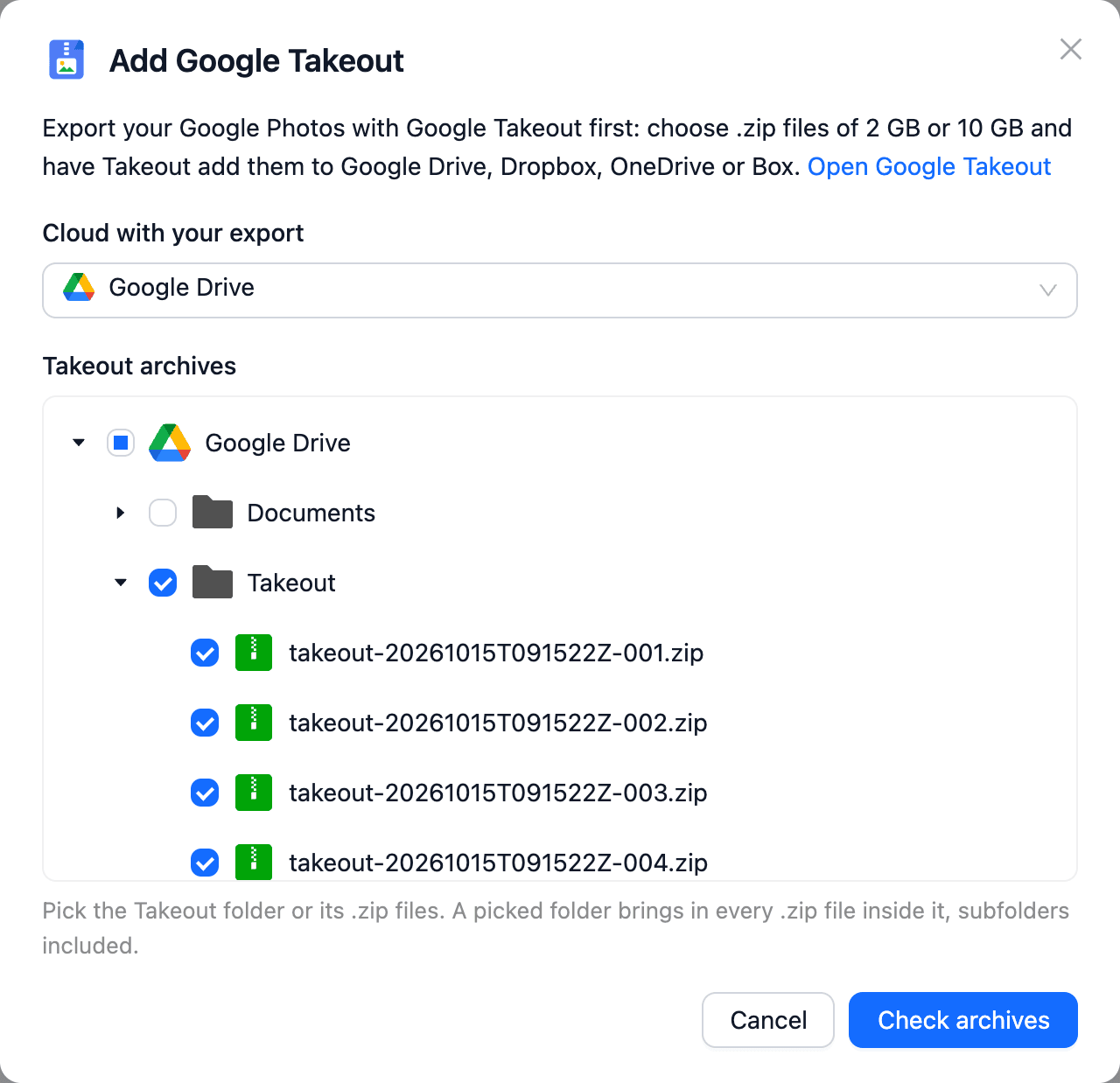
In CloudsLinker open Add Cloud and choose Google Takeout. Set
Cloud with your export to the account with the zips and tick the folder that holds them —
Takeout in Google Drive, Apps › Google Download Your Data in Dropbox or OneDrive.
Click Check archives, review the folders and file count, name the Takeout and click
Add Takeout.
Step 3: Connect iCloud Drive
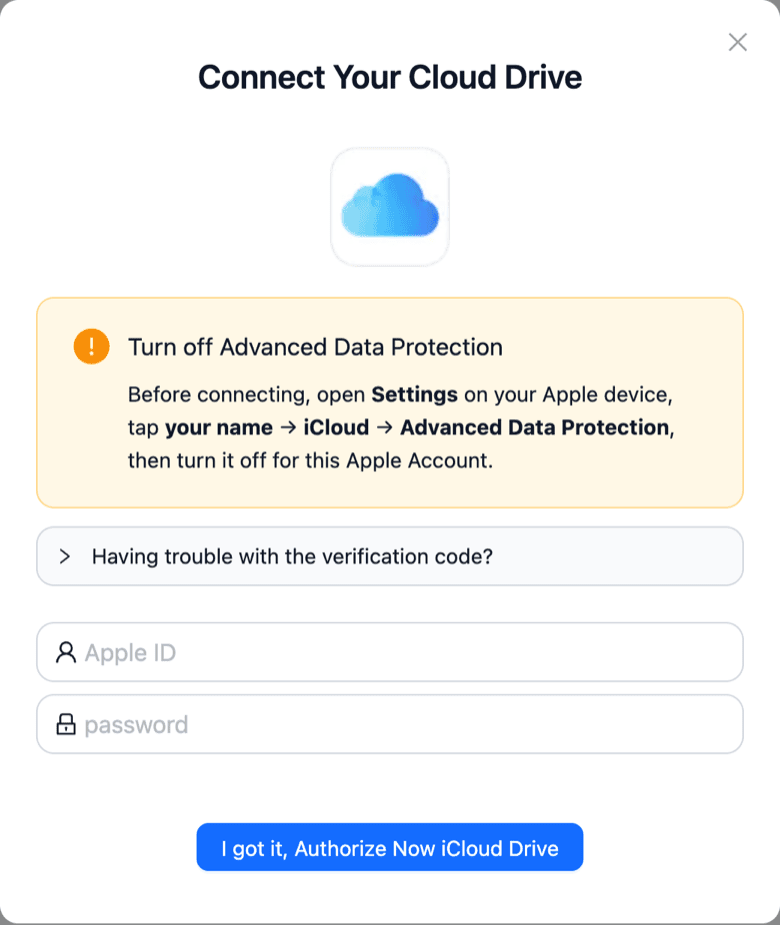
Choose Add Cloud → iCloud Drive. Apple offers no OAuth for iCloud Drive, so the dialog asks for your Apple ID and its regular password — an app-specific password is rejected — then click I got it, Authorize Now iCloud Drive and enter the six-digit code Apple sends to a trusted device. Beforehand, turn on Access iCloud Data on the Web and turn off Advanced Data Protection (Settings → your name → iCloud).
Step 4: Copy the Folders Into iCloud Drive
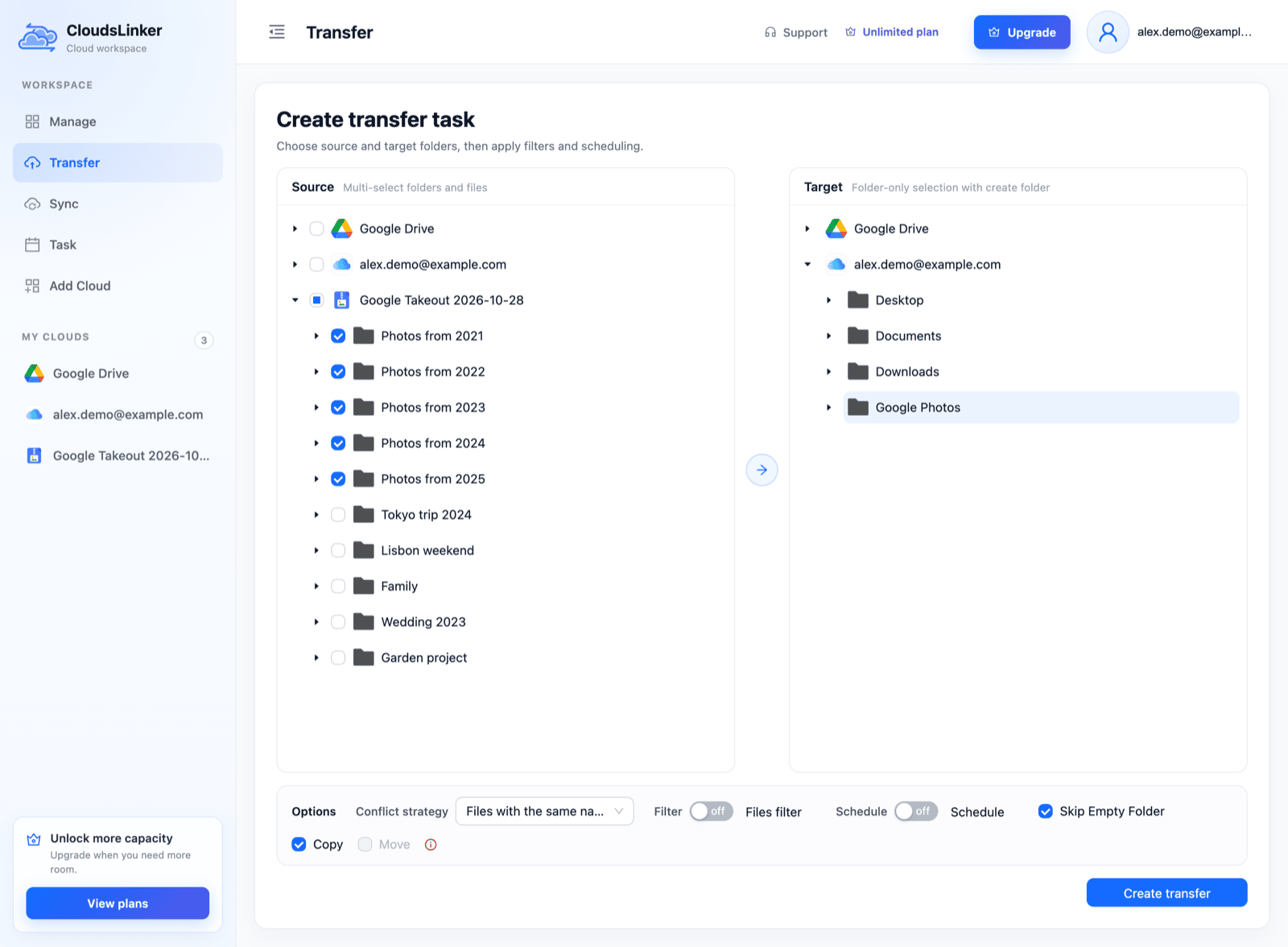
Open Transfer. In Source, expand the Takeout and tick the
Photos from YYYY folders — every photo once — or album folders if you want albums as folders
(album photos are stored twice in the export). In Target, expand iCloud Drive and create a
folder such as Google Photos. Copy is the only mode for a Takeout. Click
Create transfer.
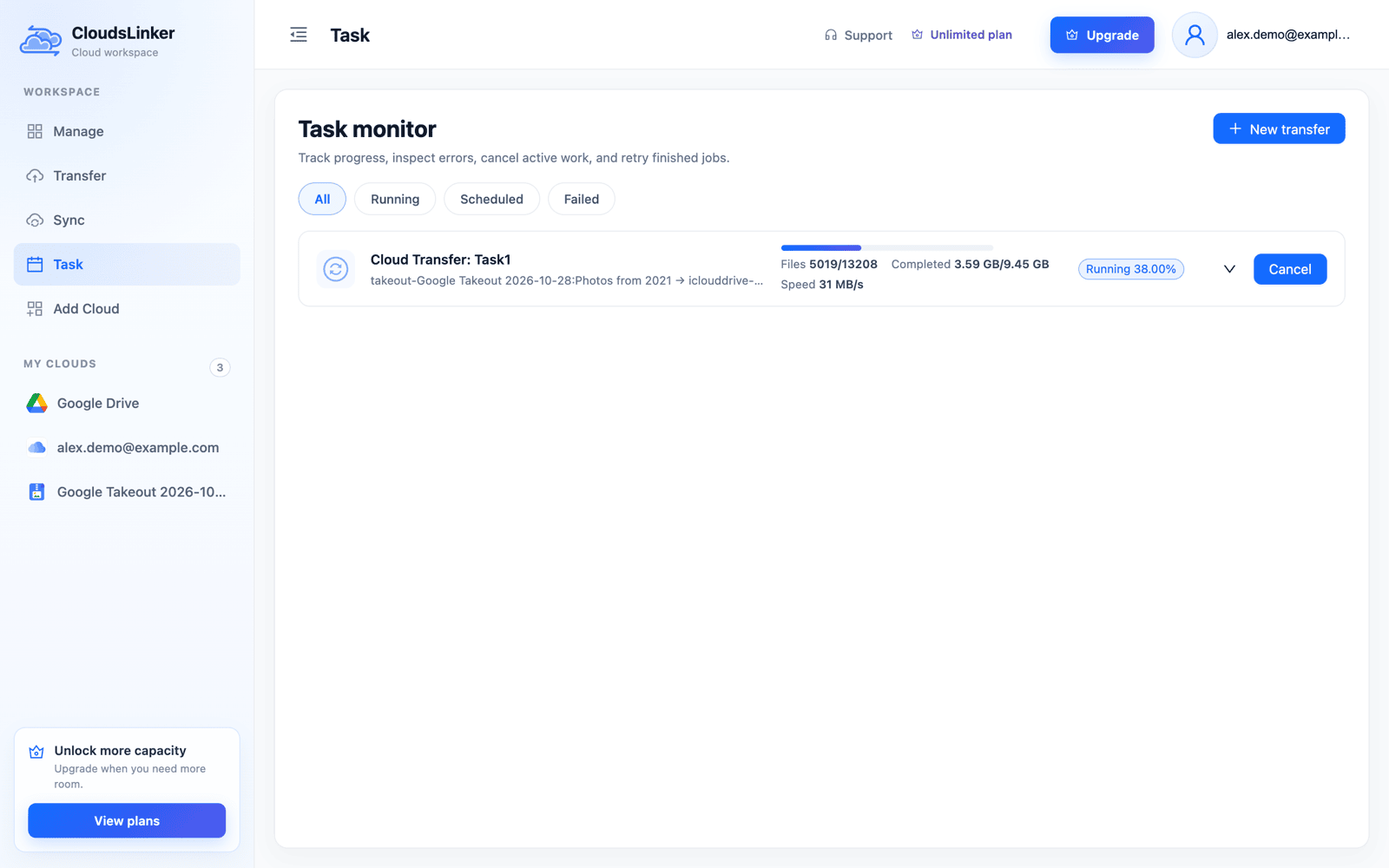
The task runs on CloudsLinker's servers; Task monitor shows files and bytes done. If it stops, run it again — files already in iCloud Drive with the same size are skipped.
When the folders are complete, delete the zips from the cloud that received them, remove the Google Takeout in CloudsLinker, and turn Advanced Data Protection back on if you use it.
Getting iCloud Drive Folders Into Apple Photos
Files in iCloud Drive don't appear in the Photos app by themselves. If you want them in the library as well:
- On a Mac with iCloud Photos on, open Photos and choose File → Import.
- Select a year or album folder from iCloud Drive and import it. Photos reads the capture date stored in each file; the JSON files are not used.
- Repeat per folder, then check the imported count before deleting anything from iCloud Drive.
Images without an embedded date — screenshots, pictures saved from chat apps — fall back to the file's date,
which after a Takeout is the export date. Their original date is only in the matching
.supplemental-metadata.json (photoTakenTime); tools such as exiftool can write it back
before you import.
iCloud Storage for a Google Photos Library
| iCloud plan | Monthly price (US) |
|---|---|
| Free | 5 GB |
| iCloud+ 50 GB | $0.99 |
| iCloud+ 200 GB | $2.99 |
| iCloud+ 2 TB | $9.99 |
| iCloud+ 6 TB | $29.99 |
| iCloud+ 12 TB | $59.99 |
iCloud Photos and iCloud Drive share the same storage. If you copy folders to iCloud Drive and import them into Photos, the photos count twice until you delete the iCloud Drive copy. Google Photos' storage page shows the library size to plan with; the Takeout export itself can be larger when you include album folders, because album photos are stored twice. iCloud Drive accepts files up to 50 GB.
Frequently Asked Questions
Conclusion
If Takeout offers Apple - iCloud Photos for your account and you want the photos in Apple Photos, use it: it's free, runs between Google and Apple directly and won't create duplicates if you repeat it. Plan around what it skips — Live Photos, Motion Photos and Memories — and turn Advanced Data Protection off for the duration. If the option isn't there, or you want albums as folders and Google's metadata files kept, export with Takeout to Google Drive, Dropbox, OneDrive or Box and let CloudsLinker copy the unpacked folders into iCloud Drive. From there, photos can still be imported into Photos on a Mac.
Related: Google Photos to iCloud Drive, unzip Google Takeout in the cloud, iCloud Drive connection notes and Google Takeout import.
Online Storage Services Supported by CloudsLinker
Transfer data between over 60 cloud services with CloudsLinker

OneDrive

Google Drive

Google Photos

Google Takeout

Shared Drive

OneDrive for Business

Dropbox

Box

Mega

pCloud

Yandex

ProtonDrive

AWS

GCS

iDrive

Storj

DigitalOcean

Wasabi

1fichier

PikPak

TeleBox

OpenDrive

Backblaze B2

Fastmail file

SharePoint

Nextcloud

ownCloud

Premiumize me

HiDrive

Put.io

Sugar Sync

SmugMug

Jottacloud

Seafile

Ftp

SFtp

NAS

WebDav

4shared

Icedrive

Cloudflare R2

Scaleway

Hetzner Object Storage

Synology C2 Object Storage

S3 Compatible

Doi

iCloud Drive

iCloud Photos

FileLU

Zoho WorkDrive

Telia Cloud / Sky

Drime

Filen

TeraBox

Internxt

Degoo

Gofile

Pixeldrain

Shade

Koofr
Didn' t find your cloud service? Be free to contact: [email protected]
Further Reading
Effortless FTP connect to google drive: Transfer Files in 3 Easy Ways
Learn More >
Google Photos to OneDrive: 3 Innovative Transfer Strategies
Learn More >
Google Photos to Proton Drive: 3 Effective Transfer Techniques
Learn More >