Box Is Built for Work — Move Your Personal Archive to Degoo Instead
Transfer files from Box to Degoo and trade enterprise-priced storage for consumer bulk: manual export vs a server-side CloudsLinker migration.
Introduction
Degoo answers a question Box was never designed for: where do you cheaply keep half a terabyte of personal files? Box's free plan caps uploads at 250 MB per file and 10 GB total, and its paid ladder is priced for teams — Personal Pro buys just 100 GB for around $10 a month, while Degoo's $2.99 Pro tier holds 500 GB and its $9.99 Ultimate holds 5 TB. If your Box account has drifted into storing family photos, scanned documents and old backups alongside (or instead of) work content, relocating the personal layer to Degoo frees Box for what its collaboration features actually justify. Below: the manual route and the server-side one.
Box is an enterprise content platform — workflow automation, granular permissions, compliance certifications — with a consumer-shaped free tier attached: 10 GB of storage and a 250 MB per-file cap. Paid plans run from Personal Pro (100 GB) to Enterprise tiers with unlimited storage and 500 GB file support.
- 10 GB free with a 250 MB file cap
- Collaboration, permissions, version history
- ~1,000 API calls/user/minute rate limit
- Enterprise plans priced per user/month
Degoo is consumer bulk storage from Sweden with none of Box's enterprise machinery and a fraction of its per-gigabyte price: 20 GB free, 500 GB for $2.99/mo, 5 TB for $9.99/mo. Mobile apps carry the experience — photo feed, AI rediscovery — with a web app for subscribers and no desktop client.
- 500 GB for $2.99/mo vs Box's 100 GB for ~$10
- 50 GB per-file cap on subscriptions
- No collaboration features — personal storage only
- Paid Top Secret folder for zero-knowledge files
| Feature | Box | Degoo |
|---|---|---|
| Free tier | 10 GB, 250 MB/file | 20 GB, 256 MB/file (90-day inactivity rule) |
| ~$3/mo buys | — (no tier) | 500 GB (Pro) |
| ~$10/mo buys | 100 GB (Personal Pro) | 5 TB (Ultimate) |
| Max file on paid tiers | 5 GB (Pro/Business) → 500 GB (Ent. Advanced) | 50 GB (subscriptions) |
| Collaboration / permissions | Core strength | None |
| Connection in CloudsLinker | Box OAuth | Account email + password |
Sources: Box: maximum file size, Box pricing, Degoo: plans, Degoo Help Center: Account limits.
Separate the personal from the collaborative before anything moves. Folders with active collaborators, shared links or workflow rules stay; the photo dumps, scans and archives go. Export Box Notes to Word or PDF — they won't survive a file transfer otherwise. Confirm the Degoo tier (a 10 GB free-Box account fits Degoo's free 20 GB; a 100 GB Personal Pro archive wants Degoo Pro), and if the destination is a free Degoo account, plan for the 90-day activity requirement or upgrade.
Method 1: Download from Box, Upload to Degoo
Step 1: Download folders from box.com
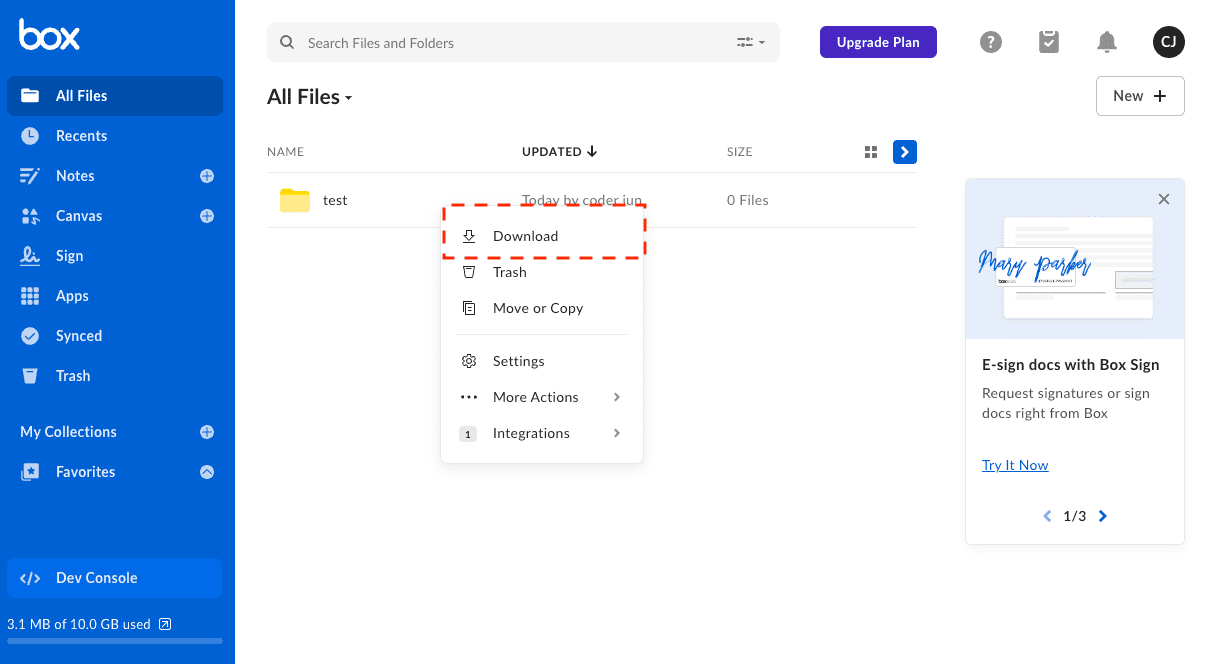
At app.box.com, select folders and click Download — Box zips them in the background and streams the archive. Large folders can take a while to package, and downloads over a few GB occasionally stall in the browser; splitting the selection helps.
Step 2: Upload the archive to Degoo
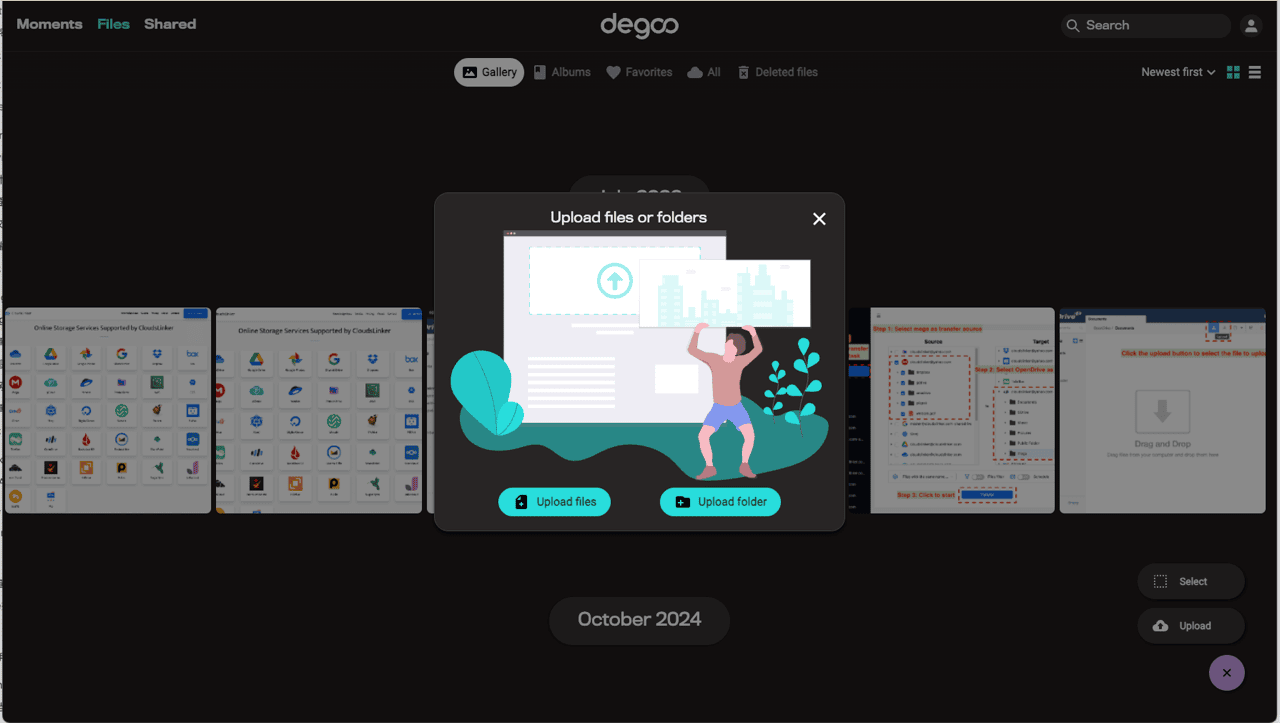
Extract locally and upload through app.degoo.com on a paid plan, or via the Degoo mobile app on the free tier. Free-tier destinations reject anything over 256 MB — roughly the same ceiling Box's free plan already enforced, so free-to-free moves rarely hit it.
Serviceable for a Box free account's 10 GB. For a 100 GB Personal Pro archive, the double bandwidth cost and ZIP juggling argue for the next method.
Method 2: Server-Side Migration with CloudsLinker
Enterprise API out, consumer bulk in
CloudsLinker reads Box through its enterprise-grade API — pacing under the ~1,000 calls/minute throttle automatically — and writes into Degoo's quota-free ingest. Box OAuth means no password leaves Box's domain; Degoo connects with credentials. The archive crosses between datacenters while your Box Drive sync, if you run it, notices nothing.
Step 1: Connect Box
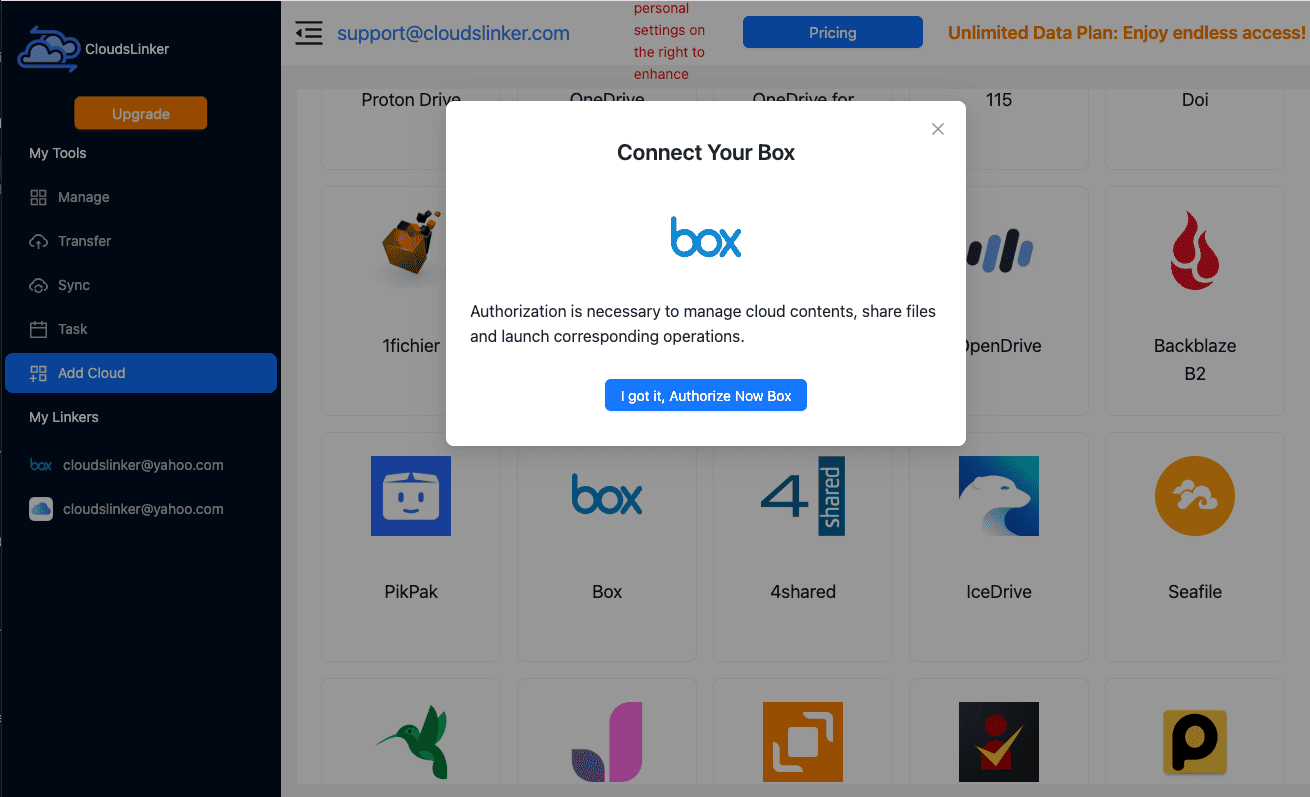
Click Add Cloud → Box. Box's authorization page opens at account.box.com; sign in and grant access. The token is scoped and shows up under Box's Connected apps for later revocation.
Step 2: Connect Degoo
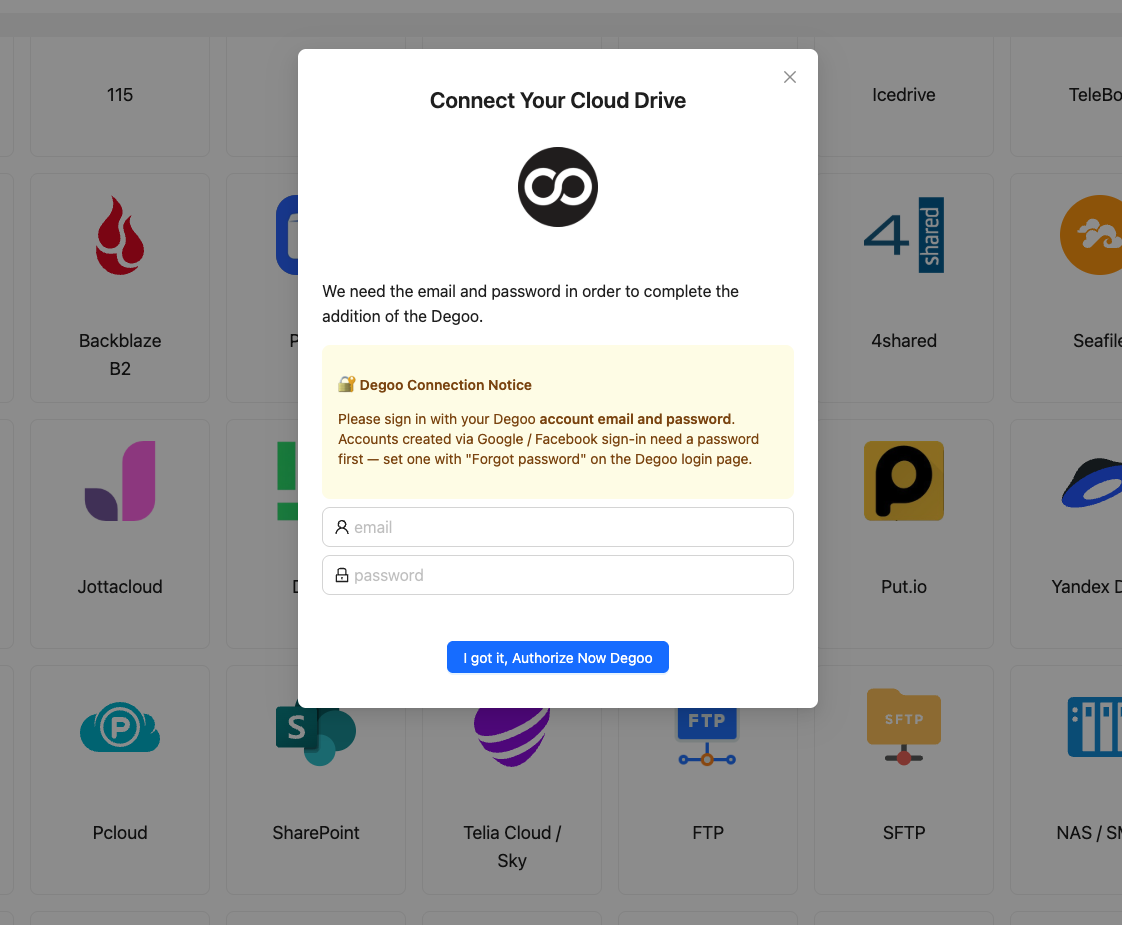
Click Add Cloud → Degoo, enter the account email and password, confirm. Session cached; password change revokes. Note the Top Secret folder is out of reach — personal-but-private files can be moved into it later from the Degoo app.
Step 3: Configure the Transfer
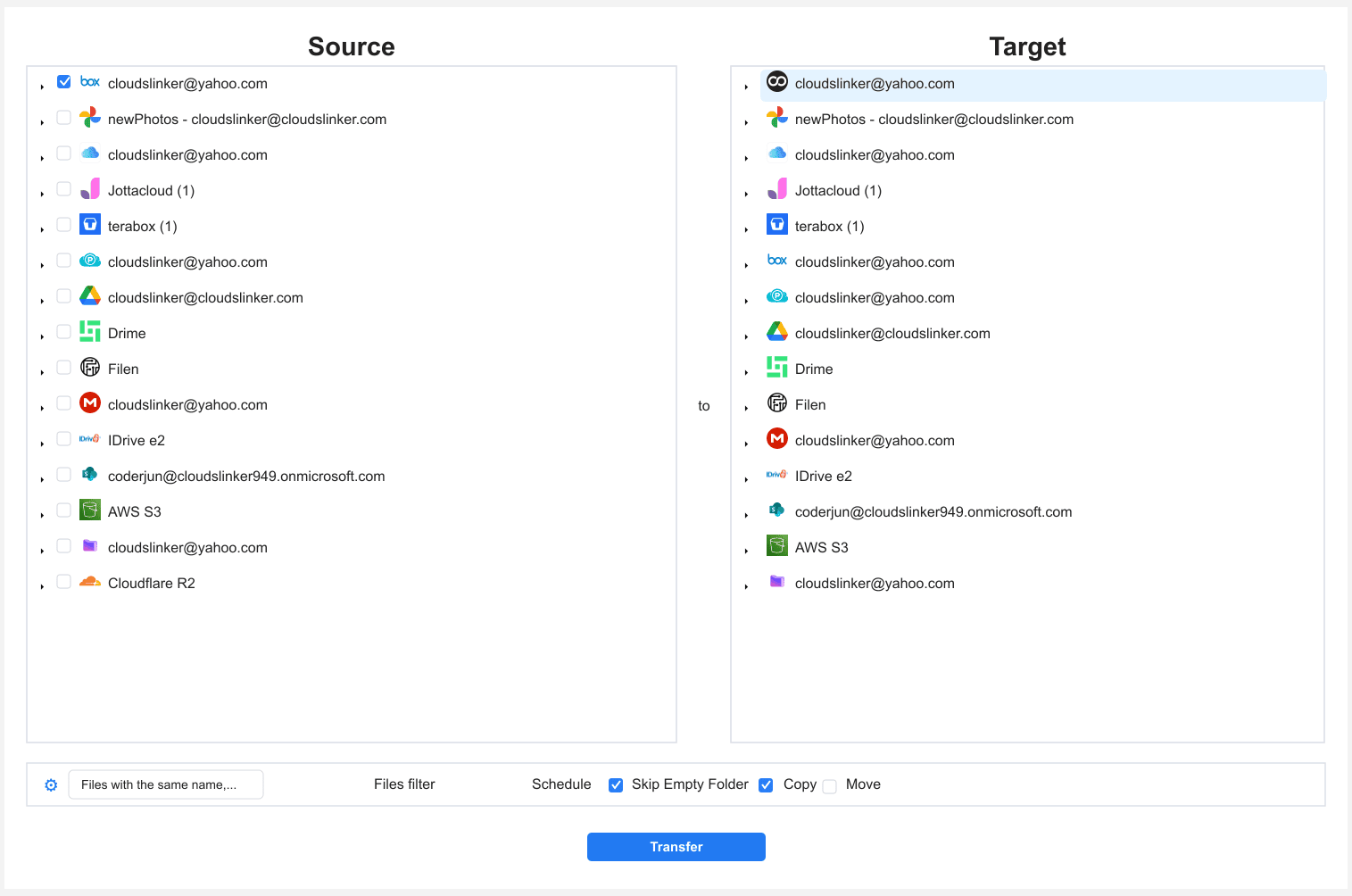
In Transfer, pick Box as the source and tick the personal folders identified during preparation. Select the destination directory in Degoo.
Filters by type (images + video) or date sharpen the personal/work split further. Copy mode leaves Box untouched for the verification pass.
Step 4: Start and Monitor the Transfer
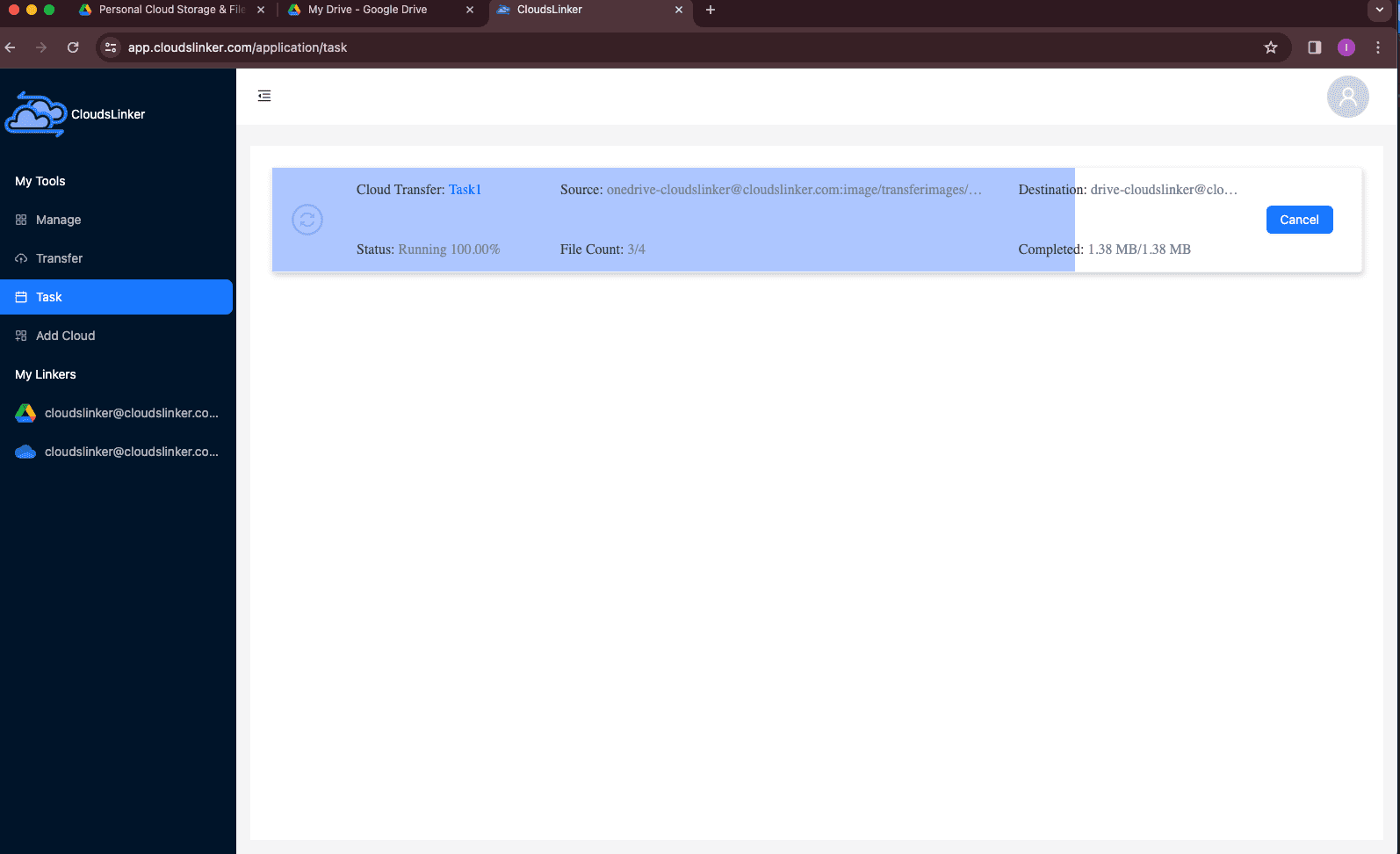
Start and watch the Task List. Many-small-files trees (scans, documents) progress by item count more than gigabytes; the report at the end lists anything skipped. Close the browser whenever — the job doesn't care.
Comparing the Ways to Transfer From Box to Degoo
| Method | Ease of Use | Speed | Best For | Uses Local Bandwidth | Skill Level |
|---|---|---|---|---|---|
| Manual download / upload | Medium | Slow (ZIP packaging + double transfer) | Free-tier accounts (≤10 GB) | Yes — twice | Basic |
| CloudsLinker | Easy | Fast (server-side, rate-limit aware) | Personal Pro archives; many-file trees | No | Basic |
- Use collaboration as the sorting key: anything with active collaborators or shared links stays in Box; permissions have no Degoo equivalent and die in transit.
- Export Box Notes first: Notes aren't files. Save them as Word/PDF from the Box UI before the migration, or they simply won't exist at the destination.
- Expect item-count pacing: Box's per-minute API throttle makes 10,000 scans slower to move than 10 videos of the same total size. Let the job run overnight rather than splitting it.
- Free-to-free moves fit neatly: Box free (10 GB, 250 MB/file) slots inside Degoo free (20 GB, 256 MB/file) — just remember Degoo's 90-day activity requirement afterwards.
- Version history doesn't travel: Box keeps up to 10 versions per file on personal plans; export any critical prior versions manually before decommissioning folders.
- Revoke the OAuth grant when finished: Box Account Settings → Security → Connected apps lists CloudsLinker; one-off migrations don't need a standing grant.
Frequently Asked Questions
Conclusion
Sort out what's genuinely collaborative — that stays in Box with its permissions and version history — and what's just bulk storage wearing an enterprise price tag. The bulk moves: manually if it's a few gigabytes, via CloudsLinker if it's the full archive, with Box's OAuth on one side and Degoo's credential login on the other. Box's 250 MB free-tier file cap is the one number to remember on the way out; Degoo's 50 GB subscription cap is the one to remember on arrival.
Online Storage Services Supported by CloudsLinker
Transfer data between over 58 cloud services with CloudsLinker

OneDrive

Google Drive

Google Photos

Shared Drive

OneDrive for Business

Dropbox

Box

Mega

pCloud

Yandex

ProtonDrive

AWS

GCS

iDrive

Storj

DigitalOcean

Wasabi

1fichier

PikPak

TeleBox

OpenDrive

Backblaze B2

Fastmail file

SharePoint

Nextcloud

ownCloud

Premiumize me

HiDrive

Put.io

Sugar Sync

Jottacloud

Seafile

Ftp

SFtp

NAS

WebDav

4shared

Icedrive

Cloudflare R2

Scaleway

Hetzner Object Storage

Synology C2 Object Storage

S3 Compatible

Doi

iCloud Drive

iCloud Photos

FileLU

Zoho WorkDrive

Telia Cloud / Sky

Drime

Filen

TeraBox

Internxt

Degoo

Gofile

Pixeldrain

Shade

Koofr
Didn' t find your cloud service? Be free to contact: [email protected]
Further Reading
Effortless FTP connect to google drive: Transfer Files in 3 Easy Ways
Learn More >
Google Photos to OneDrive: 3 Innovative Transfer Strategies
Learn More >
Google Photos to Proton Drive: 3 Effective Transfer Techniques
Learn More >