Box Capping Camera Files at 5 GB? Move the Footage Library into Shade
Move a video team's footage from Box into Shade drives — AI search over dialogue and visuals, editor panels, review. Four methods compared.
Introduction
Shade is a media workspace: it indexes footage so a team can search dialogue and visuals in plain language, review cuts with time-stamped comments, and open the same drives inside Premiere Pro or DaVinci Resolve. Many production teams start out on Box because the rest of the company already uses it for contracts and decks. Footage sits there awkwardly. On Box Business the single-file upload limit is 5 GB, so long ProRes or RAW takes either fail or get split, and Box previews tell an editor nothing about what is said in a clip. Moving the media library into a Shade drive keeps Box for documents and gives the footage a home built for it. This guide compares four ways to do that, from a manual download to a server-side copy.
Box is a content management platform aimed at company documents: sharing, permissions, retention and e-signatures. Business plans include unlimited storage, but each plan sets a single-file upload limit.
- Business: $15/user/mo (annual), 5 GB per file
- Business Plus: $25/user/mo (annual), 15 GB per file
- Previews and search built around documents
- OAuth access for transfer tools
Shade is cloud storage with media asset management for video and creative teams: AI search across dialogue and visuals, transcription, time-stamped review, and drives that mount on the desktop or open inside editing apps.
- Growth: $29.75/seat/mo (annual) or $35 monthly
- 500 GB active storage per seat; up to 15 seats
- Unlimited drives and AI indexing
- API key + per-drive Drive ID access
- No per-file ceiling built for documents: Box Business stops uploads at 5 GB per file and Business Plus at 15 GB. A long camera original in ProRes or RAW passes those limits quickly, which forces splitting or re-encoding before upload.
- Search by what is in the clip: Shade transcribes and indexes footage, so an editor can search for a spoken line or a visual and land on the right take instead of scrubbing through files by name.
- Review on the footage itself: time-stamped comments, annotation and approval happen next to the frame, rather than in email threads about a Box file link.
- Drives that editors can mount: the Shade desktop app mounts drives into Finder or File Explorer, and panels connect to Premiere Pro and DaVinci Resolve.
- Box stays for paperwork: contracts, releases and budgets can remain where legal and finance already work, while only the media library moves.
| Feature | Box | Shade |
|---|---|---|
| Built for | Company documents and content governance | Video and creative team media libraries |
| Single-file upload limit | 5 GB (Business), 15 GB (Business Plus), 50 GB (Enterprise), 150 GB (Enterprise Plus) | No published per-file cap; large uploads recommended through the web or desktop app |
| Storage | Unlimited on Business and above | 500 GB active per seat (Growth), 1 TB per seat (Enterprise) |
| Price (annual billing) | Business $15, Business Plus $25 per user/month; 3-user minimum | Growth $29.75 per seat/month |
| Content search | File names, metadata and document text | AI search over dialogue and visuals, transcription |
| Desktop access | Box Drive (streams files, local cache) | Desktop app with mountable drives (ShadeFS) |
| Connection in CloudsLinker | OAuth | API key + Drive ID (one drive per connection) |
Sources: Box: plans and pricing, Box: maximum upload file size, Shade: pricing, Shade Academy: ShadeFS.
Start by separating media from paperwork inside Box. Footage, audio and finished masters go to Shade; contracts, call sheets and invoices can stay where they are. Next, plan the Shade side: create one drive per client, show or department, since access in Shade is granted per drive. Check the storage math against your seat count — 500 GB of active storage per Growth seat — and decide which projects count as active. Finally, collect the credentials a transfer tool will need: an API key from Shade account settings and the Drive ID of each target drive from that drive's settings.
Method 1: Download from Box, Upload to Shade
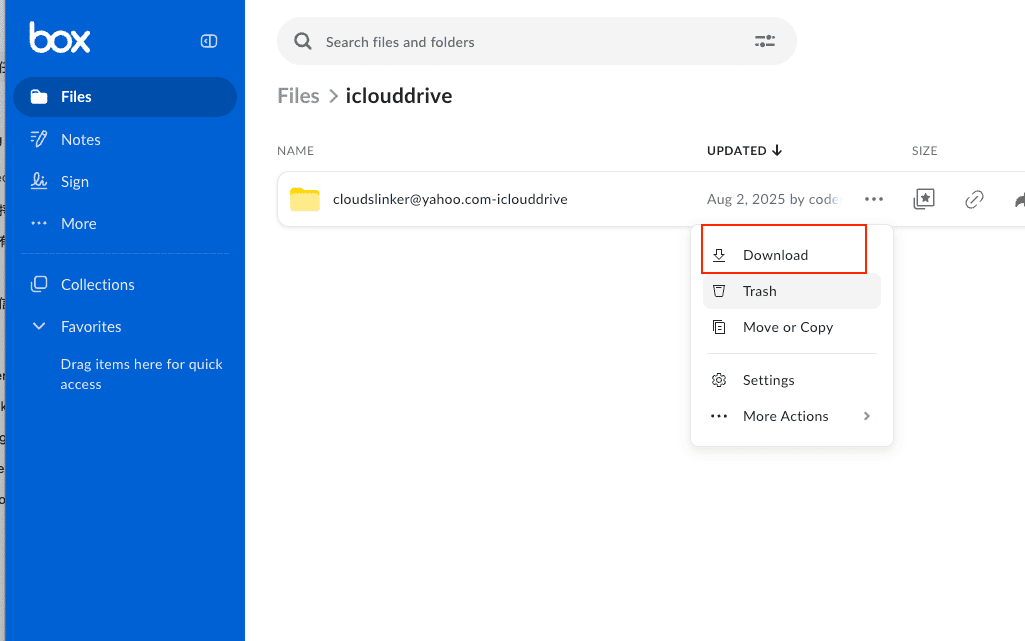
Step 1: Download the folders from box.com
In the Box web app, open the menu next to a project folder and choose Download. Box packages folders as ZIP archives, so you need local disk space for the archive and again for the extracted files.
Step 2: Upload through the Shade web or desktop app
Extract the archives, open the target drive in Shade, and upload the folders. Shade starts indexing files as they finish uploading. This route uses your connection twice — once down, once up — so it fits a single project better than a full library.
Method 2: Box Drive and the Shade Desktop App
Box Drive shows Box folders in Finder or File Explorer without downloading everything. Its cache is capped at 50% of free disk space or 25 GB, whichever is smaller, so for footage it is better to mark a project folder Make Available Offline and let it download fully before copying.
Step 1: Make one project available offline in Box Drive
Right-click the project folder in the Box Drive location and choose Make Available Offline. Wait until every file shows as downloaded; Box Drive skips files that do not fit in the remaining disk space and marks them as problem items.
Step 2: Upload through the Shade desktop app
Shade lets you mount a drive into the file explorer, but its documentation recommends the web or desktop app rather than the mounted drive for uploads above 1,000 assets or 100 GB. For footage, drag the offline folder into the drive in the Shade desktop app. When the upload finishes, set the Box folder back to online-only to free the disk, and move on to the next project.
Method 3: Rclone (Shade's Documented Bulk Route)
Rclone added a Shade backend in v1.73, and Shade Academy has its own guide for mass migrations with it. Configure two remotes: box (Rclone opens a browser for Box OAuth) and shade, which asks for the drive_id and api_key. One Shade remote covers one drive.
rclone copy box:/Productions/2025 shade:/2025 --progress --transfers 4
Two Shade-specific details matter. The Shade backend does not support hashes, so Rclone compares files by size and cannot verify content with checksums. Deletes through the API are immediate and skip the trash, so avoid rclone sync or move into Shade unless you have tested with --dry-run. Data still flows through the machine running Rclone, so a long migration needs a computer or server that stays online.
Method 4: Copy Box to Shade in the Cloud with CloudsLinker
Footage moves between clouds, not through an edit bay
CloudsLinker reads from Box through OAuth and writes into a Shade drive through Shade's drive-scoped API, so Box Drive's 25 GB cache and the office uplink are no longer part of the job. Files that exceed Box's upload limits on other plans are not a problem here, because they are only being read out of Box. Nothing has to stay installed or running on a workstation.
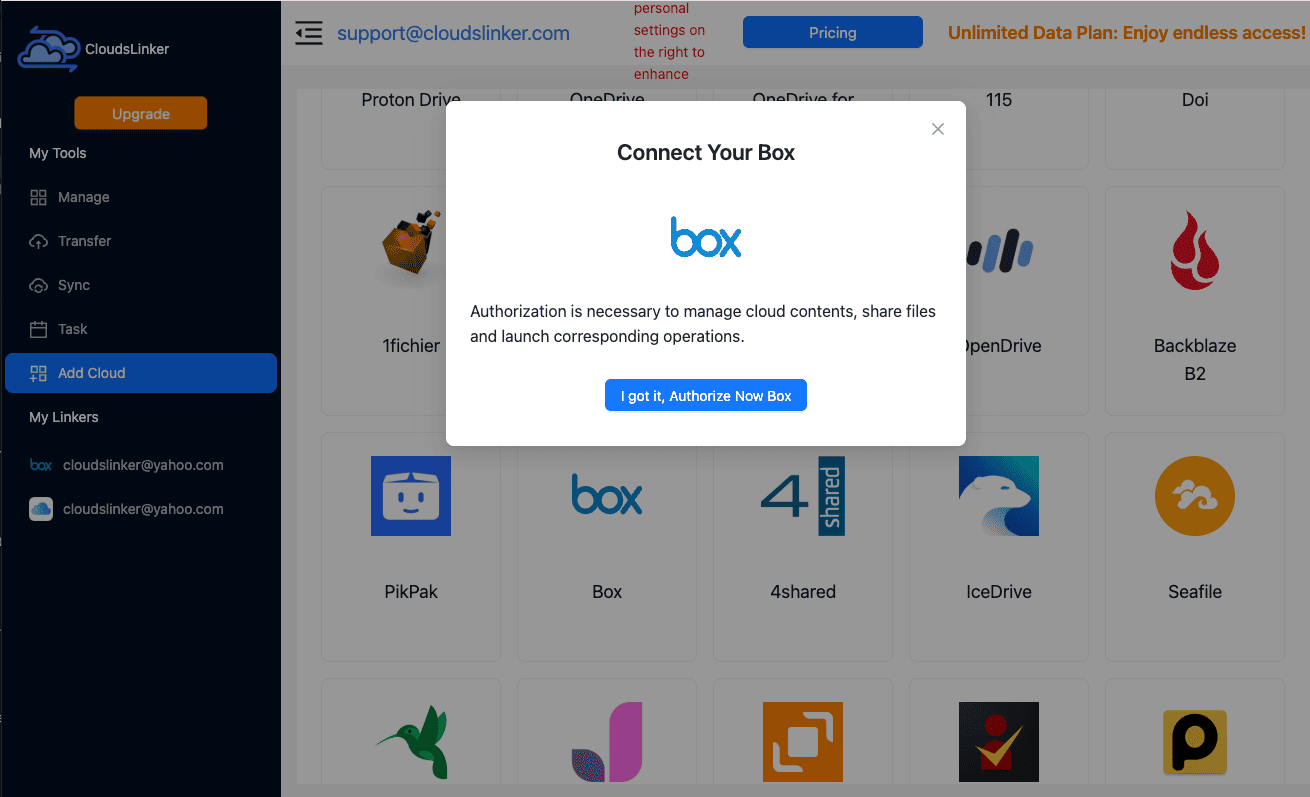
Step 1: Connect Box
Click Add Cloud → Box, then approve access on Box's official sign-in page. If your company uses single sign-on, Box sends you through your identity provider first. The authorization can be revoked later from Box account settings.
Step 2: Connect Shade
In Shade, create an API key in account settings and copy the Drive ID from the settings of the drive that will receive the footage.
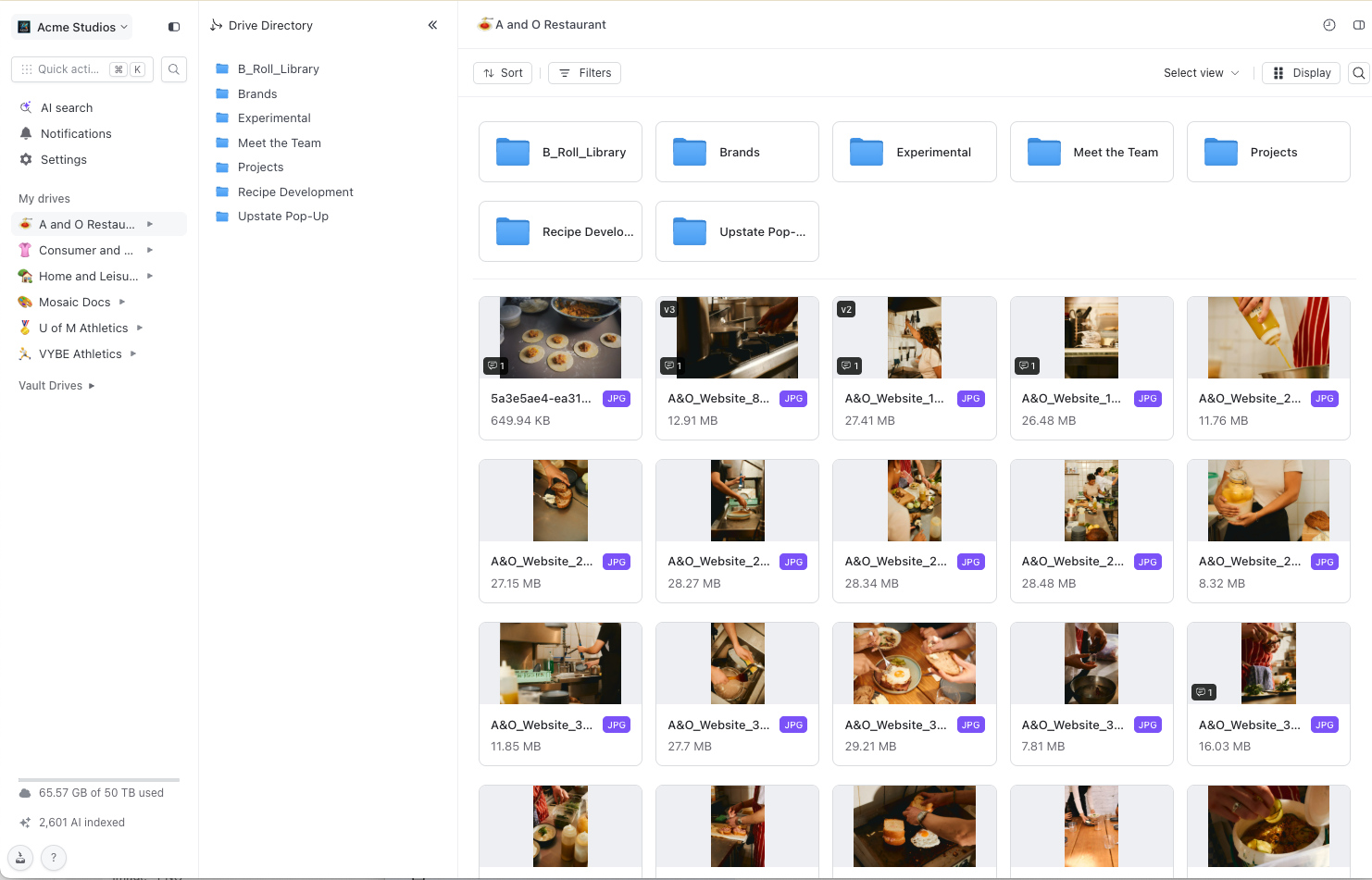
Back in CloudsLinker, click Add Cloud → Shade and paste both values. Each connection writes into exactly one drive, so add another Shade connection for each additional drive.
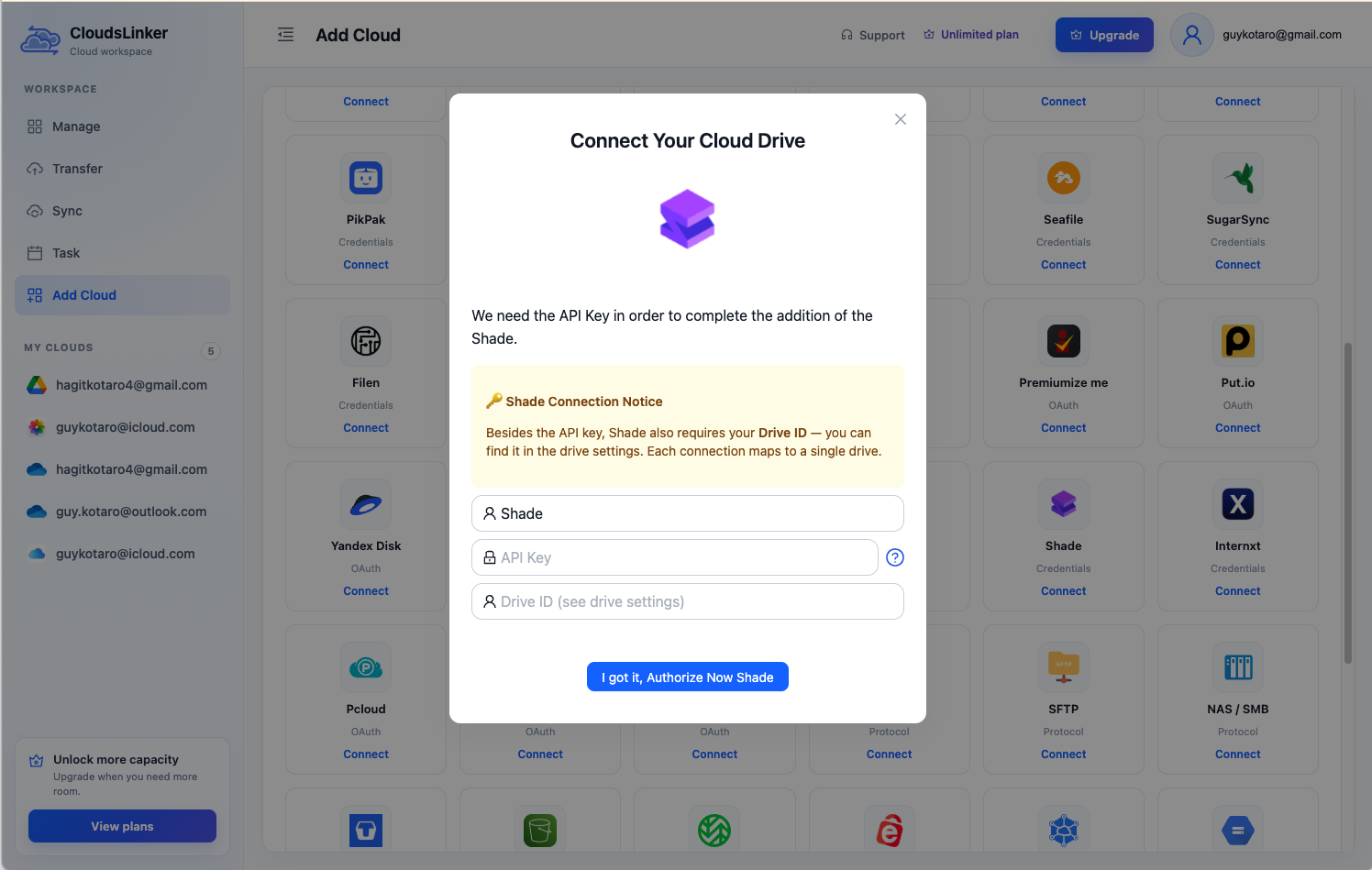
Step 3: Configure the Transfer
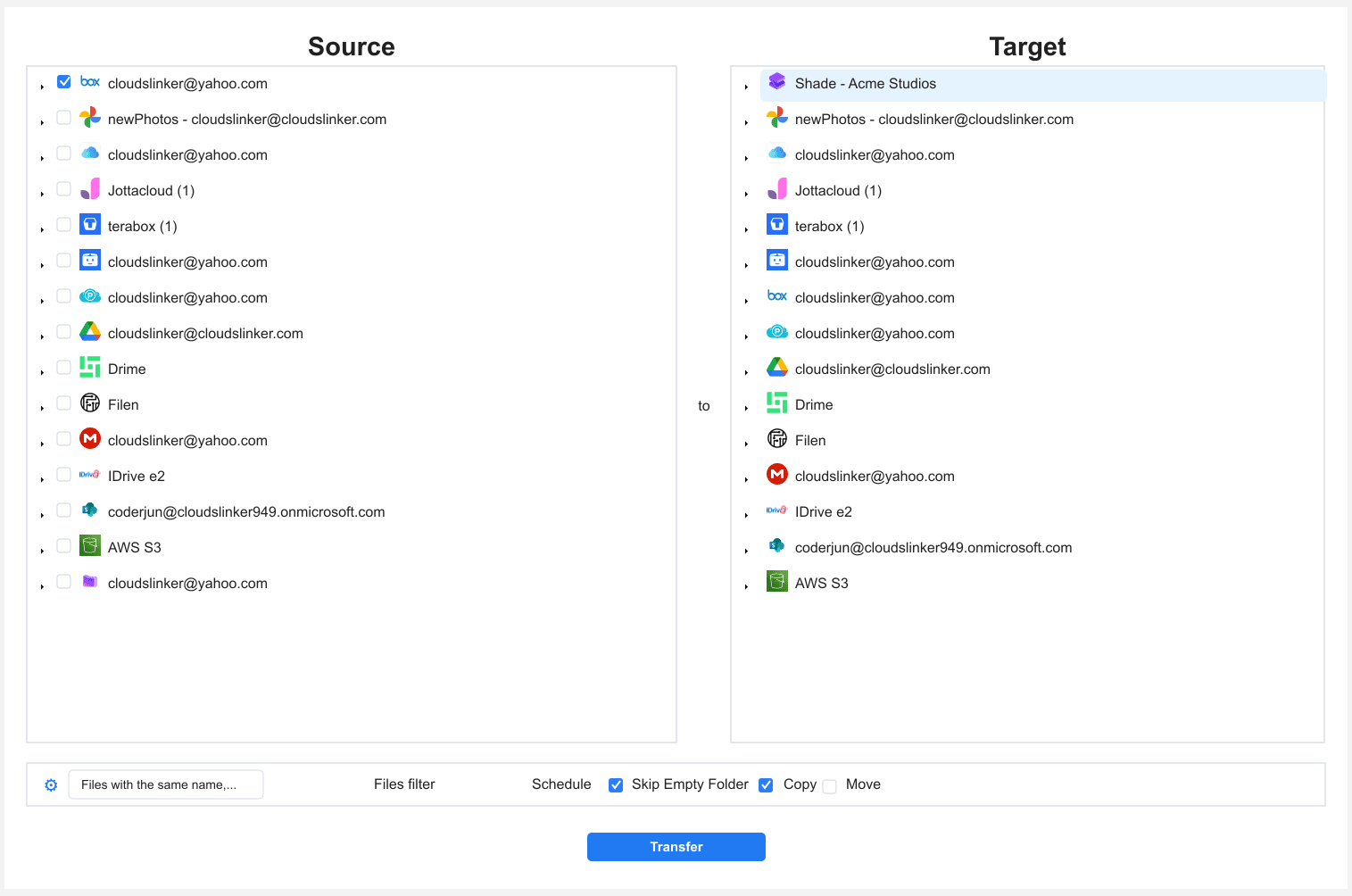
Choose Box as the source and tick the footage folders, then choose the Shade drive and a destination folder. Filters let you limit the task to video formats or files above a set size, which keeps proxies and paperwork in Box. Keep the mode on copy for the migration.
Step 4: Start and Monitor the Transfer
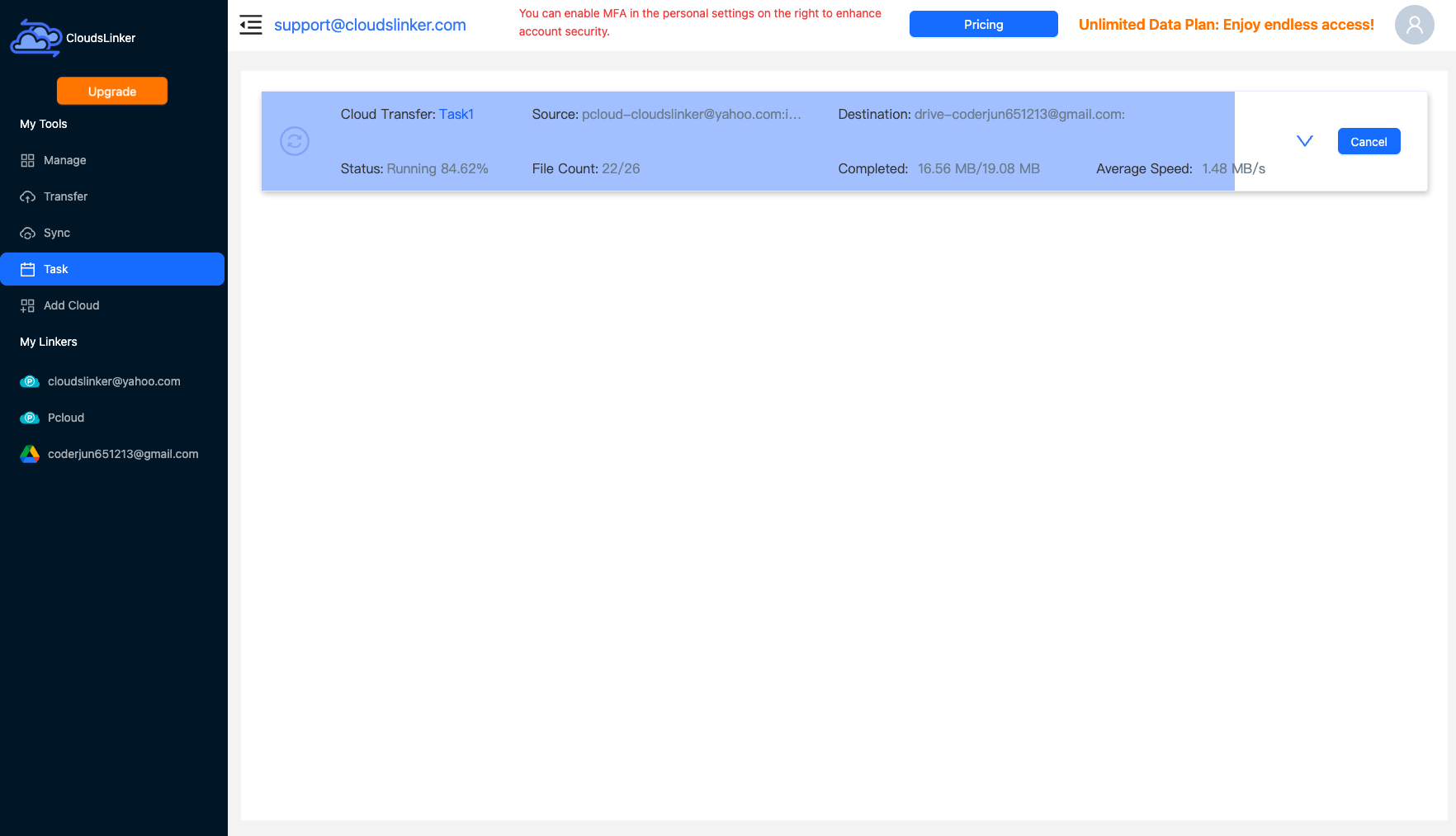
Start the task and follow it in the Task List, which shows copied files, total size and any failures. The browser can be closed while it runs. Shade indexes files as they arrive, so the first projects become searchable before the whole library has landed.
Comparing the Ways to Transfer From Box to Shade
| Method | Ease of Use | Speed | Best For | Uses Local Bandwidth | Skill Level |
|---|---|---|---|---|---|
| Download / upload | Easy | Slow | One project folder | Yes — twice | Basic |
| Box Drive + Shade desktop app | Medium | Slow, one project at a time | A few projects on one workstation | Yes — twice | Basic |
| Rclone | Hard | Depends on the host machine | Scripted, repeatable bulk loads | Yes (via the host) | Advanced |
| CloudsLinker | Easy | Fast (cloud to cloud) | Full libraries, TB scale | No | Basic |
- Check whose plan owns shared folders: in Box, a shared folder follows the folder owner's plan. Connect the account that owns the footage folders, or make sure the connected account has at least viewer access to all of them.
- Size the Shade seats first: Box Business storage is unlimited, Shade Growth is 500 GB active per seat. Total the selected folders in Box before starting so the copy does not stop halfway on a full drive.
- Leave Box Notes and documents behind: Box Notes and other Box-native files are not media. Filter by video and audio extensions so the Shade drive contains footage, not office files.
- Verify with counts and sizes: Shade exposes no checksums through its API, so compare file counts and total size per folder between Box and Shade after the task finishes.
- Migrate drive by drive: one CloudsLinker connection maps to one Shade drive. Finish and check one drive before starting the next, which keeps permissions and verification simple.
- Remove the migration credentials afterward: delete the Shade API key used for the copy and revoke the Box authorization once the editors have signed off.
Frequently Asked Questions
Conclusion
For one project folder, downloading from Box and uploading through the Shade desktop app is enough. Teams already comfortable on a command line can follow Shade's own Rclone route, which suits repeatable bulk loads. For a full library — many projects, terabytes of takes, editors who need their workstations — CloudsLinker copies Box to Shade server-side with no local disk or uplink involved. Whichever route you pick, migrate one Shade drive at a time, check file counts against Box, and keep the Box folders until editors confirm the footage plays in Shade.
Online Storage Services Supported by CloudsLinker
Transfer data between over 62 cloud services with CloudsLinker

OneDrive

Google Drive

Google Photos

Google Takeout

Shared Drive

OneDrive for Business

Dropbox

Box

Mega

pCloud

Yandex

ProtonDrive

AWS

GCS

iDrive

Storj

DigitalOcean

Wasabi

1fichier

PikPak

TeleBox

OpenDrive

Backblaze B2

Fastmail file

SharePoint

Nextcloud

ownCloud

Premiumize me

HiDrive

Put.io

Sugar Sync

SmugMug

Jottacloud

Seafile

Ftp

SFtp

NAS

WebDav

4shared

Icedrive

Cloudflare R2

Scaleway

Hetzner Object Storage

Synology C2 Object Storage

S3 Compatible

Doi

iCloud Drive

iCloud Photos

FileLU

Zoho WorkDrive

Telia Cloud / Sky

Drime

Filen

TeraBox

Internxt

Degoo

Gofile

Pixeldrain

Shade

Koofr

Dosya

Infomaniak kDrive
Didn' t find your cloud service? Be free to contact: support@cloudslinker.com
Further Reading
Effortless FTP connect to google drive: Transfer Files in 3 Easy Ways
Learn More >
Google Photos to OneDrive: 3 Innovative Transfer Strategies
Learn More >
Google Photos to Proton Drive: 3 Effective Transfer Techniques
Learn More >