Drime to Proton Drive: Move to Swiss Privacy and the Proton Ecosystem
Transfer Drime files to Proton Drive for Swiss jurisdiction and Proton account integration. Browser download or cloud-to-cloud transfer through CloudsLinker.
Introduction
Proton Drive's appeal is jurisdiction and ecosystem: data stored under Swiss privacy law, end-to-end encrypted including filenames, and bundled with Proton Mail, Calendar, and VPN under one account. Drime offers comparable end-to-end encryption from France, so a move here is usually about consolidating into an existing Proton subscription or preferring Swiss over French jurisdiction. Both encrypt at rest, so the migration keeps your privacy posture intact while changing provider. Drime connects through a developer token; Proton Drive connects with account credentials. This guide covers two paths — a manual browser download and upload, and a cloud-to-cloud transfer through CloudsLinker.
Drime is a French cloud storage workspace with end-to-end encryption and GDPR-aligned hosting. It connects to transfer tools through a developer token.
- French data residency: servers in France under GDPR.
- End-to-end encryption: on stored files and shared links.
- Sharing: password-protected, expiring links with access logs.
- Collaboration: shared folders, notes, file requests.
- Third-party access: developer token from Settings → Developer.
Proton Drive is the storage arm of Proton AG, the Swiss company behind Proton Mail. It applies end-to-end encryption to files, filenames and metadata, and bundles with other Proton apps.
- Swiss and EU data centers: covered by Swiss privacy law and GDPR.
- End-to-end encryption: files, filenames and metadata.
- Ecosystem: shared account with Mail, Calendar, VPN.
- Free tier: a few GB; paid tiers bundle Proton apps.
- Access: account credentials (email + password; 2FA must be switched off).
Both encrypt end-to-end and host in Europe. Drime is French with workspace and sharing features; Proton Drive is Swiss with deeper encryption of metadata and a bundled app ecosystem. The choice usually comes down to jurisdiction and which ecosystem you already use.
| Feature | Drime | Proton Drive |
|---|---|---|
| Data center location | France | Switzerland and Germany |
| Encryption scope | End-to-end on files | End-to-end including filenames and metadata |
| Ecosystem | Workspace tools (notes, sharing) | Mail, Calendar, VPN bundle |
| Sharing controls | Password, expiry, download limit, access log | Link + optional password |
| Third-party access | Developer token | Account credentials |
On the Drime side
- Decide the scope: both are private clouds, so this is usually a full move rather than a split.
- Generate a developer token: Drime → avatar → Settings → Developer → Create Token.
- Note shared links — they break once files are removed; you will reissue them in Proton Drive.
On the Proton Drive side
- Confirm plan storage: Proton Drive storage depends on your Proton plan. Make sure it covers the volume.
- Prepare credentials: have your Proton email and account password ready, and switch two-factor authentication off first. The account password itself is required, because it is what derives Proton's encryption keys.
- Plan a destination folder such as
/Drime-Import/.
Method 1: Browser Download from Drime and Upload to Proton Drive
Step 1: Download from Drime
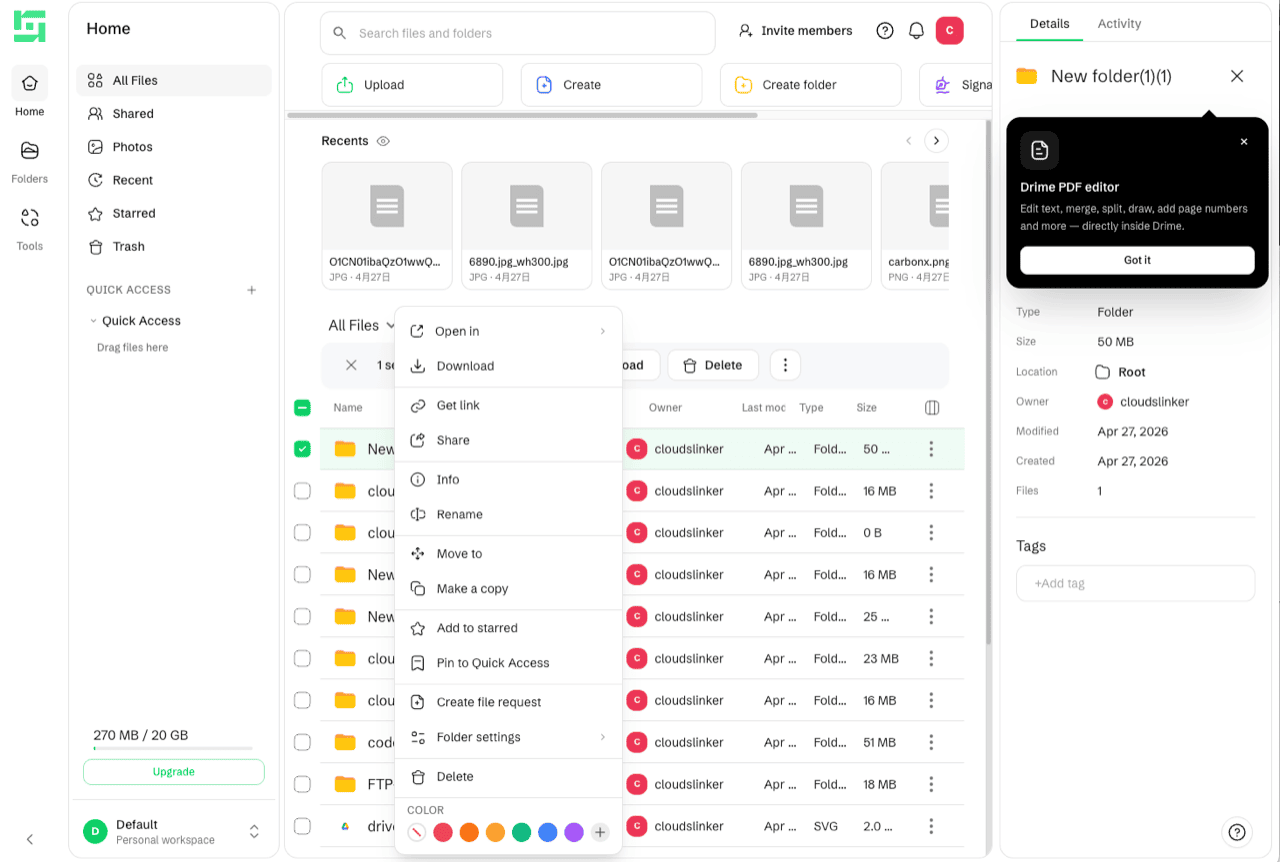
Open the Drime web dashboard, sign in, and download the files or folders you want. Drime decrypts in-browser and packages folders as ZIP archives. Work folder by folder for large libraries.
Step 2: Upload to Proton Drive
Open drive.proton.me, extract the ZIP, and drag the folders into your target location. Proton Drive encrypts files in-browser as they upload.
Method 2: Cloud-to-Cloud Transfer with CloudsLinker
Move Drime to Proton Drive Without Local Downloads
CloudsLinker connects Drime through its developer token and Proton Drive through your account credentials, then transfers server-side.
Step 1: Connect Drime
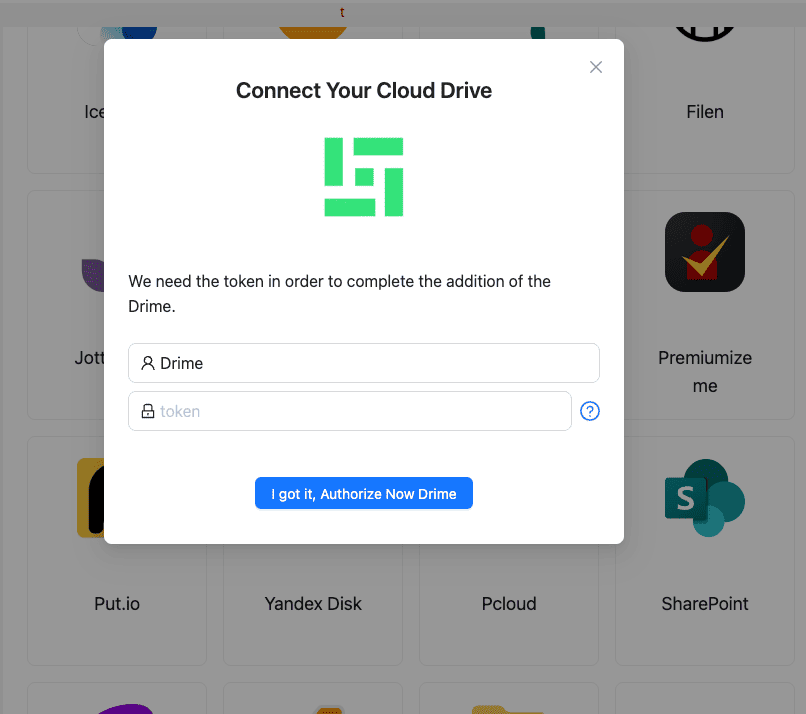
In CloudsLinker, click Add Cloud and select Drime. Paste the developer token from Drime → Settings → Developer. Confirm.
Step 2: Connect Proton Drive
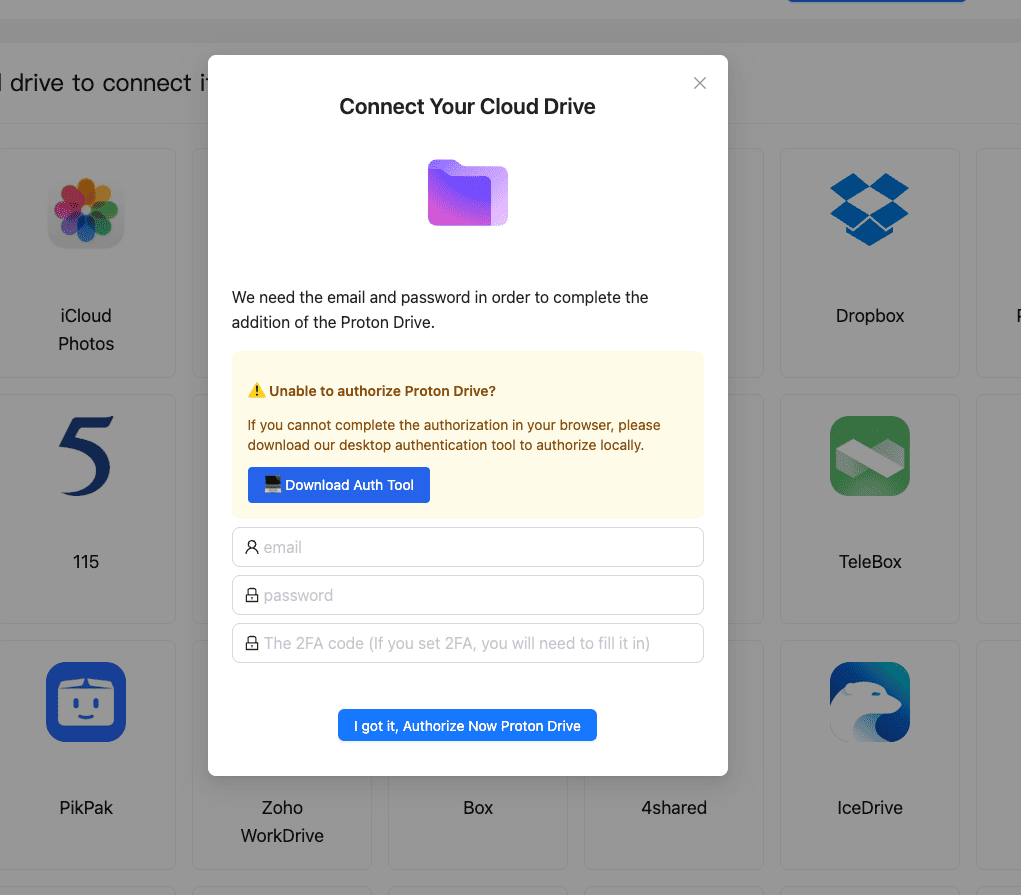
Click Add Cloud and select Proton Drive. Enter your Proton email and password — two-factor authentication has to be switched off, as there is no field for a code. Proton Drive appears as a connected destination.
Step 3: Configure the Transfer
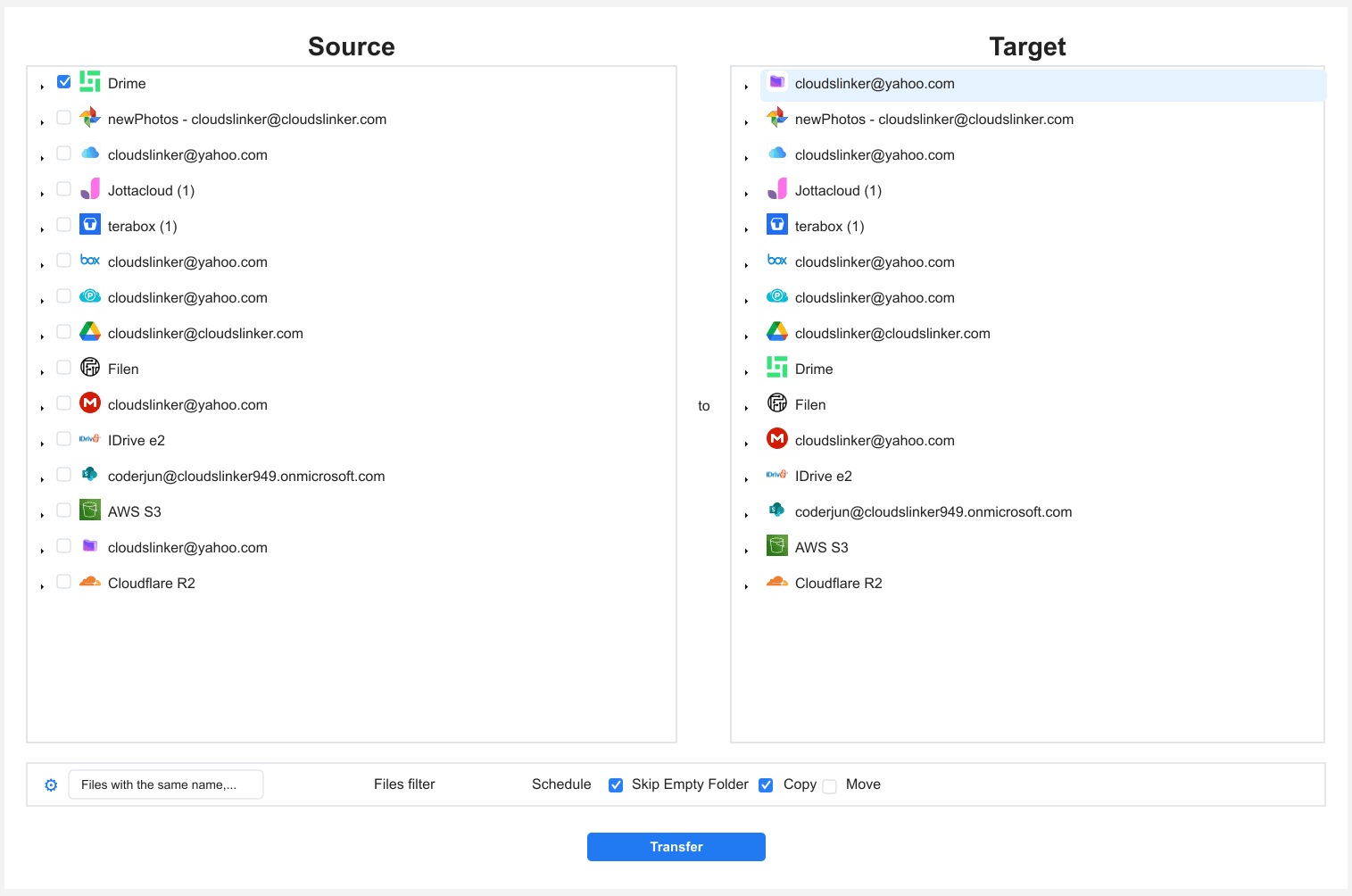
Open the Transfer section. Select Drime as the source and browse your folders. Select Proton Drive as the destination and choose the target folder. Filter by file type, size or date if needed. Use Copy to keep the Drime originals.
Step 4: Start and Monitor
Click start. The Task List shows transferred size and remaining items. The transfer runs on CloudsLinker servers even if you close the browser. Open a few files in Proton Drive to verify before clearing Drime.
Method Comparison
| Method | Ease of Use | Speed | Best For | Uses Local Bandwidth | Skill Level |
|---|---|---|---|---|---|
| Browser Download + Upload | ★★★★☆ | ★★☆☆☆ | A few files or folders | Yes | Beginner |
| CloudsLinker | ★★★★★ | ★★★★★ | Full library moves, hands-off | No | Beginner |
- Verify by opening, not just listing: both services encrypt at rest, so a broken file will not show until opened. Spot-check a sample after the move.
- Change the Proton password after the migration: CloudsLinker needs the account password itself to derive the encryption keys, so rotating it afterwards invalidates the stored session.
- Confirm the plan storage: Proton Drive capacity depends on your Proton plan tier. Check it covers the Drime volume before starting.
- Recreate share links: Drime's links do not migrate. Reissue Proton Drive share links for anything that was shared.
- Rotate the Drime token afterward: delete or regenerate it once the migration is verified.
- Watch filename edge cases: both services allow rich filenames; if an upload fails, check for very long paths or unusual characters.
Frequently Asked Questions
Conclusion
For a few files, the browser route works. For a larger library, CloudsLinker connects Drime through its developer token and Proton Drive through your account credentials, moving everything server-side. Because both services encrypt at rest, verify a sample by opening files in Proton Drive before clearing Drime — a corrupted file will not be obvious until you open it. If you are consolidating into a Proton bundle, confirm the Proton Drive storage in your plan covers the volume you are moving.
Online Storage Services Supported by CloudsLinker
Transfer data between over 58 cloud services with CloudsLinker

OneDrive

Google Drive

Google Photos

Shared Drive

OneDrive for Business

Dropbox

Box

Mega

pCloud

Yandex

ProtonDrive

AWS

GCS

iDrive

Storj

DigitalOcean

Wasabi

1fichier

PikPak

TeleBox

OpenDrive

Backblaze B2

Fastmail file

SharePoint

Nextcloud

ownCloud

Premiumize me

HiDrive

Put.io

Sugar Sync

Jottacloud

Seafile

Ftp

SFtp

NAS

WebDav

4shared

Icedrive

Cloudflare R2

Scaleway

Hetzner Object Storage

Synology C2 Object Storage

S3 Compatible

Doi

iCloud Drive

iCloud Photos

FileLU

Zoho WorkDrive

Telia Cloud / Sky

Drime

Filen

TeraBox

Internxt

Degoo

Gofile

Pixeldrain

Shade

Koofr
Didn' t find your cloud service? Be free to contact: [email protected]
Further Reading
Effortless FTP connect to google drive: Transfer Files in 3 Easy Ways
Learn More >
Google Photos to OneDrive: 3 Innovative Transfer Strategies
Learn More >
Google Photos to Proton Drive: 3 Effective Transfer Techniques
Learn More >