Google Drive to iCloud Drive: 4 Ways to Transfer (2026) — No Download Needed
Move files from Google Drive to iCloud Drive four ways: browser upload, iPhone/iPad, Rclone, or a server-side transfer with no local download. Covers the two limits that break big moves — Google's 750 GB/day quota and iCloud's 50 GB per-file cap — and how to avoid both.
Introduction
There are four working ways to move files from Google Drive to iCloud Drive in 2026: upload through a browser, save files over an iPhone or iPad, script the copy with [Rclone](https://rclone.org/drive/), or run a server-side cloud-to-cloud transfer with [CloudsLinker](https://www.cloudslinker.com) — the only route that never touches your local disk. Which one fits depends mostly on library size: the manual routes are fine below a few gigabytes, while bigger moves run into Google’s 750 GB/day download quota, iCloud’s 50 GB per-file cap, and your own upload speed. This guide walks through all four methods step by step, compares them side by side, and lists the storage and file-size limits worth checking before you start.
Google Drive is Google’s flagship cloud storage service, widely used for personal files, education, and business collaboration. Every Google account comes with 15 GB free storage, shared across Gmail, Google Photos, and Drive. Extra space can be purchased via Google One plans.
- Cross-device access: Open your files from Android, iOS, macOS, Windows, or any browser.
- Collaboration in real time: Edit documents, spreadsheets, and presentations with others simultaneously.
- Integration: Works seamlessly with Gmail, Google Docs, Meet, and other Google services.
- Backup & restore: Protects photos, videos, and device data with auto-backup features.
- Flexible storage: Individual files can be up to 5 TB in size (with paid plans).
iCloud Drive is Apple’s native cloud storage, built to sync files across iPhone, iPad, Mac, and even Windows. Each Apple ID includes 5 GB of free storage, with upgrades available up to 12 TB through iCloud+.
- Apple ecosystem integration: Your Desktop and Documents folder on Mac are automatically available across devices.
- File size support: Handles uploads up to 50 GB each, perfect for high-resolution videos or design files.
- Multi-platform: Accessible via Finder (Mac), Files app (iOS/iPadOS), File Explorer (Windows), or the iCloud website.
- Collaboration tools: Share files/folders with permissions, co-edit in Pages, Numbers, and Keynote.
- Privacy & security: End-to-end encryption and Apple’s Advanced Data Protection keep your data safe.
Many people start with Google Drive because of its generous free storage and strong integration with Gmail and Docs. But if you’ve recently switched to Apple devices—or you’d rather keep everything inside one ecosystem—moving your data to iCloud Drive can simplify daily use and reduce app-switching.
- Tight Apple Integration: iCloud Drive works natively with Finder on macOS, the Files app on iOS/iPadOS, and even integrates into productivity tools like Pages and Numbers.
- Seamless Mobile Experience: Your files sync automatically across iPhone, iPad, and Mac—no third-party apps required.
- Privacy & Security: With end-to-end encryption and optional Advanced Data Protection, your documents and photos stay secure within Apple’s cloud.
- Large File Support: iCloud Drive accepts uploads up to 50 GB per file—handy for videos, graphics projects, and backups.
- Collaboration: Share folders or individual files with precise permission controls and co-edit in real time with Apple apps.
- Scalable Plans: Start with 5 GB free and expand up to 12 TB with iCloud+, suitable for families and professionals alike.
If you’re moving away from Google’s ecosystem and prefer deeper Apple integration, iCloud Drive is a logical destination. It reduces friction across devices and provides a smoother workflow for anyone relying heavily on iPhone, iPad, and Mac.
Before deciding to move from Google Drive into iCloud Drive, it helps to understand the differences. While both platforms cover the basics of storage and syncing, they serve different priorities in terms of integration, collaboration, and pricing.
| Feature | Google Drive | iCloud Drive |
|---|---|---|
| Free Storage | 15 GB (shared across Gmail, Photos, Drive) | 5 GB |
| Platform Integration | Strong with Google services (Docs, Gmail, Meet, Android) | Best within Apple ecosystem (iOS, macOS, iPadOS) |
| Collaboration | Real-time editing in Google Workspace | Co-edit in Pages, Numbers, and Keynote with iCloud sharing |
| Third-Party Integration | Extensive (Slack, Zoom, Trello, MS Office) | Primarily Apple apps, limited external support |
| File Size Limit | Up to 5 TB per file (with paid plans) | Up to 50 GB per file |
| Security | Encryption in transit & at rest, 2FA via Google account | End-to-end encryption with optional Advanced Data Protection |
Google Drive is ideal for collaboration-heavy environments and cross-platform work, while iCloud Drive fits best for users deeply invested in Apple devices. If you rely on iPhone and Mac every day, migrating makes sense for convenience and tighter integration.
Before moving your files, review your Google Drive storage usage. Check how much data you currently have and whether it fits within the iCloud+ plan you intend to use. Since iCloud only gives 5 GB free, most users will need to upgrade if they are migrating large photo libraries or work archives.
Make sure you’re signed in with your Apple ID and have iCloud Drive enabled on your devices. You can manage this in Settings → [Your Name] → iCloud → iCloud Drive on iOS or in System Settings → Apple ID → iCloud on macOS. Having everything active before starting will make the transfer much smoother.
A little preparation helps: clean up old files in Google Drive, organize important folders, and decide whether you’ll transfer manually, use Rclone, or let CloudsLinker handle the migration automatically. This way, your folder structure and important documents won’t get lost in the shuffle.
- A few files or folders: Method 1 (browser) or Method 2 (iPhone or iPad). Free, no extra account.
- Comfortable with the command line: Method 3 (Rclone).
- Tens of gigabytes or more, or you don't want everything to pass through your own device and connection: Method 4. CloudsLinker copies server to server and keeps going after you close the tab.
- For every method: Google limits each account to 750 GB of downloads per day, iCloud Drive rejects files over 50 GB, and your iCloud+ plan must be larger than what you are moving.
Method 1: Transfer via Web Browsers
Step 1: Download Files from Google Drive
Open the official Google Drive web interface and log in with your Google account.
Browse to the files or folders you’d like to move into iCloud. To select multiple items, hold down
the Ctrl key on Windows or Command on macOS.
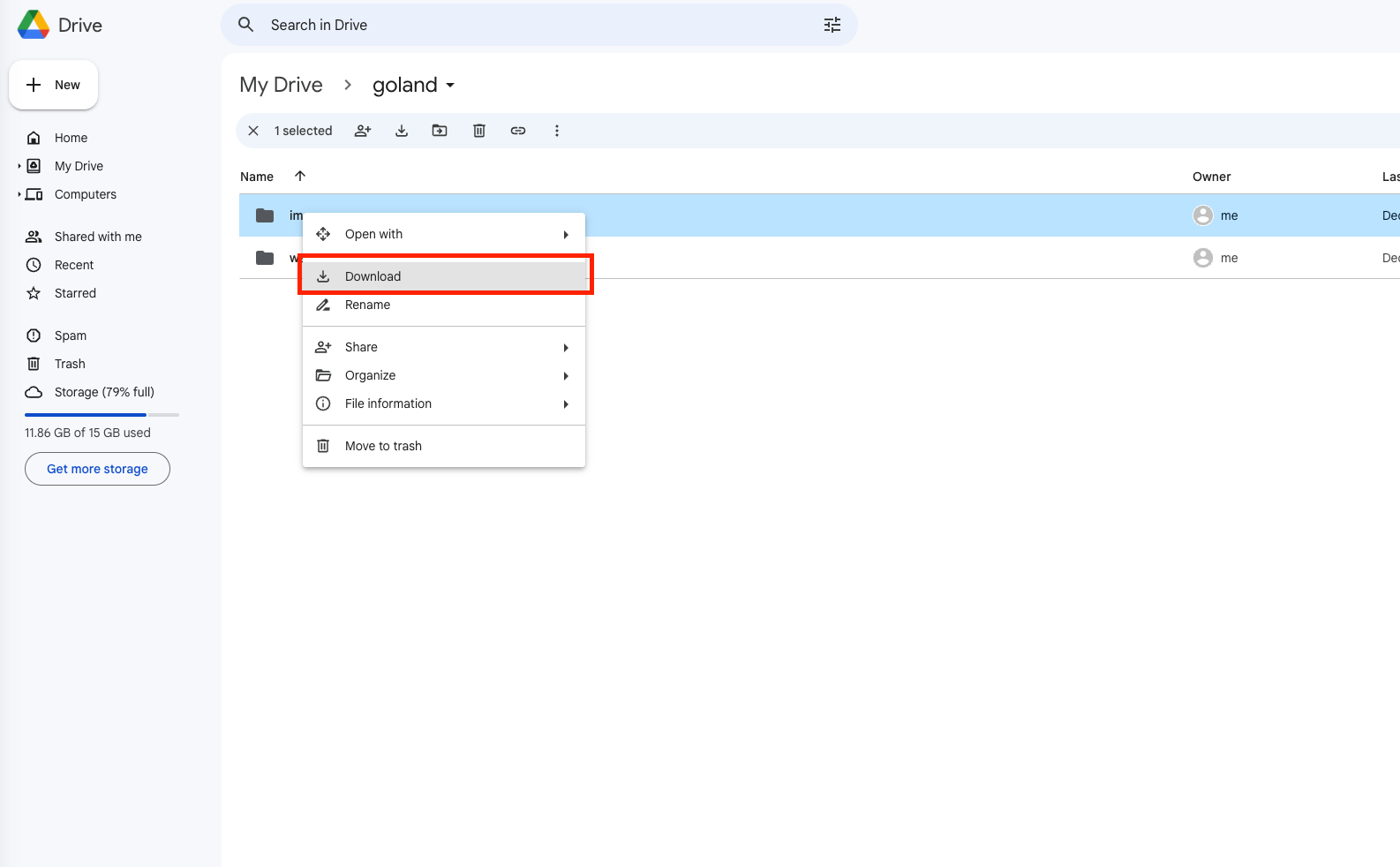
Click the Download option from the top toolbar (or right-click on your selection). Google Drive will package folders as ZIP files. Once the download finishes, unzip them locally so you can re-upload the individual files into iCloud Drive.
Step 2: Upload Files to iCloud Drive
Go to iCloud.com and sign in with your Apple ID. If you haven’t enabled iCloud Drive before, make sure it’s turned on in your Apple ID settings. Once inside the iCloud Drive interface, click the "Upload" button (cloud with an arrow), or simply drag and drop your files into the browser window.
You can organize files into folders as you go, or recreate the same folder structure you had on Google Drive for consistency. This helps keep documents, media, and work files easy to locate across your Apple devices.
Using a web browser is the simplest way to handle smaller migrations or one-time transfers. However, if you have a large library or need automation, relying on tools like Rclone or a dedicated cloud-to-cloud transfer service will save time and reduce the risk of interruptions.
Method 2: Transfer Using Your iPhone or iPad
Step 1: Open the Google Drive App and Download Files
On your iPhone or iPad, launch the Google Drive app and sign in with your Google account. Locate the files or folders you want to migrate. Tap the three-dot menu next to a file, then choose “Open in” or “Send a copy”. From here, you can save a local copy of the file or pass it directly into Apple’s Files app.
Step 2: Save into iCloud Drive via Files App
When the iOS share sheet opens, pick “Save to Files”. From there, choose iCloud Drive as the destination. You can either drop the file directly into your root folder or select a subfolder for better organization. Once confirmed, the file will upload to your iCloud Drive and sync automatically across your Apple devices.
This method is ideal for quick transfers of individual documents, photos, or PDFs while on the go. It leverages Apple’s native Files app, so you don’t need a computer. Keep in mind, though, that moving larger folders or hundreds of files can be time-consuming on mobile. For bulk migrations, using a desktop tool or an automated service like CloudsLinker will save you time and hassle.
Method 3: Command-Line Transfer with Rclone
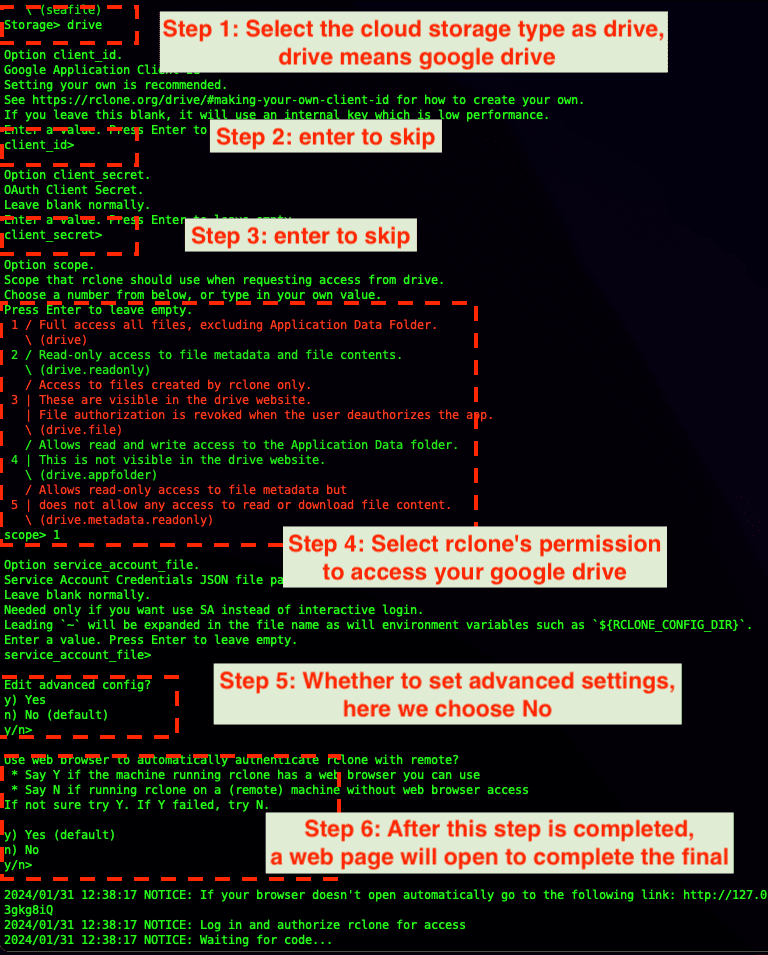
Step 1: Install Rclone and Configure Your Remotes
For users comfortable with the command line, Rclone offers a highly flexible way to move data between clouds. It supports dozens of providers—including Google Drive and iCloud Drive.
First, download Rclone from the
official release
page.
Once installed, open your terminal (or Command Prompt on Windows) and run:
rclone config. This will launch the interactive setup wizard.
- Google Drive Remote: Select
driveas your backend. Rclone will prompt you to authenticate with your Google account through a browser window. Once authorized, you’ll have a remote (e.g.,gdrive:) that points to your files in the cloud. - iCloud Remote: Choose
icloudto configure direct access to iCloud Drive. Rclone will guide you through token generation and authentication. More details are available in the iCloud backend docs. - macOS Local Option: If you’re on a Mac, you can also point Rclone at your local
iCloud
Drive folder:
~/Library/Mobile Documents/com~apple~CloudDocs. This works if iCloud is already synced to your computer.
Step 2: Run the Transfer Command
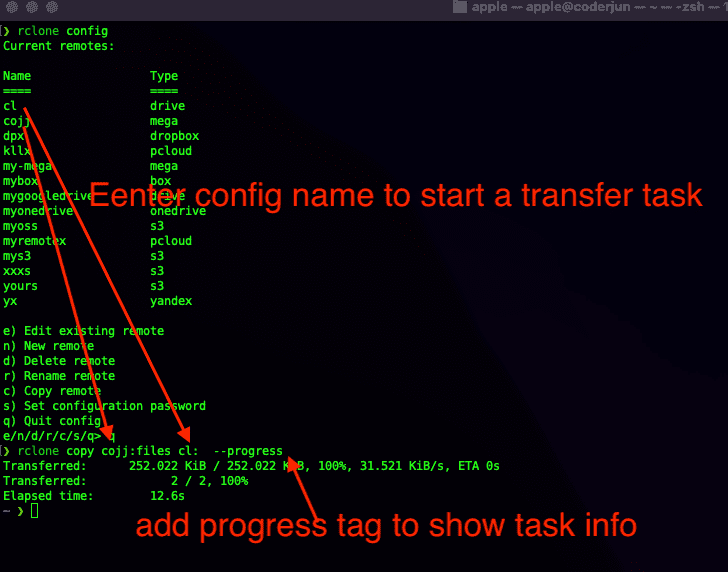
Once both remotes are configured, you can start copying files. For example:
rclone copy gdrive:/MyDocs icloud:/MyBackup --progressrclone sync gdrive:/Photos icloud:/Photos --progress --exclude "*.tmp"
The first command copies everything from the MyDocs folder in Google Drive into a folder
named
MyBackup in iCloud Drive. The second example performs a sync of Google Drive photos,
excluding
temporary files. Add --dry-run if you want to preview the operation before running it for
real.
Rclone is best suited for power users who want speed, fine-grained control, or automation. You can limit bandwidth, apply filters, or schedule recurring syncs using cron (Linux/macOS) or Task Scheduler (Windows). The only caveat: initial setup requires some patience, especially when generating tokens for iCloud.
Method 4: Cloud-to-Cloud Transfer with CloudsLinker
Overview: Google Drive to iCloud Drive Without Downloads
CloudsLinker
lets you move files directly between cloud services—no manual downloads, re-uploads, or local
storage space required.
It currently supports 40+ major cloud providers, including
Google Drive and iCloud Drive, with all transfers processed
entirely in the cloud.
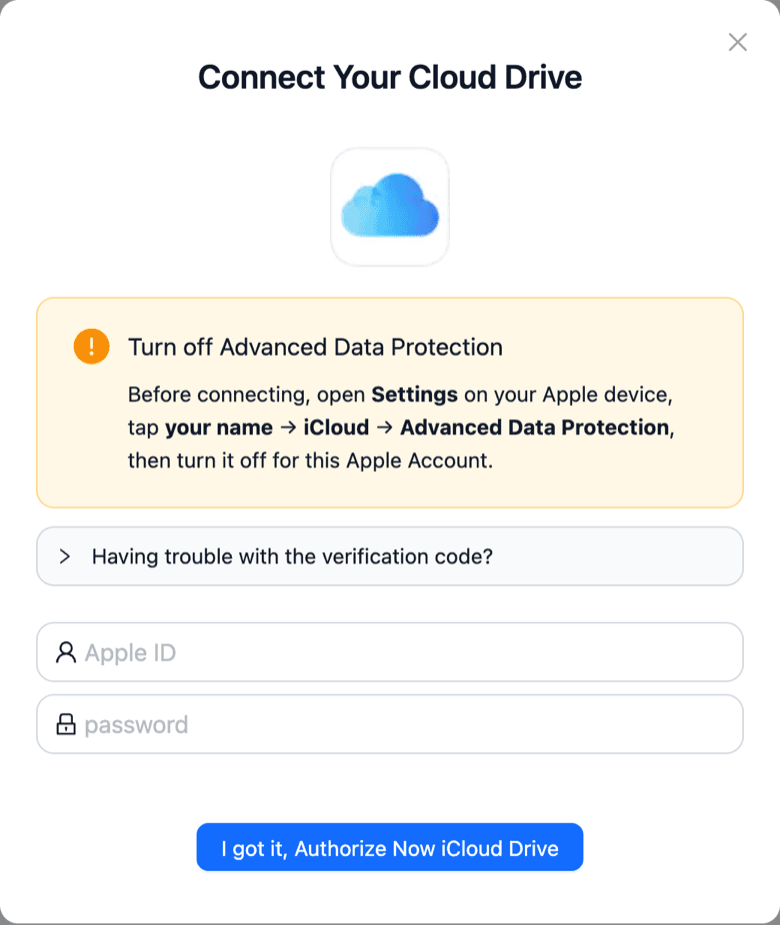
- Your Apple Account email and regular password. Apple offers no OAuth sign-in for iCloud Drive, so there is no Apple consent page to click through. App-specific passwords are rejected.
- A 6-digit verification code that Apple sends to one of your trusted devices, or by text message if you choose SMS.
- Advanced Data Protection must be off for this Apple Account, and Access iCloud Data on the Web must stay on (Settings → your name → iCloud).
- What is kept: CloudsLinker keeps your Apple sign-in so the job can keep running on its servers after you close the tab. Data moves over encrypted connections.
- How to cut access afterwards: change your Apple Account password, or turn off Access iCloud Data on the Web.
- Try before you pay: the free plan includes 10 GB of transfer per month, enough to copy a test folder and check the result.
Step 1: Log in to CloudsLinker
Go to app.cloudslinker.com and sign into your account. Registration is free if you’re new. From the dashboard, click "Add Cloud". Start by adding your Google Drive account. You’ll be redirected to Google’s OAuth page—just like with Dropbox— where you securely grant access to CloudsLinker.
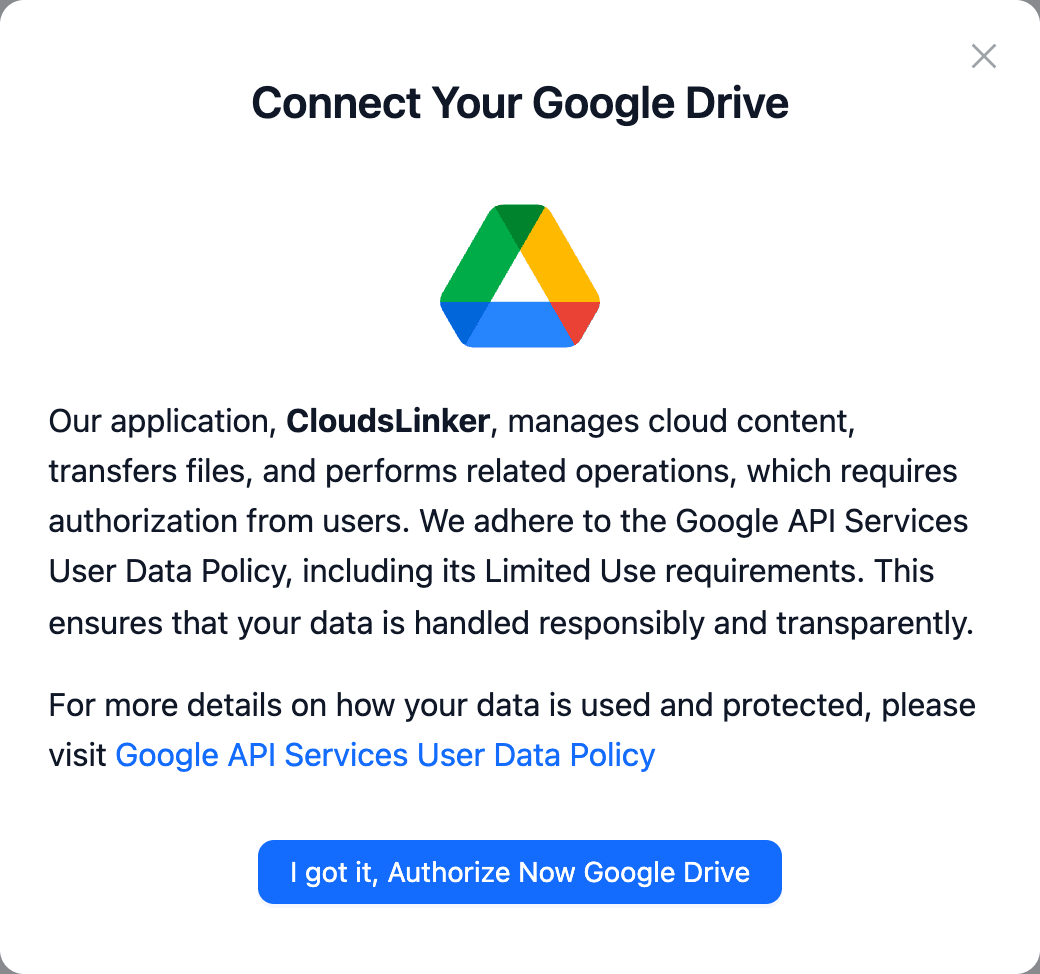
Google Drive connections are one-to-one, so once authorized, your account appears as a single drive in CloudsLinker, similar to how Dropbox works.
Step 2: Connect iCloud Drive
Next, choose iCloud Drive from the list and enter your Apple ID and regular Apple Account password; the dialog rejects app-specific passwords. Apple has no OAuth for iCloud Drive, so CloudsLinker keeps this sign-in to reach your files. Apple then sends a six-digit code to a trusted device. Turn off Advanced Data Protection first and keep Access iCloud Data on the Web on.
Step 3: Configure Your Transfer
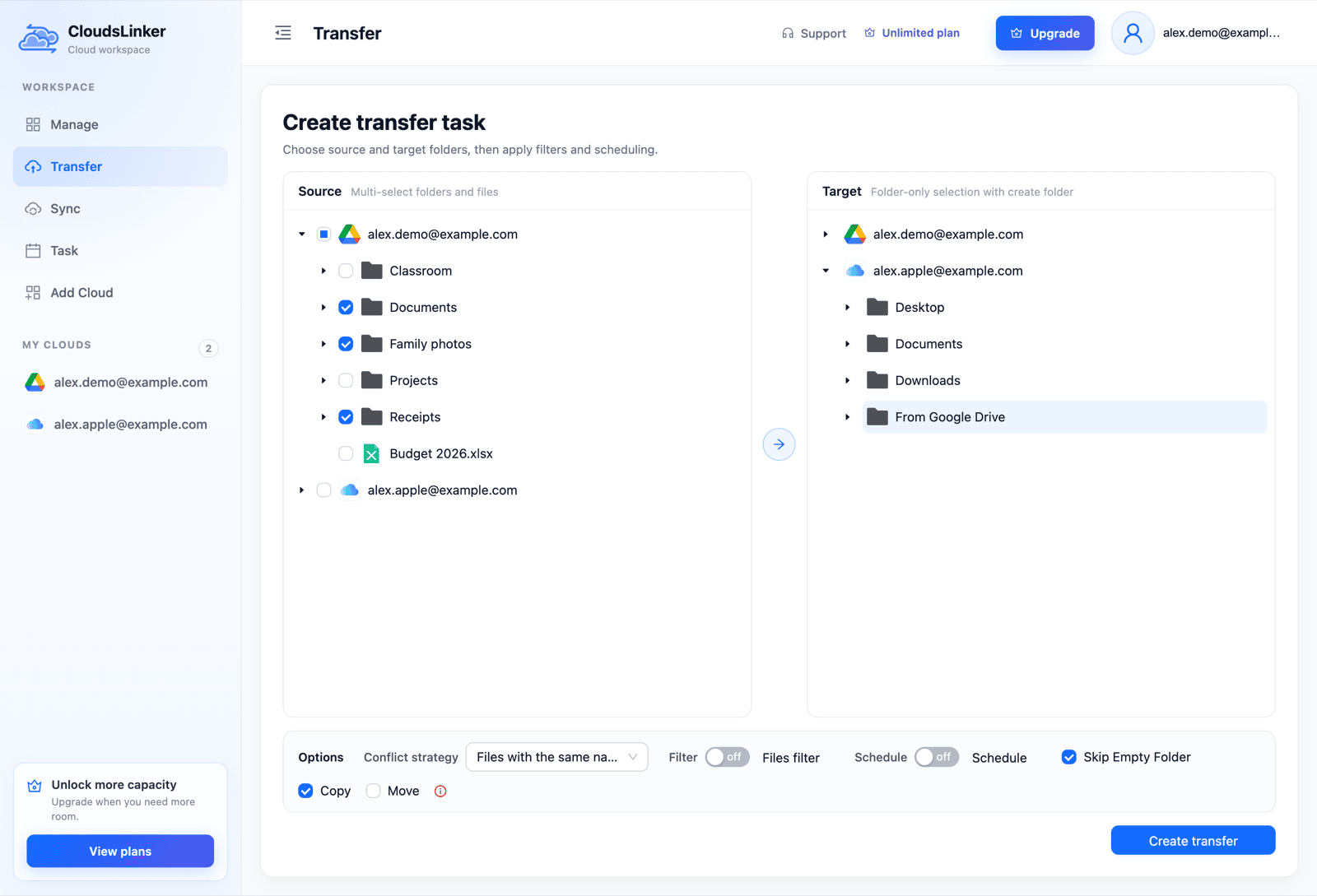
Open the Transfer tab. On the left, pick Google Drive as the source and select the files or folders you want to move. On the right, choose iCloud Drive as the destination. You can browse both folder structures before confirming the transfer.
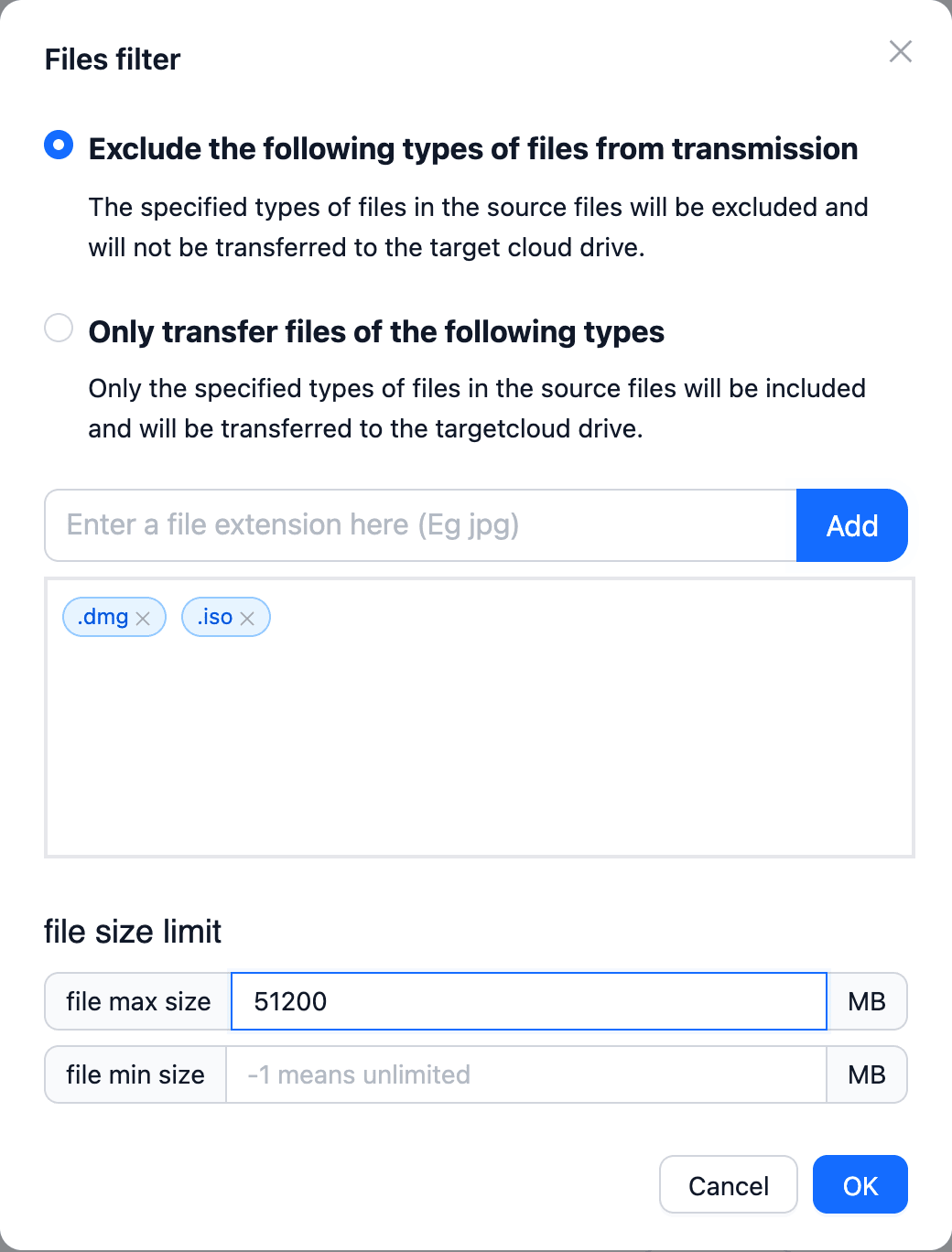
Want to refine the migration? Filters include or exclude by file extension (for example,
skip .tmp) and set minimum and maximum file sizes in MB. The example below skips .dmg and .iso installers and leaves out anything over 51,200 MB, since iCloud Drive does not accept files larger than 50 GB.
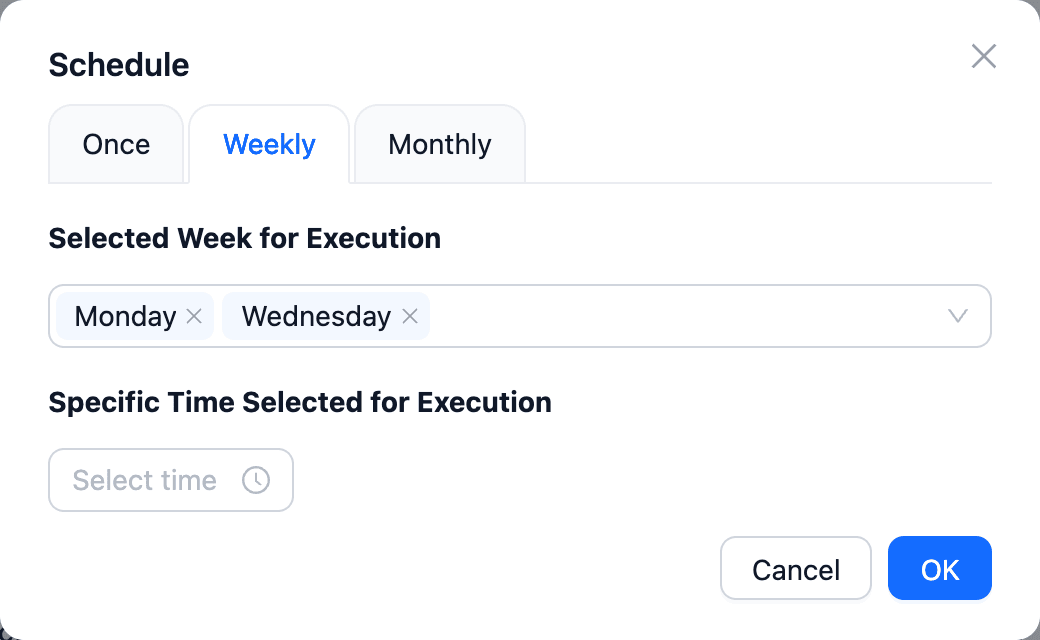
If you’d like new files to keep arriving in iCloud Drive, turn on Schedule. Tasks can run Once, Weekly or Monthly on paid plans.
Step 4: Monitor and Finalize
Once started, your migration appears under Task, with live progress and speed. You can cancel a running job or use Retry on a finished one. Any errors (like permission issues or unsupported file types) are listed per file.
Step 5: Review Completion Report
After the job finishes, a report will summarize successes and failures. At this point, your chosen Google Drive files are safely in iCloud Drive.
For anyone wanting a fast, reliable, and completely cloud-based approach, CloudsLinker is one of the best tools available. It offers the convenience of “set it and forget it” transfers while still giving you advanced options for power users.
Need to Move Files Between Other Clouds?
Whether you’re using OneDrive, Box, MEGA, or WebDAV, CloudsLinker supports direct cloud-to-cloud transfers without eating up your bandwidth. Manage everything in your browser, and let the service do the heavy lifting.
Comparing the 4 Ways to Transfer from Google Drive to iCloud Drive
There isn’t a single “best” way to move files from Google Drive to iCloud Drive. The right approach depends on how many files you’re moving, how comfortable you are with technical tools, and whether convenience or control matters more. Here’s a side-by-side breakdown to help you decide:
| Method | Ease of Use | Speed | Best For | Uses Local Bandwidth | Skill Level |
|---|---|---|---|---|---|
| Web Browser (Manual) | ★★★★★ | ★★★☆☆ | Occasional, small transfers | Yes | Beginner |
| iPhone / iPad via Files App | ★★★★★ | ★★★☆☆ | Mobile users moving a few files | Yes | Beginner |
| Rclone (Command-Line) | ★★☆☆☆ | ★★★★★ | Power users, scripted or automated transfers | Yes / No (if both remotes are cloud-based) | Advanced |
| CloudsLinker (Cloud-Based) | ★★★★★ | ★★★★★ | Large folders, recurring syncs, minimal effort | No | Beginner |
If you only need to move a handful of documents or images, using a browser or the iPhone/iPad Files app is quick and straightforward. For automation, scheduling, or heavy data transfers, Rclone is a powerful option—but it requires some technical setup. For most people, though, especially those moving large libraries or wanting to avoid internet slowdowns, CloudsLinker is the most convenient choice. Since the transfer runs entirely in the cloud, it doesn’t depend on your device staying connected or consuming your home bandwidth.
Moving more than a few gigabytes from Google Drive? Connect both accounts in CloudsLinker and copy one test folder first. The free plan covers 10 GB of transfer each month.
Try a free test transferMoving files from Google Drive to iCloud Drive is generally straightforward, but a little preparation helps prevent errors—especially if you’re migrating a large library or working with manual methods:
- Download Before Upload: If you’re using the browser method or the desktop sync app, make sure your Google Drive files are fully downloaded first. “Online-only” placeholders won’t move correctly until the content has synced to your machine.
- iCloud File Size Limits: iCloud Drive allows files up to 50 GB each. If you’re migrating large videos or archives, check file sizes in advance. No tool gets around this limit, CloudsLinker included, so split oversized archives first.
- Avoid Bandwidth Bottlenecks: Manual transfers depend on your local internet speed. If your connection is slow or unstable, server-side tools such as CloudsLinker can handle the job without tying up your network.
- Check iCloud Storage: A free iCloud account starts with only 5 GB. If you’re bringing over a large Google Drive library, upgrade to an iCloud+ plan first to avoid running out of space mid-transfer.
- Know How Each Login Works: Google Drive connects through Google's own OAuth page. iCloud Drive has no OAuth, so any third-party tool needs your Apple Account password and a verification code. CloudsLinker keeps that sign-in to reach your files; change your password afterwards if you want to end its access.
- Handling Very Large Migrations: If you’re transferring hundreds of gigabytes, look for features like per-file error reporting, retries and server-side processing. CloudsLinker runs on its own servers, so the job continues if your device goes offline.
A bit of planning goes a long way. Whether you’re shifting a handful of files or an entire archive, understanding the limits and preparing your accounts ensures a smoother move from Google Drive into iCloud Drive.
Watch Our Step-by-Step Video Tutorial
Learn how to transfer files from Google Drive to iCloud Drive with our clear, visual walkthrough. This tutorial is perfect for anyone—whether you're new to cloud storage or just looking for the easiest method. We’ll guide you through every step, from accessing your files in Google Drive to moving them into iCloud Drive using various tools including CloudsLinker. Get expert tips, avoid common mistakes, and simplify your cloud migration process. Watch now and move your files with confidence!
Frequently Asked Questions
Conclusion
We’ve explored four effective ways to transfer files from Google Drive to iCloud Drive, each suited to different scenarios. For quick, smaller migrations, browser uploads or iOS transfers are convenient. For those handling larger datasets or looking for scriptable control, Rclone is a powerful option. And if you want a fully automated solution that runs entirely in the cloud without using your internet, CloudsLinker offers unmatched convenience. Choosing the right method ensures that your files stay organized, accessible, and ready for use across your Apple devices.
Online Storage Services Supported by CloudsLinker
Transfer data between over 62 cloud services with CloudsLinker

OneDrive

Google Drive

Google Photos

Google Takeout

Shared Drive

OneDrive for Business

Dropbox

Box

Mega

pCloud

Yandex
ProtonDrive

AWS
GCS

iDrive

Storj

DigitalOcean

Wasabi

1fichier

PikPak

TeleBox

OpenDrive

Backblaze B2

Fastmail file
SharePoint

Nextcloud

ownCloud

Premiumize me

HiDrive

Put.io

Sugar Sync

SmugMug

Jottacloud

Seafile

Ftp

SFtp

NAS

WebDav

4shared

Icedrive

Cloudflare R2

Scaleway

Hetzner Object Storage

Synology C2 Object Storage

S3 Compatible

Doi

iCloud Drive
iCloud Photos

FileLU

Zoho WorkDrive

Telia Cloud / Sky

Drime

Filen

TeraBox

Internxt

Degoo

Gofile

Pixeldrain

Shade

Koofr

Dosya

Infomaniak kDrive
Didn' t find your cloud service? Be free to contact: support@cloudslinker.com
Further Reading
Effortless FTP connect to google drive: Transfer Files in 3 Easy Ways
Learn More >
Google Photos to OneDrive: 3 Innovative Transfer Strategies
Learn More >
Google Photos to Proton Drive: 3 Effective Transfer Techniques
Learn More >