IceDrive to TeraBox: Trade a 10 GB Free Tier for 1 TB
Move IceDrive files to TeraBox's 1 TB free tier for more headroom. Browser download or a cloud-to-cloud transfer with CloudsLinker over IceDrive's WebDAV.
Introduction
TeraBox advertises 1 TB free against IceDrive's 10 GB free allowance, so the move is mainly about capacity headroom for a personal library that outgrew IceDrive's entry tier. IceDrive is a tidy, design-forward storage service with a clean app and optional client-side encryption, but its free quota is modest and its cheapest paid tiers are sized for light use. If you are storing bulky, non-sensitive files and just need room, TeraBox's free tier is far larger. The connection details differ on both ends: IceDrive uses a WebDAV Access Key rather than your login password, and TeraBox uses a browser session cookie because it has no OAuth API. This guide covers a browser download and a cloud-to-cloud transfer with CloudsLinker.
IceDrive is a storage service with a clean interface, WebDAV support, and optional client-side encryption. The free tier is 10 GB.
- Free tier: 10 GB.
- WebDAV: access via a dedicated Access Key, not the login password.
- Encryption: optional client-side encrypted space.
- Apps: web, desktop, mobile.
- WebDAV URL:
https://webdav.icedrive.io/.
TeraBox is a consumer file locker from Flextech Inc. with a 1 TB advertised free tier, suited to bulky, non-sensitive files.
- Free quota: 1 TB advertised; ~80 GB practical (20-file cap).
- Per-file cap: 4 GB free / 20 GB Premium.
- Encryption: server-side; provider holds keys.
- Download throttle: ~100–531 KB/s on free.
- Access: browser cookie (
ndus,ndut_fmt); no OAuth.
IceDrive is a polished service with a small free tier and optional encryption; TeraBox is a large free locker without it. The decision is capacity versus polish and privacy.
| Feature | IceDrive | TeraBox |
|---|---|---|
| Free quota | 10 GB | 1 TB advertised; ~80 GB practical |
| Encryption | Optional client-side | Server-side; provider holds keys |
| WebDAV | Yes (Access Key) | No |
| Per-file cap | Plan-bound | 4 GB free / 20 GB Premium |
| Third-party access | WebDAV Access Key | Browser cookie only |
On the IceDrive side
- Create a WebDAV Access Key: log in → click your avatar → 2FA & Access → create an Access Key. This is what tools authenticate with, not your password.
- Handle encrypted-folder files separately: client-side encrypted content is readable only inside IceDrive's apps — move those via the browser, not a server-side job.
- Note files over 4 GB for the TeraBox free cap.
On the TeraBox side
- Create a TeraBox account at terabox.com.
- Create a target folder such as
/IceDrive-Import/.
Method 1: Browser Download from IceDrive, Upload to TeraBox
Step 1: Download from IceDrive
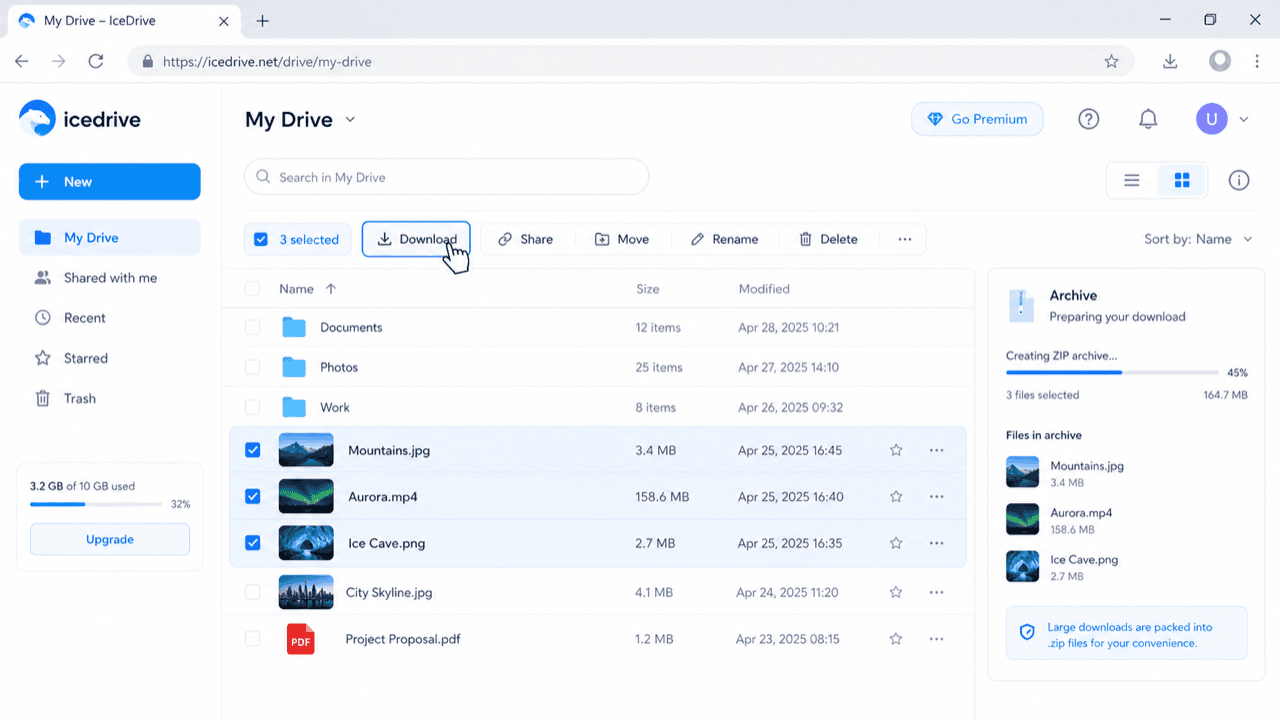
Open icedrive.net and sign in. Select files or folders and click Download. For encrypted-space files, download through IceDrive's app so they are decrypted on your device first.
Step 2: Upload to TeraBox
Open terabox.com,
open your /IceDrive-Import/ folder, and drag the files in. Set aside anything over
4 GB on a free account.
Method 2: Cloud-to-Cloud Transfer with CloudsLinker
Move the Library Server-Side over WebDAV
CloudsLinker connects IceDrive over WebDAV using its Access Key and TeraBox by session cookie, moving non-encrypted files between them without a local download.
Step 1: Connect IceDrive (WebDAV)
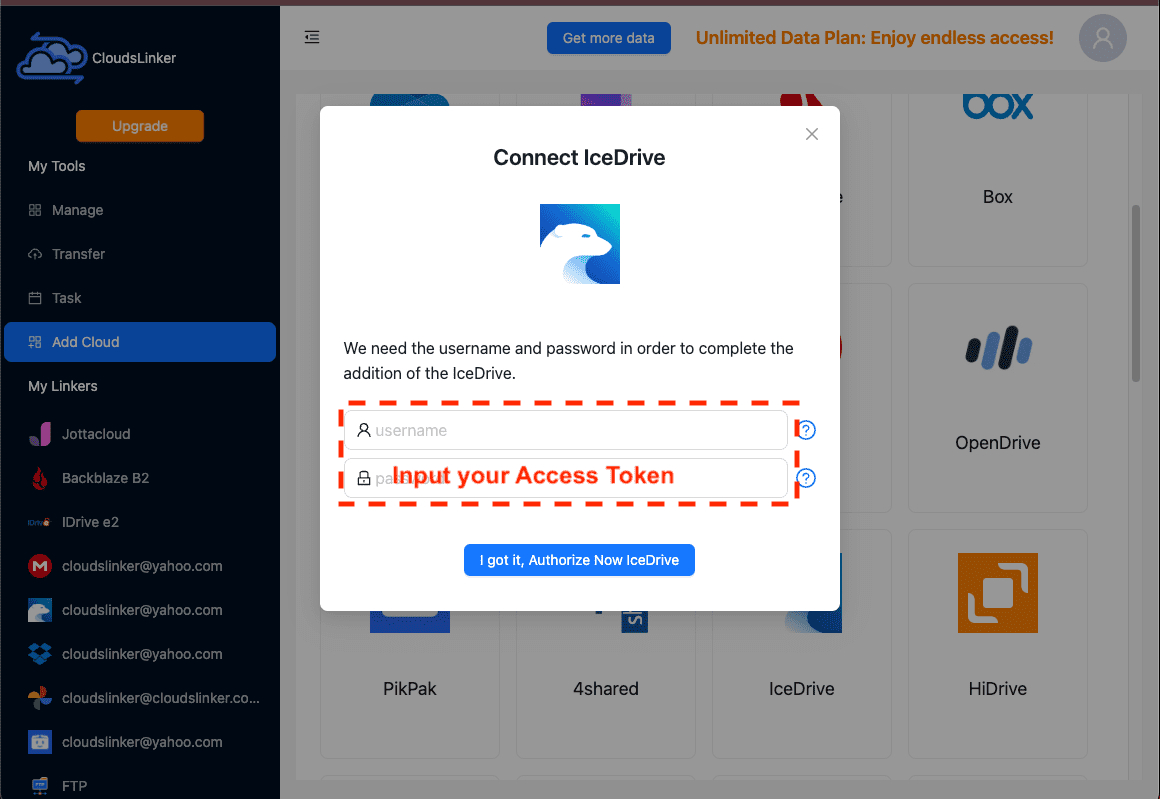
In CloudsLinker, click Add Cloud → IceDrive. Enter the WebDAV URL
https://webdav.icedrive.io/, your IceDrive username, and the WebDAV Access
Key as the password (not your login password). Confirm to connect.
Step 2: Connect TeraBox (Browser Cookie)
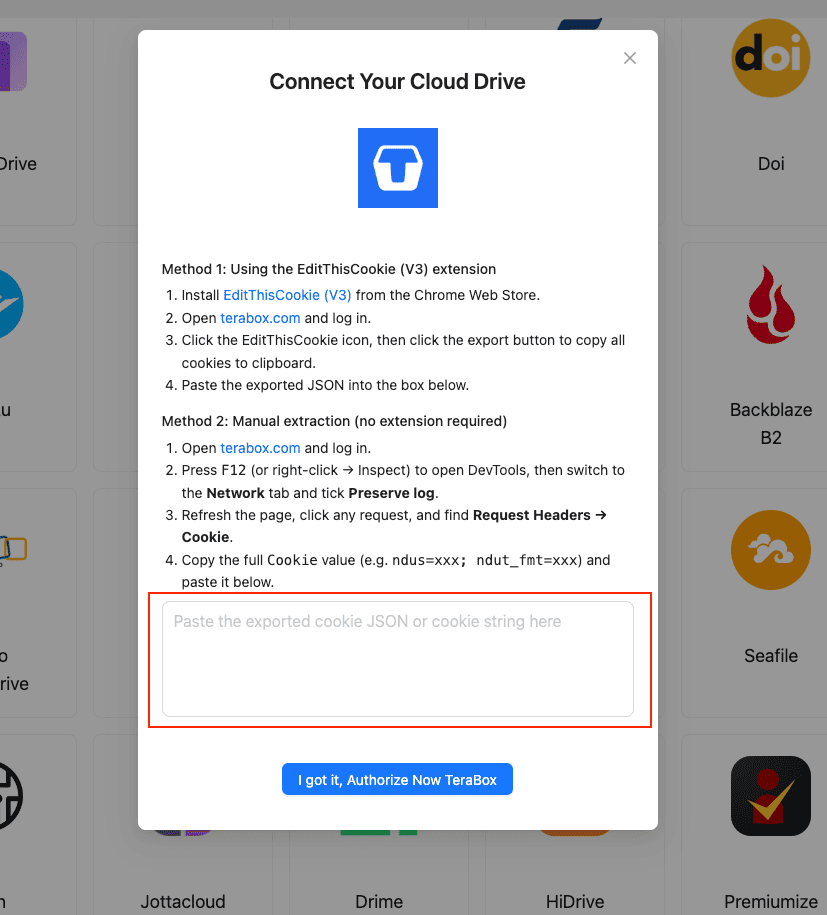
TeraBox has no OAuth, so use the session cookie:
- Install EditThisCookie (V3) in Chrome.
- Open
www.terabox.comin the same browser, signed in. - Click EditThisCookie → Export and paste the cookie JSON into CloudsLinker.
Or copy the Cookie header (ndus=...; ndut_fmt=...) from DevTools (F12) → Network.
Step 3: Configure the Transfer
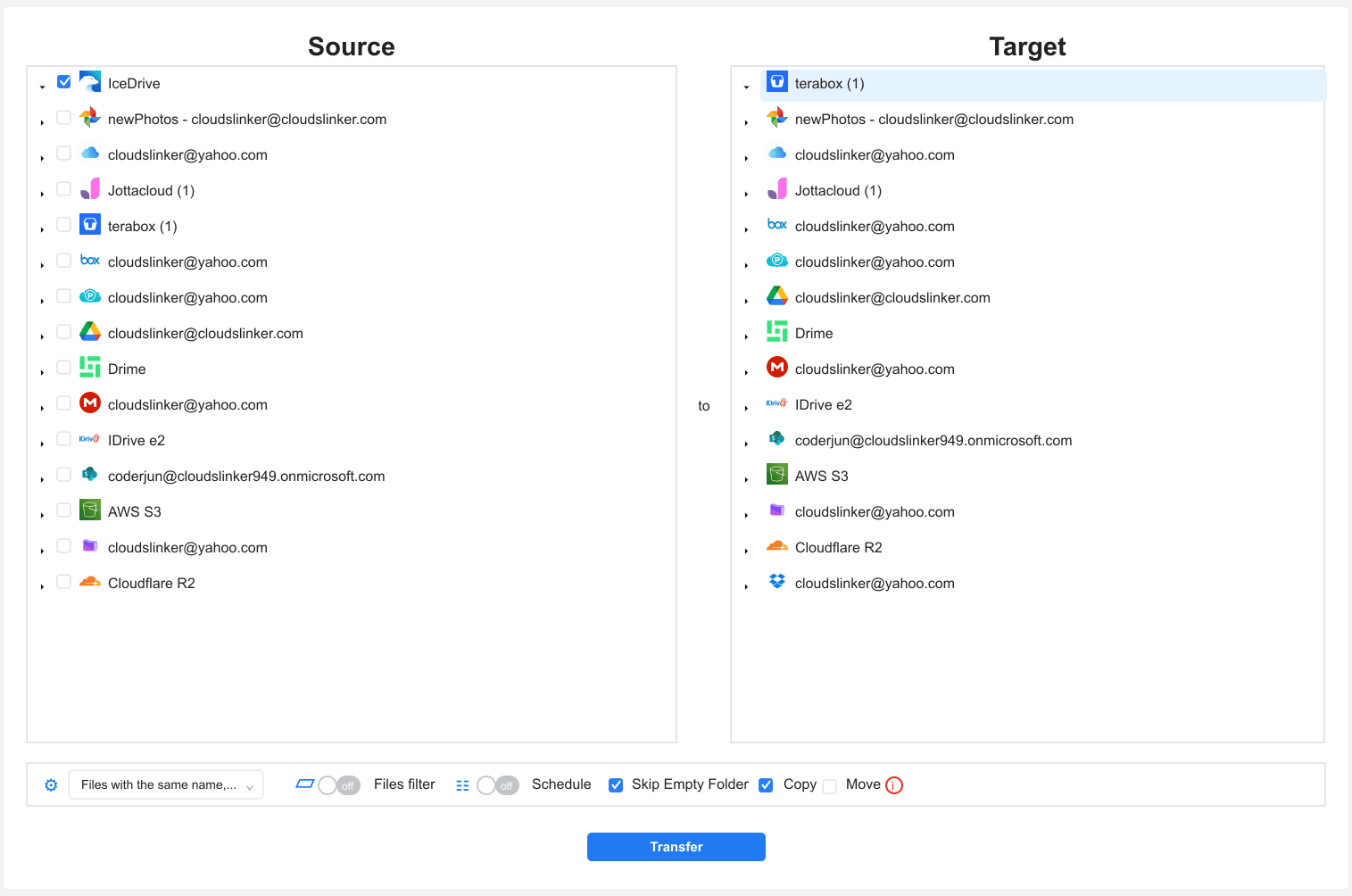
In the Transfer section, set IceDrive as the source and
TeraBox as the destination with your /IceDrive-Import/ folder. Apply a
4 GB size filter for free TeraBox. Copy keeps IceDrive intact.
Step 4: Start and Monitor
Start the task and track it in the Task List. If the TeraBox cookie expires, the task pauses for a fresh one. Verify in TeraBox before clearing IceDrive.
Method Comparison
| Method | Ease of Use | Speed | Best For | Uses Local Bandwidth | Skill Level |
|---|---|---|---|---|---|
| Browser Download + Upload | ★★★★☆ | ★★☆☆☆ | Small sets; encrypted-space files | Yes | Beginner |
| CloudsLinker (WebDAV) | ★★★★☆ | ★★★★☆ | Larger non-encrypted libraries | No | Beginner-Intermediate |
- Use the WebDAV Access Key, not your password: IceDrive's WebDAV requires a dedicated key created under 2FA & Access.
- Move encrypted-space files via the app: client-side encrypted content is only readable inside IceDrive — a server-side WebDAV transfer cannot decrypt it.
- Filter files over 4 GB: the free TeraBox per-file cap is the main constraint.
- Revoke the Access Key after the move: delete it from 2FA & Access once done.
- Refresh the TeraBox cookie before long jobs: re-login right before exporting it.
- Verify before deleting: open a sample in TeraBox before clearing IceDrive's 10 GB.
Frequently Asked Questions
https://webdav.icedrive.io/, using your username and a WebDAV Access Key as the password. TeraBox connects by browser session cookie.Conclusion
For a small set of files, the browser download from IceDrive and upload to TeraBox is the quickest route. For a larger library, CloudsLinker connects IceDrive over WebDAV using its Access Key and TeraBox by session cookie, moving data server-side. Note that IceDrive's encrypted-folder contents are decrypted only inside IceDrive's own apps, so move those through the browser rather than a server-side job. Watch the 4 GB free per-file cap on TeraBox, and verify the copy before clearing IceDrive.
Online Storage Services Supported by CloudsLinker
Transfer data between over 58 cloud services with CloudsLinker

OneDrive

Google Drive

Google Photos

Shared Drive

OneDrive for Business

Dropbox

Box

Mega

pCloud

Yandex

ProtonDrive

AWS

GCS

iDrive

Storj

DigitalOcean

Wasabi

1fichier

PikPak

TeleBox

OpenDrive

Backblaze B2

Fastmail file

SharePoint

Nextcloud

ownCloud

Premiumize me

HiDrive

Put.io

Sugar Sync

Jottacloud

Seafile

Ftp

SFtp

NAS

WebDav

4shared

Icedrive

Cloudflare R2

Scaleway

Hetzner Object Storage

Synology C2 Object Storage

S3 Compatible

Doi

iCloud Drive

iCloud Photos

FileLU

Zoho WorkDrive

Telia Cloud / Sky

Drime

Filen

TeraBox

Internxt

Degoo

Gofile

Pixeldrain

Shade

Koofr
Didn' t find your cloud service? Be free to contact: [email protected]
Further Reading
Effortless FTP connect to google drive: Transfer Files in 3 Easy Ways
Learn More >
Google Photos to OneDrive: 3 Innovative Transfer Strategies
Learn More >
Google Photos to Proton Drive: 3 Effective Transfer Techniques
Learn More >