iCloud Drive to SharePoint: Move Personal Apple Files Into a Governed Team Library
Move files from iCloud Drive to Microsoft SharePoint with four methods — Finder/browser, the iOS Files app, Rclone, and CloudsLinker.
Introduction
SharePoint applies organization-wide governance the moment a file lands in a document library: retention policies, permission inheritance, and version history all apply automatically, regardless of which device produced the file. Someone who works entirely on a Mac and iPhone — a designer, contractor, or remote employee — often finishes deliverables in iCloud Drive, but a client or employer needs the final files inside a governed SharePoint library rather than a personal Apple account. iCloud Drive has no concept of organizational permissions or retention at all; it is built around one Apple ID, and its own web upload path caps files at 10 GB regardless of how much iCloud storage the account holds. Moving the files into SharePoint puts them under the governance the destination is built for. The methods below cover that move.
iCloud Drive is Apple's personal file storage service, tied to a single Apple ID. It supports files up to roughly 50 GB, though uploading through the iCloud.com website is capped at 10 GB per file.
- Single-account model: Storage and access tied to one Apple ID, not an organization.
- Finder and Files integration: Appears as a native location on macOS, iOS, and iPadOS.
- Tiered pricing: 5 GB free, 50 GB at $0.99/month, up to 12 TB at $59.99/month.
- Optimized storage: Can keep only recently used files fully downloaded on a device.
- No organizational governance: No retention policies, audit logs, or group permissions.
Microsoft SharePoint is a document management platform for organizations on Microsoft 365, with a 250 GB per-file upload limit and 1 TB of pooled tenant storage plus 10 GB per licensed user.
- Document libraries: Storage organized by site and library, with folder-level permissions.
- Governance built in: Retention policies, auditing, and version history apply automatically.
- Large site capacity: A single site collection can grow up to 25 TB.
- Microsoft 365 integration: Connected to Teams, Outlook, and the Office apps.
- External sharing controls: Guest access managed at the tenant level.
The two services are built for opposite audiences. iCloud Drive is a single-account personal store with no governance layer; SharePoint is a multi-user, governed document library with a much higher per-file ceiling.
| Feature | iCloud Drive | Microsoft SharePoint |
|---|---|---|
| Max File Size | ~50 GB (10 GB via iCloud.com web upload) | 250 GB |
| Storage Model | 5 GB to 12 TB, priced per individual Apple ID | 1 TB pooled + 10 GB per licensed user |
| Maximum Container Size | Bound by the Apple ID's storage plan | Up to 25 TB per site collection |
| Governance | None — single-user account | Retention policies, auditing, permission inheritance |
| Bulk Operation Limits | Not applicable (no bulk tooling) | 30,000 files or 100 GB per bulk move, whichever is reached first |
| Best Fit | Personal Apple ecosystem storage | Team and organization-wide document management |
Sources: Manage your iCloud storage, SharePoint Online limits
The move usually happens when personal work needs to become part of an organization's managed record. Common reasons:
- Governance applies automatically: Retention policies and permission inheritance take effect the moment a file lands in the library.
- A higher per-file ceiling: 250 GB in SharePoint versus roughly 50 GB in iCloud Drive, useful for large source files or archives.
- Team access without a personal Apple ID: Colleagues reach the files through their own Microsoft 365 account rather than a shared Apple ID.
- Version history and audit trails: SharePoint tracks changes automatically, which iCloud Drive does not offer at all.
- Consolidated storage reporting: Files count against the tenant's pooled quota rather than an individual's iCloud plan.
Once the destination fits the workflow, the remaining decision is which transfer method matches how the files were created and how many there are.
Confirm which files actually need to move. iCloud Drive often mixes personal documents with the deliverables meant for a team, so select folders deliberately rather than moving the entire library. Check that any file approaching the roughly 50 GB iCloud Drive ceiling is fully downloaded locally if you plan to use Finder.
On the SharePoint side, confirm you have upload access to the correct site and document library, and that the tenant's pooled storage has room for the incoming data. A Microsoft 365 administrator can confirm the site collection's current usage against its cap.
Decide whether the files live on a Mac, an iPhone, or both, since that changes which manual method applies. For a full library move without juggling devices, Rclone or CloudsLinker reads directly from Apple's servers regardless of which device the files were created on.
Method 1: Transfer with Finder and a Web Browser
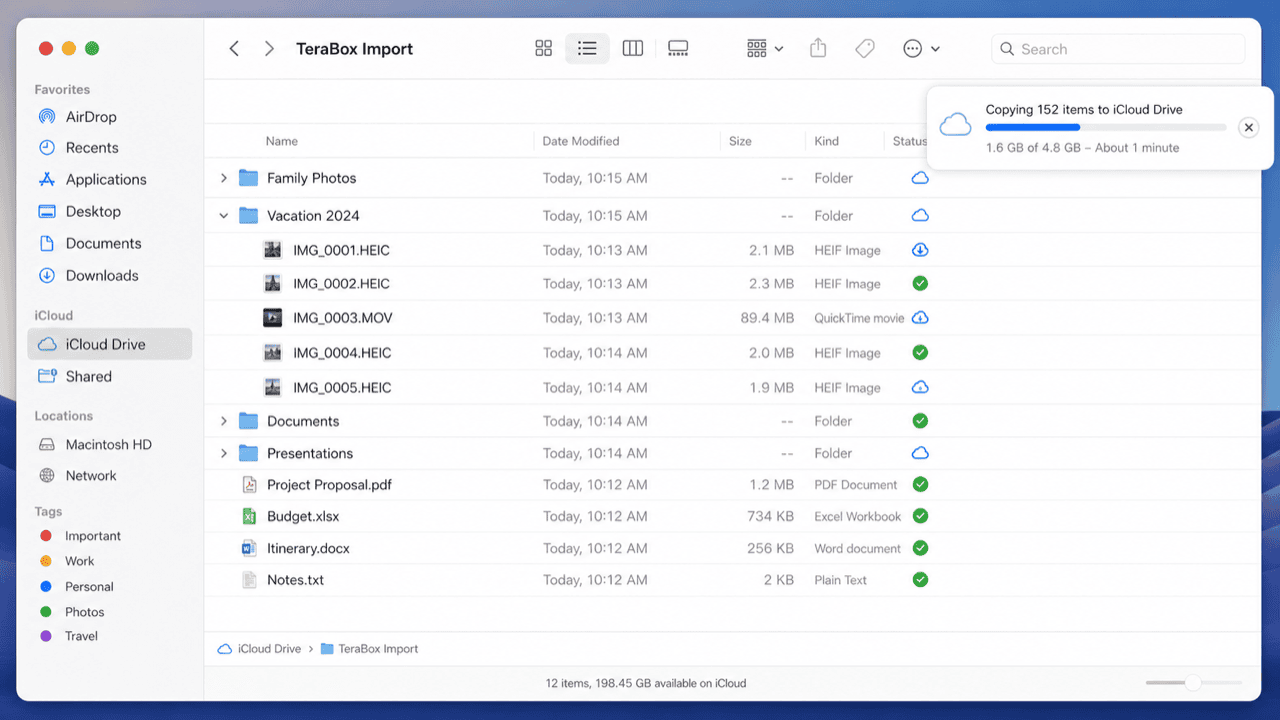
Step 1: Copy Files Out of iCloud Drive in Finder
On a Mac, open Finder and select iCloud Drive from the sidebar. Files that show a cloud icon are not yet downloaded; right-click and choose Download Now to force them to fully sync locally before copying.
Step 2: Upload the Files to SharePoint
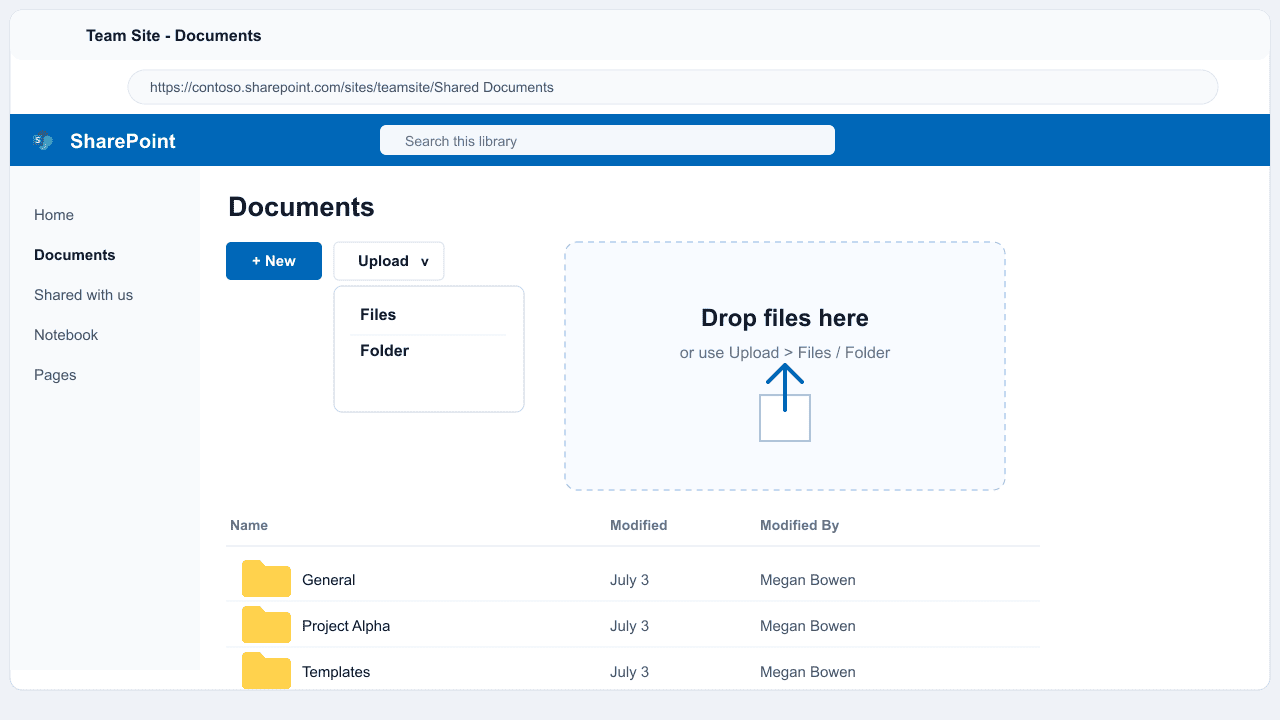
Open your organization's SharePoint site in a browser and sign in. Navigate to the target document library, click Upload, and choose files or a folder, or drag the downloaded items directly into the page.
This method is direct for a handful of finished files. Because Finder must fully download every file first, a large or storage-optimized iCloud Drive library takes noticeably longer this way.
Method 2: Copy Between Apps on iPhone or iPad
Step 1: Add SharePoint as a Location in the Files App
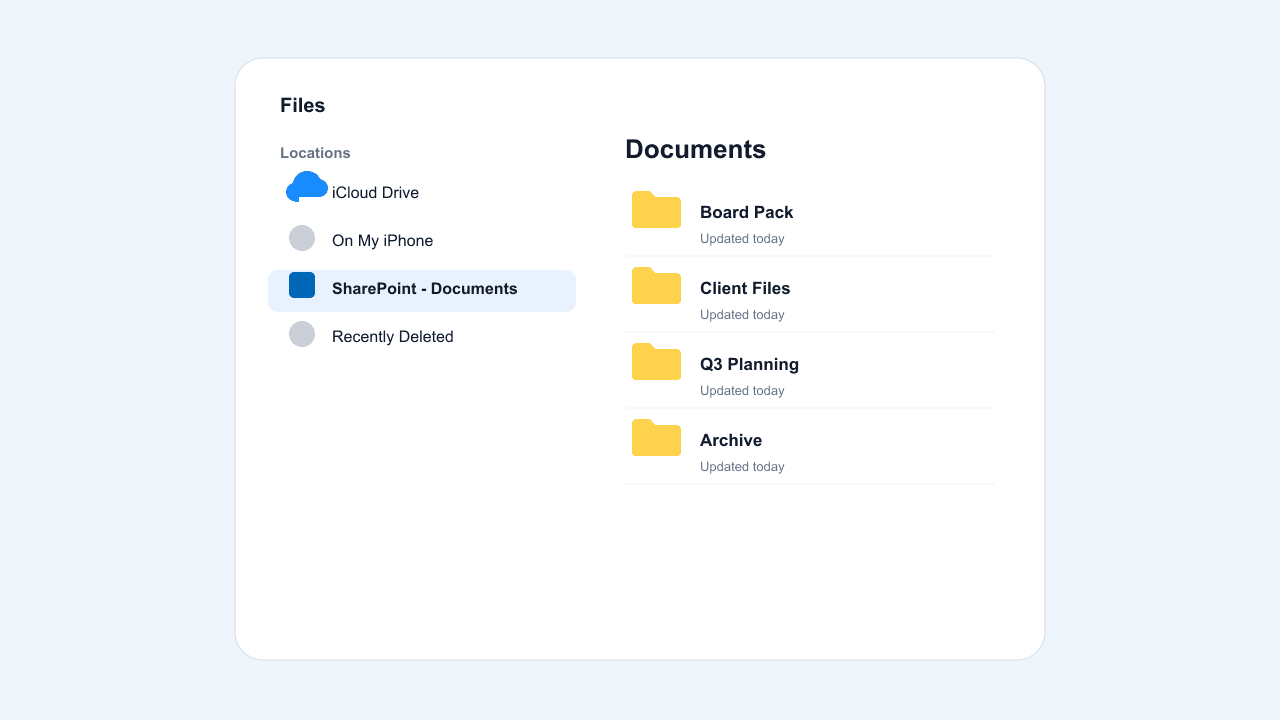
Install the OneDrive or SharePoint app from the App Store and sign in with your Microsoft 365 account, then browse to the target site and library. The location becomes available inside the built-in Files app under Browse.
Step 2: Drag Files Between iCloud Drive and SharePoint
Open two Files app windows in split view on iPad, or navigate back and forth on iPhone, and copy the selected files from iCloud Drive into the SharePoint location. The Files app handles the upload in the background.
This method works well when the source files exist only on an iPhone or iPad rather than a Mac. It is best suited to a moderate number of files rather than a full library move, since mobile multitasking is less efficient for bulk operations.
Method 3: Command-Line Transfer with Rclone
Step 1: Configure iCloud Drive and SharePoint Remotes
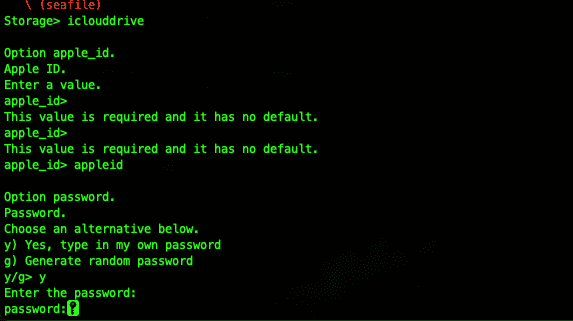
Rclone supports iCloud Drive directly and connects to SharePoint through its OneDrive backend. Run rclone config, add an iclouddrive remote using your Apple ID and an app-specific password, then add a onedrive remote and choose SharePoint when prompted for the account type.
Step 2: Run the Transfer Command
With both remotes configured, copy data directly between them:
rclone copy iclouddrive:/Deliverables sharepoint:/Shared Documents/Deliverables --progressrclone sync iclouddrive:/Archive sharepoint:/Archive --progress --exclude "*.tmp"
The first command copies a folder; the second performs a one-way sync while excluding temporary files. Add --dry-run to preview the result first.
This method fits a large or recurring handoff and does not depend on which Apple device produced the files. The trade-off is comfort working in a terminal and Apple's occasionally strict rate limiting on iCloud API access.
Method 4: Cloud-to-Cloud Transfer with CloudsLinker
Transfer Past iCloud.com's 10 GB Web Upload Cap
CloudsLinker authenticates to iCloud Drive with your Apple ID directly, rather than going through the iCloud.com web upload path, so its 10 GB per-file cap on that page does not apply to the move. It connects to 40+ services, including iCloud Drive and SharePoint.
Step 1: Connect iCloud Drive
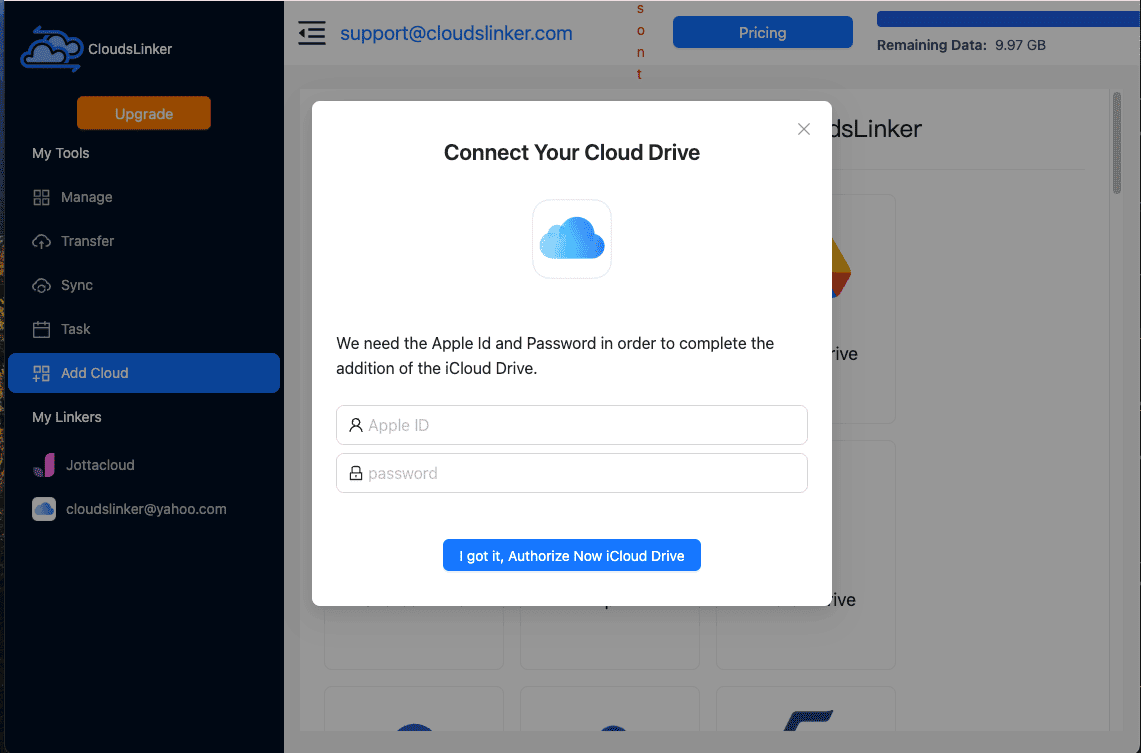
Sign in at app.cloudslinker.com, click Add Cloud, and select iCloud Drive. Enter your Apple ID and password, then the 6-digit verification code from a trusted device.
Step 2: Connect SharePoint
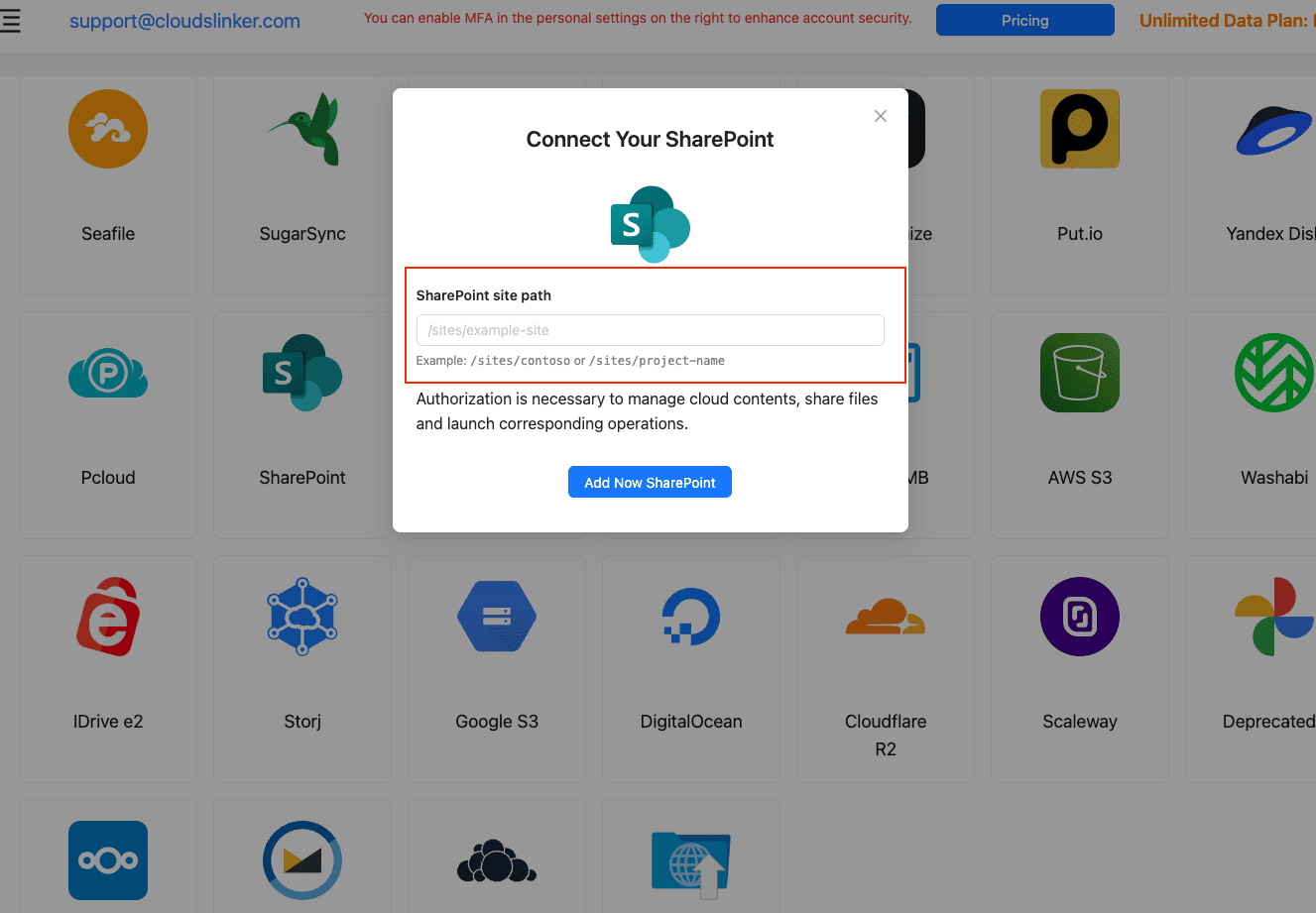
Click Add Cloud again and select SharePoint. Enter the site path, for example /sites/yoursite, then authorize through Microsoft and select the document library if the site has more than one.
Step 3: Configure the Transfer
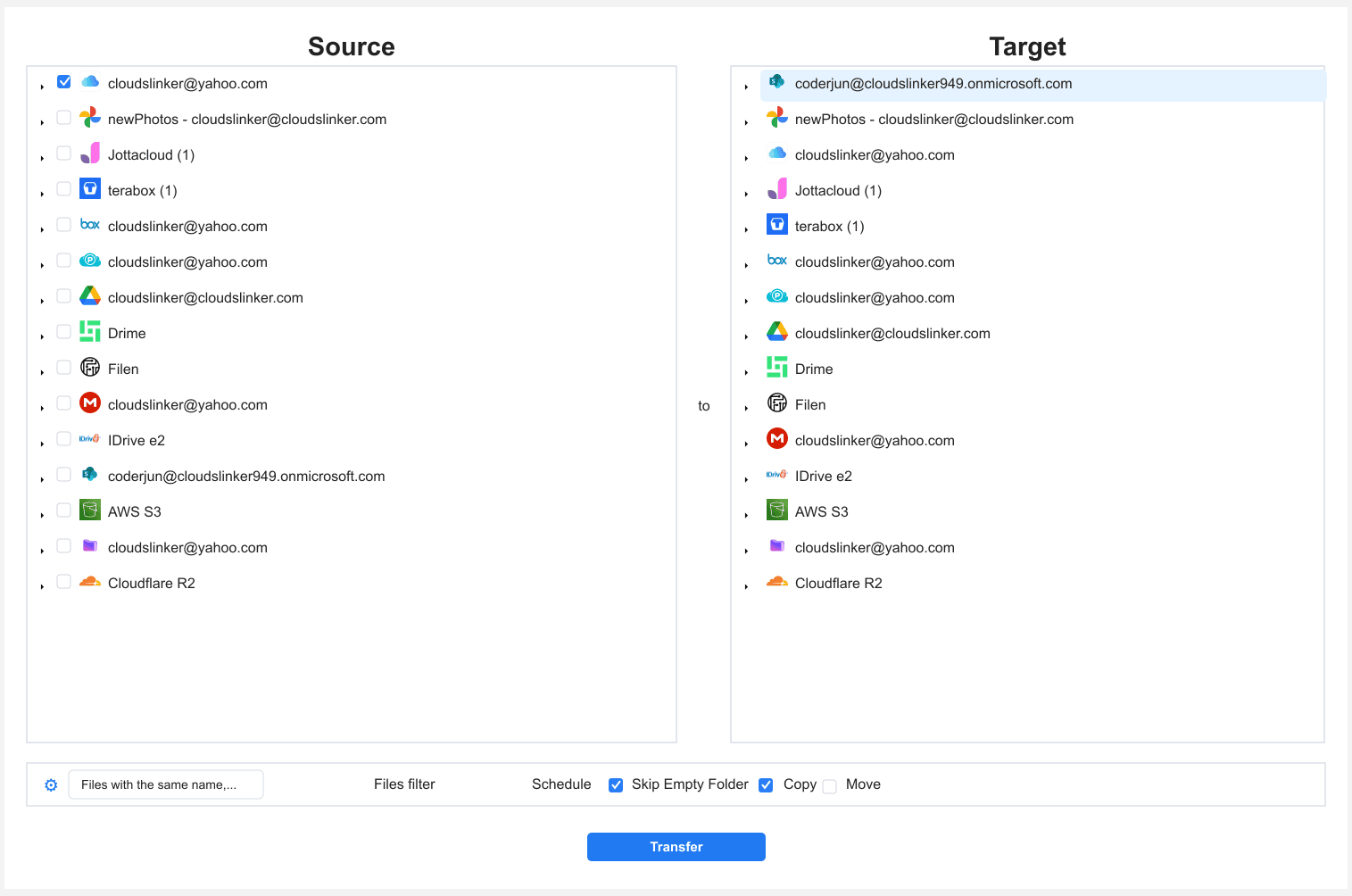
Open the Transfer section. Select iCloud Drive as the source and browse to the folders to move. On the destination side, select SharePoint and choose the target library folder.
Filters let you limit the move to certain file types or a date range, and Copy or Move mode controls whether the iCloud Drive originals remain.
Step 4: Start and Monitor the Transfer
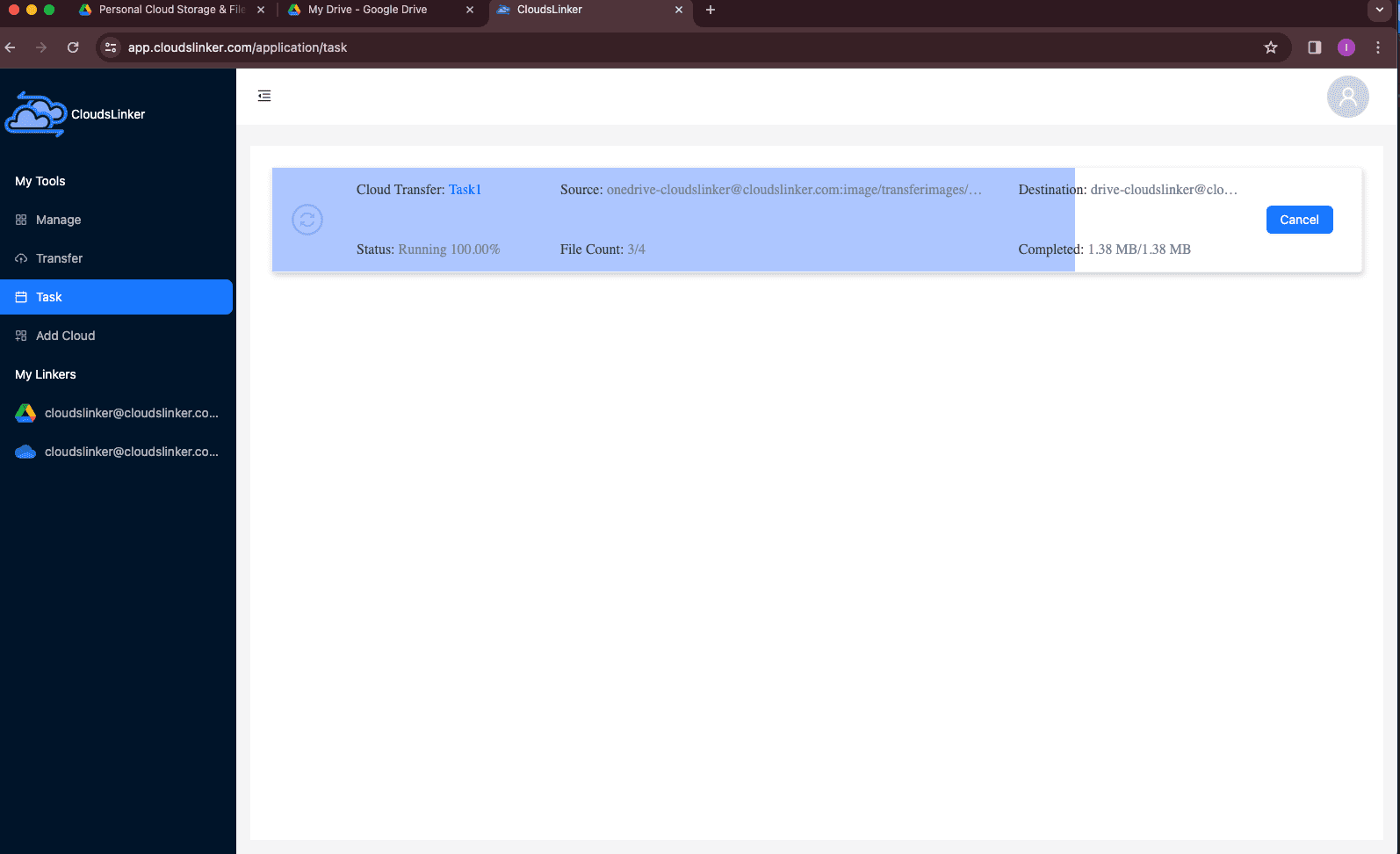
Start the task and track it in the Task List, which shows transferred size, speed, and any skipped items. The transfer runs in the cloud, so you can close the browser and check the summary later.
Comparing the Ways to Transfer From iCloud Drive to SharePoint
| Method | Ease of Use | Speed | Best For | Uses Local Bandwidth | Skill Level |
|---|---|---|---|---|---|
| Finder + Web Browser | ★★★★★ | ★★★☆☆ | A handful of finished files on Mac | Yes | Beginner |
| iOS/iPadOS Files App | ★★★★☆ | ★★★☆☆ | Files that exist only on iPhone/iPad | Yes | Beginner |
| Rclone | ★★☆☆☆ | ★★★★☆ | Large or recurring handoffs | Yes | Advanced |
| CloudsLinker | ★★★★★ | ★★★★★ | Full libraries, hands-off transfers | No | Beginner |
A Mac-based Finder copy suits a small, finished set of deliverables. The Files app fills the gap when files live only on a phone or tablet. Rclone gives technical users scripting control, while CloudsLinker moves a full library server-side regardless of device.
- Force full downloads before copying in Finder: Files with a cloud icon are not yet local; right-click and choose Download Now first.
- The 10 GB web-upload cap is a one-way concern: It limits uploading new files into iCloud Drive through iCloud.com, not reading files out through the API-based methods here.
- Separate personal from team files first: iCloud Drive commonly mixes both; select folders deliberately rather than moving the entire library into a shared SharePoint site.
- Confirm site collection quota: A Microsoft 365 administrator can check the target site's usage against its 25 TB ceiling before a large move.
- Rebuild sharing after the move: iCloud Drive's collaboration links do not transfer; set up SharePoint's own site permissions afterward.
- Keep 2FA available during setup: Both Rclone and CloudsLinker require a verification code from a trusted Apple device when first connecting iCloud Drive.
Frequently Asked Questions
Conclusion
Pick the method by how the files were produced and how many there are. A Finder or browser copy suits a handful of finished deliverables. The iOS Files app works when the files live only on an iPhone or iPad. Rclone gives scriptable control for a large or recurring handoff. To move an entire iCloud Drive library into SharePoint without routing it through a computer or hitting iCloud.com's 10 GB web-upload cap, CloudsLinker runs the transfer server-side using Apple ID authentication directly. Choose based on device and volume, not habit.
Online Storage Services Supported by CloudsLinker
Transfer data between over 58 cloud services with CloudsLinker

OneDrive

Google Drive

Google Photos

Shared Drive

OneDrive for Business

Dropbox

Box

Mega

pCloud

Yandex

ProtonDrive

AWS

GCS

iDrive

Storj

DigitalOcean

Wasabi

1fichier

PikPak

TeleBox

OpenDrive

Backblaze B2

Fastmail file

SharePoint

Nextcloud

ownCloud

Premiumize me

HiDrive

Put.io

Sugar Sync

Jottacloud

Seafile

Ftp

SFtp

NAS

WebDav

4shared

Icedrive

Cloudflare R2

Scaleway

Hetzner Object Storage

Synology C2 Object Storage

S3 Compatible

Doi

iCloud Drive

iCloud Photos

FileLU

Zoho WorkDrive

Telia Cloud / Sky

Drime

Filen

TeraBox

Internxt

Degoo

Gofile

Pixeldrain

Shade

Koofr
Didn' t find your cloud service? Be free to contact: [email protected]
Further Reading
Effortless FTP connect to google drive: Transfer Files in 3 Easy Ways
Learn More >
Google Photos to OneDrive: 3 Innovative Transfer Strategies
Learn More >
Google Photos to Proton Drive: 3 Effective Transfer Techniques
Learn More >