Jottacloud to TeraBox: Swap a Paid Backup Plan for 1 TB Free
Move Jottacloud files to TeraBox's 1 TB free tier to stop paying for unlimited backup you no longer need. Browser download or cloud-to-cloud with CloudsLinker.
Introduction
TeraBox advertises 1 TB free, which is enough headroom for many personal libraries that would otherwise sit on a paid Jottacloud subscription. Jottacloud's selling point is unlimited-capacity backup from Norwegian, green-powered data centers, and that is worth paying for if you genuinely back up terabytes — but plenty of users signed up, filled a few hundred gigabytes, and keep paying for capacity they do not use. If your real footprint fits inside TeraBox's free tier, moving it there ends the recurring bill. The trade-off is honest: TeraBox throttles free downloads and is not privacy-focused. TeraBox has no OAuth API, so it connects by browser cookie, while Jottacloud connects with a personal login token. This guide covers a browser download and a cloud-to-cloud transfer with CloudsLinker.
Jottacloud is a Norwegian cloud service known for unlimited-capacity personal backup, hosted in green data centers within the EEA under GDPR.
- Plans: paid, with an unlimited personal tier.
- Spaces: Archive, Sync, and device Backup are distinct.
- Hosting: Norway (EEA, GDPR).
- Photos: mobile backup with face recognition.
- Access: personal login token from account security settings.
TeraBox is a consumer file locker from Flextech Inc. with a 1 TB advertised free tier — a way to hold a moderate library without a subscription.
- Free quota: 1 TB advertised; ~80 GB practical (20-file cap).
- Per-file cap: 4 GB free / 20 GB Premium.
- Download throttle: ~100–531 KB/s on free.
- Cost: free tier (ad-supported); optional Premium.
- Access: browser cookie (
ndus,ndut_fmt); no OAuth.
Jottacloud is a paid, capacity-oriented backup service; TeraBox is a free consumer locker. If your data fits TeraBox's free tier and you do not need Jottacloud's unlimited backup, the recurring cost is the deciding factor.
| Feature | Jottacloud | TeraBox |
|---|---|---|
| Cost | Paid subscription | Free (ad-supported); optional Premium |
| Capacity | Unlimited personal tier | 1 TB advertised; ~80 GB practical free |
| Hosting | Norway (EEA, GDPR) | International (Flextech) |
| Per-file cap | Quota-bound | 4 GB free / 20 GB Premium |
| Third-party access | Personal login token | Browser cookie only |
On the Jottacloud side
- Check real usage: confirm your data actually fits TeraBox's free tier before cancelling a paid plan.
- Separate Archive/Sync from Backup: Archive and Sync translate cleanly; device Backup folders hold machine-specific data you rarely want to migrate.
- Generate a personal login token: in Jottacloud account security settings. Save it — you see it once.
On the TeraBox side
- Create a TeraBox account at terabox.com.
- Create a target folder such as
/Jottacloud-Import/. - Flag files over 4 GB for the free per-file cap.
Method 1: Browser Download from Jottacloud, Upload to TeraBox
Step 1: Download from Jottacloud
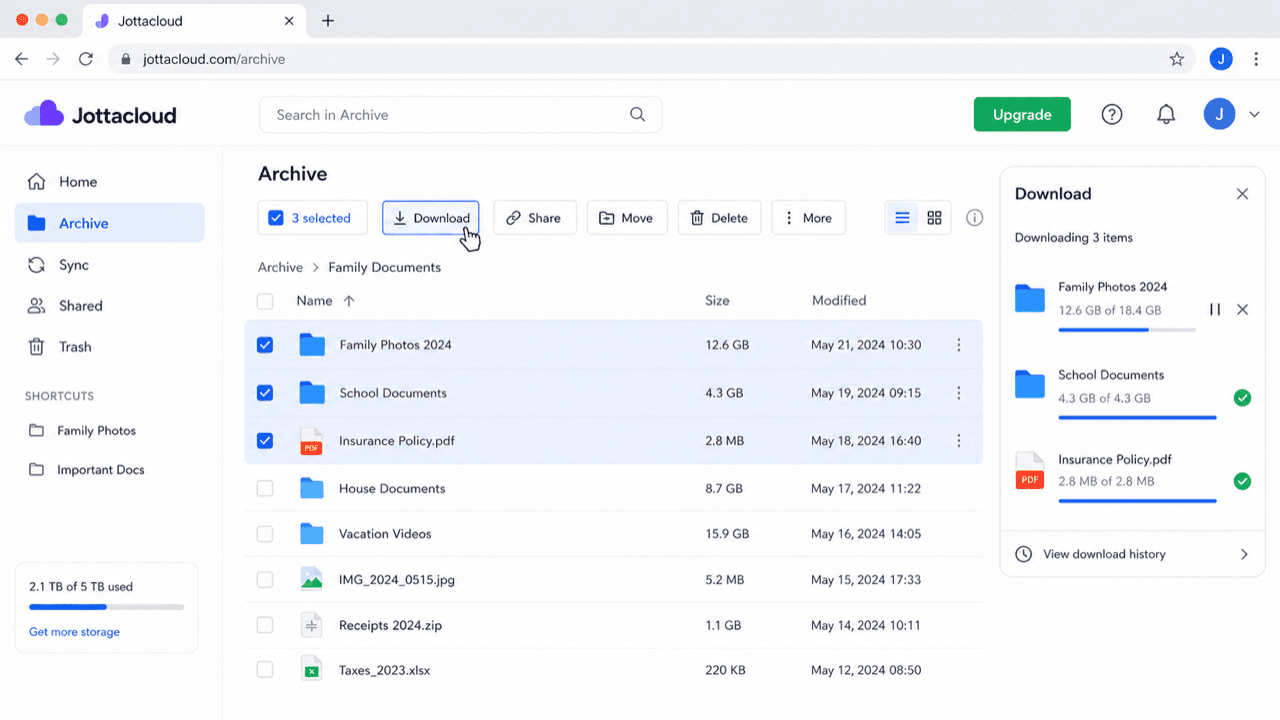
Open jottacloud.com and sign in. Go to Archive or Sync, select your files, and click Download. Skip the Backup section unless you specifically want device backup data.
Step 2: Upload to TeraBox
Open terabox.com,
open your /Jottacloud-Import/ folder, and drag the extracted files in. Set aside
anything over 4 GB on a free account.
Method 2: Cloud-to-Cloud Transfer with CloudsLinker
Move the Library Server-Side
CloudsLinker connects Jottacloud with its personal login token and TeraBox with its session cookie, moving data between them without a local download.
Step 1: Connect Jottacloud
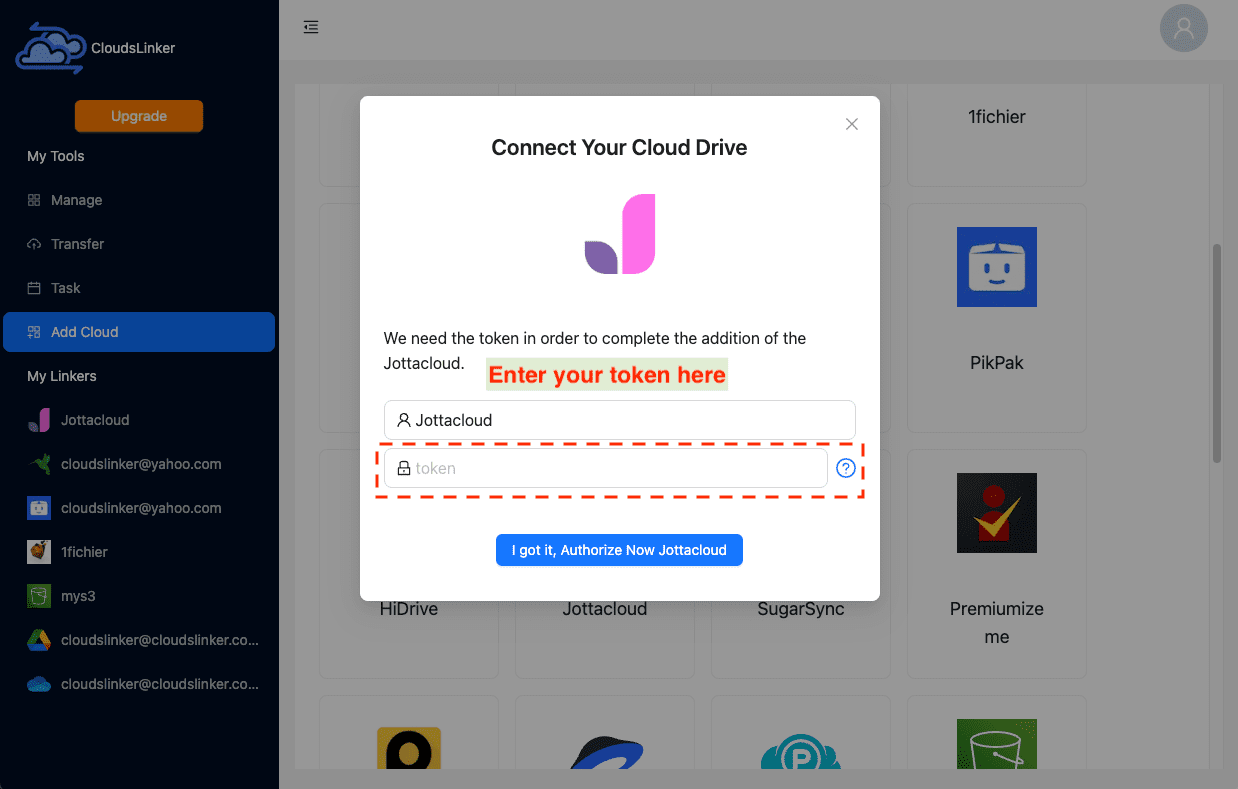
In CloudsLinker, click Add Cloud → Jottacloud. Paste the personal login token from Jottacloud → Account Security → Personal Login Token and confirm. Jottacloud appears as a connected source.
Step 2: Connect TeraBox (Browser Cookie)
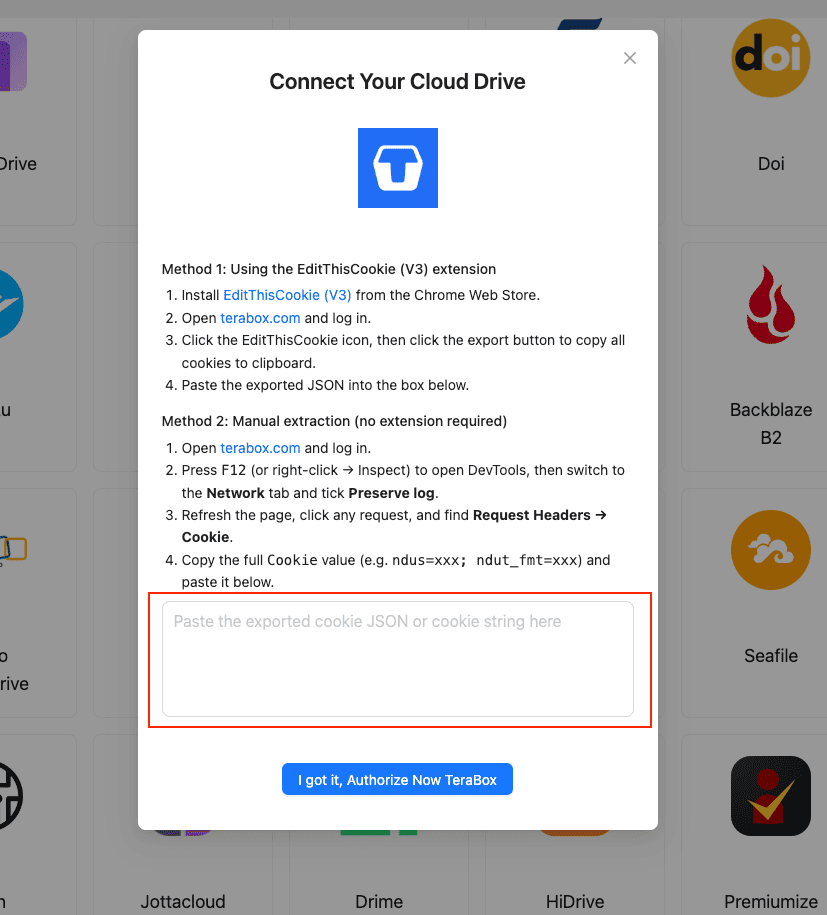
TeraBox has no OAuth, so use the session cookie:
- Install EditThisCookie (V3) in Chrome.
- Open
www.terabox.comin the same browser, signed in. - Click EditThisCookie → Export and paste the cookie JSON into CloudsLinker.
Or copy the Cookie header (ndus=...; ndut_fmt=...) from DevTools (F12) → Network.
Step 3: Configure the Transfer
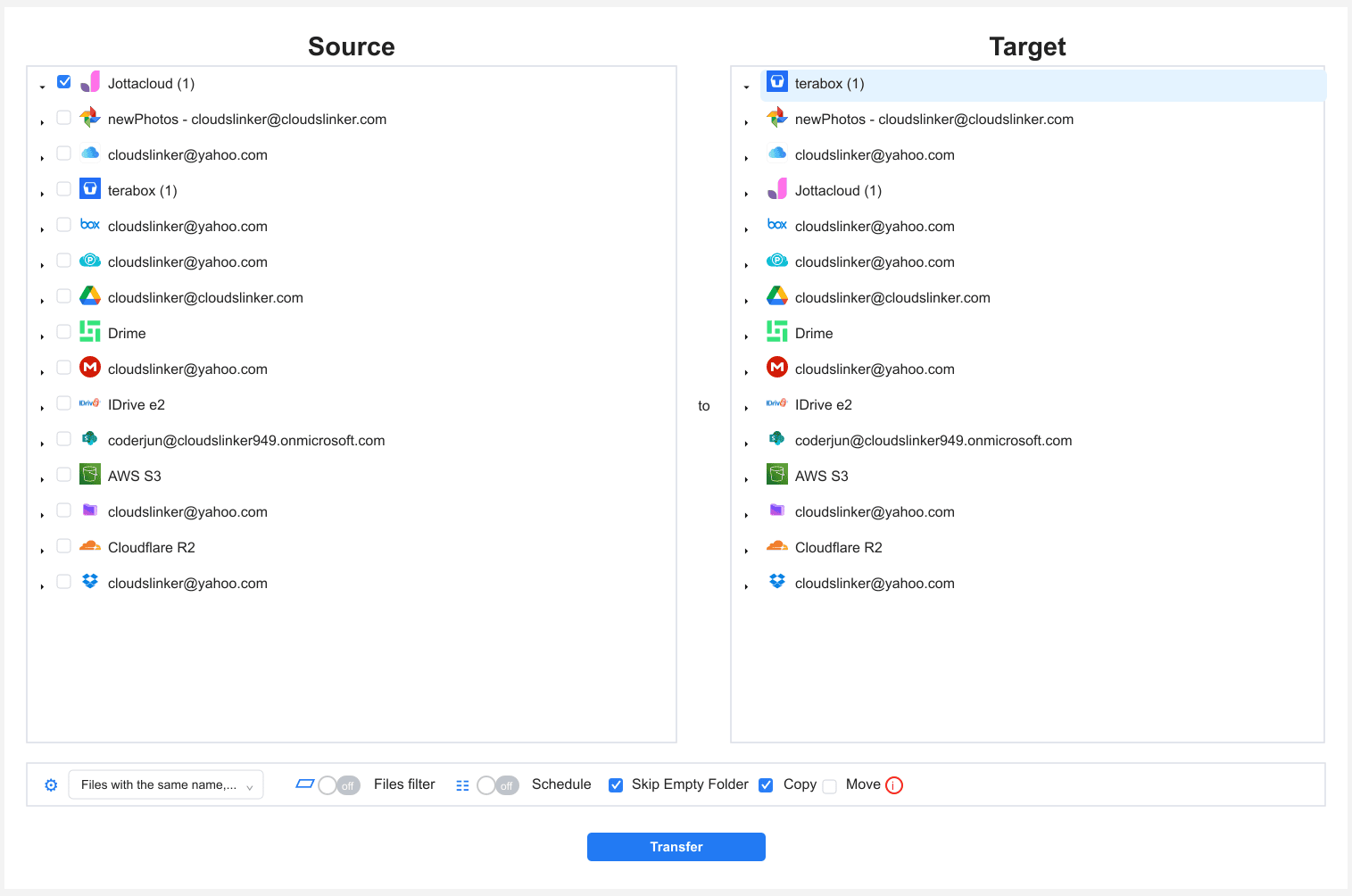
In the Transfer section, set Jottacloud as the source (browse into
Archive or Sync, not Backup) and TeraBox as the destination with your
/Jottacloud-Import/ folder. Apply a 4 GB size filter for free TeraBox.
Copy keeps Jottacloud intact until verified.
Step 4: Start and Monitor
Start the task and track it in the Task List. If the TeraBox cookie expires, the task pauses for a fresh one. Verify in TeraBox before cancelling Jottacloud.
Method Comparison
| Method | Ease of Use | Speed | Best For | Uses Local Bandwidth | Skill Level |
|---|---|---|---|---|---|
| Browser Download + Upload | ★★★★☆ | ★★☆☆☆ | Modest Archive/Sync sets | Yes | Beginner |
| CloudsLinker | ★★★★★ | ★★★★☆ | Larger libraries, hands-off | No | Beginner |
- Confirm your data fits first: there is no point cancelling unlimited Jottacloud if your library exceeds TeraBox's practical free ceiling.
- Leave Backup behind: device backup folders hold machine-specific files that rarely belong in a different consumer cloud.
- Rotate the Jottacloud token: delete or regenerate the personal login token after the move.
- Filter files over 4 GB: the free TeraBox per-file cap is the main constraint.
- Refresh the TeraBox cookie before long jobs: re-login right before exporting it.
- Photo albums do not carry over: Jottacloud's photo timeline and face tags are lost; only the files transfer.
Frequently Asked Questions
Conclusion
For a modest set of files, downloading from Jottacloud's Archive or Sync area and uploading to TeraBox in the browser works fine. For a larger library, CloudsLinker connects Jottacloud by personal login token and TeraBox by session cookie and runs the move server-side. Skip Jottacloud's Backup space unless you specifically want device backup data, and watch the 4 GB free per-file cap on the TeraBox side. Cancel Jottacloud only after the TeraBox copy is verified.
Online Storage Services Supported by CloudsLinker
Transfer data between over 58 cloud services with CloudsLinker

OneDrive

Google Drive

Google Photos

Shared Drive

OneDrive for Business

Dropbox

Box

Mega

pCloud

Yandex

ProtonDrive

AWS

GCS

iDrive

Storj

DigitalOcean

Wasabi

1fichier

PikPak

TeleBox

OpenDrive

Backblaze B2

Fastmail file

SharePoint

Nextcloud

ownCloud

Premiumize me

HiDrive

Put.io

Sugar Sync

Jottacloud

Seafile

Ftp

SFtp

NAS

WebDav

4shared

Icedrive

Cloudflare R2

Scaleway

Hetzner Object Storage

Synology C2 Object Storage

S3 Compatible

Doi

iCloud Drive

iCloud Photos

FileLU

Zoho WorkDrive

Telia Cloud / Sky

Drime

Filen

TeraBox

Internxt

Degoo

Gofile

Pixeldrain

Shade

Koofr
Didn' t find your cloud service? Be free to contact: [email protected]
Further Reading
Effortless FTP connect to google drive: Transfer Files in 3 Easy Ways
Learn More >
Google Photos to OneDrive: 3 Innovative Transfer Strategies
Learn More >
Google Photos to Proton Drive: 3 Effective Transfer Techniques
Learn More >