Moving Files Between Two MEGA Accounts: Import, MEGAcmd, rclone or a Scheduled Copy (2026)
Move files from one MEGA account to another four ways — link import inside MEGA, MEGAcmd, rclone or a scheduled server-side copy — with 2FA and transfer-quota caveats.
Introduction
A second MEGA account usually exists for a reason of control rather than raw capacity: a new Pro I subscription with 3 TB of storage and 3 TB of monthly transfer, a work identity kept apart from a personal one, or a free account whose 20 GB has run out and whose email address is being retired. MEGA has no account-merge function, so everything in the old account has to be copied across. Downloading and re-uploading is the worst way to do it — both halves count against transfer quota, and on free accounts that quota is tracked per IP address in six-hour windows. The four methods below avoid the local round trip wherever MEGA allows it: link import and MEGAcmd work inside MEGA, rclone relays through your machine, and CloudsLinker runs the copy on its own servers on a schedule.
- One Service, Two Accounts: What Changes
- Why People End Up Copying Between MEGA Accounts
- Preparation Checklist
- Method 1: Import a Link or Share Inside MEGA
- Method 2: MEGAcmd Export and Import
- Method 3: rclone with Two MEGA Remotes
- Method 4: Scheduled Server-Side Copy with CloudsLinker
- Quick Comparison
- Practical Tips
- Frequently Asked Questions
MEGA is a New Zealand-based cloud storage service built around end-to-end encryption: files are encrypted on your device with keys derived from your password, and MEGA itself cannot read them. Every account starts with 20 GB of free storage, and Pro plans pair storage with an equal monthly transfer allowance.
- 20 GB free; Pro I 3 TB, Pro II 10 TB, Pro III 20 TB
- Transfer quota equal to plan storage per month on Pro; per-IP six-hour window on free
- Public links and contact shares that can be imported into another account
- No OAuth or app tokens — third-party tools sign in with the account password
Each MEGA account is a separate encrypted world. It has its own master key, its own storage allowance, its own transfer quota, and its own contacts and share links. Nothing is shared automatically between two accounts you own, and MEGA provides no merge or migration function — the second account only ever receives what you copy into it.
- Separate master keys: content is re-encrypted for the destination account on import
- Separate quotas: a Pro I destination has 3 TB/month; a free source shares the per-IP window
- Shares, links and file versions stay with the account that created them
- 2FA, sessions and recovery keys are per account — manage both
| Feature | Free MEGA account (usual source) | MEGA Pro account (usual destination) |
|---|---|---|
| Storage | 20 GB base, more through achievements | Pro I 3 TB, Pro II 10 TB, Pro III 20 TB |
| Transfer quota | Unspecified amount per six-hour window, tracked by IP address | Equal to storage per month (3 TB on Pro I), tracked per account; Business and Pro Flexi have no set quota |
| Price | Free | Pro I from €9.78/month billed annually (2026) |
| Encryption | End-to-end on both; the password derives the master key, so third-party tools need the password itself | |
| Importing links and shares | Both can save public links with Save to MEGA and copy incoming contact shares into their own Cloud drive without downloading | |
| Third-party access and 2FA | CloudsLinker requires 2FA to be off on the connected account; rclone accepts a code through --mega-2fa; MEGAcmd logs in to one account at a time |
|
Sources: MEGA pricing as summarised in Cloudwards' 2026 MEGA review (plan tiers and prices), Cloudwards on MEGA transfer quota (six-hour window, per-IP tracking), rclone.org/mega (backend limits, 2FA option), MEGAcmd User Guide (import, export, login). Checked September 2026.
The trigger is rarely "I want more MEGA"; it is that the account holding the files is the wrong account. Five situations cover most cases:
- Upgrading under a different email: a Pro I subscription bought on a new address gets 3 TB of storage, but the 20 GB free account still holds the archive.
- Separating work from personal: client deliverables that accumulated in a personal account need to live under a work identity with its own recovery key and sessions.
- Consolidating several free accounts: years of 20 GB accounts, each opened to dodge the quota, are easier to manage as one paid account.
- Taking over a shared team folder: a colleague's account shared a project folder; when they leave, the folder has to become yours before their account is closed.
- Retiring a compromised or old login: after a password reset without the recovery key, or a leaked address, moving to a fresh account is cleaner than repairing the old one.
None of these is a download-and-upload job by nature. Two of the methods below keep the data inside MEGA the whole time, and the other two decide where the relay happens — your machine or CloudsLinker's servers.
A few checks up front prevent the classic failures — a stalled quota, a full destination, or a login that a tool cannot complete.
- Sign in to both accounts in a browser once. rclone's documentation notes that the encryption keys must already have been generated by a regular browser login before credentials work in a tool; a brand-new account that has never been opened in the web client will fail.
- Check destination capacity. A free account holds 20 GB; if the old account contains more, the new one needs a Pro plan before the copy starts, not after it fails halfway.
- Decide how 2FA will be handled. CloudsLinker needs two-factor authentication switched off on every connected MEGA account (Settings → Security → Two-Factor Authentication); rclone can take a code via
--mega-2fa; the in-MEGA methods are unaffected. - Know which quota you are spending. Import and share-copy stay inside MEGA. rclone and CloudsLinker read from one account and write to the other, so both accounts' quotas move — and two free accounts relayed through one home IP share a single six-hour window.
- Copy before you delete. Keep the old account intact until file counts match. Save the old account's recovery key as well; a password change without it makes the remaining files unreadable.
- Tidy duplicate names. MEGA allows two items with the same name in one folder. Import handles that silently; rclone does not, so run
rclone dedupeor rename before a sync.
Method 1: Import a Link or Share Inside MEGA
The fastest route needs no software and no download. The old account publishes a folder — either as a public link or as a contact share to the new account's email — and the new account imports it. MEGA copies the encrypted nodes on its own side and re-wraps the keys for the destination account, so the files never pass through your computer and the browser never downloads them.
Step 1: Publish the folder from the old account
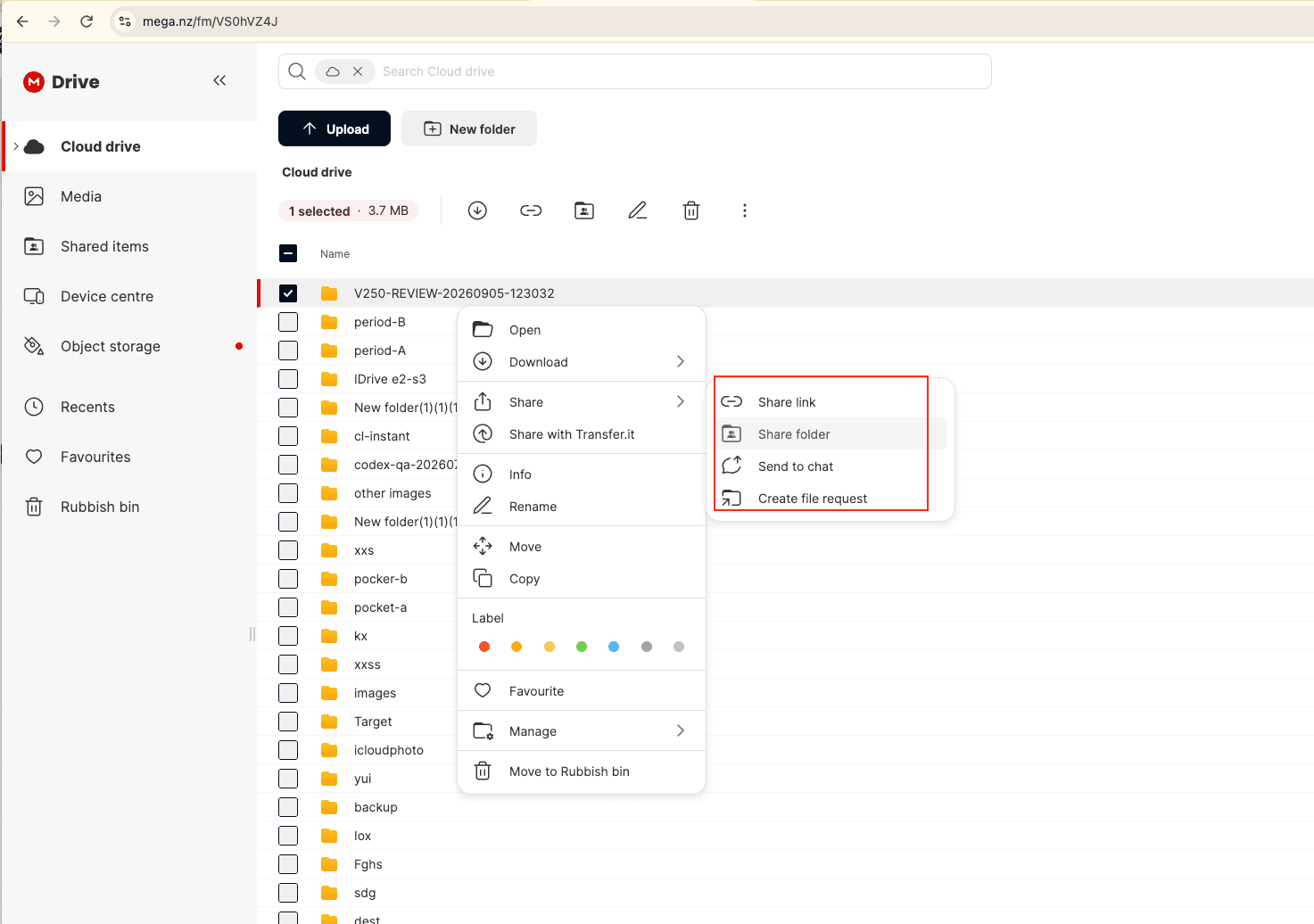
Sign in to the old account and right-click the folder. Under Share the submenu offers four actions — Share link, Share folder, Send to chat and Create file request. Pick Share link to generate a public link (add a password or expiry if the folder is sensitive), or Share folder to grant the new account's email read-only access as a contact. A contact share is the better choice for anything private, because no link ever exists that a third party could use. The new account will see the folder under Shared items once it accepts the contact request.
Step 2: Import into the new account
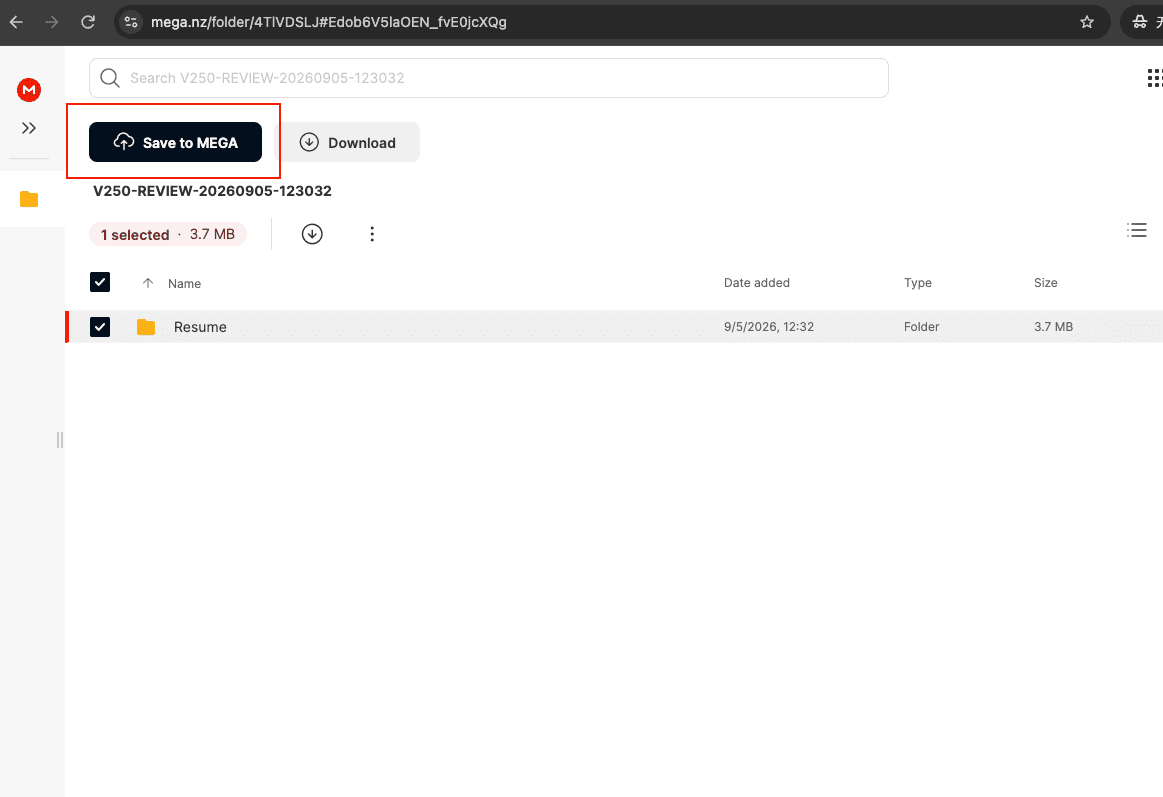
Sign out, sign in to the new account, and open the link. A folder link opened while you are logged in shows two buttons above the file list: Save to MEGA and Download. Choose Save to MEGA and the folder is copied into your own Cloud drive with its tree intact — Download is the one to avoid, since it pulls everything through your browser and spends transfer quota. For a contact share, open Shared items and copy the folder into your Cloud drive instead. Repeat per top-level folder; MEGA saves one link at a time, which is fine for a dozen folders and tedious for a hundred.
Limitations: previous versions, existing share settings and Rubbish Bin contents are not part of an import; a public link exposes the folder to anyone holding it until you remove the link; and very large folders still take time on MEGA's side even though your connection is idle.
Method 2: MEGAcmd Export and Import
MEGAcmd is MEGA's official command-line client for Linux, Windows, macOS and Synology NAS. It can only be logged in to one account at a time — the user guide states you "can only log into one entity at a time" — so the pattern is: export links from the old account, log out, log in to the new account, import. Like Method 1, the import happens inside MEGA; the terminal only carries links, not data.
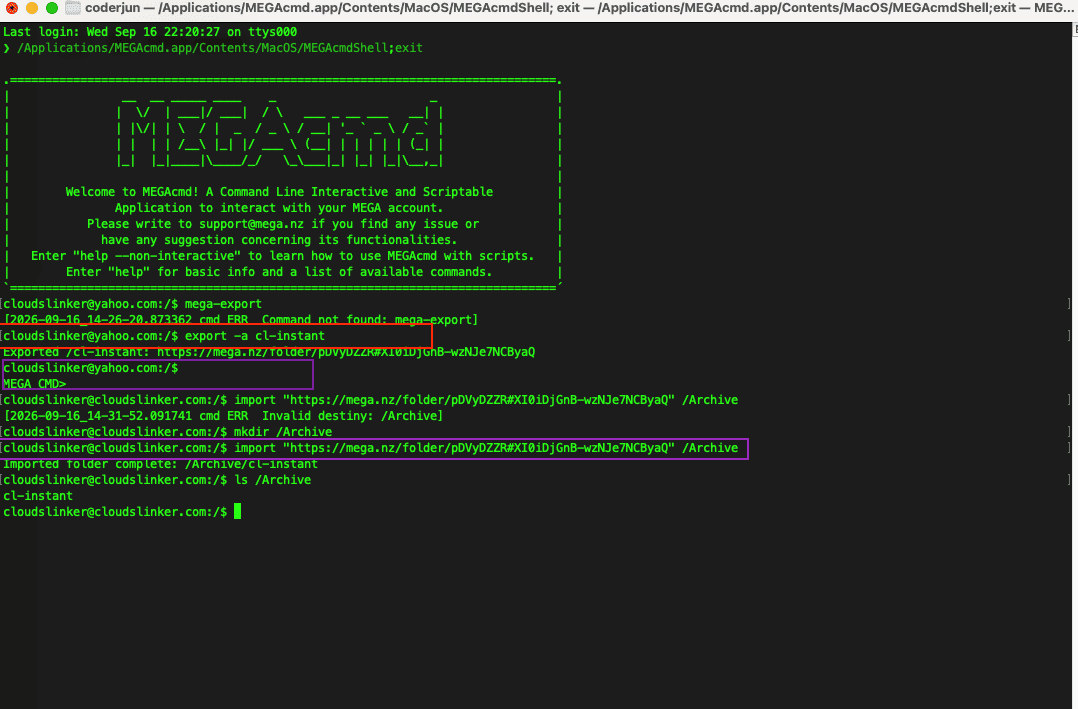
Two forms exist and they are easy to mix up. Inside the interactive MEGAcmdShell (what you get from the macOS app or by running mega-cmd) the commands have no prefix: login, export, import. The mega- prefixed versions are separate scripting binaries for your normal shell — typing mega-export inside MEGAcmdShell returns Command not found. The examples below use the interactive form.
Step 1: Export links from the old account
Log in and create a link per folder you want to move. export -a adds a public link and prints it; note each link somewhere, since you will need them after logging out.
login [email protected]
export -a /Projects
export -a /Photos/2024
logout
Each export -a prints a line like Exported /Projects: https://mega.nz/folder/XXXX#KEY. MEGAcmd's login also accepts a folder link directly, and get downloads a public link to disk — useful if one folder should go to a NAS instead of the new account.
Step 2: Import into the new account
Log in to the new account and import each link. import "imports the contents of a remote link into user's cloud", recreating the folder at the destination path you specify. One catch worth knowing before you script it: the destination folder must already exist, otherwise MEGAcmd stops with Invalid destiny: /Archive — create it with mkdir first. When everything is across, go back to the old account and remove the links with export -d.
login [email protected]
mkdir /Archive
import "https://mega.nz/folder/XXXX#KEY" /Archive
import "https://mega.nz/folder/YYYY#KEY" /Archive
ls /Archive
A successful run answers with Imported folder complete: /Archive/Projects, and the prompt itself shows which account you are in — it changes from the old address to the new one after the second login, which is the practical reminder that only one session exists at a time.
Limitations: one account per session means scripting the switch, links must be created per folder, the destination path has to exist before import runs, and the user guide does not describe two-factor handling for the login command — test on one small folder before a large batch.
Method 3: rclone with Two MEGA Remotes
rclone treats each MEGA account as a separate remote, so a copy between them is an ordinary rclone copy. The difference from the two methods above is where the data goes: rclone downloads every file from the old account to the machine it runs on and uploads it to the new one. That consumes the transfer quota of both accounts and your bandwidth, but it also lets the same command fan the old account out to Google Drive, a NAS or S3 in the same session.
Step 1: Configure a remote per account
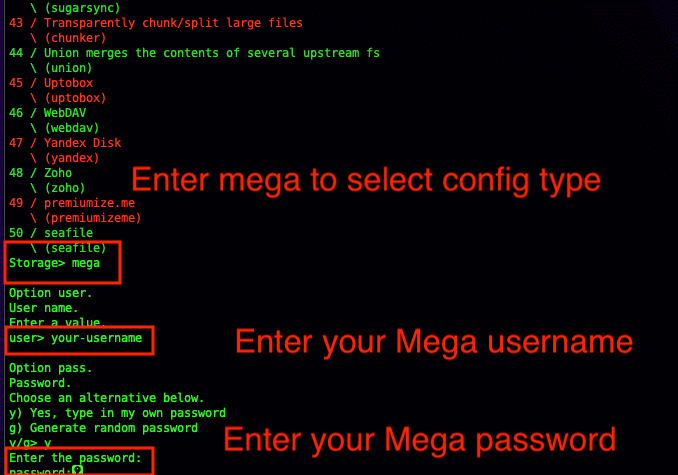
Run rclone config, choose the mega storage type, and enter the email and password for the old account; repeat for the new account under a second remote name. If an account uses two-factor authentication, rclone's Mega backend accepts the code through the --mega-2fa option. Both accounts must have been opened in a browser at least once, because rclone relies on encryption keys that MEGA generates at the first regular login.
Step 2: Copy between the remotes and verify
rclone copy mega-old:Projects mega-new:Archive/Projects -P --transfers 2 --size-only
rclone check mega-old:Projects mega-new:Archive/Projects --size-only
Two rclone-specific caveats shape those flags. The backend documentation states that "Mega does not support modification times or hashes yet", so comparisons must be size-only. It also warns that Mega remotes "seem to get blocked (reject logins) under heavy use", which is why a low --transfers value is safer than the default. MEGA can hold two files with the same name in one folder; run rclone dedupe on the source before a sync, or the copy may behave unpredictably.
Method 4: Scheduled Server-Side Copy with CloudsLinker
Two MEGA logins, one recurring task, no machine left running
CloudsLinker holds each MEGA account as its own connection and copies between them on its servers, so a laptop does not have to stay online the way it does for rclone. The trade-off is explicit: MEGA issues no app tokens, so each connected account needs two-factor authentication switched off, and the copy still reads from one account and writes to the other — both accounts' transfer quotas move, with the free-tier six-hour window measured against CloudsLinker's server addresses rather than your home connection. What the in-MEGA import cannot do, this can: filter by file type or file size, run on a schedule so a shared team folder keeps syncing into your own account, use move mode to empty the old account as it goes, and point the same source at Google Drive or S3 in another task.
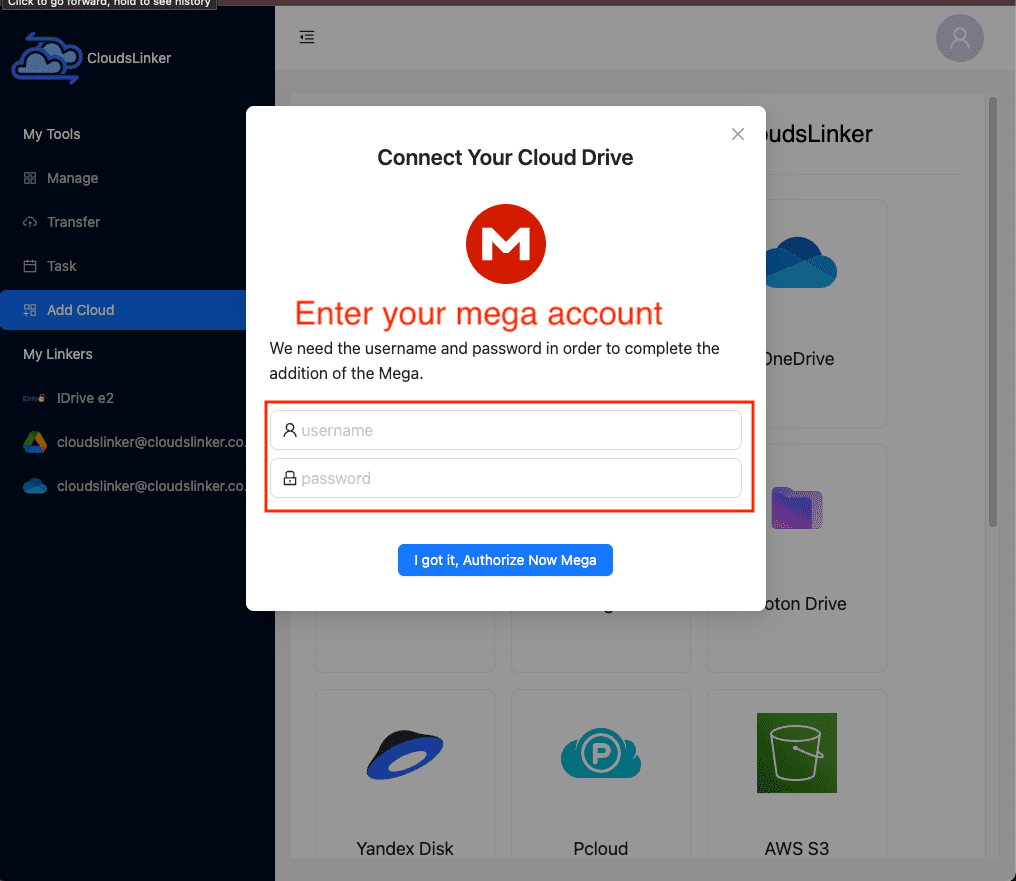
Step 1: Connect the Old MEGA Account
In CloudsLinker, open Add Cloud, choose MEGA, and enter the old account's email and password. Before you do, turn off two-factor authentication on that account under Settings → Security → Two-Factor Authentication and leave it off while the connection exists; with 2FA on, MEGA rejects CloudsLinker's background logins and reports a wrong email or password. CloudsLinker stores the credential encrypted at rest and uses it only inside the transfer worker.
Step 2: Connect the New MEGA Account
Repeat Add Cloud → MEGA with the new account's credentials, 2FA disabled there as well. CloudsLinker lists the two accounts as separate MEGA rows labelled by email, so a copy in either direction is possible later — the new account can also become a source when you consolidate a third account into it.
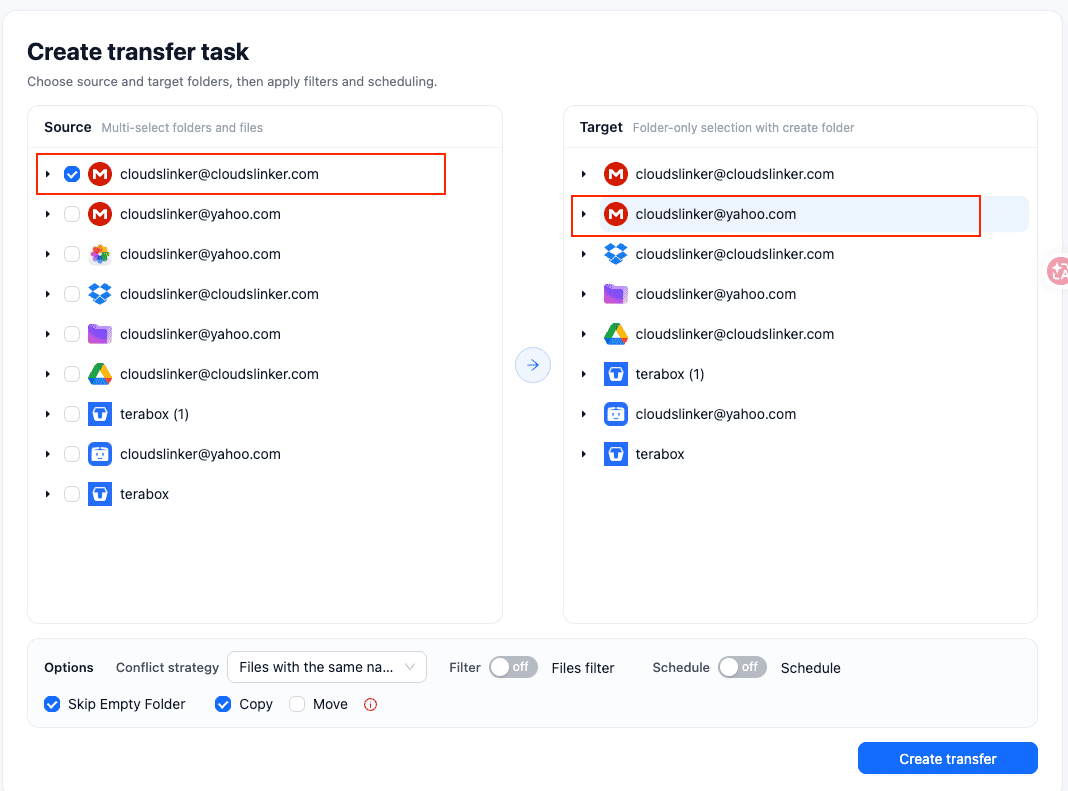
Step 3: Configure the Transfer
Open the Transfer section. On the Source side tick the old account's MEGA row and expand it to select the folders to move; on the Target side pick the new account's row and the destination folder. The file filter narrows the job to certain file extensions or a size range, Copy leaves the old account untouched while Move deletes each file after a successful transfer, and the schedule option turns a one-off copy into a recurring sync.
Step 4: Start and Monitor the Transfer
Click Transfer and follow the job in the Task List, which shows files done, size moved and any failures. Because the copy downloads from the old account and uploads to the new one, expect a free source account to progress in throttled steps as its six-hour window refills; a Pro account on either side removes that pause. When the task ends, compare folder counts in both accounts before deleting anything from the old one.
Comparing the Ways to Move Files Between MEGA Accounts
| Method | Ease of Use | Speed | Best For | Uses Local Bandwidth | Skill Level |
|---|---|---|---|---|---|
| Import a link or share inside MEGA | Easy | Fast — copy stays inside MEGA | One-time moves of a handful of folders; anything private via contact share | No | Beginner |
| MEGAcmd export and import | Moderate | Fast — copy stays inside MEGA | Many folders, scripted moves, NAS users | No (links only) | Intermediate |
| rclone with two remotes | Moderate | Limited by your connection and both quotas | Old account also feeding other clouds; size-only sync | Yes | Intermediate |
| CloudsLinker scheduled copy | Easy | Server-side; paced by MEGA transfer quotas | Recurring sync, filtered or move-mode consolidation, no machine online | No | Beginner |
- Prefer contact shares over public links for private data. A share to the new account's email gives exactly one recipient access and can be revoked; a public link works for anyone who obtains it until you delete it.
- Use one folder per link or task. Importing or copying top-level folders separately keeps a failed folder from blocking the rest and makes the file-count check after each step trivial.
- Switch 2FA off only for the duration of a CloudsLinker connection. Disable it on both accounts before connecting, remove the connections when the consolidation is finished, then re-enable 2FA — leaving it on while connected makes every background login fail.
- Mind the shared IP window when relaying two free accounts. With rclone on a home connection, the download from the old account and the upload to the new one both land in the same six-hour per-IP quota; splitting the job across days is faster than fighting the throttle.
- Restore from the Rubbish Bin before you copy. Nothing in the old account's bin travels with an import or a transfer task; if something deleted last week still matters, put it back first.
- Keep the old account until the counts match. Compare folder sizes and item counts in both accounts, then delete or close the old account — and store its recovery key in case you need to sign in one more time.
Leaving MEGA altogether instead? The MEGA to Google Drive guide compares five ways out, MEGA to Dropbox covers the Dropbox side, and the Google Drive to MEGA backup guide runs the other direction into an encrypted archive.
Watch: Transfer Files From One MEGA Account to Another Without Downloading
A real-time walkthrough: switching two-factor authentication off on both MEGA accounts (MEGA issues no app tokens), adding the old and the new account to CloudsLinker with their email and password, then copying folders server-side into the new account — with the honest notes that MEGA's own Save to MEGA already handles a single folder link, and that transfer quota still applies to both accounts.
Frequently Asked Questions
import does the same, and rclone and CloudsLinker rebuild the tree as they upload. What does not carry over: previous file versions, existing share links and contact permissions, and anything sitting in the old account's Rubbish Bin — restore those items first if you need them.
--include and --exclude patterns, and CloudsLinker lets you tick specific folders in the source tree and filter by file type or file size before the task starts. Copying in phases — one top-level folder per task — also makes verification easier on a large library.
Conclusion
For a one-time move of a handful of folders, import a link or a contact share inside MEGA; nothing leaves MEGA and there is no software to install. Command-line users with many folders get the same result from MEGAcmd's export and import, one account logged in at a time. rclone earns its place when the old account is also feeding other clouds, at the cost of relaying every byte through your machine. Choose CloudsLinker when the copy should repeat — a weekly sync from a shared team account into your own, or several old accounts folding into one Pro account with filters and move mode — and switch 2FA off on both accounts before you connect them.
Online Storage Services Supported by CloudsLinker
Transfer data between over 60 cloud services with CloudsLinker

OneDrive

Google Drive

Google Photos

Google Takeout

Shared Drive

OneDrive for Business

Dropbox

Box

Mega

pCloud

Yandex

ProtonDrive

AWS

GCS

iDrive

Storj

DigitalOcean

Wasabi

1fichier

PikPak

TeleBox

OpenDrive

Backblaze B2

Fastmail file

SharePoint

Nextcloud

ownCloud

Premiumize me

HiDrive

Put.io

Sugar Sync

SmugMug

Jottacloud

Seafile

Ftp

SFtp

NAS

WebDav

4shared

Icedrive

Cloudflare R2

Scaleway

Hetzner Object Storage

Synology C2 Object Storage

S3 Compatible

Doi

iCloud Drive

iCloud Photos

FileLU

Zoho WorkDrive

Telia Cloud / Sky

Drime

Filen

TeraBox

Internxt

Degoo

Gofile

Pixeldrain

Shade

Koofr
Didn' t find your cloud service? Be free to contact: [email protected]
Further Reading
Effortless FTP connect to google drive: Transfer Files in 3 Easy Ways
Learn More >
Google Photos to OneDrive: 3 Innovative Transfer Strategies
Learn More >
Google Photos to Proton Drive: 3 Effective Transfer Techniques
Learn More >