Footage Spread Across Everyone's OneDrive? Consolidate It into Shared Shade Drives
Gather a video team's footage from personal and business OneDrive accounts into shared Shade drives with AI search and review. Four methods compared.
Introduction
Shade gives a video team one shared place for footage: drives that everyone on the project can open, with AI search across dialogue and visuals and review tools next to the frame. In a Microsoft 365 company, footage usually ends up somewhere else. Each editor uploads takes to their own OneDrive, so a single shoot can be scattered across three or four accounts, each with its own 1 TB quota and its own sharing links. OneDrive handles files up to 250 GB, but it does not know what is said in a clip, and the sync client struggles once a project folder runs to hundreds of gigabytes. This guide shows four ways to gather that footage from several OneDrive accounts into Shade drives, from manual downloads to a cloud-to-cloud copy.
- Why Gather OneDrive Footage in Shade
- Method 1: Download from OneDrive, Upload to Shade
- Method 2: OneDrive Sync Client and the Shade Desktop App
- Method 3: Rclone (Shade's Documented Bulk Route)
- Method 4: Copy OneDrive to Shade in the Cloud with CloudsLinker
- Quick Comparison
- Practical Tips
- Frequently Asked Questions
OneDrive is Microsoft's file storage, included with Microsoft 365. Each user gets a personal drive — usually 1 TB — that syncs to Windows and macOS and shares through links. Work accounts use OneDrive for Business.
- 250 GB maximum per file
- Microsoft 365 Basic: 100 GB, $1.99/mo
- Microsoft 365 Personal and business plans: 1 TB per user
- Microsoft OAuth access for transfer tools
Shade is cloud storage with media asset management for video and creative teams. Footage lives in shared drives with AI search, transcription, time-stamped review, and desktop mounting for editing apps.
- Growth: $29.75/seat/mo (annual) or $35 monthly
- 500 GB active storage per seat; up to 15 seats
- Unlimited drives, up to 150 guests
- API key + per-drive Drive ID access
- One shared drive instead of per-person silos: OneDrive is built around each user's own drive. Shade drives belong to the team, with access set per drive, so footage from one shoot sits in one place.
- Searchable takes: Shade transcribes and indexes clips, so finding a spoken line or a scene does not depend on someone having named the file well.
- Review where the media is: comments and approvals are attached to timecodes in Shade, instead of being spread across Teams chats and OneDrive share links.
- Lighter workstations: the OneDrive sync client keeps a local copy of anything marked to stay on the device. Shade's mounted drives stream media instead, with a cache you size yourself.
- Microsoft 365 stays for everything else: documents, mail and Teams remain in place; only the media library moves.
| Feature | OneDrive | Shade |
|---|---|---|
| Built for | Personal and office documents in Microsoft 365 | Video and creative team media libraries |
| Storage model | One drive per user, typically 1 TB | Shared drives; 500 GB active storage per seat (Growth) |
| Maximum file size | 250 GB per file | No published per-file cap; large uploads recommended through the web or desktop app |
| Price | Basic 100 GB $1.99/mo; Personal 1 TB $9.99/mo; included in Microsoft 365 business plans | Growth $29.75 per seat/month (annual), $35 monthly |
| Content search | File names and document text | AI search over dialogue and visuals, transcription |
| Deleted items | Recycle bin: 30 days (personal), 93 days (work or school) | API deletes are immediate |
| Connection in CloudsLinker | Microsoft OAuth, then drive selection | API key + Drive ID (one drive per connection) |
Sources: Microsoft: OneDrive restrictions and limitations, Microsoft: OneDrive plans, Shade: pricing, Rclone: Shade backend.
Make a list of every OneDrive account that holds footage for the project, and agree with each owner which folders will move. Decide the target layout in Shade before anything runs: one drive per project or client, with a subfolder per contributor or per shoot day so that identical file names such as C0001.MP4 from different cameras do not overwrite each other. Add up folder sizes in each OneDrive and compare the total with your Shade seats at 500 GB each. Then create an API key in Shade account settings and note the Drive ID of each target drive. For work accounts, check whether your Microsoft 365 administrator must approve third-party apps before anyone can sign in.
Method 1: Download from OneDrive, Upload to Shade
Step 1: Download the footage from OneDrive on the web
Select the footage folders in OneDrive on the web and click Download. Multiple items are packaged as a ZIP file. Microsoft limits files inside such a ZIP to 20 GB each, so download large camera originals one by one.
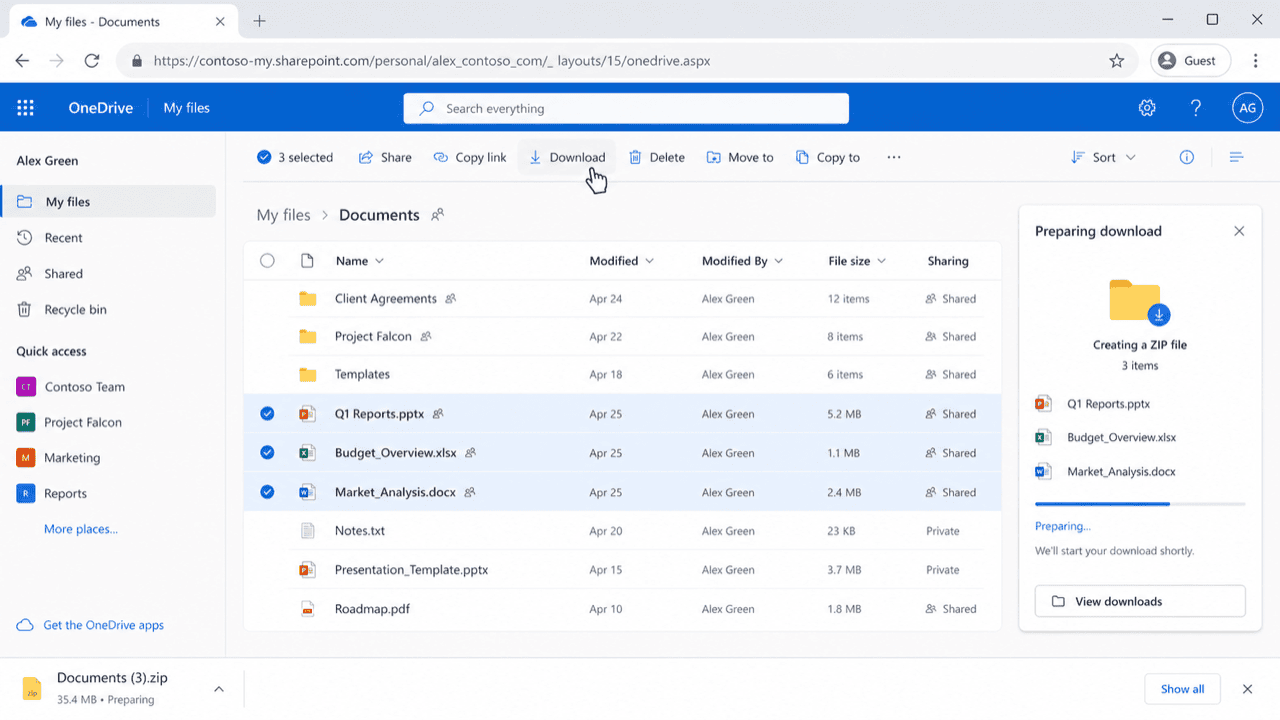
Step 2: Upload through the Shade web or desktop app
Open the destination drive in Shade and upload the extracted folders, then repeat for each person's OneDrive. Every gigabyte crosses your connection twice, which keeps this method practical only for a small set of clips.
Method 2: OneDrive Sync Client and the Shade Desktop App
Step 1: Keep the project folder on the device
OneDrive Files On-Demand shows cloud-only placeholders by default. Right-click the footage folder and choose Always keep on this device so the sync client downloads the actual files. The computer needs free disk space for the whole folder.
Step 2: Upload with the Shade desktop app
Drag the downloaded folder into the target drive in the Shade desktop app. Shade's documentation recommends the app rather than a mounted drive for uploads above 1,000 assets or 100 GB. Afterwards, set the OneDrive folder back to Free up space. This route only reaches the OneDrive account signed in on that computer, so footage from other people's accounts needs their machines or their help.
Method 3: Rclone (Shade's Documented Bulk Route)
Rclone supports both services: the onedrive backend signs in with Microsoft OAuth and asks you to pick the drive, and the shade backend (added in v1.73) takes a drive_id and an api_key. Shade Academy publishes a guide on mass migrations with Rclone. Configure one OneDrive remote per account, then copy each into its own folder:
rclone copy onedrive-anna:/Footage/Shoot-0412 shade:/Shoot-0412/anna --progress --transfers 4
The Shade backend does not support hashes, so Rclone falls back to size checks. Deletes through the Shade API skip the trash, which makes sync or move into Shade risky without a --dry-run first. Microsoft also throttles heavy Graph API traffic, so large runs slow down at times. All data passes through the machine running Rclone.
Method 4: Copy OneDrive to Shade in the Cloud with CloudsLinker
Several OneDrive accounts, one Shade drive, no sync client
CloudsLinker connects each OneDrive account through Microsoft OAuth and the destination Shade drive through its API key and Drive ID. Footage moves from Microsoft's cloud to Shade without Files On-Demand downloads, local disk space or the 20 GB ZIP limit of browser downloads. Each teammate's account can be added once and copied into its own folder of the shared drive.
Step 1: Connect OneDrive
Click Add Cloud → OneDrive (or OneDrive for Business for work accounts) and sign in on Microsoft's login page. If the account has access to more than one drive, pick the one that holds the footage. Repeat for every account that contributes footage.
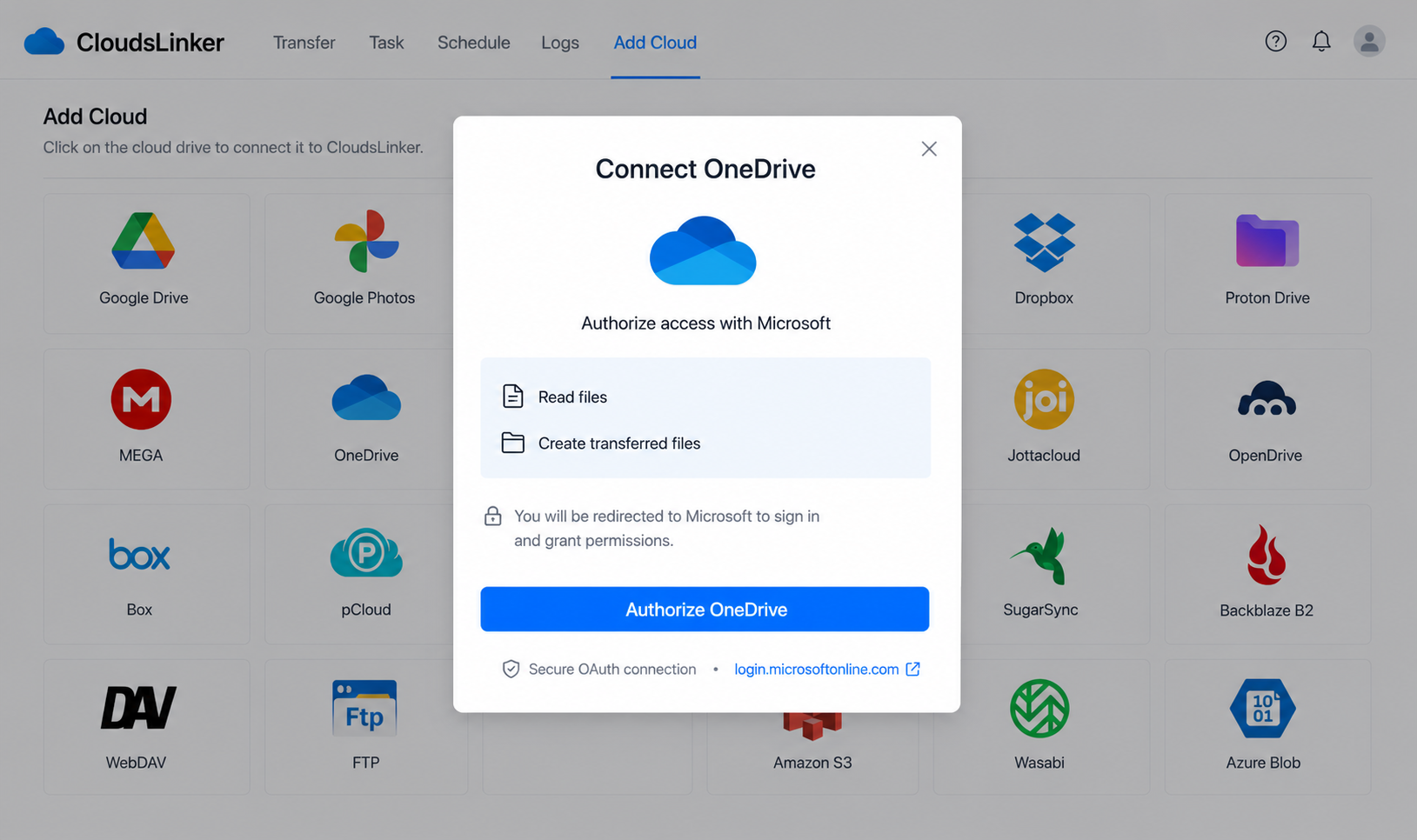
Step 2: Connect Shade
Create an API key in Shade account settings and copy the Drive ID from the settings of the drive that will hold the combined footage.
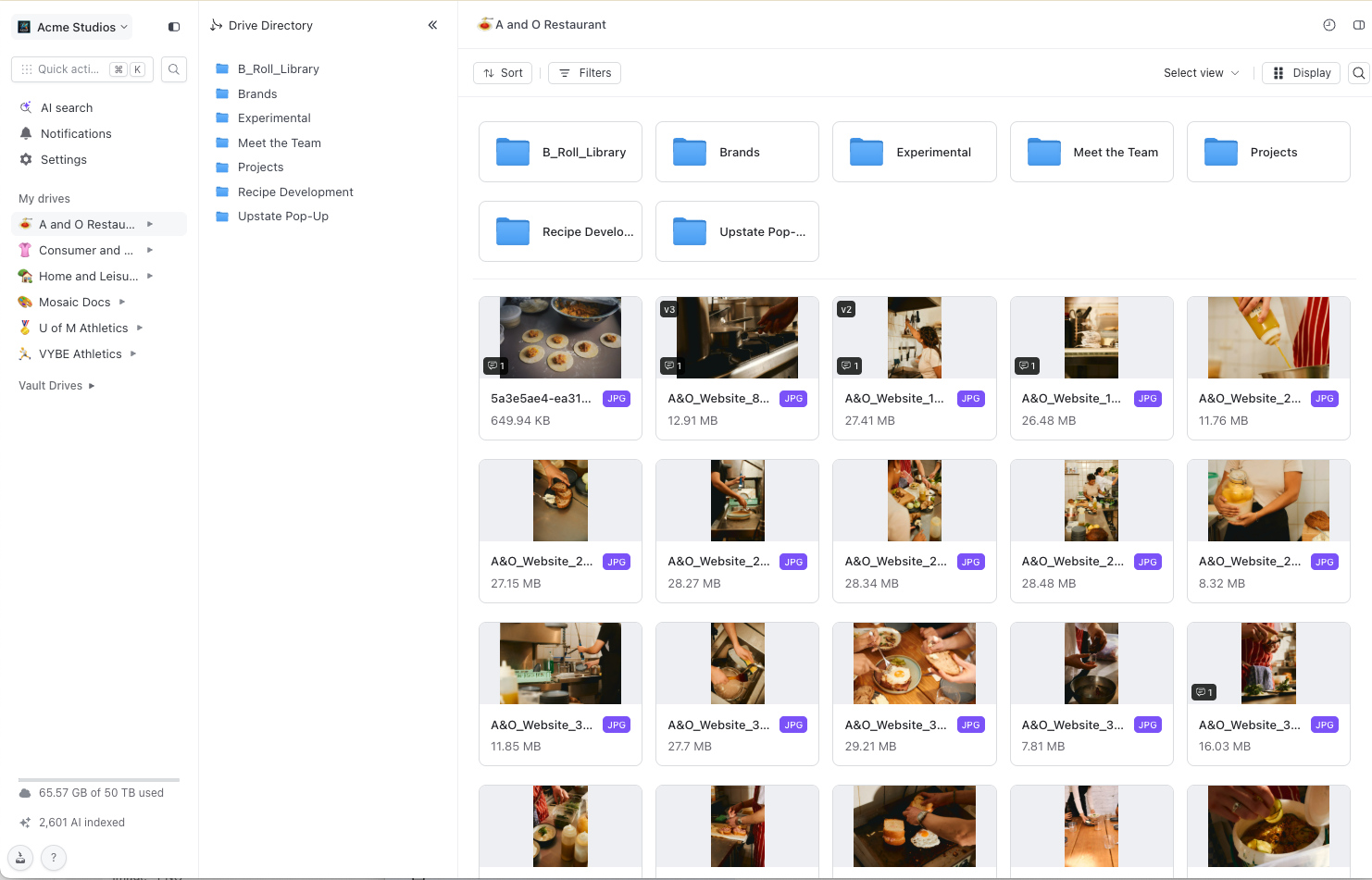
In CloudsLinker, click Add Cloud → Shade and enter the API key and Drive ID. One connection covers one drive.
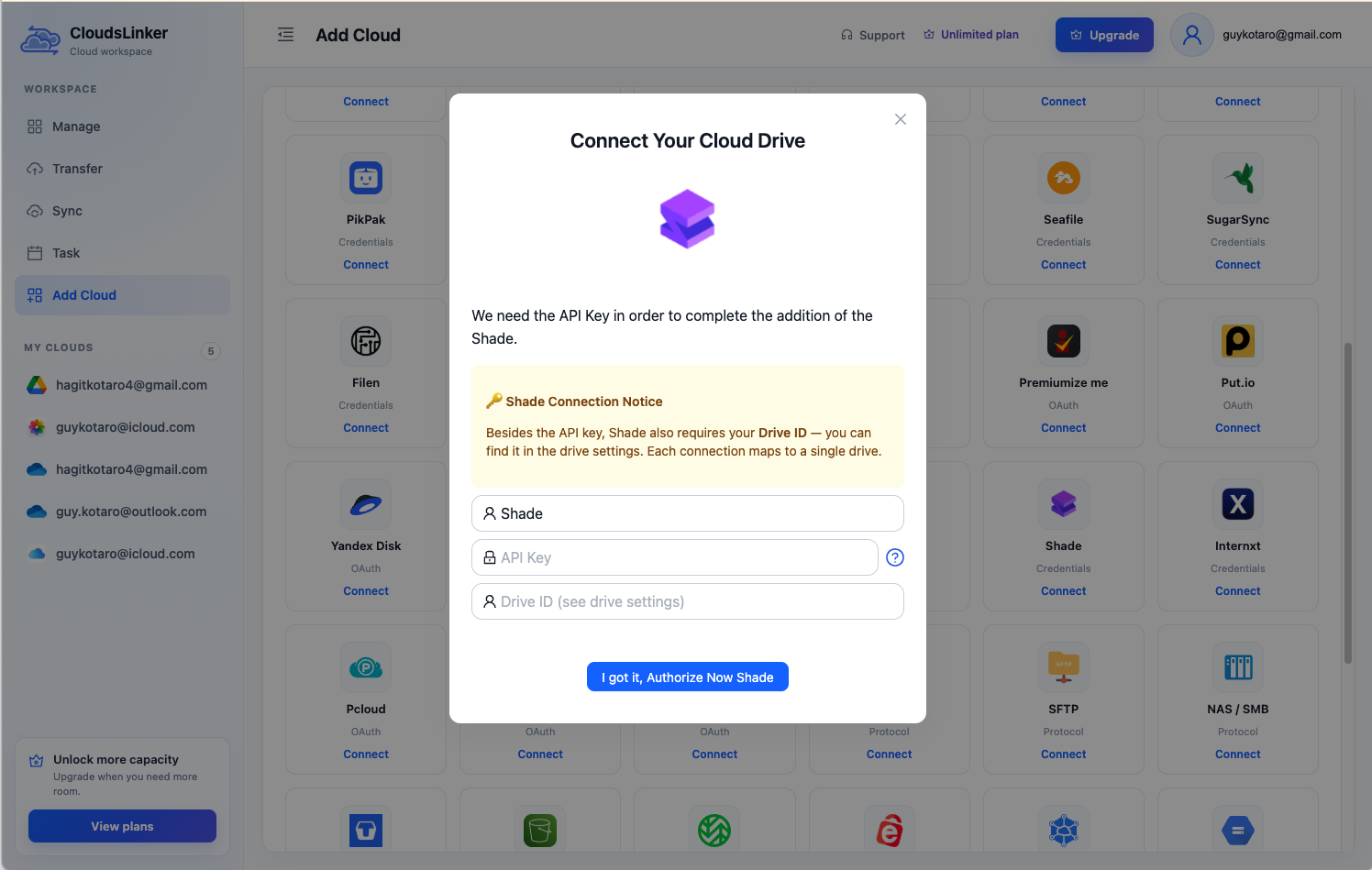
Step 3: Configure the Transfer
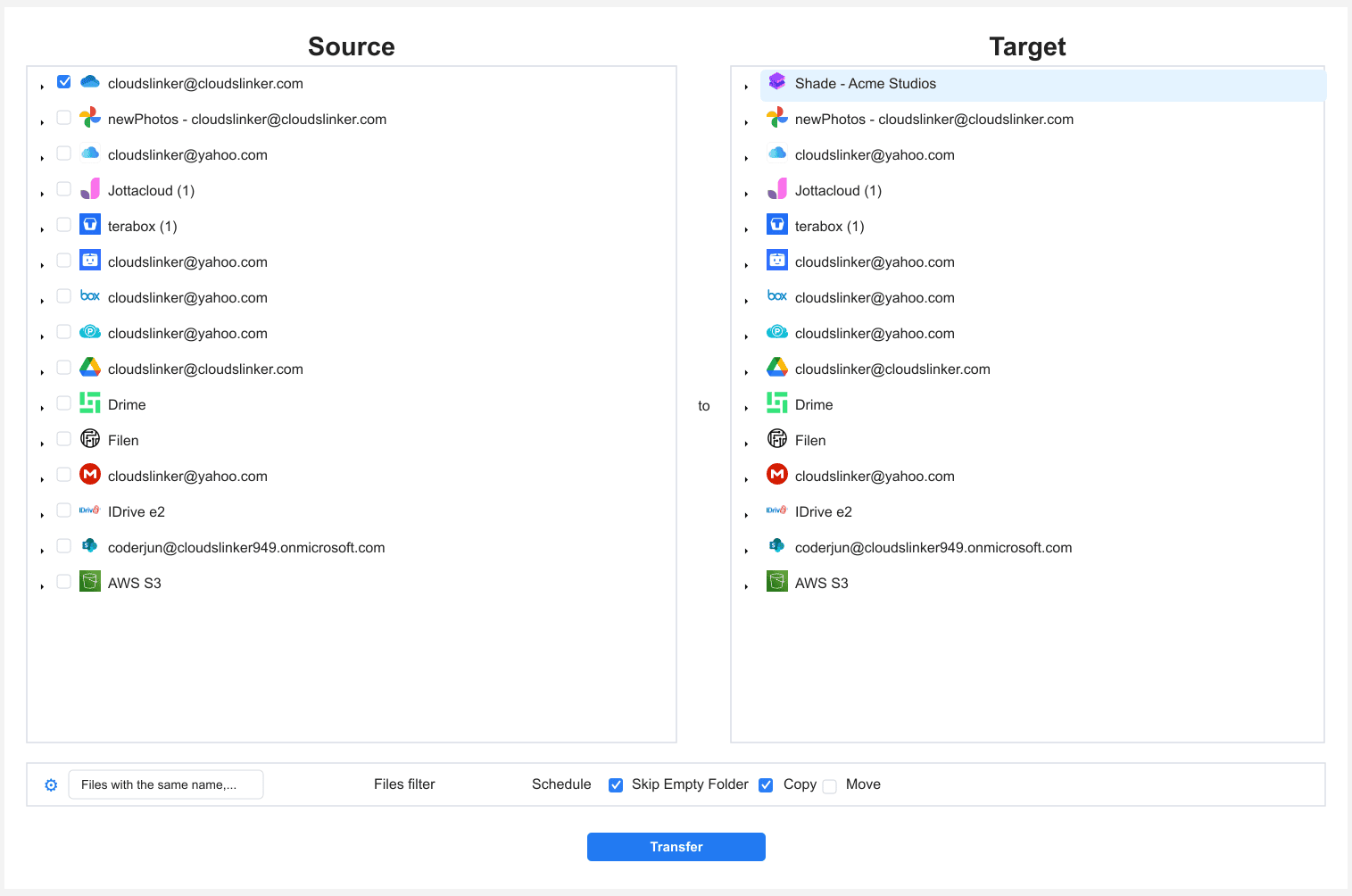
Select one OneDrive account as the source and tick its footage folders. As the destination, choose the Shade drive and a subfolder named after that account or shoot. Add file-type or size filters if only video should move, and leave the mode on copy.
Step 4: Start and Monitor the Transfer
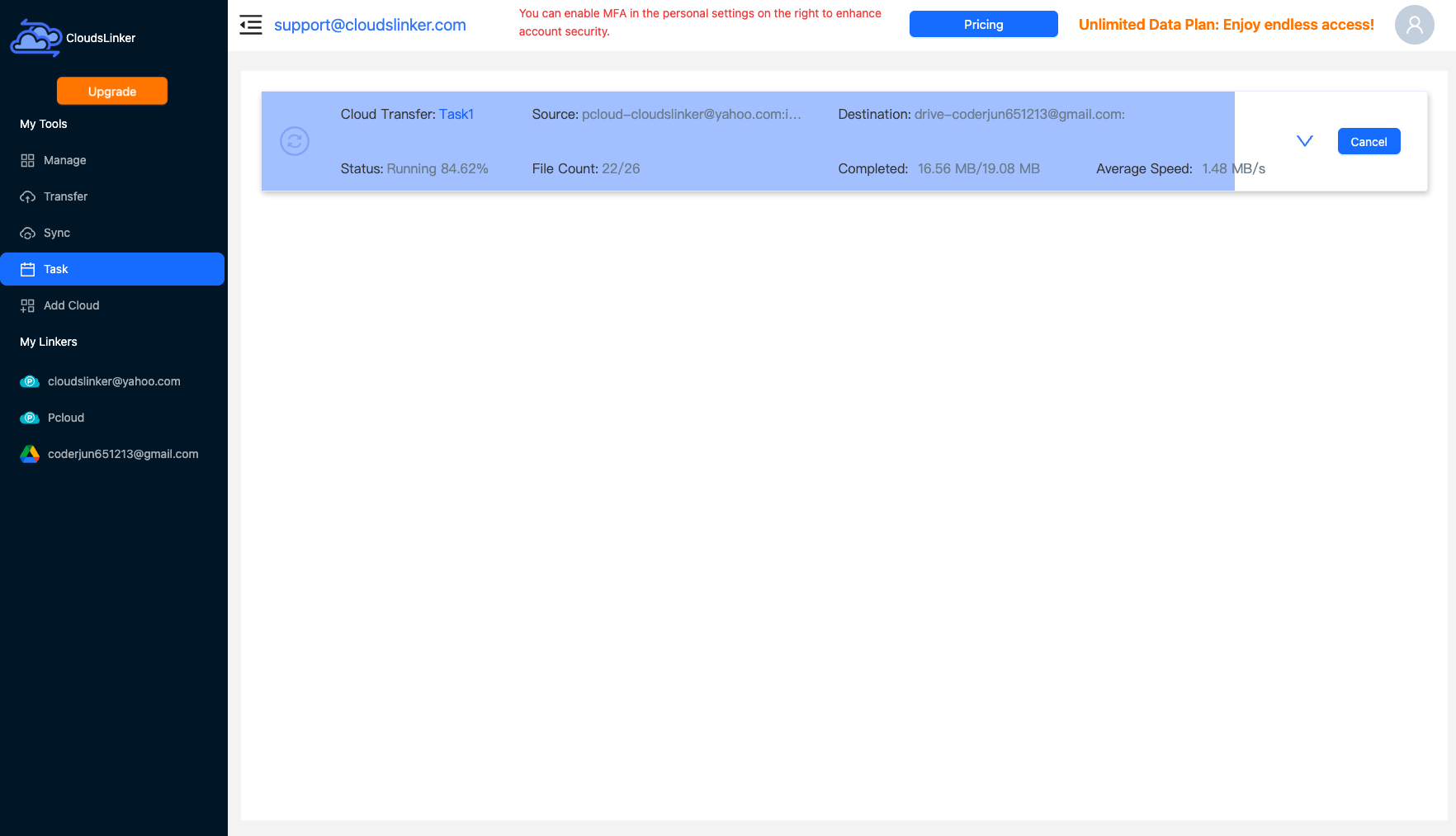
Start the task and watch it in the Task List, then create the next task for the following OneDrive account. Tasks keep running after the browser is closed, and failed files are listed per task so they can be retried. Shade begins indexing as soon as files arrive.
Comparing the Ways to Transfer From OneDrive to Shade
| Method | Ease of Use | Speed | Best For | Uses Local Bandwidth | Skill Level |
|---|---|---|---|---|---|
| Web download / upload | Easy | Slow | A few clips | Yes — twice | Basic |
| OneDrive sync client + Shade desktop app | Medium | Slow | One person's footage on their own computer | Yes — twice | Basic |
| Rclone | Hard | Depends on the host machine | Scripted bulk runs | Yes (via the host) | Advanced |
| CloudsLinker | Easy | Fast (cloud to cloud) | Several accounts, TB scale | No | Basic |
- Give every account its own destination folder: camera file names repeat across devices. Separate folders per contributor or card keep
C0001.MP4from one camera from replacing another. - Ask the owners, not the viewers: footage in the Shared view belongs to the sharer's OneDrive. Connect the owner's account so the copy reads the original folder.
- Clear admin consent early: many Microsoft 365 tenants block third-party apps until an administrator approves them. Sort this out before scheduling the migration.
- Compare totals per account: Shade provides no checksums through its API, so compare file counts and folder sizes between each OneDrive and its Shade folder.
- Fit the seats before you start: four users with 1 TB of OneDrive each can hold more than a small Shade team's 500 GB-per-seat allowance. Move active projects first and archive the rest elsewhere.
- Clean up only after sign-off: once editors have opened the footage in Shade, free the OneDrive space, then delete the Shade API key used for the migration.
Frequently Asked Questions
Conclusion
For a handful of clips, downloading from OneDrive and uploading through the Shade app works. Rclone, which Shade itself documents for bulk migrations, suits technical teams that want a scripted run. When footage lives in several people's OneDrive accounts and adds up to terabytes, CloudsLinker can connect each account, copy each one into the same Shade drive, and run the transfers between the clouds without tying up a workstation. Collect one account at a time, check counts and sizes in Shade, and only then clean up the OneDrive copies.
Online Storage Services Supported by CloudsLinker
Transfer data between over 62 cloud services with CloudsLinker

OneDrive

Google Drive

Google Photos

Google Takeout

Shared Drive

OneDrive for Business

Dropbox

Box

Mega

pCloud

Yandex

ProtonDrive

AWS

GCS

iDrive

Storj

DigitalOcean

Wasabi

1fichier

PikPak

TeleBox

OpenDrive

Backblaze B2

Fastmail file

SharePoint

Nextcloud

ownCloud

Premiumize me

HiDrive

Put.io

Sugar Sync

SmugMug

Jottacloud

Seafile

Ftp

SFtp

NAS

WebDav

4shared

Icedrive

Cloudflare R2

Scaleway

Hetzner Object Storage

Synology C2 Object Storage

S3 Compatible

Doi

iCloud Drive

iCloud Photos

FileLU

Zoho WorkDrive

Telia Cloud / Sky

Drime

Filen

TeraBox

Internxt

Degoo

Gofile

Pixeldrain

Shade

Koofr

Dosya

Infomaniak kDrive
Didn' t find your cloud service? Be free to contact: support@cloudslinker.com
Further Reading
Effortless FTP connect to google drive: Transfer Files in 3 Easy Ways
Learn More >
Google Photos to OneDrive: 3 Innovative Transfer Strategies
Learn More >
Google Photos to Proton Drive: 3 Effective Transfer Techniques
Learn More >